Logitech Ergo M575S
9.0Editor scoreThumb trackball control
Three customizable buttons
18-month battery life
Dual wireless connectivity
Find the right trackball mice for 2026. We compare 10 standout options by build quality, useful features, owner feedback, value, and everyday trade-offs.
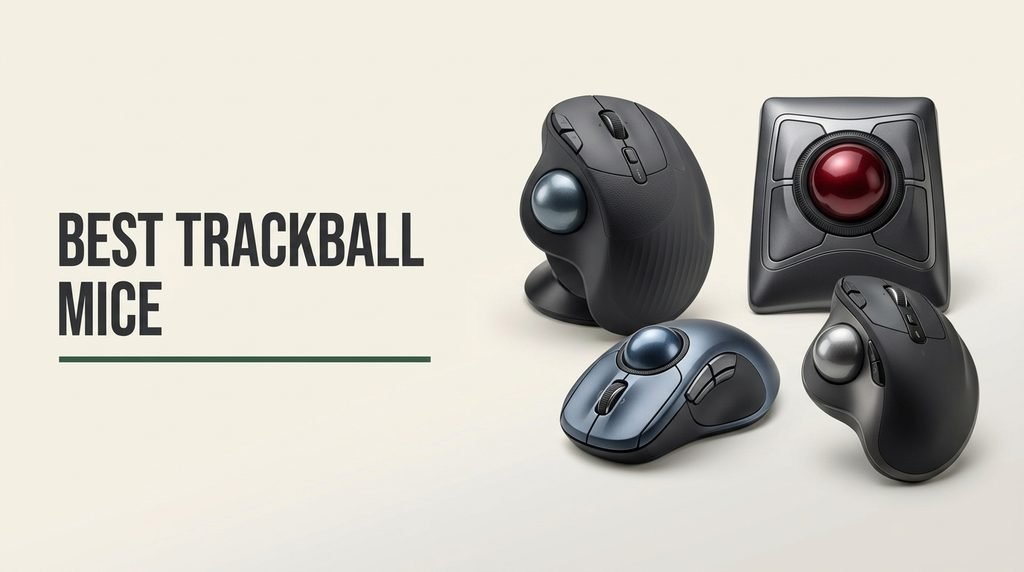
Finding the right trackball mouse in 2026 means balancing ergonomic comfort, tracking precision, and connectivity options. We compare 10 standout models by thumb versus finger control, tilt angle, battery life, button customization, wireless reliability, and overall value for different work setups.
Trackball mice keep your wrist stationary while you move the cursor with your thumb or fingers, reducing repetitive strain during long sessions. The options range from compact budget picks to advanced models with adjustable tilt angles and programmable buttons.
Whether you work at a cramped desk, manage chronic wrist pain, or simply prefer a stationary pointing device, this guide breaks down the most important differences so you can choose a trackball that fits your hand size and workflow.
We compared 10 trackball mice using the details that matter most for daily use: thumb versus finger operation, ergonomic tilt angle, tracking precision, wireless connectivity options, battery life, button customization, hand-size compatibility, and overall value. The notes focus on practical trade-offs so each pick connects to how people actually work, browse, and navigate on cluttered desks or in tight spaces throughout the day.

Compare key features, scores, and current prices side by side. A shorter feature list means fewer details were available, not necessarily fewer capabilities.


This certified renewed version of the Logitech MX Ergo S offers the same premium feature set as the brand-new Graphite model at a meaningful discount. You get the 20-degree tilt mechanism, six programmable buttons, USB-C fast charging, dual wireless connectivity, and the sculpted ergonomic body that makes the MX Ergo S one of the most comfortable trackballs available. For buyers who want the top-tier experience without paying full retail price, this is the most direct path.
We may earn a commission when you buy through this link, at no additional cost to you.
The renewed certification means the device has been inspected, cleaned, and restored to full working condition by a qualified refurbisher. In most cases, renewed Logitech peripherals are visually indistinguishable from new units, though minor cosmetic imperfections on the housing or cable are possible. The functional performance should be identical to a new unit, including the 120-day battery life and 24-hour quick-charge capability.
All six buttons remain fully programmable through the Logi Options+ app, and the Easy-Switch button supports seamless toggling between paired devices. The 20-degree tilt and soft rubber grip provide the same ergonomic benefits that make the new version a top pick for users with wrist or forearm strain. Tracking precision and the speed/precision toggle are also unchanged.
Renewed trackballs are typically returned units that have been professionally inspected and restored. The ball mechanism, buttons, and wireless components should function like new, but you may notice faint surface marks on the plastic housing. Battery health is generally excellent on renewed Logitech devices, as the 120-day rated lifespan means most returned units have barely cycled their cells.
The main consideration with any renewed product is the warranty and return policy, which may differ from the standard Logitech coverage on new devices. Check the seller’s terms carefully before purchasing. If you are comfortable with the renewed model and want to save roughly $27 compared to the new Graphite version, this listing represents excellent value for a premium trackball.
Buyers who insist on brand-new condition and full manufacturer warranty coverage with no cosmetic imperfections.
We may earn a commission when you buy through this link, at no additional cost to you.
The Logitech Ergo M575S in Black Silver is a strong entry point for anyone transitioning from a traditional mouse to a trackball. Its sculpted body cradles the hand in a relaxed position while the thumb-operated ball handles all cursor movement, which means your forearm stays still even during hours of continuous use. At under $40, it delivers the core ergonomic benefits of a trackball without the premium price tag.
We may earn a commission when you buy through this link, at no additional cost to you.
Tracking is smooth and consistent thanks to Logitech’s refined thumb-ball mechanism, and the quiet-click buttons make this a good fit for shared offices or late-night work sessions. You can fine-tune cursor speed and assign shortcuts through the Logi Options+ app, giving the three available buttons more versatility than the raw count suggests. The included Logi Bolt USB receiver provides a stable connection, and Bluetooth offers a cable-free alternative for laptops with limited ports.
Battery life is a standout feature. A single AA battery lasts up to 18 months under typical use, so you can essentially forget about power management for well over a year. The mouse is also built with post-consumer recycled plastic, which is a nice bonus for environmentally conscious buyers. Its compact footprint makes it practical for small desks, laptop trays, and couch setups where a conventional mouse would run out of room.
Many wireless peripherals require recharging every few weeks, which can become an annoyance during busy workdays. The M575S eliminates that friction entirely by running on a single AA cell for up to a year and a half. This makes it especially appealing for shared workstations, hot-desking environments, or anyone who simply does not want to think about charging cables.
The main tradeoff is simplicity. With only three customizable buttons and no tilt adjustment, the M575S lacks the advanced features found on higher-end models. If you need extensive programmability or a steeper ergonomic angle, you may outgrow it. But for most office workers and casual users who want a comfortable, low-maintenance trackball at a fair price, this is one of the most practical choices available.
Power users who need more than three programmable buttons or an adjustable tilt angle for aggressive wrist relief.
We may earn a commission when you buy through this link, at no additional cost to you.
The Logitech MX Ergo S in Graphite sits at the top of the trackball hierarchy for good reason. Its defining feature is the 20-degree tilt mechanism, which angles the entire mouse body to place your forearm in a more natural, handshake-like position. This posture change can reduce muscle strain significantly compared to a flat trackball, making it a compelling option for anyone dealing with wrist or forearm discomfort during long work sessions.
We may earn a commission when you buy through this link, at no additional cost to you.
Performance is equally impressive. A dedicated button lets you toggle between a fast-tracking mode for sweeping across large monitors and a high-precision mode for detailed work like photo editing or spreadsheet navigation. The six programmable buttons can be mapped to shortcuts, macros, or application-specific actions through the Logi Options+ app, giving you a real productivity boost once you configure them to match your workflow.
Charging is handled via USB-C, and the fast-charge capability means a single minute on the cable can deliver up to 24 hours of use. A full charge stretches to roughly 120 days, which is more than adequate for most users. Dual connectivity through Bluetooth and the included Logi Bolt receiver ensures compatibility with a wide range of computers, and the Easy-Switch button lets you move between paired devices quickly.
A flat trackball already reduces wrist movement compared to a standard mouse, but the 20-degree tilt takes ergonomics a step further by rotating the forearm into a more neutral position. This is particularly beneficial for users who spend eight or more hours at a desk and have noticed tension building along the outer edge of the forearm. The tilt is not adjustable beyond the fixed angle, but the fixed position is well-chosen for the majority of users.
The premium price is the main barrier. At nearly $117, the MX Ergo S costs roughly three times as much as budget alternatives. It is also shaped for medium-to-large hands, so users with smaller hands may find the contoured body less comfortable. If your budget allows and you want the most complete trackball experience available, this model delivers on nearly every front.
Buyers on a tight budget or those with very small hands who may find the contoured body too large.
We may earn a commission when you buy through this link, at no additional cost to you.
This Black/Blue variant of the Logitech Ergo M575S shares the same core design and specifications as the Black Silver model but adds a splash of color that some buyers will appreciate. The ergonomic sculpted body, thumb-operated trackball, and quiet-click buttons are all present, delivering the same comfortable, low-strain experience that has made the M575S a popular choice for office workers and remote professionals.
We may earn a commission when you buy through this link, at no additional cost to you.
Connectivity options remain flexible, with both Bluetooth and the Logi Bolt USB receiver available out of the box. The Logi Options+ app lets you customize the three buttons and adjust cursor speed to your preference, and Smart Actions can automate repetitive tasks with a single click. Tracking works reliably on virtually any surface, including glass desks, couch cushions, and cluttered workspaces where a traditional mouse would struggle.
Battery life matches the 18-month benchmark of its sibling, powered by a single included AA cell. The use of certified post-consumer recycled plastic in the housing is a thoughtful detail that aligns with growing demand for more sustainable peripherals. At the same $39.99 price point, there is no financial penalty for choosing the blue accent over the silver.
Since both M575S models share identical internals, your decision comes down to aesthetics and availability. The Black/Blue version may also be easier to spot on a busy desk, which is a minor but practical advantage in shared workspaces. Check current pricing and stock levels, as minor fluctuations between color variants are common.
The only real consideration is that this model does not offer any functional advantage over the Black Silver version. If color preference is not a factor, either M575S variant will serve you equally well. The slightly higher star rating on this listing may reflect newer buyer feedback rather than a measurable difference in performance.
Users who need more than three buttons or an adjustable tilt angle for advanced ergonomic positioning.
We may earn a commission when you buy through this link, at no additional cost to you.
The Kensington Expert takes a fundamentally different approach from the other trackballs in this guide. Instead of a small thumb-operated ball, it uses a large 55mm ball positioned in the center of the device that you manipulate with your fingertips. This finger-operated design gives many users finer cursor control, especially for tasks that require pixel-level accuracy such as CAD work, graphic design, or detailed spreadsheet navigation.
We may earn a commission when you buy through this link, at no additional cost to you.
The Diamond Eye optical tracking sensor provides smooth and responsive cursor movement, and the patented scroll ring that surrounds the ball offers an intuitive way to scroll through documents and web pages without reaching for a separate wheel. Four programmable buttons can be customized through the KensingtonKonnect software on Windows, giving you quick access to frequently used commands. The ambidextrous shape makes this one of the few trackballs that works equally well for left-handed and right-handed users.
A detachable wrist rest adds another layer of comfort during extended sessions, and the wired USB-A connection eliminates any concerns about battery life or wireless interference. The tradeoff is that the cable limits placement flexibility, and the overall footprint is noticeably larger than compact thumb trackballs. You will want a desk with enough room to accommodate the 5-by-5.75-inch base comfortably.
Most trackball mice are shaped specifically for right-handed use, which limits options for left-handed buyers. The symmetrical layout of the Kensington Expert removes that barrier entirely, making it a rare and welcome choice for anyone who prefers to operate a pointing device with their left hand. The centered ball and mirrored button arrangement work naturally regardless of which hand you use.
The Kensington Expert is best suited for users who prioritize precision and ambidextrous support over portability and wireless convenience. If you have tried thumb trackballs and found them imprecise for your type of work, the larger finger-operated ball may be the upgrade you need. Just be prepared for the learning curve if you are switching from a thumb-style design.
Users who need wireless connectivity or a compact trackball for small desks and travel setups.
We may earn a commission when you buy through this link, at no additional cost to you.
The Nulea M501 stands out in the budget trackball segment by offering multi-device connectivity at a price well under $35. You can pair it with up to three devices using a combination of Bluetooth and the included 2.4GHz USB dongle, then switch between them with a button on the bottom of the mouse. This is genuinely useful for anyone who juggles a desktop, laptop, and tablet throughout the day and wants a single pointing device for all three.
We may earn a commission when you buy through this link, at no additional cost to you.
Tracking performance is solid for everyday office tasks, with four DPI levels that let you adjust cursor speed to match your monitor resolution and personal preference. The ergonomic shape positions the thumb naturally over the ball, and the curved body provides adequate palm support during long sessions. Forward and back buttons flanking the main clicks add convenient browser navigation without requiring any software setup.
The built-in rechargeable battery is a welcome feature at this price point, eliminating the need for disposable AA cells. Nulea recommends charging via the included cable using a standard USB port or 5V charger rather than a fast charger, which helps preserve long-term battery health. A full charge provides weeks of typical use, though exact longevity will vary based on your connectivity mode and daily usage patterns.
Switching between paired devices takes a single button press and typically completes within a second or two. This is fast enough for most workflows, though it is not as instantaneous as Logitech’s Easy-Switch system on higher-end models. If you frequently move between a work laptop and a personal desktop, the ability to keep one trackball on your desk instead of two separate mice is a meaningful space and cost saver.
The main limitation is the lack of programmability. All six buttons perform fixed functions, and there is no companion app for remapping or creating macros. If you rely heavily on custom shortcuts, this may feel restrictive. But for users who want a simple, affordable, multi-device trackball with rechargeable convenience, the M501 delivers strong value.
Users who need programmable buttons, custom macros, or dedicated software for advanced button configuration.
We may earn a commission when you buy through this link, at no additional cost to you.
At under $29, the TECKNET Wireless Trackball is the most affordable option in this guide, yet it includes features that rival mice costing twice as much. The 16-degree vertical angle is the headline specification, tilting the hand into a more natural posture that can reduce forearm strain by up to 50 percent compared to a flat mouse. For budget-conscious buyers who want genuine ergonomic benefits without paying a premium, this is a compelling proposition.
We may earn a commission when you buy through this link, at no additional cost to you.
Tracking is handled by a thumb-operated ball with five adjustable DPI levels ranging from 100 to 1200, giving you fine control over cursor speed for different tasks. The silent-click buttons are a nice touch for quiet environments, and the triple-device connectivity through two Bluetooth channels and a 2.4GHz dongle matches the multi-device flexibility of more expensive alternatives. Signal range extends up to 34 feet, which is more than sufficient for any desk setup.
The 500mAh rechargeable battery charges quickly, with just 15 minutes on the cable providing enough power for a full day of use. This rapid-charge capability means you rarely need to plan charging sessions in advance. The mouse is sized for medium to large hands at 5.5 by 4.1 by 2 inches, so buyers with smaller hands should check the dimensions carefully before ordering.
A 16-degree angle sits between a flat trackball and the more aggressive 20-degree tilt found on the Logitech MX Ergo S. For many users, this moderate angle provides a noticeable improvement in comfort without feeling exaggerated or unnatural. If you have never used a tilted trackball before, the TECKNET offers an affordable way to discover whether an angled design suits your grip style.
The primary tradeoff is brand pedigree and long-term durability. TECKNET does not have the same track record as Logitech or Kensington, and the build quality may not hold up as well over several years of heavy use. However, at this price point, the feature set is difficult to beat, and the 16-degree tilt alone makes it a worthwhile experiment for anyone curious about ergonomic trackballs.
Users with small hands or those who prioritize long-term build quality from an established peripheral brand.
We may earn a commission when you buy through this link, at no additional cost to you.
The ProtoArc EM02 addresses a common frustration with fixed-angle trackballs by offering a hinge that lets you choose between a flat 0-degree position and a tilted 15-degree position. This simple mechanical adjustment means you can experiment with both orientations and settle on the one that feels best for your wrist and forearm, or even switch between them depending on the task at hand. At around $37, this level of adjustability is a genuine value.
We may earn a commission when you buy through this link, at no additional cost to you.
Tracking is smooth and accurate, with five DPI settings ranging from 200 to 1600 that let you dial in the right cursor speed for your monitor setup. The quiet-touch buttons are nearly silent, making this a good choice for shared offices, libraries, or late-night work at home. USB-C charging brings the EM02 in line with modern peripherals, and the 90-day standby time means you can leave it idle for weeks without worrying about a dead battery.
Multi-device connectivity works through both 2.4GHz wireless and Bluetooth, with a single button to toggle between paired devices. The overall shape is comfortable for a range of hand sizes, and the gray finish gives it a clean, professional appearance that blends well with most desk setups. The compact form factor also makes it practical for travel or hot-desking environments.
Ergonomic preferences are highly personal, and a tilt angle that feels perfect for one user may cause discomfort for another. The ability to switch between flat and angled modes lets you adapt the trackball to your specific anatomy and desk height without buying two separate devices. This is especially useful during the first few weeks of trackball use, when your hand is still adjusting to the new movement pattern.
The main limitation is Mac compatibility. While basic pointing and clicking work fine on macOS, the forward and back buttons are not recognized by Apple’s operating system, which may frustrate users who rely on those shortcuts for browser navigation. If you are a Mac user, check whether this limitation affects your workflow before committing.
Mac users who depend on forward and back navigation buttons for daily browser or file management workflows.
We may earn a commission when you buy through this link, at no additional cost to you.
The Logitech Ergo M575 for Business shares the same comfortable sculpted shape and thumb-ball mechanism as the consumer M575S but adds enterprise-grade management features that make it ideal for IT departments deploying trackballs at scale. Logitech Sync integration allows administrators to remotely monitor device status, push firmware updates, and manage settings across an entire fleet of workstations without visiting each desk individually.
We may earn a commission when you buy through this link, at no additional cost to you.
From the user’s perspective, the experience is nearly identical to the consumer version. The ergonomic shape reduces muscle activity by roughly 25 percent compared to a standard mouse, and the thumb-operated ball provides smooth, precise tracking on any surface. The Logi Options+ app supports button customization and shortcut creation, and the quiet-click design keeps noise levels low in open-plan offices.
Battery life remains an impressive 18 months on a single AA cell, which reduces maintenance overhead for IT teams managing dozens or hundreds of devices. The use of 52 percent post-consumer recycled plastic in the housing also helps organizations meet sustainability targets. Connectivity is handled through the Logi Bolt receiver, which offers secure, encrypted wireless communication suitable for environments with strict data security requirements.
Logitech Sync is a cloud-based device management platform that gives IT administrators visibility into battery levels, connection status, and firmware versions across all deployed peripherals. For organizations rolling out ergonomic trackballs to reduce workplace injury claims, this level of oversight ensures that devices remain functional and properly configured without requiring individual desk visits.
Individual buyers may wonder whether the business version is worth the small price premium over the consumer M575S. If you do not need Logitech Sync management, the consumer model offers the same core experience at a slightly lower cost. However, the business variant’s higher star rating and enterprise-grade reliability may appeal to professionals who want the most robust version of the M575 platform.
Individual home users who do not need remote device management and would prefer to save a few dollars with the consumer M575S.
We may earn a commission when you buy through this link, at no additional cost to you.
This variant of the Logitech MX Ergo S is marketed specifically for cross-platform use with both PC and Mac, and it includes an encrypted Logi Bolt dongle for secure wireless connectivity. The six programmable buttons are the main attraction for productivity-focused users, as they can be mapped to application-specific shortcuts, multi-step macros, or system commands through the Logi Options+ app. Once configured, these buttons can significantly reduce the number of keyboard shortcuts you need to memorize.
We may earn a commission when you buy through this link, at no additional cost to you.
The 20-degree tilt mechanism and sculpted ergonomic body are identical to the Graphite version, providing the same forearm-friendly posture and soft rubber grip. Tracking precision is excellent, with a dedicated button for switching between fast and high-precision modes depending on whether you are navigating large spreadsheets or performing detailed image editing. The quiet-click design reduces audible noise by roughly 80 percent compared to earlier MX Ergo models.
USB-C charging delivers up to 24 hours of use from a single minute on the cable, and a full charge lasts approximately 120 days. It is worth noting that the charging cable is not included in the box, so you will need to supply your own USB-C to USB-C or USB-A to USB-C cable. This is a minor inconvenience but worth knowing before you unbox the device.
The Logi Bolt receiver uses encrypted wireless communication that is more resistant to interference and eavesdropping than standard 2.4GHz dongles. For users in healthcare, finance, or government settings where peripheral security is a concern, this added layer of protection can be a meaningful differentiator over consumer-grade wireless mice.
At just under $100, this model sits in the premium tier but offers a slight discount compared to the Graphite variant. If you need cross-platform compatibility and value the encrypted dongle for security-sensitive environments, this is the version to choose. The feature set is otherwise identical to the more expensive Graphite model, making it a smart way to access the full MX Ergo S experience at a marginally lower cost.
Casual users who do not need six programmable buttons or encrypted wireless connectivity and would prefer a simpler, less expensive trackball.
We may earn a commission when you buy through this link, at no additional cost to you.
Trackball mice come in several distinct styles, and the right choice depends on your hand size, workspace constraints, ergonomic needs, and daily workflow. This buying guide covers the most important factors to consider before you commit to a specific model.
The most fundamental decision when choosing a trackball is whether you want to control the cursor with your thumb or your fingers. Thumb-operated trackballs like the Logitech M575S and MX Ergo S place a small ball on the side of the mouse body, where your thumb rests naturally. This design feels more similar to a traditional mouse, which makes the transition easier for first-time trackball users. Thumb trackballs are also generally more compact, making them better suited for tight desks and travel.
Finger-operated trackballs like the Kensington Expert use a larger ball positioned in the center of the device, which you roll with your index and middle fingers. This design often provides finer cursor control because the larger ball allows for more gradual movements, and using multiple fingers distributes the effort more evenly. Finger trackballs tend to have a larger footprint and a steeper learning curve, but many power users and designers prefer them for precision-heavy tasks.
If you are new to trackballs, a thumb-operated model is the safer starting point. If you need pixel-level accuracy for design or CAD work, consider a finger-operated option.
A flat trackball already reduces wrist movement compared to a standard mouse, but some models add a tilted body that rotates your forearm into a more neutral handshake position. The Logitech MX Ergo S uses a fixed 20-degree tilt, the TECKNET offers a 16-degree angle, and the ProtoArc EM02 lets you switch between 0 and 15 degrees. These angles can meaningfully reduce strain on the forearm muscles and the tendons that pass through the wrist, particularly during long work sessions.
The ideal tilt angle varies from person to person based on arm length, desk height, chair position, and individual anatomy. A steeper angle is not automatically better; some users find that a moderate 15- to 16-degree tilt provides the best balance of comfort and control, while others prefer the more aggressive 20-degree position. If you are unsure, a model with adjustable tilt like the ProtoArc EM02 lets you experiment without committing to a single angle.
Prioritize tilt angle if you already experience forearm tension or have been diagnosed with repetitive strain injuries. If your wrists feel fine with a flat trackball, the added angle is a nice bonus rather than a necessity.
DPI, or dots per inch, determines how far the cursor moves on screen for each rotation of the trackball. Higher DPI settings make the cursor move faster, which is useful for navigating large monitors or multi-display setups. Lower DPI settings provide finer control for detailed work like photo retouching or spreadsheet cell selection. Most trackballs in this guide offer between four and five adjustable DPI levels, typically ranging from around 200 to 1600.
The Logitech MX Ergo S takes a slightly different approach by offering a dedicated speed/precision toggle button rather than traditional DPI steps. This lets you instantly switch between a fast mode for general navigation and a slow mode for detailed work without cycling through multiple settings. For users who frequently alternate between broad and precise tasks, this two-mode system can be more efficient than stepping through five DPI levels.
For most office work on a single 1080p or 1440p monitor, the default mid-range DPI setting will be sufficient. Adjust upward if you use a 4K display or multiple monitors, and drop to a lower setting for detail-oriented tasks.
Nearly every trackball in this guide offers wireless connectivity through Bluetooth, a USB dongle, or both. Bluetooth is convenient because it does not occupy a USB port, which matters on modern laptops with limited connectivity. A dedicated USB receiver like Logitech’s Bolt dongle typically provides a more stable and lower-latency connection, which can be important in environments with heavy wireless interference from Wi-Fi routers, other peripherals, and nearby Bluetooth devices.
Multi-device switching is a feature worth considering if you regularly use more than one computer. Models like the Nulea M501, TECKNET, and ProtoArc EM02 support up to three simultaneous connections, letting you toggle between a desktop, laptop, and tablet with a single button press. Logitech’s Easy-Switch system on the MX Ergo S works similarly but is limited to two devices. The Kensington Expert is the only wired option in this guide, which eliminates connectivity concerns entirely but restricts placement flexibility.
Choose Bluetooth for portability and minimal cable clutter. Opt for a USB dongle if you need the most reliable connection. Multi-device switching is a genuine productivity booster if you juggle multiple machines daily.
Battery life varies dramatically across trackball models. The Logitech M575S variants lead the pack with up to 18 months on a single AA battery, which is possible because thumb trackballs consume very little power. The MX Ergo S uses a built-in rechargeable cell that lasts roughly 120 days per charge, which is shorter in absolute terms but still more than enough for most users. Budget options like the Nulea M501 and TECKNET also use rechargeable batteries, though their exact longevity depends on usage patterns and connectivity mode.
Charging method matters for convenience. USB-C is the modern standard and is used by the MX Ergo S, ProtoArc EM02, and TECKNET, making it easy to share cables with your phone or laptop. The Nulea M501 uses a proprietary charging cable that you should keep track of. AA-powered models like the M575S avoid charging entirely but require you to keep spare batteries on hand, which is a minor inconvenience given the 18-month lifespan.
If you hate thinking about batteries, go with a USB-C rechargeable model. If you want the longest possible runtime with zero charging downtime, an AA-powered trackball is hard to beat.
Trackball mice range from three to six programmable buttons, and the right number depends on your workflow. Basic models like the Logitech M575S offer three customizable buttons, which is sufficient for standard office tasks like copy, paste, and switching between applications. More advanced models like the MX Ergo S provide six programmable buttons that can be mapped to complex macros, application-specific shortcuts, or system commands through companion software.
Customization software is the key differentiator. Logitech’s Options+ app is the most polished option in this lineup, offering per-application profiles, Smart Actions for multi-step automation, and intuitive button mapping. The Kensington Expert uses KensingtonKonnect for similar functionality on Windows. Budget models like the Nulea M501 lack dedicated software entirely, meaning all buttons perform fixed functions that cannot be reassigned.
If you rely on keyboard shortcuts and macros throughout your workday, invest in a model with six programmable buttons and robust software. For general browsing and document editing, three buttons are plenty.
Trackball mice are not one-size-fits-all, and choosing a model that matches your hand size is critical for long-term comfort. The Logitech MX Ergo S is explicitly designed for medium-to-large hands, with a broad contoured body and a soft rubber grip that fills the palm. The TECKNET is similarly sized at 5.5 by 4.1 inches. Smaller-handed users may find these models uncomfortable or difficult to reach across.
The Logitech M575S has a more compact profile that accommodates a wider range of hand sizes, though it is still best suited for medium hands. The Kensington Expert’s ambidextrous design and centered ball make it relatively hand-size agnostic, as you can position your fingers wherever they feel most natural on the large ball. If you have very small or very large hands, check the product dimensions carefully and read user reviews from people with similar hand sizes before purchasing.
When in doubt, choose a trackball with a return policy that allows you to test the fit for at least a week. The adaptation period for a new trackball can take one to two weeks, so initial discomfort does not necessarily mean the size is wrong.
One of the biggest practical advantages of a trackball mouse is that it does not need to move across your desk to control the cursor. This makes trackballs ideal for small desks, laptop trays, standing desk converters, and even couch or bed setups where a traditional mouse would run out of room. Thumb-operated models like the M575S and MX Ergo S have the smallest footprints and can fit into tight spaces that would be unusable for a conventional mouse.
Trackballs also work on virtually any surface, including glass, wood, fabric, and uneven textures that would confuse an optical or laser mouse sensor. This surface independence is particularly valuable for mobile workers who use their laptop in coffee shops, airports, or hotel rooms where desk surfaces are unpredictable. The Kensington Expert’s larger footprint requires more desk space, but its wired connection and precision tracking make it a strong choice for fixed workstation setups.
If desk space is your primary concern, a compact thumb trackball is the clear winner. If you have ample room and prioritize precision over portability, a larger finger-operated model may serve you better.
When you first set up a trackball mouse, expect an adjustment period of one to two weeks as your brain rewires the connection between thumb or finger movement and cursor position. Start with a moderate DPI setting and resist the urge to switch back to your old mouse during the transition. Most users find that the initial awkwardness fades quickly, and the ergonomic benefits become apparent within the first few days of consistent use.
Keep the trackball and its internal rollers clean to maintain smooth tracking. Over time, dust, skin oils, and debris will accumulate around the ball socket, which can cause the cursor to stutter or drift. Pop the ball out periodically and wipe it with a soft cloth, then use a cotton swab to gently clean the three small rollers inside the socket. This simple maintenance step takes less than a minute and can dramatically improve tracking performance.
For wireless models, optimize battery life by turning off the mouse when it will not be used for extended periods and by using the 2.4GHz dongle instead of Bluetooth when possible, as Bluetooth can consume slightly more power during active use. Store the mouse in a dry, dust-free location when traveling, and avoid placing heavy objects on top of the ball mechanism, which can misalign the internal sensors over time.
A trackball mouse is a pointing device that uses a stationary ball embedded in the body of the mouse to control the cursor on screen. Instead of moving the entire mouse across your desk, you roll the ball with your thumb or fingers while the device stays in one place. Internal sensors detect the ball's rotation and translate it into cursor movement, providing precise control without requiring any desk space for sweeping motions.
Trackball mice can significantly reduce wrist and forearm strain because they eliminate the repetitive side-to-side and forward-back motions that contribute to conditions like carpal tunnel syndrome and tendinitis. By keeping your wrist stationary and using small thumb or finger movements instead, a trackball reduces the muscle activity in your forearm by roughly 20 to 27 percent compared to a standard mouse. However, individual results vary, and a trackball is not a substitute for medical treatment if you have a diagnosed injury.
Most users adapt to a trackball mouse within one to two weeks of consistent daily use. The first few days may feel awkward as your brain adjusts to the different movement pattern, and your cursor accuracy may temporarily decrease. Stick with the trackball during this period rather than switching back and forth, as alternating between devices slows the adaptation process. Within a week or two, most people find that the trackball feels natural and they have no desire to return to a traditional mouse.
Thumb trackballs place a small ball on the side of the mouse body where your thumb rests, and you control the cursor by rolling the ball with your thumb. Finger trackballs use a larger ball positioned in the center of the device, which you manipulate with your index and middle fingers. Thumb trackballs are generally more compact and easier to learn, while finger trackballs often provide finer precision and are preferred by users who perform detailed design or CAD work.
Trackball mice can be used for gaming, but they are not ideal for fast-paced competitive titles that require rapid, sweeping cursor movements. The limited range of motion and the need to reposition your thumb or fingers for large turns can put you at a disadvantage in first-person shooters. However, trackballs work well for strategy games, simulation titles, and RPGs where precision and comfort matter more than twitch reflexes. Some gamers also use trackballs for casual play to reduce wrist fatigue during long sessions.
Yes, one of the key advantages of a trackball mouse is that it works on virtually any surface because the ball stays in place and does not rely on an optical sensor reading the desk below. You can use a trackball on glass, wood, fabric, carpet, a couch cushion, or even your lap without any loss of tracking accuracy. This makes trackballs particularly useful for mobile workers and anyone who uses their laptop in varied environments.
To clean a trackball mouse, gently pop the ball out of its socket and wipe it with a soft, slightly damp cloth to remove oils and dust. Use a cotton swab or compressed air to clean the three small rollers inside the ball socket, as accumulated debris on these rollers is the most common cause of tracking issues. Avoid using harsh chemicals or excessive moisture, and let all components dry completely before reinserting the ball. A quick cleaning every few weeks will keep your trackball tracking smoothly.
The ideal DPI setting depends on your monitor resolution, desk setup, and personal preference. For a single 1080p monitor, a mid-range setting around 800 DPI is a good starting point. If you use a 4K display or multiple monitors, increase the DPI to 1200 or higher so you can cross the screen without excessive ball rotation. For detailed work like photo editing, drop to a lower DPI for finer control. Most trackballs let you cycle through DPI levels on the fly, so experiment until you find the speed that feels most natural.
Modern wireless trackball mice are highly reliable for daily professional use. Bluetooth and 2.4GHz connections have matured to the point where latency and dropout issues are rare in typical office environments. Models with dedicated USB receivers like Logitech's Bolt dongle offer the most stable connections, while Bluetooth provides greater flexibility for laptops with limited ports. Battery life on wireless trackballs ranges from several weeks to over a year, so power management is rarely a concern during normal use.
The Logitech MX Ergo S remains the strongest overall trackball in this lineup, combining a 20-degree ergonomic tilt, six programmable buttons, USB-C fast charging, and dual wireless connectivity into a polished package. If your budget allows and you want the most complete trackball experience for demanding productivity workflows, it is the model to beat. The renewed version offers the same feature set at a meaningful discount for buyers comfortable with refurbished condition.
For more budget-conscious shoppers, the Logitech Ergo M575S delivers proven ergonomic comfort and an extraordinary 18-month battery life at under $40, while the TECKNET Wireless brings a 16-degree tilt angle and rechargeable convenience to an even lower price point. The Kensington Expert stands apart as the best finger-operated option for users who need ambidextrous support and precision tracking for detailed work.
Ultimately, the best trackball mouse is the one that fits your hand size, matches your workspace constraints, and addresses the specific ergonomic challenges you face during long days at the computer. Start with a model that aligns with your primary use case, give yourself a full two weeks to adapt, and do not hesitate to experiment with tilt angles and DPI settings until you find the configuration that keeps your wrist comfortable and your cursor exactly where you want it.