Plugable TBT4 Dual
8.4Editor scoreThunderbolt 4 40Gbps
13 total ports
100W laptop charging
Dual 4K HDMI
Find the right thunderbolt docks for 2026. We compare 10 standout options by build quality, useful features, owner feedback, value, and everyday trade-offs.
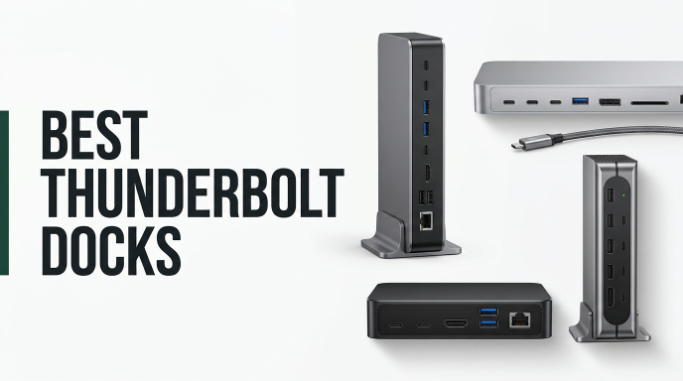
Choose the right Thunderbolt dock for 2026 with a clear comparison of 10 standout options. We break down the specs that actually matter in this category: Thunderbolt generation, total port count, laptop charging wattage, display resolution and refresh rate, downstream data speeds, Ethernet performance, and how well each dock handles Mac, Windows, and mixed-fleet environments.
The gap between a $170 Thunderbolt 4 dock and a $400 Thunderbolt 5 dock is bigger than it first appears. Bandwidth jumps from 40Gbps to 80 or even 120Gbps, dual 8K displays become possible, and charging can climb from 85W to 140W. Matching those capabilities to your laptop and workflow is what separates a good buy from a wasted upgrade.
This guide covers compact single-monitor docks for hot-desking, high-port workhorses for creative pros, and next-generation Thunderbolt 5 models built for large file transfers and multi-display workstations. Use the comparison table, reviews, and buying guide below to choose the dock that fits your laptop, your monitors, and your daily port requirements.
We compared 10 Thunderbolt docks using the specs that actually help a buyer decide: Thunderbolt generation and bandwidth, total port count and mix, laptop charging wattage, display resolution and refresh rate support, downstream Thunderbolt and USB-C speeds, Ethernet performance, macOS and Windows compatibility notes, cooling design, and owner feedback. The notes focus on practical trade-offs so each pick connects to how people actually run multi-monitor workstations, transfer large files, and standardize setups across mixed device fleets.


Compare key features, scores, and current prices side by side. A shorter feature list means fewer details were available, not necessarily fewer capabilities.




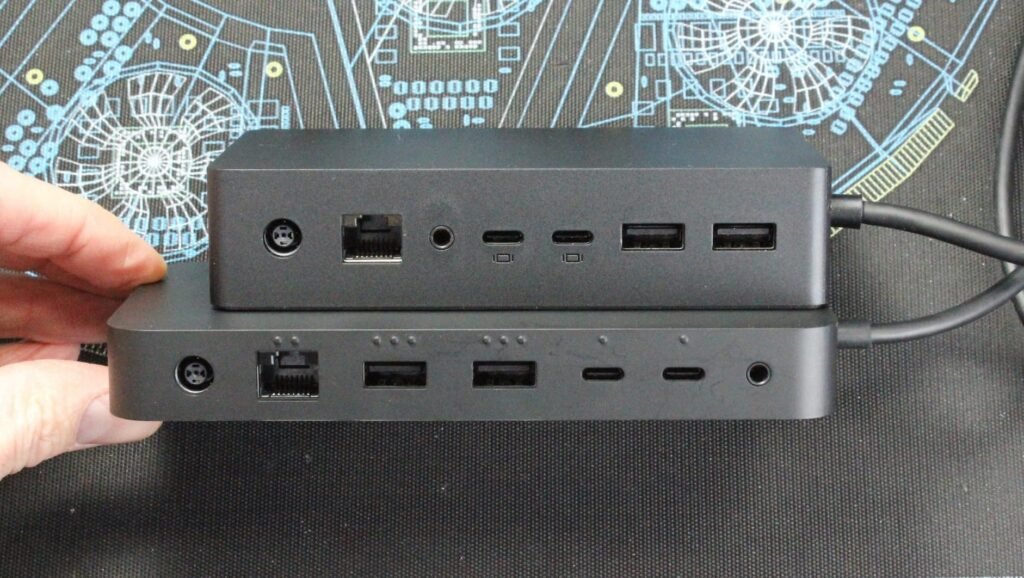
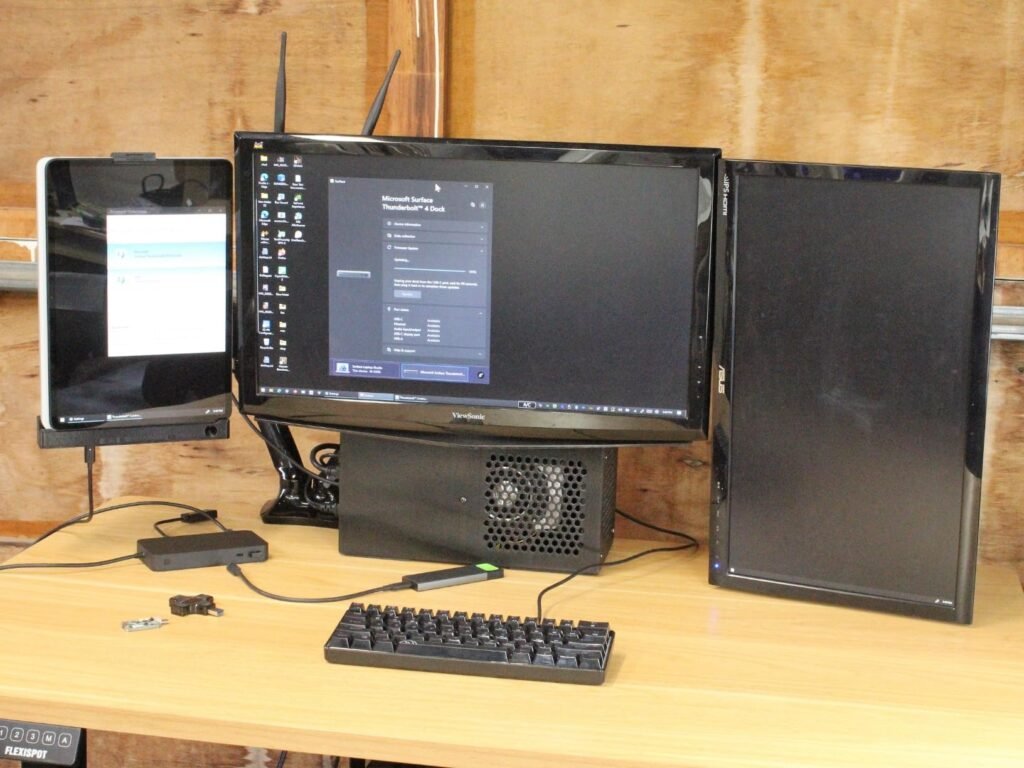
The Microsoft Surface Thunderbolt 4 dock earns the highest owner rating in this comparison, which speaks to solid engineering and reliable everyday performance. The clean black design fits both Surface laptops and non-Microsoft devices, and the raised tactile port indicators make it easier to plug in cables without visually inspecting the back of the dock.
We may earn a commission when you buy through this link, at no additional cost to you.
The port layout is thoughtful: three USB-C and three USB-A ports handle most peripheral needs, a 2.5G Ethernet port provides fast wired networking, a 3.5mm audio jack accommodates headsets, and a security lock slot allows physical anti-theft mounting. Thunderbolt 4 delivers the full 40Gbps of bandwidth for data transfer and dual 4K monitor support.
Charging is quick, with Microsoft claiming a full laptop charge in about 2.5 hours through the dock’s rapid charging capability. The eco-friendly design incorporates 20% ocean-bound recycled plastic, which appeals to buyers who factor sustainability into tech purchases. The tactile port indicators are a genuinely thoughtful touch that most competing docks overlook.
Docks typically sit at the back of a monitor or under a desk, making it hard to see port locations when plugging in a cable. Raised bumps or notches near each port let you identify the right connection by touch, which sounds minor but saves real time and frustration during frequent cable swaps. It’s the kind of small design detail that separates well-engineered docks from purely spec-driven ones.
This dock is a strong pick for buyers who value reliability, clean design, and the small quality-of-life details like tactile indicators. Surface owners get the most seamless experience, but Thunderbolt 4 compatibility means it works well with any modern MacBook or Windows laptop. If you need maximum ports or the highest wattage charging, other docks in this guide offer more.
Users who need maximum port count, the highest charging wattage, or Thunderbolt 5 bandwidth.
We may earn a commission when you buy through this link, at no additional cost to you.
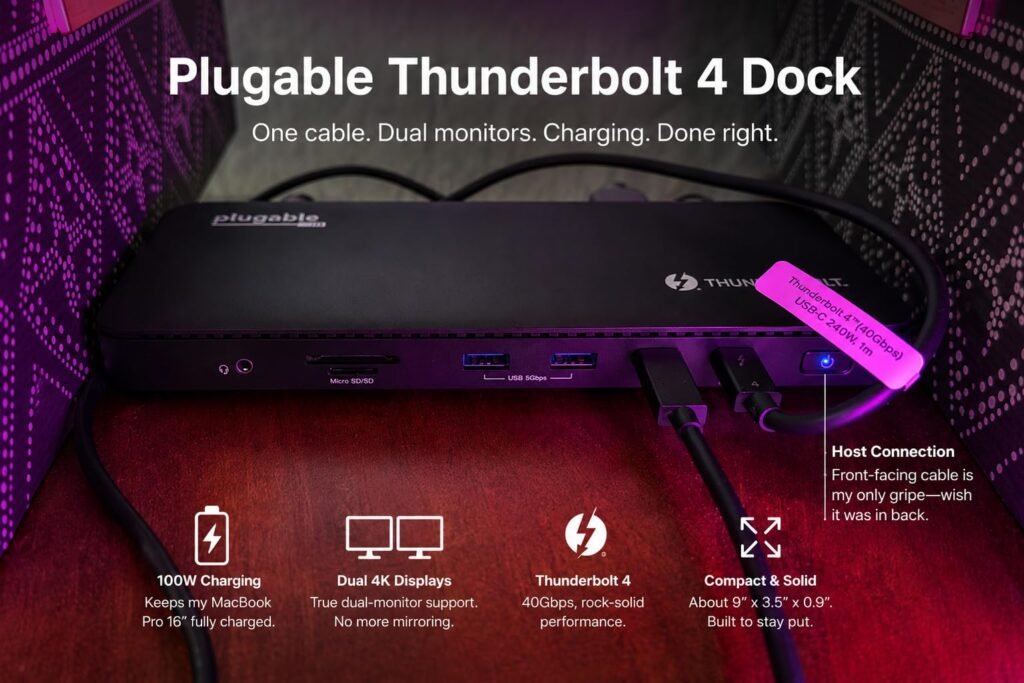
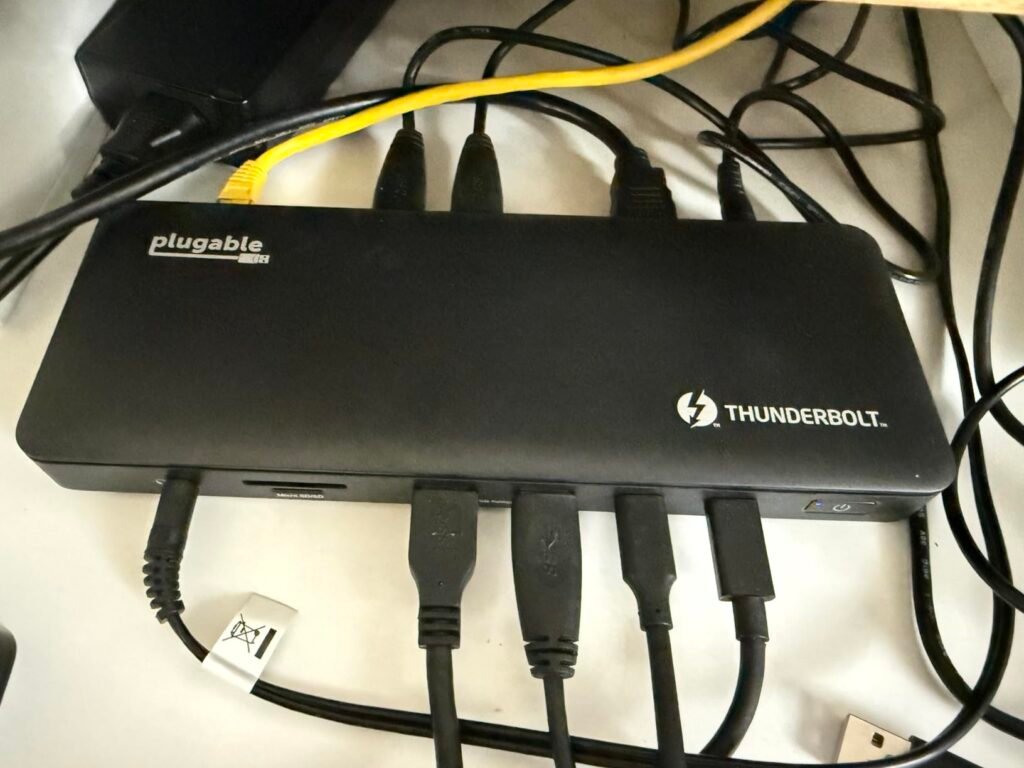
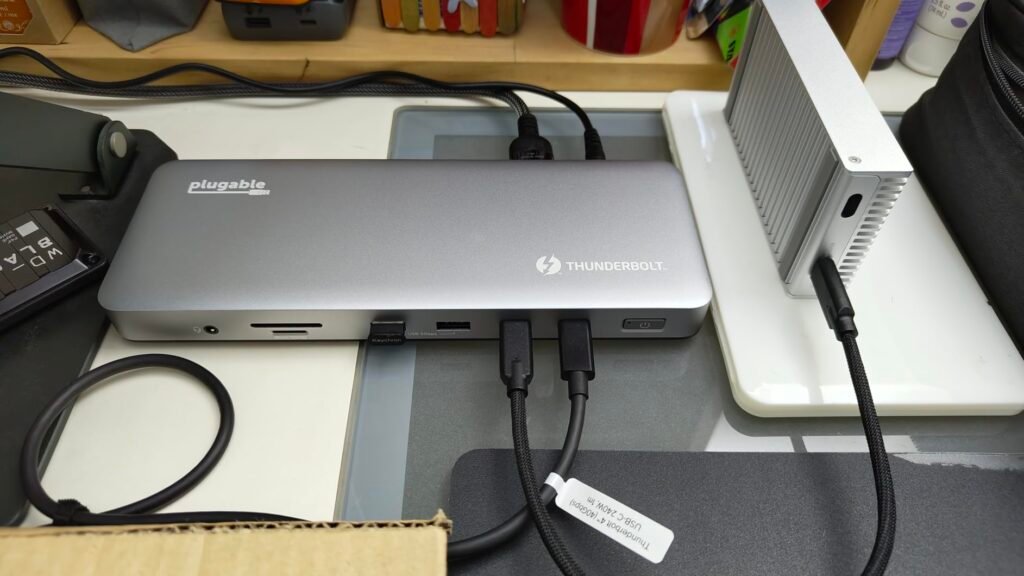
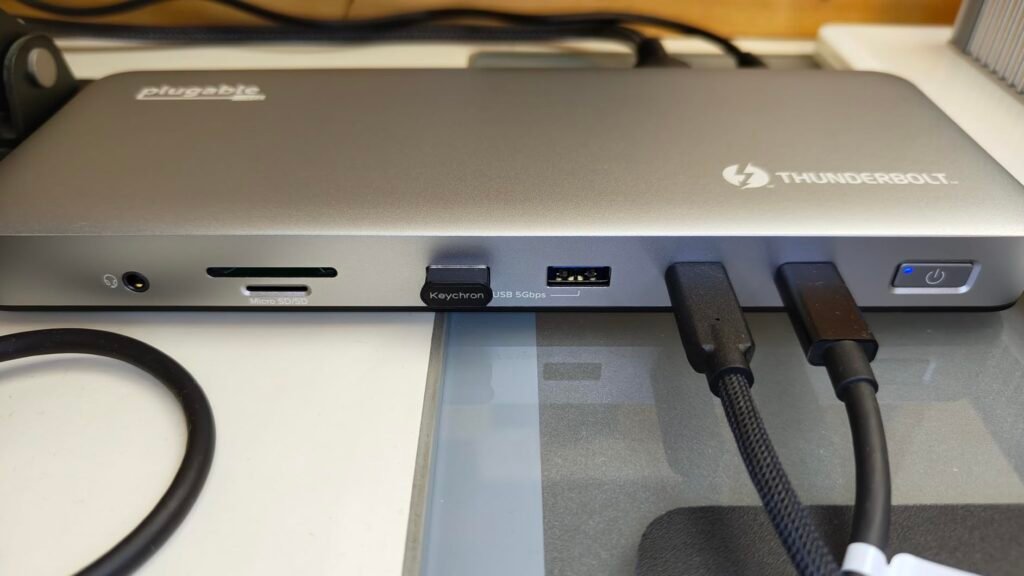
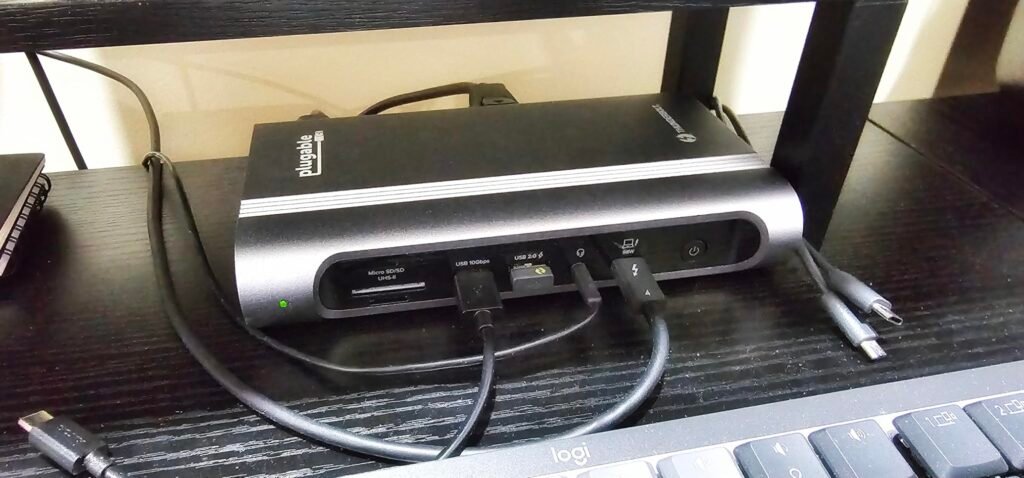
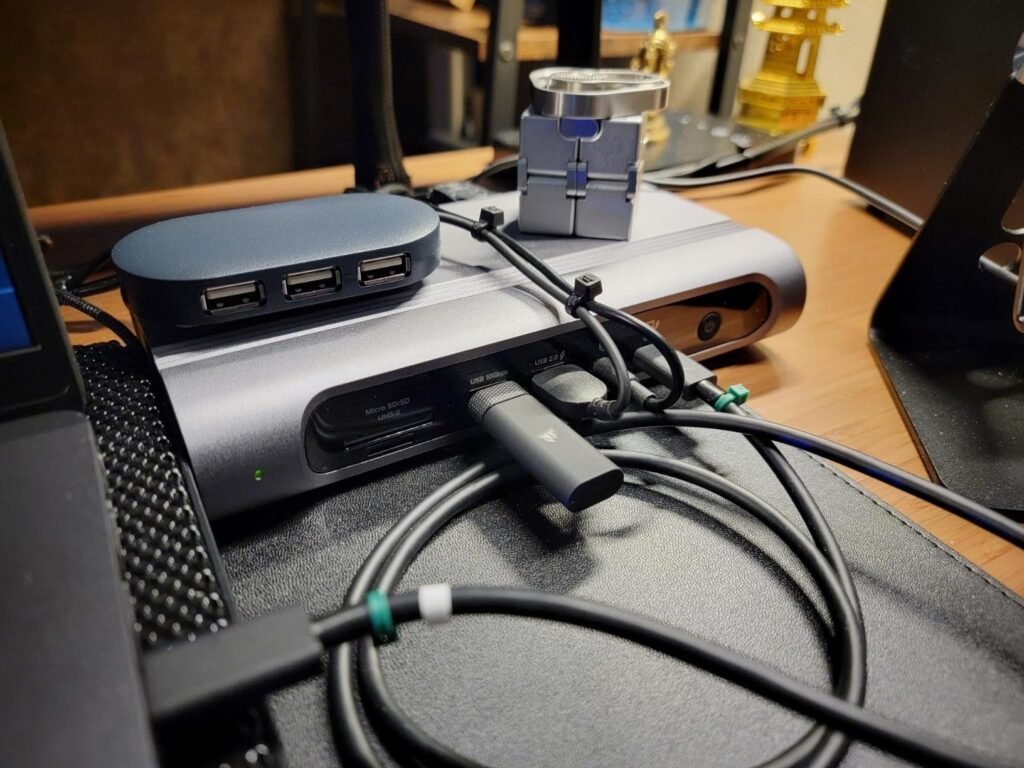
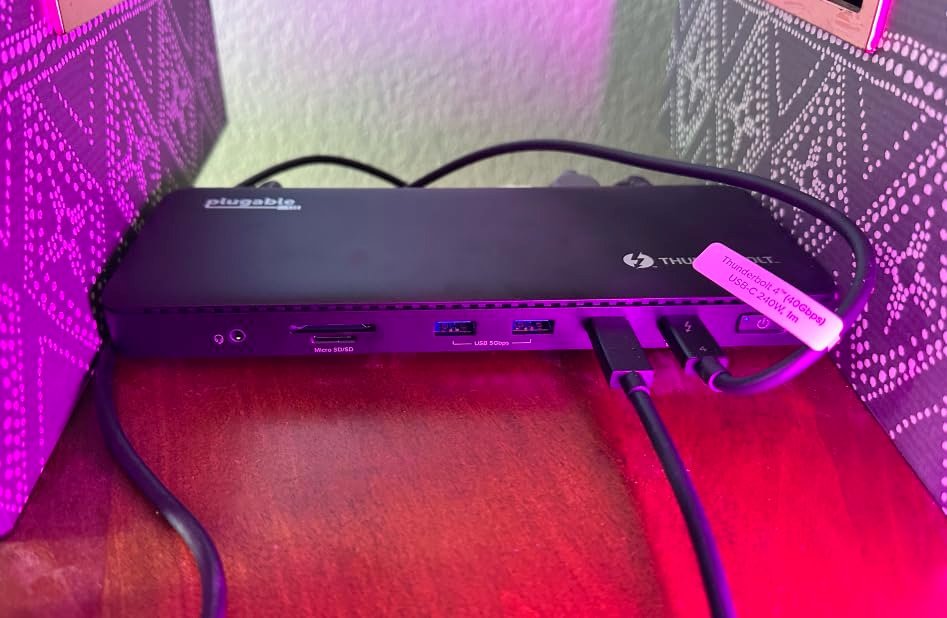
The Plugable Thunderbolt 4 dock hits the sweet spot for most professionals who need a reliable multi-monitor workstation without paying Thunderbolt 5 prices. With 13 ports, dual 4K HDMI outputs, and 100W laptop charging, it covers the vast majority of home office and professional workflows using a single cable back to the laptop.
We may earn a commission when you buy through this link, at no additional cost to you.
The 40Gbps Thunderbolt 4 bandwidth is more than enough for dual 4K displays at 60Hz plus high-speed peripherals like external SSDs and card readers running simultaneously. The downstream Thunderbolt 4 port adds 15W of charging for tablets or accessories and can drive a single 8K display when connected to a compatible laptop. The dual HDMI outputs simplify multi-monitor setups without requiring extra adapters, though buyers who prefer DisplayPort will need to look elsewhere.
Compatibility is broad but nuanced. The dock works with Thunderbolt 4, Thunderbolt 5, and USB4 systems on Windows and macOS, but base M1 and M2 MacBooks support only a single external display through Apple’s own bandwidth limitations, and base M3 supports dual displays only in clamshell mode. Full dual-display performance requires Pro or Max M-series chips, or any Windows Thunderbolt 4 laptop.
Apple’s base M1, M2, and M3 chips have hardware-level limits on external displays that no dock can overcome. If you own a base MacBook Air or 13-inch MacBook Pro, this dock will still work but you’ll only get one external monitor with the lid open. Pro and Max chips remove that limit and unlock the dock’s full dual-display capability.
This is the strongest all-around pick for buyers who want a well-rounded Thunderbolt 4 dock at a reasonable price. Choose it if you have a compatible Mac or Windows laptop and want dual 4K monitors with plenty of peripheral ports. If you need Thunderbolt 5 bandwidth or 140W charging for a 16-inch MacBook Pro, look at the CalDigit TS5 or Anker Prime instead.
Base M1 or M2 MacBook owners who need dual external displays with the laptop lid open.
We may earn a commission when you buy through this link, at no additional cost to you.
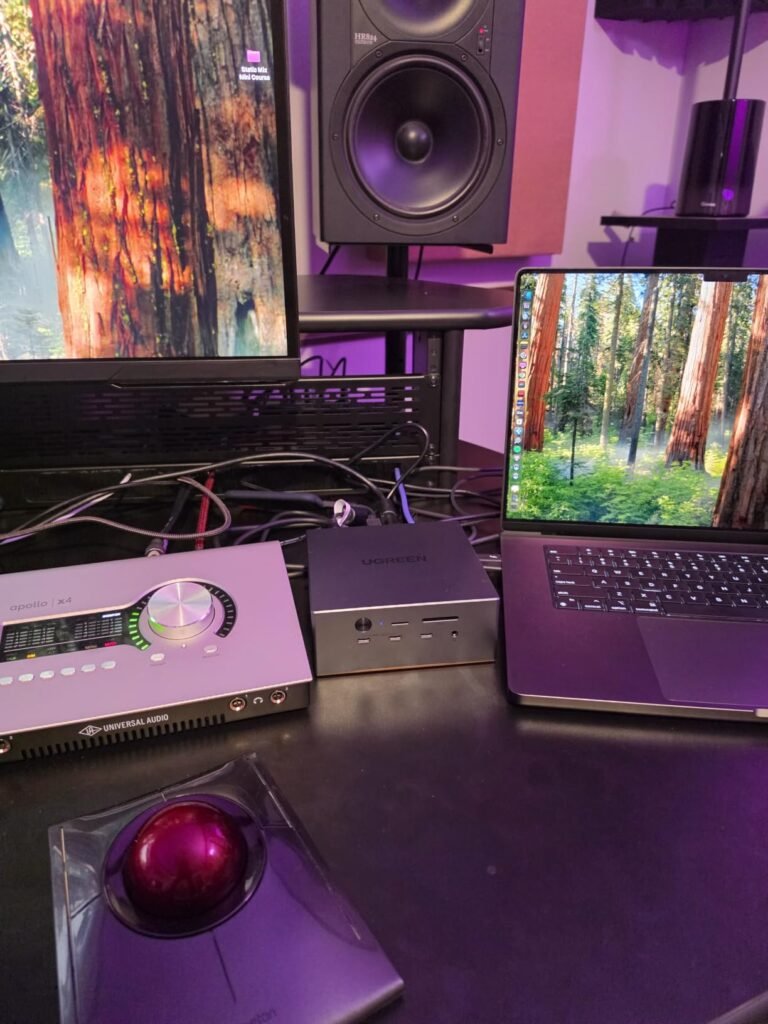
The UGREEN 8-in-1 Thunderbolt 4 dock delivers strong specifications at a price that undercuts many premium alternatives. The standout feature is the trio of downstream Thunderbolt 4 ports, which is unusual in this price range and gives users the flexibility to daisy-chain multiple Thunderbolt peripherals, external GPUs, or high-speed storage without hitting bandwidth walls.

We may earn a commission when you buy through this link, at no additional cost to you.
Each downstream TBT4 port supports the full 40Gbps bandwidth, 8K display output, and 15W of charging. Combined with three 10Gbps USB-A 3.2 ports and a gigabit Ethernet jack, the dock offers a well-rounded connection set for typical professional workflows. The dual 4K 60Hz display capability handles most creative and productivity setups, though full-featured USB-C laptops without Thunderbolt will only get a single display.
The bundled 140W GaN charger is a genuine value add. It provides 85W of laptop charging through the dock while leaving enough headroom to power the rest of the ports simultaneously, which means most users won’t need to keep a separate laptop charger on the desk. The dock does require the included charger to function, so this isn’t a bus-powered travel option.
Most Thunderbolt 4 docks include only one downstream TBT4 port, forcing users with multiple Thunderbolt peripherals to swap cables or add adapters. Three downstream ports let you simultaneously connect an external SSD, a Thunderbolt display, and a docking peripheral without compromise, which meaningfully changes what the dock can support in creative or engineering workflows.
This dock is the best value pick for buyers who want serious Thunderbolt 4 capability without paying for extras they may not use. The three downstream TBT4 ports give it a real edge for users with multiple high-speed peripherals. If you need built-in NVMe storage or Thunderbolt 5 bandwidth, step up to a higher-tier model.
Users who need built-in NVMe storage, Thunderbolt 5 bandwidth, or extensive USB-A port availability.
We may earn a commission when you buy through this link, at no additional cost to you.
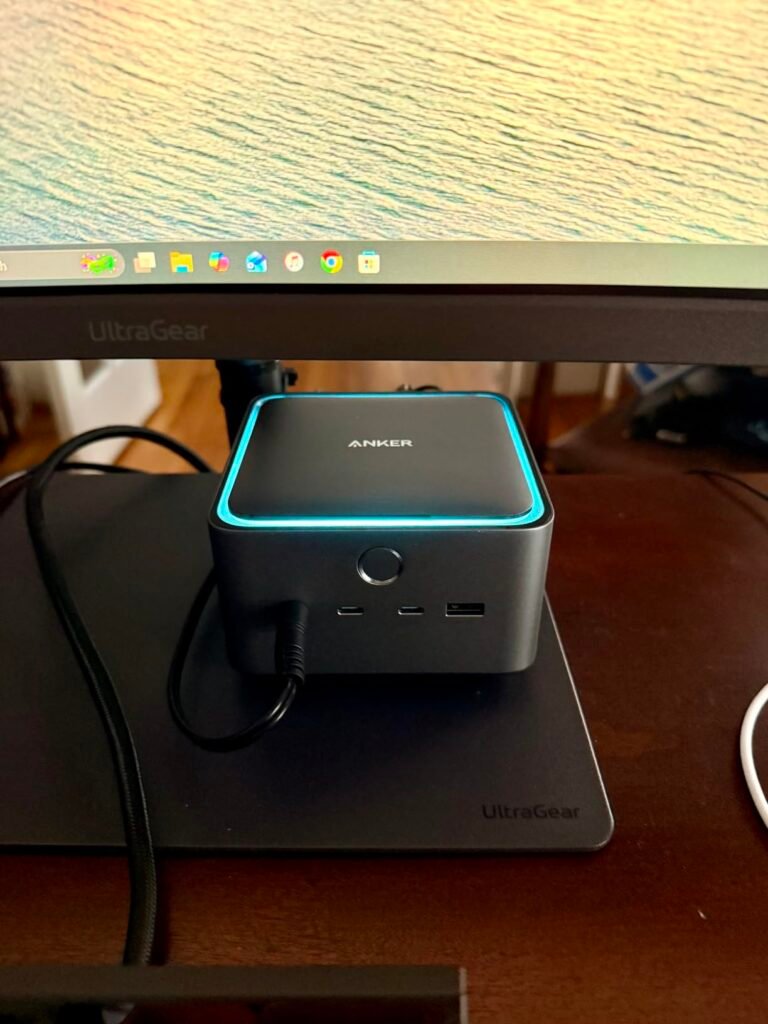
The Anker Prime TB5 targets professionals who need to move massive files quickly and want the display headroom that Thunderbolt 5 unlocks. Transferring a 150GB file in about 25 seconds through the upstream TBT5 port is a meaningful workflow change for video editors, 3D artists, and anyone who regularly handles large datasets or media libraries.
We may earn a commission when you buy through this link, at no additional cost to you.
The 14-port layout covers most needs: one TBT5 upstream, two TBT5 downstream, two USB-C, three USB-A, SD and TF card readers, 2.5Gbps Ethernet, audio jack, and a switchable HDMI 2.1 or DisplayPort 2.1 output. Display support scales up to 8K at 60Hz on a single monitor or dual 8K at 60Hz on TBT5-equipped Windows laptops, which is genuinely future-proof for high-resolution workflows.
Power delivery is a highlight. The 140W upstream port uses PD 3.1 to fully charge power-hungry laptops like 16-inch MacBook Pro models that other docks throttle. The active cooling system keeps the dock stable under sustained heavy load, which matters when running dual 8K displays plus multiple downstream peripherals simultaneously. Front-facing dual USB-C ports share 45W, which is enough for phones and tablets but not for another laptop.
Thunderbolt 5’s 80Gbps bandwidth is a game-changer for large sequential file transfers, high-refresh multi-monitor setups, and external GPU use. If your workflow involves small files, single displays, or normal office productivity, Thunderbolt 4 will feel identical in daily use. The upgrade pays off when moving hundreds of gigabytes at a time or running displays that TBT4 can’t support.
Choose this dock if you have a Thunderbolt 5 laptop and want future-proof bandwidth plus the highest available charging wattage. The price is a real investment, so it makes most sense for pros whose workflows will actually take advantage of the Thunderbolt 5 speeds. Owners of Thunderbolt 4 laptops will see reduced performance and may be better served by a less expensive TBT4 dock.
Users on Thunderbolt 4 laptops or those with typical office workflows that don’t benefit from TBT5 speeds.
We may earn a commission when you buy through this link, at no additional cost to you.
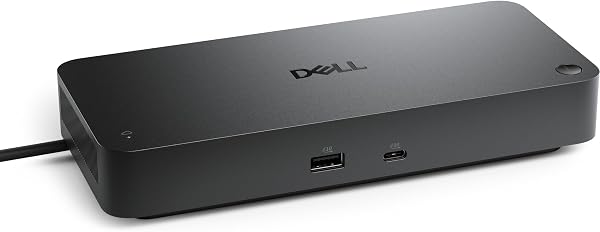
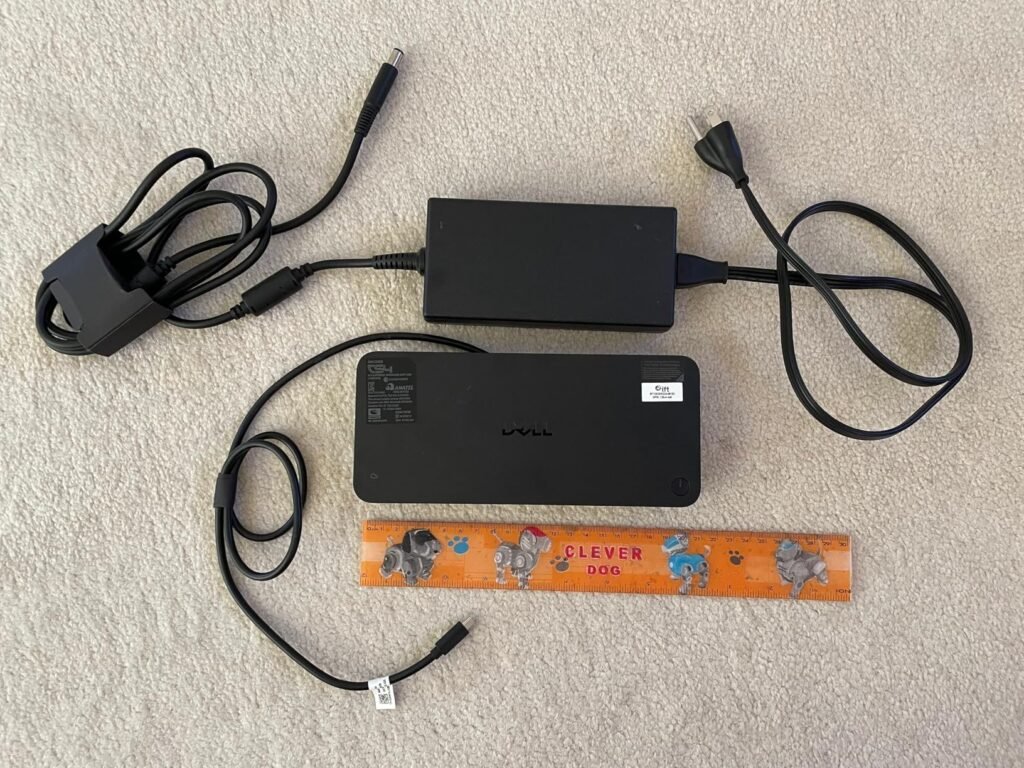
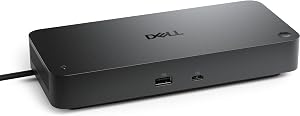
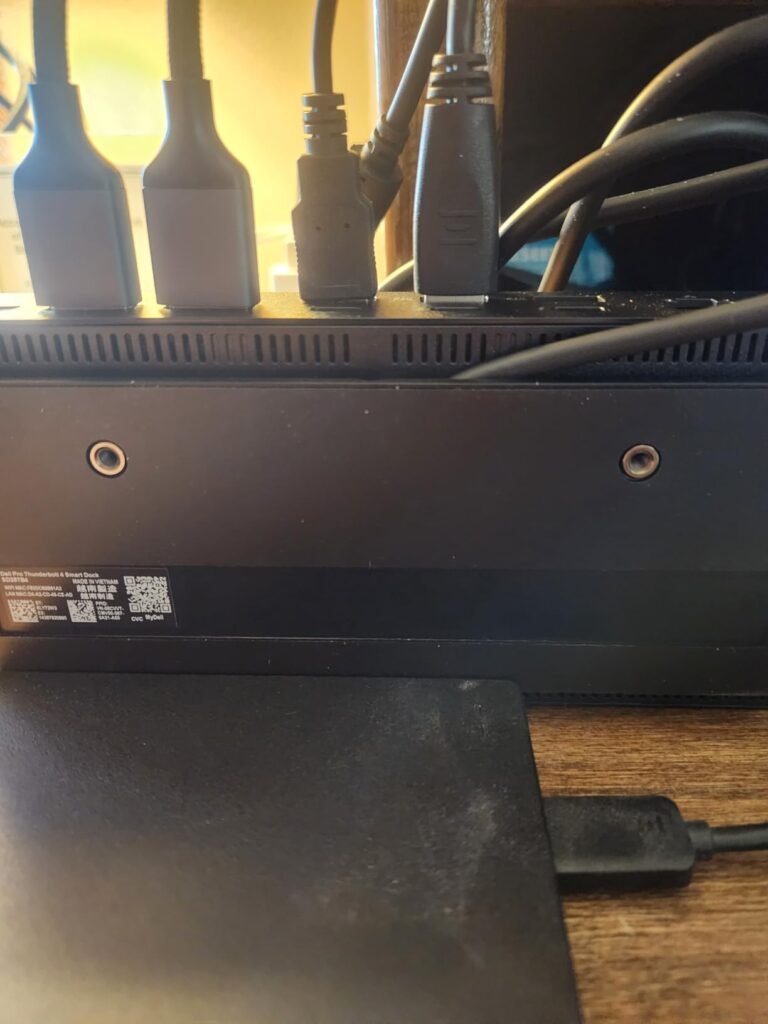
The Dell Pro Thunderbolt 4 Smart Dock is engineered for IT departments managing large deployments rather than individual home office buyers. The standout feature is remote Wi-Fi management through Dell Console and Intel AMT, which lets IT teams push firmware updates, monitor device health, and configure settings across many docks without touching each user's PC.
We may earn a commission when you buy through this link, at no additional cost to you.
The display capability is genuinely impressive: up to four 4K monitors via HDMI 2.1, DisplayPort 1.4, USB-C, and Thunderbolt 4 outputs. This suits data analysts, developers, and creative professionals whose workflows benefit from expansive screen real estate. The dual Thunderbolt 4 ports can also daisy-chain up to six devices, providing flexibility for high-end peripheral setups.
Enterprise security features include WPA3 encryption, PXE boot support, MAC address filtering, and DMA protection. Charging delivers up to 130W for Dell laptops or 96W for other brands, which handles most business-class notebooks comfortably. The sustainable design uses 65% recycled plastic and 100% recycled packaging, aligning with corporate environmental initiatives.
Features like PXE boot, MAC filtering, and remote Wi-Fi management are essential in corporate IT environments but add cost and complexity that home users rarely benefit from. If you’re deploying dozens or hundreds of docks across an organization, these capabilities save significant IT time. For individual buyers, a standard consumer dock offers the same core Thunderbolt 4 performance for less money.
This dock makes the most sense for enterprise environments where remote management and security features justify the investment. For home office users who don’t need those capabilities, a simpler dock will deliver similar day-to-day performance at a lower price. Dell laptop owners get the added benefit of full 130W charging that other brands can’t match.
Individual home office buyers who don’t need enterprise IT management or advanced security features.
We may earn a commission when you buy through this link, at no additional cost to you.
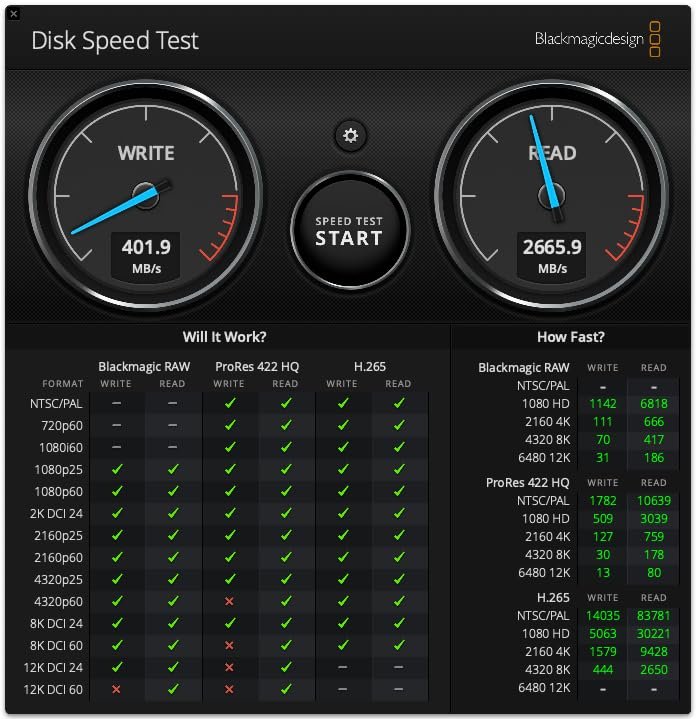
The CalDigit TS5 sets the reference standard for high-end Thunderbolt 5 docks. The 15-port layout includes one host TBT5 port, three downstream TBT5, three USB-C 10Gbps, two USB-A, DisplayPort 2.1, 2.5GbE, and dedicated SD and microSD UHS-II card readers. Every port is placed thoughtfully to support real professional workflows.
We may earn a commission when you buy through this link, at no additional cost to you.
Display flexibility is exceptional. macOS users can drive dual 6K at 60Hz or dual 8K at 60Hz on supported Macs. Windows TBT5 users can push triple 4K at 144Hz or dual 8K 60Hz. The Bandwidth Boost feature dynamically allocates up to 120Gbps to displays when high-resolution monitors are connected, which is unique to Thunderbolt 5 and matters for anyone running high-refresh 4K panels for gaming or creative work.
The 240W power supply delivers 140W to the host laptop while providing sustained power to all remaining ports simultaneously, including 15W on each downstream TBT5 and 20W on one front USB-C. The aluminum unibody chassis doubles as a heat sink, which allows the dock to run stable under continuous heavy load without active cooling noise. The included one-meter braided TBT5 cable is a nice premium touch.
Traditional docks split bandwidth evenly regardless of what’s connected. Bandwidth Boost recognizes when high-resolution displays need extra throughput and reallocates dynamically. In practice, this means a user running a 4K 240Hz gaming monitor plus a 4K productivity display gets smoother performance than on a dock that treats every port identically. It’s a subtle feature that shows up in demanding scenarios.
This is the top choice for professionals who need every capability current Thunderbolt technology offers. The premium price reflects genuine premium engineering. Users on Thunderbolt 3 or 4 laptops will still benefit from the port count and charging but won’t see the full bandwidth advantage that makes the TS5 special.
Budget-focused buyers or users whose laptops don’t support Thunderbolt 5 host connections.
We may earn a commission when you buy through this link, at no additional cost to you.
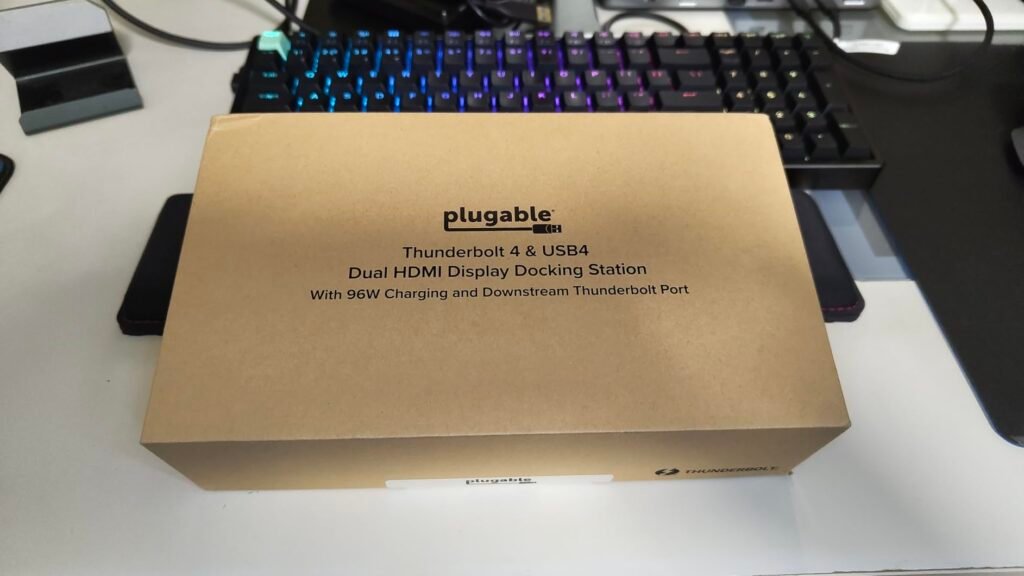
The Plugable TBT-UDM is a Mac-focused version of Plugable's popular Thunderbolt 4 dock, designed specifically to complement the aesthetics of M-series MacBooks. The space gray aluminum chassis matches Apple's design language, which matters more than it should when the dock sits visibly on a clean desk setup.
We may earn a commission when you buy through this link, at no additional cost to you.
Functionally, the dock delivers 13 ports including dual 4K HDMI at 60Hz, one downstream Thunderbolt 4 port at 40Gbps, one USB-C, four USB-A, SD and microSD UHS-II slots, gigabit Ethernet, a 3.5mm audio jack, and 100W host charging. The driverless plug-and-play design means no software installation on macOS, which is exactly what most Mac users want.
Dual monitor support works on all M4 and M5 MacBooks, Pro and Max variants of M1 through M3, and M3 base Macs in clamshell mode. Base M1 and M2 MacBooks are limited to a single external display due to Apple’s silicon limitations. Windows Thunderbolt 4 and USB4 laptops also work with full functionality, making the dock a viable choice for mixed environments.
HDMI is simpler for most users because it carries video and audio, and most modern monitors accept it directly. DisplayPort is preferred in professional environments for higher refresh rates and multi-stream transport. If your monitors have both inputs, HDMI is fine. If you need refresh rates above 60Hz at 4K or plan to daisy-chain DisplayPort monitors, look for a dock with DP outputs instead.
This is the right choice for Mac users who want a dock that looks intentional next to their MacBook and delivers reliable dual-monitor performance. The core specifications match the standard Plugable TBT4 dock, so pick this version if the space gray aesthetic matters to you. For pure functionality at the lowest price, the standard model saves a few dollars.
Users who need DisplayPort outputs or those with base M1/M2 MacBooks wanting dual displays.
We may earn a commission when you buy through this link, at no additional cost to you.
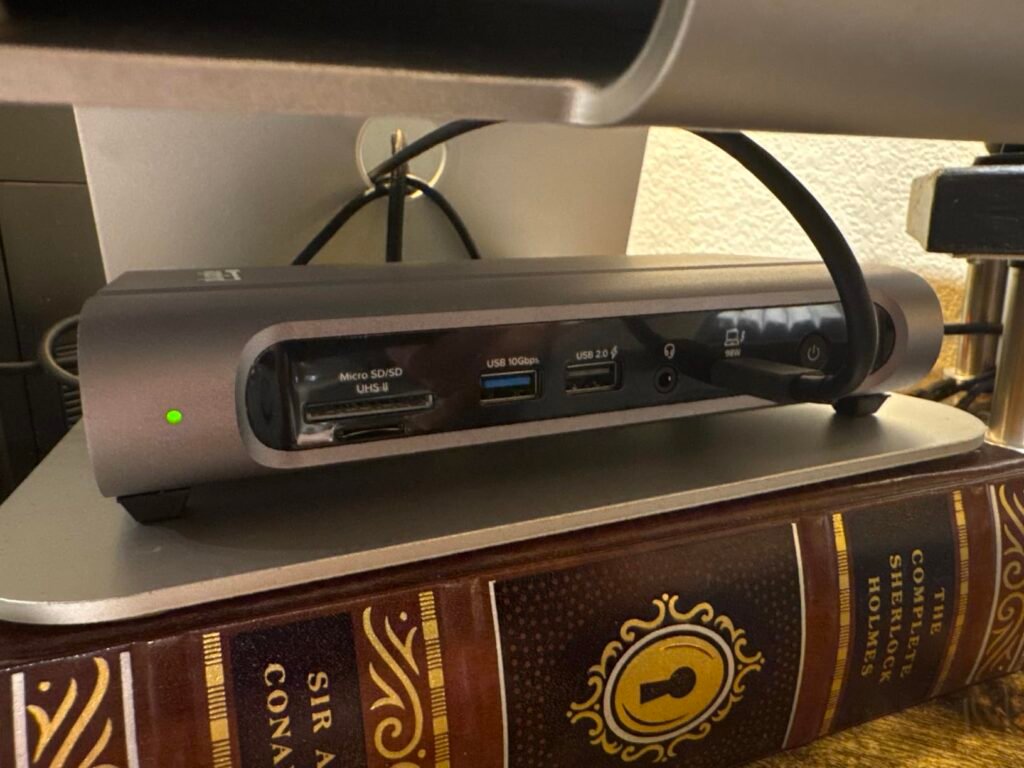
The Plugable 16-in-1 dock exists for users whose desks are cluttered with peripherals that all need to connect at once. With 16 ports including 7 USB connections, 2.5Gbps Ethernet, SD and microSD readers, and both HDMI and DisplayPort options, it eliminates the need for hubs, adapters, or manual cable swapping.
We may earn a commission when you buy through this link, at no additional cost to you.
The dual-monitor setup supports two 4K 60Hz displays through HDMI or DisplayPort with no drivers required on Windows Thunderbolt 4, USB4, and M4/M5 Macs. The flexibility to choose between HDMI and DisplayPort per monitor is genuinely useful because many professional displays have specific port preferences or offer better refresh rate support on one interface.
The 2.5Gbps Ethernet port is a meaningful upgrade over the 1GbE found on most competing docks. For users with modern network infrastructure or NAS setups, the faster wired connection reduces file transfer times significantly. 100W power delivery keeps most laptops fully charged during heavy multi-peripheral use, and the dock automatically adjusts to lower-power systems.
The value of a 16-port dock depends entirely on how many devices you actually connect. If your permanent desk setup includes multiple external drives, a camera dock, an audio interface, and gaming peripherals alongside standard keyboard and mouse, the port count prevents constant reconnection. If you connect two or three peripherals at most, a smaller dock saves money and desk space.
This dock is best suited for creative pros, developers, or anyone whose workflow involves many simultaneous peripherals like external drives, cameras, keyboards, mice, audio interfaces, and monitors. The larger footprint and higher price reflect the expanded port count. Users with simpler setups will pay for ports they never use.
Minimalist setups with few peripherals or users who prioritize compact desk footprint.
We may earn a commission when you buy through this link, at no additional cost to you.
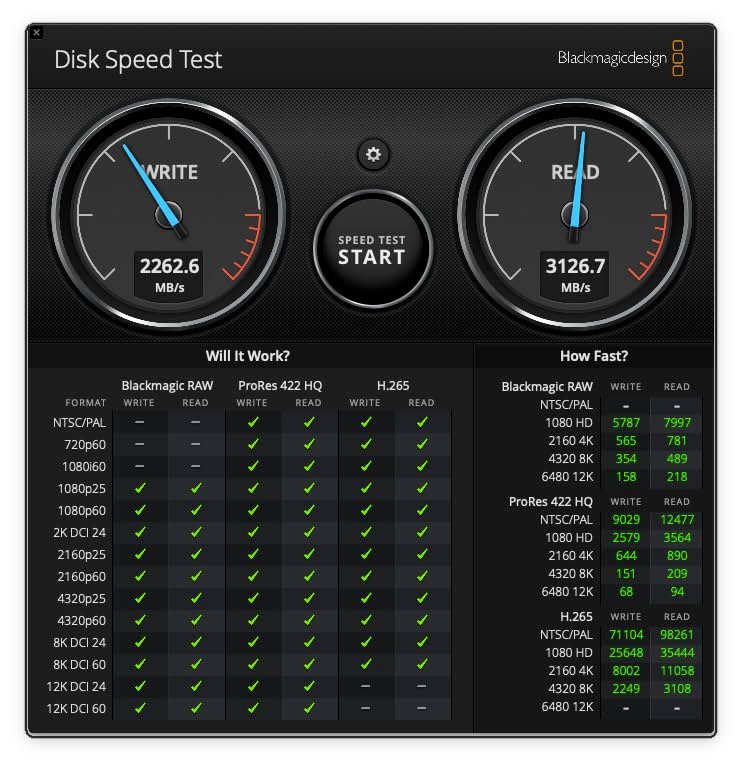
The UGREEN Maxidok TB5 combines a Thunderbolt 5 docking station with an integrated NVMe SSD slot, which is a rare and genuinely useful combination. Adding up to 8TB of high-speed storage directly inside the dock eliminates one more cable and external enclosure, keeping the desk cleaner and giving direct PCIe Gen4 speeds to the connected SSD.
We may earn a commission when you buy through this link, at no additional cost to you.
The 17-port layout covers virtually every peripheral scenario: three USB-A 10Gbps, three USB-C 10Gbps with 60W shared charging, SD 4.0 and TF 4.0 card readers, three 3.5mm audio jacks, 2.5G Ethernet, DisplayPort 1.4, and two downstream Thunderbolt 5 ports. Display support extends to triple independent displays on Windows or dual displays on Mac, with 8K and 6K output options.
Total system power reaches 240W, allowing the dock to charge a laptop while powering all peripherals and the internal SSD. AI smart cooling with a 60mm ultra-thin fan keeps the aluminum chassis stable under sustained heavy load, though the fan does produce audible noise below 30dB. The DisplayPort output does not support DP++, so HDMI monitors require an active DP-to-HDMI adapter.
The internal M.2 slot accepts NVMe drives from 2230 to 2280 size with heatsinks under 12mm tall and 24mm wide. Popular high-end drives like the Seagate FireCuda 530, Samsung 9100 Pro with heatsink, and WD_BLACK SN850X premium models exceed those dimensions and won’t fit. Check drive specifications before purchasing to avoid compatibility surprises.
This is the right choice for creative pros or power users who want maximum functionality in a single device and value the internal SSD option. The SSD is not included, so budget for a compatible M.2 drive separately. If you already have external Thunderbolt storage or don’t need the internal slot, other TBT5 docks offer similar port counts at lower prices.
Users who don’t need internal storage or prefer to keep peripherals modular and separate from the dock.
We may earn a commission when you buy through this link, at no additional cost to you.
The Dell WD22TB4 takes a unique modular approach to docking station design, using a swappable module system that lets IT departments upgrade portions of the dock without replacing the entire unit. This forward-thinking architecture appeals to businesses planning multi-year deployments where connectivity standards will evolve.

We may earn a commission when you buy through this link, at no additional cost to you.
The port layout includes two Thunderbolt 4 ports, one USB-C 3.2 Gen 2, one USB-A 3.2 Gen 1 with PowerShare charging, two DisplayPort 1.4, one HDMI 2.0, and one USB-C multifunction DisplayPort output. That combination handles most professional workflows and prioritizes DisplayPort output for high-refresh professional monitors that many creative and engineering users prefer.
The 180W power adapter supplies enough headroom to keep the dock stable under heavy peripheral loads. SuperBoost technology enables faster charging for Dell laptops, and the 40Gbps Thunderbolt 4 bandwidth handles dual 4K displays plus high-speed peripherals simultaneously. Compatibility centers on Windows 10 and 11 systems, making this a Windows-first product rather than a cross-platform choice.
Traditional docks become obsolete when connectivity standards change because the entire unit needs replacement. Modular designs let organizations upgrade only the portion that has aged, extending the useful lifespan of the base unit. For enterprise deployments spanning many years, this can meaningfully reduce total cost of ownership. For individual users, the benefit is smaller since most people replace docks less frequently than IT departments do.
This dock suits organizations invested in Dell hardware or those who value the modular upgrade path for long-term deployment planning. The lower owner rating suggests some users may have experienced compatibility or firmware challenges, so verify current firmware support before deploying at scale. For pure home use or Mac-focused workflows, other docks in this guide will deliver a smoother experience.
Home users focused on macOS compatibility or those who prioritize the highest owner ratings.
We may earn a commission when you buy through this link, at no additional cost to you.
A Thunderbolt dock is often the single most important accessory for a modern laptop workstation. The right dock turns a portable laptop into a fully connected desktop with one cable, while the wrong one bottlenecks displays, throttles charging, or leaves you juggling adapters. Use the factors below to match a dock to your laptop, monitors, and peripheral setup.
Thunderbolt generation determines the maximum data throughput between your laptop and the dock. Thunderbolt 4 provides 40Gbps of bandwidth, which handles dual 4K 60Hz displays plus high-speed peripherals like external SSDs and 2.5G Ethernet without saturation. It’s the current mainstream standard and is supported by every Intel Evo laptop, all M1 and later MacBooks, and most business-class Windows notebooks from the last several years.
Thunderbolt 5 doubles that to 80Gbps with a Bandwidth Boost mode that can allocate up to 120Gbps to displays when needed. This matters for users running dual 8K monitors, high-refresh 4K panels at 240Hz, external GPUs, or fast NVMe RAID setups. Currently, TBT5 is available on select 2024-2025 laptops including the latest MacBook Pro Pro/Max models and some flagship Windows workstations. If your laptop doesn’t have TBT5, a TBT5 dock will still work but will operate at reduced speeds.
Choose Thunderbolt 4 for typical dual-monitor productivity, home office setups, and content creation with 4K displays. Choose Thunderbolt 5 if you have a compatible laptop and workflows that involve massive file transfers, ultra-high-resolution displays, or high-refresh gaming and creative monitors.
Power delivery through the Thunderbolt cable is one of the dock’s most important functions because it eliminates the need for a separate laptop charger. Common wattage tiers include 85W, 96-100W, 130W, and 140W. Most Windows business laptops and 13 to 14-inch MacBooks charge comfortably at 96-100W, while 16-inch MacBook Pro models and gaming or workstation laptops often need 130W or 140W to charge at full speed under load.
Undersized charging causes real problems. If a dock provides 65W to a laptop that needs 100W, the laptop will run on partial power and slowly drain the battery during heavy use, potentially shutting down when unplugged. Match the dock’s charging spec to your laptop’s manufacturer-recommended wattage or step up to the next tier for headroom.
For 13-14 inch laptops, 85-100W is sufficient. For 15-16 inch performance laptops or workstation notebooks, choose 130W or 140W to ensure the laptop charges at full speed even during CPU-intensive tasks.
Display capability is often the primary reason to buy a dock. Consider both the number of displays and the maximum resolution and refresh rate each output supports. Dual 4K at 60Hz is the current mainstream sweet spot and works for most productivity and creative workflows. If you want higher refresh rates for gaming or animation, look for docks that specify 4K at 144Hz or 240Hz support, which typically requires Thunderbolt 5.
Output types matter for monitor compatibility. HDMI is universal and works with most consumer monitors. DisplayPort offers higher bandwidth and is preferred for professional displays, high-refresh gaming monitors, and multi-stream transport setups. Some docks provide both, giving flexibility to match your specific monitors. Also verify Mac compatibility carefully because Apple silicon limits external display counts on base M1, M2, and M3 chips regardless of dock capability.
Match the dock’s display outputs to your monitors and desired resolution or refresh rate. For dual 4K 60Hz productivity, most Thunderbolt 4 docks work well. For higher-end display setups, verify both dock and laptop support the target configuration.
Total port count and the specific mix of ports determine how many peripherals you can connect simultaneously without hubs or adapters. Count the USB-A ports, USB-C ports, downstream Thunderbolt ports, card readers, Ethernet, and audio jacks you’ll actually use. Add a couple of extra USB-A ports for future flexibility, especially if you use gaming peripherals, external drives, or specialty hardware like MIDI controllers or audio interfaces.
Downstream Thunderbolt ports are especially valuable because they support daisy-chaining additional TBT devices or acting as high-speed data ports for external SSDs and drives. Docks with only one downstream TBT port limit expansion, while models with three or four downstream TBT ports offer serious room to grow. USB-A remains essential for older peripherals and universal compatibility.
For basic setups with a mouse, keyboard, headset, and one external drive, 8-10 ports is plenty. For complex creative or engineering workflows with many simultaneous peripherals, look for docks with 13-17 ports to eliminate hub stacking.
Wired Ethernet through the dock is faster and more reliable than Wi-Fi for most workflows, particularly file transfers to NAS devices or servers. Standard 1GbE is common on budget docks and handles most home internet connections. 2.5GbE is increasingly available and provides real benefits for users with modern network infrastructure, fast internet plans above 1Gbps, or local file server setups that support faster speeds.
The upgrade from 1GbE to 2.5GbE meaningfully reduces file transfer times for large files and multi-gigabyte projects, especially when working with video files, virtual machine images, or large photo libraries stored on network drives. Some higher-end docks include 10GbE, though that requires expensive network infrastructure to take advantage of.
Choose 1GbE if your internet is 1Gbps or slower and you don’t transfer large files over the local network. Choose 2.5GbE if you have faster internet, a modern NAS, or local network transfers that will benefit from the extra bandwidth.
Cross-platform Thunderbolt docks generally work on both Mac and Windows, but Apple silicon introduces some real limitations. Base M1 and M2 chips support only a single external display through Thunderbolt regardless of how many outputs the dock provides. Base M3 chips support dual displays only in clamshell mode with the laptop lid closed. Pro and Max variants of M-series chips remove these limits and support the full dual-display capability that Thunderbolt 4 offers.
Windows Thunderbolt 4 and USB4 laptops typically don’t have these display limitations and can drive the full number of displays the dock supports. Some docks offer Windows-specific features like remote IT management or PXE boot that don’t matter on macOS. Always verify compatibility with your exact laptop model, particularly for older systems, base Apple silicon chips, or specific Windows Thunderbolt implementations.
Mac users with base silicon should verify display capability before buying. Windows users have fewer restrictions but should still confirm the dock lists their laptop model as supported, especially for older or budget systems that may lack full Thunderbolt implementation.
Thunderbolt docks generate meaningful heat under load because they simultaneously handle high-speed data, video output, and power delivery. Passive cooling through aluminum chassis works well for typical use and stays completely silent, but may struggle under continuous heavy load with dual 8K displays plus multiple downstream peripherals. Active cooling with a fan handles heavier sustained loads but adds some noise, typically 30dB or lower.
Cooling quality affects long-term reliability. A dock that runs hot degrades faster and may throttle performance to protect internal components. Well-designed passive cooling uses the entire chassis as a heat sink, while active cooling systems use temperature-controlled fans that only spin up when needed. For most home office setups, passive cooling is fine. For all-day heavy professional use, active cooling provides better sustained performance.
Choose passive cooling for silent operation and typical workloads. Choose active cooling if you plan to push the dock hard with high-resolution displays, high-speed storage, and continuous heavy peripheral use throughout the workday.
The included Thunderbolt cable affects placement flexibility. Most docks ship with a 0.8m or 1m cable, which is enough for docks placed directly beside the laptop but may feel short for setups where the dock sits behind the monitor or under the desk. Longer Thunderbolt cables exist but must be certified for the target Thunderbolt generation to maintain full speeds, and quality cables can be surprisingly expensive.
Build quality shows in the chassis material, port fit, and internal component quality. Aluminum unibody construction, like the CalDigit TS5, provides both premium aesthetics and effective heat dissipation. Plastic housings work fine but may not handle sustained heavy loads as well. Braided cables resist damage better than plain cables and typically ship with premium docks.
Verify the included cable length matches your intended placement, and budget for a longer certified cable if needed. Prioritize aluminum chassis for high-power docks that will run hot, and plastic is fine for lighter-duty docks in cooler placements.
Set up the dock by connecting the included power adapter to the wall and then the Thunderbolt cable to your laptop. Most modern docks are driverless and will be recognized immediately by both Windows and macOS, though occasionally Windows may prompt for a firmware update through the manufacturer’s utility. Connect peripherals to the dock’s downstream ports in order of importance, keeping displays and high-speed storage closest to the Thunderbolt cable path for the shortest bandwidth route.
Place the dock in a location with adequate airflow, particularly if it uses passive cooling. Aluminum-chassis docks like the CalDigit TS5 rely on their entire surface for heat dissipation and should not be stacked under other electronics, wedged into tight cabinet spaces, or covered by papers and other desk clutter. Active-cooling docks tolerate less airflow but still perform better with some clearance. Warm operation is normal, but any dock that becomes uncomfortably hot to touch is signaling insufficient ventilation.
Keep dock firmware updated through the manufacturer’s software utility, which typically ships with Plugable, CalDigit, Dell, Anker, and UGREEN docks. Firmware updates fix compatibility issues with new laptop models and can improve stability, especially in the first year after a dock’s release. Avoid disconnecting the Thunderbolt cable during large file transfers or firmware updates. When traveling with the dock, unplug all peripherals first, then the Thunderbolt cable, and pack the dock with its cables in a protective sleeve to prevent damage to the port connectors.
USB-C hubs work fine for basic peripheral connections like keyboards, mice, and single displays. Thunderbolt docks are worth the higher price if you need dual monitors, high-speed data transfer for external SSDs, or full laptop charging over 65W. Thunderbolt also provides significantly more bandwidth for demanding workflows. If you only need a couple of extra USB ports and one HDMI output, a USB-C hub costs much less.
Yes, Thunderbolt 5 docks are backward compatible with Thunderbolt 4, Thunderbolt 3, and USB4 laptops, but performance will be limited to the lower standard's specifications. You'll get 40Gbps instead of 80Gbps, and features like Bandwidth Boost won't be available. Buying a TBT5 dock for a TBT4 laptop only makes sense if you plan to upgrade the laptop soon.
Most Thunderbolt 4 docks support dual 4K displays at 60Hz on Windows and Pro/Max Mac systems. Base M1 and M2 MacBooks are limited to a single external display due to Apple silicon limitations, and base M3 supports dual displays only in clamshell mode. Thunderbolt 5 docks can support triple displays on compatible Windows laptops. Always verify your specific laptop model's display support before buying.
It depends on the wattage. If the dock provides at least as much power as your laptop's charger, charging speed is essentially identical. Common dock wattages are 85W, 100W, 130W, and 140W. Undersized charging will still power the laptop but may drain the battery during heavy use. Match dock wattage to your laptop's recommended charging spec for full performance.
Most Thunderbolt docks work with USB-C laptops but with reduced functionality. You typically get a single external display instead of dual, slower data speeds, and fewer downstream Thunderbolt features. If your laptop has only USB-C and not Thunderbolt or USB4, a USB-C hub or dock designed specifically for USB-C will likely be a better value than a Thunderbolt dock.
Thunderbolt docks generate heat because they simultaneously handle high-speed data, video output, and power delivery. Warm operation is normal and expected, especially with premium metal-chassis docks that use the entire body as a heat sink. Ensure the dock has airflow on all sides and isn't stacked under other electronics. If the dock becomes uncomfortably hot to touch, improve ventilation or check whether active cooling is functioning.
Yes, wired Ethernet through the dock is more reliable and often faster than Wi-Fi, especially for large file transfers, video calls, and online gaming. It also reduces network latency and eliminates interference from other wireless devices. Look for docks with 2.5GbE if your network infrastructure supports it, as this provides meaningful speed improvements over standard 1GbE for local network transfers.
Thunderbolt docks include a compatible cable in the box, so no separate purchase is needed for initial setup. If you need a longer cable for specific desk placement, buy a certified Thunderbolt 4 or Thunderbolt 5 cable rated for your dock's generation. Using non-certified or lower-spec cables can reduce bandwidth and cause reliability issues. Certified TBT cables are more expensive than standard USB-C cables but the difference matters for performance.
Yes, this is one of Thunderbolt's key advantages. Downstream Thunderbolt ports on the dock support daisy-chaining additional Thunderbolt peripherals like displays, external SSDs, or audio interfaces. Thunderbolt 4 supports chains of up to five devices, though bandwidth is shared across the chain. For heavy peripheral setups, docks with multiple downstream Thunderbolt ports provide more flexibility than single-port designs.
The Plugable Thunderbolt 4 dock stands out as the strongest overall choice for most professionals who need reliable dual-monitor workstations at a reasonable price. Its 13-port layout, 100W laptop charging, dual 4K HDMI outputs, and driverless plug-and-play design cover the vast majority of home office and creative workflows without paying premium prices for Thunderbolt 5 features that most users won't fully utilize.
For buyers with different priorities, the UGREEN 8-in-1 offers excellent Thunderbolt 4 value with three downstream TBT4 ports, the CalDigit TS5 delivers reference-quality Thunderbolt 5 performance for demanding pro workflows, and the Anker Prime TB5 provides 140W charging for the most power-hungry laptops. Enterprise buyers should consider the Dell Pro SD25TB4 for its remote management features, while Surface owners will appreciate the Microsoft dock's tactile design details.
Start by identifying your laptop's Thunderbolt generation, then determine how many displays and peripherals you need to connect and your required charging wattage. Match those requirements to a dock with appropriate bandwidth headroom and port count. Use the buying guide factors above to weigh trade-offs between Thunderbolt generation, port mix, charging, and cooling design, and choose the dock that will comfortably handle your workflow for years to come.