XPPen Artist 13.3
9.0Editor score13.3-inch laminated display
16384 pressure levels
60-degree tilt pen
Eight shortcut keys
Find the right tablets for drawing for 2026. We compare 10 standout options by build quality, useful features, owner feedback, value, and everyday trade-offs.
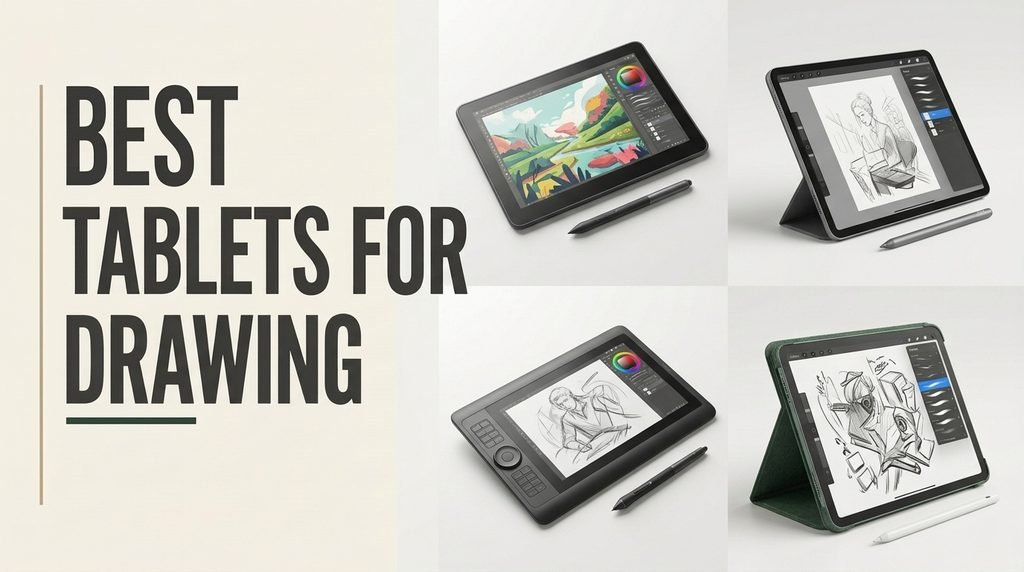
Find drawing tablets that fit how you actually sketch in 2026. We compare 10 standout options by pressure sensitivity, tilt, screen size, lamination, color coverage, shortcut controls, pen comfort, standalone versus computer use, battery life, software support, owner feedback, and the everyday trade-off between a large display and a lighter pad.
The useful split is not brand versus brand. A pen display puts the stroke under the nib, but it stays tied to a computer. A screenless graphics tablet costs less and draws on the monitor you already own. A standalone Android tablet leaves the laptop at home, then limits you to apps that device can run well.
Prioritize the pen, the surface, and the workflow before the feature list. High pressure levels help shading only if the nib feels predictable and your software is supported. Check screen size against your desk, confirm a left-hand layout if you need one, and decide whether color work needs a calibrated display.
We compared 10 drawing tablets using the details that change a creative purchase: pressure levels, tilt, screen or active area, lamination and surface texture, color gamut, shortcut keys and dials, pen power, computer or standalone use, operating-system support, battery life, included software, warranty signals, owner feedback, and price. A low-cost screenless pad is not judged like a calibrated pen display or an Android tablet meant to replace a laptop on the train.

Compare key features, scores, and current prices side by side. A shorter feature list means fewer details were available, not necessarily fewer capabilities.


This Kamvas 13 Gen 3 is the strongest all-around pen display in the group for artists who draw on a computer and want the specs in writing. It carries the highest rating here, 4.6, and a price of $209.99, below the other Kamvas 13 listing and the Artist 13.3 Pro. It is not standalone. A computer or a compatible host is required. What you get for that tether is a 13.3-inch fully laminated screen with a paper-textured surface, a 16K pen, dual dials, and published color numbers that are specific enough to compare.
We may earn a commission when you buy through this link, at no additional cost to you.
Canvas Glass 2.0 uses nano-etching to reduce glare, sparkle, and image noise while the full lamination keeps the drawing surface close to the image. The paper texture is the feel difference versus a glossy glass panel. PenTech 4.0 combines a 2-gram initial activation force with 16,384 pressure levels, a thin nib, tilt auto-alignment to reduce parallax, three side buttons, and a dust-proof grip. Light activation force matters for sketching. A pen that needs a hard press makes construction lines darker than you intended and tires the hand during a long inking session. Tilt alignment is there so an angled nib stays visually closer to the stroke.
Color coverage is 99 percent sRGB and Rec.709, plus 90 percent Adobe RGB, with factory calibration to a delta E below 1.5 and a calibration certificate. That is the set of figures to care about if finished art has to match what you see. Two dials and five silent press keys cover canvas, brush, opacity, and slider changes without loud clicks in a shared room. The chassis is 11.7 mm thick and weighs 865 grams, light enough to move between a desk and a laptop bag even though it still needs a host. A full-featured USB-C to USB-C cable can be your own. Windows 10 or later, macOS 10.12 or later, Ubuntu 20.04 LTS, and Android devices with USB 3.1 Gen 1 and DisplayPort 1.2 are supported. The symmetrical body can be rotated in the driver for left- or right-handed use.
The symmetrical body only helps if the driver rotation matches your drawing hand. Set that orientation before you map the silent keys and dials. Then put the two dials on the actions you repeat most, usually zoom and brush size. A left-handed artist who leaves the default right-hand map will fight the tablet no matter how good the pen specification is.
Choose this Kamvas 13 if you want the best-documented 13.3-inch drawing display in the roundup and you already have a computer. The $229 Kamvas 13 listing is the one to pick instead if the named ST300 stand and a single-cable description are more important than the lower price, the 4.6 rating, and the published weight. Move up to the Kamvas Pro 16 if 13.3 inches is simply too small. Move to the Magic Drawing Pad or MovinkPad if the computer tether is the problem you are trying to solve. For desk-based drawing, this combination of pressure, texture, calibration, and price is the most complete fit.
Not for artists who need a computer-free tablet or a stand included under this exact listing.
We may earn a commission when you buy through this link, at no additional cost to you.
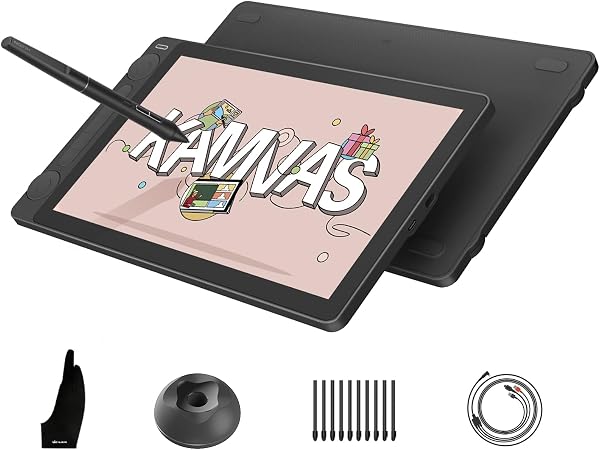
The Artist 13.3 Pro is for illustrators who already work on a laptop or desktop and want the mark to appear under the nib instead of across the desk on a separate monitor. At $211 it sits in the same price band as the 13.3-inch Huion pen displays, but its pitch is color volume plus a physical dial. It is a pen display, not a tablet you can sketch on in a cafe. The included 3-in-1 cable is the whole connection plan, so treat a free USB port and a stable desk as part of the purchase.
We may earn a commission when you buy through this link, at no additional cost to you.
The screen is a 13.3-inch fully laminated full HD panel with a stated 178-degree viewing angle. Lamination matters because it pulls the image close to the glass and is meant to leave virtually no parallax, the gap that makes a stroke look offset from the nib. Color is specified at 88 percent NTSC, with Adobe RGB coverage of at least 91 percent and sRGB coverage of at least 123 percent. Those figures are the reason to shortlist it for painting and design rather than only for notes. Confirm your software color settings still match the display, because a wide-gamut panel does not correct a document that was set up for a narrow space.
The pen is battery-free, with 16,384 pressure levels, 60 degrees of tilt, a low initial activation force, and a 220 reports-per-second rate. Tilt is the practical feature: shading a pencil or marker stroke by angling the pen is faster than opening a brush panel every time. Two customizable keys sit on the pen, eight more sit on the display, and the red dial can zoom, change brush size, or flip the canvas without leaving the drawing posture. Eight replacement nibs and a case that doubles as a stand and holder are included. Windows 7 or later, Mac OS X 10.10 or later, Chrome OS 88 or later, and Linux are supported, along with Photoshop, Illustrator, SAI, and Blender. Registration can add ArtRage 5 and openCanvas.
A dial becomes useful only after it has a single habitual action. Map zoom first, draw for a day, and add brush size only if your hand keeps reaching for it. Eight shortcut keys plus two pen buttons are enough to cover undo, eraser, and a brush toggle. Loading every key on day one usually means you will forget the map and go back to the keyboard.
Choose the Artist 13.3 Pro if a computer is already the center of your studio and you want laminated full HD color, tilt, and a dial at a midrange price. Skip it if the work happens on a train, in a classroom, or on Android, because this display does not run by itself. It is also the wrong shortcut if you want a 15.6-inch canvas or a paper-textured surface that is described in more detail on the Kamvas 13. For desk-based painting, the gamut figures and the dial are the reasons it earns a look before the cheaper screenless pads.
Not for artists who need a computer-free tablet or a confirmed Android connection.
We may earn a commission when you buy through this link, at no additional cost to you.
The RubensTab T11 Pro is the compact standalone option for students, meeting notes, and artists who want a screen and a pen without opening a laptop. It does not need a computer. Power it on and the drawing tools are on the device. At $199.95 it costs about the same as a 13.3-inch pen display, but the job is different: this is a 10.1-inch portable canvas, not a monitor you tether to a desktop. The included adjustable stand case is there for a desk angle and for travel protection.
We may earn a commission when you buy through this link, at no additional cost to you.
The panel is a 10.1-inch full HD IPS screen at 1920 by 1200, so the image is sharper than the size alone suggests, with wide viewing angles for a shared table. The pen needs no battery and is described as pressure sensitive, with adjustable sensitivity and multi-touch for zoom, pan, and scroll. No pressure-level count is published, so do not assume it matches the 16,384-level pens on the XPPen and Huion models. For class notes, diagrams, and early sketch studies, a responsive pen and a sharp small screen matter more than a maximum number. For delicate digital painting, the missing pressure figure is a reason to compare it with a standalone that publishes 8,192 or 16,384 levels.
The 5,800 mAh battery is rated for up to five hours of continuous use, with USB-C charging and the option to extend a session from a power bank. Five hours covers a lecture block or a short travel day, not a full studio day away from an outlet. Wi-Fi is available for tutorials, references, and cloud storage. Drawing apps come pre-installed, which helps a beginner start without a driver install. Certifications cited include GMS, FCC, and CE, and the tablet includes a 12-month warranty. That warranty is a clearer support signal than several more expensive displays in this group, which do not publish a term here.
Five hours is a session length, not an all-day promise. Charge it overnight, lower brightness when you are only taking notes, and keep a USB-C power bank in the same pocket as the pen. A standalone tablet that dies before the train home is less useful than a cheap screenless pad plugged into a laptop.
Buy the T11 Pro if you want the least expensive computer-free drawing screen in this roundup and your sessions fit inside a few hours. It is a weak match for color-critical client work, large illustration, or anyone who needs a published pressure specification before paying. If the screen feels small or the battery feels short, the XPPen Magic Drawing Pad adds size, storage, and a much longer stated runtime at a much higher price. If you already own a capable computer, a pen display will show more desktop software for similar money.
Not for all-day studio work or buyers who require a published pressure-level count.
We may earn a commission when you buy through this link, at no additional cost to you.
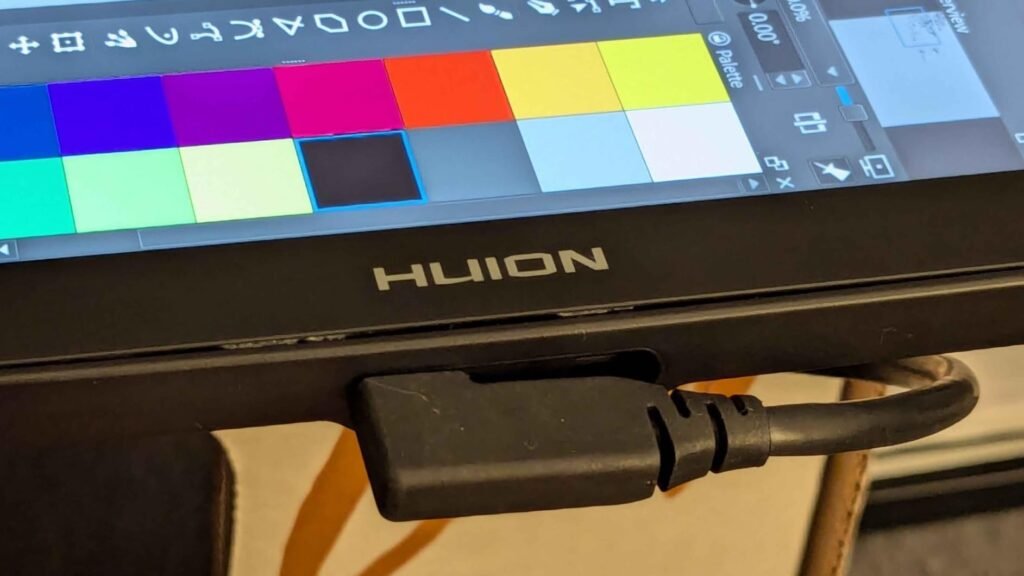
This Kamvas 13 Gen 3 is the desk-first version of Huion's 13.3-inch pen display, listed at $229 with a 4.5 rating. It is not a standalone tablet. It has to connect to a computer or laptop, and the convenience feature is a single USB-C cable rather than a nest of HDMI and power leads. The ST300 adjustable stand is part of the package, which matters if you do not already own a tablet arm. A 13.3-inch display lying flat forces the neck down. A stand that holds a drawing angle is not a luxury once the session lasts more than an hour.
We may earn a commission when you buy through this link, at no additional cost to you.
PenTech 4.0 is specified at 16,384 pressure levels and a 2-gram initial activation force, with three customizable buttons on the pen. Low activation force is what lets a light sketch register instead of requiring a heavy press that tires the hand. The screen is fully laminated 13.3-inch Canvas Glass 2.0, described as anti-sparkle to cut glare and improve accuracy. Color coverage is 99 percent sRGB and Rec.709, with 16.7 million colors and an average delta E below 1.5. A factory calibration report comes with the display. That does not replace your own check against a print, but it is a better starting point than an uncalibrated panel for illustration and design.
Workflow controls are the other reason to pick this listing over a bare pen display. Five programmable shortcut keys and dual dials can take zoom, brush size, and timeline or canvas changes off the keyboard. Windows 10 or later and macOS 10.12 or later are supported, as is Ubuntu 20.04 LTS. Android is possible only on devices that support USB 3.1 Gen 1 and DisplayPort 1.2, so a phone connection is not a safe assumption. Mainstream creative software is supported. Set the stand and the dials before you judge the pen, because a good stylus still feels awkward if the screen angle fights your wrist.
Start with a moderate incline, not the steepest setting. A near-vertical screen is easier on the neck and harder on the wrist for long line work. A lower angle feels more like paper and loads the shoulders. Spend one session at a middle setting, then move the ST300 only if your neck or forearm complains. The stand is useful because that change takes seconds.
Choose this Kamvas 13 if you want the stand in the box, a single-cable hookup, and a calibration report with the 13.3-inch laminated screen. The other Kamvas 13 Gen 3 in this guide costs less, carries a 4.6 rating, and publishes weight, thickness, and Adobe RGB coverage. Buy this one when the ST300 and the single-cable description are the details you actually need. Do not buy either Kamvas if you need a tablet that draws with the laptop closed.
Not for buyers who want a computer-free tablet or a published carry weight on this exact listing.
We may earn a commission when you buy through this link, at no additional cost to you.
The MovinkPad 11 is the premium standalone pick for people who want a Wacom pen and a paper-like surface without carrying a computer. It is an 11.45-inch Android 14 tablet with 8 GB of memory and 128 GB of storage, and it weighs 1.3 pounds. That weight is the travel argument: lighter than most laptops, small enough for a bag, and meant to go where a sketchbook goes. At $499.95 it is the most expensive device in this group, so the pen feel and the included software have to earn the difference.
We may earn a commission when you buy through this link, at no additional cost to you.
The slim Pro Pen 3 is battery-free, with 8,192 pressure levels, three buttons, and replacement nibs stored in the back of the pen. Eight thousand levels are enough for expressive line work, but they are half the count published for the XPPen Magic Drawing Pad and the 16K Huion and XPPen pens. The surface is the stronger distinction. Matte etched glass is described as paper-like, with a subtle texture that reduces glare and fingerprints. If slippery glass is why you dislike drawing on a normal tablet, this is the spec to prioritize. The display is called bright and sharp, though a color-gamut percentage is not published, so do not treat it as a calibrated studio monitor.
Daily use is built around speed. Tap and hold the pen on the screen to launch Wacom Canvas and start a sketch or note, which is closer to opening a paper book than hunting through an app drawer. The box includes Wacom Canvas, two years of Clip Studio Paint Debut, and trials of Ibis Paint, Magma, and Artwod training. It also lists support for popular digital pens from Dr. Grip, LAMY, and Staedtler. Storage is 128 GB, so large video files and a heavy photo library will fill it faster than the 256 GB Magic Drawing Pad. Runtime is not specified, which is a real gap next to standalone rivals that publish five or thirteen hours.
Keep current projects on the tablet and move finished files off it. An 11-inch Android device with 128 GB fills quickly once reference photos, app caches, and layered files share the same space. Export completed work to cloud storage or a computer on a schedule, the same way you would empty a paper sketchbook before the next trip.
Choose the MovinkPad if paper texture, a Wacom pen, and a fast path into a sketch are worth the premium, and you can live with 8,192 pressure levels. Choose the Magic Drawing Pad instead if you want 16,384 levels, a stated 13-hour battery, more storage, and a published 97 percent sRGB figure for less money. Skip both if your finished work depends on desktop Photoshop, a large calibrated display, and a computer you already own.
Not for buyers who need 16,384 pressure levels, a stated battery runtime, or a published color-gamut figure.
We may earn a commission when you buy through this link, at no additional cost to you.
The Inspiroy H1060P is a screenless graphics tablet for beginners and hobbyists who want a large shortcut map more than a display under the pen. The active area is 10 by 6.25 inches in a 10 mm body, and the price is $43.99. You draw on the pad and watch the cursor on a computer monitor. That hand-eye split takes a short adjustment, then it becomes a normal way to edit photos, ink line art, and mark up documents without buying a pen display. The symmetrical layout is the feature that separates it from a basic starter pad.
We may earn a commission when you buy through this link, at no additional cost to you.
Twelve programmable press keys and 16 programmable soft keys give you 28 places to put undo, eraser, zoom, and scroll. That is more shortcut hardware than the Deco 01 V3, which has eight keys and a much higher published pressure specification. The H1060P does not publish a pressure-level count, so do not assume it matches a 16K pen. What it does publish is a battery-free PW100 stylus with plus or minus 60 degrees of tilt, so angled shading is available without charging a pen. For a first digital setup, tilt plus a large key map can matter more than a pressure number you cannot compare.
Compatibility needs a careful read. Windows 7 or later, macOS 10.12 or later, Android 6.0 or later, and Linux are listed. A USB adapter is required for a Mac. Android phones can connect with an OTG adapter, but iPhone and iPad are not supported, and the cursor is not expected to appear on Samsung Galaxy S phones. Ubuntu works with the Xorg display server, not Wayland. Photoshop, SAI, Illustrator, and CorelDRAW are among the supported apps. Left-handed users can rotate the tablet 180 degrees in the driver so the keys stay on the free hand. That one setting is why this pad is a better left-hand candidate than a fixed right-side key strip.
Left-handed setup starts with the 180-degree driver option, not with a custom key map. Turn the active area so your drawing hand is clear of the buttons, then assign only undo, eraser, and zoom. A 28-key layout is useful after the hand position is correct. Mapping every key first usually hides the fact that the tablet is still oriented for the other hand.
Buy the H1060P if you want the cheapest large shortcut pad in this group and you will use a computer monitor as the canvas. Buy the Deco 01 V3 instead if 16,384 pressure levels matter more than 28 keys and the price difference of about a dollar is irrelevant. Do not buy the Inspiroy for an iPad workflow, a phone-only sketchbook, or anyone who has already decided they need to see the stroke under the nib.
Not for iPad users, Galaxy S phone sketching, or anyone who needs an on-screen pen display.
We may earn a commission when you buy through this link, at no additional cost to you.
The Magic Drawing Pad is the standalone tablet for artists who want a full drawing day away from a computer and do not want to compromise on pressure. It is a 12.2-inch Android 14 device with 8 GB of memory and 256 GB of storage, priced at $469.99. The body is 6.9 mm thick and 599 grams, light enough to slip into a bag and large enough that a 10.1-inch screen can feel cramped by comparison. If the MovinkPad is the paper-feel premium and the RubensTab is the compact starter, this is the spec-heavy portable canvas.
We may earn a commission when you buy through this link, at no additional cost to you.
The X3 Pro slim stylus is battery-free, needs no pairing, and offers 16,384 pressure levels with 60 degrees of tilt. Pick it up and draw. That pressure count is the headline difference from the MovinkPad’s 8,192 levels, and it is the spec to care about if your work depends on faint construction lines turning into darker finished strokes. The 12.2-inch screen uses a 3:2 ratio at 2160 by 1440, closer to a sheet of paper than a wide phone, with 97 percent sRGB and 16.77 million colors. AG-etched glass is meant to feel paper-like. The panel is TÜV Rheinland certified and has ten steps of soft-light treatment, a useful detail if you draw at night or under deadline lighting.
An 8,000 mAh battery is rated for 13 hours of continuous creation, the longest published runtime in this group. USB expansion is not the storage story. A microSD card can take storage to 1 TB, which matters for reference libraries and layered files. A 13 MP rear camera and an 8 MP front camera are there for capturing references, not for replacing a dedicated camera. Google Play access means you can add apps beyond the included 3-month Clip Studio Paint and ibis Paint X memberships. Dual windows support multitasking, so a reference and a canvas can sit together. E-books, video, games, and photo viewing are available, but those extras should not decide a drawing purchase.
A 3:2 canvas wastes less space on a portrait sketch than a wide 16:9 display. Start new files in a paper-like ratio, keep the reference in the second window, and resist filling the tablet with video and games that steal the 13-hour charge. The battery figure is for creation, not for a bright screen running background media all afternoon.
Choose the Magic Drawing Pad if you want the strongest published standalone drawing specs here: 16K pressure, a 12.2-inch paper-like screen, 13 hours, and room to grow storage. The trade-off is price and platform. You are buying Android apps, not a tethered pen display running a full desktop studio. If paper texture from a Wacom pen matters more than pressure count and battery hours, compare the MovinkPad before you pay. If you only sketch for an hour at a time, the cheaper RubensTab is the more proportional standalone.
Not for artists who need desktop-class software on a connected pen display or a much lower budget.
We may earn a commission when you buy through this link, at no additional cost to you.
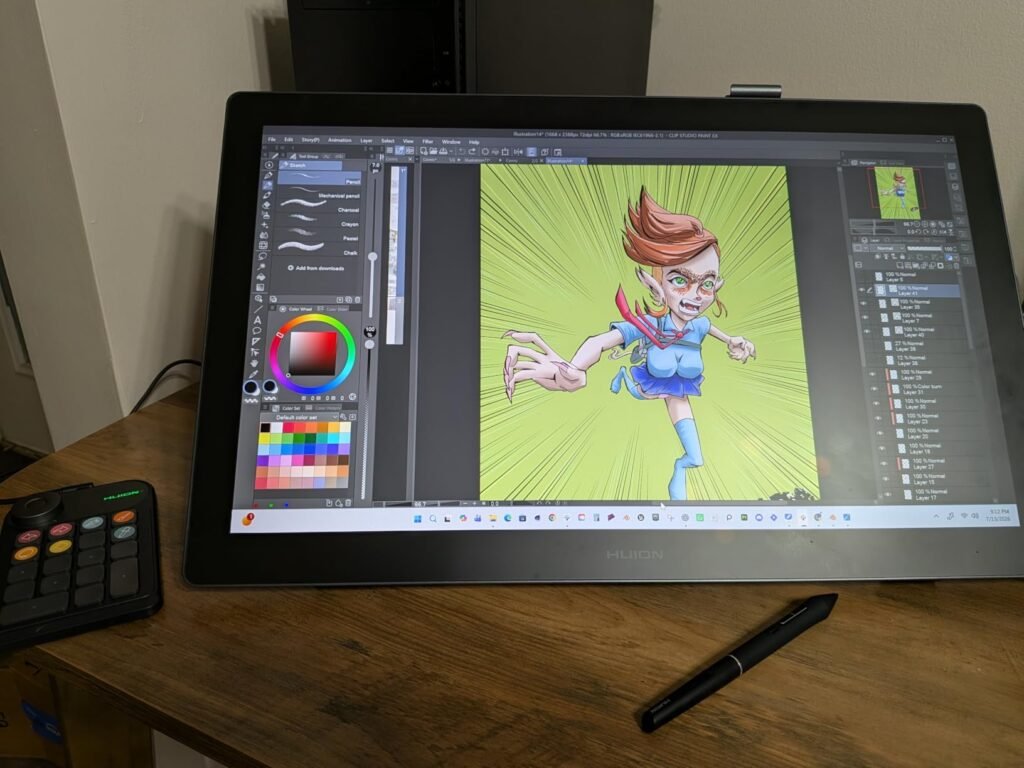
The Kamvas Pro 16 is the large pen display for illustrators and photo editors who find 13.3 inches too tight for a full arm stroke. The screen is 15.6 inches, fully laminated, and covered with anti-glare glass that has a slight texture. At $289.99 it costs more than the 13.3-inch Kamvas models and less than either premium standalone tablet. It is still a computer peripheral. The 3-in-1 USB-C cable carries the HDMI signal and is meant to replace a bundle of separate leads, but the laptop or desktop remains required.
We may earn a commission when you buy through this link, at no additional cost to you.
Color is the performance case for the extra size. Coverage is specified at 120 percent sRGB and 92 percent Adobe RGB, with 16.7 million 8-bit colors and a 1000:1 contrast ratio intended to keep shadow detail clearer. That is a stronger published color story than the screenless tablets and a wider sRGB figure than the 99 percent listed for the Kamvas 13. The pen is battery-free, with 60 degrees of tilt, lag-free tracking as described, and two programmable side buttons. A pressure-level count is not published for this model, so do not copy the 16,384 figure from the Kamvas 13 listings onto this one. If a numbered pressure spec is a buying requirement, the 13.3-inch Gen 3 models state it and this one does not.
The workflow tools match the larger canvas. Six customizable express keys and a touch bar can zoom, change brush size, and trigger shortcuts without a trip back to the keyboard. The ST200 stand moves between 20 and 60 degrees, which is the practical way to keep a 15.6-inch panel from becoming a neck problem. Windows 7 or later, macOS 10.12 or later, and Ubuntu are supported, with Photoshop, Clip Studio Paint, SAI, and Lightroom among the compatible apps. A display this size wants a real desk. It is a poor travel companion compared with an 11-inch Android tablet or an 8 mm screenless pad.
A 15.6-inch pen display needs room for the stand, the keyboard you still use for typing, and the arm motion a larger canvas encourages. If the tablet has to sit in front of a laptop screen, you may end up drawing with your elbows tucked in, which cancels the benefit of the bigger panel. Put the laptop to the side and let the pen display occupy the main working position.
Choose the Pro 16 if your drawings, comics, or photo edits feel cropped on a 13.3-inch screen and you already have a computer to drive it. Skip it if you need a published pressure count, a bag-friendly weight, or a device that works unplugged. The smaller Kamvas 13 Gen 3 is the better fit when desk space is limited and 16,384 pressure levels are on the must-have list. The Pro 16 earns its price when the extra diagonal, the touch bar, and the wider stated gamut are the features you will use every session.
Not for travel sketching or buyers who require a published pressure-level specification.
We may earn a commission when you buy through this link, at no additional cost to you.
The Intuos Medium is the wireless screenless tablet for people who want a Wacom pen on the computer they already use. Bluetooth lets you draw at a desk, on a sofa, or in a classroom without a cable in the way, and a USB-A cable is there when you want a direct connection. At $129.95 it costs more than the Deco or Inspiroy and far less than a pen display. The point is not a second screen. The point is a battery-free EMR pen that is meant to feel like pen on paper while the cursor moves on your existing monitor.
We may earn a commission when you buy through this link, at no additional cost to you.
Wacom describes the Intuos as usable in any software program, which is a broader claim than a short list of art apps. Draw, paint, edit photos or video, design, and mark up documents are all in scope. That makes it a sensible shared tool for a household that edits photos one day and annotates class readings the next. Registration adds creative software and online training. The Medium size is the right call if a small travel pad feels cramped and a large professional tablet is more area than your desk allows. Exact active-area dimensions, pressure levels, and tilt are not published in these details, so compare the current size chart before you assume it matches a 10-by-6-inch pad.
Wireless convenience has a setup cost. Install the driver, pair Bluetooth once, and keep the USB-A cable as a fallback when a classroom computer blocks wireless devices. Because there is no screen on the tablet, eye and hand stay separated. Most people adapt within a few sessions if they practice simple tracing and do not start with a tiny brush on a huge canvas. A pen display removes that learning step and costs more. If you already like drawing while looking at a monitor, paying for a laminated screen is optional.
Install the driver and confirm the pen works over USB-A before you rely on Bluetooth. A wireless pairing that happens first can look like a dead pen when the real issue is an unfinished driver. Once USB works, pair Bluetooth and keep the cable in the bag for computers that block wireless peripherals.
Choose the Intuos Medium if you want a trusted wireless pen tablet, software to start with, and the freedom to move a few feet from the computer. Choose the Deco 01 V3 if you want 16,384 published pressure levels and an 8 mm body for less money and can live without Bluetooth. Choose a Kamvas or Artist display if seeing the line under the nib is the whole reason you are shopping. The Intuos is the wrong purchase if a screenless workflow has already frustrated you on a rented or borrowed pad.
Not for artists who need the stroke on the tablet itself or a published pressure specification.
We may earn a commission when you buy through this link, at no additional cost to you.
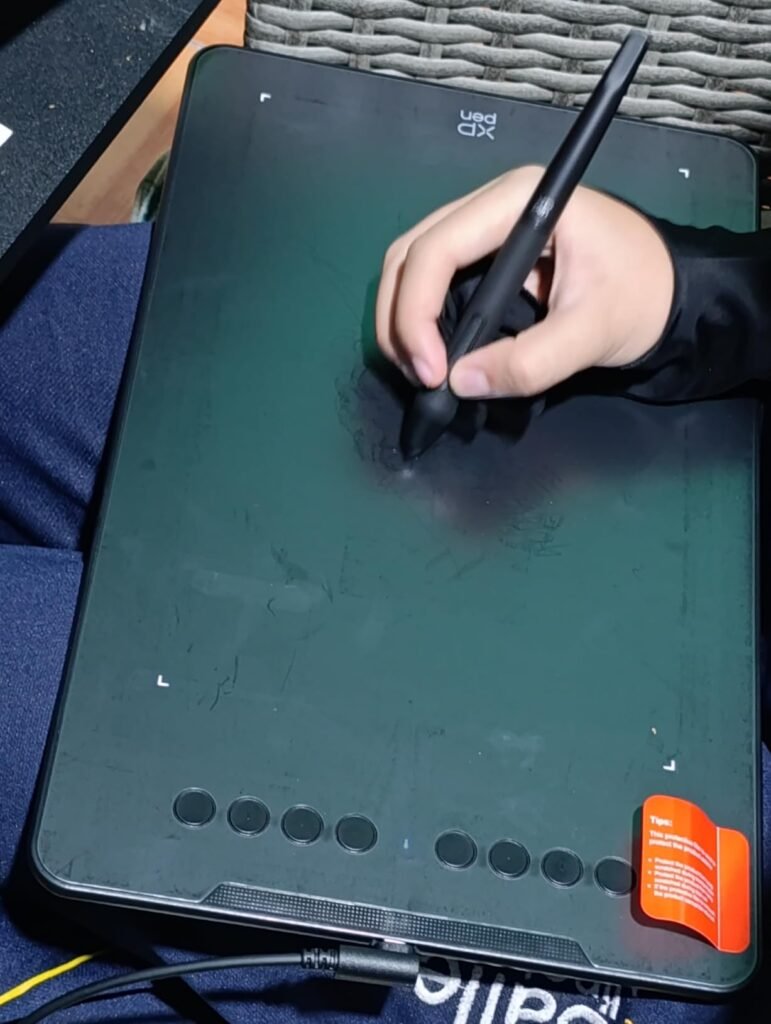
The Deco 01 V3 is the value pick for a first serious pen tablet. It costs $45, close to the Inspiroy, but it publishes the spec budget pads often hide: 16,384 pressure levels and up to 60 degrees of tilt on a battery-free stylus. The active area is 10 by 6.25 inches, large enough to separate the drawing surface from the eight shortcut keys, and the body is 8 mm thick. It is aimed at beginners, yet the pen specification is the same pressure count found on much more expensive displays in this guide. You still need a computer or a supported Android device, because there is no screen on the pad.
We may earn a commission when you buy through this link, at no additional cost to you.
Eight customizable keys are placed for both right- and left-handed use, so a beginner can put undo and eraser under the free hand without buying a second model. The newer input hardware is meant to keep lines smoother, and lights at the ends of the active area make the boundaries visible in a dim room. That is a small feature with a practical point: a screenless pad is easier to trust when you can see where the active area ends. Ten spare nibs, a stand, a glove, a protective film, a USB-C cable, and a USB-C adapter are included. The glove is worth using. Skin drag on a large plastic surface is a common reason new users think the pen, rather than friction, is the problem.
Setup is broader than a basic USB pad. USB-C to USB-C is available, with adapters for other ports. Windows 7 or later, Android 10 or later, macOS 10.13 or later, Chrome OS 88 or later, and Linux are listed, with a note to update Windows to version 11 or macOS to version 12 first. Android mapping is handled through the XPPen Tools app, including portrait screens with different aspect ratios. Photoshop, SAI, Painter, Illustrator, and Clip Studio are among the compatible programs. If your computer is stuck on an older system you cannot update, confirm the driver before you rely on this as a class tool.
Computer use is the simple path. Android use depends on version 10 or later and the XPPen Tools app, which maps the pad to the phone or tablet aspect ratio. Install that app and test portrait mapping at home. A pad that feels accurate on a laptop can feel stretched on a phone if the mapping step is skipped.
Choose the Deco if you want the most pen performance per dollar in this group and you are comfortable looking at a monitor while you draw. The Inspiroy gives you more keys for a similar price and does not publish this pressure count. The Intuos adds Bluetooth and Wacom’s EMR pen for nearly three times the money. A pen display is the next step only after you know you want the image under the nib. For learning, travel practice, and note-taking beside a laptop, the Deco’s thin body and 16K pen are the sensible start.
Not for artists who need an on-screen display or a computer they cannot update to a recent Windows or macOS version.
We may earn a commission when you buy through this link, at no additional cost to you.
A drawing tablet is an interface, not just a screen size. Decide how the stroke appears, how the pen measures pressure, and which computer or app has to run before you compare dials and bundle software.
The first decision is where the picture lives. A pen display, such as the XPPen Artist 13.3 Pro, either Kamvas 13 Gen 3, or the Kamvas Pro 16, puts the image under the nib. That is the closest everyday feel to drawing on paper, and it removes the hand-eye jump of watching a separate monitor. Every pen display in this group must connect to a computer or a compatible host. The Artist uses a 3-in-1 cable. The Kamvas Pro 16 uses a 3-in-1 USB-C cable that carries an HDMI signal. The Kamvas 13 models stress USB-C, and one listing specifically allows your own full-featured USB-C cable. If your laptop has only one port, a single-cable display is a cleaner desk. If your computer is older, confirm the port before you assume a modern USB-C display will wake up.
A screenless graphics tablet moves the cursor on the monitor you already own. The Deco 01 V3, Inspiroy H1060P, and Intuos Medium are this type. They cost less, weigh less, and keep using the color and size of your current screen. The learning cost is real: your hand is on the pad and your eyes are up. Most new users adapt if the active area is large enough and the driver mapping matches the monitor. A standalone Android tablet removes the computer. The RubensTab T11 Pro, Wacom MovinkPad 11, and XPPen Magic Drawing Pad turn on and draw in their own apps. That is the right category for a commute, a classroom, or a sofa. It is the wrong category if your finished files depend on a desktop version of Photoshop, Illustrator, or Blender that these devices do not claim to replace.
Buy a pen display if you already have a computer and want the mark under the pen. Buy a screenless pad if budget and desk simplicity come first. Buy a standalone tablet only if leaving the laptop behind is the actual goal.
Pressure levels describe how many steps the pen can report between a faint touch and a firm stroke. In this group, 16,384 levels appear on the Artist 13.3 Pro, both Kamvas 13 Gen 3 listings, the Magic Drawing Pad, and the Deco 01 V3. The MovinkPad Pro Pen 3 publishes 8,192. The Inspiroy, Kamvas Pro 16, Intuos, and RubensTab do not publish a number here. Do not fill those blanks with a figure from another model, even from the same brand. A higher count helps gradual shading, light construction lines, and brushes that swell with pressure. It does not fix a slippery surface, a badly mapped driver, or a nib worn flat.
Tilt is the other pen spec that changes a drawing. The Artist, Inspiroy, Magic Drawing Pad, Deco, and Kamvas Pro 16 cite about 60 degrees of tilt, so an angled pencil or marker brush can respond without a software workaround. The Kamvas 13 Gen 3 with the 4.6 rating adds tilt auto-alignment, meant to keep an angled nib closer to the visible stroke. Initial activation force matters just as much. Both Kamvas 13 listings specify a 2-gram initial activation force, and the Artist cites a low initial activation force. A pen that ignores light contact forces you to press harder, which darkens sketches and fatigues the hand. Battery-free pens, which cover nearly every model here, remove charging from the ritual. That is a comfort feature as much as a spec: a dead pen battery ends a session in a way a passive stylus does not.
If the product publishes 16,384 levels and tilt, you can compare it directly. If it does not, judge the pen by the features it does state and do not assume parity with a 16K model.
Size changes both the gesture and the desk. A 10.1-inch standalone screen, as on the RubensTab, is easy to hold and tight for a full comic page. An 11.45-inch MovinkPad or 12.2-inch Magic Drawing Pad is closer to a sketchbook. A 13.3-inch pen display is the common desk compromise: large enough for illustration, small enough to sit beside a laptop. A 15.6-inch Kamvas Pro 16 gives the arm more room and asks for a clearer desk. Screenless active areas are a different measurement. The Deco and Inspiroy both use 10 by 6.25 inches, which is a comfortable mapping size for a laptop screen if you do not crank the cursor speed so high that a small wrist movement crosses the whole monitor.
Resolution and surface decide whether the size is usable. The RubensTab specifies 1920 by 1200. The Magic Drawing Pad specifies 2160 by 1440 in a 3:2 ratio, a paper-like proportion that wastes less space on portrait work than a wide 16:9 panel. The Artist is full HD and fully laminated. Lamination reduces the visual gap between nib and pixel, often called parallax. Glass treatment is the feel. Anti-glare and anti-sparkle coatings on the Kamvas models cut reflections. Paper-textured or etched glass, described on the Kamvas 13, Kamvas Pro 16, MovinkPad, and Magic Drawing Pad, adds friction so the nib does not skate. A glossy unprotected screen can look sharper and feel less like paper. If you hate slippery glass, prioritize the etched or textured models even if another panel publishes a wider color number.
Match the diagonal to the gesture you actually make. A larger screen is not better if it forces an awkward reach or will not fit the desk where you draw.
Color specifications are only useful if you know which job they serve. sRGB is the common web and app target. Adobe RGB is wider and more relevant when artwork moves toward print. Rec.709 is a video-oriented target. The Artist 13.3 Pro states 88 percent NTSC, Adobe RGB coverage of at least 91 percent, and sRGB coverage of at least 123 percent. The Kamvas 13 listings state 99 percent sRGB, and the 4.6-rated listing adds 90 percent Adobe RGB and Rec.709. The Kamvas Pro 16 states 120 percent sRGB and 92 percent Adobe RGB, plus a 1000:1 contrast ratio. The Magic Drawing Pad states 97 percent sRGB. The MovinkPad, Intuos, Deco, Inspiroy, and RubensTab do not give a comparable gamut figure in these details.
Calibration is the second half of the color decision. Both Kamvas 13 listings cite an average delta E below 1.5, with a factory report or certificate. That is evidence the panel left the factory checked, not a promise that your room lighting and software profile will stay perfect. A wide-gamut display can also make ordinary sRGB files look oversaturated if the application is not color managed. For client illustration, photo retouching, and print-bound work, favor a display that publishes both gamut and a calibration figure, then keep your document profile consistent. For notes, comics practice, and personal sketches, a missing gamut number is not a reason to overspend. A screenless tablet inherits the color of the monitor you already own, which may be better or worse than a new pen display.
Pay for stated gamut and calibration when the file has to match another screen or a print. Ignore the color chart when the tablet has no screen or the work never leaves a casual sketch app.
Controls save time only when they sit where your free hand already rests. The Inspiroy offers the largest map, with 12 press keys and 16 soft keys. The Deco has eight keys arranged for either hand. The Artist has eight display keys, two pen keys, and a red dial for zoom, brush size, and canvas flip. Both Kamvas 13 listings have five shortcut keys and dual dials. The Kamvas Pro 16 has six express keys and a touch bar. The MovinkPad pen has three buttons. More controls are not automatically better. A beginner who cannot remember 28 keys will work faster with undo, eraser, and zoom on three reliable buttons.
Handedness belongs in this decision, not in an afterthought. The Inspiroy can be rotated 180 degrees in the driver. The Deco places keys for both right- and left-handed users. The 4.6-rated Kamvas 13 has a symmetrical body and a driver rotation for either hand. A right-biased key strip can be tolerable for a left-handed artist on a screenless pad, because the drawing hand never covers the keys if the pad is flipped. On a pen display, a bad key position makes you reach across the screen and smear the glass. Set rotation first, then map the dials. A dial is most valuable for continuous changes such as zoom and brush size. A button is better for undo and tool switches. Silent keys, called out on one Kamvas 13 listing, matter in a library, a class, or a shared studio.
Map three actions and use them for a week before you fill every key. Buy extra keys or dials only if those three already feel too slow.
A pen is only as useful as the app that understands it. Computer pen displays and screenless pads in this group commonly cite Photoshop, Illustrator, SAI, Clip Studio, and similar creative software. The Artist also lists Blender and, after registration, ArtRage 5 and openCanvas. The Kamvas Pro 16 adds Lightroom to the examples. The Intuos says it can be used in any software program and includes software and training after registration. Standalone devices are a different ecosystem. The MovinkPad includes Wacom Canvas, two years of Clip Studio Paint Debut, and trials. The Magic Drawing Pad includes three months of Clip Studio Paint and ibis Paint X and can download more from Google Play. The RubensTab comes with drawing apps pre-installed. A three-month membership is a start, not a long-term software plan. Price the app you will still need after the trial.
Operating-system limits cause more returns than pen specs. Check the floor version, not just the brand. The Artist starts at Windows 7, Mac OS X 10.10, and Chrome OS 88. The Kamvas 13 models ask for Windows 10 or later and macOS 10.12 or later, with Ubuntu 20.04 LTS called out. The Deco asks you to update Windows to 11 or macOS to 12. Android is uneven. The Deco supports Android 10 or later through its tools app. The Inspiroy supports Android 6.0 with an OTG connector, but not iPhone or iPad, and it warns that the cursor will not show on Samsung Galaxy S phones. Kamvas Android support depends on USB 3.1 Gen 1 and DisplayPort 1.2. None of these computer displays should be bought as an iPad accessory unless a specific listing says so. This group does not.
Write down the computer, phone, or tablet you will actually connect. If that device is an iPad, this set of products is the wrong shelf. If it is a Windows laptop you can update, the field is wide.
Portable means more than a small box. A pen display can be thin and still useless on a train because it has no battery and no operating system. The Kamvas 13 at 865 grams and 11.7 mm is easier to carry between rooms than a 15.6-inch display, but it still needs a host. The Deco at 8 mm and the Inspiroy at 10 mm are the easy bags, provided the computer comes too. True portability sits with the standalone models. The MovinkPad weighs 1.3 pounds. The Magic Drawing Pad weighs 599 grams and is 6.9 mm thick. The RubensTab is the smallest screen. Weight is only half of the travel test. The other half is runtime.
Published battery figures are sparse and should be compared only where they exist. The RubensTab rates a 5,800 mAh pack at up to five hours and can take a USB-C power bank. The Magic Drawing Pad rates an 8,000 mAh pack at 13 hours. The MovinkPad does not publish runtime, so a travel buyer should treat that as an unknown rather than assume it matches either rival. On a desk, ergonomics replace battery as the comfort spec. The Kamvas 13 Dual Dial listing includes the ST300 stand. The Kamvas Pro 16 includes the ST200, adjustable from 20 to 60 degrees. The Artist pen case can act as a stand. A display flat on the desk pushes the neck forward. A steep angle can load the wrist. The useful stand is the one you will actually adjust, not the one with the widest theoretical range.
If you draw away from home, require a stated battery figure and a standalone device. If you draw at a desk, spend the money on a stand angle and a screen size you can face for hours.
The price ladder in this group is wide enough to match different jobs. The Inspiroy is $43.99 and the Deco is $45, so a beginner can learn the screenless workflow without risking a pen-display budget. The Intuos Medium at $129.95 adds wireless Wacom pen technology and included software. The RubensTab at $199.95 is the entry to a computer-free screen. The Kamvas 13 at $209.99, the Artist at $211, and the other Kamvas 13 at $229 are the main 13.3-inch display cluster. The Kamvas Pro 16 at $289.99 buys diagonal and a wider stated sRGB figure. The Magic Drawing Pad at $469.99 and the MovinkPad at $499.95 are premium standalone devices. A higher price is justified when it buys a screen under the pen, calibration, a stand, or a battery you will use. It is not justified when you only needed a pen for a laptop you already like.
Consumables and support belong in the price. The Artist includes eight replacement nibs. The Deco includes ten nibs, a glove, and a protective film. The MovinkPad stores spare nibs in the pen. A nib is inexpensive until you cannot buy the right one, so favor a pen whose replacements are identified. Warranties are uneven. The RubensTab includes 12 months. Other models here do not publish a term in the details used for this comparison, so do not assume multi-year coverage because the brand is familiar. Registration software is also temporary on some devices: two years of Clip Studio Debut on the MovinkPad is a longer runway than three months on the Magic Drawing Pad. Add the app you will need in month four to the standalone price before calling it cheaper than a computer you already own.
Spend more only for a constraint you have today: no computer, too small a screen, poor color trust, or a pen that cannot feel light pressure. A $45 pad that matches the workflow beats a $500 tablet that solves a problem you do not have.
Install the driver or companion app before you judge the pen. For a computer display or screenless pad, connect it the way that model intends, whether that is a 3-in-1 cable, USB-C, or USB-A, and confirm the cursor reaches every corner of the mapped screen. Set orientation next, especially if you draw left-handed and the driver offers a 180-degree or workspace rotation. Map only undo, eraser, and zoom on the first day. Add a dial function after those three are automatic. On Android, install the maker’s mapping tool where one is required and test both landscape and portrait before a class or a trip. Standalone tablets should be charged before the first long session, with brightness set no higher than you need.
Protect the surface that the nib touches. Use a microfiber cloth for fingerprints and dust, and skip harsh cleaners that can damage anti-glare coatings or etched glass. A drawing glove, included with the Deco and easy to add to any display, keeps skin oils off the glass and reduces drag. Do not tape paper or stack books on a pen display. Pressure belongs on the nib, not on the panel. Replace a nib when the tip looks flat or starts to scratch, and keep the spares that came with the pen in the case rather than loose in a backpack. If a protective film is included, apply it only if you accept the change in texture. A film can add tooth, and it can also soften the image on a laminated screen.
Keep the hardware easy to service. Recheck cables and port adapters after travel, because a loose USB-C connection looks like a driver failure. Store battery-free pens where the nib is covered. For Bluetooth pads, keep the wired cable as a backup. Update the driver when an operating-system update changes pointer behavior, and avoid installing two pen-tablet drivers at once if you own more than one brand. On a desk, set the stand so your wrist is neutral and the screen is not flat. Take a short break when your grip tightens. Most pen problems that feel like lag are a worn nib, a crowded shortcut map, or a mapping mismatch, and those are cheaper to fix than replacing the tablet.
Some of these devices do, and some do not. The Artist 13.3 Pro, both Kamvas 13 Gen 3 listings, and the Kamvas Pro 16 are pen displays that must connect to a computer or compatible host. The Deco, Inspiroy, and Intuos are screenless pads that also need a computer, or in some cases a supported phone. The RubensTab T11 Pro, MovinkPad 11, and Magic Drawing Pad are standalone Android tablets and do not need a computer to start drawing. Buy the standalone type only if you want to leave the laptop behind.
A published 8,192-level pen is enough for many sketches, notes, and casual illustration. A 16,384-level pen gives finer steps between a light construction line and a dark finished stroke, which helps shading and pressure-sensitive brushes. In this group, 16,384 levels are stated for the Artist, both Kamvas 13 models, the Magic Drawing Pad, and the Deco. The MovinkPad states 8,192. Several other models do not publish a number, so do not assume they match a 16K pen. Pressure count cannot compensate for a surface you dislike or a nib that is worn flat.
A pen display shows the artwork under the stylus. A graphics tablet, sometimes called a screenless pen tablet, sends the stroke to a computer monitor while your hand rests on a blank active area. Pen displays cost more and feel more like paper. Screenless tablets such as the Deco, Inspiroy, and Intuos are thinner, cheaper, and depend on the screen you already own. Beginners can learn on either, but someone who already dislikes looking away from the hand should not force a screenless workflow.
Do not assume so. The Inspiroy H1060P specifically says iPhone and iPad are not supported. The other computer-connected models list Windows, macOS, Linux, Chrome OS, or limited Android support, not iPadOS. Kamvas Android support is limited to devices with USB 3.1 Gen 1 and DisplayPort 1.2. If an iPad is your only computer, look for a tablet and pen designed for that system rather than adapting one of these displays. A Mac computer is a different question, and several models here do support macOS after you check the version floor.
Lamination bonds the glass closer to the display and is meant to reduce parallax, the offset between the nib and the visible stroke. The Artist and the Huion pen displays in this group use full lamination for that reason. It does not replace tilt support or a low activation force, but it makes tracing and inking easier to trust. A paper-like etch or anti-glare coating is a separate choice about friction and reflections. You can want both: a laminated image plane and a textured surface that does not feel like a phone screen.
Use the gesture, not a slogan. A 10.1-inch standalone screen suits notes and small studies. An 11- to 12-inch standalone tablet is closer to a sketchbook. A 13.3-inch pen display is the usual desk size for illustration beside a computer. A 15.6-inch display such as the Kamvas Pro 16 helps when arm movement feels cramped, provided the desk can hold it. For screenless pads, a 10-by-6.25-inch area is a practical match for a laptop monitor. Bigger is worse if it forces you to draw at the edge of your reach.
They can be enough for sketching, concept work, notes, and finished pieces in the apps they run. The MovinkPad includes Clip Studio Paint Debut for two years, and the Magic Drawing Pad includes three months of Clip Studio Paint and ibis Paint X plus Google Play access. They do not automatically replace a desktop studio, a calibrated external workflow, or files that depend on desktop-only plugins. If clients expect desktop Photoshop or Illustrator files, a pen display connected to that computer is the safer tool. If the professional need is capturing ideas anywhere, a standalone tablet is the better fit.
Look for a reversible layout rather than a brand label. The Inspiroy can be rotated 180 degrees in the driver. The Deco places its eight keys for both right- and left-handed users. The 4.6-rated Kamvas 13 has a symmetrical design and driver rotation. Set that orientation before you customize shortcuts, or the best pen will still feel awkward. A screenless pad is usually easier to flip than a pen display with ports and a stand on fixed sides. Confirm the cable still reaches after you turn the device.
Yes, when the image has to match another screen or a print. Look for stated sRGB, Adobe RGB, Rec.709, and a calibration figure such as the delta E below 1.5 on the Kamvas 13 models. The Kamvas Pro 16 and Artist 13.3 Pro also publish wide coverage numbers. A wide gamut is less important for notes, practice sketches, and screenless pads that use your current monitor. Color management in the app still matters. A wide panel can make an ordinary file look too saturated if the document profile is ignored.
Start with the workflow you can practice often. If you have a computer and a small budget, the Deco 01 V3 gives you 16,384 pressure levels, tilt, and eight keys for $45. The Inspiroy is the alternative if a larger shortcut map matters more than a published pressure count. If looking away from your hand already frustrates you, save for a 13.3-inch pen display instead of buying a screenless pad you will resent. A standalone tablet is the beginner pick only when you do not want a computer involved at all.
The HUION Kamvas 13 Gen 3 with the 4.6 rating is the strongest overall choice for most people who draw on a computer. It publishes 16,384 pressure levels, a 2-gram activation force, a paper-textured laminated screen, 99 percent sRGB, 90 percent Adobe RGB, factory calibration, dual dials, and a weight you can plan around. At $209.99 it also costs less than the other 13.3-inch Kamvas listing and the Artist 13.3 Pro. That combination of pen, color documentation, and price is why it leads this group, provided you accept the computer tether.
Other priorities point elsewhere. The XPPen Deco 01 V3 is the value start when $45 and a 16K screenless pen are enough. The Inspiroy is the cheap alternative for a larger key map and left-hand rotation. The Intuos Medium adds Bluetooth and a Wacom EMR pen. The Artist 13.3 Pro is the wide-gamut desk display with a red dial. The Kamvas 13 Dual Dial listing is the one with the named ST300 stand. The Kamvas Pro 16 is the step up in diagonal. For computer-free drawing, the Magic Drawing Pad has the stronger published battery, storage, and pressure specs, while the MovinkPad is the premium paper-feel Wacom option and the RubensTab is the smaller, less expensive standalone.
Decide in this order: computer or no computer, stroke under the nib or on a monitor, then pressure, size, and color. A tablet that cannot run your software, or cannot connect to the device you own, will not be saved by a higher pressure count. Once those limits are clear, pay for the surface and controls you will touch every session, and leave the extra diagonal, dials, and premium brand for the constraint you can actually name.