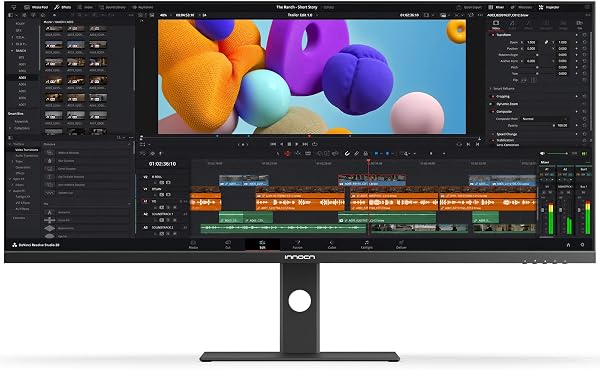
ASUS ProArt PA278QV
9.2Editor score27-inch QHD IPS
100% sRGB coverage
Delta E < 2
Full ergonomic stand
Compare 10 top monitors for video editing by color accuracy, resolution, USB-C power, HDR, and workflow features. Find the right display for your edits.
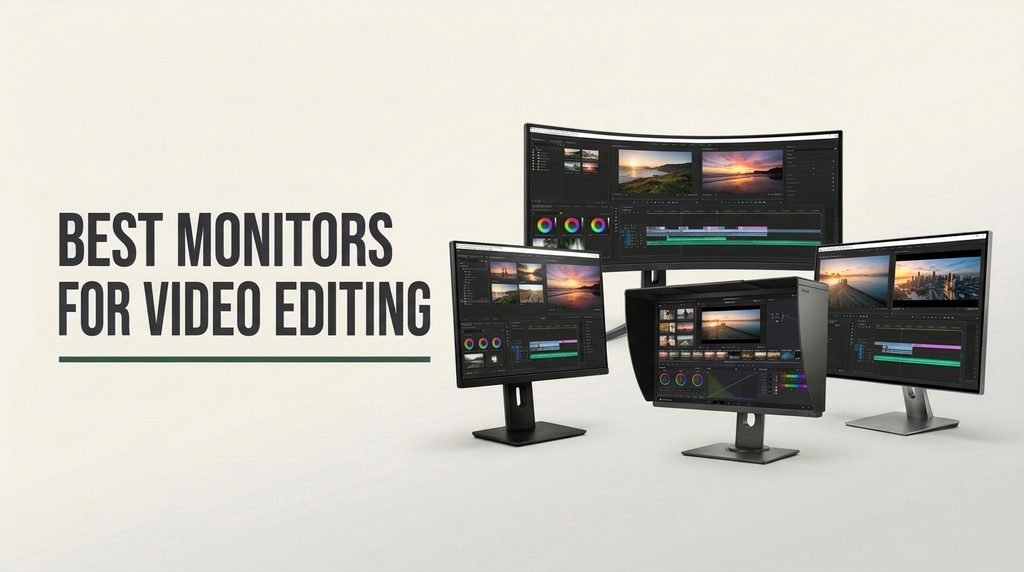
Choosing a monitor for video editing in 2026 comes down to color accuracy, resolution, panel calibration, connectivity, and real workflow comfort. We compare 10 standout displays by the specifications that affect how your footage looks on screen and how smoothly your edit bay actually functions, from factory Delta E ratings to USB-C power delivery and HDR support.
The right display changes everything about how you grade, cut, and finish a project. Models in this lineup span QHD professional panels, 4K HDR displays with wide DCI-P3 coverage, and an ultrawide option built for long timelines. Each one targets a different editing workflow and budget, so understanding the tradeoffs matters before you commit.
This guide focuses on the specifications that genuinely affect editing: color gamut coverage, factory calibration, panel type, resolution, ports, and ergonomic flexibility. Whether you edit on a MacBook over a single USB-C cable or run a dedicated workstation with multiple displays, the comparison below should help you match the right monitor to your projects.
We compared 10 monitors by the specifications that drive editing decisions: factory calibration quality, Delta E accuracy, sRGB and DCI-P3 gamut coverage, resolution and pixel density, panel technology, USB-C power delivery, HDR support, refresh rate, ergonomic adjustability, and warranty length. The picks balance color-critical performance against practical workflow needs like single-cable laptop docking and timeline real estate, so each recommendation fits a specific type of editor rather than chasing a single spec on paper.


Compare key features, scores, and current prices side by side. A shorter feature list means fewer details were available, not necessarily fewer capabilities.


The ViewSonic VP2766-2K earns its position as a top-rated choice through a combination of factory hardware calibration and practical modern connectivity. Every panel ships Pantone Validated with 100% sRGB coverage, which means print and photo output should match what you see on screen without needing a separate colorimeter for initial setup. For editors who also handle thumbnail art, print graphics, or branded assets, that calibration pays off daily.
We may earn a commission when you buy through this link, at no additional cost to you.
The QHD resolution at 27 inches offers 1.77 times the detail of Full HD while remaining less demanding on GPU resources than 4K. For editors cutting 1080p deliverables or working with proxy workflows, QHD provides plenty of pixel real estate for a comfortable timeline, source monitor, and bin layout. The 120Hz refresh rate and 5ms response time keep scrubbing and preview playback smooth.
90W USB-C Power Delivery handles MacBook Air and most MacBook Pro models through a single cable, and HDMI 2.1 adds a second device at up to 120Hz. The port layout is generous with four USB-C ports, a USB-A, audio out, and dual 3W speakers. The ergonomic stand covers tilt, swivel, 90-degree pivot to portrait, and 130mm of height adjustment, which is one of the more flexible configurations in this lineup.
Pantone Validation confirms that a display accurately reproduces the Pantone color library, which is the industry standard for print and brand color. For video editors who also prepare branded title cards, lower thirds, or thumbnail graphics, Pantone-accurate color ensures that your on-screen designs will match printed materials and brand guidelines. It is a practical bonus for mixed-media creators.
This display suits editors who want hardware calibration, laptop-friendly USB-C, and smooth 120Hz performance without jumping to 4K pricing. The sRGB gamut and QHD resolution are the main limitations if you work in HDR or need maximum pixel density. For sRGB and Rec. 709 editing with a modern workflow, it offers one of the strongest feature sets in this comparison.
Editors who need 4K resolution for detailed shot review or wide DCI-P3 gamut coverage for HDR deliverables.
We may earn a commission when you buy through this link, at no additional cost to you.
The ASUS ProArt PA278QV is one of the most sensible entry points for editors who need reliable color without spending heavily on a 4K HDR panel. It arrives Calman Verified with Delta E under 2, which means the colors you see straight out of the box are close enough to reference that most SDR editing work translates accurately to final delivery. For editors working in sRGB or Rec. 709, this is a meaningful advantage.
We may earn a commission when you buy through this link, at no additional cost to you.
The 27-inch QHD IPS panel at 2560×1440 strikes a practical balance between workspace and GPU load. You get more timeline, bins, and preview area than a 1080p display without demanding the horsepower of 4K editing. 100% sRGB and 100% Rec. 709 coverage match the standards most YouTube, corporate, and broadcast projects deliver to, which keeps your grading decisions predictable on viewer screens.
Connectivity is generous for the price, including DisplayPort, HDMI, DVI-D, and Mini DisplayPort alongside a built-in USB hub to simplify peripheral management. The ergonomic stand adjusts for tilt, pivot, swivel, and height, which matters during long editing sessions where screen position affects neck strain. Built-in flicker-free backlighting and a blue light filter help reduce eye fatigue during extended grading or finishing work.
Delta E measures how closely a monitor reproduces reference colors. A Delta E under 2 means the human eye generally cannot distinguish displayed color from the reference. Factory-verified calibration saves hours you would otherwise spend with a colorimeter, and it gives you confidence that the grade you apply on this screen will look similar on properly calibrated monitors downstream in the delivery chain.
This monitor is a strong fit for editors on a budget, students learning color workflows, and anyone whose deliverables stay inside the sRGB and Rec. 709 space. The main tradeoff is the absence of USB-C power delivery and wide DCI-P3 coverage, so laptop editors wanting a single-cable dock or colorists finishing HDR content should look higher in the lineup. For solid SDR editing accuracy, it is hard to beat at this price.
Editors working in DCI-P3 or Adobe RGB workflows or laptop users who want a single USB-C cable for video, data, and power.
We may earn a commission when you buy through this link, at no additional cost to you.
The Dell S2725QC targets editors who want 4K pixel density and USB-C convenience without stepping into the premium professional tier. At 27 inches, the 3840×2160 panel provides roughly 163 PPI, which makes small text in timeline panels, bin labels, and audio waveforms far easier to read during long editing sessions. The extra sharpness also helps when reviewing fine detail in footage.
We may earn a commission when you buy through this link, at no additional cost to you.
The 120Hz refresh rate is unusual at this price for a 4K display, and it benefits editors in two ways. Scrubbing timelines feels noticeably smoother, and preview playback for high-frame-rate footage benefits from the extra headroom. AMD FreeSync Premium support adds tear-free playback when frame rates fluctuate, though this feature is more useful in gaming than editing. The 1500:1 contrast ratio and HDR readiness add depth to shadow detail during grading.
Single-cable USB-C with 65W power delivery is a genuine workflow upgrade for laptop-based editors. Plugging in a MacBook or USB-C PC connects video, data, and charging through one cable, which keeps the desk organized and simplifies the daily routine of connecting and disconnecting. The re-engineered audio hardware is also an improvement over previous Dell panels, though external monitoring speakers remain a better choice for serious editing.
Most video content is delivered at 24, 30, or 60 frames per second, so a 120Hz refresh rate is not strictly necessary for playback. However, the smoother feel during timeline scrubbing, window dragging, and UI interactions reduces eye fatigue over long sessions. If you work with high-frame-rate footage at 120fps, the display can preview native frame rates without pulldown, which is a useful bonus for sports, action, and slow-motion workflows.
This monitor fits editors who want 4K clarity and the convenience of USB-C without jumping to a dedicated professional display. The main limitation is the lack of factory calibration and wider DCI-P3 or Adobe RGB coverage, so color-critical commercial or HDR work benefits from a higher-tier model. For YouTube creators, event editors, and documentary makers working in sRGB, it delivers strong practical value.
Color graders working in DCI-P3, Adobe RGB, or HDR deliverables who require factory-calibrated wide gamut performance.
We may earn a commission when you buy through this link, at no additional cost to you.
The ASUS ProArt PA279CRV is engineered for creative professionals who work in wide color gamuts and need a display that handles both photo and video grading with factory-calibrated precision. 99% DCI-P3 and 99% Adobe RGB coverage means you can confidently edit content destined for cinema, streaming HDR, print, and modern mobile devices without second-guessing how colors will translate.
We may earn a commission when you buy through this link, at no additional cost to you.
Factory Calman Verification with Delta E under 2 removes the guesswork from initial setup. For editors who deliver commercial work, this level of accuracy is essential, and it saves the cost and time of professional calibration services. The 4K UHD panel at 27 inches provides the pixel density needed for detailed shot review, color wheels, and node-based grading interfaces in tools like DaVinci Resolve.
96W USB-C Power Delivery is the headline connectivity feature. That wattage comfortably charges a 14-inch MacBook Pro while carrying 4K video and data over the same cable, making it one of the more Mac-friendly professional displays in this price range. DisplayPort daisy-chaining allows you to drive a second monitor from the first, which simplifies multi-display grading setups. The ergonomic stand adjusts for tilt, swivel, pivot, and height.
DCI-P3 is the color space used in digital cinema and most modern HDR streaming. Adobe RGB extends further into the green range and is more common in print and photography. Having both at 99% coverage means this display handles mixed photo and video workflows without compromise. Editors who work across departments, or who deliver content for both streaming platforms and print collateral, benefit from a display that spans both gamuts accurately.
This monitor fits serious creative professionals who work in HDR, DCI-P3, or Adobe RGB workflows. The 60Hz refresh rate is the main tradeoff compared to higher-refresh ProArt siblings, but for color-critical editing, gamut and calibration accuracy matter far more than refresh rate. If your deliverables stay in sRGB, a less expensive ProArt model will serve you well without the wide-gamut premium.
Casual editors or hobbyists who do not need wide gamut coverage and would benefit more from a less expensive sRGB panel.
We may earn a commission when you buy through this link, at no additional cost to you.
The LG 27US500-W is an accessible way into 4K editing with meaningful DCI-P3 coverage. At under $225, it delivers 90% DCI-P3 gamut and HDR10 compatibility, which gives editors a way to preview HDR content and work in wider color spaces without stepping up to a premium professional display. The three-side borderless design also makes it appealing for dual-monitor setups where bezel width affects visual continuity.
We may earn a commission when you buy through this link, at no additional cost to you.
The 4K IPS panel offers the pixel density that editing tools truly benefit from. More timeline, more source monitor detail, and more interface elements fit comfortably on screen compared to FHD or QHD. The 1000:1 contrast ratio is standard for IPS and preserves wide viewing angles for color consistency, which matters during collaborative review sessions when more than one person watches the screen.
LG’s OnScreen Control software lets you customize screen splits and adjust monitor settings from your computer rather than fumbling with physical buttons. HDR10 compatibility means HDR source footage will display with extended range, though the lack of a specific DisplayHDR certification means the actual peak brightness and contrast improvement is modest. The ergonomic stand offers only tilt, so plan on a VESA arm if you need height or pivot adjustment.
HDR10 support without a VESA DisplayHDR certification means the monitor can accept HDR signals, but peak brightness and contrast may not reach the levels of true HDR mastering displays. For editors who need to preview how HDR content looks approximately rather than grade it with reference accuracy, this level of HDR support is useful. Serious HDR grading still requires a certified reference display.
This monitor fits editors who want 4K resolution and wider color than sRGB without spending heavily. The tilt-only stand and lack of USB-C are the main compromises, but both can be addressed with an aftermarket arm and a dock if needed. For hobbyist and freelance editors building a capable workstation on a budget, it delivers the pixel count and color range that matter most.
Professional HDR colorists who need certified reference-grade brightness and contrast for mastering HDR deliverables.
We may earn a commission when you buy through this link, at no additional cost to you.
The ASUS ProArt PA278CV builds on the PA278QV formula by adding USB-C with 65W power delivery, which transforms it into a true single-cable dock for MacBook Air, 13-inch MacBook Pro, and most Windows ultrabooks. For mobile editors who want a reliable color-accurate second screen without complicated cable management, this is one of the cleanest solutions at a reasonable price.
We may earn a commission when you buy through this link, at no additional cost to you.
The 27-inch QHD IPS panel ships with factory Calman Verification and Delta E under 2 accuracy, backed by 100% sRGB and 100% Rec. 709 coverage. That specification set is tuned for mainstream video editing, YouTube production, and broadcast work where deliverables stay inside standard color spaces. The 2560×1440 resolution strikes a workable balance between screen real estate and GPU demand on laptop-class graphics.
DisplayPort daisy-chaining is a useful power-user feature. It allows you to run up to four monitors through a single DisplayPort chain, which simplifies cable routing for editors who prefer a multi-monitor layout for timeline, source, program, and reference displays. The ergonomic stand supports 90-degree pivot for portrait orientation, which is handy for reviewing vertical social media footage. The box includes USB-C, HDMI, and DisplayPort cables, so initial setup is painless.
Daisy-chaining uses DisplayPort Multi-Stream Transport to pass video signal from one monitor to the next, reducing the number of cables running back to your computer. For editors building a multi-monitor edit bay, this simplifies installation and reduces port demand on the GPU. It does require that each monitor in the chain supports MST output, and your graphics card must support the combined bandwidth.
This monitor fits laptop-based editors and color-conscious creators who want a dockable professional display without the pricing of a 4K wide-gamut panel. The main compromise is the sRGB-only gamut and QHD resolution, so HDR grading and cinema color workflows benefit from stepping up to a 4K ProArt with DCI-P3 coverage. For everyday SDR editing, it delivers an excellent combination of accuracy and workflow convenience.
HDR colorists or editors who deliver DCI-P3 content and need wide-gamut coverage beyond sRGB.
We may earn a commission when you buy through this link, at no additional cost to you.
The ASUS ProArt PA279CV sits in a sweet spot for editors who want 4K pixel density and factory color accuracy without jumping to the wide-gamut premium of the PA279CRV. The Calman Verified Delta E under 2 calibration and 100% sRGB coverage match the needs of most broadcast, YouTube, and corporate video workflows where deliverables stay inside Rec. 709.
We may earn a commission when you buy through this link, at no additional cost to you.
At 27 inches, the 4K UHD panel offers the pixel density that makes a real difference in editing tools. Timeline panels, waveform monitors, and multi-track audio layouts all benefit from the extra space, and 4K source footage can be reviewed with far more detail than on a QHD or FHD display. The IPS panel delivers wide 178-degree viewing angles, which matters when reviewing footage with a client or director beside you.
USB-C with 65W power delivery handles most ultrabooks and MacBook Air models through a single cable, and the built-in USB 3.1 hub offers quick peripheral connectivity. The ergonomic stand covers the full range of tilt, swivel, pivot, and height adjustments that long editing sessions require. A five-year warranty with online registration provides strong long-term confidence, which is a meaningful benefit for editors building a durable workstation.
Not every editor needs DCI-P3 or Adobe RGB. If your clients, platforms, and deliverables use Rec. 709 or sRGB, a factory-calibrated 100% sRGB panel like the PA279CV gives you accurate color for the work you actually deliver. Paying for wider gamut that exceeds your deliverable requirements is only worthwhile if you expect HDR or DCI-P3 projects in your pipeline.
This monitor is well suited to professional and freelance editors who need 4K resolution with reliable sRGB accuracy and USB-C convenience, without paying for wide-gamut HDR coverage they will not use. If you work in DCI-P3 or Adobe RGB, the PA279CRV is the better match. For standard editing deliverables, the PA279CV offers one of the most balanced combinations in the ProArt lineup.
Editors preparing HDR deliverables or cinema DCPs that require DCI-P3 or Adobe RGB wide-gamut coverage.
We may earn a commission when you buy through this link, at no additional cost to you.
The ViewSonic VP2766-4K combines the pixel count of 4K with factory hardware calibration, Pantone Validation, and 90W USB-C power delivery into a package that handles most modern editing workflows gracefully. For editors on a MacBook Pro, the ability to drive 4K video and charge the laptop through a single cable transforms daily setup and tear-down.
We may earn a commission when you buy through this link, at no additional cost to you.
The 4K UHD panel at 27 inches provides approximately 163 PPI, which is ideal for reading timeline text, examining fine detail in clips, and running professional NLE interfaces at comfortable scaling. The 120Hz refresh rate smooths scrubbing and preview playback, which is especially noticeable when working with high-frame-rate footage or spending long hours navigating complex timelines. The 5ms response time is adequate for editing even if it is not competitive gaming territory.
Factory hardware calibration with Pantone Validation and 100% sRGB coverage ensures the colors you see match what viewers and print output will reproduce. HDMI 2.1 adds flexibility for connecting a second device at 120Hz, while four USB-C ports, a USB-A, and dual 3W speakers round out the connectivity. The ergonomic stand covers tilt, swivel, 90-degree pivot, and generous height adjustment, and the 100x100mm VESA pattern fits standard arms.
Hardware calibration stores correction data in the monitor’s internal lookup table, so colors are adjusted before the signal reaches your eyes regardless of which computer you connect. Software calibration applies corrections through the GPU driver, which can break when switching machines or applications. Hardware-calibrated displays are more reliable for professional editing because the calibration travels with the monitor itself.
This display is a strong Editor’s Choice for most working editors because it balances pixel density, calibration, refresh rate, and laptop-friendly power delivery better than most competitors at this price. The sRGB gamut rather than DCI-P3 is the main consideration for HDR workflows, but for the majority of SDR projects, it delivers premium performance where it matters.
Colorists grading HDR deliverables or editors who need wide DCI-P3 gamut for cinema and streaming HDR projects.
We may earn a commission when you buy through this link, at no additional cost to you.
The INNOCN 40-inch ultrawide is built for editors who want a single display that functions like two monitors side by side. At 5120×2160 on a 40-inch 21:9 IPS panel, it offers roughly the horizontal real estate of two 4K displays without the bezel running down the middle. For complex timelines, multi-camera edits, and audio post work with many tracks visible at once, that uninterrupted canvas changes how you organize a project.
We may earn a commission when you buy through this link, at no additional cost to you.
Factory calibration with Delta E under 2, 99% sRGB coverage, and 106% DCI-P3 coverage means this display handles both standard and wide-gamut deliverables accurately out of the box. HDR400 certification adds meaningful brightness and contrast for HDR preview work, and the 115Hz refresh rate keeps scrolling and scrubbing smooth. AMD FreeSync support handles frame-rate variability during timeline playback and the occasional gaming session.
Connectivity centers on a 65W USB-C port that carries the full 5K video signal along with laptop charging, eliminating the need for a separate dock. Built-in stereo speakers handle basic monitoring, and the stand adjusts for tilt, swivel, and height. Low blue light and flicker-free technology help manage eye fatigue during the long sessions this kind of display typically encourages.
A single ultrawide display eliminates the center bezel that fragments dual-monitor setups, which is a real benefit when stretching a timeline across the entire width or reviewing wide-format cinema footage. However, ultrawides lack the vertical flexibility of rotating one monitor to portrait, and window management requires software that can snap applications to specific zones. Choose ultrawide if horizontal flow matters most, and choose dual monitors if you want more layout flexibility.
This is the right choice for editors working on long-form projects, multi-cam shoots, or audio-heavy sessions where horizontal real estate matters more than pixel density per inch. The physical size and premium price are the main tradeoffs, so measure your desk depth before committing. If you work in a smaller space or primarily cut short-form content, a 27-inch 4K panel will serve you better.
Editors with small desks, limited workspace depth, or those who prefer portrait-oriented displays for vertical content review.
We may earn a commission when you buy through this link, at no additional cost to you.
The ASUS ProArt PA329CRV is positioned for professional editors and colorists who need a larger 4K canvas with HDR capability and wide DCI-P3 coverage. The 31.5-inch panel offers more comfortable workspace for complex grading interfaces and multi-panel editing software than a 27-inch display, especially when running detailed color wheels, scopes, and preview monitors simultaneously.
We may earn a commission when you buy through this link, at no additional cost to you.
Factory Calman Verification with Delta E under 2 and 98% DCI-P3 coverage establishes this as a legitimate professional tool for HDR and cinema color work. VESA DisplayHDR 400 certification confirms a baseline level of HDR brightness and contrast, which is useful for previewing HDR deliverables even if it does not match reference-grade mastering displays. The IPS panel provides wide 178-degree viewing angles for collaborative review sessions.
96W USB-C Power Delivery drives most MacBook Pro configurations, and the connectivity bundle includes DisplayPort with MST support for daisy-chaining, HDMI, and a USB hub. The ergonomic stand covers tilt, swivel, pivot, and height adjustment. A five-year warranty with online registration reinforces the professional positioning and protects a meaningful investment over a typical editing workstation lifecycle.
The jump from 27 to 32 inches adds meaningful screen real estate for professional editing interfaces that stack multiple panels. Tools like DaVinci Resolve, Premiere Pro, and Final Cut Pro all benefit from the extra space when you run color wheels, scopes, bins, timeline, and source monitor at once. The larger panel also makes 4K scaling more comfortable at 100%, reducing the need for aggressive UI scaling that compresses on-screen information.
This monitor is the right choice for professional colorists, cinema editors, and HDR-focused creators who need a larger 4K display with wide gamut and HDR support. The physical size and price put it out of reach for casual editors, but for professionals whose deliverables demand accurate DCI-P3 and HDR preview, it delivers a well-rounded package. If you primarily work in sRGB at 27 inches, smaller ProArt models will serve you better.
Editors with limited desk space, budget constraints, or workflows that stay within sRGB and do not require HDR preview.
We may earn a commission when you buy through this link, at no additional cost to you.
Picking an editing display involves far more than resolution and refresh rate. Color accuracy, factory calibration, gamut coverage, connectivity, and ergonomics all shape how well your monitor supports the kind of work you actually do. The factors below walk through the specifications that genuinely matter and how to weigh them against your workflow and budget.
Color gamut defines the range of colors your monitor can reproduce. sRGB is the baseline for web and most broadcast content, Rec. 709 is the HDTV standard, DCI-P3 is used in digital cinema and HDR streaming, and Adobe RGB extends further into green for print and photography. A monitor that covers 100% of sRGB and Rec. 709 is fine for YouTube, corporate, and broadcast work. If you edit cinema, HDR streaming, or print-related material, look for 95% or higher DCI-P3 or Adobe RGB coverage.
Factory calibration is equally important. A monitor rated for a specific gamut only delivers accurate color if it is actually calibrated to that reference. Look for Calman Verification, Pantone Validation, or similar factory calibration certifications with Delta E ratings under 2. That level of accuracy means displayed colors are close enough to reference that most human eyes cannot distinguish the difference, which is the foundation of consistent grading decisions.
If your deliverables stay in sRGB or Rec. 709, prioritize a factory-calibrated sRGB display rather than paying for wider gamut you will not use. If your work spans HDR, cinema, or print, invest in a factory-calibrated DCI-P3 or Adobe RGB display. Buying beyond what your deliverables actually require is one of the most common overspends in editing displays.
Resolution affects how much of your timeline, source footage, and interface elements you can see at once. At 27 inches, QHD at 2560×1440 provides roughly 109 pixels per inch, which is sharp enough for comfortable editing without the GPU demand of 4K. 4K at 27 inches reaches about 163 PPI, which makes small UI text and timeline labels noticeably crisper and allows more detailed shot review. Ultrawide displays like the INNOCN 40-inch add massive horizontal real estate for complex timelines.
Higher resolution comes with tradeoffs. 4K panels place more demand on your GPU, especially when previewing complex effects or high-frame-rate footage. If you work on a laptop with integrated or entry-level discrete graphics, QHD may actually deliver smoother overall performance than 4K. Larger panels also require more desk space and a greater viewing distance, which affects how comfortable they feel in a home office or editing bay.
Choose QHD at 27 inches for a balanced price-to-performance ratio that handles most editing workflows. Choose 4K if you want the sharpest interface and plan to review 4K source footage at native resolution. Choose ultrawide if horizontal real estate drives your productivity more than pixel density.
IPS panels dominate professional editing displays because they offer the best combination of color accuracy and wide viewing angles. The 178-degree horizontal and vertical viewing angles typical of IPS panels mean colors remain consistent whether you view the screen head-on or from the side, which matters during collaborative review sessions with directors, clients, or editors sitting beside you.
VA panels offer deeper native contrast ratios, which can be appealing for watching movies in dark rooms, but they typically have narrower effective viewing angles and slower pixel response times. For editing, VA panels can produce color shifts near the edges of the screen, which undermines consistent grading decisions. TN panels are fastest but offer the worst color consistency, so they are rarely used in professional editing displays.
For editing, stick with IPS. Every monitor in this guide uses IPS technology for exactly this reason. The small contrast advantage of VA rarely outweighs the color consistency disadvantages, and TN is best reserved for competitive gaming rather than color-critical work.
If you edit on a laptop, USB-C with Power Delivery is one of the most practical features to prioritize. A single cable carries video, data, and charging between your laptop and monitor, which simplifies setup, reduces desk clutter, and makes undocking for a shoot or client meeting much faster. 65W is enough to charge most 13-inch and 14-inch laptops, while 90W to 96W is needed for 15-inch and 16-inch MacBook Pro models under moderate load.
Not all USB-C ports are equal. Verify that the monitor’s USB-C supports DisplayPort Alt Mode for video signal and that the power delivery wattage matches or exceeds your laptop’s requirements. Some monitors also include additional USB-C or USB-A ports that function as a hub, letting you connect peripherals through the monitor and reducing cable count further. Thunderbolt 3 or 4 adds daisy-chaining and higher bandwidth, though it is less common in this price range.
If you primarily use a desktop with a dedicated GPU, USB-C is less critical and DisplayPort delivers the best bandwidth for high-refresh 4K signals. If you rely on a laptop for editing, USB-C Power Delivery is close to essential for workflow comfort.
HDR support matters if you edit content destined for streaming platforms that deliver HDR, such as Netflix, Apple TV Plus, or YouTube HDR. Basic HDR10 compatibility means the monitor can accept an HDR signal, but actual visual improvement depends on peak brightness and contrast. VESA DisplayHDR certifications provide a useful benchmark, with DisplayHDR 400 marking an entry-level HDR experience and higher tiers like DisplayHDR 600 and 1000 delivering progressively more dramatic highlight detail.
True HDR mastering requires reference displays with much higher peak brightness, typically 1000 nits or more, and these cost significantly more than the monitors in this comparison. For most editors who need to preview HDR content rather than master it, a DisplayHDR 400 panel like the ASUS ProArt PA329CRV offers a practical preview capability without the cost of a reference monitor.
If your deliverables are all SDR, skip HDR and prioritize sRGB or Rec. 709 accuracy instead. If you occasionally preview HDR but master on an external reference, DisplayHDR 400 is a sensible compromise. If you need reference-grade HDR mastering, budget for a dedicated professional display rather than a general-purpose editing monitor.
Refresh rate is less critical for editing than for gaming, but it still affects comfort. Standard 60Hz panels are fine for most editing work, but 120Hz or higher makes timeline scrubbing, window dragging, and UI interactions feel noticeably smoother over long sessions. If you work with high-frame-rate footage at 100 or 120fps, a higher refresh rate can preview native frame rates without pulldown, which is useful for action, sports, and slow-motion workflows.
The tradeoff is that higher refresh rates at 4K demand more GPU bandwidth and a capable cable connection. DisplayPort 1.4 or HDMI 2.1 is required to drive 4K at 120Hz, and your GPU needs to support the signal. Many editors find that 60Hz is perfectly adequate for standard timeline work, so do not stretch your budget for 120Hz if other factors like color gamut or calibration matter more to you.
Choose 60Hz for color-critical work where gamut and calibration matter most. Choose 120Hz if you want smoother scrubbing and work with high-frame-rate footage. The refresh rate upgrade is a nice quality-of-life improvement rather than a workflow necessity for most editors.
Editing is a long-session activity, and monitor ergonomics directly affect physical comfort and long-term health. The best editing displays include stands that adjust for tilt, swivel, pivot, and height, letting you position the screen at the ideal eye level and angle for your workstation. Height adjustment is particularly important because most desks are too low for ergonomic viewing without raising the monitor.
Portrait pivot capability is useful for editors who review vertical content for social media platforms, or for coders and writers who collaborate with editors and prefer a vertical layout. VESA mount compatibility, typically 100x100mm, lets you use an aftermarket monitor arm for even more flexibility, including over-desk positioning that frees up workspace below.
If you edit for more than a few hours per day, prioritize a fully adjustable stand or plan to invest in a VESA monitor arm. The initial cost pays off in reduced neck and shoulder strain over the life of the display, which is worth far more than a small discount on a basic stand.
Professional editing displays typically carry longer warranties than consumer monitors, with three to five years being common at the ProArt and ColorPro tiers. A longer warranty signals the manufacturer’s confidence in build quality and provides protection against panel defects, dead pixels, and backlight issues over a realistic workstation lifespan.
Dead pixel policies also matter. Some manufacturers replace monitors with even a single dead pixel, while others require multiple before authorizing a replacement. Check the specific policy before buying if you are particularly sensitive to screen defects, and consider buying from retailers with generous return windows so you can inspect the panel after it arrives.
A five-year warranty is a meaningful benefit if you edit professionally and treat your monitor as a long-term investment. For casual editing or short-term use, a standard three-year warranty is usually sufficient. Either way, verify the warranty terms and dead pixel policy before committing to a purchase.
When setting up a new editing monitor, start by positioning it at a comfortable viewing distance of roughly an arm’s length and adjust the height so the top of the screen sits at or slightly below eye level. For color-critical work, let the monitor warm up for at least 30 minutes before beginning serious grading, since LCD panels can shift slightly in color temperature during the first few minutes after power-on. Set the display to its native resolution and the highest refresh rate your connection supports.
Even factory-calibrated monitors benefit from periodic verification. If you deliver client work, invest in a hardware colorimeter like a Datacolor Spyder or X-Rite i1Display, and recalibrate every few months to catch any drift in the panel’s output over time. Keep ambient room lighting consistent and avoid direct light hitting the screen, since reflections and surrounding light temperature affect how your eyes perceive on-screen colors. A neutral gray wall behind the monitor and consistent desk lighting help maintain grading accuracy.
For long-term care, clean the screen gently with a soft, lint-free microfiber cloth and avoid household cleaners containing alcohol or ammonia, which can damage the anti-glare coating. If smudges resist a dry cloth, lightly dampen it with distilled water or a screen-safe cleaning solution. Turn off and unplug the monitor before cleaning to avoid streaks and reduce the risk of pressing hard on an active panel. When the monitor is not in use for extended periods, enable sleep mode to reduce backlight wear and preserve panel lifespan.
4K is beneficial but not strictly required. If you edit 4K source footage, a 4K display lets you view clips at native resolution without downscaling. For 1080p or proxy workflows, QHD provides plenty of working space at lower GPU cost. The decision often comes down to what resolution you deliver and how much pixel density you want in your editing interface. A factory-calibrated QHD panel can serve many editors well.
The right gamut depends on your deliverables. For YouTube, broadcast, and corporate work, 100% sRGB or Rec. 709 coverage is sufficient. For HDR streaming, cinema, or wider-gamut content, look for at least 95% DCI-P3 coverage. Adobe RGB matters more for print and photography. Buying beyond your actual delivery requirements rarely pays off, so match the gamut to the projects you realistically work on.
Factory calibration with Delta E under 2 is accurate enough for most professional editing work. However, panels drift slightly over time, and if you deliver color-critical commercial work, periodic verification with a hardware colorimeter is worthwhile. For casual editing, factory calibration alone is typically sufficient. If your deliverables involve precise brand colors or cinema grading, plan to invest in a colorimeter for ongoing verification.
Yes, if the monitor supports USB-C with sufficient Power Delivery. 65W handles most 13-inch and 14-inch MacBook Pro models, while 90W to 96W is needed for the 16-inch MacBook Pro under load. Monitors like the ViewSonic VP2766-4K, ASUS ProArt PA279CRV, and ASUS ProArt PA329CRV all offer 90W or higher, making them well-suited to larger MacBook Pros.
Refresh rate is less critical for editing than for gaming, but 120Hz provides a noticeably smoother feel during timeline scrubbing and UI interactions. For most editing work, 60Hz is perfectly adequate. If you work with high-frame-rate footage at 100 or 120fps, a 120Hz display can preview native frame rates without pulldown, which is useful but not essential.
27 inches is the most popular size for editing because it balances workspace and desk footprint. 32-inch displays provide more comfortable 4K scaling and more room for complex editing interfaces, but they require a deeper desk. Ultrawide displays like 40 inches at 21:9 offer massive horizontal real estate for long timelines but demand significant desk space. Choose based on your workflow and available room.
HDR support matters if you edit content destined for HDR delivery on streaming platforms. Basic HDR10 compatibility provides approximate HDR preview, while VESA DisplayHDR 400 offers a more meaningful experience. True HDR mastering requires reference displays costing much more. For SDR workflows, HDR is a nice bonus but not essential, and you can usually get better overall value from a well-calibrated SDR panel.
A fully adjustable stand or VESA arm is genuinely important for editing because long sessions amplify the effects of poor ergonomics. Being able to adjust height, tilt, and swivel reduces neck and shoulder strain. Portrait pivot is useful if you review vertical social media content. If the included stand is tilt-only, budget for a VESA arm to add the flexibility your workstation needs.
Yes, several options work well for both. The Dell S2725QC and ViewSonic VP2766-4K offer 4K at 120Hz, which handles both editing and most modern gaming. The ViewSonic VP2766-2K provides 120Hz QHD with FreeSync-compatible smoothness. Pure professional panels like the ASUS ProArt PA279CRV prioritize color accuracy over refresh rate, so they are less ideal for competitive gaming.
The ViewSonic VP2766-4K stands out as the strongest all-around choice for most editors because it combines 4K pixel density, factory hardware calibration, Pantone Validation, 120Hz smoothness, and 90W USB-C power delivery in one coherent package. For editors on MacBook Pro or similar laptops, the single-cable workflow and calibrated sRGB accuracy cover the needs of most SDR projects without compromise.
Other options serve specific buyers well. The ASUS ProArt PA278QV delivers calibrated SDR editing at the lowest practical price for professional color accuracy. The ASUS ProArt PA279CRV steps into wide DCI-P3 and Adobe RGB territory for creators working across cinema, HDR, and print. The ASUS ProArt PA329CRV adds a larger 32-inch 4K HDR canvas for serious colorists, and the INNOCN 40-inch ultrawide gives timeline-heavy editors unmatched horizontal real estate.
Before you buy, map your decision to your actual deliverables and workflow. If you deliver in sRGB or Rec. 709, prioritize factory calibration and USB-C convenience over wide gamut coverage you will not use. If you work in HDR, cinema, or wide-gamut print, invest in a DCI-P3 or Adobe RGB panel with HDR certification. Matching the specifications to the work you really do is how you avoid overspending and still end up with a display that supports your editing for years.