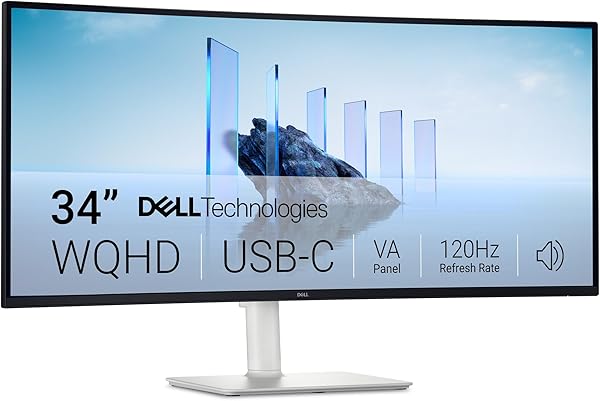
Dell S3425DW 34-inch
8.8Editor score34-inch WQHD VA
120Hz refresh rate
65W USB-C delivery
99% sRGB coverage
Compare 10 top monitors for programming. Expert breakdowns of resolution, aspect ratio, ergonomics, USB-C docking, and eye comfort to help developers choose.
Finding the right monitors for programming in 2026 means balancing pixel density, vertical workspace, color accuracy, eye comfort features, and single-cable laptop docking against how you actually write code. We compare 10 standout displays across price points, aspect ratios, and resolutions so you can match the right screen to long coding sessions, documentation review, and side-by-side terminal workflows.
Developer displays differ from generic office monitors in meaningful ways. Taller aspect ratios reveal more lines of code, higher resolutions produce crisper text at smaller fonts, and USB-C docking removes cable clutter from laptop-based workflows. Eye care technologies like flicker-free backlights and reduced blue light become critical when your workday stretches past eight hours in an IDE.
This guide walks through the trade-offs that matter for developers so you can quickly narrow the field. Whether you want a budget QHD panel, an UltraWide replacement for dual screens, a 4K display optimized for MacBook color accuracy, or a purpose-built coding monitor with a 3:2 aspect ratio, the comparisons below focus on features that improve how you read and write code.
We compared 10 monitors for programming using the specifications that genuinely affect code readability and developer comfort: resolution and pixel density, aspect ratio and vertical lines visible, panel technology, refresh rate, ergonomic adjustability, USB-C docking with power delivery, port selection, eye comfort certifications, and value. The analysis focuses on realistic trade-offs developers face across long IDE sessions, terminal multitasking, documentation review, and laptop-based workflows so each pick connects to how people actually write and review code.


Compare key features, scores, and current prices side by side. A shorter feature list means fewer details were available, not necessarily fewer capabilities.



The BenQ RD280UG is engineered specifically for programmers, and it earns the Editor's Choice badge by solving problems that generic office monitors ignore. The 3:2 aspect ratio shows roughly 20% more vertical lines than a standard 16:9 panel at similar diagonal measurements, which means fewer scrolls through functions, more context visible in diff views, and less neck movement when reviewing long files. For developers who work in text-heavy environments for most of the day, this extra vertical real estate is immediately noticeable.
We may earn a commission when you buy through this link, at no additional cost to you.
The nano matte panel finish is another deliberate choice for developers. Standard glossy or semi-matte displays reflect overhead lights, windows, and clothing, which creates visual distractions during long coding sessions. The nano matte coating diffuses reflections almost completely while preserving text sharpness, something cheaper matte coatings often fail to accomplish. At 4K-plus resolution on a 28-inch panel, individual pixels effectively disappear, making code look crisp at any reasonable font size.
Dedicated coding display modes adjust contrast, warmth, and sharpness for text readability rather than cinematic color saturation. MoonHalo backlight serves as a built-in bias light behind the monitor, reducing the contrast between the bright screen and dark wall that causes eye strain during late-night coding. The 120Hz refresh rate improves how smoothly you can scroll through long codebases, logs, and documentation.
The 3:2 aspect ratio originated in traditional photography and is also used in high-end laptops like the Surface line because it shows more vertical content than a wide 16:9 panel. For programmers, this translates directly to more lines of code visible without scrolling, which improves context awareness when reading functions, reviewing stack traces, or working with long configuration files. Over a workday, the reduced scrolling can measurably improve focus and reduce repetitive wrist movement.
This monitor is the right pick for developers who want a display engineered around code readability rather than gaming or media consumption. The 3:2 aspect ratio is less ideal for watching video content in full-screen since you will see letterboxing, and the price reflects the specialized positioning. For serious full-time programmers, the productivity and comfort gains over a generic 4K panel can easily justify the premium.
Buyers who want a general-purpose monitor for mixed work and media consumption, where a 16:9 aspect ratio is more flexible.
We may earn a commission when you buy through this link, at no additional cost to you.
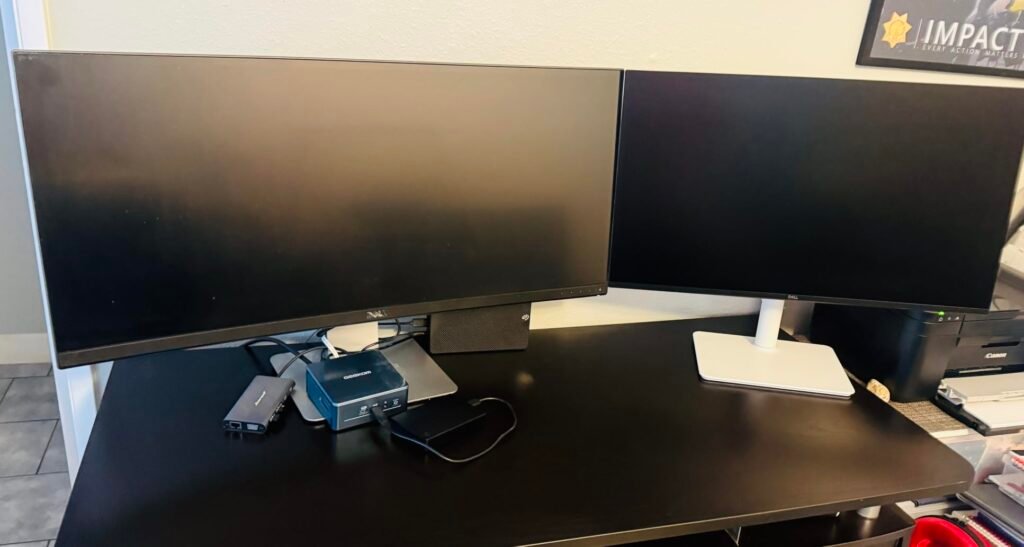
The Dell S3425DW gives developers a 34-inch UltraWide canvas with strong contrast and single-cable laptop docking. The 21:9 aspect ratio delivers enough horizontal width to run a code editor, terminal, and documentation side by side without juggling virtual desktops. For engineers who constantly reference API docs while writing code or comparing files, the uninterrupted workspace removes bezel gaps and reduces context switching.
We may earn a commission when you buy through this link, at no additional cost to you.
The VA panel reaches a 3000:1 contrast ratio, which makes dark IDE themes look richer than typical IPS displays. Color coverage of 99% sRGB and 95% DCI-P3 is strong enough for front-end developers who occasionally review how their work renders in different color spaces. The 120Hz refresh rate and 0.03ms response time keep fast scrolling smooth, which matters when paging through long log files or scrolling through large codebases.
USB-C with 65W power delivery turns the display into a docking station for most ultrabooks and development laptops. A single cable carries video, data, and charging power, which dramatically simplifies desk setup for hybrid workers who move between office and home. ComfortView Plus hardware-level blue light reduction keeps colors accurate while reducing eye strain during long sessions, avoiding the yellow tint that software filters introduce.
Most developers work in dark IDE themes because they reduce eye strain over long sessions. A higher contrast ratio makes dark backgrounds look truly black rather than dark grey, which improves syntax highlighting legibility and reduces light pollution in dim rooms. The 3000:1 contrast on this VA panel gives darker themes noticeably more depth than the typical 1000:1 to 1500:1 ratios found on IPS office monitors.
This display works best for developers who want a wider canvas for terminal-heavy workflows, backend development, or data analysis where more columns matter. The VA panel trade-off is narrower off-axis viewing, which is a non-issue if you sit directly in front of the screen. If you need absolutely perfect color consistency across the entire panel for UI design work, an IPS alternative like the BenQ RD280UG or ASUS ProArt deserves consideration.
UI designers and front-end developers who need wide viewing angle color consistency for pixel-level design work.
We may earn a commission when you buy through this link, at no additional cost to you.
The LG 34WR55QK-B delivers a legitimate dual-monitor replacement for developers at a more approachable price than most 4K options. The 3440×1440 WQHD resolution across 34 inches provides enough horizontal space to arrange an IDE, terminal, browser, and chat application in a comfortable grid layout. For engineers who constantly reference documentation or run multiple tools in parallel, the uninterrupted workspace removes the bezel gap that breaks up traditional dual-monitor setups.
We may earn a commission when you buy through this link, at no additional cost to you.
USB-C with 65W power delivery is the standout feature that transforms laptop-based development workflows. A single cable carries video, data, and enough power to charge most development laptops, eliminating the mess of separate dock, charger, and display connections. Picture-by-Picture support lets you display content from two different computers at native resolution simultaneously, which is useful for managing personal and work devices on a single screen.
The gentle curve suits the wide aspect ratio by keeping the edges at a more comfortable viewing distance without introducing significant line distortion. HDR10 support and up to 99% sRGB coverage handle front-end color accuracy for most web and mobile development work, though serious design or print work benefits from a more color-focused display like the ASUS ProArt. Reader Mode reduces blue light for extended work sessions.
An UltraWide monitor eliminates the bezel that interrupts dual-monitor setups, which matters when you drag windows across screens or compare files side by side. The trade-off is less total vertical space than two stacked monitors in portrait orientation. For developers who prefer horizontal workspace organization and want cleaner cable management, UltraWide wins; for those who prefer stacked vertical reading, traditional dual monitors remain useful.
This monitor is the right choice for developers who want maximum horizontal workspace and single-cable docking at a mid-range price. If your IDE and tooling benefit from wider windows, the productivity gain is substantial. If you prefer a taller aspect ratio for vertical code reading, the BenQ RD280UG is purpose-built for that use case.
Developers who prefer a taller aspect ratio for reading long functions or need higher pixel density at this screen size.
We may earn a commission when you buy through this link, at no additional cost to you.
The BenQ MA270UP is engineered specifically to pair with MacBook Pro and MacBook Air, which makes it the strongest choice for developers in the Apple ecosystem. The display is color-tuned to match MacBook screens so the image looks consistent when you move windows between your laptop and external display, avoiding the jarring color shift that affects most generic 4K monitors. The P3 wide color gamut mirrors Apple's own display standard, which matters for iOS developers reviewing design assets.
We may earn a commission when you buy through this link, at no additional cost to you.
Dual USB-C ports deliver 90W of power to charge most MacBook Pro models through a single cable while simultaneously handling video and data. A secondary USB-C port provides 15W to charge an iPad or iPhone directly from the monitor, which keeps your desk tidy and eliminates extra chargers. Two HDMI inputs add compatibility with secondary devices like Windows laptops, consoles, or Apple TVs for testing purposes.
The most clever feature is direct integration with MacBook keyboard controls. You can adjust monitor brightness and volume using the standard Mac keyboard keys rather than fumbling with on-screen menus, which is a small quality-of-life improvement that becomes meaningful dozens of times per day. The adjustable stand supports height, tilt, swivel, and pivot, giving you full ergonomic flexibility for long coding sessions.
Moving a window from your MacBook screen to an external monitor often reveals that colors look subtly different between displays, which can be distracting for mobile developers and anyone who reviews design mockups. Mac Color Match calibration adjusts the external display to produce visually consistent colors with the MacBook, reducing the mental overhead of comparing the same interface across two screens. This consistency matters most for iOS and macOS developers who build visual applications.
This monitor is the clear pick for MacBook-based developers who want a 4K display that feels like a natural extension of their laptop. The Mac-specific features add real value for Apple users but are less compelling if you primarily use Windows or Linux. For cross-platform developers who want a USB-C 4K monitor without the Mac tuning premium, a standard 4K USB-C display may offer better value.
Windows or Linux developers who do not need Mac-specific color tuning or keyboard integration features.
We may earn a commission when you buy through this link, at no additional cost to you.
The ASUS ProArt PA278QV earns the Best Value badge by delivering professional-grade color accuracy at a price that undercuts most comparable monitors. The Calman-verified factory calibration with Delta E below 2 means colors look accurate straight out of the box without requiring aftermarket calibration tools. For front-end developers, mobile engineers, and anyone who builds user interfaces, this color precision helps your work look consistent across different devices and audiences.
We may earn a commission when you buy through this link, at no additional cost to you.
The 27-inch QHD IPS panel provides the sharp text and wide viewing angles that developers depend on for long coding sessions. 100% sRGB and 100% Rec. 709 coverage hits the standards used by most web content and video platforms, making it a safe choice for developers who occasionally need to review how their work renders in different color spaces. The ProArt Preset and Palette system lets you save custom profiles for different projects or color standards.
Extensive connectivity sets this monitor apart with DisplayPort, HDMI, DVI-D, and Mini DisplayPort inputs plus an integrated USB hub. This port variety makes it easy to connect multiple devices without constantly swapping cables, which is useful for developers who manage work laptops, personal computers, and test devices on the same desk. The 5-year warranty available with online registration signals long-term reliability and reduces the risk of early panel failures.
Delta E measures the perceived difference between the color a monitor displays and the actual intended color. A Delta E below 2 means the difference is nearly imperceptible to the human eye, which is important when building user interfaces or reviewing design mockups. Most consumer monitors ship with Delta E values of 4 or higher, which can produce visible color shifts that affect how you perceive gradients, brand colors, and image assets.
This monitor is the right pick for developers who prioritize color accuracy and long-term value over the latest high-refresh-rate specs. The 60Hz refresh rate is the main compromise compared to newer office displays, so if smooth scrolling matters more than color precision, the Dell S2725DSM offers 144Hz at a similar price. For UI developers and anyone building visual products, the color accuracy and warranty make this a standout choice.
Developers who prioritize high refresh rate or need USB-C single-cable laptop docking.
We may earn a commission when you buy through this link, at no additional cost to you.
The Dell S2725DSM delivers one of the most balanced packages for programmers at a competitive price. The 27-inch QHD resolution hits the current sweet spot for developer displays, producing roughly 109 pixels per inch that make code crisp without requiring aggressive display scaling. More screen real estate than Full HD means you can view more lines of code, keep documentation open alongside your IDE, or run multiple terminal windows without squinting.
We may earn a commission when you buy through this link, at no additional cost to you.
The 144Hz refresh rate is unusual at this price for a standard office-style monitor and delivers noticeably smoother scrolling through long files, logs, and documentation. Combined with the 1ms response time, cursor movement and window transitions feel more responsive than typical 60Hz displays. The 4-star TÜV certification reduces harmful blue light more aggressively than entry-level alternatives, which helps during long coding sessions.
The full ergonomic stand with height, tilt, pivot, and swivel is a meaningful upgrade over many competitors in this price range. The pivot function transforms the display into portrait orientation, which is particularly useful for reading long functions, code reviews, and markdown documentation. Dual input options with HDMI and DisplayPort 1.4 make it easy to connect multiple machines, and the DisplayPort is necessary to run 144Hz at QHD on some systems.
The pivot feature rotates the display into portrait orientation, which shows significantly more vertical content at once. For developers, this transforms the experience of reading long functions, reviewing pull requests, writing technical documentation, or scrolling through log files. Many programmers run their primary monitor in landscape and a secondary monitor in portrait specifically for these vertical tasks.
This monitor is the right pick for developers who want a well-rounded primary display without specialized features they may not use. The main gap is the lack of USB-C input, so laptop users who prioritize single-cable docking should consider the LG 34WR55QK-B or BenQ MA270UP instead. For traditional desktop setups or laptops with HDMI output, the S2725DSM delivers excellent programming value.
Laptop users who want single-cable USB-C docking or developers who need calibrated professional color accuracy.
We may earn a commission when you buy through this link, at no additional cost to you.
The Samsung S50GC delivers the UltraWide experience for programmers at a notably lower price than the LG alternative by trimming features that some developers do not need. The 34-inch Ultra-WQHD panel provides the same 21:9 aspect ratio for seamless multitasking, letting you spread your IDE, terminal, browser, and chat tools across a single continuous canvas. For developers who want maximum horizontal workspace without paying for USB-C docking, this is the more budget-friendly path.
We may earn a commission when you buy through this link, at no additional cost to you.
An ambient light sensor automatically adjusts screen brightness based on your workspace lighting, which is a thoughtful feature for developers who code through changing daylight or dim late-night sessions. Eye Saver Mode and Flicker Free technology help reduce eye strain during long sessions, which matters when your workday stretches past eight hours in front of a text editor. HDR10 support delivers richer colors for occasional media review or content consumption.
Connectivity includes two HDMI 2.2 inputs and a DisplayPort 1.2 input, supporting Picture-by-Picture viewing of two sources at native resolution. For developers managing personal and work laptops on the same desk, this dual-input capability is genuinely useful. The virtually borderless design makes this monitor an attractive candidate for dual-UltraWide setups if you want even more screen area in the future.
UltraWide monitors reach their full potential when paired with window management tools that let you snap applications into predefined zones. Windows 11 includes FancyZones through PowerToys, while macOS users often turn to tools like Rectangle or Magnet. Setting up a three-column layout with your code editor in the middle, terminal on one side, and browser on the other transforms the UltraWide experience from a wide blank canvas into a highly productive development environment.
This monitor fits best for developers who want the productivity benefits of an UltraWide display at a budget-friendly price, especially if they do not need USB-C charging or fully adjustable ergonomics. The flat panel offers more design flexibility than curved UltraWides for UI work where straight edges matter. If single-cable laptop docking is a priority, the LG 34WR55QK-B is worth the step up.
Developers who need USB-C power delivery or want a curved panel for more wrap-around immersion.
We may earn a commission when you buy through this link, at no additional cost to you.
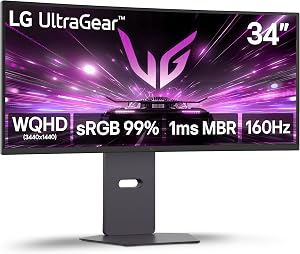
The LG 34G600A-B brings gaming-grade refresh rates to the UltraWide format, which benefits developers who want the smoothest possible scrolling and plan to game after work. The 34-inch WQHD curved panel delivers the same horizontal workspace advantage as the LG 34WR55QK-B, with the added benefit of 160Hz refresh for noticeably smoother cursor movement, window transitions, and scrolling through long codebases.
We may earn a commission when you buy through this link, at no additional cost to you.
The 1800R curvature pulls the edges of the ultrawide display into a more comfortable viewing distance, which reduces the eye travel needed to see the extremes of the screen. For developers who spread multiple windows across the full width, this curve subtly improves comfort during long sessions. HDR10 support and up to 99% sRGB coverage handle front-end color work for most web and mobile development contexts, though not at the precision level of dedicated color-focused displays.
HDMI 2.1 connectivity is a step up from the HDMI 2.0 found on most office-oriented UltraWides, providing enough bandwidth for high-refresh gaming at native resolution. AMD FreeSync Premium reduces screen tearing and stuttering during fast motion, and the Dynamic Action Sync feature minimizes input lag for gaming sessions. Built-in stereo speakers with MaxxAudio handle basic sound needs without external accessories.
While high refresh rates are primarily marketed for gaming, developers benefit from smoother scrolling through long code files, less visual stutter when switching between virtual desktops, and more responsive cursor movement. A 160Hz panel does not require a powerful GPU for productivity work since basic rendering is lightweight, so you can enjoy the smoothness advantages without upgrading other hardware. The visible improvement over 60Hz is immediate during everyday coding tasks.
This monitor is the right choice for developers who want an UltraWide for coding during the day and gaming after hours. The gaming-oriented features like Black Stabilizer and Crosshair are less useful for pure programming work but add value if your display serves double duty. If you do not game and want more conservative color accuracy or USB-C docking, the LG 34WR55QK-B or Dell S3425DW may fit your workflow better.
Developers who do not game and prefer a monitor optimized purely for coding or who need USB-C docking.
We may earn a commission when you buy through this link, at no additional cost to you.
The Dell S2725HSM makes a capable developer workstation accessible at a lower price than most QHD alternatives. The 27-inch display provides generous screen area for arranging an IDE alongside documentation or a terminal, and the full ergonomic stand with height, tilt, pivot, and swivel is a feature that budget monitors usually omit. Portrait pivot is particularly valuable for programmers who want to read long functions or review code vertically.

We may earn a commission when you buy through this link, at no additional cost to you.
The 144Hz refresh rate delivers the same smoother scrolling and more responsive cursor movement benefits found on higher-priced Dell models, which makes a noticeable difference during everyday coding work. The 4-star TÜV certification reduces harmful blue light more aggressively than entry-level panels, supporting comfort during long sessions. The 1500:1 contrast ratio is solid for standard office and development work.
The main trade-off at this size and price is pixel density. Full HD resolution stretched across 27 inches results in roughly 82 pixels per inch, which makes text look slightly softer than a 24-inch FHD display or a 27-inch QHD panel. For developers with tired eyes or those who prefer smaller fonts, this softness may push you toward the Dell S2725DSM QHD alternative, which costs modestly more but offers significantly sharper text.
When FHD resolution spreads across a 27-inch panel, individual pixels become more visible from normal viewing distances, which can make code text appear slightly softer. Developers can mitigate this by using well-designed coding fonts like JetBrains Mono, Fira Code, or Cascadia Code that remain crisp at lower pixel densities, sitting slightly further from the screen, or enabling your operating system’s font smoothing features. For many developers, these adjustments make the lower resolution perfectly usable.
This monitor is a reasonable starting point for developers on tight budgets, students learning to code, or anyone building a cost-effective second monitor into a multi-display setup. The single HDMI input limits flexibility for connecting multiple machines, so consider the QHD alternative if you have the budget. For a first developer display with full ergonomics included, the S2725HSM is hard to beat on value.
Developers who prioritize text sharpness for long coding sessions or need multiple video inputs for complex setups.
We may earn a commission when you buy through this link, at no additional cost to you.
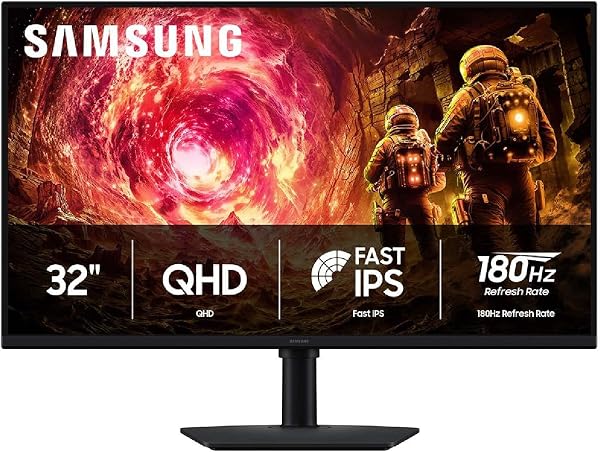
The Samsung Odyssey G5 brings a 32-inch QHD IPS panel at a competitive price, providing more screen real estate than the typical 27-inch alternative without stepping up to a 34-inch UltraWide. For developers who prefer a traditional 16:9 aspect ratio and want more generous window space, this larger panel delivers more room to arrange code, documentation, and tools without ever feeling cramped.
We may earn a commission when you buy through this link, at no additional cost to you.
The 180Hz refresh rate exceeds what most developers need but makes everyday scrolling, cursor movement, and window transitions feel exceptionally smooth. Combined with the 1ms GtG response time and G-Sync compatibility, motion looks crisp whether you are paging through logs or switching between virtual desktops. The IPS panel delivers wide viewing angles and consistent colors from any seating position, which matters when collaborating or glancing at the screen from an angle.
The ergonomic stand includes height adjustment, pivot, tilt, and swivel, giving you full flexibility to position the panel for comfortable long sessions. HDR10 support adds richer color depth for content review, and Auto Source Switch simplifies moving between connected devices. Black Equalizer and Virtual Aim Point are gaming-focused features that add little value for pure coding but do not interfere with productivity use.
A 32-inch QHD panel produces approximately 92 pixels per inch, compared to 109 PPI on a 27-inch QHD display. The practical difference is that text on a 32-inch QHD panel looks slightly softer at the same font size but provides more workspace area. For developers who prefer larger text or sit a bit further from their screen, the larger panel can feel more comfortable. For those who want maximum sharpness, the 27-inch QHD or any 4K option is a better fit.
This monitor is the right pick for developers who want a bigger 16:9 workspace than a 27-inch panel provides, or who plan to game after work and want excellent refresh rates. The trade-off is that QHD resolution spread across 32 inches results in slightly lower pixel density than 27-inch QHD, so text appears marginally softer. If you want maximum text sharpness at this size, step up to a 4K panel like the BenQ RD280UG or MA270UP.
Developers who want maximum text sharpness at this size or need USB-C single-cable laptop docking.
We may earn a commission when you buy through this link, at no additional cost to you.
A great programming display matches your resolution, aspect ratio, ergonomics, and connectivity to how you actually write code. The factors below help you prioritize the specifications that make the biggest difference in daily coding productivity and comfort, without overspending on features you will rarely use.
Resolution and screen size together determine how sharp code looks and how much content fits on screen. Full HD (1920×1080) works reasonably well on 24-inch panels where pixel density reaches roughly 92 PPI, but it becomes noticeably softer at 27 inches. QHD (2560×1440) at 27 inches hits approximately 109 PPI, which is the current sweet spot for sharp code text with generous screen area. 4K at 27 inches pushes pixel density to 163 PPI, offering exceptional text sharpness that reduces eye fatigue during long reading sessions.
For code, pixel density matters more than raw screen size because small font sizes make low-density displays look visibly pixelated. Monitors like the BenQ RD280UG and BenQ MA270UP use 4K resolutions that make syntax highlighting crisp at the small fonts developers typically prefer. If your workflow involves long sessions reading through dense code or documentation, prioritize higher pixel density even if it means a smaller physical screen.
Match 24-inch panels with FHD for budget setups, step up to QHD at 27 inches for a sharp general-purpose developer display, choose 4K at 27 inches or 28 inches for maximum text clarity, and pick UltraWide WQHD if horizontal multitasking matters more than pixel density.
Aspect ratio determines the shape of your workspace and how many lines of code fit on screen. Standard 16:9 displays dominate the market and work well for most development workflows. Taller 3:2 aspect ratios like the BenQ RD280UG show roughly 20% more vertical content at a similar diagonal size, which translates directly to more lines of code visible without scrolling. For developers who work in text-heavy environments, this extra vertical real estate is immediately noticeable.
UltraWide 21:9 displays trade vertical height for massive horizontal width. They excel at side-by-side workflows such as code editor next to terminal and documentation, or comparing files in a wide diff view. The trade-off is less total vertical space than a standard 16:9 panel in portrait orientation, so developers who prefer reading long functions vertically may actually prefer a 27-inch QHD or 4K panel with pivot support over an UltraWide.
Choose 16:9 for maximum flexibility across coding and media tasks, 3:2 for dedicated code-reading optimization, and UltraWide 21:9 if horizontal multitasking is central to your workflow.
Ergonomic adjustability determines whether you can position the display for comfortable viewing throughout a long coding session. The top of the screen should sit at or slightly below eye level, typically requiring the ability to raise or lower the display by several inches. Tilt lets you angle the screen to reduce glare and match your natural head position, while swivel helps when sharing the screen during pair programming or code reviews. Pivot rotates the panel into portrait orientation, which transforms the experience of reading long functions, markdown documentation, and pull request diffs.
Many developers use a dual-monitor setup with their primary screen in landscape and a secondary screen rotated to portrait specifically for code and documentation. If your chosen monitor lacks full adjustability, budget for a VESA-compatible monitor arm, which typically costs 30 to 80 dollars and dramatically improves posture. Monitors like the ASUS ProArt PA278QV, Dell S2725DSM, and Dell S2725HSM include full ergonomic stands at competitive prices.
Prioritize monitors with full ergonomic adjustability if you work long hours at your desk. If your budget forces a trade-off, choose a tilt-only monitor with a compatible VESA mount pattern and pair it with an aftermarket arm.
USB-C with Power Delivery has become one of the most valuable features for laptop-based developers because it transforms the monitor into a docking station. A single cable carries video, data, and enough power to charge most ultrabooks, eliminating the typical mess of separate dock, charger, and display cables. The Dell S3425DW and LG 34WR55QK-B deliver 65W of charging power, which handles most development laptops, while the BenQ MA270UP delivers 90W for power-hungry MacBook Pro models.
Not all USB-C ports support DisplayPort Alt Mode and Power Delivery, so check your laptop’s specifications before buying. Some lower-end laptops only support USB-C for data, requiring a separate HDMI or DisplayPort cable for video. For MacBook users and developers who move between home and office, USB-C docking is often the single biggest quality-of-life improvement. The dual USB-C setup on the BenQ MA270UP even allows simultaneous charging of a phone or tablet from the monitor.
Prioritize USB-C with sufficient power delivery for your laptop if you want single-cable docking, but skip the premium if you use a desktop computer or already own a dedicated docking station.
Monitor panels fall into three main categories with distinct developer-relevant strengths. IPS (In-Plane Switching) panels dominate the professional market because they offer the best color consistency and widest viewing angles, which matters when reviewing UI mockups or collaborating with colleagues. VA (Vertical Alignment) panels like the Dell S3425DW produce deeper blacks and higher contrast, making dark IDE themes look richer, but viewing angles are slightly narrower. TN panels offer the fastest response times but suffer from poor color and viewing angles, making them unsuitable for serious development work.
Color accuracy matters most for front-end developers, mobile engineers, and anyone who builds visual products. Calibrated monitors like the ASUS ProArt PA278QV ship with Delta E below 2, ensuring colors look as intended straight out of the box. The BenQ MA270UP adds Mac-specific color tuning that makes external displays match MacBook screens, reducing distraction when moving windows between devices. For backend developers and systems engineers, standard color accuracy on any IPS or VA panel is typically sufficient.
Choose IPS for color-critical UI development, VA for deep contrast with dark IDE themes, and calibrated professional panels like the ProArt line if your work depends on precise color reproduction.
Refresh rate measures how many times per second the display updates its image. Standard 60Hz monitors are adequate for coding but feel noticeably choppy during fast scrolling through long files, logs, or documentation. Modern displays at 120Hz, 144Hz, or even 180Hz deliver smoother motion that reduces eye fatigue and makes everyday work feel more responsive. Monitors like the Dell S2725DSM, Dell S2725HSM, and BenQ RD280UG offer 120Hz or 144Hz specifically because the benefit extends well beyond gaming.
Response time measures how quickly a pixel can change colors, typically expressed in milliseconds. For coding, response time matters less than refresh rate because most content is static. A 5ms response time is more than fast enough for any development workflow. Response time becomes important only if your monitor doubles as a gaming display or you watch sports content where motion blur would be noticeable.
Prioritize at least 100Hz refresh rate if the budget allows, since the smoother motion improves everyday coding feel. Standard 60Hz remains perfectly functional for lighter workflows where cost is the main constraint.
Extended screen time is the biggest occupational hazard for developers, and modern monitors address eye strain through multiple technologies. TÜV Rheinland blue light certifications rate displays on a star scale based on how aggressively they reduce harmful blue wavelengths. Dell’s ComfortView Plus technology reduces blue light at the hardware level without introducing the yellow tint that software filters often produce, preserving color accuracy for UI work. The BenQ RD280UG’s MoonHalo backlight adds built-in bias lighting that reduces the contrast between a bright screen and dark wall during late-night coding.
Flicker-free technology is equally important. Cheaper displays may use pulse-width modulation to control brightness, producing imperceptible flicker that contributes to headaches and fatigue during long sessions. VESA-certified flicker-free displays use direct current dimming across all brightness levels, delivering a steadier light output. Ambient light sensors, found on monitors like the Samsung S50GC, automatically adjust brightness as room lighting changes, removing another source of eye strain.
Prioritize monitors with both blue light reduction and flicker-free certifications if you code full-time. These features add little to the price but compound their comfort benefits over months of daily use.
Connectivity determines how many devices you can connect and how easily you can switch between them. HDMI is the most universal input, present on virtually every modern laptop, desktop, and test device. DisplayPort supports higher refresh rates and resolutions over the same cable, which matters for running 144Hz at QHD or 120Hz at 4K. Monitors with multiple inputs like the ASUS ProArt PA278QV, which includes DisplayPort, HDMI, DVI-D, and Mini DisplayPort, give developers flexibility to connect work laptops, personal computers, and test devices without constantly swapping cables.
Consider how your workflow might evolve. A single HDMI input works for a basic setup, but dual inputs make it easy to switch between a work laptop and personal computer without touching cables. Picture-by-Picture support, found on monitors like the LG 34WR55QK-B and Samsung S50GC, lets you display two sources simultaneously on the same screen. Built-in USB hubs, where available, add more connection points for peripherals like external drives, webcams, and keyboards.
Match port selection to your specific workflow needs. If you manage multiple machines, prioritize dual video inputs. If you have USB peripherals, look for a built-in USB hub to keep cables tidy.
When setting up your display, position the top of the screen at or slightly below eye level and place it about an arm’s length away. Adjust the tilt so the screen is roughly perpendicular to your line of sight to minimize glare and neck strain. If your monitor supports portrait pivot, consider rotating a secondary screen into portrait orientation specifically for reading long code files, pull requests, and documentation. Enable the built-in blue light reduction mode and configure brightness to match room lighting rather than leaving it at maximum, which both improves comfort and extends panel longevity.
Install a coding-friendly font like JetBrains Mono, Fira Code, Cascadia Code, or Hack to take full advantage of your display’s pixel density. These fonts are designed for clarity at small sizes and often include programming ligatures that make common operators easier to read. Adjust your IDE’s font size and line height to match your display’s resolution and your personal comfort preferences. On high-resolution displays like 4K panels, increasing your operating system’s display scaling to 150% or 175% often provides the best balance of sharp text and comfortable sizing.
Clean the screen regularly with a dry microfiber cloth to remove dust and fingerprints that accumulate faster than most developers realize. For stubborn smudges, use a slightly damp microfiber cloth with water or a screen-safe cleaner designed for LCD displays. Never spray liquid directly onto the panel, and avoid ammonia-based cleaners or paper towels that can damage anti-glare coatings. Take short breaks every 20 to 30 minutes to look at something at least 20 feet away, which helps reduce the eye strain that accumulates during long coding sessions.
QHD (2560×1440) at 27 inches is the current sweet spot for most developers, offering sharp text and generous screen area without requiring aggressive display scaling. 4K at 27 or 28 inches delivers even crisper text and is ideal for developers who prefer smaller fonts or spend long hours reading code. Full HD works for budget setups and smaller displays but looks noticeably soft when stretched to 27 inches or larger.
UltraWide monitors eliminate the bezel gap that interrupts dual-monitor setups, making window management feel more continuous. They excel at side-by-side workflows like code editor next to terminal and documentation. However, dual monitors offer more total vertical space when one is rotated to portrait orientation, which some developers prefer for reading long functions. The best choice depends on whether you prefer horizontal or vertical workspace organization.
A 27-inch QHD display typically shows around 60 to 80 lines of code at a comfortable font size, while a 27-inch 4K panel can show 80 to 100 lines or more with proper scaling. A 28-inch monitor with a 3:2 aspect ratio like the BenQ RD280UG shows roughly 20% more vertical content than a 16:9 panel at similar diagonal. Portrait orientation on a 27-inch QHD monitor can show over 120 lines, which is why many developers run a secondary display in portrait mode.
While 60Hz is adequate for coding, upgrading to 100Hz, 120Hz, or 144Hz delivers noticeably smoother scrolling through long files, logs, and documentation. Cursor movement and window transitions also feel more responsive. Many current monitors include high refresh rates at minimal price premiums, so it is worth prioritizing if the budget allows. You do not need a powerful GPU to benefit, since basic productivity rendering is lightweight.
USB-C with Power Delivery is a game-changing feature for laptop-based developers because it carries video, data, and up to 90W of charging power through a single cable. This transforms the monitor into a docking station, dramatically simplifying desk setup for hybrid work. If your laptop supports DisplayPort Alt Mode over USB-C, the convenience usually justifies the additional cost. Desktop users can skip this feature entirely.
Modern gaming monitors with IPS panels work extremely well for programming because the high refresh rates improve scrolling smoothness and IPS color accuracy handles development tasks easily. Monitors like the LG 34G600A-B Ultragear and Samsung Odyssey G5 serve well as dual-purpose displays for coding during the day and gaming after work. Adjust saturated gaming color presets in the monitor settings for more accurate coding colors.
On a 4K 27-inch or 28-inch display, most developers use their operating system's display scaling at 150% or 175% to make interface elements comfortably sized while preserving the sharpness benefits of the higher pixel density. IDE font sizes between 12pt and 16pt usually work well, though personal preference varies based on seating distance and visual comfort. Coding fonts like JetBrains Mono and Fira Code are designed to remain readable at smaller sizes.
Gentle curves like 1800R found on 34-inch UltraWide displays can improve comfort by reducing eye travel to the edges of the screen. The curve is barely noticeable for code reading because most text remains near the center. However, curved displays can distort straight lines, which may be problematic for UI designers and front-end developers working on pixel-perfect layouts. For general backend development and multitasking, the curve is a comfort upgrade.
Built-in speakers are convenient for calls, notifications, and basic media playback, keeping your desk uncluttered. Most integrated speakers deliver adequate audio quality but cannot match dedicated desktop speakers or headphones. If you already use quality audio equipment, you can save money by choosing a monitor without integrated speakers. If simplicity matters more than audio quality, built-in speakers are worth having.
The BenQ RD280UG stands out as the strongest overall choice for serious developers, combining a 28.2-inch 4K-plus display with a 3:2 aspect ratio that shows significantly more lines of code than standard 16:9 panels. The nano matte anti-glare finish, dedicated coding modes, and MoonHalo bias backlight address real developer pain points rather than generic office concerns. The productivity and comfort gains over a conventional display can easily justify the premium for full-time programmers.
For different priorities, several alternatives deserve serious consideration. The ASUS ProArt PA278QV delivers color-accurate QHD and a five-year warranty at a notably lower price, making it an outstanding value for front-end developers. The LG 34WR55QK-B UltraWide transforms laptop workflows with 65W USB-C power delivery and 21:9 multitasking space. MacBook users will find the BenQ MA270UP uniquely well-suited, with Mac color matching and keyboard-integrated controls that make it feel like a natural extension of the laptop.
Your best choice depends on how you actually write code each day. Prioritize high pixel density and taller aspect ratios if you spend long hours reading dense code. Consider UltraWide if your workflow benefits from continuous horizontal space and side-by-side tools. If budget is the main constraint, the Dell S2725HSM or Dell S2725DSM deliver fully adjustable ergonomics and high refresh rates at approachable prices. Whichever model you choose, matching the specifications to your real coding patterns matters more than chasing premium features you will rarely notice.