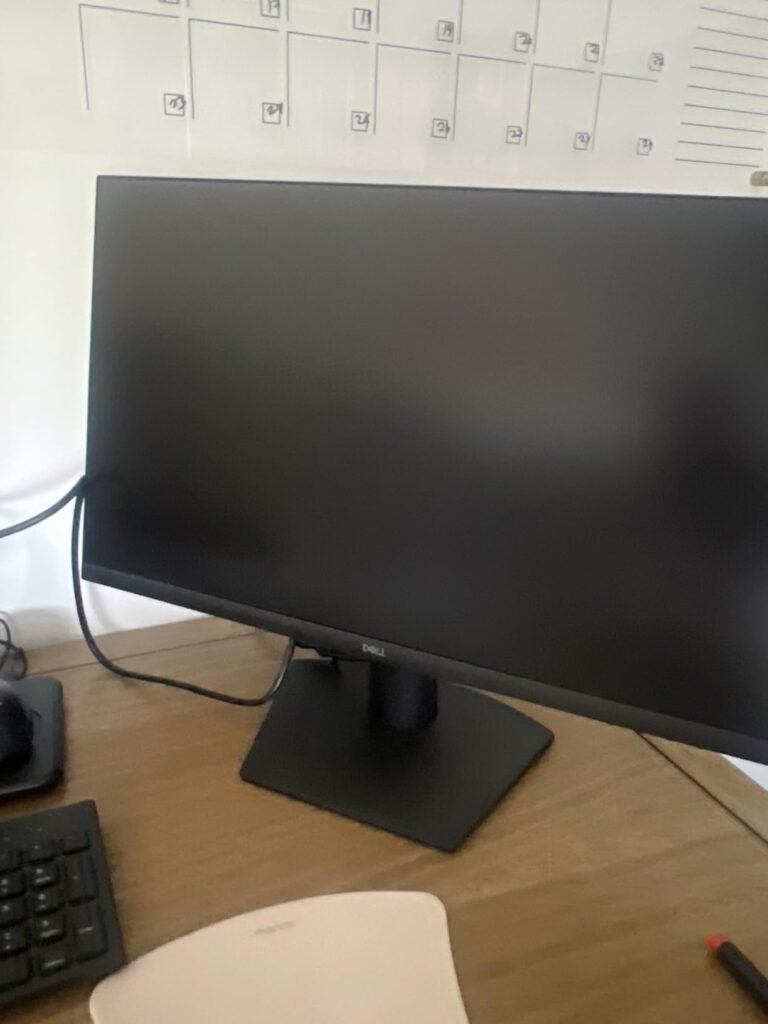
Dell S2425HSM 24
9.2Editor score23.8-inch FHD display
Height pivot swivel tilt
Dual 3W speakers
144Hz refresh rate
Compare 10 top office monitors for productivity. Expert breakdowns of panel type, resolution, ergonomics, eye comfort, and connectivity to help you choose.
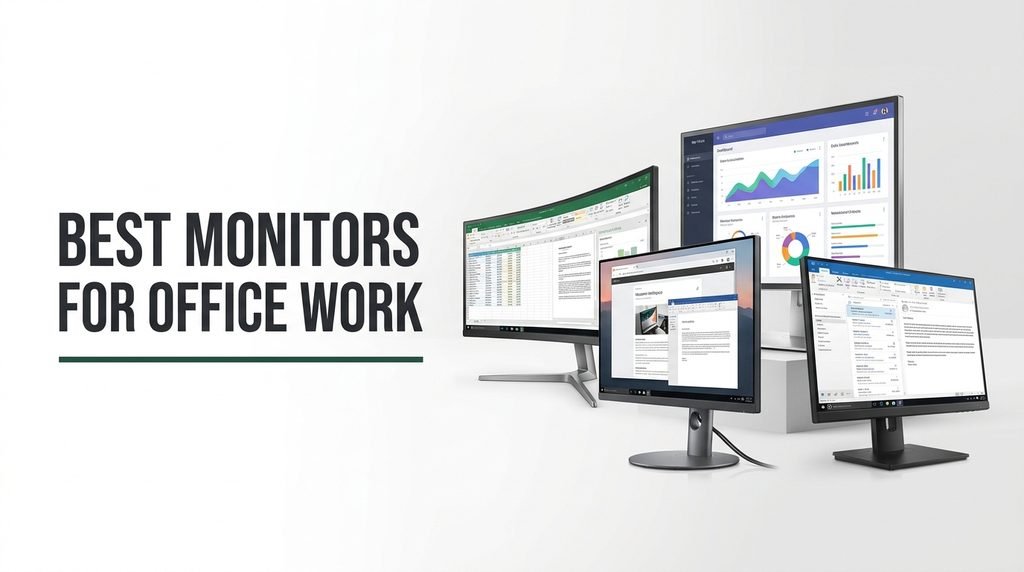
Choosing the right monitors for office work in 2026 means balancing resolution, panel type, ergonomics, eye comfort features, connectivity, and screen real estate against your actual daily tasks. We compare 10 standout options across price points and sizes so you can match the right display to spreadsheet work, document editing, video calls, and multi-window multitasking without overspending.
Office displays vary more than most shoppers realize. A 24-inch Full HD panel suits a tidy desk and basic productivity, while an ultrawide QHD screen transforms how you handle side-by-side documents and reference material. Refresh rate, adjustability, blue-light certification, and port selection all affect how comfortable the monitor feels during an eight-hour workday.
This guide walks through each model’s strengths and limitations so you can quickly narrow the field. Whether you want a budget-friendly second screen, a crisp 4K panel for detailed work, or a curved ultrawide that replaces a dual-monitor setup, the comparisons below focus on what actually matters for office productivity.
We compared 10 office monitors using the specifications that genuinely affect productivity and comfort: panel technology, resolution, screen size, refresh rate, ergonomic adjustability, eye care certifications, port selection, built-in speakers, bezel design, and value. The analysis focuses on realistic trade-offs office workers face, from desk space constraints to multi-window workflows, so each pick connects to how people actually use a display across long workdays, video meetings, and detailed document work.

Compare key features, scores, and current prices side by side. A shorter feature list means fewer details were available, not necessarily fewer capabilities.



The Dell SE2426H targets budget-conscious office workers who still want the color consistency of an IPS panel rather than a cheaper TN alternative. At roughly 24 inches and Full HD resolution, it hits the pixel density sweet spot for text clarity without requiring display scaling adjustments. The 144Hz refresh rate is more than most office tasks need, but it makes cursor movement and document scrolling feel noticeably smoother than standard 60Hz panels.

We may earn a commission when you buy through this link, at no additional cost to you.
IPS technology delivers consistent colors across a 178-degree viewing angle, which matters when colleagues lean in to review a document or when you glance at the screen from an angle during a call. The TÜV Rheinland 3-star certification signals reduced harmful blue light emissions, a meaningful comfort factor if you spend long stretches reading on screen. AMD FreeSync support is a bonus for casual gaming after hours, though it is not the primary reason to buy this display.
The main compromise is the stand, which offers tilt only. If you need to raise the screen to eye level, you will want a monitor arm or a riser. The absence of built-in speakers is another limitation that matters if your workspace lacks external audio. On the plus side, two HDMI ports let you connect a laptop and a desktop simultaneously, which is useful for hybrid work setups.
Higher refresh rates reduce the perceived blur when you scroll through long documents, spreadsheets, or code. Even standard mouse movement feels more precise on a 144Hz panel compared to 60Hz, which can reduce eye fatigue during repetitive tasks. You do not need a powerful graphics card to benefit, since the refresh rate improvement is visible across general productivity work.
This display is a strong pick for a secondary monitor, a first office upgrade, or a student workstation. It delivers legitimate IPS color performance and modern refresh rates at a price that leaves room in the budget for a decent stand or desk accessories. If you need ergonomic adjustability out of the box, consider stepping up to the S2425HSM instead.
Office workers who need a height-adjustable stand or built-in speakers without adding accessories.
We may earn a commission when you buy through this link, at no additional cost to you.
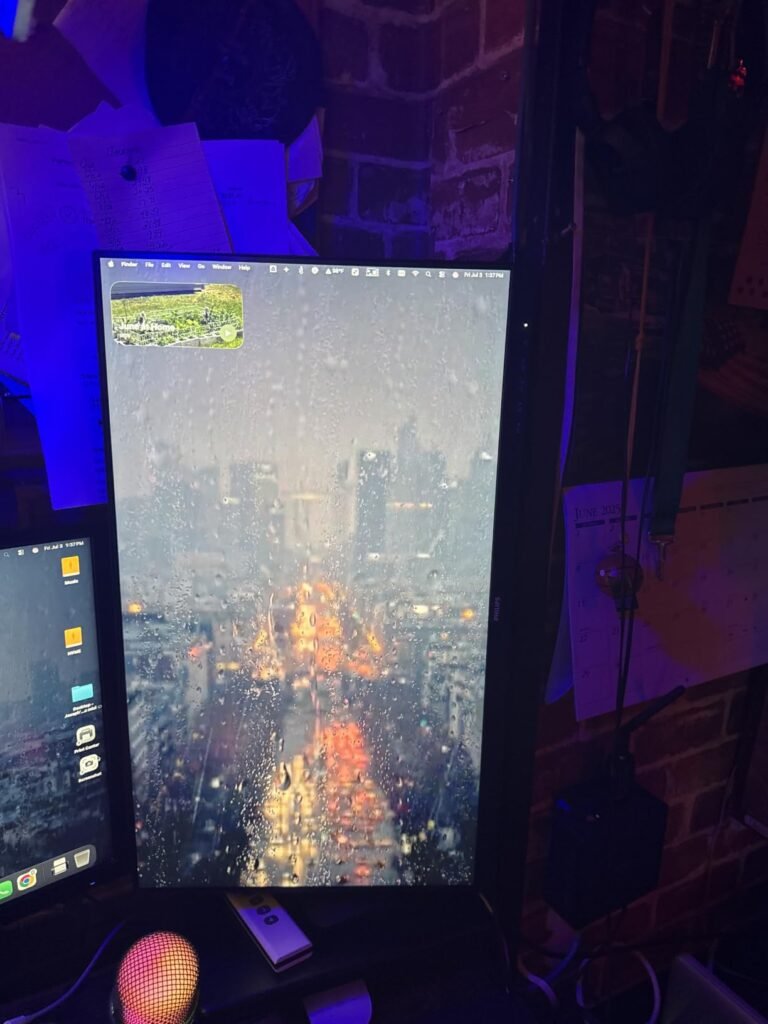
The Dell S2425HSM solves the biggest shortcoming of entry-level office monitors by including a fully adjustable stand with height, tilt, pivot, and swivel movement. For anyone who has spent a workday hunched over a screen set too low, this ergonomic flexibility is the single most important comfort upgrade you can make. The pivot function also lets you rotate the panel into portrait orientation, which is useful for reading long documents or coding.
We may earn a commission when you buy through this link, at no additional cost to you.
Image quality centers on a 23.8-inch Full HD panel with a 1500:1 contrast ratio and a 144Hz refresh rate. The 4-star TÜV certification reduces blue light more aggressively than the SE2426H’s 3-star rating, which may matter if you are sensitive to eye strain during extended sessions. Colors remain consistent for standard office work including document editing, video calls, and web browsing.
Integrated dual 3W speakers remove the need for external audio hardware, which keeps the desk tidy and simplifies video conferencing. The sound quality is adequate for calls, notifications, and background music rather than critical media consumption. The ash white finish is a nice aesthetic touch that blends into modern workspaces more gracefully than the usual matte black.
The pivot feature rotates the display 90 degrees into portrait orientation, which shows significantly more vertical content at once. This is a game-changer for reading PDFs, reviewing contracts, writing long-form text, or browsing code without constant scrolling. If you work with vertical documents daily, a pivot-capable monitor can measurably improve productivity.
This monitor hits a productive sweet spot for home office workers who want genuine ergonomic adjustability without stepping into premium pricing. The single HDMI input is the main limitation, so pair it with a USB-C dock or HDMI switch if you need multiple device connections. For a primary office display at this price, the combination of adjustability, speakers, and modern panel specs is hard to match.
Buyers who need multiple video inputs or higher resolution than FHD at 24 inches.
We may earn a commission when you buy through this link, at no additional cost to you.
The Dell S2725QS brings 4K UHD resolution to a 27-inch IPS panel, delivering roughly four times the pixel density of a Full HD display at the same size. For text-heavy work such as editing long documents, coding, or reviewing detailed spreadsheets, the extra sharpness reduces eye strain by producing crisper letterforms and smoother edges. Designers and content reviewers also benefit from 99% sRGB coverage, which makes color decisions more trustworthy.
We may earn a commission when you buy through this link, at no additional cost to you.
The 120Hz refresh rate is unusual at this resolution and price point. Most 4K office panels cap at 60Hz, so the smoother motion here translates to more responsive scrolling and cursor movement. The ultra-low 0.03ms response time and FreeSync Premium support add gaming versatility if the monitor pulls double duty after work. HDR readiness and a 1500:1 contrast ratio give photos and videos more depth than standard office displays.
ComfortView Plus technology reduces harmful blue light to 35% or lower without the yellow tint that cheaper blue-light filters introduce. This matters for maintaining color accuracy during long work sessions, especially if your tasks involve color-sensitive decisions. The re-engineered speakers deliver better audio output than typical built-in units, though they are still no substitute for dedicated desktop speakers if sound quality is a priority.
4K resolution shines when you work with small fonts, detailed spreadsheets, high-resolution images, or multiple windows side by side. Operating system scaling at 150% gives you more usable screen area than a QHD panel while maintaining sharper text. If your primary tasks involve coding, writing, or design, the pixel density upgrade is a lasting daily benefit that justifies the price premium.
This monitor fits best for professionals who want 4K detail for daily productivity and occasional creative work. Make sure your computer’s graphics output supports 4K at 120Hz, since older laptops may cap at 60Hz over HDMI. If you work mostly with standard office applications and do not need 4K sharpness, the 27 Plus QHD model delivers excellent value at a lower price.
Buyers using older laptops with limited video output capabilities or those focused purely on basic productivity tasks.
We may earn a commission when you buy through this link, at no additional cost to you.
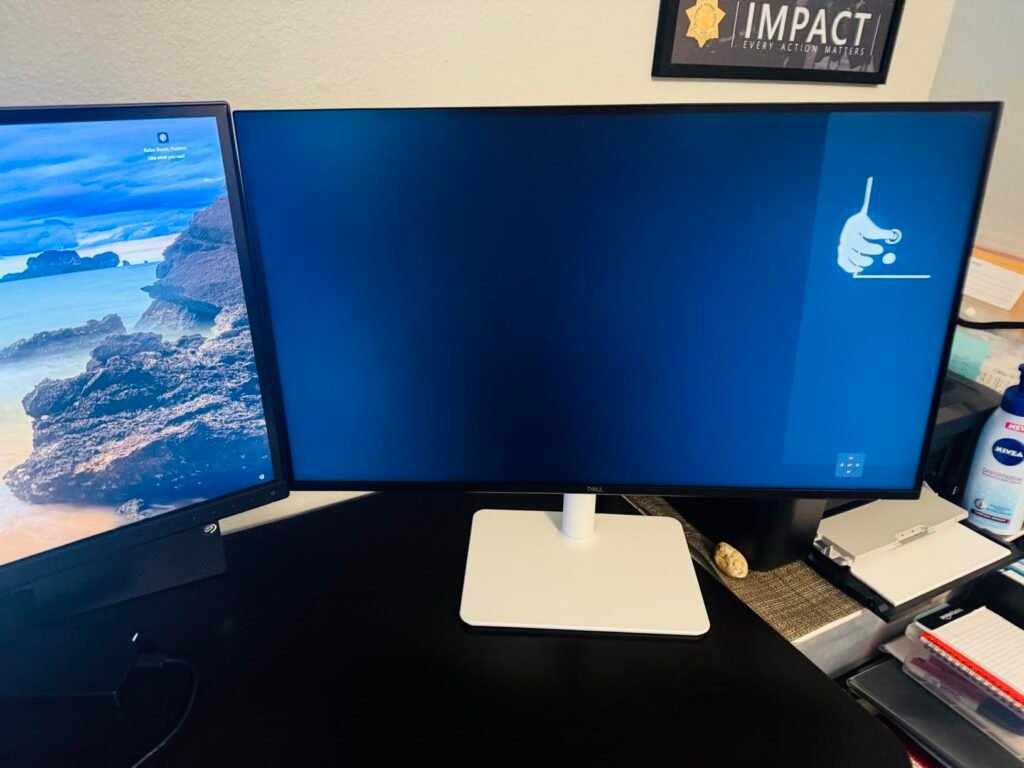
The Dell S2725DSM earns the Editor's Choice badge by hitting the most balanced combination of resolution, size, ergonomics, and connectivity in this comparison. A 27-inch panel at QHD resolution produces sharp text without requiring aggressive display scaling, while leaving plenty of screen space for side-by-side windows. The 144Hz refresh rate smooths out scrolling in a way that is immediately noticeable after moving from a 60Hz display.
We may earn a commission when you buy through this link, at no additional cost to you.
The full ergonomic stand covers height, tilt, pivot, and swivel, so you can dial in a comfortable posture and rotate the panel into portrait mode when needed. The 1500:1 contrast ratio and IPS-grade viewing angles produce consistent colors across standard office applications. Dual 3W speakers handle call audio and notifications well, though critical media work still benefits from external speakers or headphones.
Connectivity includes both HDMI and DisplayPort 1.4, giving you flexibility to connect multiple devices without constantly swapping cables. The DisplayPort input is particularly useful if you want to run 144Hz at QHD, since some older HDMI implementations cap at 60Hz. The 4-star TÜV certification reduces blue light more thoroughly than entry-level models, which helps during extended work sessions.
A 27-inch QHD panel produces roughly 109 pixels per inch, which is sharp enough to make text crisp without requiring heavy display scaling. This resolution also gives you about 78% more screen area than a Full HD display at the same size, which translates to more visible rows in a spreadsheet or more code on screen at once. It is the current sweet spot for office productivity at this size.
This is the monitor to buy if you want a well-rounded primary office display that handles productivity, video calls, and occasional entertainment without compromises. The main gap is the lack of USB-C input, so laptop users who want single-cable docking should consider the LG UltraWide instead. For traditional desktop setups or laptops with HDMI output, the S2725DSM delivers outstanding value.
Laptop users who want single-cable USB-C docking or buyers who need 4K resolution for detailed color work.
We may earn a commission when you buy through this link, at no additional cost to you.
The Acer KB272 G0bi offers a lot of screen real estate for the money, which is attractive if you want a bigger display without stepping up to QHD pricing. The 27-inch IPS panel delivers the color consistency and viewing angle benefits of IPS technology, and the 120Hz refresh rate provides smoother motion than standard office monitors. For general productivity work that does not demand pixel-perfect sharpness, this combination is compelling.

We may earn a commission when you buy through this link, at no additional cost to you.
The main trade-off at this size and price is pixel density. Full HD resolution stretched across 27 inches results in roughly 82 pixels per inch, which makes text look slightly softer than a 24-inch FHD display or a 27-inch QHD panel. If your primary tasks involve reading long documents at normal zoom levels, you may want to increase font sizes or sit a bit further back to minimize the pixelation.
Adaptive-Sync support reduces screen tearing during video playback and casual gaming, which is a useful bonus if the monitor serves double duty. The 1ms VRB response time keeps fast motion crisp, and the 250 nits brightness is adequate for typical indoor lighting conditions. In bright environments with significant window glare, you may want to adjust blinds or add a bias light.
When FHD resolution spreads across a 27-inch panel, individual pixels become more visible from normal viewing distances. You can mitigate this by sitting slightly further from the screen, increasing text zoom in your browser and office applications, or using the display primarily for content that does not rely on sharp text, such as video calls, dashboards, or reference material alongside a primary monitor.
This display suits buyers who want a larger second monitor, a budget primary display for general tasks, or an upgrade from an older 21-inch screen. If text sharpness is a priority or you work with detailed graphics, the Dell S2725DSM QHD model is worth the step up. For basic office work at the lowest price per inch, the KB272 G0bi delivers solid value.
Buyers who prioritize text sharpness for long document work or detailed creative tasks.
We may earn a commission when you buy through this link, at no additional cost to you.
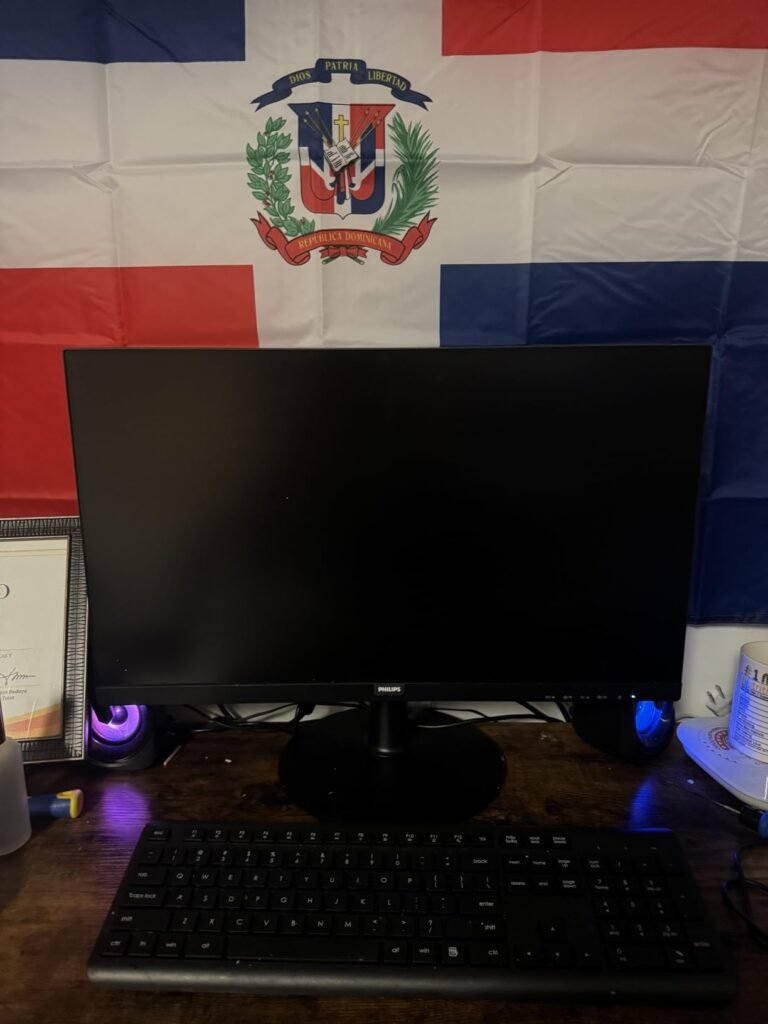
The Philips 241V8LB proves that a capable office monitor does not have to cost much. At this price, you get a 23.8-inch Full HD panel with a VA display that produces deeper blacks and higher contrast than typical IPS units. The 100Hz refresh rate exceeds the 60Hz baseline found on most budget monitors, delivering noticeably smoother cursor movement and scrolling for everyday productivity.
We may earn a commission when you buy through this link, at no additional cost to you.
EasyRead mode is a genuinely useful feature that adjusts the display to mimic the appearance of paper, reducing eye strain when reviewing long documents or reading articles. For office workers who spend hours in PDFs, legal documents, or long-form text, this mode can make a measurable difference in comfort over the course of a workday. The three-side virtually bezel-free design also makes the display ideal for multi-monitor setups where you want minimal visual separation between screens.
VA panels deliver richer contrast than IPS, but they do have slightly narrower optimal viewing angles. If you sit directly in front of the screen as most office workers do, this is a non-issue. The stand offers tilt only, which is the main compromise at this price. Pairing the monitor with an inexpensive VESA arm or riser easily solves the ergonomics problem without pushing the total cost beyond the competition.
Standard LCD backlights can use pulse-width modulation that produces imperceptible flicker, which some users link to headaches and eye fatigue during extended use. Flicker-free certification means the backlight uses direct current dimming across all brightness levels, delivering a steadier light output. For office workers who log eight or more hours in front of a screen daily, this comfort feature is worth prioritizing.
This is the right monitor for building a cost-effective multi-screen setup, outfitting a home office on a tight budget, or replacing an aging secondary display. The combination of EasyRead mode, flicker-free technology, and bezel-free design punches well above its weight. If you need full ergonomic adjustability included, step up to the Dell S2425HSM.
Users who need ergonomic height adjustment without purchasing an aftermarket stand or arm.
We may earn a commission when you buy through this link, at no additional cost to you.
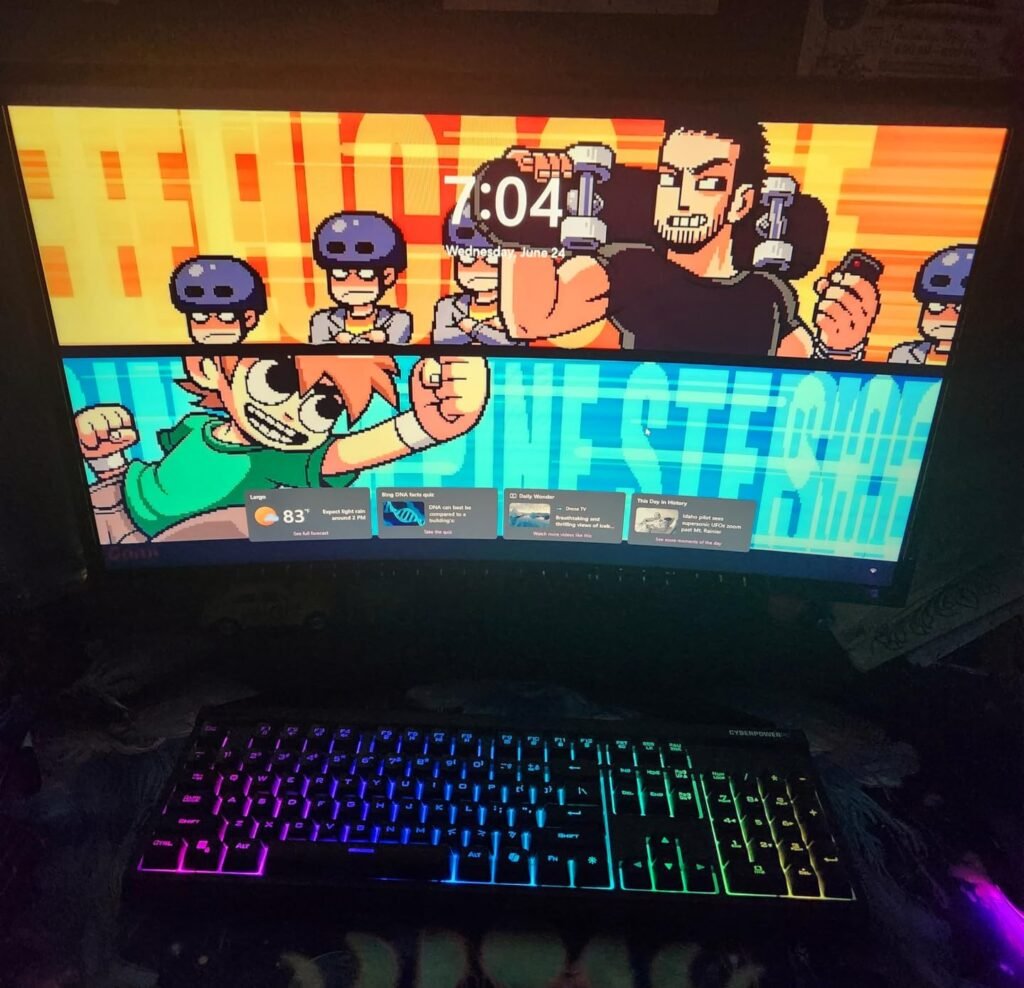
The Samsung S36GD delivers an immersive curved viewing experience at a surprisingly accessible price. The 1800R curvature wraps the screen slightly around your field of vision, which reduces the eye travel needed to see the edges of the display compared to a flat panel. For long work sessions, this subtle curve can reduce fatigue and help keep your focus centered on the content you are working on.
We may earn a commission when you buy through this link, at no additional cost to you.
The 100Hz refresh rate and TÜV eye comfort certification make this a comfortable choice for extended productivity work. The adjustable game and color settings let you tune the display for different content types, from document editing to video streaming. Multiple input options including straight device connections make it easier to integrate the monitor into varied workflows without constant cable changes.
The main consideration is that FHD resolution at 27 inches produces the same pixel density softness as the Acer KB272 G0bi. The curve also makes this display less suited for precise design work, since curved panels can distort straight lines in ways that matter for drafting, image editing, or layout tasks. For general productivity, video conferencing, and content consumption, however, the curve is a comfort upgrade.
The 1800R rating refers to the curvature radius in millimeters, with lower numbers meaning more pronounced curves. An 1800R curve is relatively gentle, providing an immersive effect without the dramatic wrap-around feel of 1000R or 1500R displays. This moderate curve works well for office use because it reduces edge-of-screen distortion while still providing comfort benefits during long sessions.
This monitor fits best for office workers who spend most of their day in email, documents, web browsing, and video calls, and who want a more enveloping viewing experience than a flat panel provides. If your work involves precise visual tasks or you want higher resolution sharpness, look at the flat QHD and 4K options in this guide instead.
Graphic designers and drafters who need perfectly flat displays for precise visual work.
We may earn a commission when you buy through this link, at no additional cost to you.
The LG 34WR55QK-B replaces a traditional dual-monitor setup with a single 34-inch UltraWide WQHD display. The 21:9 aspect ratio provides enough horizontal space to arrange multiple windows side by side without the bezel gap that breaks up dual monitors. For office workers who constantly reference one document while editing another, or who juggle communication apps alongside primary work, the uninterrupted workspace is a genuine productivity advantage.
We may earn a commission when you buy through this link, at no additional cost to you.
USB-C connectivity with 65W power delivery is a standout feature that transforms laptop workflows. A single cable carries video, data, and enough power to charge most ultrabooks, eliminating the typical mess of separate dock, charger, and display cables. The OnScreen Control software adds Picture-by-Picture functionality so you can display content from two different computers simultaneously, which is useful for hybrid setups or managing personal and work devices.
Image quality centers on a WQHD 3440×1440 resolution with HDR10 support and up to 99% sRGB color coverage. The gentle curve suits the wide aspect ratio by keeping the edges at a comfortable viewing distance. Reader Mode reduces blue light for extended work sessions, and the ergonomic stand allows height and tilt adjustments. Additional ports include two HDMI, DisplayPort, two USB, and a headphone jack.
An ultrawide monitor eliminates the bezel gap that interrupts dual-monitor setups, which can be distracting when dragging windows or reviewing panoramic content. The trade-off is that ultrawides offer less total vertical space than two stacked displays, and the window management typically requires software utilities to split the screen efficiently. For workflows that benefit from continuous horizontal space, ultrawide wins; for stacked vertical workflows, dual monitors remain useful.
This is the right choice for professionals who want maximum horizontal workspace and single-cable laptop docking. Make sure your software and workflow actually benefit from the extra width, since some applications do not scale well to ultrawide aspect ratios. If you prefer a taller aspect ratio or a lower price point, the Dell QHD or 4K models are strong alternatives.
Buyers whose primary applications do not benefit from ultrawide aspect ratios or who prefer taller displays for vertical document work.
We may earn a commission when you buy through this link, at no additional cost to you.
The Samsung S50GC delivers an UltraWide experience at a lower price than the LG 34WR55QK-B by trimming features that some buyers do not need. The 34-inch Ultra-WQHD panel provides the same 21:9 aspect ratio and 100Hz refresh rate for seamless multitasking, and HDR10 support ensures content displays with rich color depth. For buyers who want maximum screen real estate without paying for USB-C and ergonomic flexibility, this is the more budget-friendly path.
We may earn a commission when you buy through this link, at no additional cost to you.
An ambient light sensor automatically adjusts screen brightness based on your workspace lighting, which is a thoughtful feature for office environments where natural light changes throughout the day. Eye Saver Mode and Flicker Free technology help reduce eye strain during long sessions. The virtually bezel-free design keeps the display looking modern and makes it easier to pair with a second screen if you later want even more space.
Connectivity includes two HDMI 2.2 inputs and a DisplayPort 1.2 input, which supports Picture-by-Picture viewing of two sources at native resolution. This is particularly useful if you want to monitor a secondary workflow such as email or a dashboard while focusing on a primary task. AMD FreeSync support keeps motion smooth during video playback and gaming.
An ambient light sensor automatically dims the display when the room gets darker and brightens it when sunlight pours in. This eliminates the eye strain caused by a screen that is too bright in dim conditions or washed out in direct light, and it removes the small annoyance of manually adjusting brightness throughout the day. Over a long workday, this small automation adds up to noticeable comfort improvements.
This monitor suits buyers who want the productivity benefits of an UltraWide display at a more accessible price, especially if they do not need USB-C charging or a fully adjustable stand. The flat panel is a trade-off compared to curved UltraWides, but it offers more flexibility for design work where straight edges matter. If single-cable laptop docking is a priority, step up to the LG model instead.
Laptop users who need USB-C power delivery or buyers who want a curved UltraWide for more immersion.
We may earn a commission when you buy through this link, at no additional cost to you.
The Samsung S32GF offers a 27-inch IPS display with an ultra-thin bezel design that fits cleanly into modern workspaces and photo-ready home offices. The IPS panel delivers consistent colors across wide viewing angles, which matters for shared screens during meetings or when colleagues peek at your work. At 120Hz, the refresh rate provides smoother motion than standard office monitors, improving the overall feel of scrolling and cursor movement.
We may earn a commission when you buy through this link, at no additional cost to you.
Design choices here lean toward minimalism, with a lightweight profile and slim border bezels that make the screen appear larger than its physical footprint suggests. Optimizable game settings and picture modes let you adjust the display for different content types, from document editing to media streaming. Blue light reduction and flicker control help maintain comfort during long sessions.
Connectivity allows direct device plug-in for added flexibility, which is helpful in setups where you switch between laptop and desktop inputs. The FHD resolution at 27 inches is the same trade-off present in the Acer and curved Samsung models, producing softer text than higher-resolution alternatives. If your workflow is mostly email, video calls, and web browsing rather than detailed document work, the resolution limit is less of a concern.
Ultra-thin bezels do more than look modern. They reduce the visual gap in multi-monitor setups, making a dual-screen configuration feel more like one continuous workspace. The reduced frame also means the physical footprint stays smaller relative to the viewable screen, which helps on narrower desks where every inch of depth and width matters for comfortable positioning.
This monitor is a solid pick for buyers who prioritize aesthetics and want a clean, modern 27-inch IPS display at a reasonable price. The stand is basic, so consider pairing it with a VESA arm if you need full ergonomic flexibility. If sharpness and ergonomics are more important than visual design, the Dell S2725DSM QHD model is a stronger overall package at a similar price.
Buyers who need high pixel density for detailed text work or full ergonomic adjustability without aftermarket accessories.
We may earn a commission when you buy through this link, at no additional cost to you.
A great office monitor matches your resolution, size, ergonomics, and connectivity needs to how you actually work. The factors below help you prioritize the specifications that make the biggest difference in daily productivity and comfort, without overspending on features you will rarely use.
Monitor panels fall into three main categories, each with distinct strengths. IPS (In-Plane Switching) panels dominate the office market because they offer the best color consistency and the widest viewing angles. Colors look the same whether you view the screen head-on or from the side, which matters for shared work and video calls. VA (Vertical Alignment) panels like the Philips 241V8LB produce deeper blacks and higher contrast ratios than IPS, but viewing angles are slightly narrower. TN (Twisted Nematic) panels are faster and cheaper but suffer from poor viewing angles and washed-out colors, making them less suitable for office use.
For the vast majority of office workers, an IPS panel is the right choice. The color consistency reduces eye strain when reviewing documents with colored elements, and the wide viewing angles mean you do not have to sit perfectly centered to see accurate colors. VA panels make sense if you want more cinematic contrast for occasional media viewing and work primarily sitting directly in front of the screen. Avoid TN panels unless you are specifically chasing competitive gaming performance on a tight budget.
Choose IPS as your default for office work, VA if contrast and black depth matter more than wide viewing angles, and skip TN for any serious productivity setup.
Resolution and screen size work together to determine how sharp text looks and how much content fits on screen. Full HD (1920×1080) works well on 24-inch panels where pixel density stays around 92 PPI, delivering crisp text without display scaling. Stretch FHD to 27 inches and the pixel density drops to roughly 82 PPI, which makes text noticeably softer. QHD (2560×1440) at 27 inches hits approximately 109 PPI, the current sweet spot for sharp text and generous screen area. 4K at 27 inches pushes to 163 PPI, offering exceptional sharpness but requiring display scaling for most users.
UltraWide resolutions like 3440×1440 give you 21:9 aspect ratios that replace dual monitors for many workflows. These displays excel at horizontal multitasking such as managing side-by-side documents, spreadsheets with many columns, or video editing timelines. The trade-off is less total vertical space than two stacked monitors and the need for window management software to efficiently split the wider screen.
Match 24-inch panels with FHD for everyday work, step up to QHD at 27 inches for more screen area without softness, choose 4K at 27 inches for maximum text sharpness, and pick UltraWide WQHD if your workflow benefits from continuous horizontal space.
Refresh rate measures how many times per second the display updates its image, measured in Hertz. Standard office monitors run at 60Hz, which is adequate for most tasks but feels slightly choppy during fast scrolling or cursor movement. Many current office displays, including the Dell SE2426H, S2425HSM, and S2725DSM, run at 120Hz or 144Hz, delivering noticeably smoother motion that reduces eye fatigue during repetitive scrolling. You do not need a high-end graphics card to benefit, since basic productivity rendering is easy for integrated graphics.
Response time measures how quickly a pixel can change colors, typically expressed in milliseconds. For office work, response time matters less than refresh rate because most content is relatively static. A 5ms response time is more than fast enough for documents, spreadsheets, and video calls. Fast response times become important only if you game, edit video, or watch sports content where motion blur could be noticeable.
Prioritize at least 100Hz if the budget allows, since the smoother motion improves everyday usability. Standard 60Hz remains perfectly functional for lighter workflows where cost is the main constraint.
Ergonomic adjustability determines whether you can position the monitor for comfortable viewing throughout a long workday. The top of the screen should sit at or slightly below eye level, typically requiring the ability to raise or lower the display by several inches. Tilt lets you angle the screen to reduce glare and match your natural head position, while swivel helps when sharing the screen with someone next to you. Pivot rotates the panel into portrait orientation, which transforms reading experiences for PDFs, long documents, and code review.
Many budget monitors offer tilt only, which forces you to use monitor risers, books, or VESA arms to achieve proper height. Mid-range office monitors like the Dell S2425HSM and S2725DSM include full height, pivot, swivel, and tilt adjustment out of the box. If your chosen monitor lacks full adjustability, budget for a VESA-compatible monitor arm, which typically costs 30 to 80 dollars and dramatically improves posture.
Prioritize monitors with full ergonomic adjustability if you work long hours at your desk. If your budget forces a trade-off, choose a tilt-only monitor with a compatible VESA mount pattern and pair it with an aftermarket arm.
Extended screen time contributes to eye strain, headaches, and sleep disruption from blue light exposure. Modern office monitors address these issues through multiple certifications and technologies. TÜV Rheinland blue light certifications rate displays on a 1-to-5 star scale based on how aggressively they reduce harmful blue wavelengths. Dell’s ComfortView Plus technology reduces blue light at the hardware level without introducing the yellow tint that software filters often produce, which preserves color accuracy for design work.
Flicker-free technology is equally important. Cheaper displays may use pulse-width modulation to control brightness, producing imperceptible flicker that contributes to fatigue during long sessions. VESA-certified flicker-free displays use direct current dimming across all brightness levels, delivering a steadier light output. Ambient light sensors, found on monitors like the Samsung S50GC, automatically adjust brightness as room lighting changes, removing another source of eye strain.
Prioritize monitors with both blue light reduction and flicker-free certifications if you log long hours in front of a screen. These features cost little extra and compound their comfort benefits over months of daily use.
Connectivity determines how many devices you can connect and how easily you can switch between them. HDMI is the most universal input, present on virtually every modern laptop, desktop, and streaming device. DisplayPort supports higher refresh rates and resolutions over the same cable, which matters for 144Hz QHD or 120Hz 4K setups where HDMI bandwidth might be limiting. USB-C with DisplayPort Alt Mode and Power Delivery is the most convenient option for modern laptops, carrying video, data, and up to 100W of charging power through a single cable.
Consider how many devices you connect regularly. A single HDMI input works for a basic setup, but dual inputs make it easy to switch between a work laptop and personal computer without unplugging cables. USB-C with power delivery, as found on the LG 34WR55QK-B, effectively turns the monitor into a docking station, which is a major convenience for hybrid work setups. Built-in USB hubs, where available, add more connection points for peripherals.
Match your port selection to your specific devices. HDMI works universally, DisplayPort is essential for high refresh rate QHD or 4K, and USB-C transforms laptop workflows if your laptop supports DisplayPort Alt Mode.
Built-in monitor speakers are a convenience feature that keeps your desk uncluttered and simplifies video call setups. Most integrated speakers deliver adequate audio for notifications, meetings, and background music, but they rarely match the quality of dedicated desktop speakers or headphones. The Dell S2425HSM and S2725DSM include dual 3W speakers that handle call audio well, while many budget monitors omit speakers entirely to hit lower price points.
External speakers or headphones offer better sound quality and more positioning flexibility. If audio quality matters for your work, such as media production or detailed listening tasks, plan for external audio from the start rather than relying on built-in speakers. On the other hand, if you mostly need basic sound for calls and notifications, built-in speakers save desk space and simplify your setup.
Choose a monitor with built-in speakers if simplicity matters more than audio quality. If you already use quality headphones or desktop speakers, you can save money by skipping speaker-equipped models.
Monitor design has evolved significantly, with modern displays featuring virtually bezel-free three-side borders that make screens look larger and dual-monitor setups look more cohesive. Thin bezels matter functionally when you plan to run multiple displays side by side, since large bezels create distracting visual gaps when dragging windows between screens. Models like the Samsung S32GF, Philips 241V8LB, and Samsung S50GC emphasize minimal bezels specifically to support clean multi-monitor configurations.
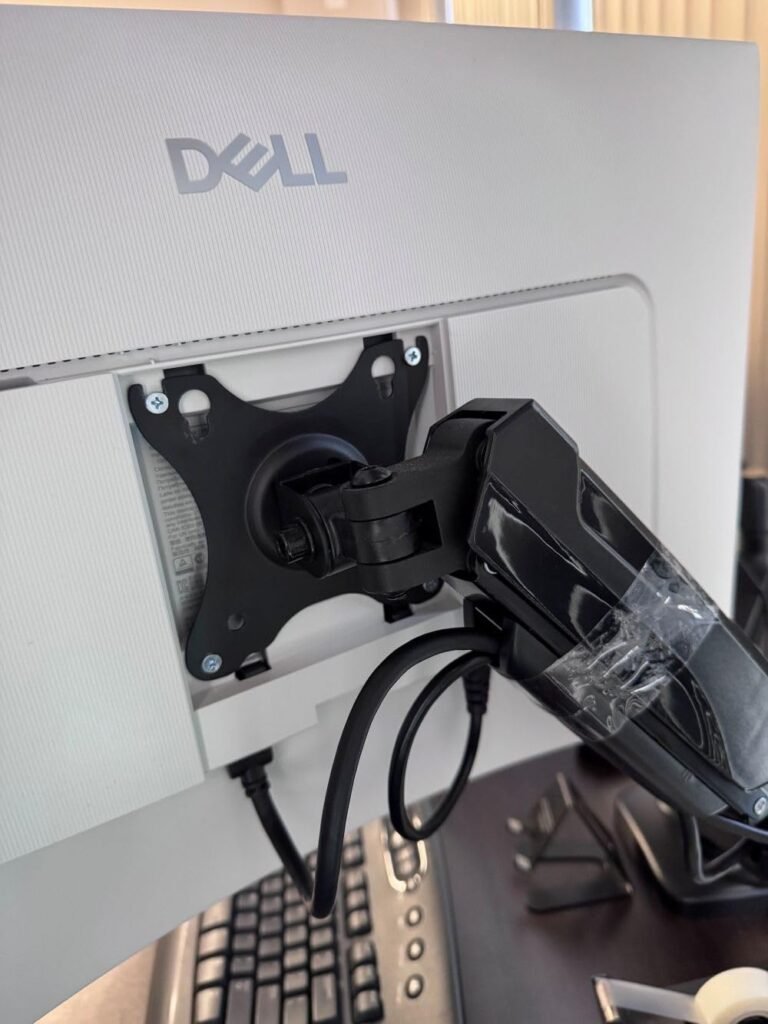
Color and finish also affect how the monitor fits into your workspace. Ash white finishes, as seen on the Dell S2425HSM and S2725DSM, blend into modern minimalist desks more gracefully than traditional matte black. Stand footprint matters too, especially on narrower desks where a wide monitor base can crowd the keyboard area. VESA mount compatibility, typically 75x75mm or 100x100mm, enables you to swap the included stand for a monitor arm or wall mount.
Prioritize thin bezels if you plan a multi-monitor setup, choose a finish that matches your workspace aesthetic, and confirm VESA compatibility if you anticipate using an aftermarket mounting solution.
When setting up a new monitor, position the top of the screen at or slightly below eye level and place it about an arm’s length away from where you sit. Adjust the tilt so the screen is roughly perpendicular to your line of sight to minimize glare and neck strain. Enable the built-in blue light reduction mode or your operating system’s night light feature for evening sessions, and configure the brightness to match your room lighting rather than leaving it at maximum, which both improves comfort and extends panel longevity.
Clean the screen regularly with a dry microfiber cloth to remove dust and fingerprints, which accumulate faster than most people realize and can gradually reduce perceived image clarity. For stubborn smudges, use a slightly damp microfiber cloth with water or a screen-safe cleaner designed for LCD displays. Never spray liquid directly onto the panel, and avoid ammonia-based cleaners or paper towels, which can scratch the anti-glare coating or leave streaks that are difficult to remove.
Protect the monitor from power surges with a surge protector or UPS, and avoid leaving static images displayed at maximum brightness for extended periods, which can contribute to image retention on some panels. If you work in a bright room with window glare, position the monitor perpendicular to windows rather than facing them, or add blinds to control lighting. Taking short breaks every 20 to 30 minutes to look at something at least 20 feet away helps reduce eye strain over long workdays.
For most office workers, 24-inch and 27-inch monitors hit the right balance of screen area and desk footprint. A 24-inch Full HD panel works well on smaller desks and provides sharp text without display scaling. A 27-inch QHD monitor offers significantly more usable workspace while maintaining crisp text clarity. UltraWide 34-inch displays replace dual-monitor setups for horizontal workflows but require more desk depth.
Curved monitors can reduce eye travel and make long sessions feel more comfortable by wrapping the display around your field of view. The benefit is most noticeable on larger panels of 32 inches or more, where flat edges would otherwise sit at awkward viewing angles. However, curved displays can distort straight lines, which may not be ideal for design work, drafting, or precise visual tasks that depend on accurate geometry.
While 60Hz is adequate for basic office tasks, upgrading to 100Hz, 120Hz, or 144Hz delivers noticeably smoother scrolling, cursor movement, and animations. The benefit shows up during everyday productivity work, not just gaming. Many current office monitors include high refresh rates at minimal price premiums, so it is worth prioritizing if the budget allows.
QHD (2560×1440) at 27 inches offers an excellent balance of sharp text and usable screen area without requiring aggressive display scaling or a powerful graphics card. 4K at 27 inches delivers even crisper text and more detail but requires display scaling for comfortable reading. Choose QHD for most office work and reserve 4K for tasks involving detailed images, extensive text reading, or professional creative work.
Monitor ergonomics are among the most important factors for home office comfort, especially if you work long hours. A fully adjustable stand with height, tilt, pivot, and swivel movement lets you position the screen at eye level and reduce neck strain. If your chosen monitor lacks these features, pair it with a VESA monitor arm, which provides even more flexibility and typically costs 30 to 80 dollars.
Built-in speakers are convenient for calls, notifications, and basic media playback, keeping your desk tidy and simplifying video conferencing. For quality audio or music listening, external speakers or headphones remain far superior. If you already own quality audio equipment, you can save money by choosing a monitor without integrated speakers.
USB-C with Power Delivery is a game-changing feature for laptop users because it carries video, data, and up to 100W of charging power through a single cable. This transforms the monitor into a docking station, dramatically simplifying your desk setup. If your laptop supports DisplayPort Alt Mode over USB-C, the convenience usually justifies the additional cost. If you only use a desktop computer with HDMI or DisplayPort, USB-C adds less value.
Software blue light filters typically introduce a visible yellow tint that distorts color accuracy, which can be problematic for design work. Hardware-based blue light reduction technologies, such as Dell's ComfortView Plus, reduce harmful blue wavelengths while preserving color fidelity. Look for TÜV Rheinland blue light certifications and flicker-free ratings when comfort during long sessions is a priority.
Modern gaming monitors with IPS panels work extremely well for office productivity, since the high refresh rates improve scrolling smoothness and the color accuracy handles typical office tasks easily. The main concern is excessive brightness or saturated color presets designed for gaming, which can be adjusted in the monitor's settings. Most gaming monitors with office-friendly stands and connectivity make excellent dual-purpose displays.
The Dell S2725DSM 27 Plus QHD stands out as the strongest overall choice for most office workers, combining a 27-inch QHD panel with full ergonomic adjustability, 144Hz refresh rate, dual 3W speakers, and both HDMI and DisplayPort inputs. The QHD resolution at 27 inches hits the current sweet spot for sharp text and generous screen area, while the comprehensive feature set means you will not quickly outgrow it as your needs evolve.
For buyers with different priorities, several alternatives deserve serious consideration. The Philips 241V8LB offers remarkable value for a secondary monitor or tight-budget setup, with EasyRead mode and flicker-free technology enhancing comfort for document-heavy work. The LG 34WR55QK-B UltraWide transforms laptop workflows with its 65W USB-C power delivery and expansive 21:9 workspace. For maximum sharpness in a traditional format, the Dell S2725QS brings 4K resolution and 120Hz refresh together at a competitive price.
Your best choice depends on how you actually use your screen each day. Prioritize QHD or higher resolution and full ergonomic adjustability if you spend long hours in text-heavy applications. Consider UltraWide if your workflow benefits from continuous horizontal space and side-by-side document viewing. If budget is the primary constraint, the entry-level Dell and Philips options deliver legitimate quality without compromise on the fundamentals. Whichever model you choose, matching the specifications to your real workflow matters more than chasing premium features you will rarely notice.