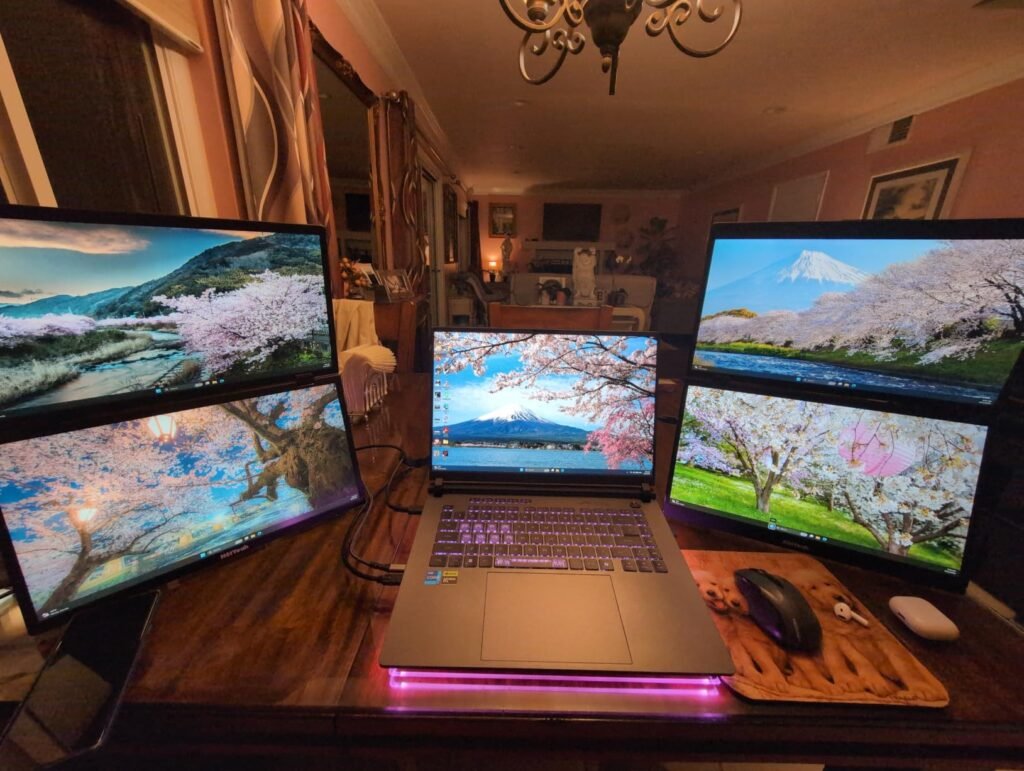
NIMO 17.3 FHD
8.6Editor scoreRyzen 7 7735HS CPU
Radeon 680M graphics
16GB DDR5 5600MHz
1TB PCIe 4.0 SSD
Compare top laptops for animation work. We break down GPU power, display accuracy, RAM, and storage to help you find the right creative machine.
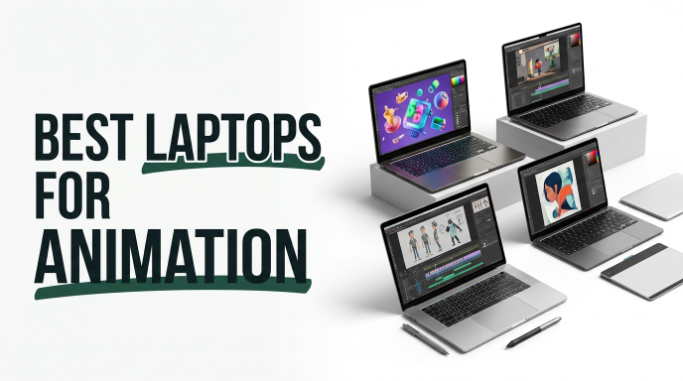
Find the right laptops for animation in 2026. We compare 7 standout options by the factors that matter most for creative workflows, including GPU performance, display color accuracy, RAM capacity, storage speed, thermal management, and real-world rendering capability.
Animation workloads demand more from a laptop than everyday browsing or office tasks. A machine that handles 2D illustration may struggle with 3D rendering, and a gaming powerhouse may lack the color-accurate display a motion designer needs for client work.
This guide walks through each pick with a focus on practical trade-offs so you can match the hardware to your specific animation pipeline, whether you work in After Effects, Blender, Maya, Toon Boom, or a combination of creative tools.
We compared 7 laptops for animation using the details that actually help a creative buyer decide: dedicated GPU capability, display resolution and color gamut, RAM and storage headroom, processor core count, thermal design, port selection for external monitors and drawing tablets, and overall value. The notes focus on practical trade-offs so each pick connects to how animators actually model, rig, render, and composite on a daily basis.


Compare key features, scores, and current prices side by side. A shorter feature list means fewer details were available, not necessarily fewer capabilities.

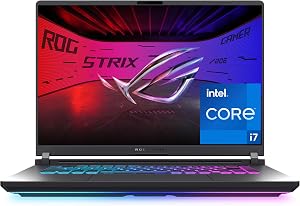


The Dell 16 Plus Touch takes a different approach to animation workloads by emphasizing AI-accelerated productivity alongside generous memory. The Intel Core Ultra 9 288V processor includes a dedicated NPU capable of up to 48 TOPS, which can offload AI-driven tasks like background removal, rotoscoping assistance, and audio cleanup directly on the device without relying on cloud processing. For animators integrating AI tools into their pipeline, this on-device capability can save time on repetitive cleanup tasks.

We may earn a commission when you buy through this link, at no additional cost to you.
The 32GB of LPDDR5X memory running at 8533MT/s is the fastest configuration in this lineup, providing excellent bandwidth for multitasking between animation software, reference footage, and browser-based collaboration tools. The 1TB PCIe NVMe SSD handles project file storage and application loading with fast read and write speeds, and the overall system responsiveness benefits from the combination of high-speed RAM and modern storage.
The 16-inch FHD+ touchscreen with a 16:10 aspect ratio and ComfortView display technology is comfortable for extended work sessions, and the touch capability adds convenience for scrubbing timelines, zooming into details, and navigating layer panels. Connectivity includes Thunderbolt 4 with DisplayPort 2.1, HDMI 2.1, and Wi-Fi 7, giving you fast options for connecting external monitors, drawing tablets, and high-speed network storage.
A neural processing unit handles AI computations more efficiently than a CPU or GPU for specific tasks. In animation, this can accelerate features like automatic rotoscoping, object tracking, background separation, and style transfer without consuming the GPU resources you need for viewport rendering. As more creative applications integrate on-device AI features, having a capable NPU means these tools run smoothly without slowing down your main animation software.
The primary limitation is the Intel Arc 140V integrated GPU, which is designed for AI-accelerated content creation and light video editing rather than heavy 3D rendering. Animators working primarily in 2D, motion graphics, or AI-assisted workflows will find this Dell model responsive and well-equipped, but those who regularly render complex 3D scenes will want a laptop with a more powerful dedicated GPU. The sleek, lightweight design and strong AI features make it a practical choice for modern creative professionals who value portability.
3D animators and VFX artists who need a high-performance dedicated GPU for rendering complex scenes with ray tracing.
We may earn a commission when you buy through this link, at no additional cost to you.
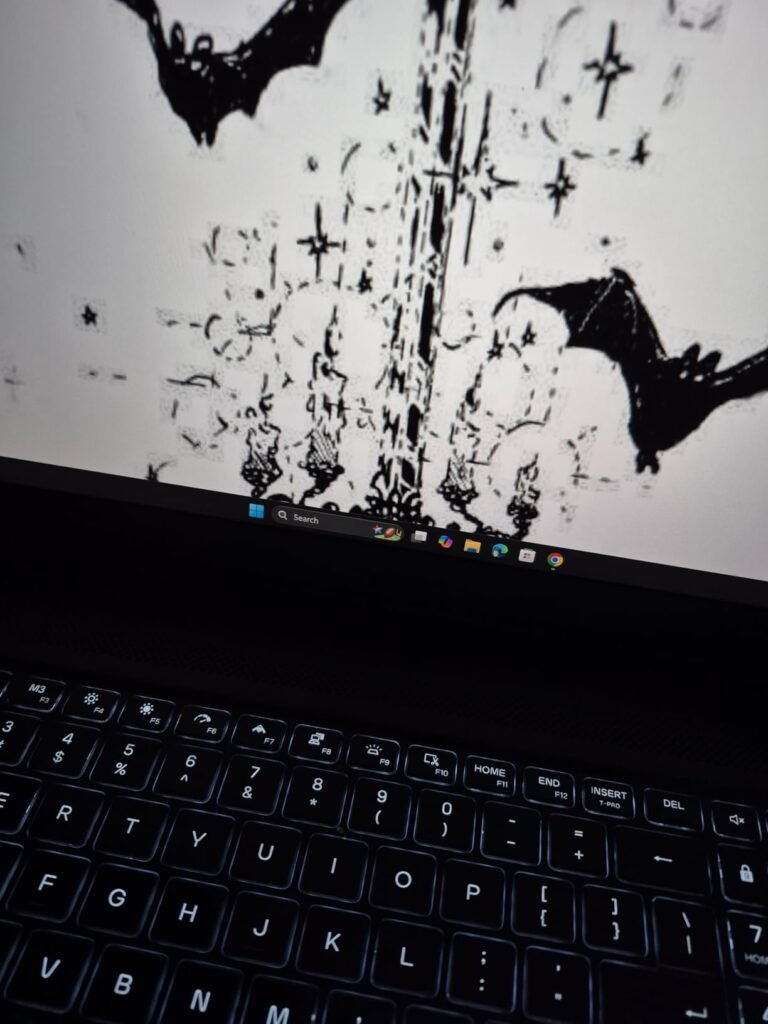
The NIMO 17.3-inch laptop targets animators and motion designers who spend most of their time in 2D tools like Toon Boom Harmony, Adobe Animate, or After Effects compositing. Its biggest practical advantage is the large Full HD screen, which gives you more room for timelines, layer panels, and preview windows without constantly rearranging your workspace or connecting an external monitor.
We may earn a commission when you buy through this link, at no additional cost to you.
Under the hood, the AMD Ryzen 7 7735HS processor with eight cores handles multi-layered compositions and moderate multitasking without frequent stutters. The 16GB of DDR5 5600MHz RAM is faster than older DDR4 configurations found in similarly priced machines, which helps when scrubbing through long timelines or switching between a drawing app and a reference browser. The 1TB PCIe 4.0 SSD provides ample room for project files, cached previews, and software installations.
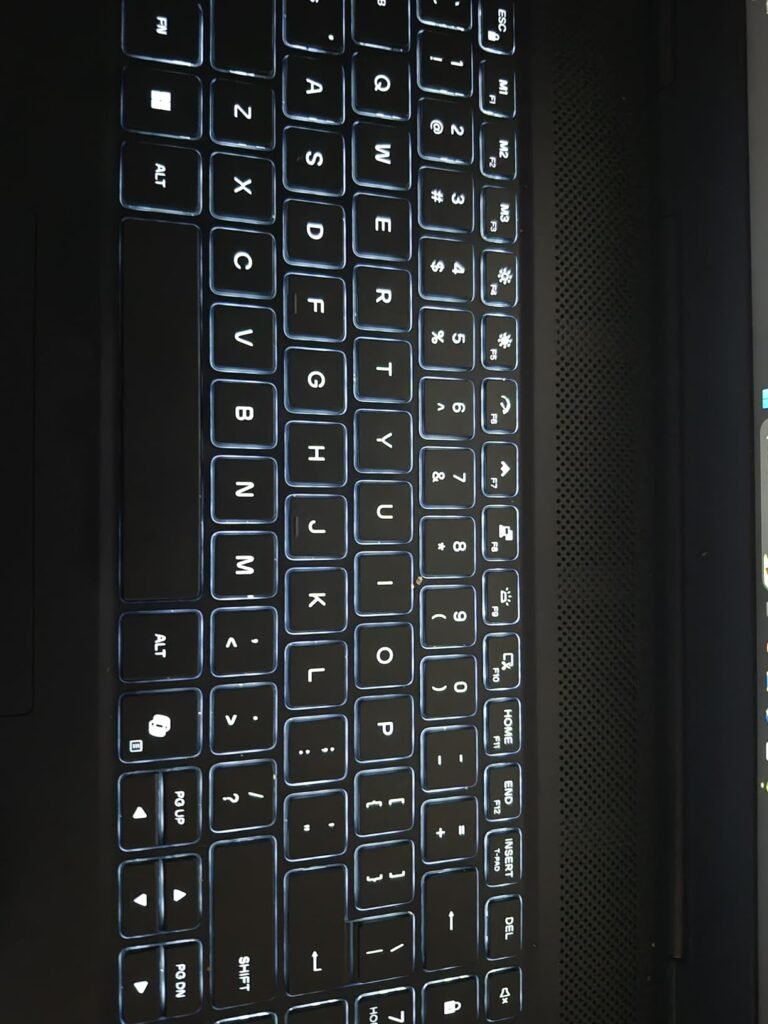
Connectivity is a genuine strength here. Two full-function USB-C ports support power delivery, display output, and data transfer, so you can connect a drawing tablet, an external monitor, and a backup drive without carrying a separate hub. The 58Wh battery with 100W PD charging keeps the setup flexible for studio sessions or classroom use, and the backlit keyboard with a 180-degree hinge adds everyday convenience for collaborative review sessions.
Integrated GPUs like the Radeon 680M handle 2D animation, vector illustration, and light compositing without issues. The bottleneck appears when you add complex particle simulations, high-polygon 3D scenes, or GPU-accelerated ray tracing to your workflow. If your projects stay in the 2D and motion graphics realm, the cost savings over a dedicated-GPU laptop can be significant.
The main trade-off is the integrated Radeon 680M graphics. While RDNA 2 architecture handles light 3D viewport work and GPU-accelerated effects better than older integrated solutions, it cannot match a dedicated GPU for heavy rendering in Blender or Cinema 4D. If your animation pipeline is primarily 2D or motion graphics with limited 3D elements, this NIMO model offers a spacious, well-connected workspace at a reasonable price point.
Animators who regularly render complex 3D scenes or rely heavily on GPU-accelerated effects in Blender, Maya, or Cinema 4D.
We may earn a commission when you buy through this link, at no additional cost to you.
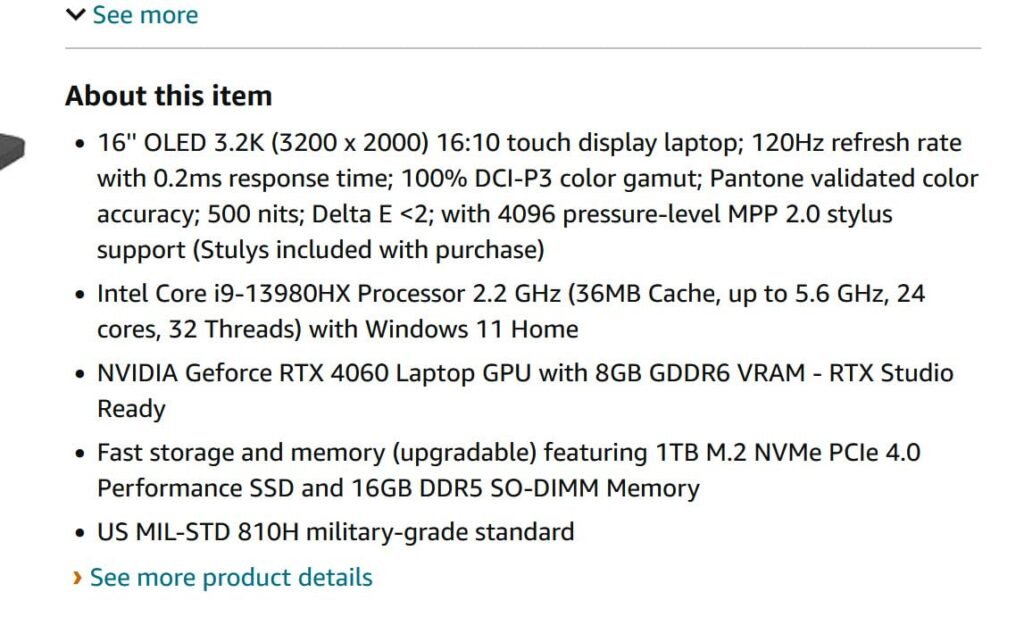
The ASUS ProArt StudioBook 16 OLED is purpose-built for creative professionals who need accurate color reproduction alongside serious rendering horsepower. The 16-inch 3.2K OLED touchscreen covers 100% of the DCI-P3 color gamut with a Delta E below 2, which means the colors you see on screen closely match what your final animation will look like on calibrated displays and in professional delivery formats.

We may earn a commission when you buy through this link, at no additional cost to you.
Performance comes from the Intel Core i9-13980HX processor with 24 cores and 32 threads paired with an NVIDIA GeForce RTX 4060 laptop GPU carrying 8GB of GDDR6 VRAM. This combination handles demanding 3D animation workflows in Maya and Blender, GPU-accelerated rendering in After Effects, and real-time viewport playback in Unreal Engine far more smoothly than integrated or entry-level dedicated graphics solutions.
The physical ASUS Dial is a standout feature for animators and illustrators. Mounted near the touchpad, it lets you adjust brush size, timeline scrubbing speed, layer opacity, and other parameters without reaching for keyboard shortcuts or menu diving. The 120Hz refresh rate with a 0.2ms response time also makes viewport navigation and playback feel fluid, which matters when you are reviewing motion curves and timing.
OLED panels deliver true blacks and per-pixel contrast that IPS displays cannot match, which is especially useful when animating scenes with dark environments, glowing effects, or subtle shadow gradients. The 100% DCI-P3 coverage also means your color grading and palette choices translate more reliably to final output, reducing the back-and-forth of correcting shifts between your working display and a reference monitor.
The main limitation is the 16GB DDR5 RAM configuration, which can become a constraint when working with large 3D scenes, high-resolution texture sets, or complex After Effects compositions with many pre-comps. The memory is user-upgradable via SO-DIMM slots, so planning a RAM upgrade early in your ownership is a practical step. For animators who prioritize display accuracy and dedicated GPU power in a single portable package, this ProArt model is a strong creative workstation.
Budget-conscious buyers or animators who need 32GB or more of RAM out of the box without planning an upgrade.
We may earn a commission when you buy through this link, at no additional cost to you.
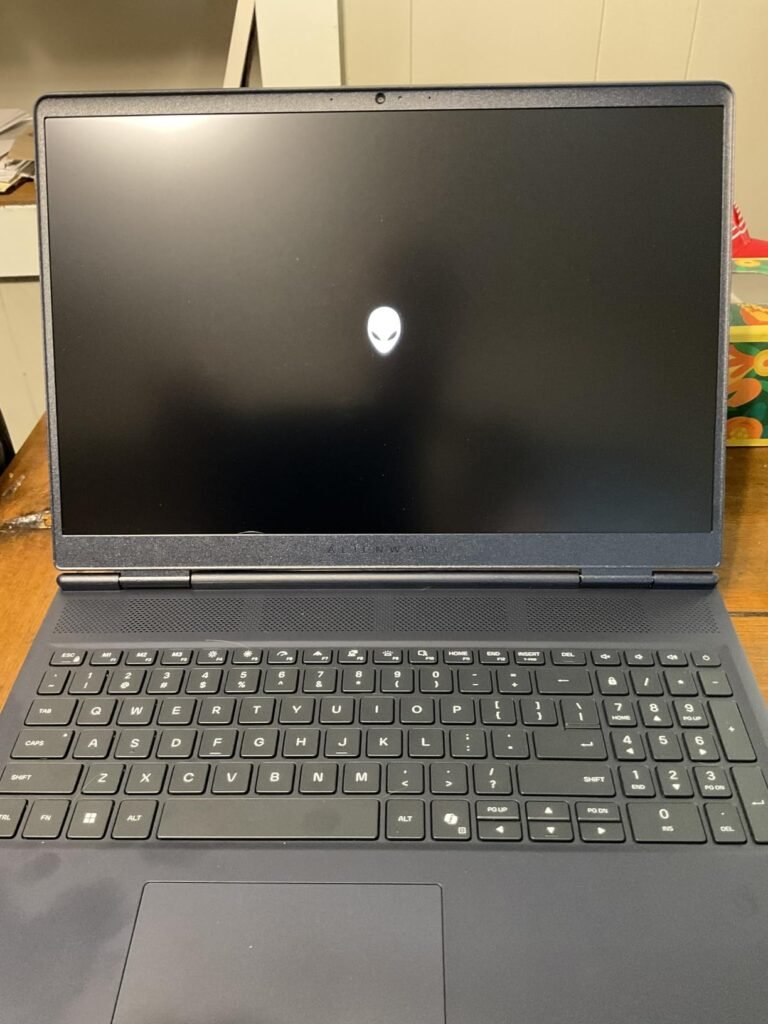
The Alienware 16 Aurora brings the latest NVIDIA RTX 50 Series architecture to a 16-inch form factor that balances rendering power with a relatively streamlined chassis. For animators who work in GPU-heavy applications like Blender Cycles, Redshift, or Octane, the RTX 5060 built on the Blackwell architecture offers improved ray tracing cores and tensor cores compared to the previous generation, which directly translates to faster render times and smoother viewport interaction.
We may earn a commission when you buy through this link, at no additional cost to you.
Thermal management is where this model differentiates itself. The Cryo-Chamber cooling structure directs airflow specifically to the CPU and GPU, the two components that generate the most heat during sustained rendering sessions. Unlike laptops that throttle performance after a few minutes of heavy load, a well-designed thermal solution helps maintain clock speeds during long export jobs, which is a practical advantage when you are rendering overnight or processing large animation sequences.
The 16-inch WQXGA display with a 16:10 aspect ratio provides more vertical screen space than a standard 16:9 panel, which is useful for timeline-based animation software where vertical room for layers and keyframe graphs reduces scrolling. The 300-nit brightness is adequate for indoor studio work, though it may not be ideal for bright outdoor environments or color-critical grading without an external reference display.
A laptop may advertise high clock speeds, but sustained performance depends on how effectively heat is removed from the processor and GPU. When temperatures climb too high, the system throttles clock speeds to protect the hardware, which can dramatically extend render times on long jobs. A dedicated cooling architecture like the Cryo-Chamber helps maintain peak performance across extended sessions, making it a meaningful factor for animators who regularly export complex sequences.
One consideration is that the publicly listed specifications are less detailed than some competitors, particularly around exact RAM configuration and full port layout. The inclusion of Dell’s one-year onsite service is a practical benefit for professionals who cannot afford downtime, since a technician will come to your location for covered hardware issues. If you want current-generation GPU performance in a well-cooled 16-inch package, the Aurora is worth a close look.
Buyers who need a lightweight ultraportable laptop for frequent travel or field work.
We may earn a commission when you buy through this link, at no additional cost to you.
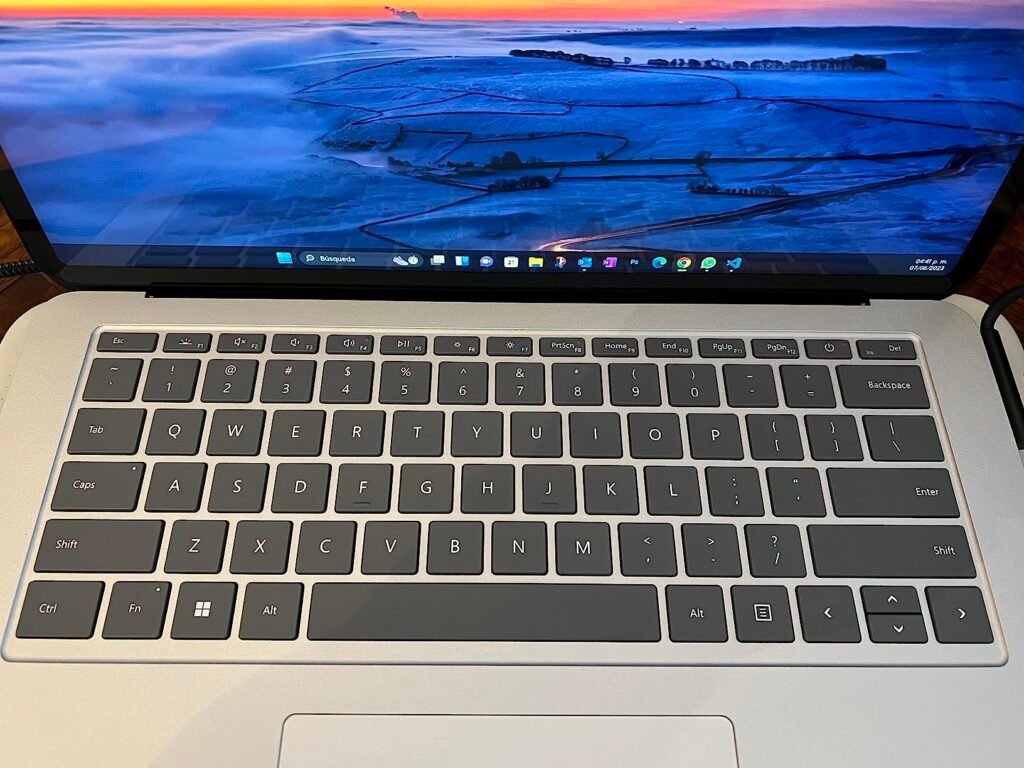
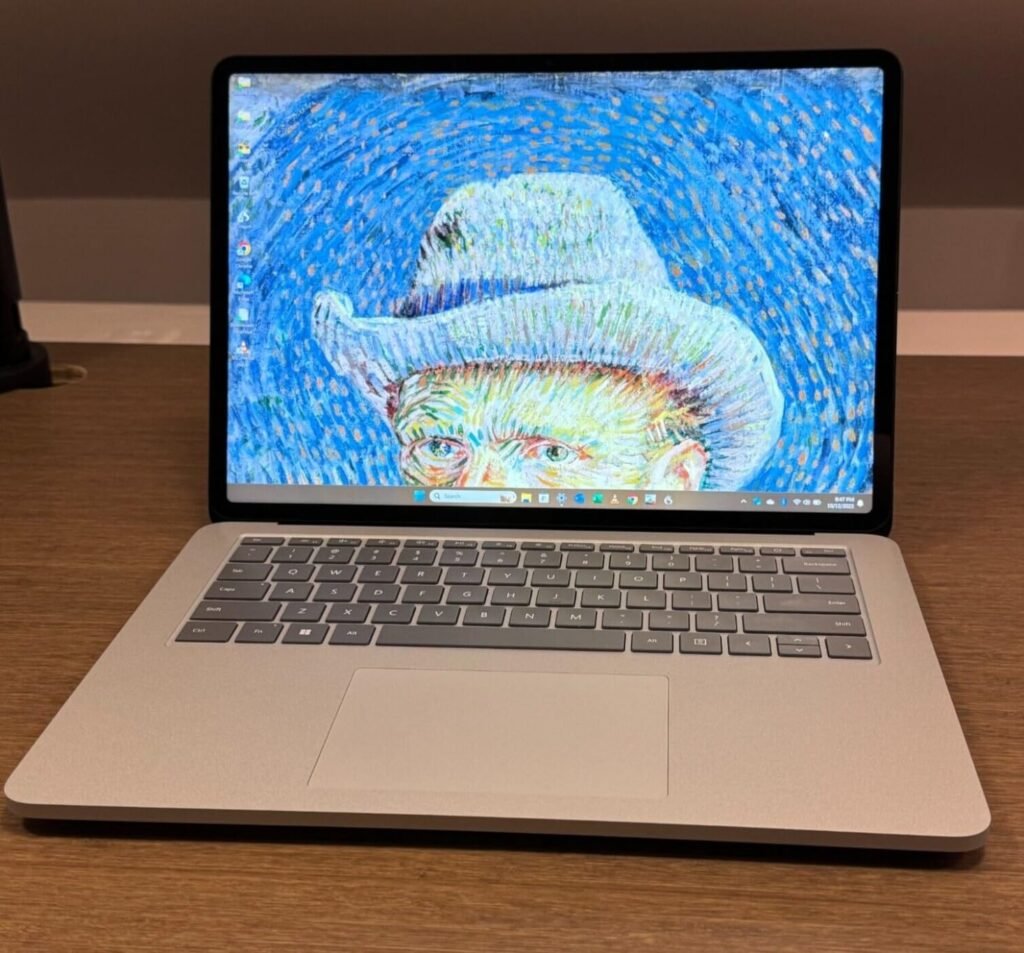
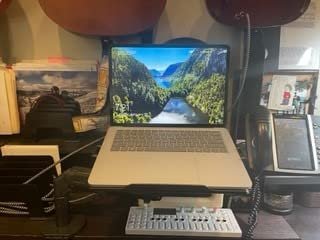
The Microsoft Surface Laptop Studio occupies a unique niche for animators who draw directly on screen. Its pull-forward display design lets you transition from a traditional laptop posture to a flat canvas mode where the screen lies nearly horizontal over the keyboard, creating a natural drawing surface for frame-by-frame animation, storyboarding, and character design in apps like Clip Studio Paint, TVPaint, or Adobe Fresco.
We may earn a commission when you buy through this link, at no additional cost to you.
The 14.4-inch PixelSense Flow touchscreen runs at up to 120Hz, which makes pen strokes feel responsive and reduces the visual lag that can make digital drawing feel disconnected. When paired with the Surface Slim Pen 2, which magnetically attaches and charges under the front lip of the keyboard, the experience closely mimics pen-on-paper with haptic feedback that simulates the texture of different drawing surfaces.
With 32GB of RAM and a 1TB SSD, this configuration provides generous headroom for multitasking between animation software, reference materials, and communication tools without memory pressure. The NVIDIA GeForce RTX 3050 Ti adds dedicated GPU acceleration for viewport rendering and GPU-assisted effects, though it sits at the entry level of the RTX lineup and will not match the rendering throughput of higher-tier cards in complex 3D scenes.
A built-in touchscreen with pen support eliminates the hand-eye disconnect that comes with drawing on a separate graphics tablet while looking at a monitor. For frame-by-frame animators who need precise stroke control and natural hand positioning, the canvas mode on the Surface Laptop Studio can speed up the drawing process and reduce wrist strain during long sessions. The trade-off is a smaller screen compared to a dedicated drawing display.
The trade-off is the older 11th Gen Intel Core i7 processor, which trails current-generation chips in multi-core performance for CPU-bound tasks like simulation baking and video encoding. For 2D animators, illustrators, and motion designers who prioritize the drawing experience and portability over raw 3D rendering speed, the Surface Laptop Studio offers a creative workflow that no traditional clamshell laptop can replicate.
3D animators and VFX artists who need maximum GPU power for rendering complex scenes in Blender, Maya, or Houdini.
We may earn a commission when you buy through this link, at no additional cost to you.
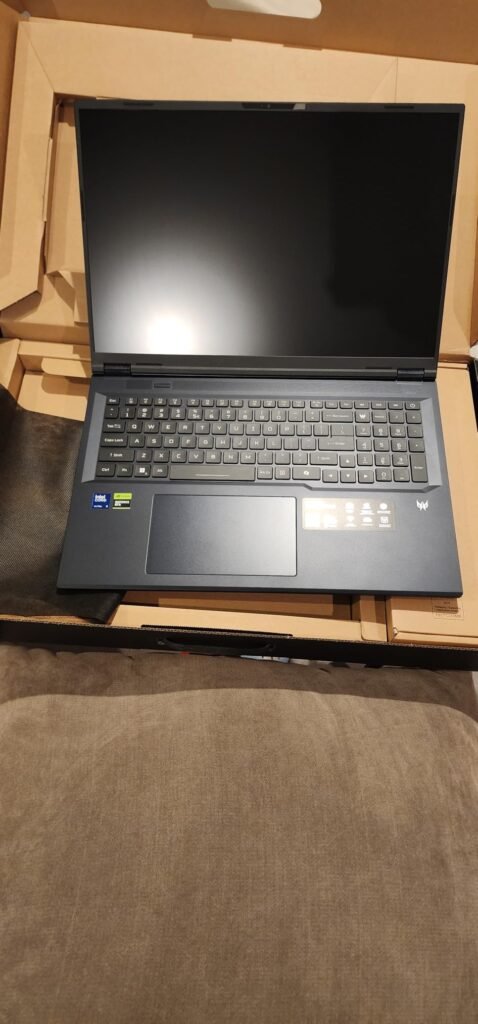
The Acer Predator Helios Neo 18 is the most powerful machine in this lineup, built around the Intel Core Ultra 9 275HX processor and the NVIDIA GeForce RTX 5070 Ti laptop GPU. For animators working in demanding 3D pipelines with heavy geometry, complex shaders, and real-time ray tracing in engines like Unreal or Unity, this hardware combination provides the headroom to iterate quickly without waiting on sluggish viewport playback or lengthy render queues.

We may earn a commission when you buy through this link, at no additional cost to you.
The 18-inch WQXGA display with a 16:10 aspect ratio and 240Hz refresh rate offers a large, smooth workspace for timeline editing and viewport navigation. The 100% DCI-P3 color gamut coverage is a meaningful advantage for color-critical animation and compositing work, ensuring that gradients, lighting effects, and character palettes appear consistent across your working display and final output.
Memory and storage are both generous at this tier. The 32GB of DDR5 6400MHz RAM handles large scene files, multi-layered compositions, and simultaneous application use without swapping to disk. The 2TB PCIe Gen 4 SSD provides fast read and write speeds for loading heavy project files and caching previews, and the dual M.2 slot configuration means you can expand storage further as your project library grows.
Complex 3D animation scenes with high-resolution textures, particle simulations, and multiple character rigs can easily consume 16GB of RAM, leading to slowdowns as the system swaps data to the SSD. With 32GB, you can keep your animation software, a real-time render preview, reference footage, and a web browser open simultaneously without the performance degradation that comes from memory pressure. For professional pipelines, 32GB is increasingly the practical minimum.
The practical trade-offs are size and weight. At over 7 pounds and with a substantial footprint, this is a desktop replacement that works best when stationed at a desk or moved between a home studio and an office. The advanced thermal system with liquid metal compound and dual fans including a 5th Gen AeroBlade 3D metal fan helps sustain performance during long renders, but the fans will be audible under heavy load. For animators who need the fastest possible render times and the largest portable screen, the Helios Neo 18 delivers.
Animators who travel frequently or need a lightweight laptop for working in coffee shops, classrooms, or co-working spaces.
We may earn a commission when you buy through this link, at no additional cost to you.
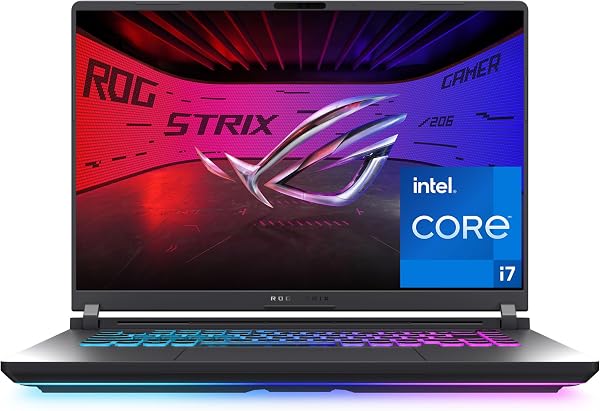
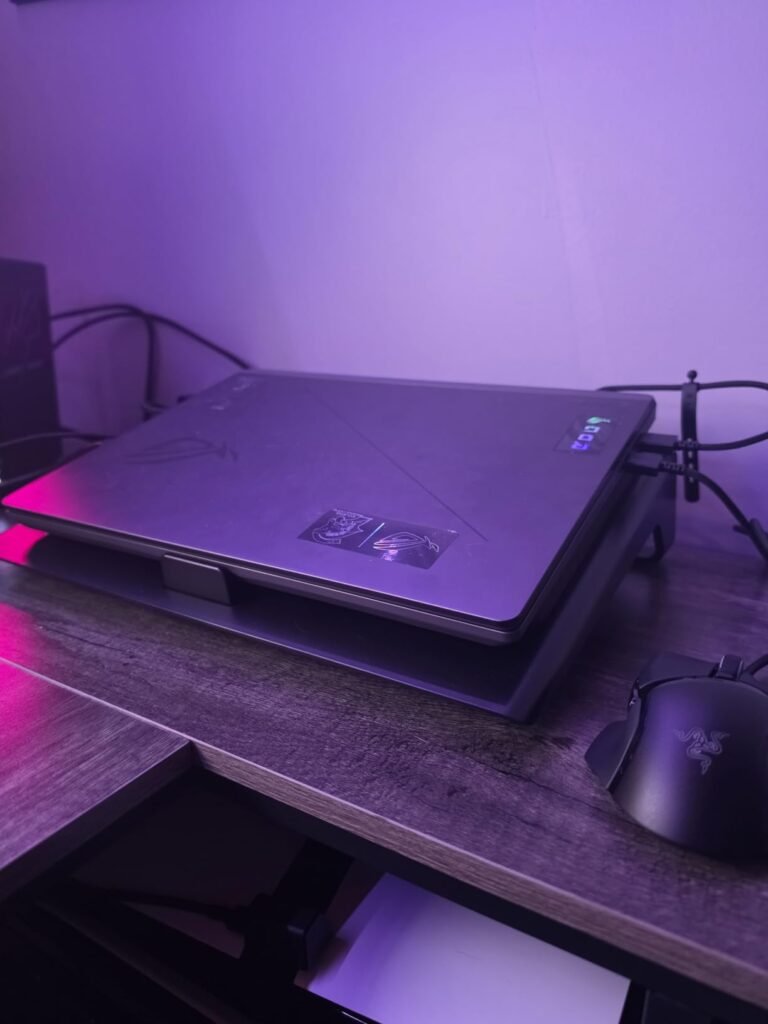
The ASUS ROG Strix G16 brings the latest RTX 5060 GPU to a 16-inch chassis at a mid-range price point, making it an appealing option for animators who want current-generation rendering capabilities without stepping up to the highest tier. The Blackwell architecture includes DLSS 4 and improved ray tracing cores, which accelerate viewport rendering and real-time preview in GPU-dependent animation and compositing software.
We may earn a commission when you buy through this link, at no additional cost to you.
Thermal performance is a key strength. The end-to-end vapor chamber combined with tri-fan technology and Conductonaut extreme liquid metal on the chipset helps dissipate heat more evenly than traditional heat pipe designs. For animators who run long render jobs or work in poorly ventilated spaces, effective cooling means the laptop can sustain higher clock speeds without thermal throttling, keeping your export times predictable.
The 16-inch FHD+ display with a 16:10 aspect ratio and 165Hz refresh rate provides smooth playback for reviewing animation timing and motion curves. The new ACR film layer enhances contrast and reduces glare, which is helpful in brightly lit studios or near windows. The 360-degree RGB lightbar can be switched off entirely with Stealth Mode, giving the laptop a professional appearance during client presentations or in shared office environments.
A vapor chamber spreads heat across a larger flat surface area compared to narrow heat pipes, which channel heat along specific paths. This more even distribution helps prevent hot spots directly above the CPU and GPU, allowing the cooling fans to work more efficiently. For animation workloads that push both the processor and graphics card simultaneously during rendering, a vapor chamber can help maintain more consistent performance over extended sessions.
The two main considerations are the FHD+ resolution and the 16GB RAM configuration. While FHD+ is perfectly usable for most animation work, animators who frequently work with 4K footage or need maximum screen real estate for complex interfaces may prefer a higher-resolution panel. The 16GB DDR5 memory is adequate for moderate projects but may require an upgrade for heavy 3D scenes. At its price, the Strix G16 offers a strong balance of GPU performance and thermal reliability for growing animation studios.
Color-critical professionals who need a wide-gamut, high-resolution display for final color grading and client review.
We may earn a commission when you buy through this link, at no additional cost to you.
Animation workloads vary widely depending on whether you create 2D frame-by-frame cartoons, 3D character animations, motion graphics, or visual effects. The right laptop depends on matching the hardware to your specific software pipeline and the complexity of your typical projects.
The graphics processing unit is the single most impactful component for 3D animation and GPU-accelerated rendering. Applications like Blender Cycles, Redshift, Octane, and Unreal Engine rely heavily on the GPU for viewport playback, real-time ray tracing, and final frame rendering. A dedicated GPU with at least 6GB of VRAM is a practical starting point for moderate 3D work, while 8GB or more provides better headroom for complex scenes with high-resolution textures and dense geometry.
For 2D animation and motion graphics in tools like Toon Boom Harmony, Adobe Animate, or After Effects, the GPU requirements are less demanding. Integrated graphics solutions like the AMD Radeon 680M or Intel Arc 140V can handle 2D compositing and light GPU-accelerated effects without issues. The bottleneck in 2D workflows is more often the CPU and RAM, so investing in a more powerful GPU may not yield noticeable improvements if your projects stay in the 2D realm.
Check the specific GPU requirements of your primary animation software before buying. Some render engines require NVIDIA CUDA cores and will not work with AMD or Intel integrated graphics, while others support multiple GPU architectures. Matching the GPU to your software ecosystem avoids costly compatibility surprises.
The CPU handles tasks that the GPU cannot offload, including physics simulations, cloth and hair dynamics, procedural generation, and video encoding. Animation software like Maya, Houdini, and Cinema 4D benefit from high core counts when baking simulations or rendering with CPU-based engines. A processor with 8 or more cores provides a noticeable improvement over quad-core chips for these multi-threaded workloads.
Clock speed matters more for single-threaded tasks like viewport responsiveness, script execution, and certain modeling operations that cannot be parallelized across multiple cores. Processors with high boost clocks above 5.0 GHz tend to feel snappier during interactive work, even if their core count is lower than a competing chip. The ideal animation CPU balances strong multi-core performance for rendering with high single-core speeds for responsive viewport interaction.
When comparing processors, look at both the core count and the sustained boost clock under load, not just the peak advertised speed. A laptop with excellent cooling will maintain higher clocks during long renders than one that throttles quickly, making the thermal design just as important as the processor specification on paper.
Animation projects consume RAM rapidly, especially when working with high-resolution textures, complex character rigs, particle simulations, and multi-layered compositions. A 16GB configuration is the functional minimum for most animation work, but it can become a bottleneck when you open multiple applications simultaneously or work with large scene files. Running out of RAM forces the system to swap data to the SSD, which dramatically slows down viewport playback and render times.
For professional 3D animation and VFX work, 32GB of RAM is increasingly the practical baseline. This capacity allows you to keep your primary animation software, a real-time render preview, reference footage in a media player, and a web browser open without memory pressure. Faster RAM speeds, such as DDR5 5600MHz or higher, improve data throughput between the CPU and memory, which can reduce frame calculation times in simulation-heavy scenes.
Check whether the laptop’s RAM is soldered or upgradeable via SO-DIMM slots before buying. Soldered memory cannot be expanded later, so you need to purchase the configuration you will need for the lifespan of the machine. Upgradeable RAM gives you the flexibility to start with 16GB and add more as your projects grow in complexity.
The display is your primary interface with your animation work, and its quality directly affects how accurately you can judge color, timing, and detail. For color-critical animation and compositing, look for a display that covers at least 100% of the sRGB color gamut, with 100% DCI-P3 being the preferred standard for professional delivery. A Delta E value below 2 indicates that the color deviation from the reference standard is small enough to be imperceptible to most viewers.
Resolution and screen size interact to determine how much workspace you have for timelines, layer panels, node graphs, and preview windows. A 16-inch display at 2K or higher resolution provides a comfortable balance of sharpness and usable screen real estate, while 14-inch panels at Full HD can feel cramped for complex animation interfaces. Larger 17 or 18-inch screens offer more room but add weight and reduce portability.
Refresh rate matters more for animation than many buyers realize. A 120Hz or higher display makes viewport playback and timeline scrubbing feel smoother, which helps you evaluate motion timing and easing curves more accurately. If you frequently review animation at 24fps or 30fps, a high-refresh display ensures that playback appears fluid without judder or stuttering.
Animation projects generate large files quickly, especially when working with 4K footage, high-resolution texture maps, cached previews, and rendered output sequences. A fast NVMe SSD with PCIe Gen 4 speeds ensures that project files load quickly, preview caches build faster, and render output writes without bottlenecking the GPU. The difference between a Gen 3 and Gen 4 SSD is most noticeable when scrubbing through large video files or loading complex 3D scenes with many assets.
Capacity is equally important. A 1TB SSD is a reasonable starting point for most animators, but if you work with large video files or maintain an extensive library of project assets, 2TB or more will reduce the need for constant file management and external drive swapping. Some laptops offer dual M.2 slots, allowing you to add a second drive later without replacing the original.
Consider your backup and archival workflow when choosing storage capacity. Keeping active projects on the internal SSD and archiving completed work to external drives or network storage helps maintain fast performance on the internal drive while protecting your work against hardware failure.
Animators frequently connect external monitors, drawing tablets, audio interfaces, and high-speed storage to their laptops, making port selection a practical concern that affects daily workflow. Thunderbolt 4 or USB-C ports with DisplayPort Alt Mode allow you to connect high-resolution external monitors and docking stations through a single cable, simplifying your desk setup and reducing cable clutter.
HDMI 2.1 ports support higher resolutions and refresh rates on external displays, which is useful if you connect to a 4K reference monitor for color-critical review. Multiple USB-A ports remain important for connecting drawing tablets like Wacom or XP-Pen devices, external hard drives, and other peripherals that have not yet transitioned to USB-C. An SD card reader is a convenient addition for animators who also shoot reference footage or work with photography.
Before buying, list the peripherals you use daily and verify that the laptop can connect all of them simultaneously without requiring a powered hub. A laptop with a comprehensive port selection saves you the cost and inconvenience of carrying dongles and adapters to every work session.
Animation rendering is one of the most sustained workloads a laptop can face, often pushing both the CPU and GPU at full load for hours at a time. A laptop with inadequate cooling will throttle its processors to prevent overheating, which can double or triple render times compared to a well-cooled machine with the same specifications. Thermal design is therefore just as important as the raw hardware specs when evaluating animation laptops.
Look for features like vapor chambers, multiple heat pipes, liquid metal thermal compound, and high-quality fan designs that move air efficiently through the chassis. Laptops with larger chassis sizes generally have more room for effective cooling solutions, which is one reason why 16-inch and 18-inch models tend to sustain higher performance than thin 14-inch ultrabooks under heavy load.
If you plan to run long overnight renders, consider the noise level of the cooling system under load. Some laptops offer quiet modes that reduce fan speed at the cost of lower sustained performance, which can be useful for lighter tasks but should be switched to maximum cooling during rendering sessions. Checking user reviews for thermal performance under sustained workloads provides practical insight that spec sheets alone cannot convey.
Set up your animation workspace for optimal performance by connecting your laptop to a power source during rendering sessions, as most laptops throttle GPU and CPU performance when running on battery to conserve energy. Configure your animation software to use the dedicated GPU for viewport rendering and hardware-accelerated effects, and set your scratch disk or cache folder to the fastest internal SSD rather than an external drive. Close unnecessary background applications during heavy renders to free up RAM and CPU resources for your primary animation software.
Maintain your laptop’s thermal performance by keeping the air intake and exhaust vents clear of dust and obstructions. Use the laptop on a hard, flat surface rather than a soft bed or couch, which can block airflow and cause overheating during long rendering sessions. Consider investing in a laptop cooling pad with active fans if you frequently work in warm environments or run extended overnight renders, as even a small improvement in airflow can help sustain higher clock speeds.
Protect your animation projects by implementing a regular backup routine that includes both local and cloud storage. Animation project files can grow to hundreds of gigabytes, so use incremental backup software to capture only the changes since your last backup rather than copying entire project folders each time. Keep your GPU drivers updated to the latest studio or creative-ready versions, as driver updates often include performance optimizations and bug fixes for specific animation and rendering applications.
For entry-level 3D animation in Blender or Maya, a dedicated GPU with at least 6GB of VRAM provides a functional starting point. For more complex scenes with high-resolution textures and real-time ray tracing, 8GB or more of VRAM is recommended. Some render engines like Redshift and Octane require NVIDIA CUDA-compatible GPUs, so check your software's compatibility before choosing a laptop with AMD or Intel integrated graphics.
Sixteen gigabytes is the practical minimum for 2D animation and moderate motion graphics work. For 3D animation with complex scenes, particle simulations, or multi-application workflows, 32GB provides significantly better performance and reduces the risk of slowdowns caused by memory swapping. If your laptop has upgradeable RAM slots, starting with 16GB and adding more later is a cost-effective approach.
A 4K display is not strictly necessary for most animation work, but it provides sharper detail and more screen real estate for complex interfaces with timelines, node graphs, and layer panels. A 2K or QHD display at 16 inches offers a good balance of sharpness and usability. Color accuracy and gamut coverage are often more important than raw resolution for animation, so prioritize a display with 100% sRGB or DCI-P3 coverage over pixel count alone.
Gaming laptops often provide excellent GPU performance and cooling for animation workloads, since the hardware requirements for modern gaming overlap significantly with 3D rendering and real-time viewport performance. The main differences are that gaming laptops may have displays optimized for refresh rate rather than color accuracy, and their aesthetic designs may not suit all professional environments. Many animators successfully use gaming laptops as cost-effective workstations.
The CPU and GPU handle different aspects of animation work. The GPU accelerates viewport rendering, real-time ray tracing, and GPU-based render engines, while the CPU handles physics simulations, procedural generation, cloth dynamics, and CPU-based rendering. For 3D animation with GPU rendering, the GPU is typically more impactful. For simulation-heavy work in Houdini or CPU-based rendering, a high-core-count CPU becomes the priority.
A touchscreen is most beneficial for 2D animators and illustrators who draw directly on screen using a stylus, as it eliminates the hand-eye disconnect of a separate drawing tablet. For 3D animators who primarily use a mouse and keyboard for modeling and rigging, a touchscreen adds limited practical value and may increase the laptop's cost and weight. Consider your primary animation style before prioritizing touch capability.
A PCIe Gen 4 NVMe SSD provides the best balance of speed and value for animation work, with read speeds that allow fast project loading and smooth scrubbing through cached previews. Gen 3 SSDs are still usable but may feel slower when working with large video files or complex 3D scenes with many assets. Avoid traditional hard drives for active project work, as their slower read and write speeds will bottleneck your workflow.
Use the laptop on a hard, flat surface with clear airflow around the vents, and consider a cooling pad with active fans for extended rendering sessions. Set your laptop's power profile to maximum performance during renders to ensure the fans run at full speed. Keep the vents clean by periodically removing dust with compressed air, and avoid running renders in hot or poorly ventilated rooms when possible.
Most modern laptops with Thunderbolt 4 or multiple USB-C ports with DisplayPort Alt Mode can drive two or more external monitors alongside the built-in display. Check the laptop's specifications for the maximum number of supported external displays and the maximum resolution each port can output. A Thunderbolt dock can simplify multi-monitor setups by routing all connections through a single cable.
The ASUS ProArt StudioBook 16 OLED stands out as the strongest overall choice for animation professionals who need accurate color reproduction alongside dedicated GPU rendering power. Its 3.2K OLED display with full DCI-P3 coverage and the RTX 4060 GPU make it well-suited for both 2D and 3D animation pipelines, and the ASUS Dial adds a unique creative control element that streamlines daily workflow.
For animators on a tighter budget, the Microsoft Surface Laptop Studio offers a versatile drawing-focused form factor with 32GB of RAM and a responsive pen experience at a more accessible price point. Those who need maximum rendering throughput for complex 3D scenes should consider the Acer Predator Helios Neo 18, which pairs the RTX 5070 Ti with 32GB of fast DDR5 memory and a large 18-inch color-accurate display.
Your final decision should start with identifying the animation software you use most and the complexity of your typical projects. Match the GPU, RAM, and display to those specific needs rather than chasing the highest specifications across the board. A well-matched laptop that fits your actual workflow will serve you better than a more powerful machine with features you rarely use.