UGREEN 8K Triple
8.0Editor score2 computers, 3 monitors
8K at 60Hz
4 USB 3.0 ports
Aluminum housing
Find the right kvm switches for 2026. We compare 10 standout options by build quality, useful features, owner feedback, value, and everyday trade-offs.
Find the right KVM switch for your workspace in 2026. We compare 10 standout models by the factors that matter most for multi-computer setups: video resolution and refresh rate, monitor and port count, USB speed and peripheral sharing, switching methods, extended vs mirrored display support, build quality, owner feedback, and overall value for the price.
A well-chosen KVM switch turns a cluttered dual-computer desk into a clean, productive workspace by letting one keyboard, mouse, and monitor control multiple machines. The differences between models range from simple two-port HDMI units under $20 to premium remote-access devices with Wi-Fi 6 and 4K passthrough that support IT admins managing servers from anywhere.
This guide covers basic two-port budget models, high-resolution dual-monitor switches, four-computer boardroom units, and advanced remote-access KVMs for professionals. Whether you are a home office worker juggling a work laptop and personal PC, a content creator with a triple-monitor setup, or an IT admin managing headless servers, the picks below match capability to your actual workflow.
We compared 10 KVM switches using the details that genuinely help a buyer decide: number of computers and monitors supported, maximum video resolution and refresh rate, USB port speed and count, switching methods including buttons and wired remotes, display mode support like mirror and extend, compatibility with major operating systems, build quality, owner ratings, and value at each price bracket. The notes focus on practical trade-offs so each pick connects to how people actually manage multiple computers from a single workstation.


Compare key features, scores, and current prices side by side. A shorter feature list means fewer details were available, not necessarily fewer capabilities.




This four-port HDMI KVM has earned the highest owner rating in this guide by delivering exactly what most multi-computer users need without unnecessary complications. It targets home offices, small businesses, and creative professionals who need to control four separate machines from a single monitor, keyboard, and mouse setup while maintaining fast USB 3.0 peripheral sharing across all four computers.

We may earn a commission when you buy through this link, at no additional cost to you.
Full 4K at 60Hz support handles modern high-resolution monitors without downgrading image quality, and backward compatibility covers 4K at 30Hz, 1080p, and 720p resolutions for older displays. The four USB 3.0 ports deliver 5Gbps transfer speeds, which is ten times faster than USB 2.0 and makes a real difference for external SSDs, high-DPI mice, and USB webcams that share across all connected computers.
The dual switching methods add practical flexibility. The panel buttons offer quick access when the switch sits within reach, while the wired infrared remote controller lets you hide the switch under a desk or in a cable tray and still switch computers from your normal work position. The metal chassis feels substantial and dissipates heat better than plastic housings, which matters during long work sessions with active USB peripherals.
EDID emulation lets the KVM tell each computer what monitor is connected even when the video signal is not currently routed to that machine. Without EDID support, computers may lose their display configuration when you switch away, causing window rearrangement or graphics driver resets. This feature keeps your workspace layout consistent as you move between machines.
This is the strongest all-around pick for anyone who regularly juggles four computers, such as separating work, personal, gaming, and testing machines. If you only manage two computers or need hotkey keyboard switching, simpler or more specialized models will serve you better, but for four-computer setups this KVM combines high ratings with all the practical features that matter.
Users who need keyboard hotkey switching or manage only two computers.
We may earn a commission when you buy through this link, at no additional cost to you.
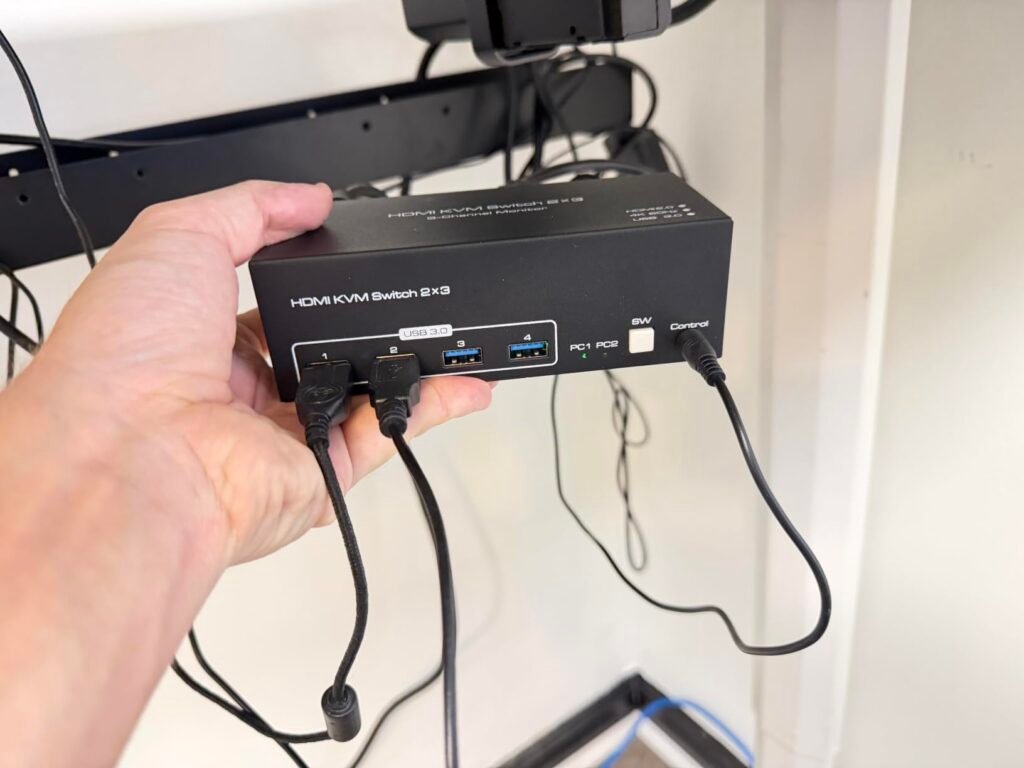
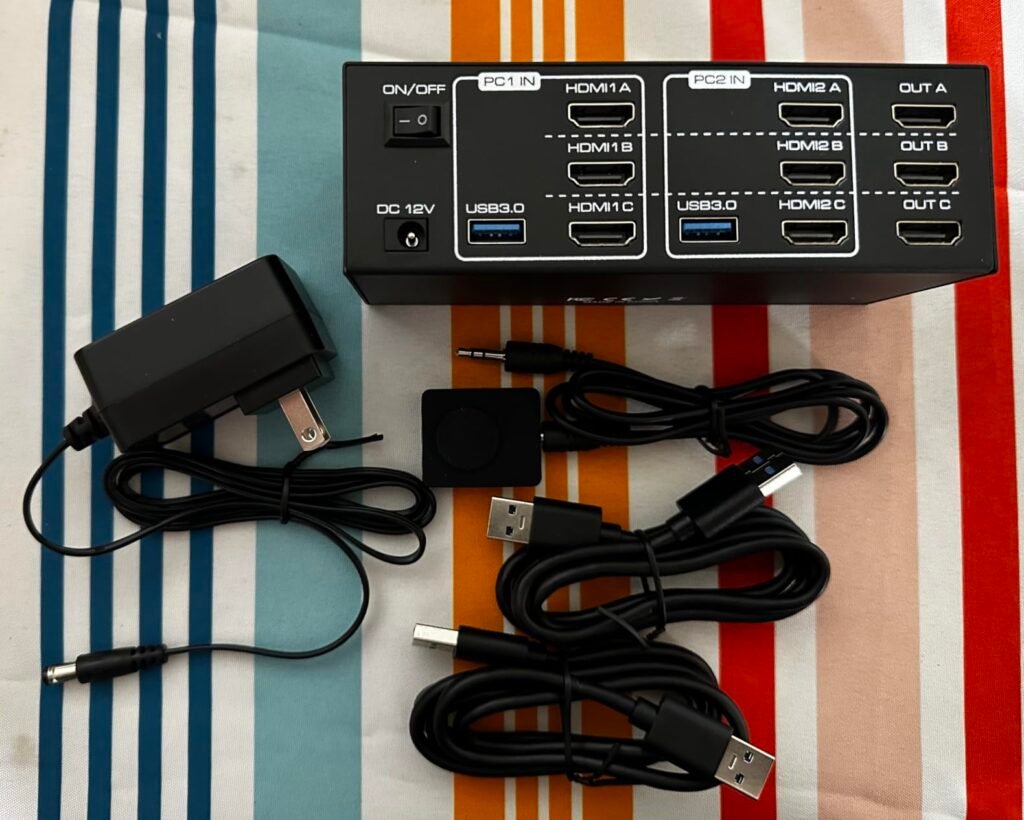
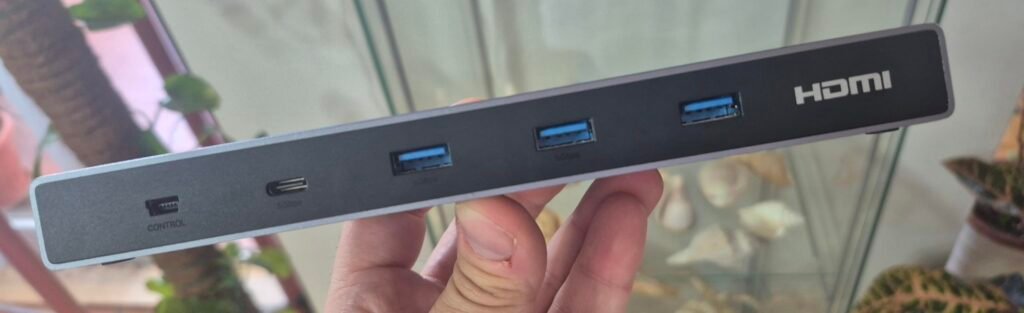
The UGREEN triple-monitor KVM addresses a specific need that most switches cannot handle: managing two computers with three monitors each. This makes it ideal for video editors, financial analysts, software developers, or anyone whose workflow depends on multiple simultaneous displays across separate machines. The combination of two DisplayPort 1.4 outputs and one HDMI 2.1 output covers most modern monitor configurations.

We may earn a commission when you buy through this link, at no additional cost to you.
Video capabilities are genuinely impressive with support for 8K at 60Hz, 4K at 240Hz, 4K at 144Hz, and full HDR10+ across all three display outputs. Gaming-focused features including VRR, FreeSync, and G-Sync mean the switch does not introduce screen tearing or stuttering even at high refresh rates. This depth of specification makes the switch usable for both productivity and gaming without compromise.
The aluminum housing is more than aesthetic. It provides better thermal management than plastic bodies, which matters when passing 8K signals through active electronics. The desktop controller lets you place the switch out of view while retaining easy switching access, and both mirror mode for identical displays and extend mode for spanning content across screens are supported. Note that keyboard hotkey switching is not available.
Achieving 8K at 60Hz requires high-quality certified cables no longer than 2 meters with 28AWG conductors. Longer cables or cheaper builds will drop to lower resolutions or introduce signal artifacts. Budget for premium cables when planning an 8K setup, since the switch itself cannot compensate for inadequate cabling.
This is the right pick for professionals whose workflow genuinely needs triple monitor output from two computers. Verify that both machines support three-display output before purchasing, since the switch cannot create display outputs that the source computers do not provide. Casual dual-monitor users should look at simpler models that better match their needs.
Casual users with dual or single monitor setups who do not need triple display support.
We may earn a commission when you buy through this link, at no additional cost to you.
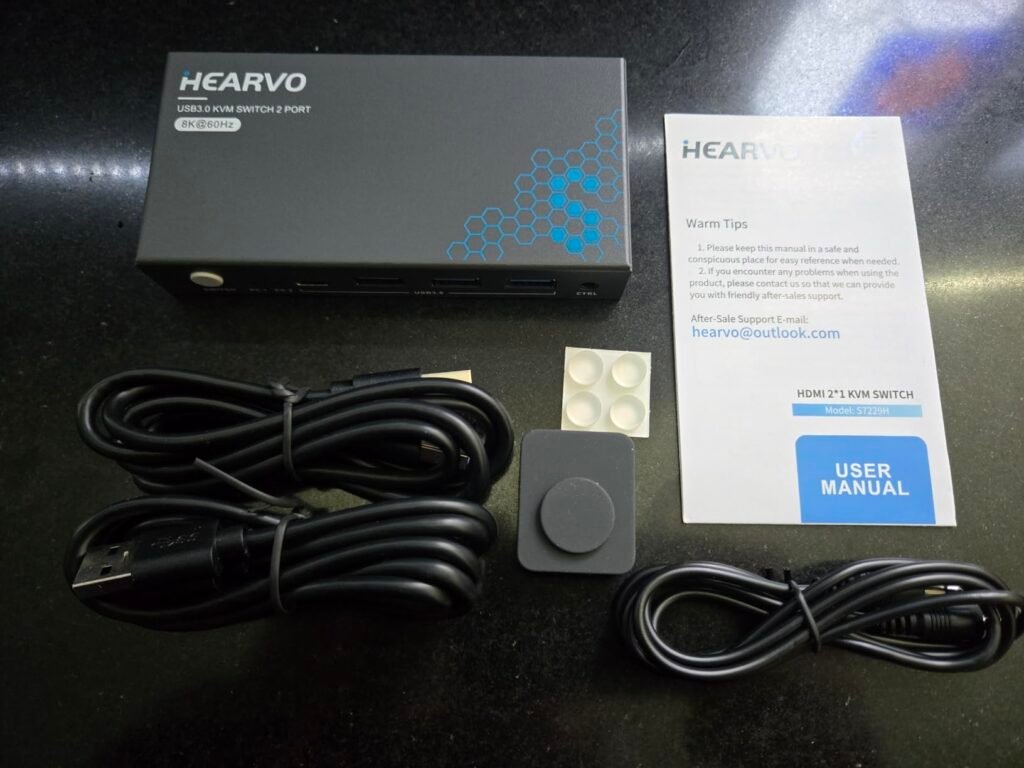
The Hearvo two-port KVM stands out for including a USB-C port alongside three USB-A ports, which addresses the growing number of peripherals that use USB-C connections including newer webcams, external SSDs, and audio interfaces. This forward-looking port selection makes the switch more relevant for buyers with modern peripheral collections than similar KVMs that only offer USB-A.
We may earn a commission when you buy through this link, at no additional cost to you.
Beyond the USB-C support, this switch handles the essentials well. 4K at 60Hz video output with HDCP 2.2 compliance ensures compatibility with protected content, and adaptive EDID keeps display settings stable when switching between computers. USB 3.0 speeds at 5Gbps make peripheral sharing fast enough for demanding tasks like transferring large files or using high-bandwidth webcams.
The wired remote switch offers the same practical benefit as more expensive models: you can hide the KVM under your desk or behind a monitor while keeping switching controls within easy reach. No external power supply is needed since the switch draws power from the connected computers, which simplifies setup and reduces cable clutter. Broad OS compatibility covers Windows, Mac, Linux, and even PS4 gaming consoles.
The USB-C port on this KVM handles data at USB 3.0 speeds but does not provide DisplayPort Alternate Mode or Power Delivery. This means it works well for USB-C peripherals like external drives or webcams but cannot deliver video signals or charge USB-C laptops through the same connection. Match your expectations to the port’s actual capabilities before purchase.
This is a strong two-computer choice for users who own USB-C peripherals and want a straightforward switch without paying premium prices. Buyers who need to switch between three or four computers should look at four-port models, and users who need bidirectional keyboard shortcuts should choose a KVM with hotkey support.
Users who need to control three or four computers from a single workstation.
We may earn a commission when you buy through this link, at no additional cost to you.
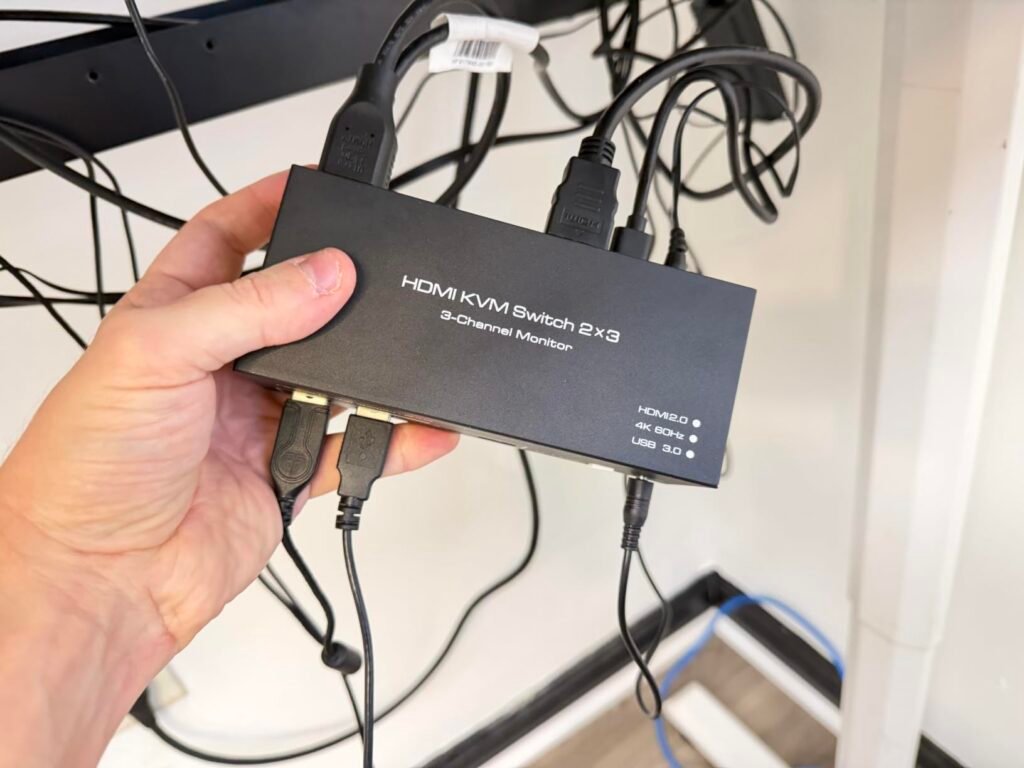
This DisplayPort KVM targets a specific and demanding use case: dual-monitor gaming or content creation setups that need to switch between two computers while maintaining high refresh rates. The 4K at 144Hz capability across two DisplayPort 1.4 outputs delivers the bandwidth needed for smooth motion in modern games and fluid scrolling in productivity applications.
We may earn a commission when you buy through this link, at no additional cost to you.
Both extended and mirror display modes are supported, which covers the two main use cases for dual monitors. Extended mode spans your desktop across both displays for more workspace, while mirror mode duplicates content across screens for presentations or reference viewing. Four USB 3.0 ports at 5Gbps handle peripheral sharing including gaming keyboards, mice, external drives, and streaming equipment.
The external 12V DC power adapter is a genuinely important detail for a KVM handling this much bandwidth and USB power. Passive KVMs that draw power only from connected computers often struggle with high-power USB devices or produce unstable video at high refresh rates. External power provides the headroom needed for reliable operation under demanding conditions.
High refresh rates benefit fast-motion content most visibly, including competitive gaming, action video editing, and any workflow with rapid on-screen movement. For static work like coding, spreadsheets, or reading, the difference between 60Hz and 144Hz is much less noticeable. Match refresh rate priorities to your actual usage rather than paying for capability you will not use.
This is the right pick for dual-monitor users who prioritize refresh rate and DisplayPort bandwidth over HDMI compatibility. Buyers who prefer HDMI for cable simplicity or console compatibility should look at HDMI-based dual-monitor KVMs instead. Note that DisplayPort cables are not included, so budget for four quality DP 1.4 cables when planning the total setup cost.
Users whose computers use HDMI outputs or who do not need high refresh rate support.
We may earn a commission when you buy through this link, at no additional cost to you.
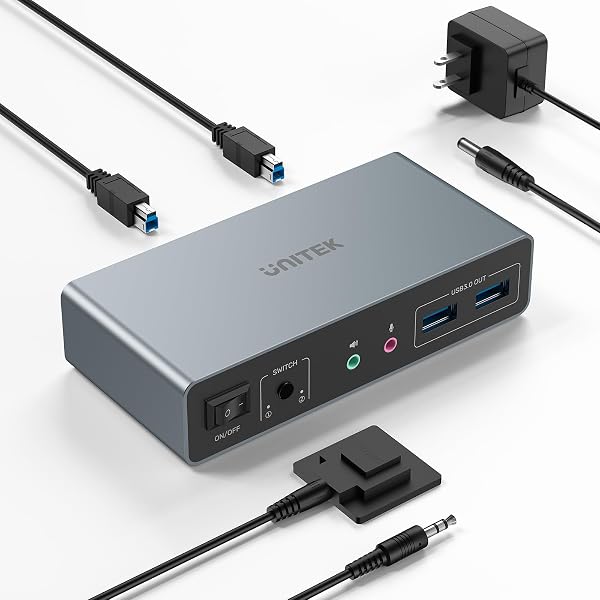
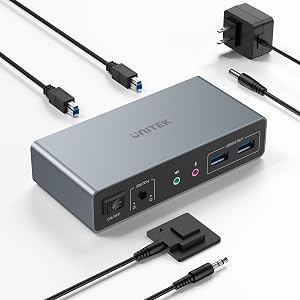
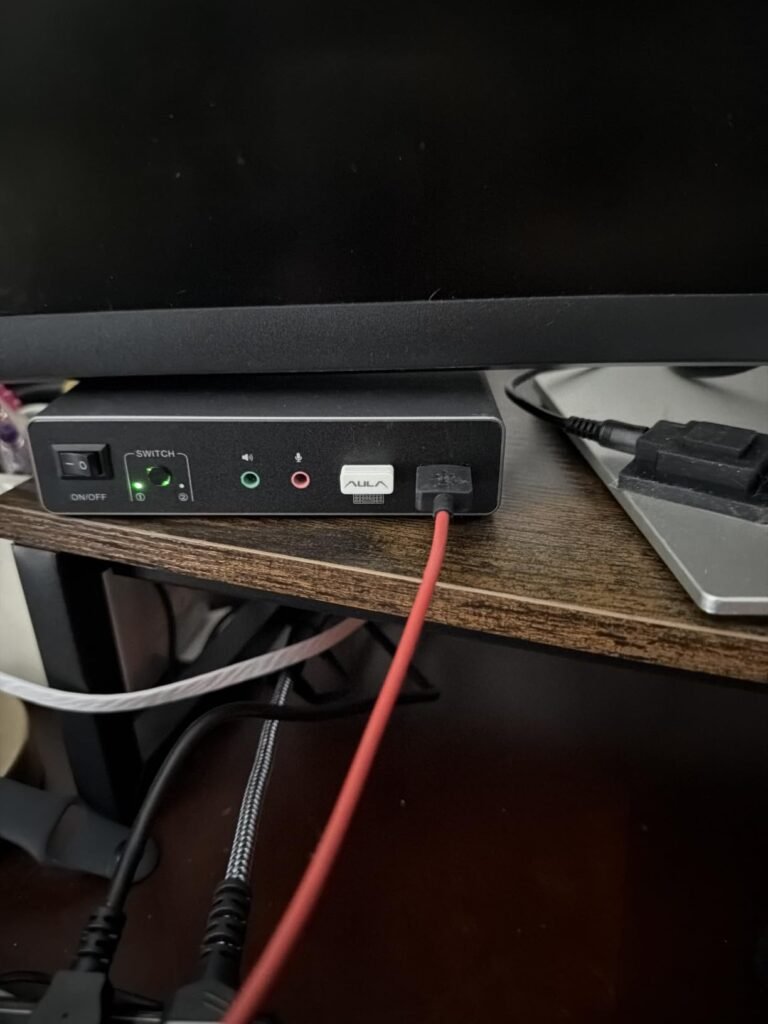
The Unitek KVM addresses the real-world situation where computers use different video outputs by combining one DisplayPort and one HDMI on each side. This flexibility is valuable when pairing a modern PC that uses DisplayPort with a work laptop or gaming console that uses HDMI, or when your monitors have different input types available.
We may earn a commission when you buy through this link, at no additional cost to you.
The dedicated microphone and headset ports are a genuinely useful feature that few dual-monitor KVMs include. Video conferencing has become central to hybrid work, and having audio share alongside video and USB peripherals means you can switch between work and personal machines without unplugging your headset. This detail alone can justify the switch for anyone doing regular video meetings from multiple computers.
USB 3.0 support delivers the standard 5Gbps for peripheral sharing, and the four USB-A ports handle keyboards, mice, printers, and external drives. HDCP 2.2 compliance ensures streaming service compatibility, and HDR support delivers accurate colors for content creation work. The included 5V 2A power adapter provides stable performance when connecting high-power USB devices.
KVM switches that only route video and USB force you to unplug your headset when switching computers, which is impractical during back-to-back video meetings. Dedicated audio ports keep your microphone and speakers connected consistently and simply route the audio signal alongside video, giving you true single-cable-set switching for the entire workspace.
Choose this KVM if your specific setup needs mixed DisplayPort and HDMI outputs or if you regularly video conference from multiple computers. The important limitation is that this switch is designed for desktop hosts only and does not work with laptops, so verify your setup before purchasing.
Laptop users, since this switch is designed for desktop computers only.
We may earn a commission when you buy through this link, at no additional cost to you.
This four-port KVM improves on the standard button-switching experience with a numbered remote keypad. Buttons clearly labeled 1 through 4 give you direct one-touch access to each computer rather than requiring sequential cycling through ports. This subtle usability improvement matters when you frequently jump between specific machines rather than moving in order.

We may earn a commission when you buy through this link, at no additional cost to you.
Video capability handles 4K at 60Hz with adaptive EDID that keeps display settings stable across computers. The three USB 3.0 ports plus one USB-C port cover most peripheral needs with 5Gbps transfer speeds. LED indicators clearly show which computer is currently active, which eliminates guesswork when the switch sits out of direct sightline.
The complete package includes an HDMI cable, four USB 3.0 cables, and both the USB controller cable and the wired desktop controller, so most setups can begin immediately without ordering separate cables. Plug-and-play installation requires no drivers or software configuration, and hot-swap support means you can connect or disconnect devices without rebooting.
Sequential switching requires you to cycle through ports in order, so jumping from computer 1 to computer 4 requires three button presses. Direct switching with numbered buttons lets you access any port with a single press. For frequent switchers, this saves several seconds per switch, which adds up meaningfully over a full workday.
This KVM works well for buyers who prefer direct numbered switching over sequential button cycling. If you rarely switch between machines or manage only two computers, simpler models will save money, but for regular four-computer workflows the numbered remote is genuinely useful.
Users who prefer keyboard hotkey switching over button or remote controls.
We may earn a commission when you buy through this link, at no additional cost to you.
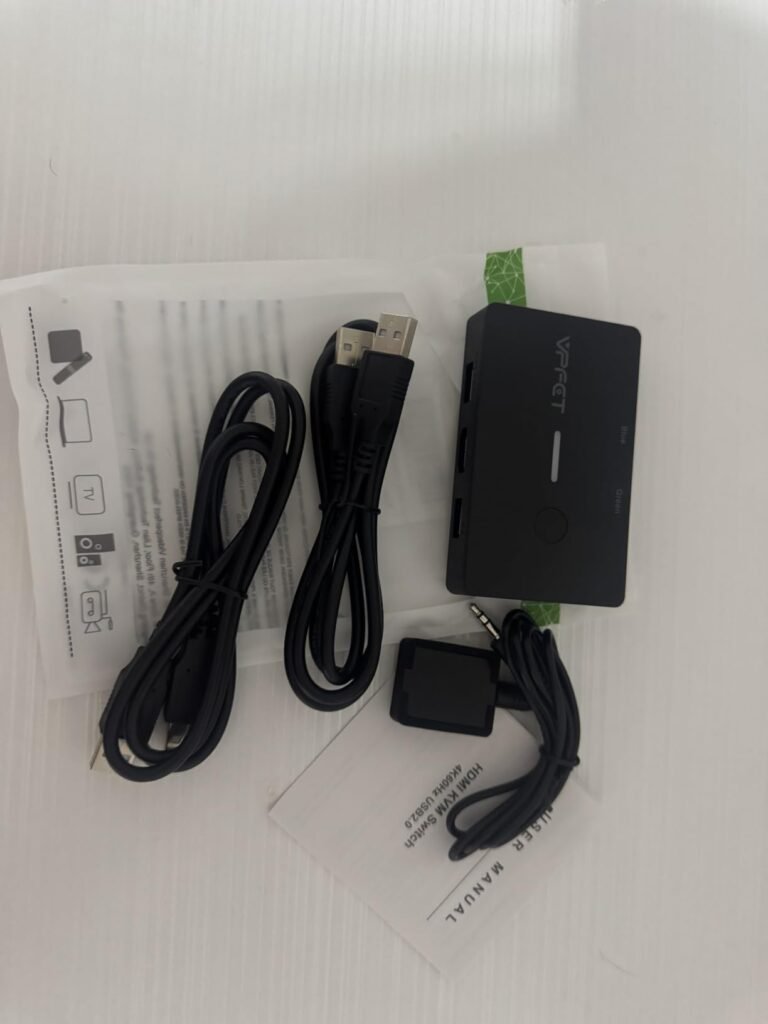
This budget two-port KVM proves that basic computer switching does not require premium spending. At under twenty dollars, it delivers the core functionality most home office workers need: sharing one monitor, keyboard, and mouse between two computers with 4K at 60Hz video quality. This makes it a strong choice for anyone who wants to consolidate a work laptop and personal PC into a single workstation.

We may earn a commission when you buy through this link, at no additional cost to you.
The 4K at 60Hz support is impressive at this price point and handles modern monitors without downgrading resolution or refresh rate. Backward compatibility covers common resolutions including 4K at 30Hz, 1080p at 60Hz, and 1080p at 30Hz. The compact housing takes up minimal desk space, and no external power supply is needed since the switch draws power from the computers.
The wired desktop controller lets you hide the switch under a monitor stand or behind other equipment while keeping switching controls within easy reach. Color-coded LED indicators show green for PC1 and blue for PC2, making it immediately clear which computer is active. Hot-swap support means you can add or remove devices without rebooting.
USB 2.0 speeds handle keyboards, mice, printers, and low-bandwidth peripherals without any noticeable difference from USB 3.0. The 480Mbps ceiling only becomes limiting when using high-speed external drives, 4K webcams, or professional audio interfaces. For basic office setups sharing standard peripherals, USB 2.0 delivers everything you need at meaningful cost savings.
This is the smart choice for basic two-computer setups where cost matters more than USB 3.0 speed or extra features. The USB 2.0 ports handle keyboards and mice fine but limit external drive transfer speeds to 480Mbps. Mac users should look at other options since compatibility is not guaranteed.
Mac users, external SSD users needing USB 3.0 speeds, or setups requiring more than two computers.
We may earn a commission when you buy through this link, at no additional cost to you.
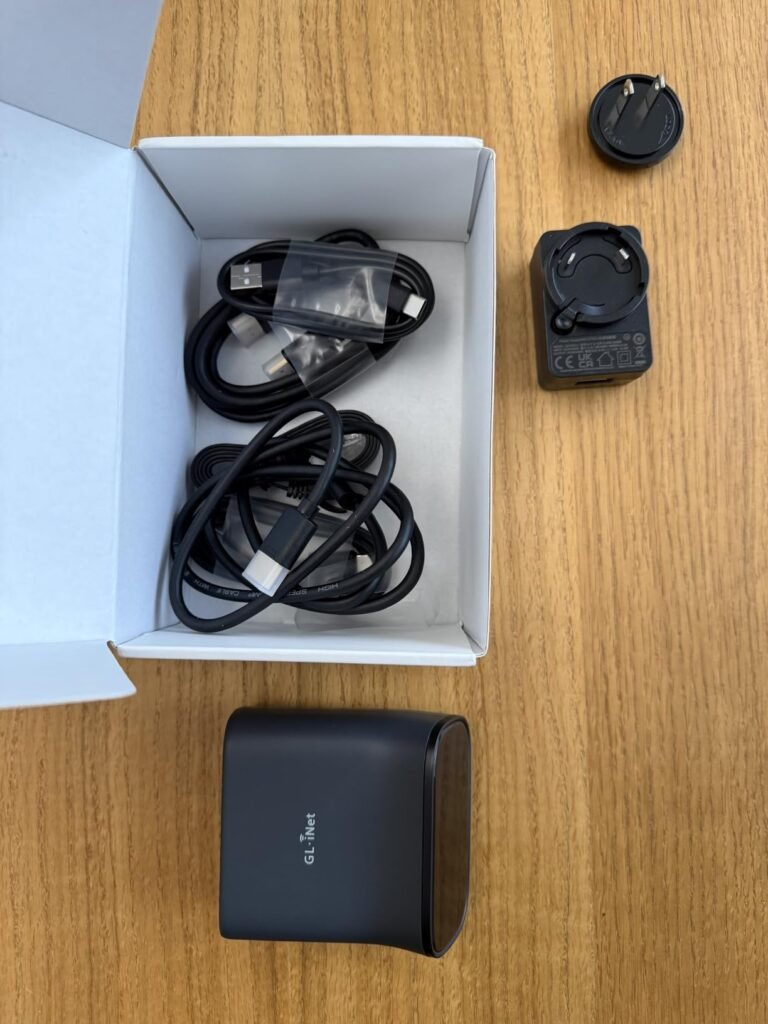
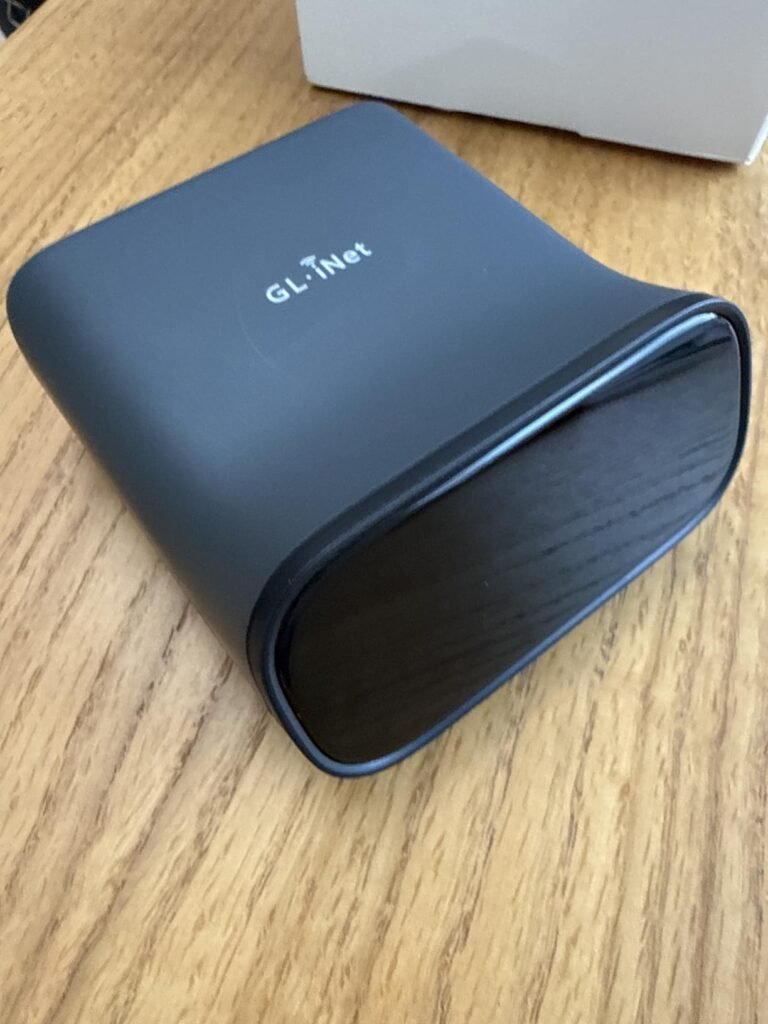
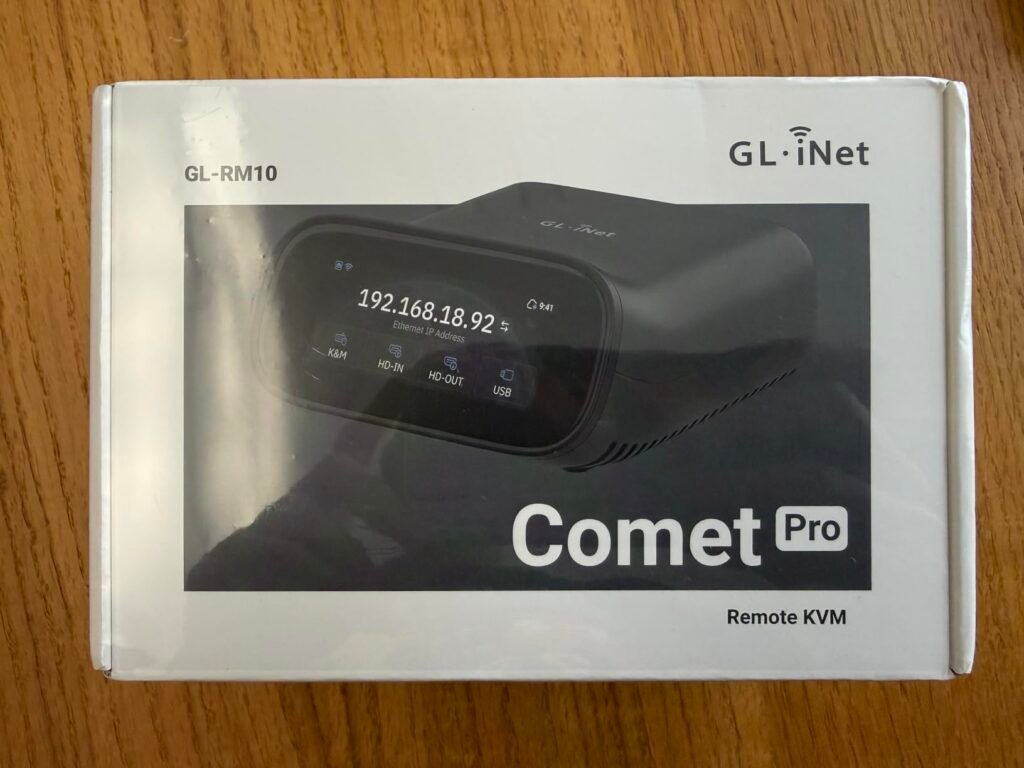
The GL.iNet Comet Pro represents a fundamentally different KVM category focused on remote access rather than local switching. Instead of connecting multiple computers to one workstation, it lets you control a single computer or server from anywhere in the world via network connection. This makes it invaluable for IT professionals managing headless servers, remote workers accessing office workstations, or home lab enthusiasts running unattended machines.
We may earn a commission when you buy through this link, at no additional cost to you.
The critical capability that separates this device from software-based remote solutions is BIOS-level access. When a computer needs OS reinstallation, BIOS configuration changes, or recovery from a boot failure, software like TeamViewer or Windows Remote Desktop cannot help because they require the operating system to be running. The Comet Pro operates at the hardware level, giving you full control during boot, BIOS access, and OS installation from remote locations.
Dual-band Wi-Fi 6 support eliminates the need for wired network connections in many deployments, and 4K video passthrough with H.264 encoding delivers clear, low-latency streams. The 2.22-inch touchscreen interface makes local setup and network configuration straightforward without requiring command-line expertise. Built-in Tailscale integration provides secure encrypted connections via WireGuard without complex VPN setup, and the self-hosted cloud option gives full data privacy control.
Software remote access tools like TeamViewer, AnyDesk, and Windows Remote Desktop all require the target computer’s operating system to be running and network stack to be functional. Out-of-band KVM devices like the Comet Pro operate independently of the OS, letting you access the machine during boot, in BIOS setup, or during recovery from software failures. This makes them genuinely irreplaceable for critical remote management scenarios.
This is the specialized choice for anyone who needs true out-of-band remote access to computers or servers. If you only need to switch between local computers on a single desk, a traditional KVM will cost less and better match your workflow. But for remote IT support, server management, or home lab administration, no traditional KVM can match this capability.
Users who only need to switch between local computers on the same desk.
We may earn a commission when you buy through this link, at no additional cost to you.
This UGREEN KVM targets dual-monitor setups where both displays use HDMI rather than DisplayPort, which is common with entertainment-focused monitors, older screens, or gaming console integration. Full 4K at 60Hz support across both HDMI outputs handles modern content including HDR10+ material and HDCP 2.2 protected streaming services without downgrading quality.

We may earn a commission when you buy through this link, at no additional cost to you.
The four USB 3.0 ports include three USB-A and one USB-C connection, providing broad peripheral compatibility at 5Gbps transfer speeds. Both extend mode for spanning content across displays and mirror mode for duplicated output are supported, covering the two main use cases for dual-monitor workflows. The desktop controller lets you place the switch out of sight while retaining easy switching access.
Broad device compatibility extends beyond computers to include Nintendo Switch and Switch 2, PS5, PS4 Pro, Xbox One, TV boxes, and Blu-ray players. This makes the KVM useful in home entertainment scenarios where you want to switch a shared monitor setup between a PC and gaming consoles. The package includes multiple power adapters and all required cables for immediate setup.
HDMI wins over DisplayPort when your setup includes gaming consoles, streaming devices, or TVs, since these devices almost exclusively use HDMI. HDMI cables are also more widely available and typically cheaper. DisplayPort advantages appear mainly at very high resolutions or refresh rates and in professional monitor configurations. Match the interface to your actual devices rather than assuming one is universally better.
This KVM fits users with existing HDMI-based dual monitor setups who want to add a second computer without cable-swapping. The lower 3.9 owner rating suggests some variability in real-world performance, so consider the return policy before committing. Users who want higher-rated dual-monitor switching should look at the DisplayPort 144Hz model or the Unitek mixed-interface option instead.
Users who need DisplayPort connectivity or the highest possible owner ratings.
We may earn a commission when you buy through this link, at no additional cost to you.
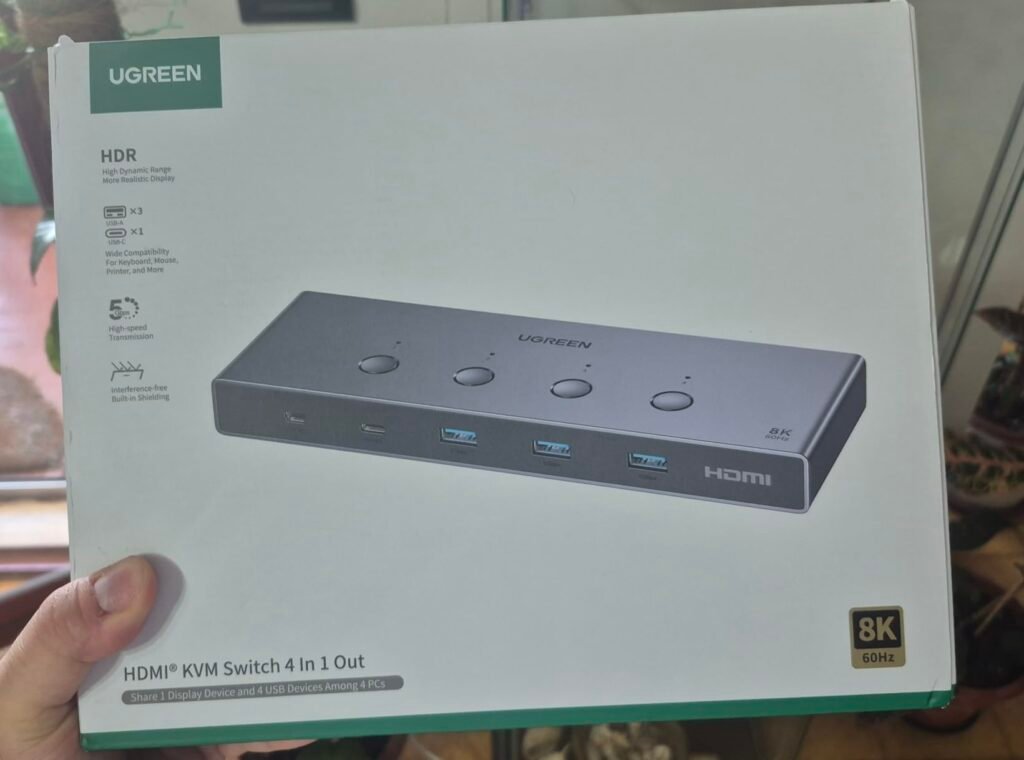
This UGREEN four-port KVM pushes video capability to the extreme with 8K at 60Hz support, making it the most future-proof option for buyers investing in cutting-edge display technology. Backward compatibility covers 4K at 240Hz for high-refresh gaming, 4K at 60Hz for standard 4K displays, and lower resolutions down to 1080p at 240Hz for competitive gaming monitors.
We may earn a commission when you buy through this link, at no additional cost to you.
The aluminum housing serves both aesthetic and functional purposes. Metal construction dissipates heat generated by processing 8K signals better than plastic bodies, which matters for long-term reliability under sustained use. HDMI 2.0 and 2.1 support combined with HDCP 2.3, 2.2, and 1.4 compliance ensures compatibility with virtually any content source including streaming services and premium video.
Four USB 3.0 ports include three USB-A and one USB-C connection at 5Gbps speeds, enabling fast peripheral sharing across all four connected computers. Both button switching and desktop controller switching are supported for flexible placement. Broad device compatibility covers PCs, MacBooks, Mac mini, Nintendo Switch, PS5, PS4, PS3, Xbox One, and other HDMI source devices.
Achieving 8K at 60Hz requires certified Ultra High Speed HDMI cables designed for 48Gbps bandwidth. Standard HDMI cables, even those labeled 4K compatible, will drop to lower resolutions when pushed to 8K signals. Budget for premium certified cables when planning an 8K setup, and keep cable lengths short to minimize signal degradation.
This is the maximum-capability pick for four-computer setups where video quality cannot be compromised, particularly for creative professionals, financial analysts, or gaming enthusiasts with cutting-edge displays. Verify that your setup does not include docking stations, since these are not supported. Buyers with more modest resolution needs should choose the standard 4K four-port model instead for meaningful cost savings.
Users with docking stations in their setup or those who do not need 8K resolution.
We may earn a commission when you buy through this link, at no additional cost to you.
Choosing a KVM switch comes down to matching port counts, video capability, and switching methods to your actual workflow. The factors below break down what genuinely matters when comparing models and how to decide with confidence.
The most fundamental buying decision is how many computers you need to control from a single workstation. Two-port KVMs are the most common and handle the typical home office setup of a work laptop and personal PC. Four-port switches serve more complex setups including gaming rigs alongside work machines or homes with multiple family members sharing a workspace. Some specialized models support 8 or 16 computers for server rooms and IT environments.
Buying more ports than you need adds cost and desk footprint without benefit, while buying too few forces frustrating upgrades later. Consider not just current needs but reasonable near-term expansion. If you regularly work with two computers and occasionally add a third for testing or gaming, a four-port switch provides useful headroom. If you have consistently used only two computers for years, a two-port switch keeps costs down.
Match port count to your actual workflow with modest room for growth. Do not oversize the switch since larger models cost more, take up more space, and add unnecessary complexity.
Video capability determines whether your KVM will preserve the full quality of your monitor setup or downgrade it. 4K at 60Hz has become the standard specification for modern KVMs and matches the capability of most current monitors. High-refresh gaming monitors demand 4K at 144Hz or higher, while professional creative workstations may need 8K at 60Hz for future-proofing large investments in display technology.
Verify that your monitors, cables, and source computers all support the resolution you need before purchasing a high-end KVM. A switch rated for 8K cannot deliver 8K if your cables only handle 4K bandwidth or your GPU only outputs 4K. The weakest link in the chain determines actual performance, so match the KVM specification to your realistic system capability rather than assuming maximum specs will always be reached.
Choose the lowest video specification that reliably handles your current and near-term monitor setup. Overpaying for 8K capability when using 1080p monitors wastes money that could go toward better USB support or additional ports.
Single-monitor KVMs are the simplest and most common configuration, routing one video output from each computer to one shared display. Dual-monitor KVMs handle setups with two screens per computer, which is standard for productivity workflows. Triple-monitor KVMs like the UGREEN 8K model serve creative professionals, financial analysts, and video editors whose workflows genuinely need three simultaneous displays.
Each additional monitor multiplies the cable count and complexity significantly. A dual-monitor setup with two computers requires four video cables plus USB and audio connections, while triple-monitor setups require six video cables. Factor this cable expense and desk clutter into your total setup cost, and verify that all source computers can actually output the number of monitors you plan to use.
Choose the smallest monitor count that matches your genuine workflow. Adding a monitor to your KVM setup is dramatically more complex than adding one to a single computer, so start with a proven need rather than aspirational planning.
USB port count and speed determine what peripherals you can share across computers. USB 2.0 at 480Mbps handles keyboards, mice, printers, and basic devices fine but becomes a bottleneck for external drives, high-DPI mice, and modern webcams. USB 3.0 at 5Gbps delivers the speed needed for external SSDs, streaming equipment, and professional peripherals without noticeable slowdown.
USB-C ports are increasingly important as more peripherals transition to the newer connector. A KVM with dedicated USB-C support like the Hearvo or UGREEN models future-proofs your investment as your peripheral collection modernizes. Count the peripherals you actually plan to share, then choose a switch with at least that many ports plus one or two for expansion.
Prioritize USB 3.0 support if you use any peripherals beyond basic keyboards and mice. The speed difference matters immediately for anyone transferring files through external drives or using high-bandwidth webcams for video conferencing.
How you actually switch between computers affects daily usability significantly. Button switching on the KVM itself is universal but requires the switch to sit within reach on your desk, which conflicts with clean workspace goals. Wired desktop controllers let you hide the switch and place a small remote button within easy reach, keeping cables and hardware out of sight while maintaining fast switching access.
Keyboard hotkey switching is the most convenient method when supported, letting you switch computers without touching any physical control. Unfortunately, many KVMs in this guide do not support hotkey switching, which is worth verifying before purchase if the feature matters to you. Numbered remotes like on the four-port USB 3.0 model provide direct one-touch access to any specific computer rather than requiring sequential cycling.
Match switching method to your workspace layout. Hidden switches with wired controllers or hotkey support work best for clean desks, while accessible button switches suit workshop or IT bench environments where the switch itself is part of the visible equipment.
Dual and triple monitor KVMs need to handle both extended and mirror display modes to be truly versatile. Extended mode spans your desktop across multiple monitors as separate workspace, which is the standard configuration for productivity work. Mirror mode duplicates the same content across all displays, which serves presentations, video reference viewing, or teaching scenarios.
Not all multi-monitor KVMs support both modes equally well, and some limit the source computer configurations required to enable each mode. Verify that your intended use case is supported before purchasing, and check whether the KVM requires specific outputs from each source computer. For example, some triple-monitor KVMs require both source PCs to have three matching display outputs each.
Choose a KVM with both extended and mirror mode support if you plan to use the switch across different scenarios. Single-mode KVMs work fine for consistent use cases but limit workflow flexibility.
KVMs that draw power only from connected computers offer the simplest setup with no external adapter to manage. This works reliably for basic switches with modest USB power demands but can become unstable when passing high-bandwidth video signals or powering USB 3.0 devices at their maximum current draw. External power adapters provide the headroom needed for stable performance under demanding conditions.
For 4K at 144Hz gaming setups, triple-monitor configurations, or KVMs sharing high-power USB devices like external SSDs, external power is worth prioritizing. The stability difference becomes noticeable during long gaming sessions, video editing work, or any scenario where the switch operates under sustained heavy load. Bus-powered KVMs work fine for basic office setups but may struggle with intensive workflows.
Prioritize external power for demanding video specifications or heavy USB peripheral use. Choose bus-powered simplicity only for basic two-computer setups with modest peripheral requirements.
Set up your KVM switch by first connecting all source computers to their respective input ports before connecting the shared monitor, keyboard, mouse, and other peripherals to the output side. Match cable types to port specifications carefully, using certified HDMI 2.0 or better cables for 4K video and USB 3.0 rated cables for peripheral connections. Power the switch last if it includes an external adapter, then boot each source computer one at a time to verify that the switch properly detects each machine.
During daily use, allow the switch a moment to complete signal negotiation when switching between computers rather than rapidly cycling between ports. Some display flicker during transitions is normal as the monitor renegotiates its EDID connection with the new source. If you experience display issues, verify that all cables are firmly seated and consider whether your specific monitor or graphics card has compatibility quirks with KVM switches. For laptops connected to KVM switches, always wake the laptop from sleep mode before switching to it, since sleeping laptops may not respond to the KVM handshake correctly.
Keep the KVM switch in a well-ventilated location away from other heat-generating equipment. Aluminum-housed switches like the UGREEN models dissipate heat better than plastic bodies but still benefit from airflow around the case. Periodically check cable connections for looseness, especially if you frequently move the switch or connected computers. If firmware updates are available for your specific model, apply them following manufacturer instructions to fix compatibility issues and add new features. Store the switch with cables neatly organized if you need to disconnect it temporarily, since kinked or damaged cables are the most common cause of KVM-related display and USB problems.
Most modern KVM switches work with standard USB keyboards and mice from any manufacturer. Wireless keyboards and mice using USB dongles typically work fine, though some models with proprietary software may have limited functionality when connected through a KVM. Gaming keyboards with advanced features like macro recording usually work for basic input but may lose access to specialized software features that require direct computer connection.
For 4K video, use certified HDMI 2.0 or DisplayPort 1.2 cables at minimum. Higher resolutions and refresh rates like 4K at 144Hz or 8K at 60Hz require premium HDMI 2.1 or DisplayPort 1.4 cables. USB 3.0 devices need USB 3.0 rated cables to achieve full 5Gbps speeds. Buying quality certified cables is worth the small extra cost since inadequate cables cause signal problems that appear to be KVM failures.
Most KVM switches work with laptops, but check the specific product description before purchasing since some models like the Unitek DP HDMI Dual are designed for desktop computers only. Laptops connected to KVM switches should be woken from sleep mode before switching to them, since sleeping laptops may not respond to the switch's handshake sequence. USB-C laptops may need an adapter to connect to USB-A ports on the KVM.
Quality KVM switches introduce minimal to no perceptible input lag for keyboard and mouse operations. Video signal passthrough is typically lag-free since the switch simply routes existing signals rather than processing them. Very high refresh rate gaming setups may notice tiny differences with lower-quality switches, but modern KVMs designed for gaming like the DisplayPort 144Hz model handle even competitive gaming without meaningful lag.
Yes, USB drives, printers, webcams, and most other USB peripherals share seamlessly through KVM switches. USB 3.0 ports provide fast enough speeds for external SSDs at full performance, while USB 2.0 ports handle printers and basic peripherals fine. Some devices with proprietary drivers may need to be re-recognized when switching between computers, which happens automatically within a few seconds.
HDMI KVMs work with the widest range of devices including gaming consoles, streaming boxes, and most computer monitors. DisplayPort KVMs typically support higher bandwidth for extreme resolutions and refresh rates, and DisplayPort 1.4 handles 4K at 144Hz or 8K at 60Hz more reliably than HDMI for gaming setups. Choose based on the ports available on your source computers and monitors rather than assuming one interface is universally better.
Only dual-monitor KVM switches support two monitors, and they require specific configurations. Standard two-port KVMs route one video output from each computer to one shared monitor. To share two monitors between two computers, you need a dual-monitor KVM with two video outputs like the Unitek or UGREEN dual-monitor models. Each source computer must also have two video outputs to feed both monitors.
HDMI-based KVM switches like the UGREEN HDMI Dual work with PS5, PS4, Xbox, Nintendo Switch, and other HDMI gaming consoles as source devices. This lets you share a monitor between a PC and gaming console with a single switch. Verify that the KVM supports HDCP 2.2 for compatibility with modern console content, and check refresh rate support if you use gaming displays higher than 60Hz.
EDID emulation lets the KVM tell each connected computer what monitor is present, even when the video signal is not currently routed to that machine. Without EDID emulation, computers may lose their display configuration when you switch away, causing window rearrangement or graphics driver resets. Look for EDID support if you frequently switch and want your window layouts to stay consistent across switches.
Traditional KVM switches work only for local computer sharing on the same desk. For remote access from anywhere in the world, you need a specialized remote KVM device like the GL.iNet Comet Pro. Remote KVMs use network connections to send video, keyboard, and mouse signals over the internet, and they can access computers during BIOS setup and OS installation, which software solutions cannot handle.
The four-port HDMI KVM with EDID support stands out as the strongest overall pick for most buyers who genuinely need multi-computer control. Its combination of the highest owner rating in this guide, true 4K at 60Hz output, four USB 3.0 ports, and both remote and button switching methods delivers a well-rounded package that handles nearly any four-computer workflow. Metal construction and EDID emulation add professional-grade features rarely found together at this price point.
For budget-conscious buyers with only two computers, the HDMI 2-Port KVM at under twenty dollars proves that essential switching capability does not require premium spending. Dual-monitor users should consider the DisplayPort 4K 144Hz model for gaming or the UGREEN HDMI Dual for standard productivity. Creative professionals with triple-monitor workflows will find the UGREEN 8K Triple Monitor model uniquely capable, while IT professionals managing remote systems should invest in the GL.iNet Comet Pro for true out-of-band access.
Match your choice to your specific setup: count your computers accurately, verify your monitor resolution and refresh rate requirements, decide whether USB 3.0 peripheral speeds justify the cost premium, and choose switching methods that match your workspace layout. Prioritize EDID emulation if you frequently switch between machines with different display configurations, and budget for quality certified cables since inadequate cabling causes most KVM problems. With the right switch matched to your workflow, you can consolidate multiple computers into a clean, productive single workstation without compromising on the specific capabilities each machine needs.