HUION Kamvas 13
9.0Editor score13.3-inch display
16384 pressure levels
99% sRGB coverage
Dual dial controls
Compare 10 top graphics tablets by pressure levels, screen quality, pen tech, and software compatibility. Find the right drawing tablet for artists or desi...
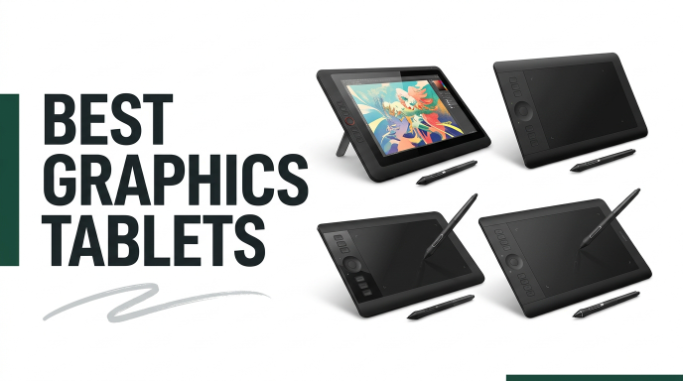
Find the right graphics tablet for digital creation in 2026. We compare 10 standout drawing tablets by the factors that matter most for artists, illustrators, and designers: pressure sensitivity, screen quality, pen technology, active area size, shortcut controls, software compatibility, and how each device balances portability with professional performance across creative workflows.
The gap between a $40 pen tablet and a $379 professional Wacom is significant, but more expensive does not always mean better for your specific use case. Beginners often waste money on features they will never use, while professionals sometimes buy underpowered tablets that limit their creative output. Matching the tablet to your actual workflow is the key decision here.
This guide covers budget-friendly screenless tablets for beginners, mid-range displays with pen-on-screen precision, and premium professional tools built for serious artists and designers. Use the comparison table, reviews, and buying guide below to match a graphics tablet to your artistic goals, preferred software, and how you actually plan to create digitally.
We compared 10 graphics tablets using the specs that actually help a buyer decide: pressure sensitivity levels, pen technology and battery requirements, active drawing area size, screen resolution and color accuracy for display models, shortcut keys and dial controls, software compatibility across operating systems, connection type and cable requirements, ergonomics for extended sessions, and owner feedback. The notes focus on practical trade-offs so each pick connects to how artists, designers, and hobbyists actually create digital art, edit photos, and design graphics day to day.

Compare key features, scores, and current prices side by side. A shorter feature list means fewer details were available, not necessarily fewer capabilities.




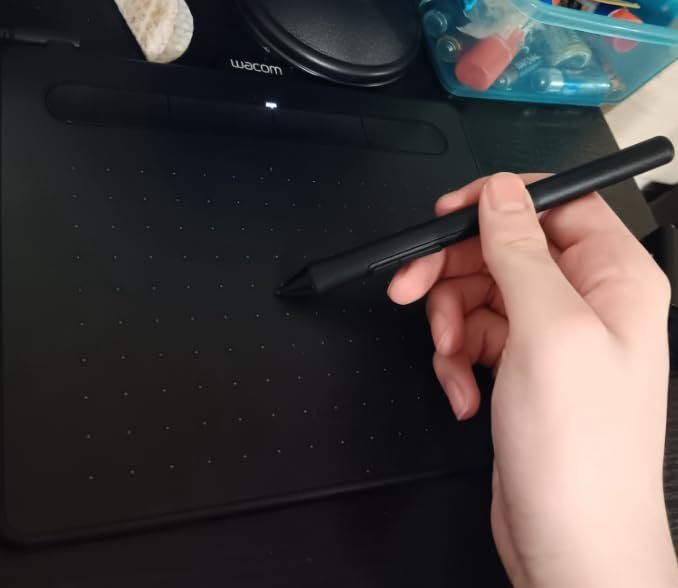
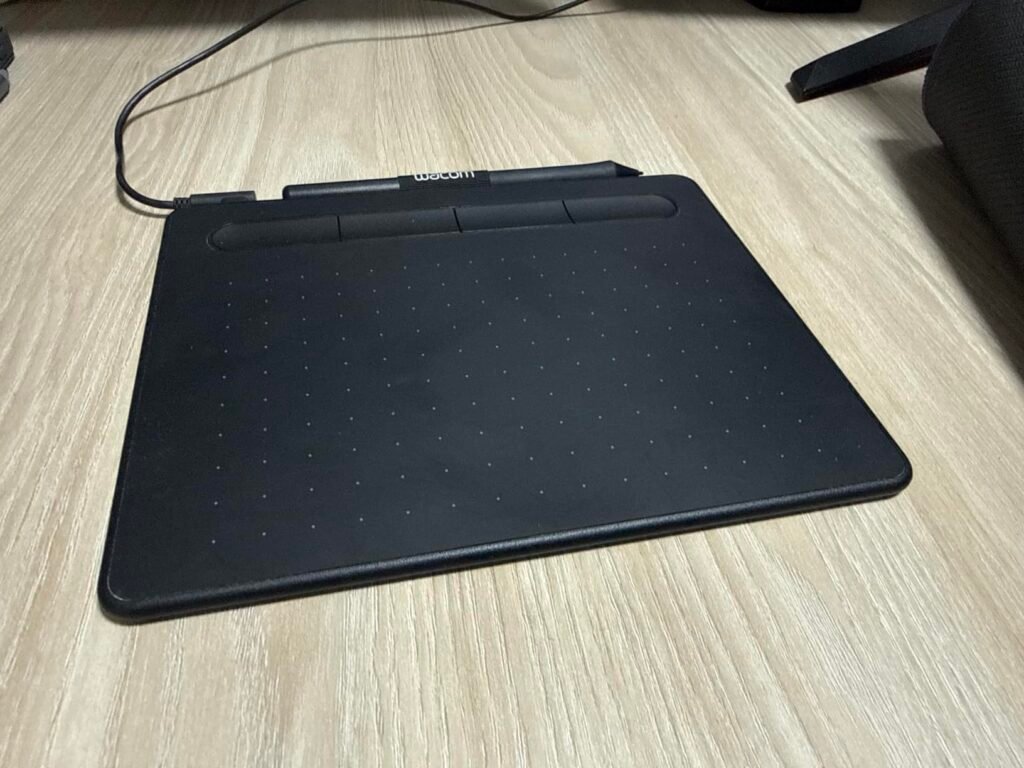
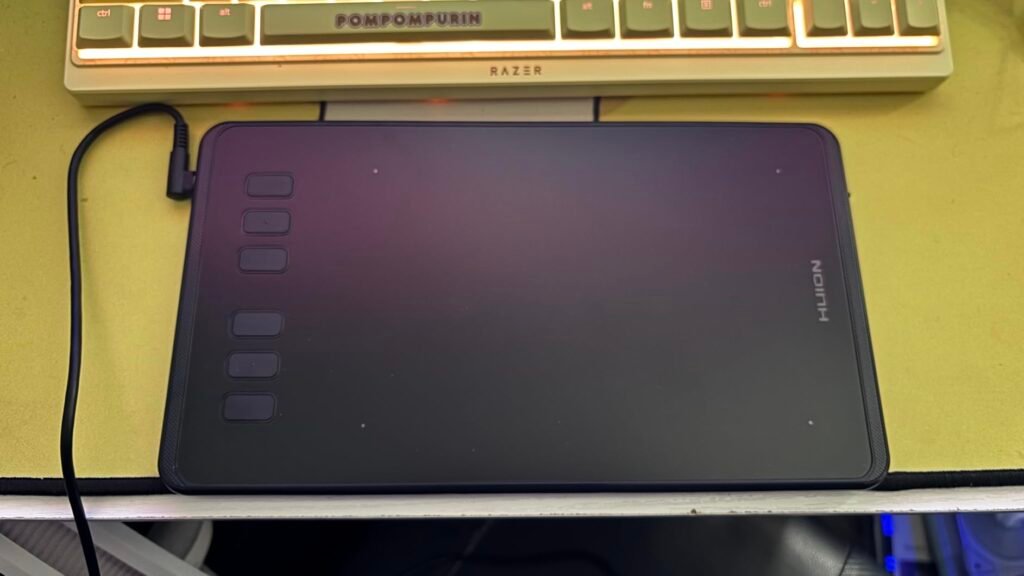
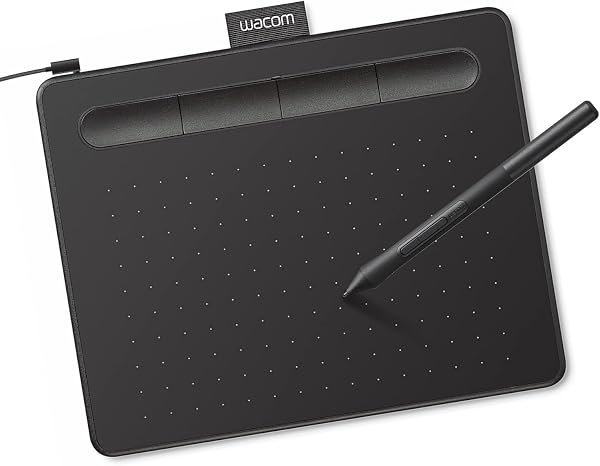
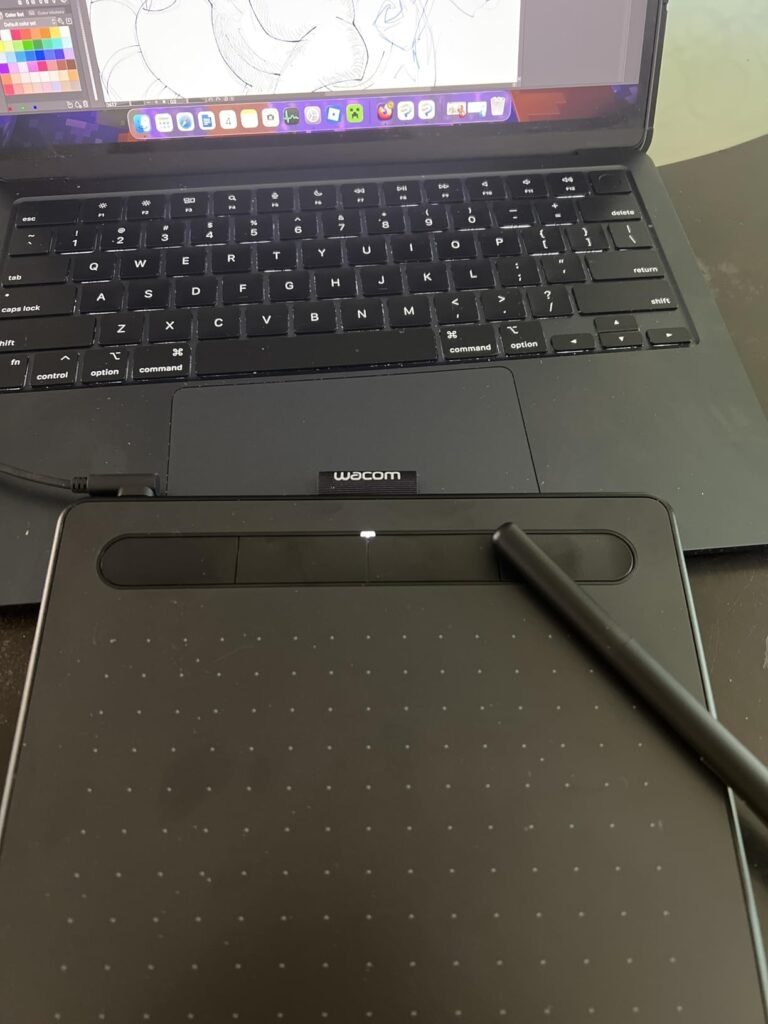
The Wacom Intuos Small is the classic starting point for anyone new to digital art and photo editing. Wacom has been building pen technology for over 40 years, and even their entry-level tablet uses the same EMR (electromagnetic resonance) technology that powers their professional lineup. This means the pen feels responsive and accurate from day one without the quirks that plague some budget alternatives.
We may earn a commission when you buy through this link, at no additional cost to you.
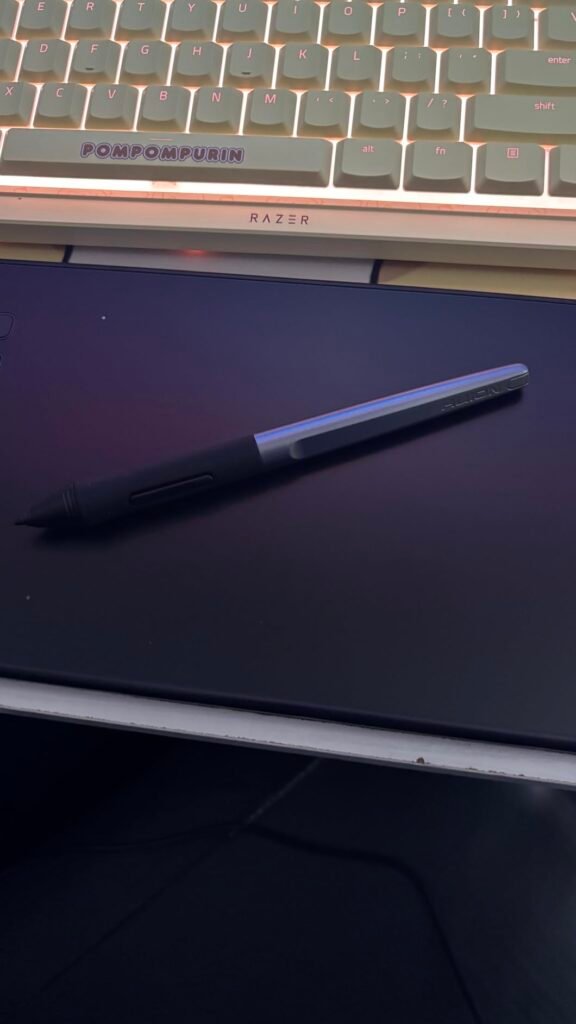
The battery-free pen is a real advantage for daily use. Unlike styluses that need charging or battery replacement, Wacom’s EMR pens draw power from the tablet itself, so you never worry about running out of juice mid-project. The pen also feels lighter and more balanced than battery-powered alternatives, which reduces hand fatigue during longer sessions. Pressure sensitivity is sufficient for beginners learning basic digital painting and photo retouching.
The included bonus software is a genuine value add that beginners often overlook. Wacom bundles creative software with every tablet registration, giving new users access to programs that would otherwise cost significant money separately. Combined with Wacom’s online training resources, this provides a complete starter package for someone exploring digital creativity for the first time.
Wacom set the standard for professional graphics tablets, and their entry-level products benefit from decades of refinement in pen technology, driver stability, and software compatibility. Budget alternatives from other brands often work well but occasionally have driver issues, pen calibration quirks, or compatibility problems with specific software. Starting with Wacom eliminates most of these headaches so you can focus on learning to draw rather than troubleshooting hardware.
Choose this tablet if you are new to digital art, photo editing, or drawing tablets in general, and you want to start with proven quality rather than gambling on a budget brand. The small active area limits it to close-range work rather than large sweeping strokes, but that fits how most beginners use their first tablet. If you know you want a screen or need a larger drawing area, look at the HUION Inspiroy models or step up to a pen display.
Experienced artists who need larger drawing areas or the productivity of on-screen pen displays.
We may earn a commission when you buy through this link, at no additional cost to you.
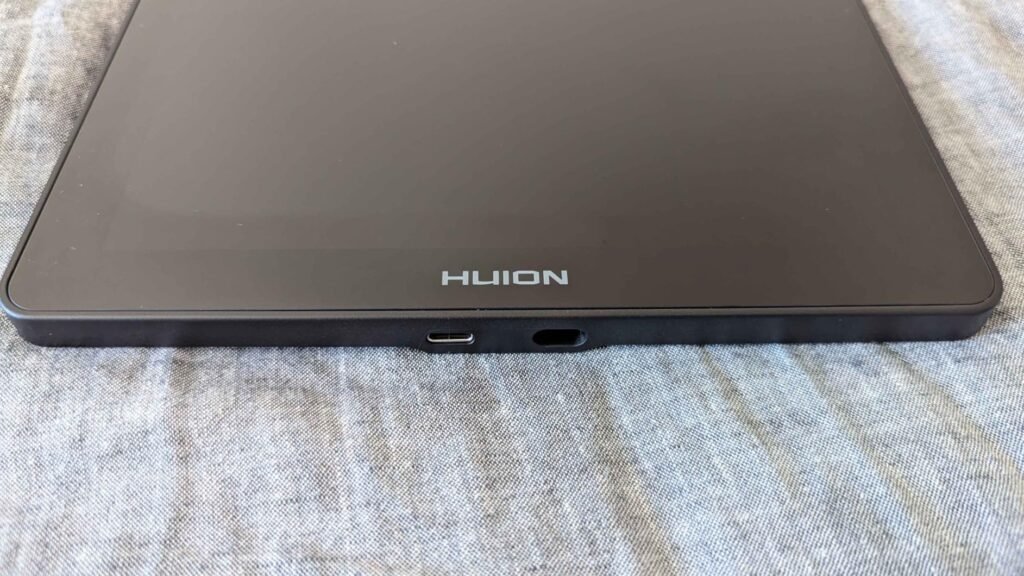
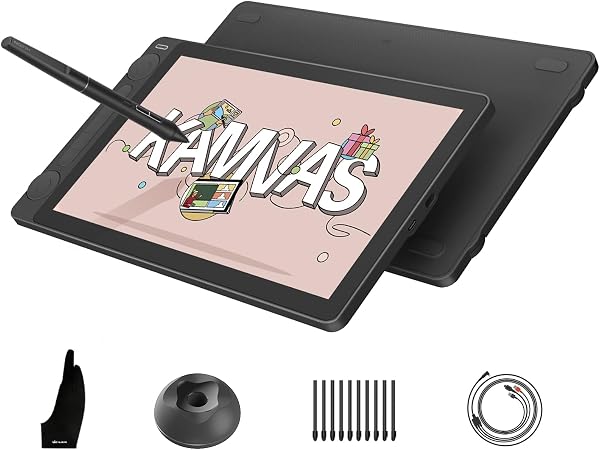
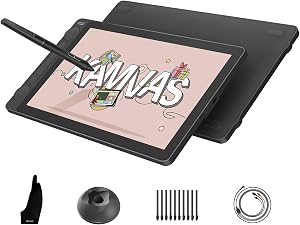
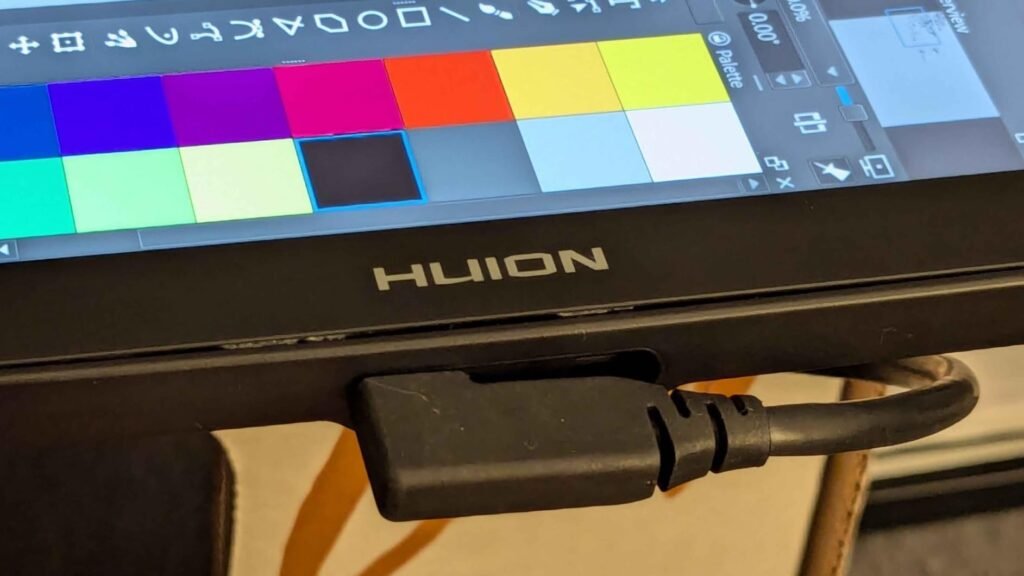
The HUION Kamvas 13 Gen 3 hits the sweet spot for digital artists and illustrators who want a proper pen display without stepping up to expensive Wacom Cintiq territory. The 13.3-inch fully laminated screen provides enough working area for detailed illustration while remaining portable enough to bring to a coffee shop or studio, and the price is accessible for serious hobbyists and freelance professionals alike.
We may earn a commission when you buy through this link, at no additional cost to you.
The anti-glare Canvas Glass 2.0 surface is a genuinely useful upgrade over standard glossy displays. The nano-etched texture reduces reflections that plague many pen displays under studio lighting and provides a subtle paper-like feel that many artists prefer over slick glass. Combined with 16384 pressure levels from the PenTech 4.0 stylus and 2-gram initial activation force, the pen tracks even the lightest strokes accurately.
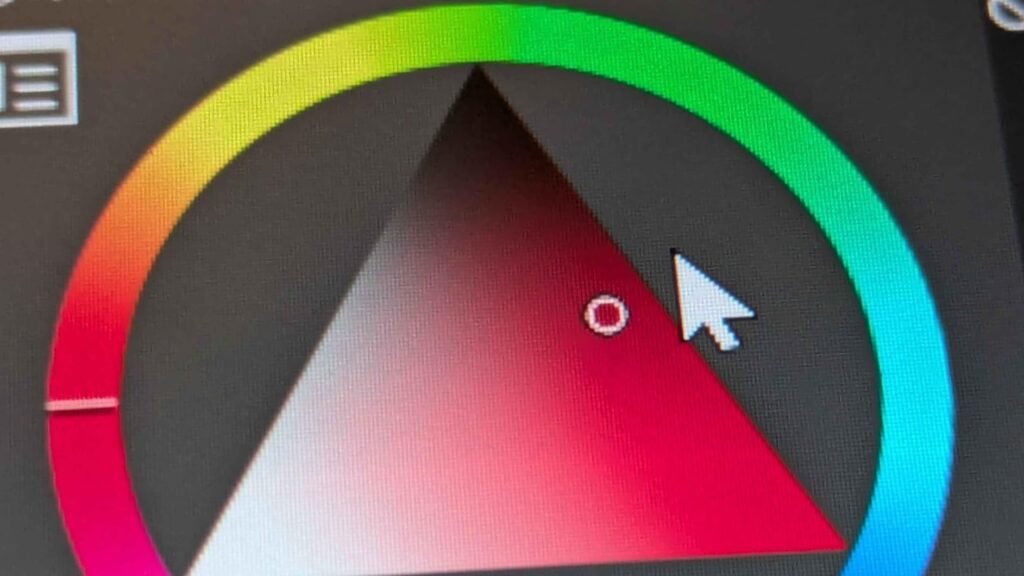
Color accuracy is where this tablet particularly shines for a mid-priced display. The 99% sRGB coverage and factory color calibration to Delta E under 1.5 means colors on screen closely match printed output and web display, which matters for professional client work. The included calibration report provides documentation of the screen’s out-of-box accuracy, which is unusual at this price point.
Most affordable pen displays leave the factory with uncalibrated colors that can be significantly off from accurate reference. Factory calibration ensures that reds look like reds, skin tones look natural, and your finished work displays consistently across other devices. For anyone selling artwork, doing client work, or preparing files for print, this calibration eliminates the need to purchase and use a separate hardware colorimeter.
Choose this tablet if you want the best all-around pen display value for illustration, concept art, and photo editing. The dual dial controls and five programmable shortcut keys reduce the need to constantly reach for the keyboard. If you specifically need a larger 15-inch or 16-inch screen for detailed work, step up to the Kamvas Pro 16. If budget is tight and you can work without a screen, screenless tablets like the Inspiroy or Deco 01 V3 offer similar pen quality at lower prices.
Beginners on tight budgets who can start with a screenless tablet before investing in a display model.
We may earn a commission when you buy through this link, at no additional cost to you.
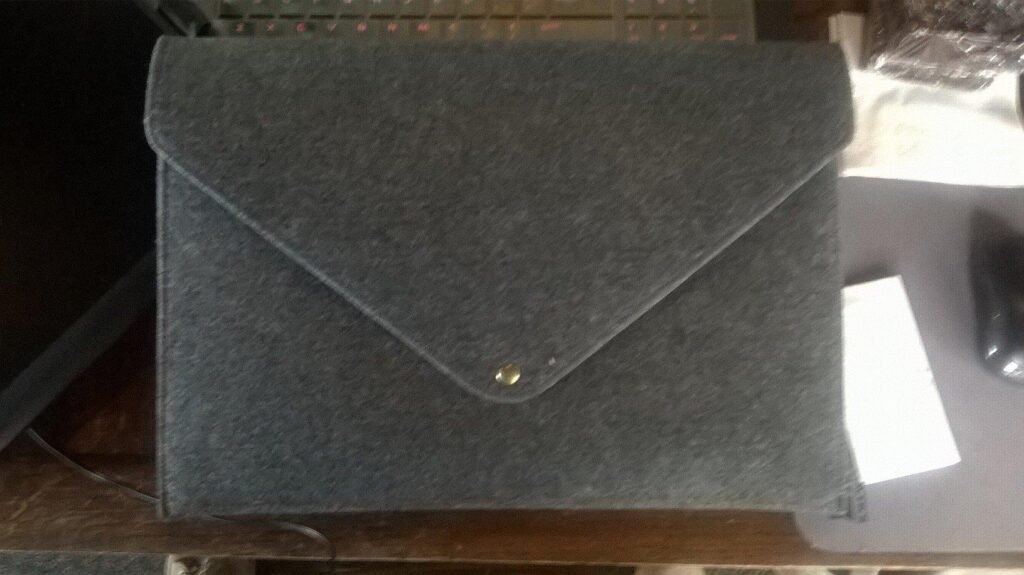
The HUION Inspiroy H1060P targets creators who work with complex software like Adobe Photoshop, Illustrator, or 3D modeling programs where dozens of shortcuts speed up daily workflow. With 12 hard press keys and 16 soft touch keys, this tablet provides more programmable shortcuts than almost any competitor at this price, letting you assign frequently-used commands to physical buttons rather than reaching for the keyboard.
We may earn a commission when you buy through this link, at no additional cost to you.
The 10 x 6.25-inch active drawing area is generous for both illustration and photo editing, providing enough room for natural arm and wrist movement without cramping. The ultra-slim 10mm profile keeps the tablet from dominating your desk space, and the minimalist appearance blends into most work environments without looking like specialized artist equipment. The PW100 battery-free stylus supports 60-degree tilt for varied line effects.
The tilt function is particularly valuable for illustrators and comic artists who use different pen angles to control line thickness and shading effects. Combined with the pressure sensitivity, this creates a natural drawing experience that closely mimics traditional media. The tablet supports both right and left-handed users through a 180-degree rotation setting in the driver, making it a rare truly ambidextrous option.
Complex software like Photoshop can require dozens of keyboard shortcuts to work efficiently. Physical shortcut keys on a graphics tablet let you assign these commands to buttons you can find by touch, keeping your hand near the pen and your eyes on the canvas. Over hours of daily work, this eliminates thousands of keyboard glances and speeds up your creative flow significantly compared to keyboard-only shortcuts.
Choose this tablet if you use complex creative software with many shortcuts and want physical buttons to reduce reliance on keyboard commands. The screenless design keeps costs low and works well for artists comfortable with the hand-eye coordination that screenless tablets require. If you find working without a screen frustrating or want to see your strokes directly under the pen, invest in a pen display like the Kamvas 13 instead.
Beginners who might feel overwhelmed by 28 shortcut keys or users who want a pen display screen.
We may earn a commission when you buy through this link, at no additional cost to you.
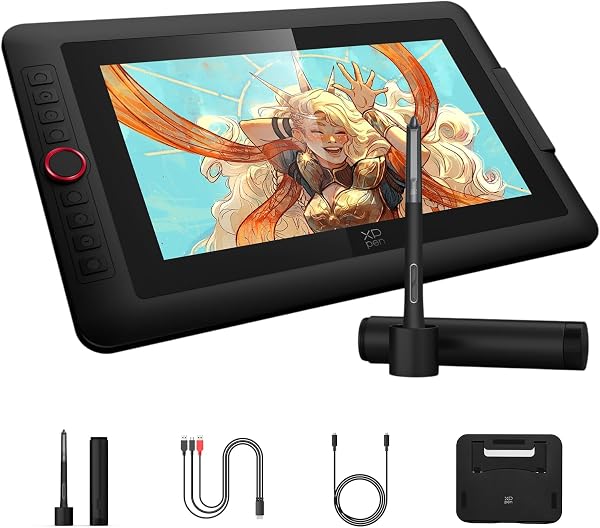
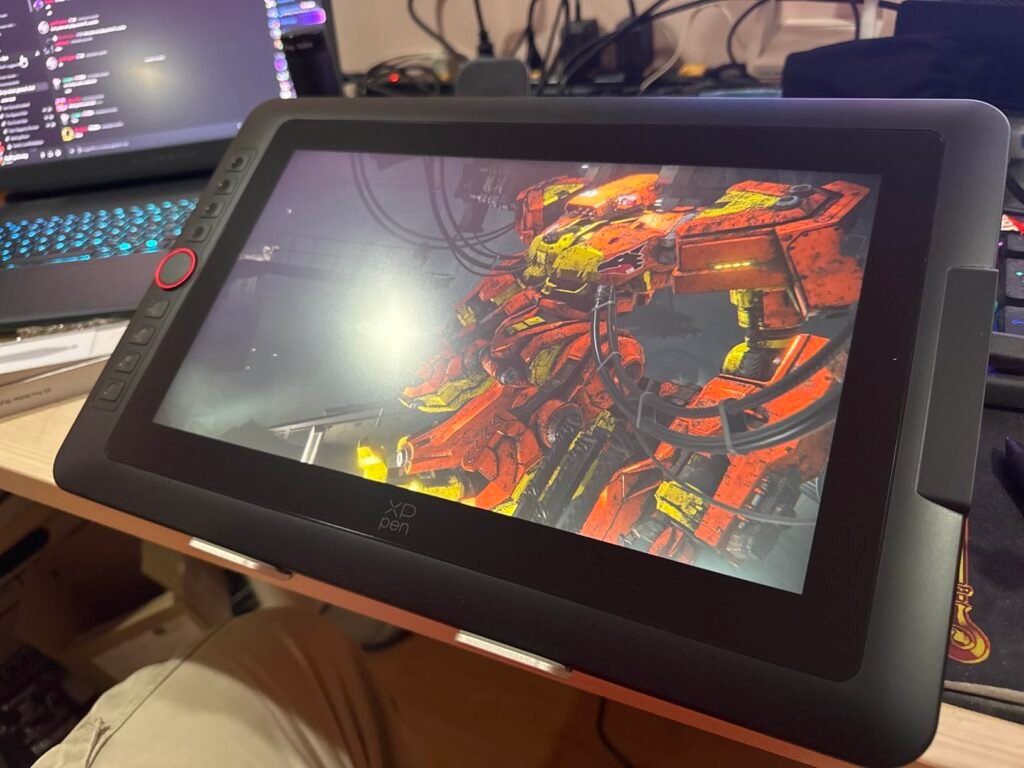
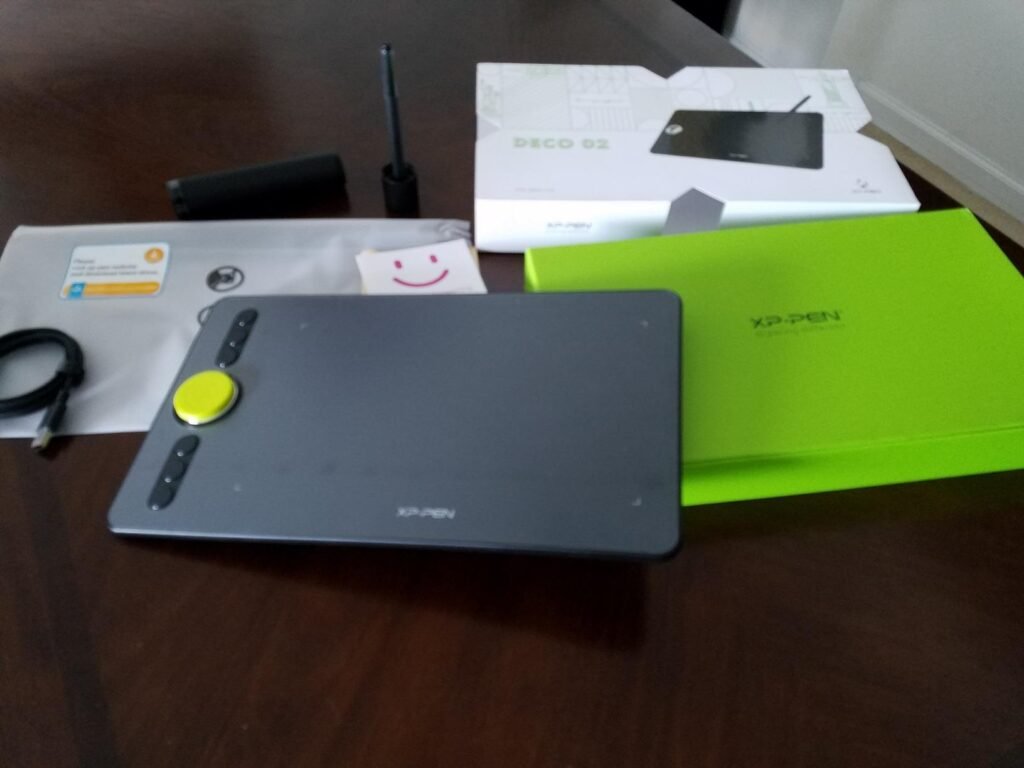
The XPPen Artist 12 3rd targets mobile creators who need a full pen display experience without the weight and bulk of larger tablets. Weighing just 1.58 pounds with an 11.9-inch screen, this tablet fits easily into a laptop bag and provides a professional drawing experience wherever you work. The 33% narrower bezels compared to previous generations maximize screen space while keeping the overall footprint compact.
We may earn a commission when you buy through this link, at no additional cost to you.
The dual X-Dial wheels are a genuinely useful control innovation. These wheels instantly adjust brush size and canvas zoom, which are the two most frequently changed parameters during digital drawing. XPPen claims 40% time savings on these common operations, which sounds like marketing but reflects real productivity gains when you no longer need to reach for keyboard shortcuts or the on-screen brush controls repeatedly.
The AG etched glass surface provides a paper-like drawing texture that reduces 85% of glare and resists fingerprints. Full lamination technology ensures minimal parallax between the pen tip and the cursor position, which is critical for accurate line placement in detailed illustration work. The X4 stylus with 16,384 pressure levels and 60-degree tilt handles both fine detail and broad strokes naturally.
Smaller displays like the Artist 12 3rd are dramatically easier to transport but require you to zoom in more often for detailed work, which can slow down your workflow. Larger displays feel more comfortable for extended sessions but are heavier and harder to move. If you split your work between multiple locations, the portability of a 12-inch display often outweighs the working comfort of a larger fixed setup.
Choose this tablet if you value portability and often work in different locations like coffee shops, libraries, or client offices. The lighter weight and smaller footprint make it much easier to travel with than 13-inch or larger displays. If you primarily work at a fixed studio desk, the extra screen space of a 13-inch or 15-inch display like the HUION Kamvas 13 or Kamvas Pro 16 provides more comfortable long-session working.
Studio artists who work at a fixed desk and would benefit from the extra screen real estate of larger displays.
We may earn a commission when you buy through this link, at no additional cost to you.
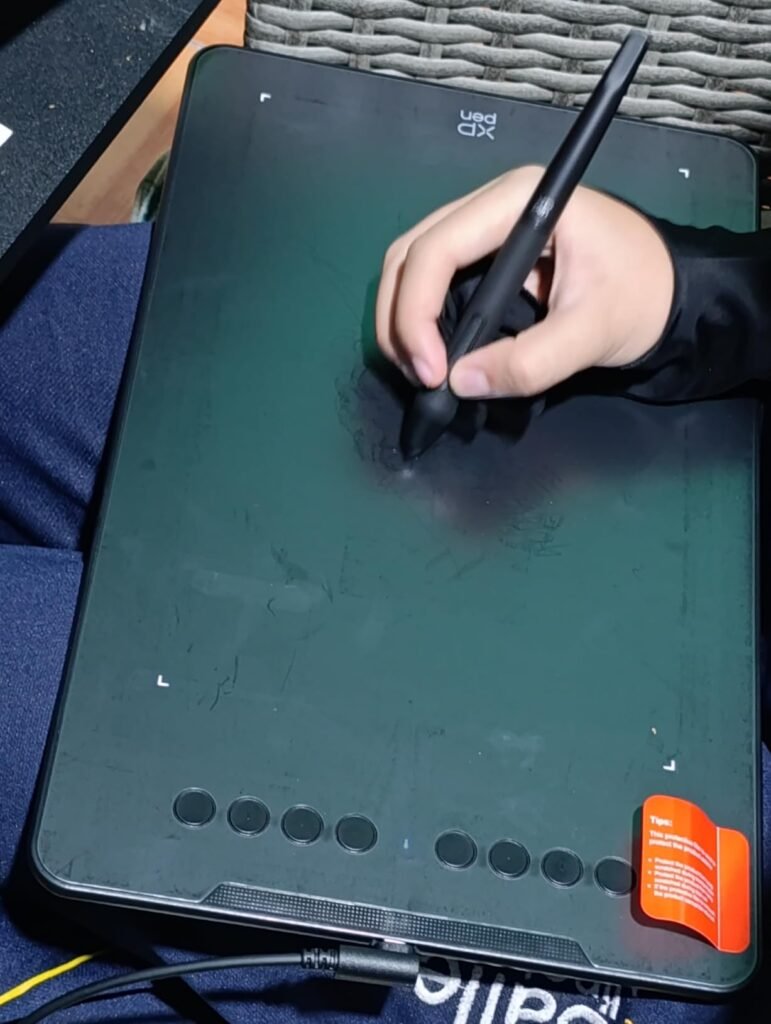
The XPPen Deco 01 V3 delivers professional-grade 16,384 pressure levels at a beginner-friendly price point, which is genuinely impressive at under $50. For students, hobbyists, or anyone testing whether digital art is right for them, this tablet provides the same core drawing capability as much more expensive models without the risk of a large investment.
We may earn a commission when you buy through this link, at no additional cost to you.
The 10 x 6.25-inch drawing area matches larger competitors like the HUION Inspiroy H1060P and provides enough space for natural arm movement rather than forcing cramped wrist-only motion. The 8 customizable shortcut keys handle essential commands without overwhelming beginners with too many options, and the ambidextrous design works equally well for right and left-handed users. The 8mm ultra-slim profile makes this one of the most portable options in the category.
Android compatibility is a valuable feature that expands where you can use this tablet. Connect it to a compatible Android phone or tablet running version 10.0 or later with the XPPen Tools app for portable drawing without a laptop. This flexibility matters for students taking notes in class or artists sketching during travel when carrying a laptop is impractical.
Higher pressure sensitivity numbers sound impressive but most beginners cannot detect the difference between 8,192 and 16,384 levels during casual drawing. Where 16K pressure genuinely helps is with subtle color blending, watercolor-style transparency effects, and precise detail work that develops as your skills grow. Buying a 16K pressure tablet now means the hardware will not limit you as your artistic capabilities improve over the next few years.
Choose this tablet if you are new to digital art and want maximum pressure sensitivity capability without spending premium prices. The included accessories (stylus stand, glove, protective film, and cables) provide everything needed to start immediately. If you need more shortcut keys for complex software workflows, the HUION Inspiroy H1060P offers 28 keys, or step up to a pen display when you outgrow screenless drawing.
Artists who need more shortcut keys or those ready to invest in a pen display for direct on-screen drawing.
We may earn a commission when you buy through this link, at no additional cost to you.
The HUION Kamvas 13 with PenTech 4.0 is a strong pen display option that shares many features with the flagship Kamvas 13 Gen 3 while typically coming in at a lower price point. For artists who want 13-inch on-screen drawing without paying premium prices, this tablet delivers the essential professional capabilities that matter most for illustration and photo editing.
We may earn a commission when you buy through this link, at no additional cost to you.
The upgraded Canvas Glass 2.0 with nano-etching reduces glare, sparkle, and image noise while enhancing clarity, which addresses the visual issues that plague many affordable pen displays under studio lighting. The paper-textured surface combined with full lamination creates a natural drawing feel with minimal parallax between pen tip and cursor. The PenTech 4.0 stylus provides 2-gram initial activation force and 16,384 pressure levels for precise stroke control.
Color accuracy is genuinely professional-grade with 99% sRGB and Rec.709 coverage plus 90% Adobe RGB, and each unit ships with a factory calibration certificate documenting Delta E under 1.5. This level of color performance matters for illustrators preparing artwork for print or graphic designers matching brand colors precisely. The dual dials and five silent press keys provide efficient control over canvas, brushes, and other parameters without keyboard interaction.
PenTech 4.0 represents HUION’s latest stylus technology with several practical improvements over earlier generations. The 2-gram initial activation force lets even the lightest pen strokes register accurately, which matters for subtle shading and detail work. The tilt auto-alignment reduces parallax when drawing at angles, and the dust-proof grip prevents debris from affecting pen accuracy over time. These refinements add up to a more consistent drawing experience during long sessions.
Choose this tablet if you want a professional-grade 13-inch pen display at the best possible price point in the HUION lineup. The 865g weight and 11.7mm thin profile keep it reasonably portable for artists who work in multiple locations. If you specifically need dual dial controls that both function actively, verify the current version specs matches your workflow needs, as this shares similar architecture with the standard Kamvas 13 Gen 3.
Buyers who need the newest dual-dial control features or those who want the most premium available option.
We may earn a commission when you buy through this link, at no additional cost to you.
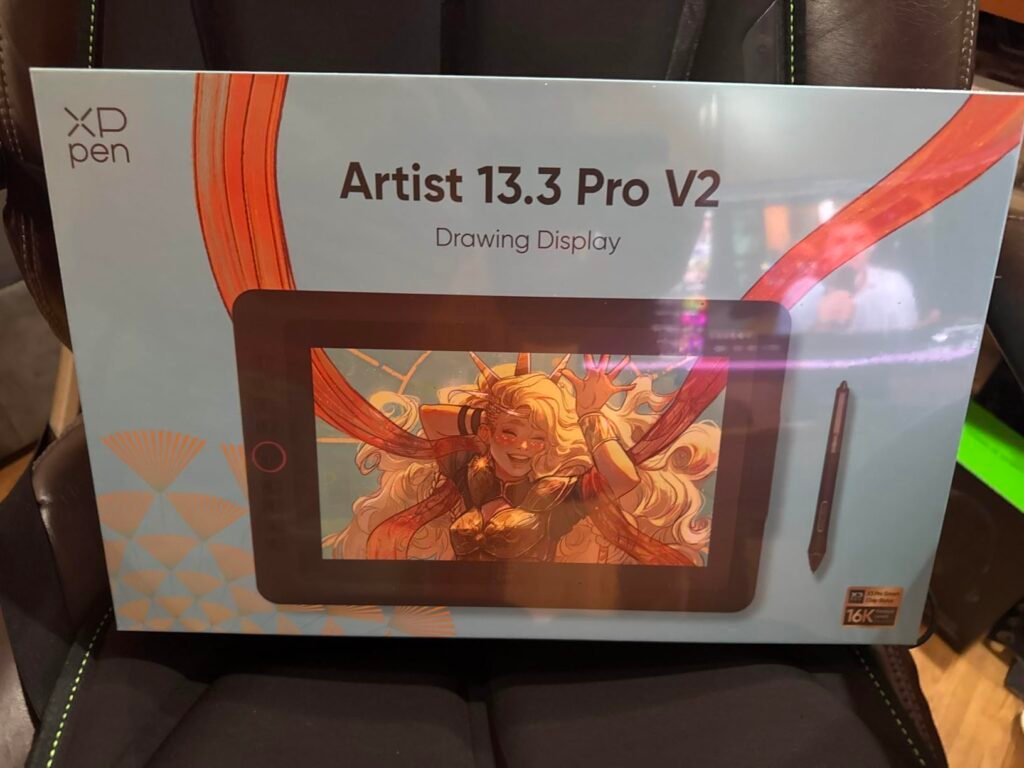
The XPPen Artist 13.3 Pro V2 targets graphic designers and photographers who work with wide-gamut color spaces beyond standard sRGB. With 125% sRGB, 107% Adobe RGB, and 95% Display P3 coverage, this tablet reproduces colors that many competitors cannot display, which matters when working with print projects that use CMYK colors or when preparing content for wide-gamut displays.
We may earn a commission when you buy through this link, at no additional cost to you.
The Red Dial Quick Key is a smart design choice that consolidates common controls into a single easy-to-reach wheel. Beginners often find dual dials confusing, so this simplified interface reduces the learning curve while still providing quick access to essential functions like brush size, navigation, and zoom. The 8 additional customizable keys handle software-specific shortcuts, giving intermediate users flexibility as their skills develop.
The X3 Pro smart chip stylus delivers 16,384 pressure levels with 1.5x faster response and 90ms initial response time. Accuracy improvements of 20% help produce precise lines even during rapid drawing, and the reduced likelihood of broken lines or lag makes complex illustration work feel more natural. The adjustable stand provides ergonomic positioning up to 90 degrees for reduced neck and wrist strain during long design sessions.
The percentage of a color space that a display can reproduce affects what colors you can accurately see and edit. Standard sRGB is the default for web content, Adobe RGB matters for print work, and Display P3 is the modern standard for cinema and mobile devices. A display with 125% sRGB coverage can show colors beyond the sRGB space, which is useful for print and P3 workflows but can cause oversaturation when viewing standard sRGB content unless properly color-managed.
Choose this tablet if wide color gamut matters for your work, particularly for print design, wedding photography, or content targeting modern wide-gamut displays. The Red Dial simplicity appeals to newer users who might find dual dials overwhelming. Be aware that the wide gamut can cause oversaturation when viewing standard sRGB content, so you may need to switch color profiles depending on what you are working on.
Beginners on tight budgets or users who exclusively work in standard sRGB workflows without wide-gamut needs.
We may earn a commission when you buy through this link, at no additional cost to you.
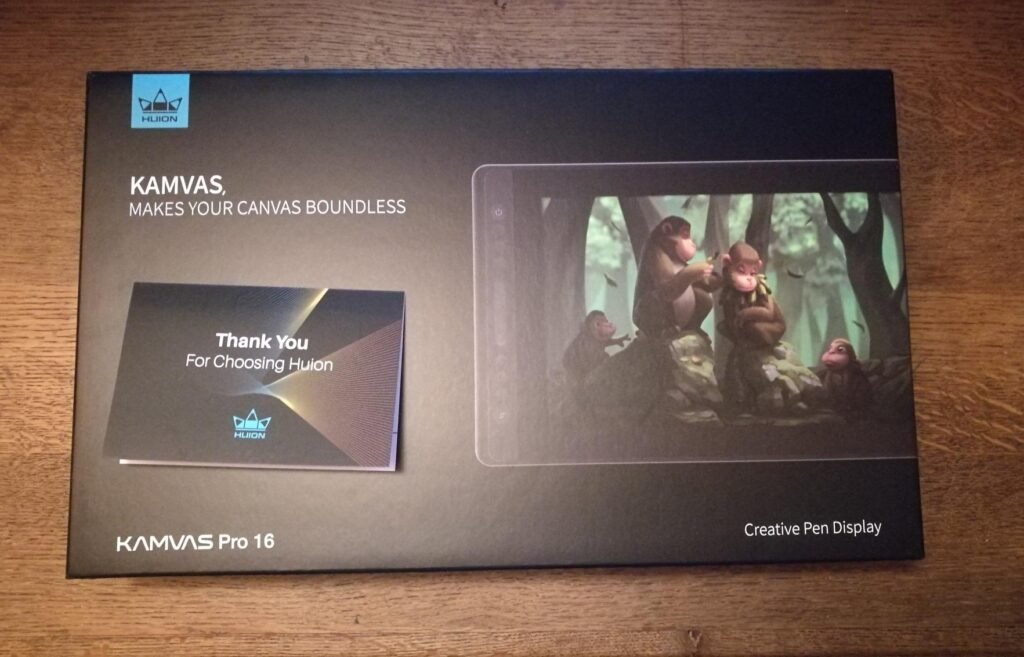
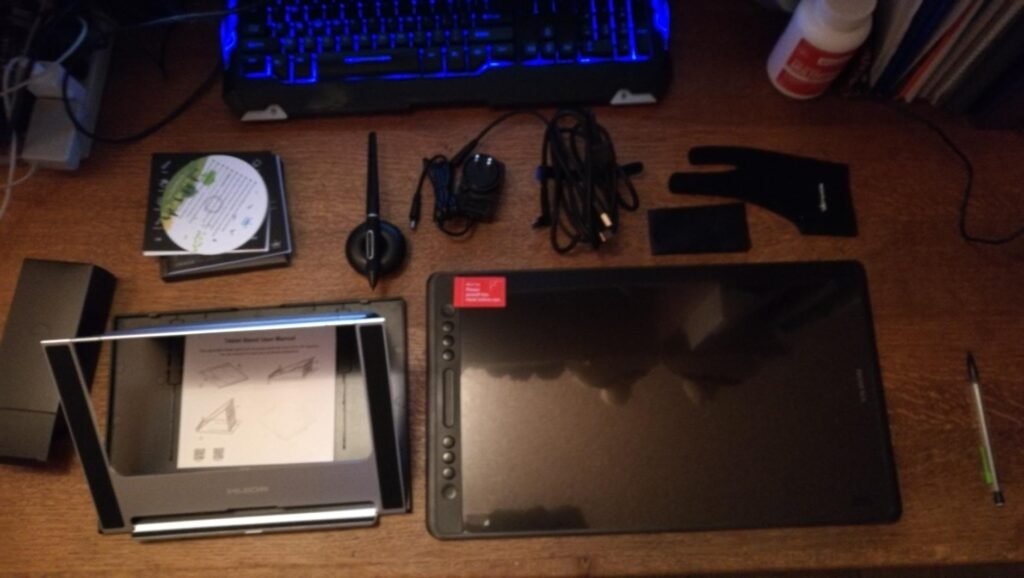
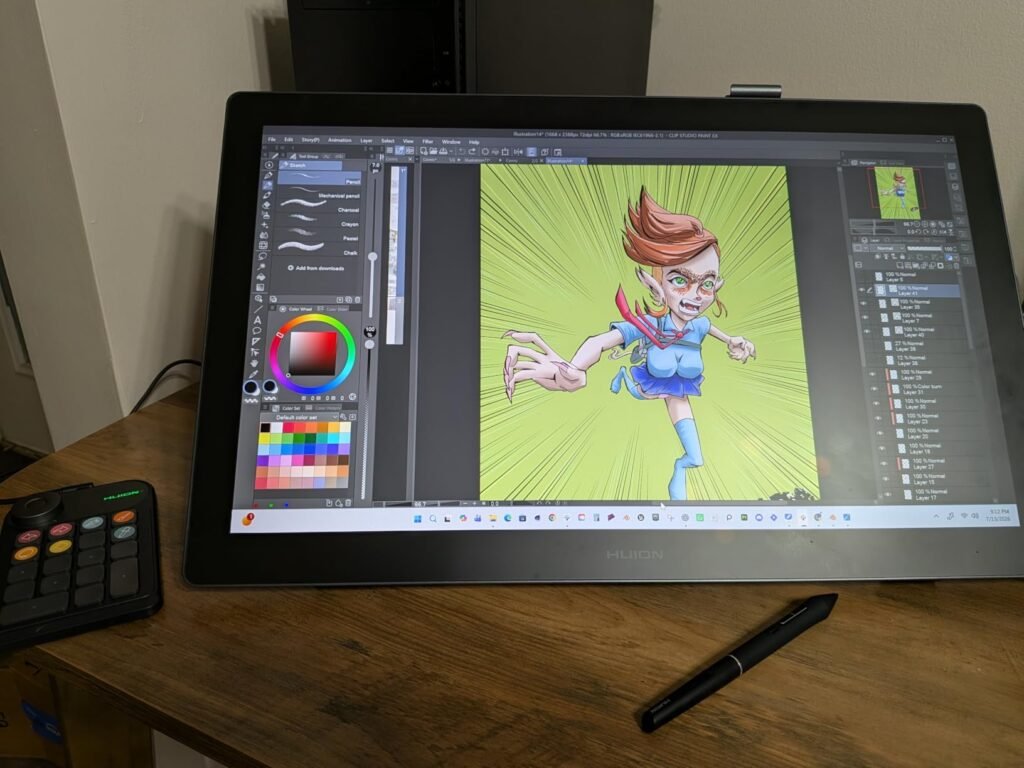
The HUION Kamvas Pro 16 provides a full 15.6-inch working area for artists who find smaller displays cramped for detailed illustration and complex compositions. This size class approaches what many professional Wacom Cintiq users prefer, but at a significantly more accessible price point that makes serious pen display work achievable without a major investment.
We may earn a commission when you buy through this link, at no additional cost to you.
The full-laminated screen with anti-glare glass creates an immersive drawing experience with excellent visibility even under bright studio lighting. The 120% sRGB coverage (92% Adobe RGB) delivers vibrant colors with a 1000:1 contrast ratio that shows shadow details clearly. This combination matters for detailed shading work, character concept art, and any workflow where subtle tonal differences affect the final result.
The touch bar is a distinctive control feature that provides quick access to functions like zooming, brush size adjustment, and menu navigation. Combined with 6 customized express keys, this gives you substantial hands-on control without constantly returning to the keyboard. The battery-free pen with 60-degree tilt recognition and 2 programmable side buttons handles both detail work and broad strokes naturally.
Larger screens matter most when working on detailed illustrations, complex compositions with many elements, or workflows that require frequent side-by-side reference viewing. On a 13-inch display, you may need to zoom in more frequently for fine detail work, which slows your workflow. A 15.6-inch screen provides enough real estate to work at reasonable zoom levels while keeping most of your composition visible, reducing the constant zoom-in and zoom-out cycles.
Choose this tablet if you work at a fixed studio desk and want the larger canvas that a 15.6-inch display provides for detailed illustration, concept art, or graphic design. The adjustable ST200 stand adjusts between 20 and 60 degrees for ergonomic positioning. If portability is important or your desk space is limited, the 13-inch Kamvas 13 models provide similar quality in a more manageable size.
Portable-first artists or users with limited desk space who would benefit from a smaller display.
We may earn a commission when you buy through this link, at no additional cost to you.
The HUION Inspiroy 2 Large focuses on ergonomic refinements that make longer drawing sessions more comfortable. The updated PW110 stylus features a slimmer body with soft silicone grip and repositioned side buttons that reduce hand fatigue during extended use. For artists who spend hours daily on the tablet, these ergonomic details matter more than raw specification improvements.
We may earn a commission when you buy through this link, at no additional cost to you.
The programmable scroll wheel combined with 3 sets of 8 press keys provides substantial control flexibility. The 3-set design means you can configure different shortcuts for different applications, so your Photoshop shortcuts do not conflict with your Illustrator shortcuts. Switching between key sets is quick, and the physical scroll wheel handles brush size, canvas rotation, or timeline scrubbing depending on how you configure it.
Android compatibility extends your creative options beyond desktop computers. Connect this tablet to compatible Android phones and tablets running OS 6.0 or later for on-the-go drawing without a laptop. This flexibility is particularly valuable for students, remote workers, or artists who need to sketch ideas quickly regardless of location. The USB-C connectivity works with modern devices without requiring adapters for most setups.
Different creative applications use different keyboard shortcuts, and having only one set of tablet buttons means constantly reconfiguring or accepting suboptimal shortcuts for some apps. Multiple shortcut sets let you configure buttons specifically for Photoshop, Illustrator, Clip Studio Paint, or any other software you use regularly. Switching between sets takes seconds, dramatically improving your efficiency across your entire creative workflow.
Choose this tablet if you value ergonomic comfort for long drawing sessions and want the flexibility of multiple shortcut configurations. The 3-set shortcut design particularly benefits users who work in several different applications regularly. If you need the newest PenTech 4.0 stylus technology or want an on-screen drawing experience, look at the Kamvas 13 Gen 3 or Kamvas 13 with PenTech 4.0.
Artists who want the newest pen technology or an on-screen drawing experience with a pen display.
We may earn a commission when you buy through this link, at no additional cost to you.
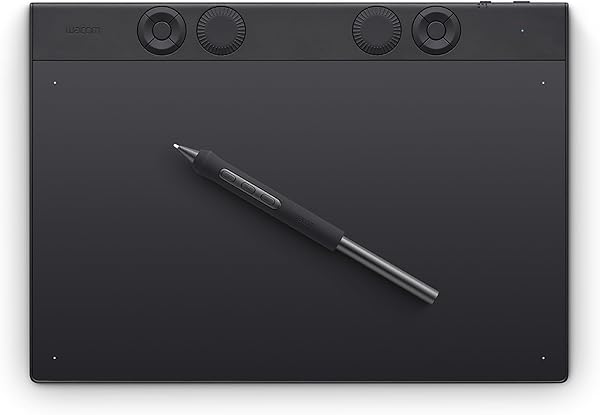
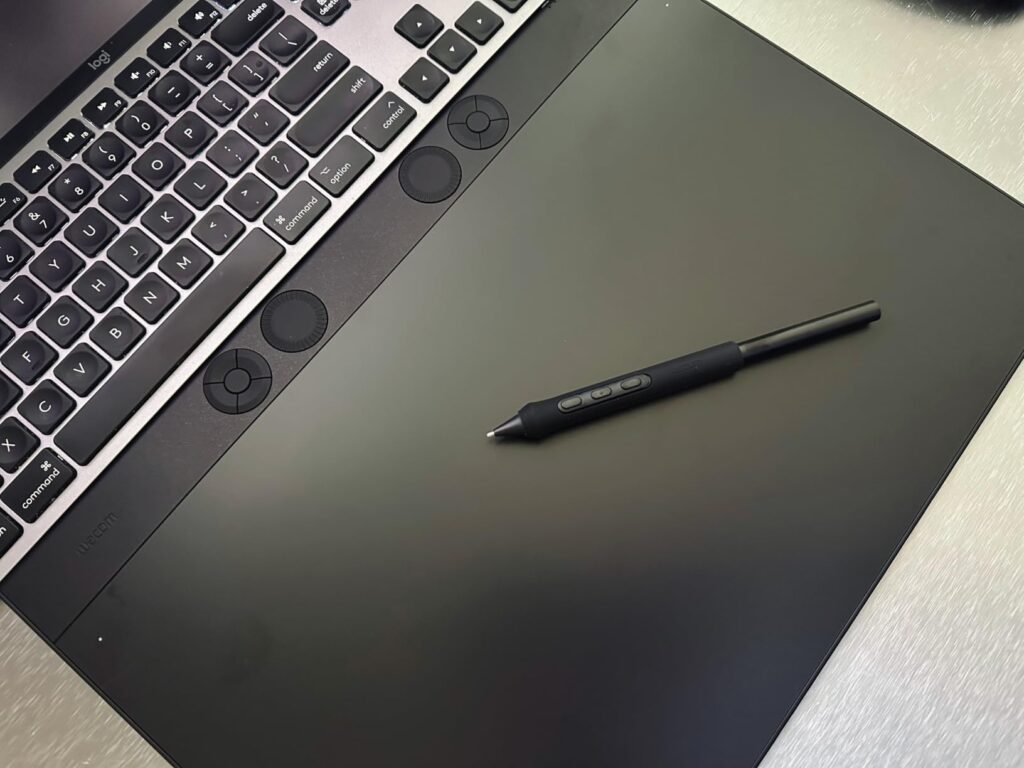
The Wacom Intuos Pro Medium remains the industry standard for professional graphic artists, illustrators, and photo editors who depend on their tablet for daily commercial work. While the raw specifications may not always beat newer competitors on paper, the combination of build quality, driver stability, ergonomic refinement, and industry-wide software optimization keeps this tablet at the top for serious professional use.
We may earn a commission when you buy through this link, at no additional cost to you.
The Pro Pen 3 offers unprecedented customization with three interchangeable grip styles (slim, straight, and flared) plus adjustable balance and button layout options. This lets you configure the pen to your exact preferences, which reduces hand fatigue during long sessions and improves precision for detailed work. The 8,192 pressure levels combined with tilt support and lag-free tracking produce the smooth, natural strokes that define professional Wacom experiences.
The 10 customizable ExpressKeys and 2 mechanical dials positioned near your keyboard provide substantial control without disrupting your workflow. Bluetooth wireless connectivity is a genuine advantage for professional users who value clean desk setups or need to switch between multiple computers. The magnesium construction feels premium and durable, and at just 4mm at its thinnest, the tablet has a barely-there presence on your desk.
Professional artists and designers value predictable, reliable tools over cutting-edge specifications. Wacom’s driver software has decades of refinement, their tablets integrate seamlessly with every major creative application, and their build quality supports years of daily use. Competitors often match or exceed Wacom on paper specifications but occasionally have driver bugs, compatibility issues, or durability concerns that Wacom’s mature product line has largely eliminated. For professionals whose income depends on their tools, this reliability is worth the premium.
Choose this tablet if you are a professional artist or designer where reliability, ergonomics, and software compatibility matter more than raw specification numbers. The premium price reflects proven quality that supports decades of professional use. If you are just starting out or working with lighter creative needs, the newer HUION and XPPen tablets offer more pressure levels at lower prices, though sometimes with less refined driver software and ergonomics.
Beginners on budgets or artists who prioritize raw pressure sensitivity specs over refined ergonomics and reliability.
We may earn a commission when you buy through this link, at no additional cost to you.
A graphics tablet is a personal tool that affects your creative output every day you use it. The right choice depends on your artistic goals, preferred software, budget, and whether you value cutting-edge specifications or proven reliability. Use the factors below to match a tablet to your actual creative workflow rather than being swayed by impressive-sounding numbers.
The most fundamental decision is whether to buy a pen display (with a screen) or a screenless graphics tablet. Screenless tablets like the Wacom Intuos, HUION Inspiroy, and XPPen Deco require hand-eye coordination since you draw on a surface while looking at your monitor. This takes time to learn but keeps costs low and typically provides larger drawing areas per dollar. Pen displays like the HUION Kamvas and XPPen Artist series let you draw directly on the screen, which is more intuitive but significantly more expensive.
For beginners, the choice depends on budget and learning preferences. A $40 Wacom Intuos Small or $50 XPPen Deco 01 V3 lets you learn digital drawing fundamentals without major investment. If you struggle with the disconnected coordination of screenless drawing, a pen display like the Kamvas 13 Gen 3 at around $229 provides the intuitive on-screen experience many artists prefer. Both approaches produce professional results in skilled hands.
Start with a screenless tablet if you are new to digital art or on a tight budget. Move to a pen display when you outgrow the screenless workflow or find yourself frustrated by the coordination challenge. Both categories have entry-level and professional options, so the choice is about workflow preference rather than skill level.
Pressure sensitivity determines how many gradations of pressure the tablet can detect between the lightest touch and full pressure. Modern tablets range from 4,096 levels (still adequate) to 16,384 levels (professional-grade), with 8,192 as a common middle ground. Higher pressure sensitivity enables more subtle variations in line weight, opacity, and color blending, which matters most for detailed illustration and watercolor-style techniques.
For most beginners and hobbyists, the difference between 8K and 16K pressure levels is undetectable in casual drawing. Where it matters is in professional workflows requiring subtle brush effects, ultra-precise line control, or watercolor-style transparency work. The Wacom Intuos Pro’s 8,192 levels remain fully professional-capable, while newer HUION and XPPen models with 16,384 levels provide headroom for advanced techniques as your skills develop.
Choose 8,192 pressure levels or higher for any serious creative work. Do not pay premium prices specifically for 16K over 8K unless you know your workflow will benefit. The Wacom Intuos Small with lower pressure levels remains excellent for beginners and casual users.
For screenless tablets, the active drawing area determines how much natural arm and wrist movement you can use. Small areas (under 6 x 4 inches) force cramped wrist-only motion, which can cause fatigue and limits sweeping strokes. Medium areas (around 10 x 6 inches) provide comfortable natural movement for most artists. Large areas over 12 inches suit users with larger monitors or those who prefer more expansive drawing gestures.
For pen displays, screen size affects both drawing comfort and detail visibility. The 12-inch class (like the XPPen Artist 12 3rd) provides excellent portability but requires more zoom for detail work. The 13-inch class (Kamvas 13 Gen 3) balances working comfort with portability. The 15-16 inch class (Kamvas Pro 16) provides ample working room for detailed illustration but sacrifices portability and typically costs more.
Match tablet size to your monitor and workflow. Larger monitors benefit from larger tablets to maintain a natural cursor-to-hand relationship. If you work at a fixed desk, prioritize a larger drawing area or screen. If you travel or work in multiple locations, portability matters more than maximum size.
Modern pen technology falls into two main categories: EMR (electromagnetic resonance) used by Wacom, and various proprietary technologies from HUION, XPPen, and others. Both approaches now offer battery-free operation, eliminating the frustration of chargeable styluses that die at inconvenient moments. Wacom’s EMR technology has decades of refinement and is widely considered the industry benchmark for feel and reliability.
Pen ergonomics matter more than most beginners realize. Slim pens like traditional Wacom designs feel natural in hand for extended sessions. Thicker pens with soft grips reduce fatigue for artists who hold pens tightly. The Wacom Pro Pen 3 uniquely offers interchangeable grips (slim, straight, flared) that let you customize the feel to your preferences. HUION’s PW110 in the Inspiroy 2 focuses on ergonomic refinements with silicone grip and repositioned buttons.
For long daily use, prioritize pen ergonomics over specification battles. Try different pen styles if possible before committing to a tablet, and consider battery-free technology essential for productive work. The Wacom Pro Pen 3’s customization options are worth the premium for professionals who spend hours drawing daily.
Physical shortcut keys and dial controls let you assign frequently-used commands to buttons on the tablet, reducing constant keyboard shortcuts and speeding up your workflow. The number of available keys varies widely: the XPPen Deco 01 V3 provides 8 keys, the HUION Kamvas 13 Gen 3 has 5 press keys plus dual dials, the Wacom Intuos Pro Medium offers 10 ExpressKeys plus 2 mechanical dials, and the HUION Inspiroy H1060P provides 12 hard keys plus 16 soft keys for 28 total shortcuts.
Dial controls handle continuous parameters like brush size, canvas zoom, or timeline scrubbing more naturally than button presses. The Kamvas 13 Gen 3’s dual dials and the XPPen Artist 12 3rd’s dual X-Dial wheels excel at these operations. The XPPen Artist 13.3 Pro V2’s Red Dial simplifies the interface for beginners, while the Wacom Intuos Pro’s dual mechanical dials feel premium and precise.
Match shortcut key count to your software complexity. Simple painting apps need fewer keys, while Adobe Creative Suite workflows benefit from more physical shortcuts. Beginners should not be overwhelmed by too many keys, while professionals working in complex software benefit from having every important shortcut immediately accessible.
Verify that your intended creative software works well with any tablet before purchasing. Major professional applications like Adobe Photoshop, Illustrator, Clip Studio Paint, and Krita work with essentially all modern graphics tablets. However, some niche software may have specific compatibility issues or reduced feature support on certain brands. Wacom generally has the widest software compatibility due to decades of industry integration.
Operating system compatibility varies too. Windows and macOS support is universal, but Linux compatibility varies significantly by brand. HUION and XPPen both officially support Linux (with some limitations), while Wacom has strong Linux support through open-source drivers. Android compatibility is another consideration for artists who want to draw on mobile devices, with HUION and XPPen leading in this area.
Check specific software and OS compatibility for your workflow before purchasing. Read user reviews from people using your specific software to identify any known compatibility issues. Most tablets in this comparison work well with mainstream creative software, but edge cases exist that could affect your specific workflow.
Modern graphics tablets use USB-C connections that work with laptops, desktops, and increasingly with mobile devices. Screenless tablets are typically lighter and more portable than pen displays, making them better for travel and multi-location work. The Wacom Intuos Small at just under a pound fits easily in any laptop bag, while the XPPen Artist 12 3rd at 1.58 pounds is impressively portable for a pen display.
Bluetooth wireless connectivity, available on the Wacom Intuos Pro Medium, provides a cleaner desk setup and allows switching between multiple computers easily. This convenience feature costs extra but many professionals find it worth the premium. Most tablets rely on USB-C wired connections, which are reliable but limit desk arrangement flexibility.
For desk-based professional work, cable management is manageable and wireless is a nice-to-have. For traveling artists or those who switch between computers frequently, Bluetooth adds meaningful convenience. Portable pen displays like the Artist 12 3rd offer a compromise between wired reliability and true portability for on-the-go creation.
Consider driver support, firmware updates, and warranty coverage as factors in your purchase decision. Wacom’s decades of experience result in exceptionally stable driver software and consistent long-term support for older products. HUION and XPPen both provide regular driver updates and responsive customer support, though occasional driver quirks are more common than with Wacom.
Warranty coverage is typically 1-2 years across major brands, but the practical differences show in real-world reliability and support responsiveness. Wacom tablets are known for long service lives, often lasting 5-10 years of professional use without significant issues. HUION and XPPen tablets have improved dramatically in build quality but do not yet have the same track record for decade-long professional use.
For casual and hobbyist users, any major brand’s tablet provides good value. For professional users whose income depends on their tablet, Wacom’s proven long-term reliability may justify the higher initial cost. Consider your total cost of ownership over 5-plus years rather than just the initial purchase price.
Set up your graphics tablet by installing the manufacturer’s driver software from their official website rather than relying on Windows or macOS default drivers. Manufacturer drivers provide access to pressure sensitivity calibration, button customization, and other features that maximize the tablet’s capability. Configure the tablet-to-screen mapping to match your monitor setup, adjust pressure curves to match your drawing pressure, and customize the shortcut buttons for your primary creative software before starting serious work.
Protect your tablet surface and pen tips through routine care. Wipe down the drawing surface periodically with a slightly damp microfiber cloth to remove skin oils and drawing debris that can affect pen tracking accuracy. Replace pen tips when they show visible wear or start to feel scratchy on the drawing surface, typically every 3-6 months of regular use. Keep the tablet in a case or protective sleeve when traveling to prevent scratches and impact damage to the drawing surface or screen.
Extend your tablet’s useful life through proper storage and habits. Store the tablet flat rather than on edge to prevent stress on the drawing surface or screen. Keep the pen in an upright stylus stand rather than lying flat to prevent the tip from being compressed. When your tablet is not in use, close driver software and unplug USB connections to prevent any potential firmware issues. For tablets with screens, avoid pressing hard on the display when the pen is not tracking, as excessive pressure can damage the screen or laminated glass surface over time.
Screenless tablets like the Wacom Intuos Small or HUION Inspiroy work well for most digital art needs and cost significantly less than pen displays. They require developing hand-eye coordination since you draw on a surface while watching your monitor, which takes 2-4 weeks to feel natural. Pen displays like the HUION Kamvas 13 provide more intuitive on-screen drawing but cost 4-6 times more. Start with a screenless tablet and upgrade to a pen display only if you find the coordination challenging or if your professional needs justify the investment.
For beginners and casual users, 8,192 pressure levels provide more than adequate control for essentially any digital art technique. The newer 16,384 pressure levels found on many current tablets offer subtle refinements that matter most for detailed watercolor-style work, precise line control, and professional illustration. Most artists cannot detect the difference between 8K and 16K in casual drawing, so do not pay premium prices specifically for 16K unless you know your workflow will benefit from the additional granularity.
HUION and XPPen tablets often match or exceed Wacom on paper specifications like pressure sensitivity, screen quality, and features per dollar. However, Wacom typically excels in driver stability, long-term reliability, ergonomic refinement, and software integration due to decades of industry leadership. For casual and hobbyist users, HUION and XPPen offer excellent value. For professional users whose income depends on their tablet, Wacom's proven reliability often justifies the premium price.
Match your tablet size to your monitor and workflow. Small tablets (like Wacom Intuos Small) work well for laptops and single-monitor setups. Medium tablets (around 10 x 6 inches, like HUION Inspiroy H1060P) suit most desktop setups with 24-27 inch monitors. Large tablets suit users with multiple monitors or 4K displays who need more physical drawing space. For pen displays, 13-inch models balance portability and working room, while 15-16 inch models provide ample space for detailed work.
Most graphics tablets work with Chromebooks running Chrome OS 88 or later, though driver support and feature access may be limited compared to Windows or macOS. iPads do not work with third-party graphics tablets since they use the Apple Pencil ecosystem exclusively. Android compatibility is available on many HUION and XPPen tablets for use with Android phones and tablets running compatible OS versions, expanding your options for mobile creation.
Yes, battery-free styluses (using EMR technology like Wacom, or similar tech in HUION and XPPen tablets) are generally preferred because they never need charging, weigh less than battery-powered pens, and have no risk of dying mid-project. Nearly all modern graphics tablets now use battery-free pens, so this is rarely a purchase consideration. Older or very budget tablets may still use battery-powered pens, but you should generally avoid these when better alternatives are available at similar prices.
Quality graphics tablets from major brands typically last 5-10 years of regular use before needing replacement. Wacom tablets are known for exceptional longevity, often lasting a decade or more of professional daily use. HUION and XPPen tablets have improved dramatically in build quality but do not yet have the same long-term track record as Wacom. Pen tips are consumable and need replacement every 3-6 months depending on how hard you press, while the tablet itself should provide many years of service.
Yes, graphics tablets work well for note-taking in apps like OneNote or Notability, marking up PDFs, and general computing tasks that benefit from pen input. However, dedicated note-taking devices like iPads with Apple Pencil or reMarkable tablets may provide better standalone note-taking experiences since graphics tablets typically require connection to a computer. Consider your primary use: if drawing is your main goal, a graphics tablet is ideal; if note-taking is primary, a dedicated tablet may serve you better.
The HUION Kamvas 13 Gen 3 stands out as the strongest overall choice for most digital artists who want the intuitive experience of a pen display without paying premium Wacom Cintiq prices. The 13.3-inch screen provides ample working room while remaining portable, the anti-glare Canvas Glass 2.0 surface reduces reflections that plague competitors, and the 16,384 pressure levels combined with factory color calibration deliver professional results at an accessible price point around $229.
For buyers with different priorities, the Wacom Intuos Small offers proven quality at under $40 for beginners, the HUION Inspiroy H1060P provides 28 shortcut keys for complex software workflows, and the Wacom Intuos Pro Medium remains the industry standard for professionals who value reliability and refinement above all else. Portable-focused artists should consider the XPPen Artist 12 3rd at 1.58 pounds, while those needing wider color coverage benefit from the XPPen Artist 13.3 Pro V2's 125% sRGB coverage.
Start by identifying your budget, whether you want a screen or screenless tablet, and what software you plan to use most. Match those factors to the appropriate tablet type, size, and feature set for your workflow. Use the buying guide factors above to weigh trade-offs between specifications, ergonomics, and long-term reliability, and choose the graphics tablet that will support your creative growth for years to come. Whether you are a beginner exploring digital art or a professional needing daily production reliability, the right tablet makes creative work more enjoyable and productive every time you sit down to create.