Lenovo Flagship Touch
8.4Editor scoreMediaTek Kompanio 520
4GB RAM 64GB
14-inch FHD touchscreen
WiFi 6 support
Find the right chromebooks for 2026. We compare 7 standout options by build quality, useful features, owner feedback, value, and everyday trade-offs.
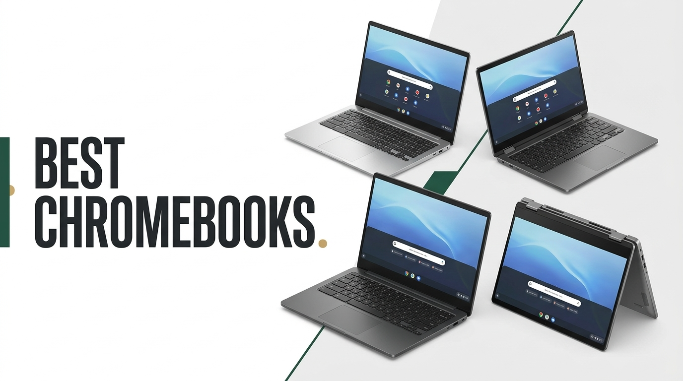
Find the right Chromebook for school, work, or family use in 2026. We compare 7 standout ChromeOS laptops by the specs that actually matter: display quality, processor performance, RAM and storage capacity, battery endurance, port selection, keyboard and touchscreen features, and how each model balances affordability with the daily productivity demands of students, remote workers, and casual home users.
The gap between a $200 basic Chromebook and a $370 convertible 2-in-1 is significant and depends on how you actually plan to use the device. Simple browsing and Google Docs work fine on entry-level hardware, while heavier multitasking, touchscreen note-taking, and multimedia use benefit from more RAM, better displays, and premium features.
This guide covers compact laptops for students under $250, mid-range 14-inch models with more RAM and better storage, and versatile convertibles that flip between laptop and tablet modes. Use the comparison table, reviews, and buying guide below to match a Chromebook to your budget, primary use case, and expected years of ownership.
We compared 7 Chromebooks using the specs that actually help a buyer decide: display size and resolution, processor generation and cores, RAM capacity, storage type and size, battery life claims, port selection, touchscreen and convertible features, weight and portability, WiFi standard, ChromeOS Auto Update Expiration date, and owner feedback. The notes focus on practical trade-offs so each pick connects to how students, families, and remote workers actually use ChromeOS devices for browsing, productivity, streaming, and light creative work.


Compare key features, scores, and current prices side by side. A shorter feature list means fewer details were available, not necessarily fewer capabilities.


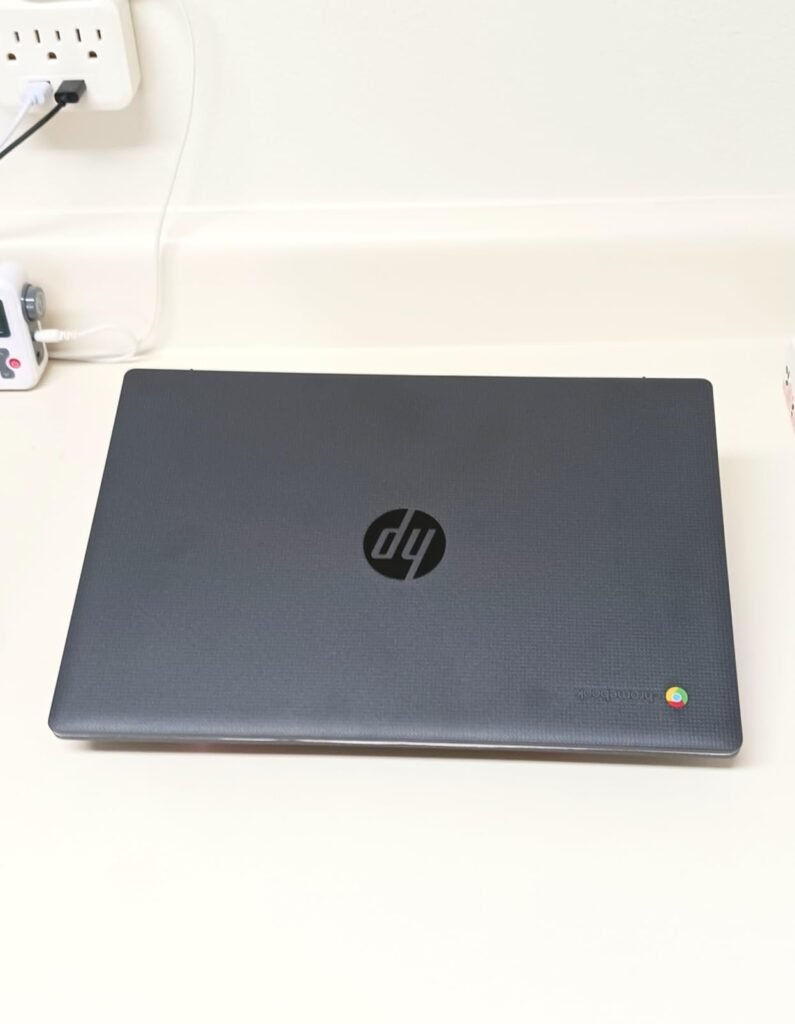
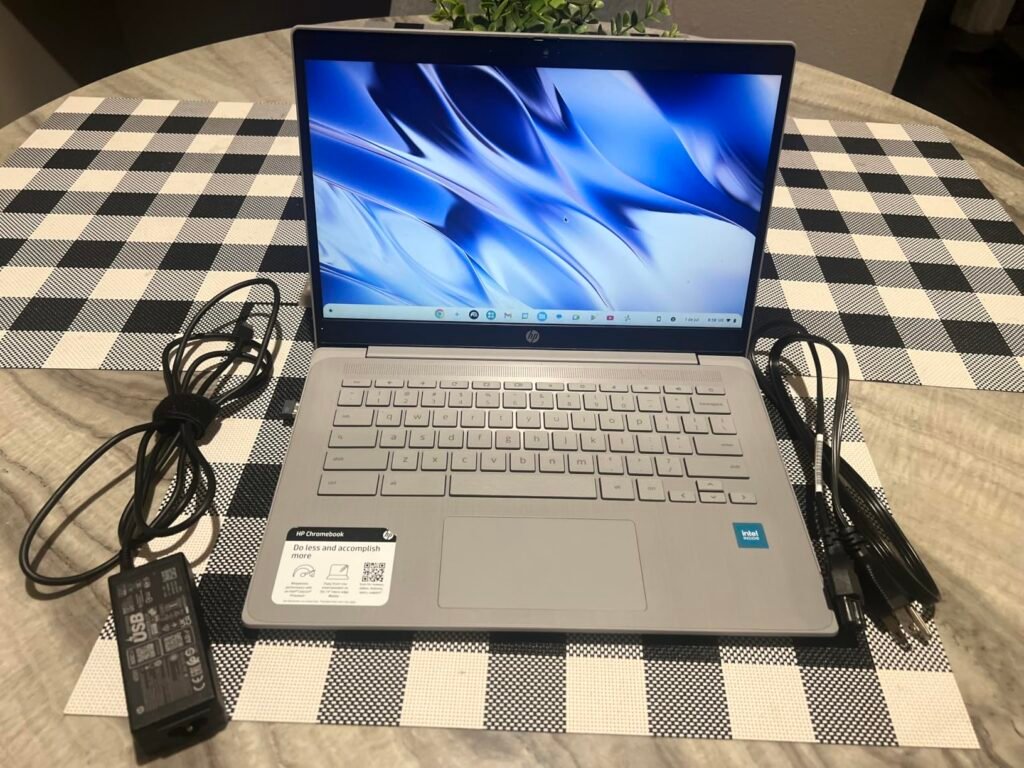
The HP 14 Chromebook targets budget-conscious students and families who need reliable all-day performance without premium pricing. The Intel Celeron N4120 quad-core processor offers noticeably better performance than the N4020 chip found in some competing models at similar prices, making this a smart choice for buyers who understand that processor generation matters even in entry-level Chromebooks.
We may earn a commission when you buy through this link, at no additional cost to you.
The 14-hour battery life claim is one of the longest in the entire Chromebook category, which addresses a common frustration for students who cannot always find outlets between classes or during travel. This extended runtime combined with the Intel Celeron N4120’s power efficiency creates a genuinely all-day computing device that students can use through a full day of classes without charging anxiety.
Port selection is well-considered for the target use case. Two USB 3.0 Type-A ports accommodate flash drives, external mice, and other traditional accessories that students commonly use. The USB 3.0 Type-C port supports charging and modern accessories, and the dedicated HDMI port enables connection to external monitors or projectors without needing dongles. This connectivity mix works well for both dorm room use and classroom presentations.
Battery life claims often exceed real-world performance, but a 14-hour claim typically translates to 8-10 hours of actual mixed use, which comfortably covers a full school day or work session. This eliminates the constant hunt for outlets that plagues many laptop users and enables genuine mobile computing. For students in classes without power access, this battery capability alone can justify choosing this Chromebook over higher-spec alternatives with shorter runtime.
This Chromebook is a strong choice for students, families, and budget-conscious buyers who prioritize battery life and reliable performance over premium features like touchscreens or high-resolution displays. The 1366 by 768 HD display is functional but noticeably lower quality than FHD alternatives, which becomes apparent when reading small text or viewing detailed images. For a modest step up in display quality, the Lenovo Flagship offers full HD at a similar price with touchscreen capability.
Users who need touchscreen functionality or higher-resolution displays for detailed work or media consumption.
We may earn a commission when you buy through this link, at no additional cost to you.
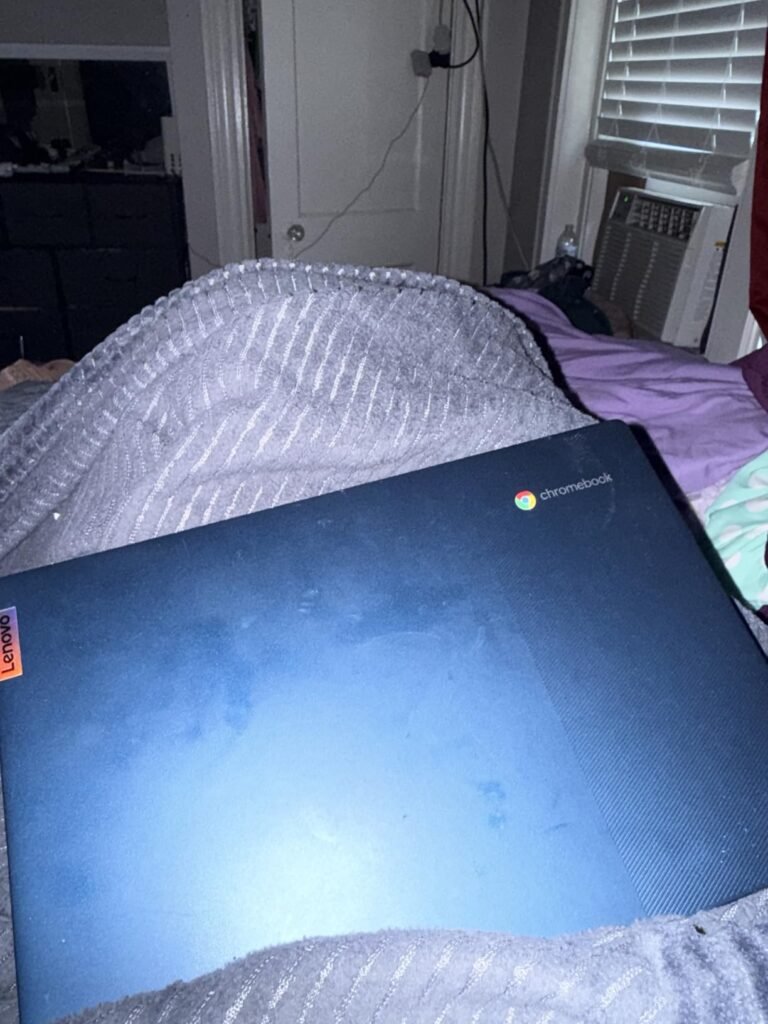
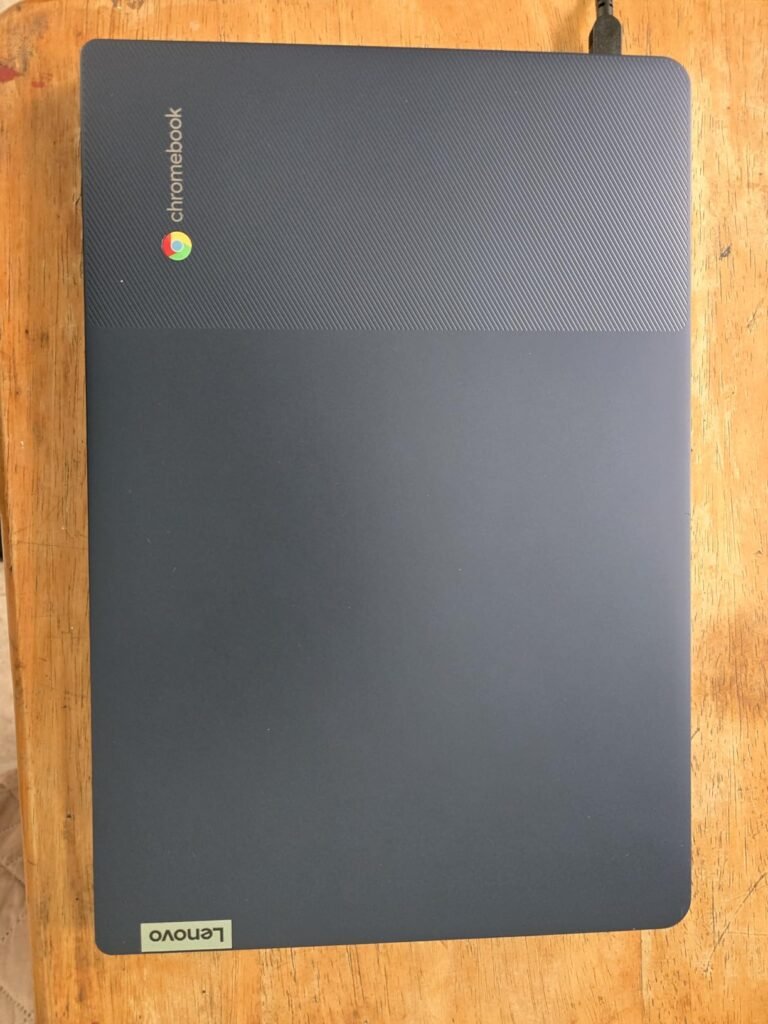
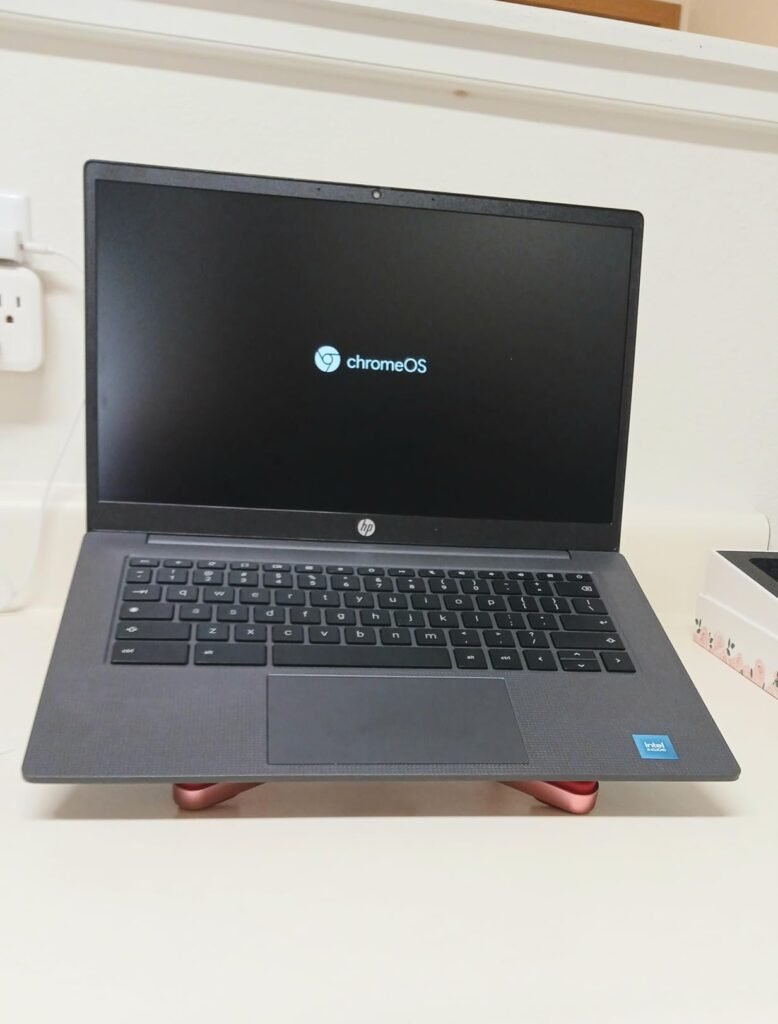
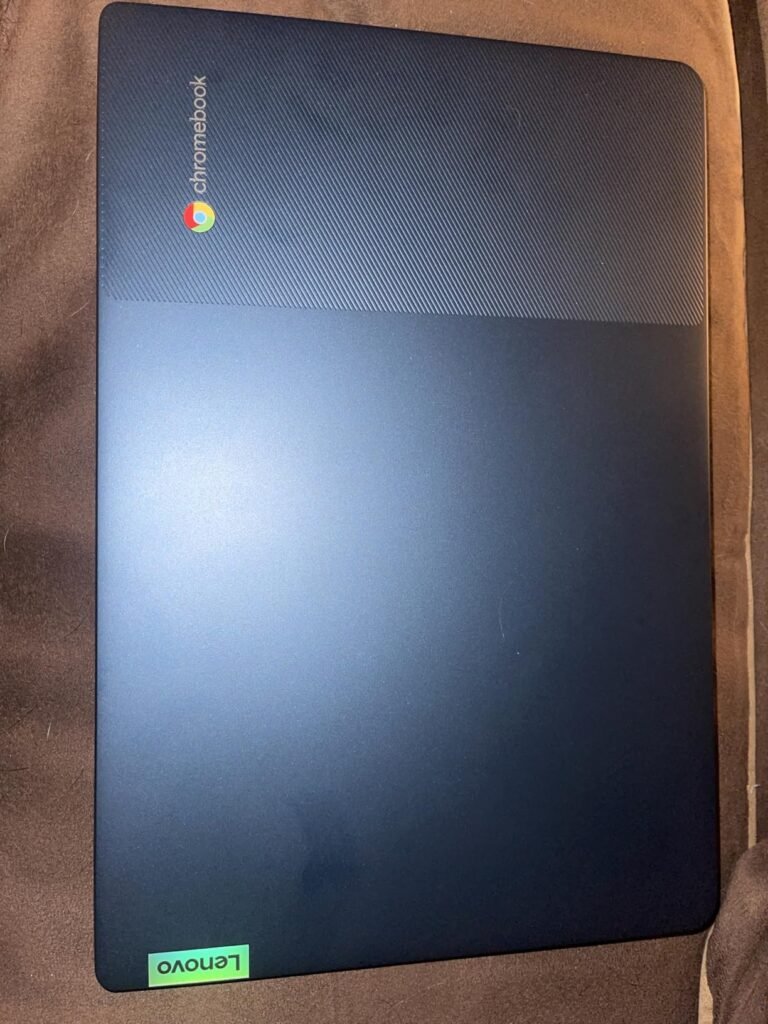
The Lenovo Flagship Chromebook stands out for offering a full HD 1920 by 1080 touchscreen at a price where most competitors provide only 1366 by 768 displays. This resolution upgrade matters enormously for reading text, watching videos, and viewing photos with acceptable clarity. Combined with IPS technology for wide viewing angles, this display quality punches above its weight class.
We may earn a commission when you buy through this link, at no additional cost to you.
The 8-core MediaTek Kompanio 520 processor divides workload between four high-performance A73 cores and four efficient A53 cores, all running at 2.0GHz. This ARM-based chip provides adequate performance for typical Chromebook tasks like web browsing, Google Docs, video streaming, and light Android app use. The processor is specifically designed for class-leading battery life in Chromebook applications.
WiFi 6 support is a real advantage over older 802.11ac-only Chromebooks, providing better performance on modern routers and improved connection stability in busy WiFi environments like schools and dorms. The 720p HD webcam with privacy shutter addresses both video call quality and privacy concerns that matter for students and remote workers. Bluetooth 5.1 supports modern wireless accessories without connection issues.
ARM-based MediaTek processors like the Kompanio 520 offer excellent battery efficiency and adequate performance for typical ChromeOS workloads. Intel processors generally provide better peak performance for demanding tasks and better compatibility with Linux applications through ChromeOS Linux support. For most users who primarily browse, use Google apps, and run Android apps, MediaTek chips handle the workload well while extending battery life significantly compared to Intel alternatives.
This Chromebook is a strong choice for buyers who prioritize touchscreen functionality and display quality over raw processing power. The 4GB RAM configuration is adequate for typical single-user Chromebook workflows but becomes limiting when running many browser tabs simultaneously or heavy Android apps. For students needing more RAM headroom or professionals running multiple apps, step up to 8GB configurations like the HP 14 with N100 processor or ASUS CX15.
Heavy multitaskers who need 8GB or more RAM, or users who require Linux app compatibility for specialized software.
We may earn a commission when you buy through this link, at no additional cost to you.
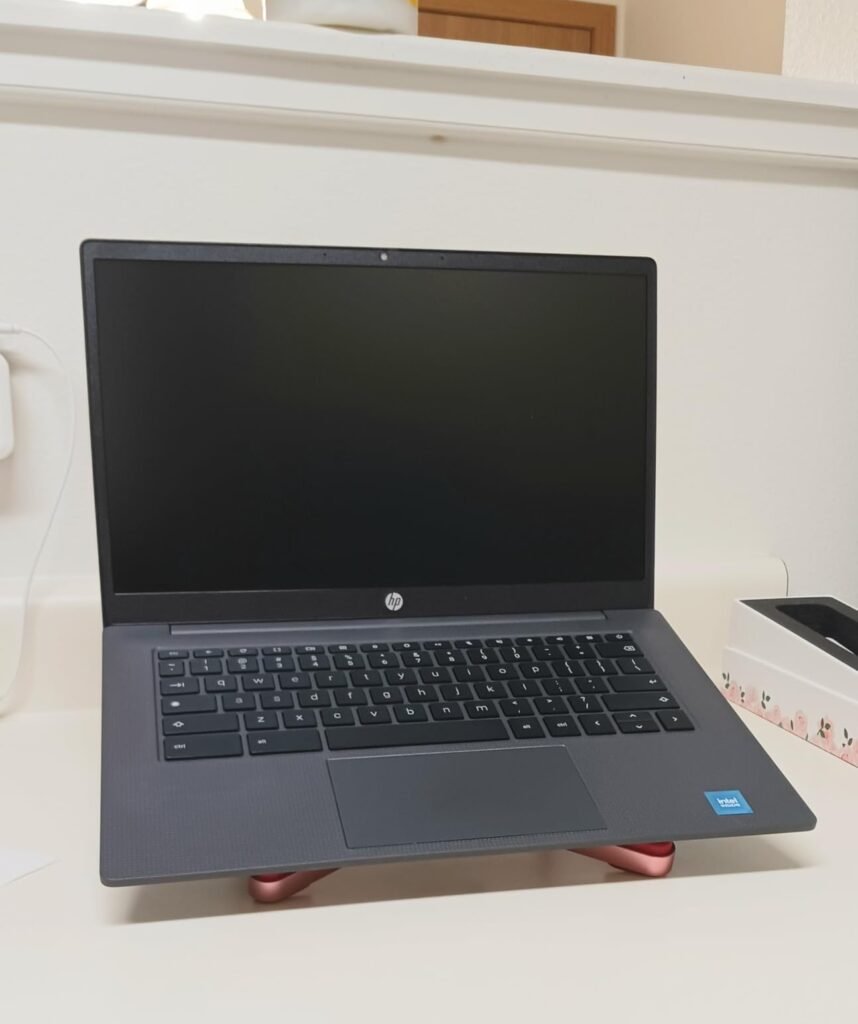
The HP Chromebook 14 with Intel N100 processor represents a genuine sweet spot for buyers who want modern hardware without stepping into premium price territory. The Intel N100 processor is significantly newer than the Celeron chips found in most Chromebooks under $300, providing noticeably better performance and improved power efficiency. Combined with 8GB LPDDR5 RAM, this Chromebook handles heavier workflows than the typical 4GB models in this price range.
We may earn a commission when you buy through this link, at no additional cost to you.
The 128GB Universal Flash Storage is faster than traditional eMMC storage found in most competing Chromebooks. UFS provides better read and write speeds while consuming less power, which translates to snappier app loading, faster file access, and improved battery life during storage-intensive operations. The larger storage capacity also eliminates the constant deletion required with 32GB or 64GB alternatives.
Intel UHD graphics enable smooth 4K content streaming, which matters more than gaming performance for typical Chromebook users. The graphics capability handles video playback, casual games, and light creative applications smoothly without dropped frames or stuttering that can plague weaker integrated graphics. The anti-glare display panel reduces reflections when working near windows or in bright indoor environments.
Chromebook processors span multiple generations, and newer chips like the Intel N100 significantly outperform older Celeron alternatives despite similar names. The N100 is manufactured on a modern 7nm process compared to 14nm for older Celeron chips, resulting in better performance per watt and improved responsiveness. When comparing Chromebooks at similar prices, newer processors often deliver noticeably better real-world performance than higher RAM configurations paired with older processors.
This Chromebook is the strongest overall choice for buyers who want modern hardware and adequate multitasking capability without paying premium prices. The 8GB RAM and 128GB storage combination handles serious productivity work, extensive multitasking, and offline file storage that basic 4GB/64GB models cannot manage. If you specifically need a touchscreen or convertible design, the ASUS Flip CX1 or HP x360 Plus offer that functionality at higher prices.
Users who specifically need touchscreen functionality or full HD display resolution for detailed work.
We may earn a commission when you buy through this link, at no additional cost to you.
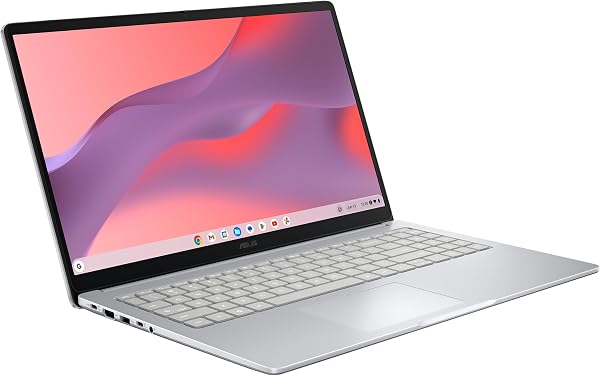
The ASUS Chromebook CX15 targets buyers who prioritize screen size and full keyboard functionality over portability. The 15.6-inch full HD 1920 by 1080 NanoEdge display provides significantly more workspace than 14-inch alternatives, which matters for productivity tasks like spreadsheet work, split-screen browsing, and photo editing. The anti-glare coating reduces eye strain during extended use in bright environments.
We may earn a commission when you buy through this link, at no additional cost to you.
The dedicated numeric keypad is a genuinely useful feature for anyone who works with numbers regularly, including students in math and science classes, accountants working with spreadsheets, and anyone entering financial data. Standard 14-inch Chromebooks omit this keypad to save space, forcing you to use the number row for numeric input. This ergonomic difference significantly improves productivity for data-heavy workflows.
The MIL-STD 810H military-grade durability certification indicates the Chromebook passes rigorous testing for drops, vibration, temperature extremes, and other conditions that can damage regular laptops. This durability rating matters for students who transport their Chromebooks daily and professionals who work in varied environments. The Intel N50 processor combined with 8GB LPDDR5 RAM and 128GB storage handles typical productivity workloads efficiently.
Numeric keypads dramatically speed up data entry for anyone working with numbers regularly. Students in STEM courses, business professionals working with spreadsheets, and accounting or finance workers all benefit from the dedicated number pad. Standard 14-inch and smaller Chromebooks omit this feature to save space, but for users who work with numbers daily, the ergonomic and productivity benefits of a numeric keypad often justify choosing a larger 15.6-inch device despite the increased weight.
This Chromebook is the right choice for buyers who need large screen real estate and full keyboard functionality with numeric keypad for data-intensive work. The 3.53-pound weight and 15.6-inch footprint are significantly larger than 14-inch alternatives, which affects portability during daily commuting. If you prioritize compact size and lower weight over maximum screen space, the 14-inch HP or Lenovo models will suit your lifestyle better.
Portable-first users or students who need maximum lightness for daily commuting between classes.
We may earn a commission when you buy through this link, at no additional cost to you.
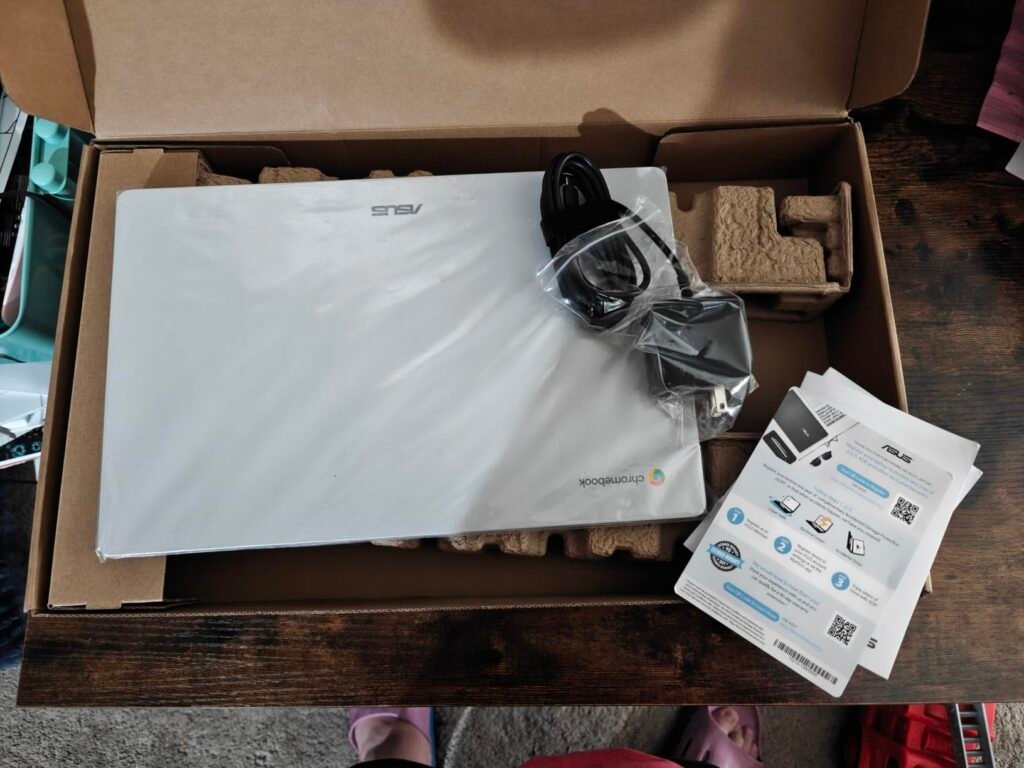
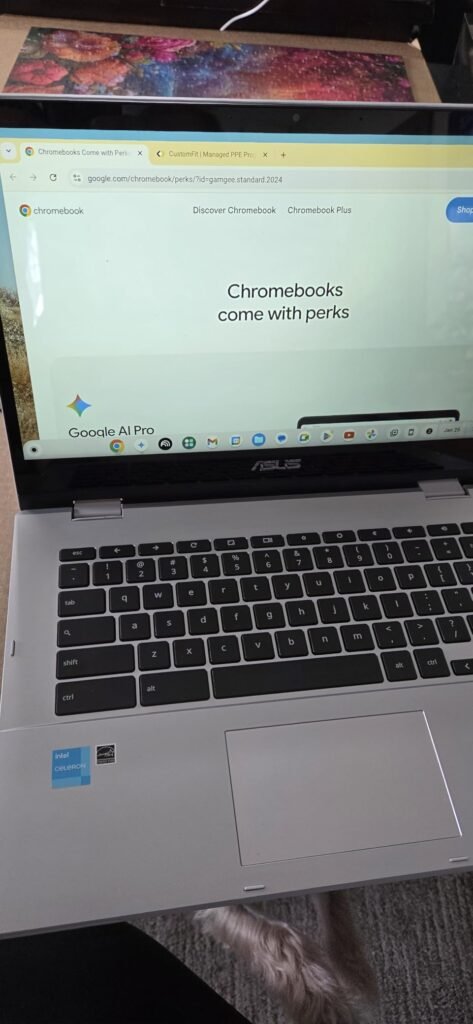
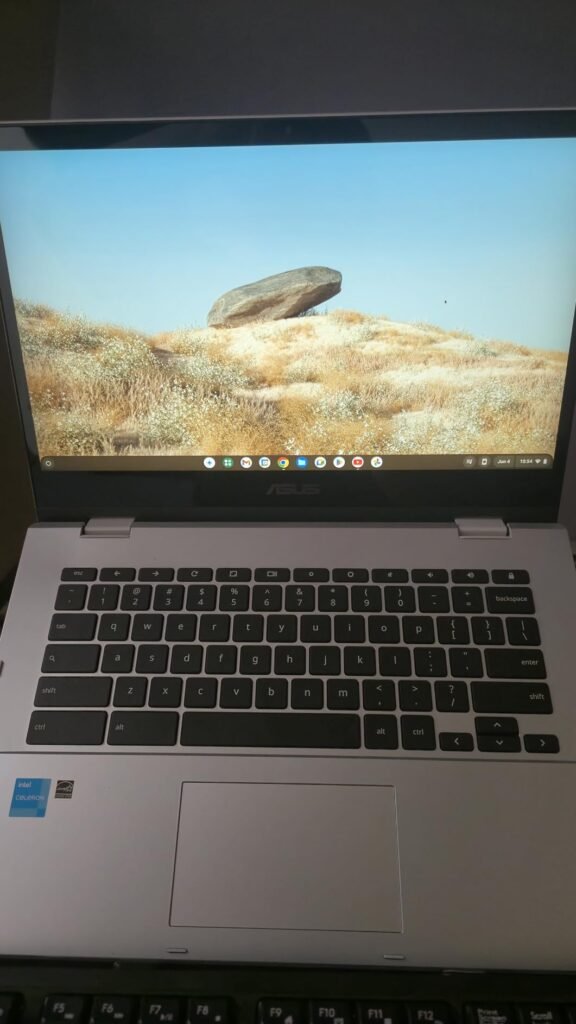
The ASUS Chromebook Flip CX1 delivers genuine versatility through its 360-degree convertible design that transitions between four distinct working modes. Traditional clamshell mode works for standard laptop use, tent mode positions the screen upright for presentations and video calls, stand mode enables comfortable video streaming without keyboard interference, and tablet mode supports touch-first activities like reading, drawing, and casual browsing.
We may earn a commission when you buy through this link, at no additional cost to you.
The 14-inch NanoEdge full HD touchscreen provides excellent visual quality with narrow bezels that maximize screen real estate. The Intel Celeron N4500 processor paired with 8GB RAM and 128GB eMMC storage handles typical productivity workloads and light creative work smoothly. WiFi 6 and Bluetooth 5.2 provide modern wireless connectivity for smooth video calls and stable connections in busy WiFi environments.
The comprehensive connectivity includes two USB 3.2 Gen 1 Type-C ports with display and power delivery support, two USB 3.2 Gen 1 Type-A ports for traditional accessories, dual audio jacks, and a micro SD card reader for expanded storage. This port variety accommodates virtually any accessory need without requiring dongles or hubs, which matters for users who work with cameras, external drives, and other peripherals.
Convertible Chromebooks add cost and weight over traditional clamshell designs. The benefits become genuinely valuable when you actually use the different modes regularly: tablet mode for reading and note-taking, tent mode for kitchen recipe viewing, stand mode for watching videos in bed. If you’ll rarely leave clamshell mode, spending extra for convertible functionality wastes money on features you won’t use. Honestly assess your usage patterns before paying the convertible premium.
This convertible is the right choice for buyers who genuinely use multiple working modes throughout their day and want touchscreen functionality for note-taking, drawing, or casual reading. The MIL-STD 810H military-grade durability rating combined with the 11-hour battery life makes this practical for mobile professionals and students. The higher price and heavier weight are trade-offs for the versatile 2-in-1 functionality. For pure laptop use without touchscreen needs, the HP 14 with N100 provides better value at lower cost.
Budget-focused buyers or users who exclusively work in traditional laptop mode without needing touchscreen features.
We may earn a commission when you buy through this link, at no additional cost to you.
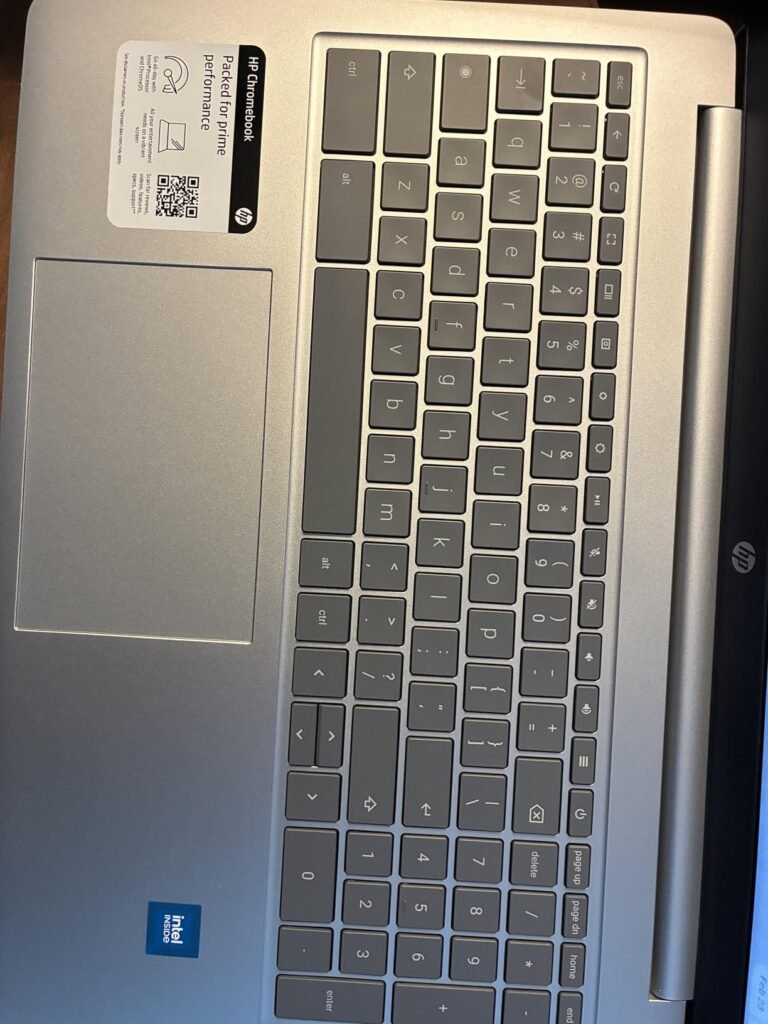
The HP Chromebook 14 x360 Plus combines the versatility of a 2-in-1 convertible design with the more modern Intel N150 processor, which provides better performance than older Celeron chips found in many competing convertibles. The 14-inch WUXGA 1920 by 1200 touchscreen has a slightly taller aspect ratio than standard FHD displays, which provides more vertical space for productivity work and web browsing.
We may earn a commission when you buy through this link, at no additional cost to you.
The 128GB UFS storage is significantly faster than eMMC storage found in most competing Chromebooks at similar prices. UFS provides better read and write performance while consuming less power, translating to snappier app loading and improved battery life. The 300-nit display brightness combined with anti-glare coating enables comfortable use in various lighting conditions from office environments to outdoor patios.
The FHD camera with temporal noise reduction produces noticeably better video call quality than standard 720p webcams found in most Chromebooks. This upgrade matters for students in remote learning, professionals in video meetings, and family users who need reliable video calling with grandparents or distant family. WiFi 6 and Bluetooth 5.4 provide the latest wireless standards for smooth wireless connectivity.
Auto Update Expiration (AUE) dates determine how long Chromebooks receive ChromeOS updates and security patches from Google. After the AUE date, Chromebooks continue functioning but no longer receive updates, which affects security and access to new features. Longer AUE dates like the September 2026 date on this HP model provide significantly more practical useful life than Chromebooks with shorter support windows. Always check AUE dates before purchasing, especially for used or older Chromebook models.
This convertible is a strong choice for buyers who want modern processor performance and premium display features in a 2-in-1 form factor. The Auto Update Expiration date of September 2026 provides an unusually long support window that extends the practical useful life significantly. The 4GB RAM is the main limitation that may frustrate heavy multitaskers, so consider the ASUS Flip CX1 with 8GB RAM if you regularly run many browser tabs and apps simultaneously.
Heavy multitasking users who need 8GB or more RAM for demanding workflows with many simultaneous apps.
We may earn a commission when you buy through this link, at no additional cost to you.
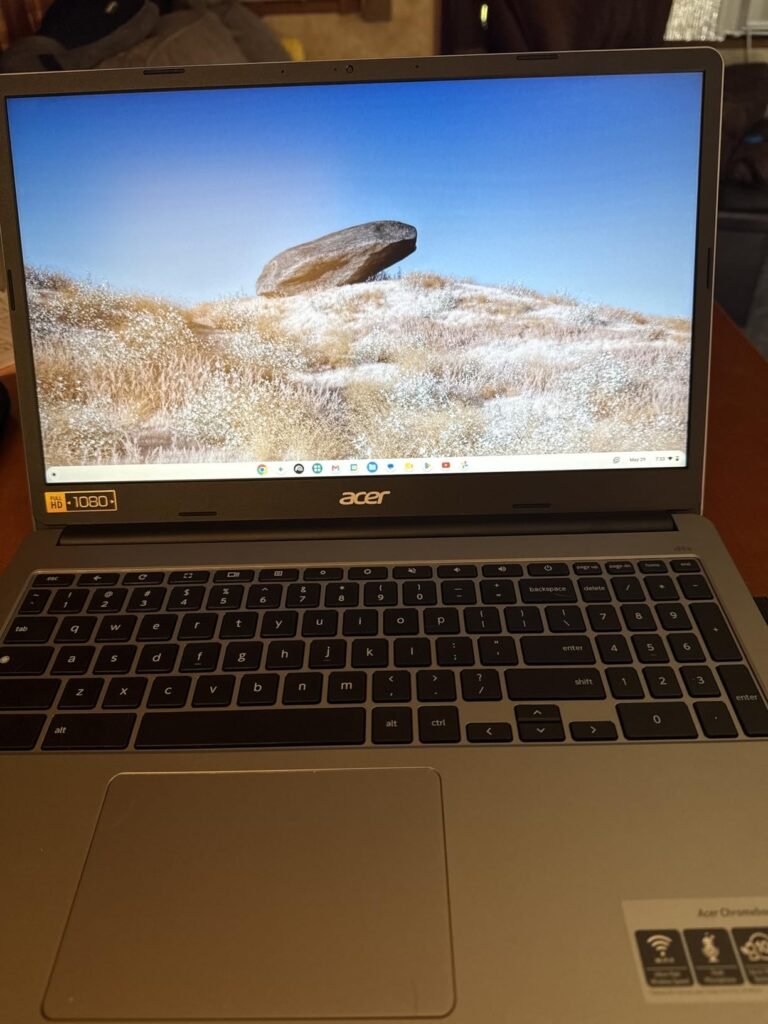
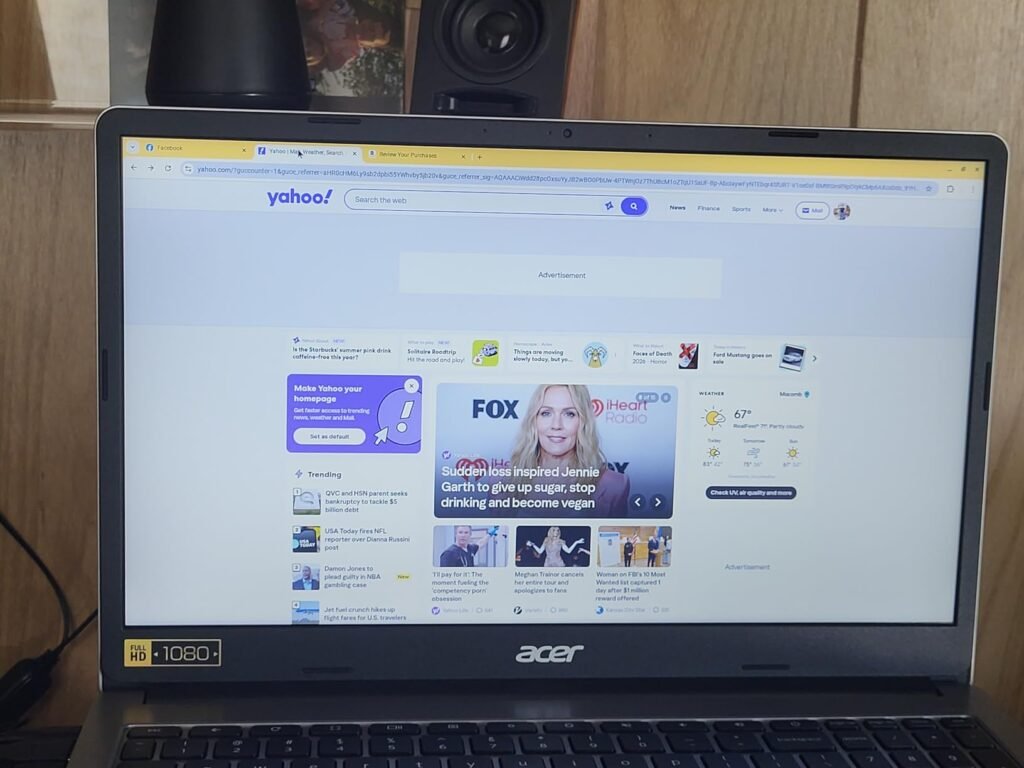
The Acer Chromebook 315 delivers exceptional value by combining a 15.6-inch full HD IPS display with WiFi 6 connectivity at a price under $200. This is genuinely rare in the Chromebook market where full HD displays typically start around $250 and 15.6-inch screens with FHD resolution can push $300 or more. For budget-conscious families and students who need a bigger screen without premium pricing, this Chromebook addresses a real market gap.
We may earn a commission when you buy through this link, at no additional cost to you.
The 15.6-inch full HD 1920 by 1080 IPS display provides comfortable viewing angles and vivid colors compared to lower-cost TN panels. The larger screen size accommodates comfortable dual-window use for productivity tasks like research while writing, or video streaming while browsing. The Intel Celeron N4500 dual-core processor handles typical Chromebook workloads including web browsing, video streaming, and Google Docs use without issues.
Two USB Type-C ports supporting USB 3.2 Gen 2 at 10 Gbps provide modern connectivity for external displays, fast storage, and charging accessories. This dual USB-C configuration is unusually generous at this price point and enables flexible connection options. DTS Audio with dual stereo speakers provides noticeably better audio quality than the tiny mono speakers found on many budget Chromebooks, which matters for video calls and media consumption.
Budget Chromebooks often use less expensive TN display panels that suffer from poor viewing angles and washed-out colors when viewed from anywhere except directly in front. IPS panels like the one on the Acer Chromebook 315 provide much better viewing angles, more accurate colors, and better overall visual quality. For families sharing a Chromebook or users who watch videos with others, IPS displays significantly improve the viewing experience without adding much cost to the total price.
This Chromebook is a strong budget pick for families and students who prioritize screen size and connectivity over maximum processor performance. The 4GB RAM and 64GB storage are the main limitations that affect heavy multitasking and offline storage capacity. Chromebook users who primarily work in Google’s cloud ecosystem may find these limitations manageable, while users who want to install many Android apps or work extensively offline should step up to 8GB/128GB alternatives like the HP 14 N100.
Users who need 8GB RAM for heavy multitasking or extensive offline storage capacity for downloaded content.
We may earn a commission when you buy through this link, at no additional cost to you.
A Chromebook can be an excellent value for the right buyer, but choosing wisely requires understanding how ChromeOS differs from Windows and macOS, and matching hardware to your actual usage patterns. Use the factors below to identify which Chromebook features genuinely matter for your needs versus which specifications look impressive but provide little real benefit.
Chromebook processors fall into three main categories: ARM-based MediaTek and Qualcomm chips, Intel Celeron and N-series processors, and higher-end Intel Core or AMD alternatives. ARM chips like the MediaTek Kompanio 520 excel at battery efficiency and adequate performance for typical ChromeOS workloads. Intel N100 and N150 processors represent modern efficient chips with better performance than older Celeron alternatives. Higher-end Core processors are unnecessary for most Chromebook use cases and add cost without proportional benefits.
Processor generation matters more than clock speed within Chromebook chips. The Intel N100 significantly outperforms older Celeron chips at similar clock speeds due to architectural improvements and newer manufacturing processes. When comparing Chromebooks at similar prices, prioritize newer processor generations over older chips with higher spec numbers or additional cores. A newer N100 with 4 cores often outperforms an older 8-core Celeron in real-world use.
For basic browsing and Google apps, any modern Chromebook processor performs adequately. For heavier multitasking, video calls with background apps, or Android app use, prioritize Intel N100 or N150 processors over older Celeron alternatives. ARM chips work well for battery-focused use cases where efficiency matters more than peak performance.
Chromebook RAM configurations typically range from 4GB to 16GB, with 4GB and 8GB representing the most common price points. ChromeOS handles memory more efficiently than Windows, but 4GB still limits practical multitasking to a handful of browser tabs and one or two apps before performance degrades noticeably. 8GB comfortably handles most productivity workflows with many browser tabs, multiple apps, and background video calls simultaneously.
The real-world impact depends heavily on your usage patterns. Students using primarily Google Docs, watching YouTube, and running a few Android apps rarely exceed 4GB requirements. Remote workers running multiple apps including video conferencing, spreadsheets, and browser research often benefit from 8GB. Users who install many Android apps and switch between them frequently should prioritize 8GB even for occasional use.
For casual browsing and simple productivity, 4GB Chromebooks like the Acer 315 or Lenovo Flagship provide adequate performance. For serious productivity work or heavy multitasking, invest in 8GB configurations like the HP 14 N100, ASUS CX15, or ASUS Flip CX1. The RAM difference significantly affects the practical usability of your Chromebook for years of ownership.
Chromebook storage comes in three main types: eMMC (embedded MultiMediaCard), UFS (Universal Flash Storage), and traditional NVMe SSDs. eMMC is the most common in budget Chromebooks and provides adequate performance for typical ChromeOS use. UFS storage found in the HP 14 N100 and x360 Plus provides significantly faster read and write speeds while consuming less power, translating to snappier app loading and improved battery life.
Storage capacity matters more than many buyers initially expect. 32GB fills quickly with system files, downloaded Android apps, and offline content. 64GB provides basic headroom for most users but limits offline media and app collection. 128GB comfortably accommodates typical Android app libraries and offline document storage. The cloud-focused nature of ChromeOS reduces storage needs somewhat, but reliable offline access still requires local storage for critical files.
For cloud-focused users who work primarily online, 64GB is sufficient with some management of downloaded content. For users who want to install many Android apps or maintain extensive offline document collections, prioritize 128GB configurations. UFS storage provides real performance benefits over eMMC, so choose UFS when available at similar price points.
Chromebook displays range from 11-inch compact models to 15.6-inch large-screen alternatives, with 14-inch being the most common sweet spot for balance between screen size and portability. Larger screens like the 15.6-inch ASUS CX15 and Acer 315 provide comfortable dual-window work but sacrifice portability. Smaller screens improve mobility but limit multitasking comfort and text readability.
Display resolution significantly affects the daily use experience. Standard HD 1366 by 768 displays feel cramped for productivity work and show visible pixels for reading small text. Full HD 1920 by 1080 provides comfortable text rendering and adequate screen real estate for most productivity tasks. Higher resolutions like WUXGA 1920 by 1200 add vertical space for improved productivity but come at premium prices.
Touchscreen functionality is genuinely valuable for note-taking, drawing, casual browsing, and Android app use. Convertible 2-in-1 designs like the ASUS Flip CX1 and HP x360 Plus add cost and weight but provide tablet functionality that some users find essential. For pure laptop use without touchscreen needs, traditional clamshell designs offer better value at similar performance levels.
Chromebook battery life claims typically range from 8 to 14 hours, with real-world performance usually falling 20-30% below marketed claims. The HP 14 Chromebook Student’s 14-hour claim translates to roughly 10-11 hours of actual mixed use, which comfortably covers a full workday or school day. This capability eliminates the constant outlet hunting that plagues many laptop users.
Battery life depends heavily on workload type. Simple text editing and browsing extend battery life significantly, while video calls, video streaming, and demanding apps consume power much faster. Screen brightness settings dramatically affect runtime as well. For accurate expectations, plan for actual battery life of 70-80% of manufacturer claims under typical mixed use patterns.
For students in classes without power access or professionals working through long meetings, prioritize Chromebooks with 12+ hour battery claims. For users who work primarily in offices or dorms with reliable power access, moderate 8-10 hour battery life is sufficient. Consider your actual usage environment and outlet access when weighing battery life against other specifications.
Chromebook port selection varies significantly across models and affects daily usability more than many buyers realize. USB-C ports are increasingly standard and support charging, display output, and modern accessories through a single connector. USB-A ports remain useful for older flash drives, mice, and legacy accessories that many users still own. HDMI ports simplify external display connection without requiring dongles.
Modern connectivity standards matter for wireless performance. WiFi 6 provides significantly better performance than older WiFi 5 (802.11ac) in busy WiFi environments like schools, dorms, and apartments. Bluetooth 5.0 or later supports modern wireless accessories with better connection stability. WiFi 6 is standard on most current Chromebooks and worth prioritizing over older wireless standards.
For users with many USB-A accessories like external mice, flash drives, or printers, verify the Chromebook has at least one USB-A port to avoid dongle dependency. For users who connect to external monitors or projectors regularly, dedicated HDMI ports simplify setup significantly. Modern WiFi 6 is genuinely valuable and worth prioritizing when comparing similar-priced alternatives.
ChromeOS Auto Update Expiration (AUE) dates determine how long Google provides updates and security patches for each specific Chromebook model. After the AUE date, Chromebooks continue functioning but no longer receive security updates or new features. This significantly affects practical useful life, as unsupported Chromebooks become security risks and lose access to new ChromeOS capabilities.
Current Chromebooks typically have AUE dates 8-10 years from initial release. The HP x360 Plus with September 2026 AUE provides substantially longer support than models with 2028 or 2029 expiration dates. Longer AUE windows extend practical ownership significantly and improve resale value if you eventually upgrade. Always check AUE dates before purchasing, especially for models that have been on the market for a year or two.
For long-term ownership planning, prioritize Chromebooks with AUE dates at least 6-8 years in the future. Newer Chromebook models typically have the longest AUE dates. When comparing similar-priced alternatives, longer support windows justify choosing newer models over older alternatives even at slightly higher prices.
Chromebook build quality varies significantly across price points and manufacturers. MIL-STD 810H military-grade durability ratings like those on the ASUS CX15, ASUS Flip CX1, and HP x360 Plus indicate rigorous testing for drops, temperature extremes, and vibration. This certification matters especially for students who transport their Chromebooks daily and professionals working in varied environments.
Beyond durability ratings, consider practical build features like keyboard quality, hinge sturdiness, and chassis rigidity. Premium Chromebooks feature spill-resistant keyboards, durable hinges rated for tens of thousands of open/close cycles, and reinforced chassis construction. Budget models often skip these durability features to hit lower price points, which can affect long-term reliability for daily-use devices.
For students and mobile users, prioritize MIL-STD 810H-rated Chromebooks that can survive daily transport and occasional drops. For desktop-focused users who leave their Chromebook in one location, standard build quality is adequate and lower prices are justified. Consider your actual usage environment when weighing durability features against price.
When setting up your new Chromebook, sign in with your Google account to access all ChromeOS features and sync data across devices. Take time to configure the ChromeOS Files app to work with Google Drive and understand how offline access works for critical documents you need without internet connection. Install the Android apps you regularly use through the Google Play Store, and configure browser extensions in Chrome to enhance productivity workflows. Enable the touchscreen features if your Chromebook includes them, and experiment with tablet mode on convertible models to understand which mode works best for different tasks.
For daily use, take advantage of ChromeOS features that improve productivity and battery life. Use the built-in split-screen functionality to work with two apps side by side, which is particularly effective on 14-inch and larger displays. Manage browser tabs efficiently by using tab groups and pinned tabs to organize your work. Enable Do Not Disturb during focused work sessions to prevent notification interruptions. Adjust display brightness to appropriate levels for your environment, since maximum brightness dramatically reduces battery life during extended use.
Maintain your Chromebook’s performance and longevity through simple regular practices. Restart your Chromebook occasionally to install ChromeOS updates and clear temporary system files that can accumulate over time. Clean the screen with a slightly damp microfiber cloth to remove fingerprints and dust, avoiding harsh chemicals that can damage anti-glare coatings. Manage storage space by regularly clearing browser cache and removing unused Android apps that consume storage. For long-term care, avoid extreme temperatures that can damage batteries, and use a padded sleeve or case when transporting your Chromebook to prevent screen and hinge damage from drops or impacts.
For most users who primarily browse the web, use Google apps like Docs and Sheets, watch videos, and use Android apps, Chromebooks can completely replace Windows laptops. However, Windows-specific software like full Adobe Creative Suite or specialized professional applications may not have Chromebook alternatives. Verify that your critical software works on ChromeOS or through web-based alternatives before switching from Windows or macOS.
4GB RAM handles basic browsing and Google apps adequately but limits multitasking to a few browser tabs and simple apps. 8GB comfortably supports serious productivity work with many browser tabs, multiple apps running simultaneously, and background video calls. For heavy multitasking or extensive Android app use, prioritize 8GB Chromebooks like the HP 14 N100 or ASUS CX15 over 4GB alternatives despite the slightly higher price.
Chromebooks can run Microsoft Office in three ways: the web-based Office 365 accessible through the browser, Android versions of Word, Excel, and PowerPoint through the Google Play Store, and the free online versions of Office applications. The Android and web versions have some feature limitations compared to full Windows Office, but they handle most common tasks like document editing, spreadsheet work, and presentations effectively for typical business and student use.
AUE dates determine how long Google provides security updates and new features for each Chromebook model. After the AUE date, Chromebooks continue working but become security risks and cannot access new ChromeOS capabilities. Current Chromebooks typically have AUE dates 8-10 years from release. Always check AUE dates before purchasing, especially for models on the market for over a year. Longer AUE windows extend practical useful life significantly.
Touchscreens genuinely benefit users who take handwritten notes, draw digitally, or use Android apps designed for touch interaction. 2-in-1 convertibles add tablet functionality valuable for reading, casual browsing, and video watching in bed or while traveling. However, both features add cost and weight. If you'll primarily work in traditional laptop mode, standard clamshell Chromebooks provide better value. Assess your actual usage patterns honestly before paying convertible premiums.
Real-world battery life typically runs 70-80% of manufacturer claims. A Chromebook rated for 14 hours like the HP 14 Chromebook Student typically delivers 10-11 hours of actual mixed use, which comfortably covers a workday or school day. Battery life depends heavily on brightness settings, video use, and background apps. Video streaming and calls consume battery significantly faster than simple text editing and browsing.
Yes, Chromebooks work offline for many tasks through Google Docs offline mode, downloaded Android apps, and locally stored files. However, initial setup and app updates require internet connection. Users who work primarily offline should verify their essential apps support offline mode and download necessary files before disconnecting. Cloud-focused workflows benefit from consistent internet access, while offline capability supports basic productivity when connectivity is unavailable.
64GB provides basic storage for cloud-focused users who work primarily online and store most files in Google Drive. However, 64GB fills quickly with Android apps, offline content, and downloaded files. Users who install many Android apps, maintain extensive offline document collections, or download videos and podcasts benefit significantly from 128GB alternatives. Consider your storage habits honestly, as running out of local storage can significantly impact daily usability.
Chromebooks handle casual Android games and cloud gaming services well but are not designed for demanding PC gaming. Cloud gaming platforms like GeForce NOW, Xbox Game Pass, and Google Play Games work effectively on Chromebooks with WiFi 6 and adequate internet bandwidth. For serious gaming, dedicated gaming laptops with discrete graphics cards provide better performance. Chromebooks work well for family users who play casual games rather than serious gaming enthusiasts.
The HP Chromebook 14 with Intel Processor N100 stands out as the strongest overall choice for most buyers who want modern hardware without paying premium prices. The combination of the modern Intel N100 processor, 8GB LPDDR5 RAM, 128GB UFS storage, and Intel UHD graphics addresses every important factor for serious productivity work at a reasonable price point under $290. This configuration handles multitasking, video streaming, and productivity workflows that basic 4GB/64GB alternatives struggle with.
For buyers with different priorities, the HP 14 Chromebook Student delivers exceptional battery life at under $230 for students who need all-day power, the ASUS Chromebook Flip CX1 provides premium 2-in-1 convertible functionality with 8GB RAM and 360-degree touchscreen design, and the Acer Chromebook 315 offers a large 15.6-inch full HD display at budget-friendly pricing under $200. The Lenovo Flagship provides FHD touchscreen capability at a compelling price point, while the ASUS CX15 adds numeric keypad functionality for data-heavy users.
Start by identifying your primary use case, essential features like touchscreen or convertible design, and honest RAM requirements based on your multitasking habits. Match those factors to a Chromebook with appropriate processor generation, memory capacity, and display size for your workflow. Use the buying guide factors above to weigh trade-offs between features, portability, and price, and choose the Chromebook that will support your productivity and entertainment needs for years to come. Whether you're a student needing reliable schoolwork capability, a family looking for a shared home device, or a remote worker seeking a secondary computer, the right Chromebook makes computing simple, secure, and productive every time you open the lid.