Amazon Fire HD
9.0Editor score10.1-inch Full HD
Octa-core processor
4GB RAM 32GB
13-hour battery
Find the right tablets for seniors for 2026. We compare 10 standout options by build quality, useful features, owner feedback, value, and everyday trade-offs.
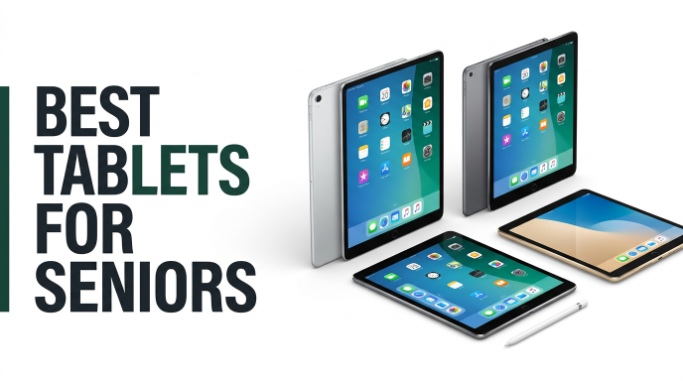
Choosing a tablet for an older adult in 2026 comes down to what makes daily use easy: a readable screen, simple navigation, dependable battery life, clear video calling, comfortable weight, and helpful accessibility features. We compare 10 standout tablets across those factors so shoppers can match the right device to a parent, grandparent, or independent senior.
The 10 tablets in this guide range from senior-specific devices with locked-down interfaces to mainstream Android and Amazon tablets with adjustable text size and voice assistants. Some prioritize simplicity and family-connection features, while others deliver broader app support, faster performance, and better displays for reading, streaming, and casual games.
The right pick depends on how tech-comfortable the user is, whether family will help with setup, and what activities matter most. This roundup covers screen size, weight, battery life, cameras for video calls, storage, ecosystem, and value so you can decide quickly without wading through overlapping spec sheets.
We compared 10 tablets for seniors using the details that actually matter: screen size and readability, weight for comfortable handheld use, battery life for all-day sessions, camera quality for video calls, ease of setup, accessibility settings, storage capacity, app ecosystem, and long-term value. The notes focus on real trade-offs between senior-specific simplicity, mainstream Android flexibility, and Amazon’s family-friendly ecosystem so each pick connects to how older adults actually use a tablet.


Compare key features, scores, and current prices side by side. A shorter feature list means fewer details were available, not necessarily fewer capabilities.




The Galaxy Tab A11+ is the strongest overall choice for seniors who want a full-featured Android tablet without stepping up to premium pricing. The 11-inch display is bright and easy to read, and the 90Hz refresh rate makes scrolling through news, photos, and social feeds feel noticeably smoother. Because it runs standard Android with Google services, familiar apps like Gmail, YouTube, Google Meet, and Google Photos work exactly as expected.
We may earn a commission when you buy through this link, at no additional cost to you.
Performance is comfortable for everyday use. With 6GB of RAM and 128GB of internal storage, there is room for many photos, video call apps, downloaded shows, and casual games without constant cleanup. The chipset handles video streaming, browsing, and light multitasking without lag, which reduces the small frustrations that can push older users away from a device.
The quad Dolby Atmos speakers are a genuine upgrade for movies, music, and video calls where clear speech matters. Combined with a bright 11-inch screen, this makes the Tab A11+ a strong choice for seniors who watch a lot of long-form content in bed or from a favorite chair. The 5MP front camera keeps grandkids sharp and recognizable during video chats, and Circle to Search plus Google Gemini give voice and visual shortcuts for users who prefer to ask rather than type.
Samsung includes accessibility settings that make this tablet especially senior-friendly. Increase font size, enable high-contrast mode, and pin the most-used apps like Phone, Messages, Camera, and a video calling app to the home screen. Removing unused shortcuts and disabling notifications from non-essential apps reduces confusion and keeps the interface calm.
The main trade-off is size and price. This tablet is not the lightest option in the guide, so seniors with weaker grip strength or wrist issues may prefer the 8.7-inch Tab A11. It also costs more than the Amazon Fire lineup. For a family who wants one tablet that will feel modern for several years and offers full Android flexibility, it is the most balanced pick here.
Users who want the smallest, lightest tablet possible or those on a tight budget who mainly need basic reading and video.
We may earn a commission when you buy through this link, at no additional cost to you.
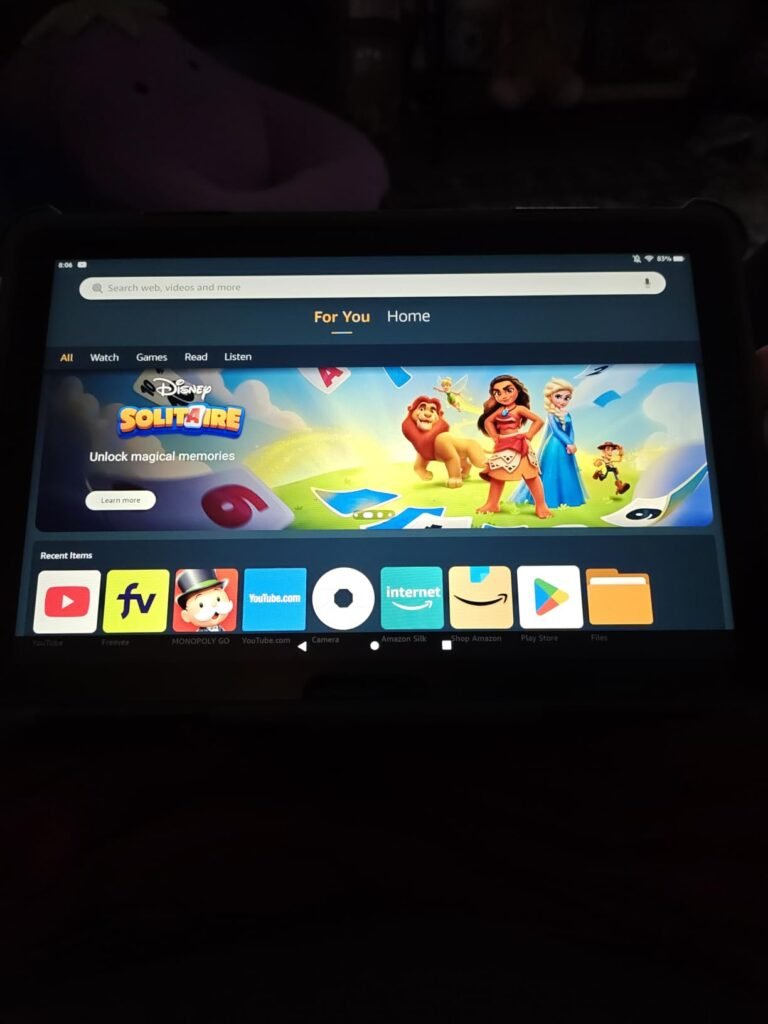
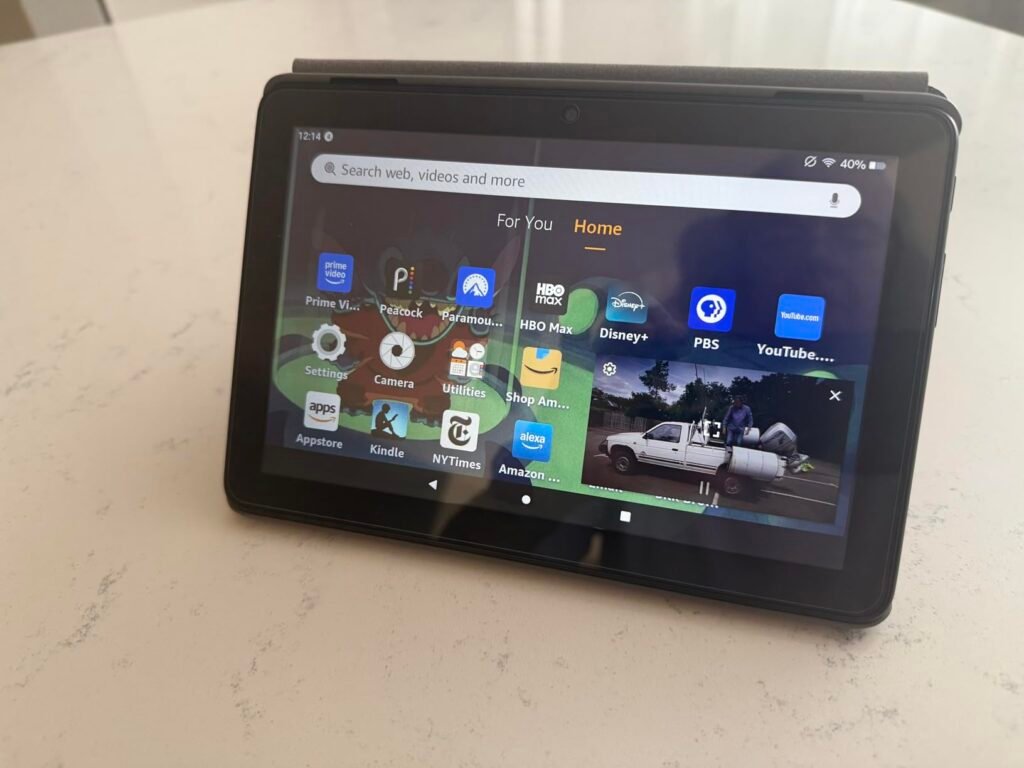
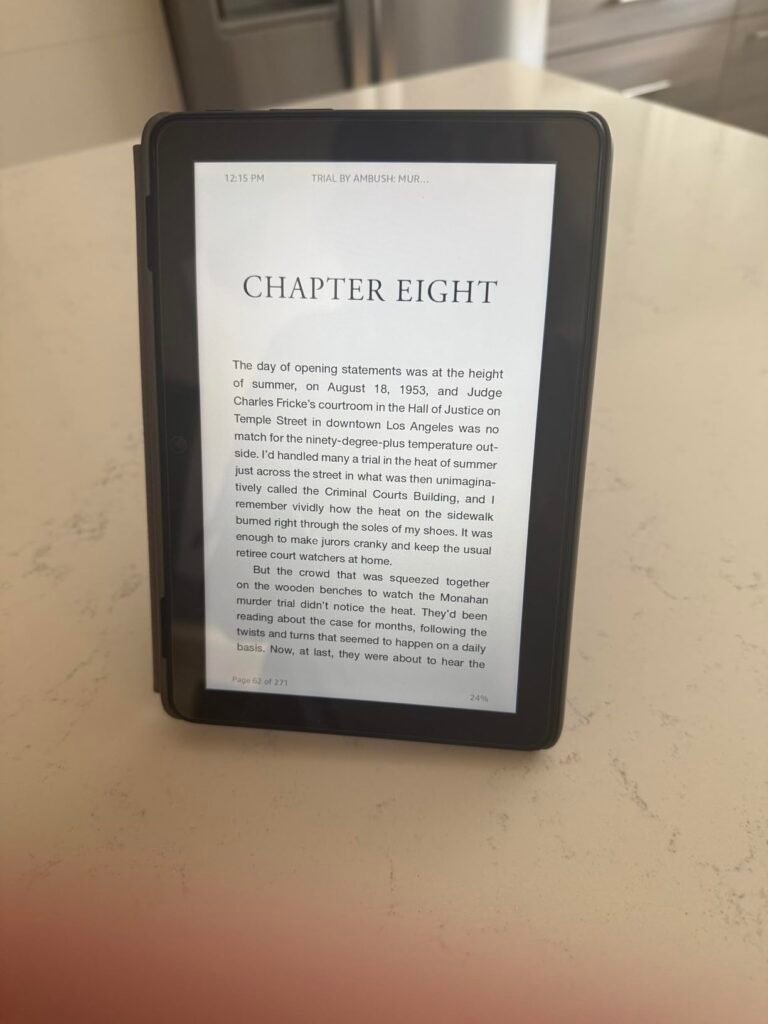
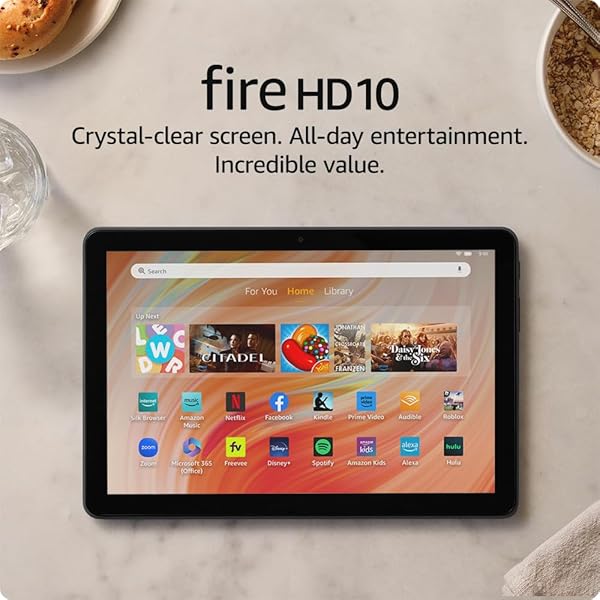
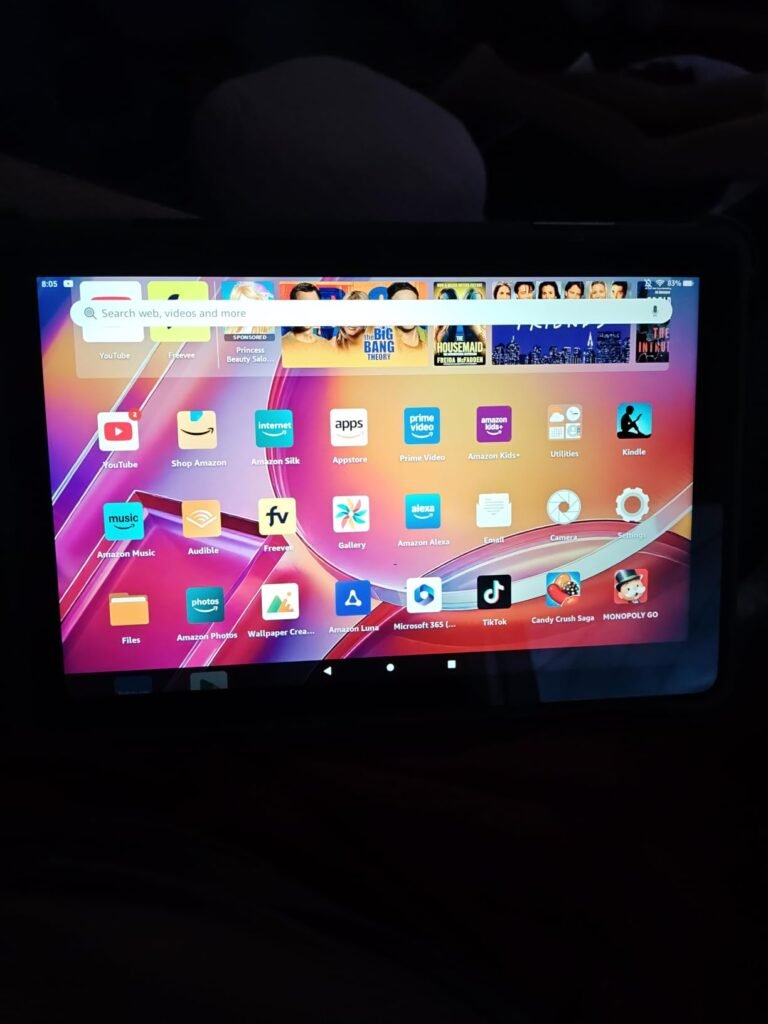
The Fire HD 10 is a practical starting point for seniors who mainly want to watch shows, video call family, listen to audiobooks, and browse simple websites. Its 10.1-inch 1080p screen is large enough for comfortable reading without squinting, and the price is one of the lowest in this size class. If a family member is already an Amazon shopper, setup is straightforward because everything ties into an existing account.
We may earn a commission when you buy through this link, at no additional cost to you.
Under the surface, the octa-core processor and 4GB of RAM give it about 25 percent more responsiveness than the previous generation, which shows up in smoother scrolling and faster app launches. The 13-hour battery means most users can go a full day of casual reading, video streaming, and light browsing without hunting for a charger. Storage starts at 32GB with microSD expansion up to 1TB, so downloaded movies and books have plenty of room.
Alexa is one of the most senior-friendly features here. Voice commands can start audiobooks, place video calls, ask for the weather, or control smart home devices without navigating menus. Aluminosilicate glass adds meaningful drop protection, which matters if the tablet sometimes slips from a lap or nightstand. The 5MP front camera handles Zoom and Alexa calling clearly enough for regular family chats.
Voice control removes a lot of friction for users who struggle with small icons or forget menu paths. Asking Alexa to read the last book, call a grandchild, or play a specific playlist works from across the room, which is helpful for anyone with limited mobility. Pair the tablet with an Echo Show and calling becomes even simpler because contacts sync automatically.
The main trade-off is the Amazon Appstore. Google Play is not supported, so a few popular apps may be missing or require workarounds. For seniors who mostly use Prime Video, Kindle, Audible, YouTube through the browser, Zoom, and Facebook, this is rarely a problem. If your loved one wants access to the full Google app catalog, one of the Samsung or Lenovo tablets in this guide will be a better fit.
Seniors who need full Google Play app compatibility or want to use Gmail, Google Meet, and Google Photos as their primary apps.
We may earn a commission when you buy through this link, at no additional cost to you.
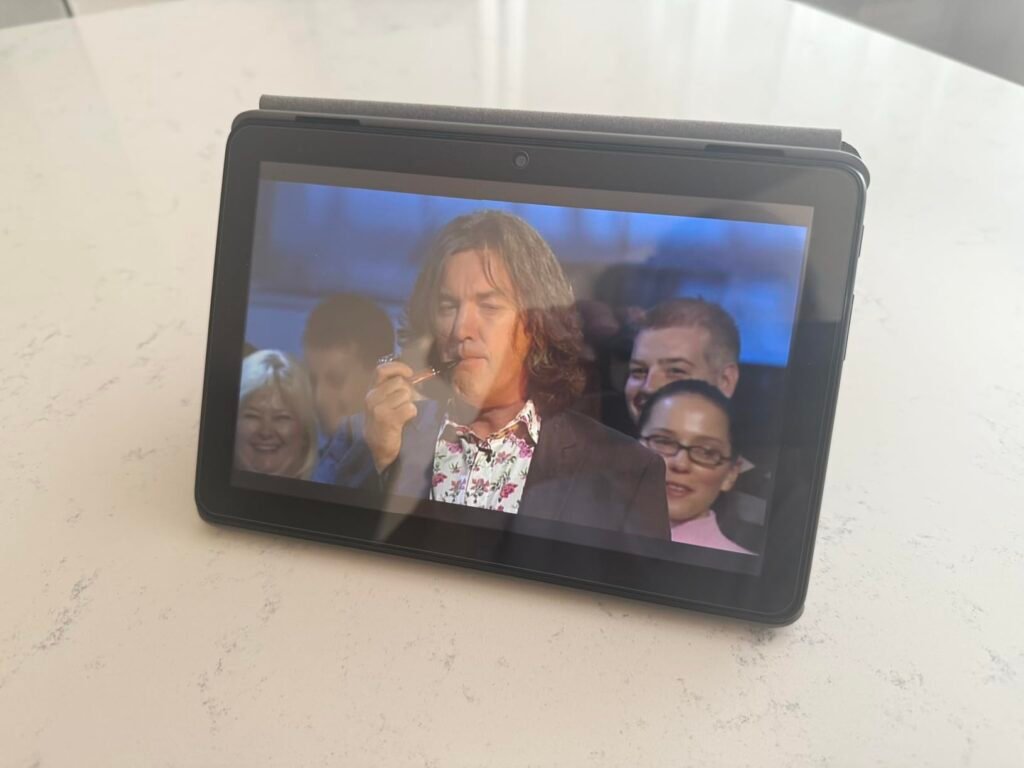
The Fire HD 8 fits the classic use case of a bedside or armchair tablet for a senior who wants an easy device without a lot of setup. The 8-inch HD screen keeps the tablet light and easy to hold in one hand, which is helpful for anyone dealing with arthritis or weaker grip strength. It runs the same Amazon software as the larger Fire HD 10, so seniors already comfortable with Kindle, Prime Video, and Alexa will feel right at home.
We may earn a commission when you buy through this link, at no additional cost to you.
Performance is meaningfully improved over the previous version thanks to a hexa-core processor and 4GB of RAM, which is double what the 2022 version offered. Everyday tasks like opening apps, scrolling photos, and starting video calls feel responsive. 64GB of storage plus microSD expansion leaves plenty of space for downloaded audiobooks, offline movies, and family photo backups.
Battery life reaches up to 13 hours of reading, browsing, and video watching, so this tablet can go through a full day of casual use without needing a mid-afternoon charge. Alexa voice control is again a highlight: calling family, playing music, checking the weather, or setting medication reminders all work through spoken commands. The 5MP rear camera handles simple photos, though seniors will mostly use the front camera for calls.
Choose the HD 8 when the tablet will be held one-handed, carried in a purse, or used mostly for audio, short videos, and quick messaging. Choose the HD 10 when the tablet will sit on a lap, table, or stand for longer sessions of streaming, reading, and video calls where a bigger display reduces eye strain.
The trade-offs match the Fire HD 10. There is no Google Play, so some apps must be sideloaded or replaced with alternatives. The smaller screen also means fewer words per page when reading news or long emails, which some seniors will prefer for portability while others will find limiting. If budget is tight and portability matters more than screen size, this is a strong choice.
Seniors who want the largest possible display for long reading sessions or those who need full Google app support.
We may earn a commission when you buy through this link, at no additional cost to you.
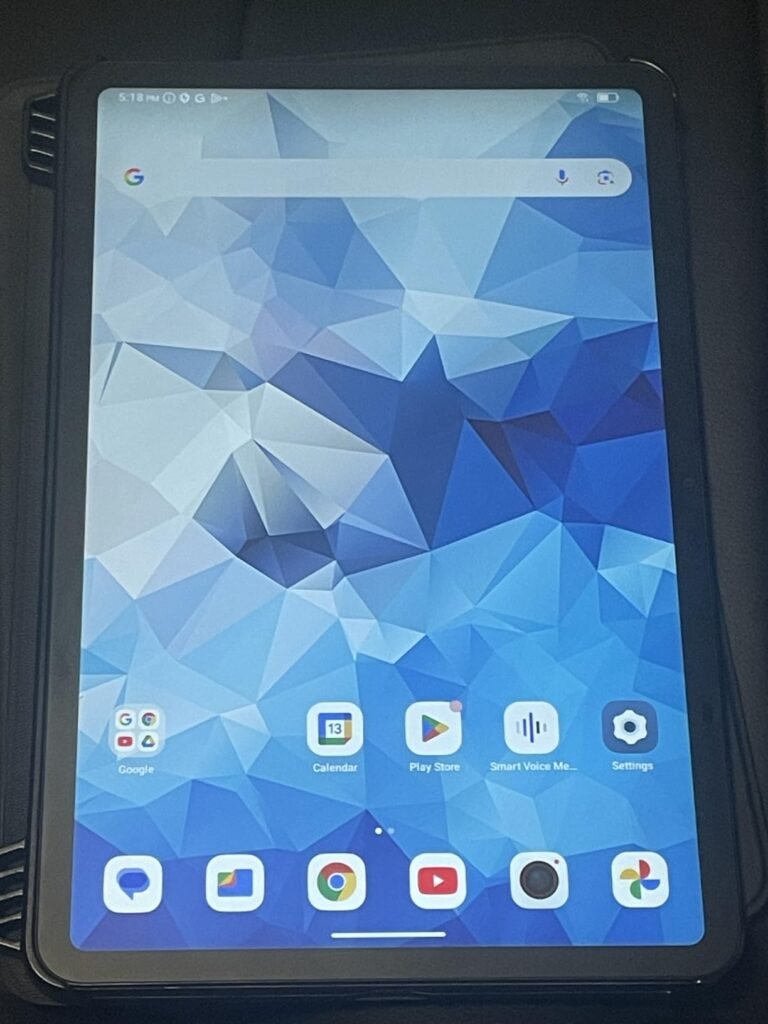
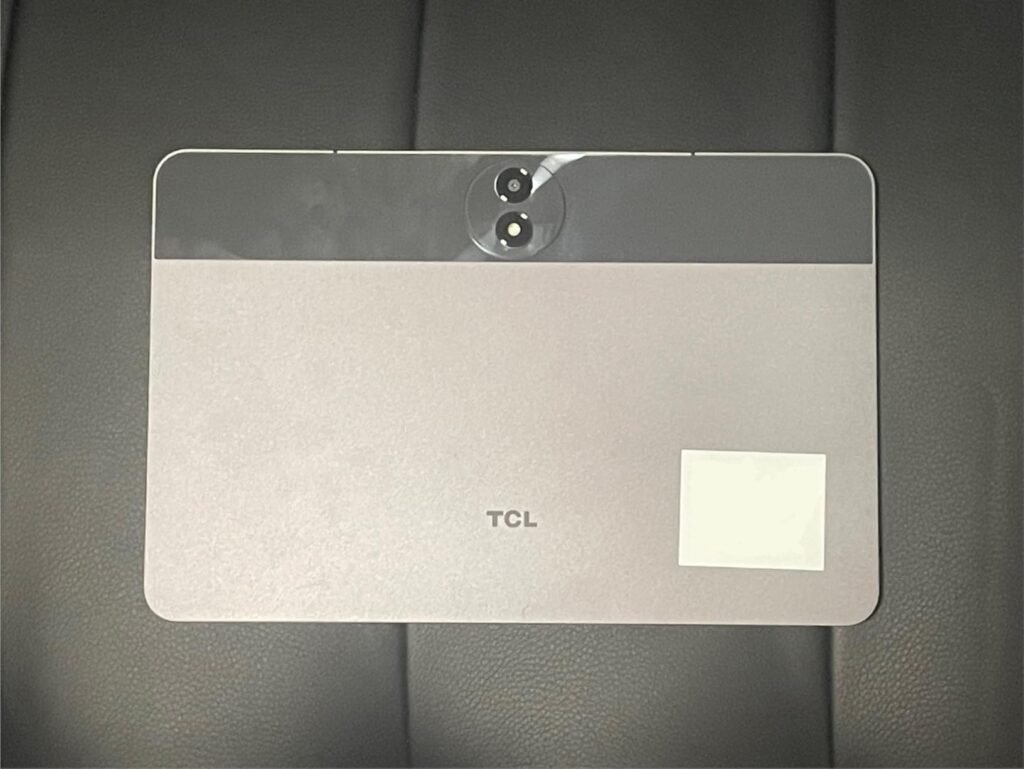
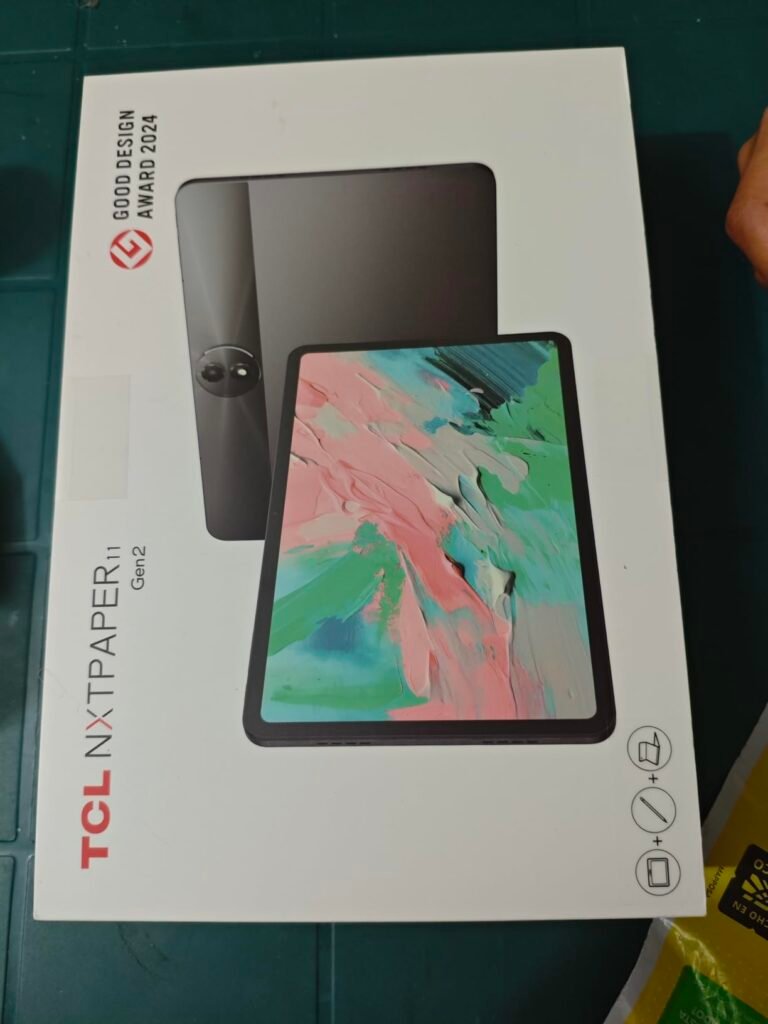
The TCL TAB 10 Gen 4 targets the sweet spot of a 10-inch Full HD Android tablet without stretching the budget. The 1920×1200 IPS panel with TCL NXTVISION enhancement produces sharp text and rich colors, which matters for seniors who spend long stretches reading news, recipes, or e-books. The slim 0.30-inch metal unibody weighs about 0.87 pounds, making it easy to hold or prop against a pillow.
We may earn a commission when you buy through this link, at no additional cost to you.
The octa-core processor paired with 4GB of physical RAM and 8GB of expandable virtual RAM is optimized to keep the tablet responsive on Android 15. That translates into smooth transitions between messaging apps, browser tabs, and streaming services. 128GB of internal storage plus microSD support up to 1TB is more than most seniors will ever need, but it removes any worry about running out of space for photos or offline video.
Battery life comes from a 6000mAh cell that supports 18W fast charging when paired with a compatible charger. In practice this means a full day of streaming, browsing, and video calls, with a top-up in under an hour when needed. Dual speakers with Sound Booster deliver noticeably louder audio than most tablets in this price range, which helps seniors who prefer higher volume for movies and calls without headphones.
Blue light reduction settings warm the screen tones in the evening, which reduces eye strain and helps with sleep quality after nighttime reading or video sessions. Combined with a Full HD panel and larger system fonts, Eye Comfort mode makes long sessions less tiring. Encourage the user to schedule the feature to turn on automatically at sunset.
This is a smart pick for shoppers who want a well-built Android tablet without paying premium prices. Face Unlock, Kids Space, Family Link parental controls, and Eye Comfort mode are all useful in a multi-user household. The trade-off is that TCL is less well-known for tablets than Samsung or Amazon, and a fast charger is not included in the box. Purchase an 18W USB-C charger separately to get the full benefit.
Seniors who prefer buying from a well-known brand ecosystem like Samsung or Apple and want in-person support at retail stores.
We may earn a commission when you buy through this link, at no additional cost to you.
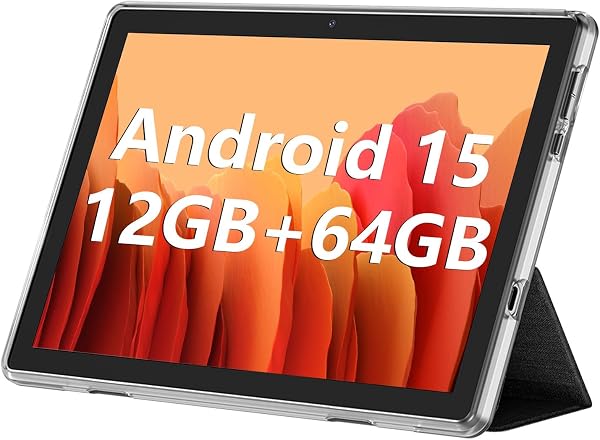
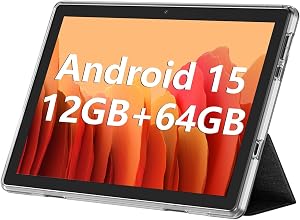
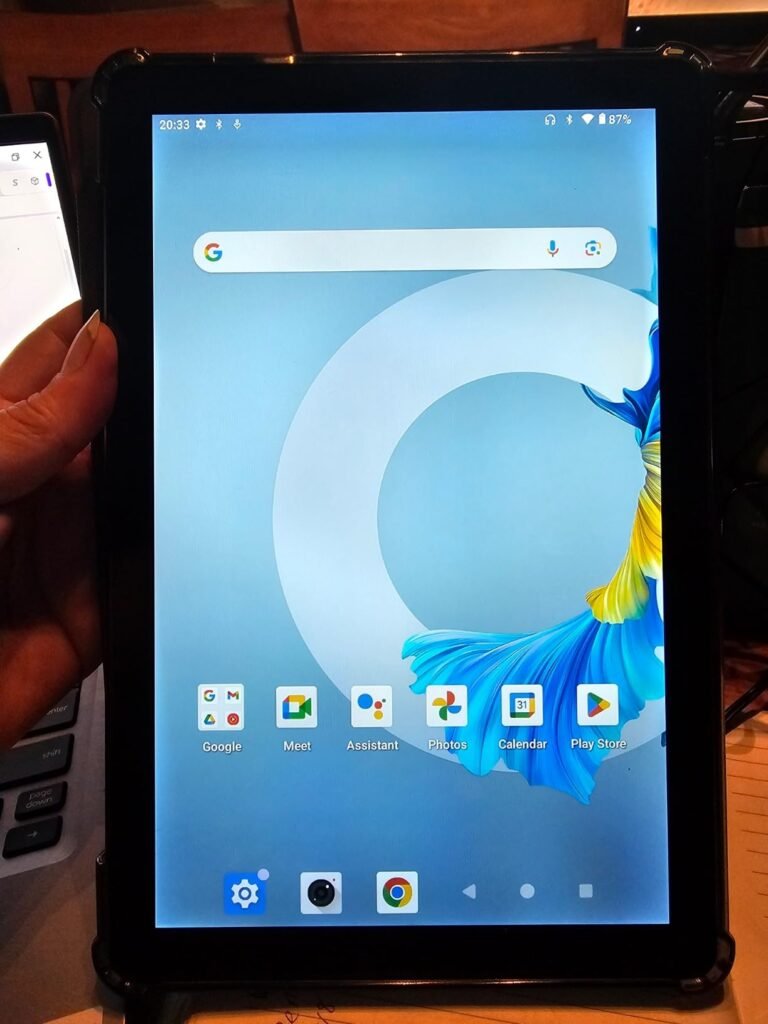
The ECOPAD 10.1 is aimed at buyers who want a 10-inch Android tablet at the lowest possible price. It runs Android 15 with Google Mobile Services, so seniors can download familiar apps like YouTube, Facebook, WhatsApp, and Gmail directly from the Play Store. For an older adult who mostly checks email, watches videos, and calls family, this covers the essentials without a big investment.
We may earn a commission when you buy through this link, at no additional cost to you.
The 10.1-inch IPS screen uses 1280×800 resolution, which is lower than the Full HD panels on the Fire HD 10 and TCL TAB 10 Gen 4. Text is still readable at reasonable font sizes, but photos and videos will not look as sharp. The quad-core processor is enough for one-app-at-a-time use like reading news, watching YouTube, or making a video call, but it can slow down when several apps are open at once.
12GB of combined RAM (4GB physical plus 8GB virtual) and 64GB of storage cover normal use, and the microSD slot expands storage up to 1TB for photo and video collections. The 6000mAh battery supports up to 8 hours of video playback, which is enough for a day of intermittent use. Dual cameras handle video calls and casual snapshots, though camera quality is basic.
A low-cost Android tablet is a good match when the user is new to tablets and might not stick with one, or when a device will sit in a specific spot for one purpose like watching cooking videos in the kitchen. If the senior turns out to love the tablet, upgrading later to a Samsung or a Fire HD is easy because photos and accounts can move over.
This is a sensible entry-level pick when budget is the top priority and the user’s expectations are modest. Be honest about the trade-offs: performance and screen quality do not match Samsung, TCL, or Amazon models. If the tablet will be a first device to test whether a senior enjoys using one, or a spare kitchen tablet for recipes and video calls, the ECOPAD is a reasonable low-risk choice with a 1-year warranty.
Users who need sharp Full HD text for long reading sessions or who plan to run several demanding apps at the same time.
We may earn a commission when you buy through this link, at no additional cost to you.
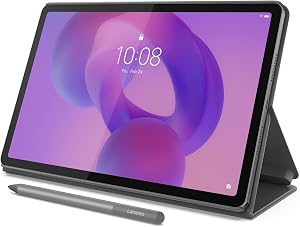
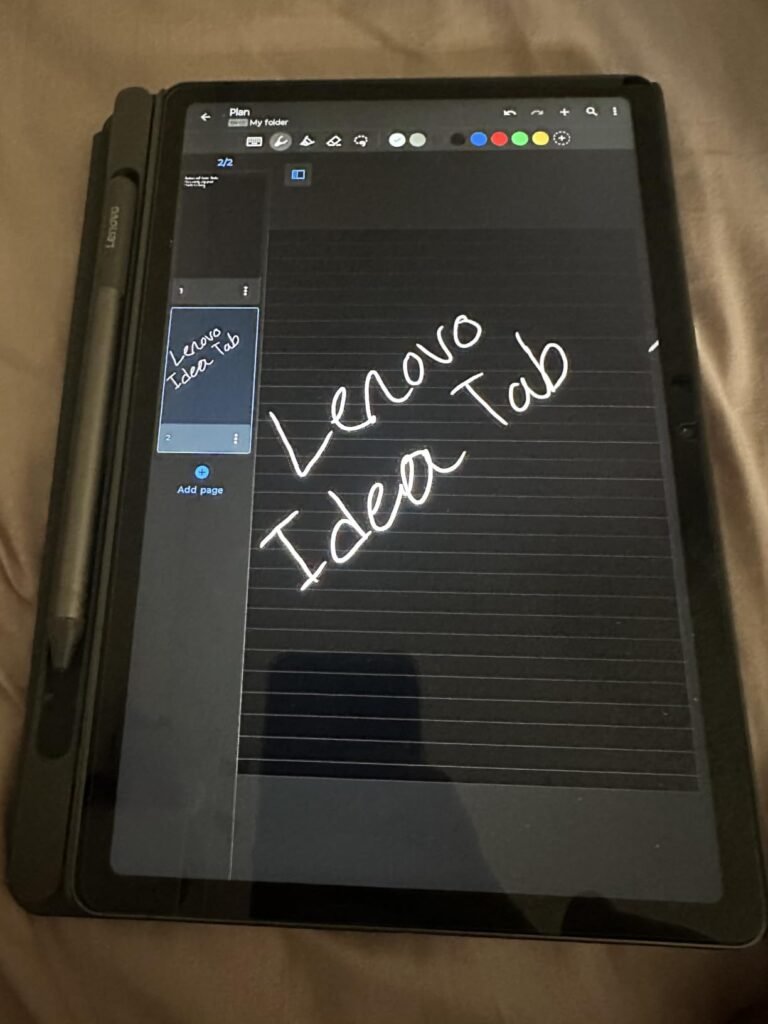
The Lenovo Idea Tab stands out for shipping with both a stylus pen and a folio case, which normally cost extra with competing tablets. For a senior who likes to sketch, take handwritten notes, or annotate documents, the pen adds real value. The included folio doubles as a stand for hands-free video calls and reading, and it protects the tablet during casual travel.
We may earn a commission when you buy through this link, at no additional cost to you.
The 11-inch 2.5K IPS panel is the sharpest display in this guide. Text looks crisp at any font size, which is a genuine benefit for older users who bump up system fonts to reduce eye strain. The 90Hz refresh rate makes scrolling smooth, and TÜV Rheinland low blue light certification helps reduce fatigue during longer reading sessions. Quad Dolby Atmos speakers deliver rich sound for movies, audiobooks, and video calls.
The MediaTek Dimensity 6300 processor handles standard tasks well, and 128GB of storage leaves plenty of room for apps, photos, and downloaded content. Battery life stretches up to 12 hours of YouTube streaming, and the 20W charger tops it back up quickly. Circle to Search with Google makes it easy to identify items on screen or translate text without switching between apps, which can be a helpful shortcut for seniors who are less confident with menus.
Encourage seniors to try apps like Lenovo AI Note, Squid, or Nebo for handwritten notes and journaling. Handwriting recognition converts scribbled notes into typed text, which is easier for arthritic hands than typing on a virtual keyboard. The pen also makes it easier to tap small buttons precisely, which can improve accessibility for users with tremors.
The 4GB of RAM is the main limitation for future-proofing. It is enough for typical single-app use, but power users who juggle many apps may notice slowdowns. This tablet suits seniors who want a sharp display, included accessories, and a comfortable reading experience without paying premium tablet prices. The college marketing does not change the fact that the hardware works beautifully for older adults, too.
Heavy multitaskers who need more than 4GB of RAM or shoppers looking for the absolute lowest price.
We may earn a commission when you buy through this link, at no additional cost to you.
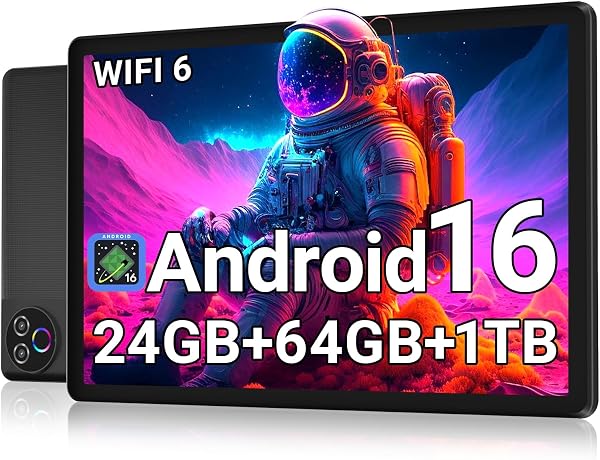
The Evermyth 10-inch tablet is another budget-oriented Android option, but it stands out for shipping with Android 16 and modern wireless standards. Wi-Fi 6 improves speed and stability on newer home routers, and Bluetooth 5.4 offers better range and battery efficiency when pairing wireless headphones or a keyboard. For a senior whose home has a modern router, these upgrades produce smoother video streaming than older Wi-Fi 5 tablets in this price range.
We may earn a commission when you buy through this link, at no additional cost to you.
The 10-inch HD IPS panel at 1280×800 resolution is comparable to the ECOPAD. Text is readable but not razor sharp, so seniors who want the crispest possible reading experience will still prefer the Fire HD 10, TCL, or Lenovo options. Low blue light technology helps reduce eye strain during long sessions, which is worth enabling for evening use.
RAM is marketed as 24GB, but only 3GB is physical memory with 21GB expandable through virtual RAM. In everyday use this means smooth single-app performance and enough headroom to keep a few background apps ready. 64GB of onboard storage plus 1TB microSD expansion gives plenty of room for photos, videos, and offline media. The 6000mAh battery supports about 8 hours of active use.
Wi-Fi 6 reduces congestion when many devices share a home network, which is common in households with smart TVs, phones, and streaming devices. For a senior who watches Netflix or does video calls, this leads to fewer buffering pauses and steadier call quality. The upgrade only helps if the home router also supports Wi-Fi 6, so check the router before assuming a benefit.
Because it uses GMS-certified Android 16, downloading Zoom, WhatsApp, Facebook, YouTube, and Gmail is straightforward from the Play Store. This tablet is a solid low-cost gift option for a senior who wants a modern Android experience without spending Samsung-level money. Just set realistic expectations: build quality and camera performance will not match higher-priced models, but the core functions work well for the money.
Users who prioritize a Full HD display or a premium metal build for daily handheld use.
We may earn a commission when you buy through this link, at no additional cost to you.
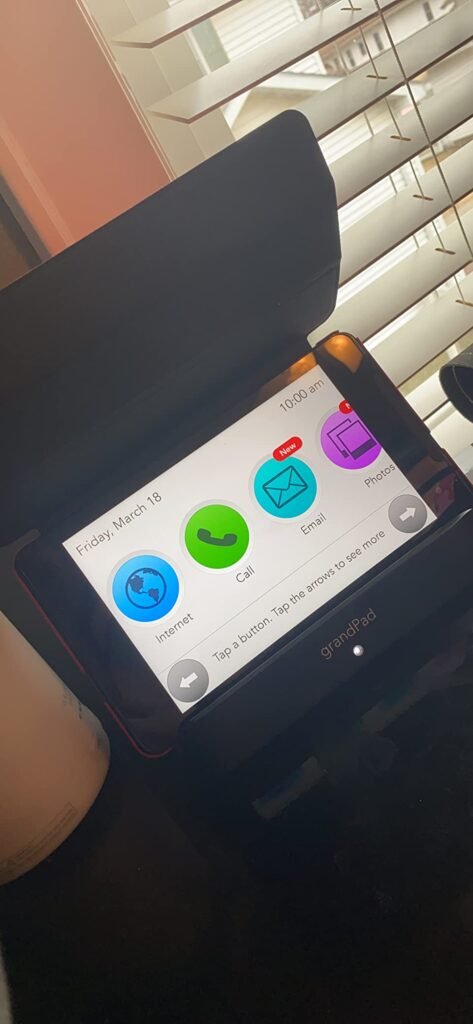
The GrandPad takes a completely different approach from every other tablet in this guide. Instead of running standard Android or Amazon software, it uses a custom interface designed specifically for older adults who are uncomfortable with mainstream tablets. Large icons, simplified menus, and a locked-down private network make it nearly impossible for the user to get lost, delete something important, or fall victim to a scam.
We may earn a commission when you buy through this link, at no additional cost to you.
It combines a tablet and a phone in one device with voice and video calling, photo sharing, curated music, games, and a virtual companion named Grandie. Family members download a free companion app on Android or iPhone to send photos and videos, which appear on the GrandPad automatically without the senior needing to manage anything. This solves one of the biggest connection problems for older adults who struggle with email attachments and app logins.
Fraud prevention is a major reason families choose this device. The private network blocks unknown callers, spam, and scams that target seniors, and select plans include 911 calling. US-based customer service is another strong differentiator: users can call for help and reach a real person who will walk them through any issue. That kind of support is rare with mainstream tablets and can be worth the cost on its own.
Choose the GrandPad when a senior has cognitive decline, severe technology anxiety, poor vision, or a history of being targeted by phone scammers. It is also a strong choice when family lives far away and wants a simple, reliable way to share photos and video call without asking the senior to manage passwords or app updates.
The trade-off is the required service plan starting at 25 dollars per month or 275 dollars per year. Without a plan, functionality is very limited, and the tablet is not compatible with other wireless carriers. If a senior struggles with standard tablets, forgets passwords, or is a target for phone scams, the GrandPad is well worth the subscription. For tech-comfortable seniors who want app flexibility, a standard Android tablet will be a better value.
Tech-comfortable seniors who want to download standard apps, browse freely, or avoid a monthly subscription.
We may earn a commission when you buy through this link, at no additional cost to you.
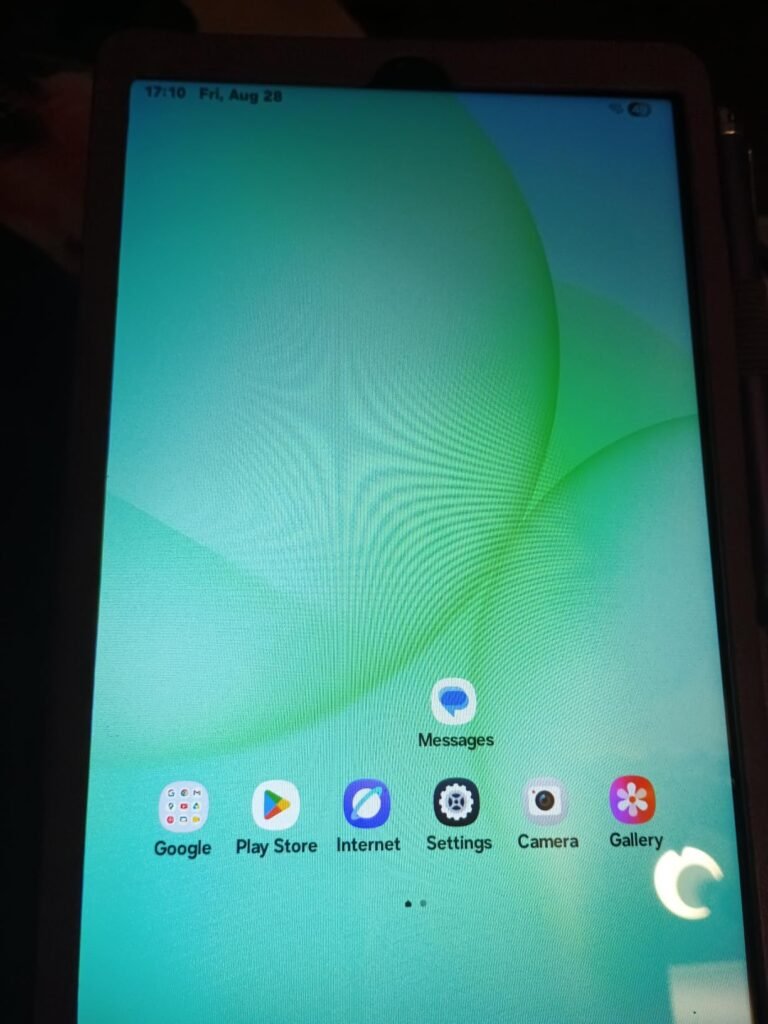
The 8.7-inch Galaxy Tab A11 is a strong pick for seniors who want a Samsung tablet in a compact, easy-to-hold size. The smaller footprint makes it comfortable for one-handed use during reading, messaging, or video calls, which matters for anyone with limited grip strength or wrist issues. Despite the smaller size, it runs the full Samsung One UI 7 on Android 15, so the app experience matches the larger Tab A11+.
We may earn a commission when you buy through this link, at no additional cost to you.
The 90Hz display keeps scrolling smooth and modern-feeling, and the WXGA+ resolution is adequate for its size. The MediaTek Helio G99 processor handles video streaming, browsing, and casual games without complaints, and 4GB of RAM is enough for typical single-app use. 64GB of storage plus microSD expansion up to 2TB gives one of the widest storage ceilings in this guide.
Battery capacity of 5100mAh supports a full day of casual use, and Bluetooth 5.3 pairs nicely with modern hearing aids and wireless earbuds. The 5MP front camera keeps video calls sharp, and the 3.5mm headphone jack is a genuinely useful feature for seniors who prefer wired headphones for calls and music. Samsung’s ecosystem also gives access to helpful accessibility features like larger fonts, high-contrast mode, and voice assistant integration.
Pick the 8.7-inch model when portability, one-handed use, and a lower price matter more than screen size. Pick the 11-inch A11+ when the tablet will be used mostly on a lap or table for streaming, reading, or video calls where a larger display reduces eye strain and gives fuller access to complex apps like maps and photos.
The main caveat is that this is an international version, so it does not include a US warranty and the charger is not included in the box. Buyers will need to supply a USB-C charger separately. If those trade-offs are acceptable, this is a compact Samsung experience at a lower price than the Tab A11+. For a purely US-warranty Samsung experience, step up to the Tab A11+ instead.
Buyers who require a US warranty, English-only setup with region matched to the US, or an included charger in the box.
We may earn a commission when you buy through this link, at no additional cost to you.
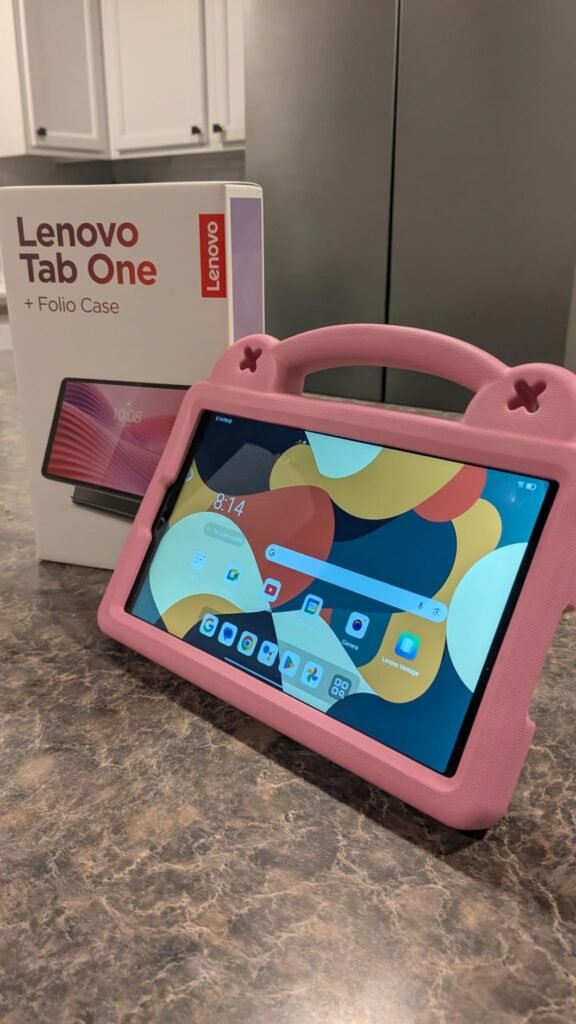
The Lenovo Tab One is another compact 8.7-inch Android tablet that comes bundled with a folio case, making it an especially good ready-to-gift option. The case protects the tablet from bumps and drops, and the built-in stand converts it into a hands-free video viewer or a stable surface for video calling. For seniors who receive the tablet as a gift and are not comfortable buying accessories separately, this bundle removes a step.
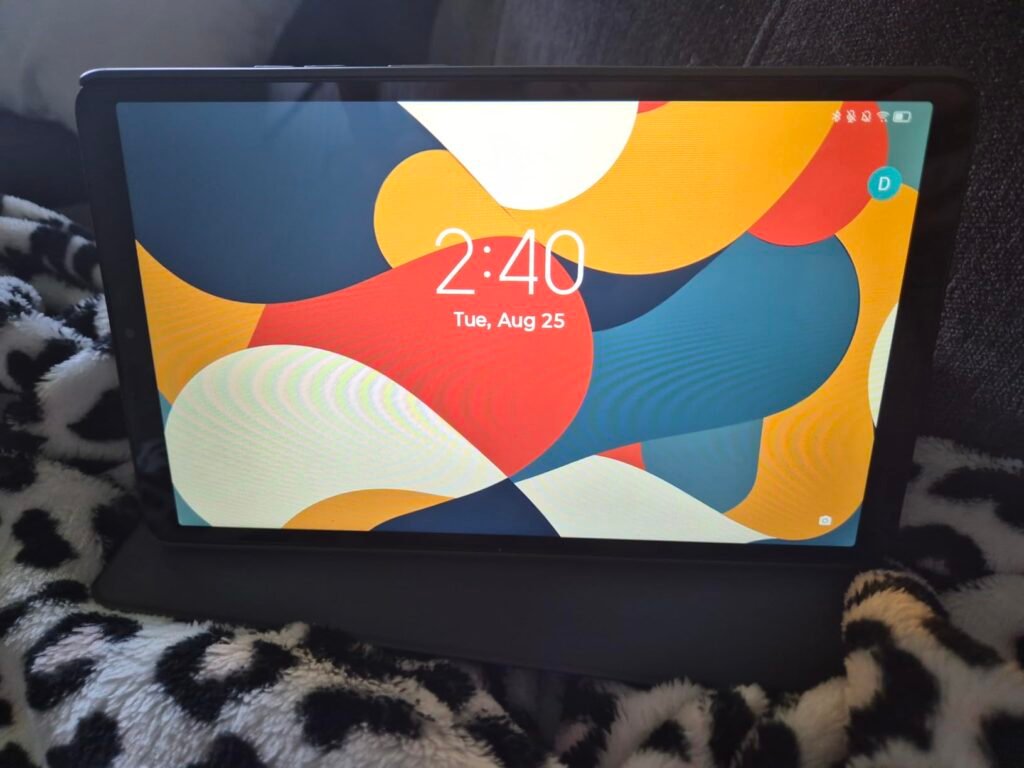
We may earn a commission when you buy through this link, at no additional cost to you.
The 8.7-inch HD display reaches 480 nits of brightness, which helps in well-lit rooms or near windows where dimmer screens can wash out. Dual Dolby Atmos speakers deliver clearer sound than most tablets in this size class, which is useful for movies, audiobooks, and video call speech clarity. The MediaTek Helio G85 processor handles browsing, streaming, and light gaming without noticeable lag.
Battery life is one of the strongest features here: up to 12.5 hours of unplugged YouTube streaming means most users can go a full day without charging. The 15W charging speed is faster than previous Lenovo models, and Android 14 with two years of security patches keeps the tablet safer over time. Google Kids Space is available if grandchildren occasionally use the tablet during visits.
A folio case does more than protect against drops. It props the tablet up for hands-free viewing, which matters for seniors who want to watch a show while eating or make a video call without holding the tablet the entire time. It also covers the screen when the tablet is set aside, reducing accidental taps and dust. Getting a case bundled saves the buyer from choosing a compatible one separately.
The trade-offs are the HD resolution and 60Hz refresh rate, which are lower than the Samsung and Lenovo Idea Tab alternatives. Text is still readable, but crisp Full HD or 2.5K screens will look noticeably sharper. This tablet is a strong choice for seniors who want a compact, easy-to-carry Android tablet with all-day battery and a case included in the box. Users who prioritize display sharpness should consider the Lenovo Idea Tab or Samsung Tab A11+ instead.
Users who want the sharpest possible screen for long reading sessions or the smoothest possible scrolling at 90Hz or higher.
We may earn a commission when you buy through this link, at no additional cost to you.
Buying a tablet for an older adult is different from picking one for yourself. Comfort, clarity, and simplicity often matter more than raw performance. The factors below cover what really affects daily satisfaction and long-term use.
Screen size is one of the most important choices because it directly affects how comfortable the tablet is to read and how easy it is to hold. Tablets in this guide range from 8.7-inch compact models like the Lenovo Tab One and Samsung Tab A11 up to 11-inch options like the Samsung Tab A11+ and Lenovo Idea Tab. Larger screens make text and buttons easier to see, but they also add weight and can feel awkward to hold in one hand for long stretches.
Resolution matters as much as size. Full HD or higher panels display sharper text at large font sizes, which reduces eye strain during long reading sessions. HD-only tablets like the ECOPAD and Evermyth work fine at moderate font sizes but can look soft when text is enlarged aggressively. The Lenovo Idea Tab’s 2.5K panel is the sharpest option here, with the Fire HD 10, TCL TAB 10 Gen 4, and Samsung Tab A11+ providing Full HD clarity.
For seniors with vision challenges, prioritize a 10 or 11-inch Full HD display and enable large system fonts. For seniors who plan to hold the tablet often or carry it around the house, a lighter 8.7-inch model may feel more comfortable in daily use even if the screen shows less content per page.
Weight is easy to overlook until the tablet has been held for 30 minutes. Larger tablets can strain wrists and forearms, especially for seniors with arthritis, tendonitis, or reduced grip strength. Models in the 8.7-inch class typically weigh under one pound, while 10 to 11-inch tablets often reach one pound or more before adding a case. That difference is significant during long reading or streaming sessions.
A folio case can add another quarter to half a pound but earns its keep by including a built-in stand. Standing the tablet on a table or lap tray during video calls or TV watching removes weight from the user’s hands entirely. Consider the tablet plus case together when evaluating comfort, not just the bare device weight in the product specifications.
If the tablet will spend most of its time propped on a stand or lying on a table, weight matters less and a larger screen is usually better. If it will be carried from room to room and held while reading in bed, a lighter 8.7-inch tablet like the Samsung Tab A11 or Lenovo Tab One will be easier on the wrists.
Interface complexity is where a lot of frustration starts. Standard Android tablets from Samsung, Lenovo, TCL, and other brands offer accessibility features like larger fonts, high-contrast display modes, voice assistants, magnification gestures, and text-to-speech. These help significantly, but the user or a family member must set them up thoughtfully. Removing unused apps from the home screen and organizing essentials into large tiles goes a long way toward reducing confusion.
Some devices go further with senior-focused interfaces built in from the start. The GrandPad is the clearest example: it replaces the standard Android home screen with oversized buttons for calling, photos, weather, and family messages, and it blocks unknown callers to prevent scams. Amazon Fire tablets sit between the two, with Alexa voice control that lets users open apps, place calls, and control smart home devices without navigating menus.
For a tech-comfortable senior, a standard Android tablet with accessibility settings turned on works well. For a senior who has struggled with previous devices, forgets menu paths, or is at risk of scam calls, the GrandPad or an Amazon Fire tablet with Alexa configuration will be more successful long-term.
Battery life determines how often the user needs to think about charging. Every tablet in this guide advertises at least 8 hours of active use, with the Amazon Fire HD 10 and Fire HD 8 reaching 13 hours and the Lenovo Tab One reaching 12.5 hours of YouTube streaming. For a senior who might forget to charge the tablet overnight, longer battery life is a genuine convenience.
Charging speed matters too. The TCL TAB 10 Gen 4 supports 18W fast charging, and the Lenovo Idea Tab includes a 20W charger in the box. Faster charging means less waiting when the tablet does run low, which is especially helpful if the senior wants to use it right away. Note that some tablets ship without a fast charger, so budget for a compatible USB-C charger if needed.
For a senior with a consistent routine of charging the tablet at bedtime, any option here will comfortably last through the day. For someone who uses the tablet unpredictably or forgets to charge it, prioritize longer battery models and consider adding a wireless charging stand or dock for automatic charging when the tablet is set down.
For many seniors, video calling family is the single most important reason to own a tablet. The front-facing camera is the specification that matters most here. Most tablets in this guide use 5MP front cameras, which are sharp enough for clear video calls with grandchildren, adult children, and friends. The Samsung Galaxy Tab A11+ specifically highlights enhanced camera clarity for lifelike expressions during calls.
Beyond raw megapixels, consider microphone and speaker quality. Tablets with quad speakers like the Samsung Tab A11+ and Lenovo Idea Tab deliver clearer voice reproduction during calls, which matters for seniors with hearing aids or reduced hearing. Also confirm that the tablet supports the video calling apps the family already uses, whether that’s Zoom, FaceTime alternatives, WhatsApp, or Google Meet.
For families where video calling is the priority, prioritize a tablet with a good front camera, clear speakers, and native support for the app the family prefers. Pair the tablet with a stand or folio case for hands-free calling, which is much more comfortable than holding the tablet up for an entire conversation.
The app ecosystem determines what the tablet can actually do. Standard Android tablets from Samsung, Lenovo, TCL, ECOPAD, and Evermyth support the Google Play Store, which gives access to essentially every mainstream app including Gmail, YouTube, WhatsApp, Facebook, Zoom, Netflix, and countless games and utilities. Amazon Fire tablets use the Amazon Appstore instead, which covers the popular basics but is missing some specific apps like Google’s own suite.
The GrandPad uses its own curated app selection focused on senior-friendly essentials. This is a deliberate design choice that trades flexibility for simplicity, which is exactly what some users need. If the senior wants to try new apps or has specific requirements like a particular medical portal or banking app, verify compatibility before buying rather than assuming any tablet will work.
For maximum flexibility, choose a standard Android tablet with Google Play support. For an easier out-of-the-box experience tied to Amazon services, choose a Fire tablet. For total simplicity with no app management required, choose the GrandPad.
Storage requirements depend heavily on how the tablet will be used. A senior who streams video and makes calls but does not download much can get by with 32 to 64GB, which is what the Fire HD 10 and Fire HD 8 offer at the base level. A user who downloads audiobooks, offline movies for travel, and many photos will appreciate 128GB or more, available on the Samsung Tab A11+, TCL TAB 10 Gen 4, and Lenovo tablets.
MicroSD expansion is common across Android tablets in this guide, with support for cards up to 1TB or 2TB. This is a useful way to add storage after purchase without upgrading the tablet, and microSD cards are inexpensive. The GrandPad does not follow this pattern because its curated ecosystem does not require the same file management approach.
Match storage to actual use. If the senior mostly streams and video calls, base storage is plenty. If they will store many photos, downloaded shows, and audiobooks locally, look for a model with a microSD slot and plan to add a card later as needed.
Value goes beyond the sticker price. Consider what is included in the box, whether a case is bundled, the length of software support, and the availability of help when something goes wrong. The Lenovo Idea Tab and Lenovo Tab One include a case, and some include a stylus. The GrandPad includes ongoing US-based customer service with the required subscription, which can be genuinely valuable for a senior who calls for help.
Software update commitments matter for security and long-term usability. Lenovo Tab One promises two years of security patches on Android 14, and Samsung typically provides multi-year updates on its Galaxy Tab lineup. Amazon updates Fire OS regularly. Cheaper generic tablets from lesser-known brands may not receive the same update commitments, which shortens the useful lifespan of the device.
For gifts to seniors, factor in the total ownership experience, not just the day-one price. A slightly more expensive tablet with a case, better support, and longer update commitments will often be a better long-term value than the cheapest option available.
Take time during initial setup to customize the tablet for the user rather than accepting default settings. Increase font size in system settings, enable high-contrast or bold text if available, and turn on any text-to-speech or magnification features that match the user’s needs. Remove unused pre-installed apps from the home screen and pin only the essentials like Phone, Messages, a video calling app, Photos, and a preferred browser. A clean, uncluttered home screen dramatically reduces confusion for anyone new to tablets.
Charge the tablet at the same time each day to build a habit. A bedside charging stand or dock makes this automatic because the tablet always returns to the same spot. Wipe the screen with a soft microfiber cloth regularly to keep it clear and easy to read, and consider adding a screen protector for scratch resistance. If the tablet did not ship with a case, add one with a built-in stand to protect against drops and to make hands-free video calling and video watching much more comfortable.
Set up scam and spam protection where possible. On mainstream Android and Amazon tablets, avoid installing apps from unknown sources and be cautious with permissions. Turn on automatic security updates so patches install without user action. If the senior is at high risk of falling for scam calls or messages, consider the GrandPad’s locked private network. Finally, share account passwords with a trusted family member so someone can help if the user forgets a login or needs troubleshooting.
A 10 or 11-inch tablet is generally the best balance for reading, streaming, and video calls because larger screens allow bigger fonts and easier-to-tap buttons. However, an 8.7-inch tablet is more comfortable to hold one-handed and lighter to carry around. If the tablet will spend most of its time on a stand or lap, go bigger. If it will be carried and held often, go smaller.
Both can work well. Android tablets like the Samsung Galaxy Tab A11+ tend to offer more screen size and features for the price, while iPads have a very consistent interface and strong long-term support. If the senior is already familiar with an iPhone, an iPad feels more natural. If cost matters or the family uses Android phones, an Android tablet integrates more smoothly and typically costs less.
The GrandPad is designed specifically for seniors with limited technology experience, using a locked simplified interface, oversized buttons, and blocked scam calls. Amazon Fire tablets with Alexa voice control are a strong middle option because spoken commands reduce menu navigation. If a family member will help with setup, a Samsung Galaxy Tab A11+ with large fonts and a customized home screen also works well.
Budget options like the Amazon Fire HD 8 or ECOPAD start under 130 dollars and cover the basics of streaming and video calls. Mid-range picks like the Fire HD 10, TCL TAB 10 Gen 4, and Samsung Tab A11+ fall between 150 and 250 dollars and offer sharper screens and better performance. Senior-specific solutions like the GrandPad cost more upfront and require a monthly plan but include human customer support.
For most home use, Wi-Fi is plenty because the tablet stays within range of the home router. If the senior travels often or spends time away from Wi-Fi, a cellular tablet or hotspot may be worthwhile. The GrandPad requires a monthly plan because it acts as both a tablet and a phone. Most other tablets in this guide are Wi-Fi only, which keeps monthly costs to zero.
Choose a tablet with a clear 5MP or better front camera and quad speakers if possible. Set up the video calling app in advance and pin it to the home screen. Use a folio case or stand so the tablet can sit at a comfortable angle without being held. Consider enabling voice-activated calling through Alexa on Fire tablets or through Google Assistant on Android tablets to skip menu navigation entirely.
Yes, especially for a senior. A folio case protects against drops from a lap or nightstand and doubles as a stand for hands-free viewing. A screen protector reduces scratches from keys, jewelry, and accidental scrapes. The Lenovo Idea Tab and Lenovo Tab One include a folio case in the box, while other tablets require buying accessories separately. Total ownership costs are often lower when a case is bundled.
Enable automatic security updates, avoid installing apps from unknown sources, and turn on any built-in scam or spam call blocking. Talk through common scam tactics like fake support calls, unexpected prize notifications, and phishing emails. The GrandPad blocks unknown callers by default at the network level, which is helpful for high-risk users. Share account passwords with a trusted family member so someone can help if problems arise.
The Lenovo Idea Tab ships with a stylus and a folio case included, and the Amazon Fire HD 10 supports the optional Made for Amazon Stylus Pen. Samsung Galaxy Tab A11 and A11+ work with third-party capacitive styluses. A stylus can be easier than fingertips for seniors with arthritis or tremors because it improves tap accuracy and enables handwritten notes with recognition apps.
Look for tablets with quad speakers and Dolby Atmos support like the Samsung Galaxy Tab A11+ and Lenovo Idea Tab, which deliver clearer voice reproduction. Pair the tablet with Bluetooth hearing aids or wireless earbuds for private listening. The Samsung Galaxy Tab A11 includes Bluetooth 5.3 and a 3.5mm headphone jack, giving flexibility for wired or wireless hearing solutions.
The Samsung Galaxy Tab A11+ is the strongest all-around choice for seniors who want a modern, capable Android tablet without stepping into premium pricing. Its 11-inch 90Hz screen, quad Dolby Atmos speakers, sharp video call camera, and full Google Play access make it flexible enough for years of use, and Samsung's One UI includes strong accessibility features that adapt well to older users.
For seniors who struggle with mainstream technology or are at real risk of phone scams, the GrandPad is a fundamentally different and often better answer, provided the family accepts the monthly plan. Budget-focused shoppers should look at the Amazon Fire HD 10 or Fire HD 8, which pair long battery life with Alexa voice control at a very approachable price. The Lenovo Idea Tab is the pick for buyers who want the sharpest display and included accessories, while the TCL TAB 10 Gen 4 offers a premium metal feel at a mid-range price.
Start by matching the tablet to the user rather than the specifications. A tech-comfortable senior benefits from a mainstream Android or Amazon tablet with a customized home screen. A senior with vision, memory, or scam concerns is often better served by the GrandPad or an Alexa-enabled Fire tablet. Add a case, set up video calling in advance, and take the time to configure accessibility settings. That thoughtful setup is what turns any of these tablets into a device the senior will actually enjoy using every day.