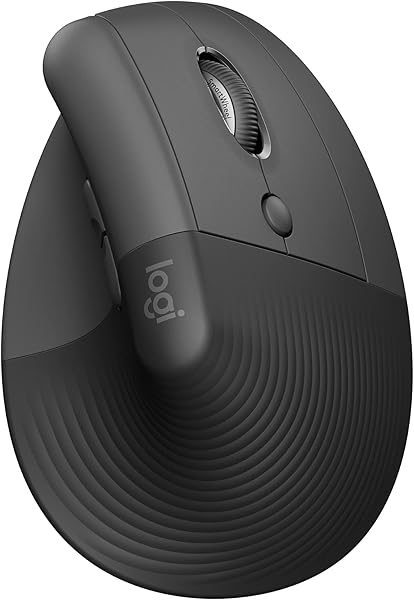
Logitech Lift Vertical
8.8Editor score57-degree vertical angle
Bluetooth and Logi Bolt
Two-year battery life
Whisper-quiet click buttons
Find the right ergonomic mice for 2026. We compare 10 standout options by build quality, useful features, owner feedback, value, and everyday trade-offs.
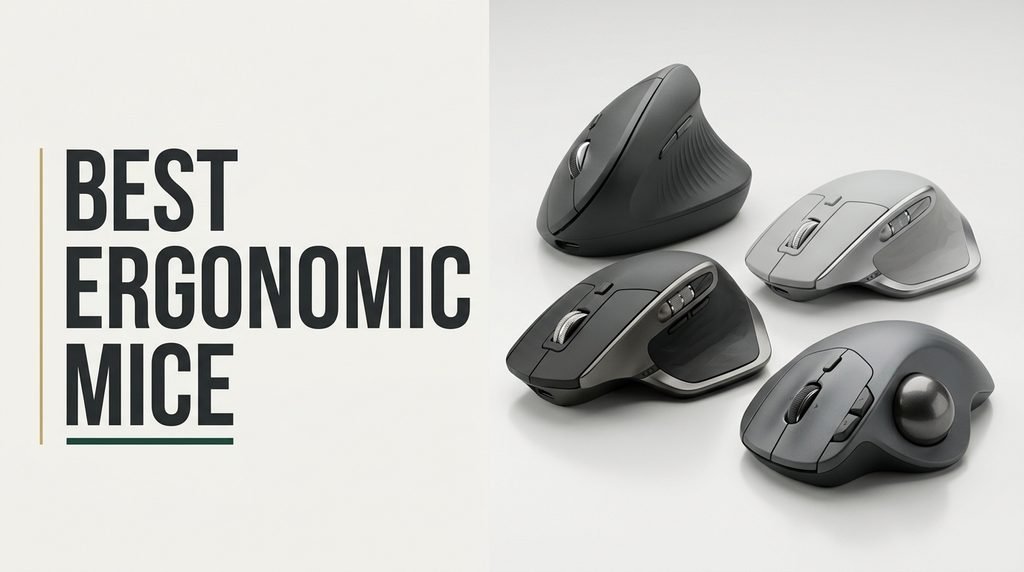
Finding the right ergonomic mouse for 2026 means balancing wrist angle, grip size, sensor precision, button layout, connectivity, and battery life against your daily workload. We compared 10 standout vertical, trackball, and contoured models by the factors that actually influence long-hour comfort, cursor control, and whether a design holds up through full workdays at a desk.
Ergonomic mice vary more than most shoppers expect. A 57-degree vertical shape feels dramatically different from a sculpted horizontal mouse or a thumb-operated trackball, and hand size plays a huge role in which design relieves strain rather than creates new pressure points. The right pick depends on your grip, your tasks, and whether you need multi-device switching.
Price also matters. Budget vertical mice can genuinely reduce wrist rotation, while premium models add precision sensors, programmable buttons, quiet clicks, and software customization. This guide breaks down what each option does well, who it suits, and the practical tradeoffs so you can match a mouse to your hand, your desk, and the way you actually work.
We evaluated 10 ergonomic mice using the criteria that genuinely affect long-term comfort and productivity: wrist angle, hand-size fit, sensor DPI range, button layout, click noise, connectivity options, battery type and runtime, build quality, software support, warranty length, owner feedback, and overall value. Each pick is framed around real buyer tradeoffs so you can match grip style, workflow demands, and desk setup to a mouse that actually relieves strain instead of shifting it elsewhere.


Compare key features, scores, and current prices side by side. A shorter feature list means fewer details were available, not necessarily fewer capabilities.




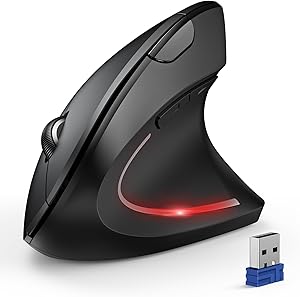


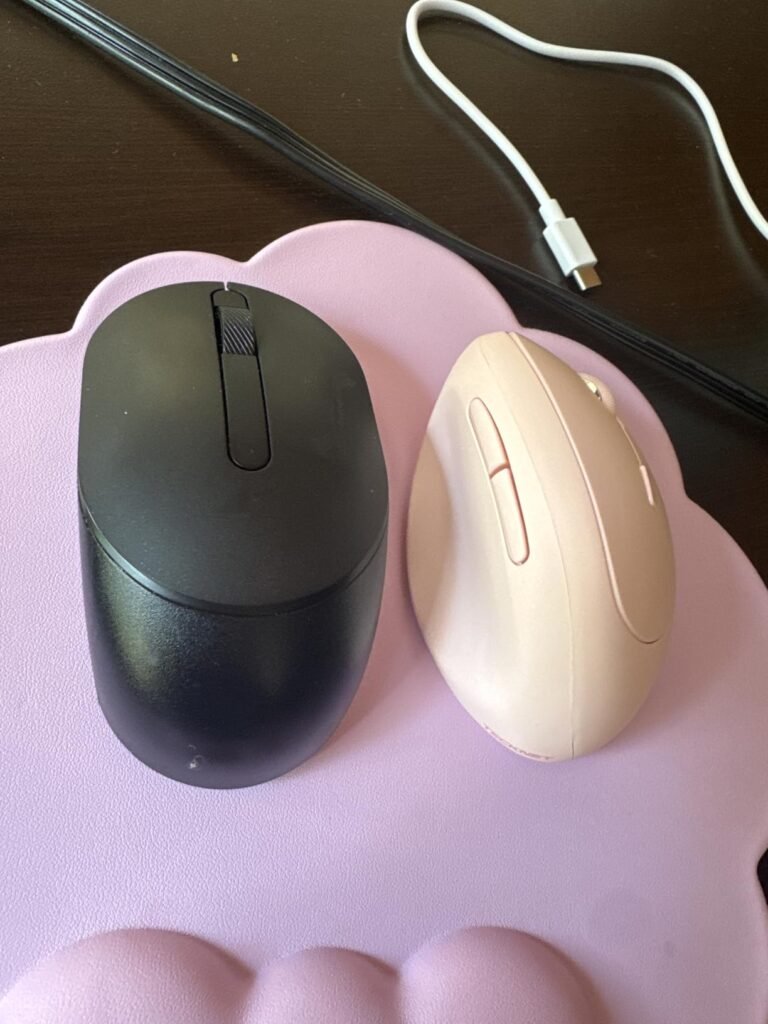
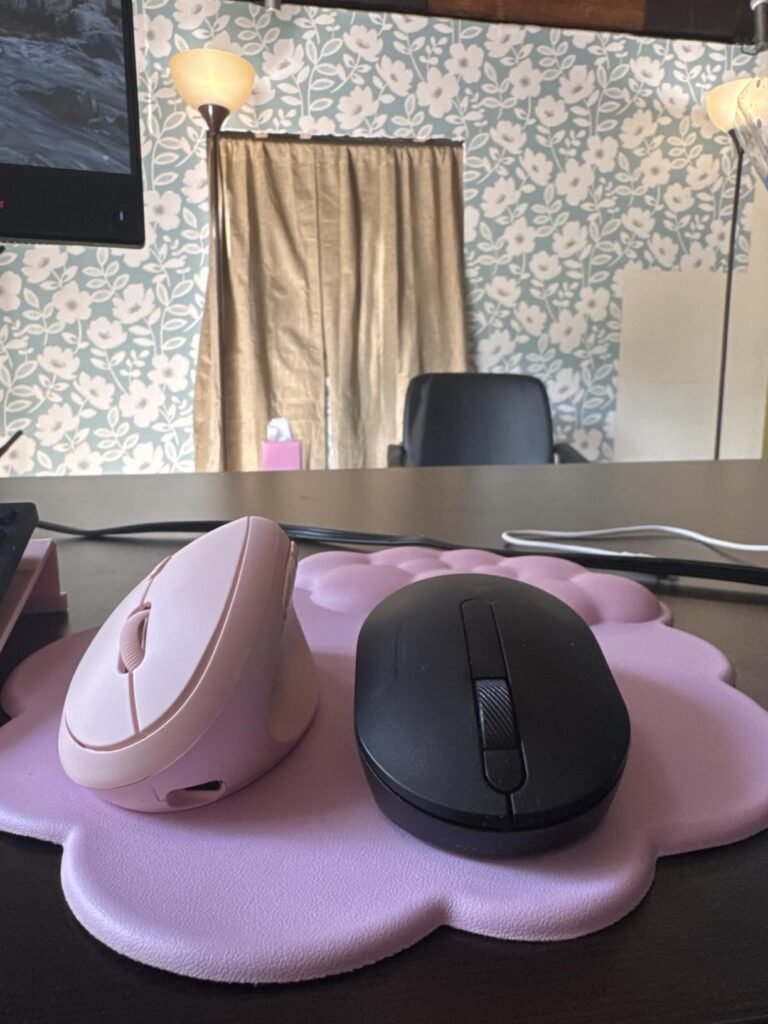
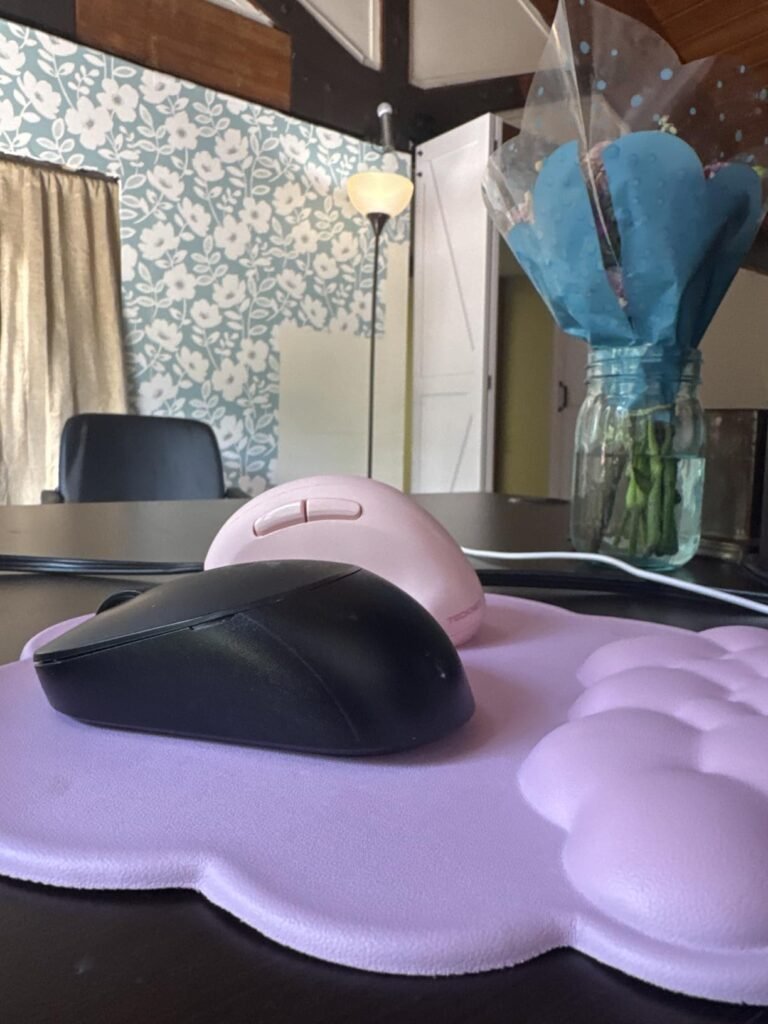
This TECKNET model packs an impressive feature set into a budget price. It uses a 52-degree ergonomic angle, which is slightly less aggressive than the 57 degrees of the Logitech MX Vertical and Lift, and tends to feel more approachable for first-time vertical mouse users.
We may earn a commission when you buy through this link, at no additional cost to you.
Battery life is a real convenience here. The 600mAh internal cell charges in about 90 minutes over USB-C and can last up to two months per charge depending on use. That removes the need to keep spare AAA batteries on hand and makes travel setup simpler.
Click noise is reduced significantly on the primary buttons, which is valuable for libraries, open-plan offices, and video calls. Six DPI steps up to 4800, three-device switching, and compatibility with Windows and older macOS versions round out a very capable productivity package.
A 52-degree angle sits slightly closer to horizontal than a 57-degree design. For new users, that smaller angle often shortens the adjustment period and feels more natural at first, while a steeper 57 degrees typically delivers stronger wrist relief once your hand adapts.
The combination of comfort, silent operation, rechargeable power, and multi-device switching at this price is hard to match. It is one of the strongest value picks for anyone who wants a modern ergonomic mouse without stretching their budget.
Not for users who want the steepest possible vertical angle for maximum wrist relief.
We may earn a commission when you buy through this link, at no additional cost to you.
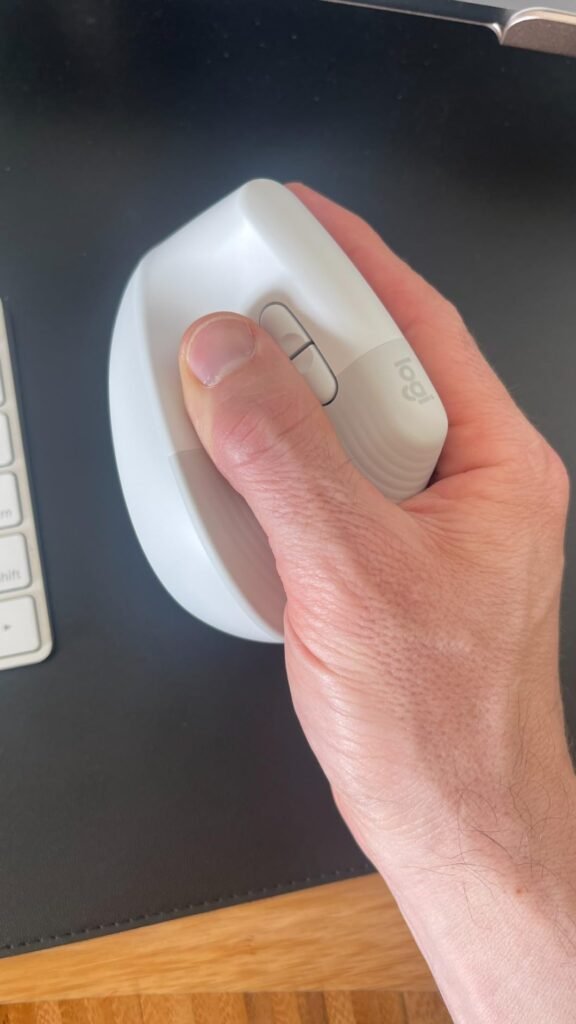
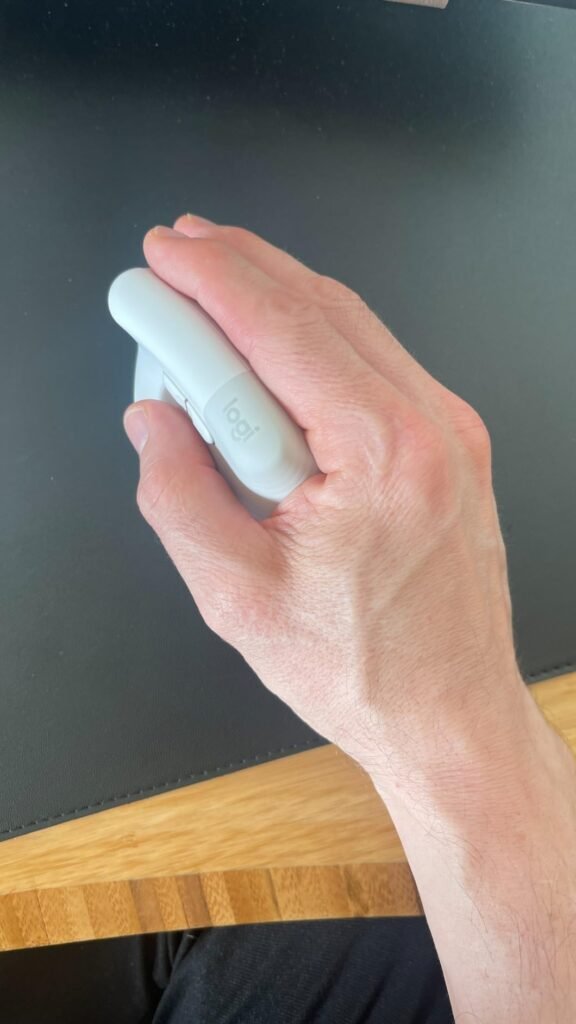
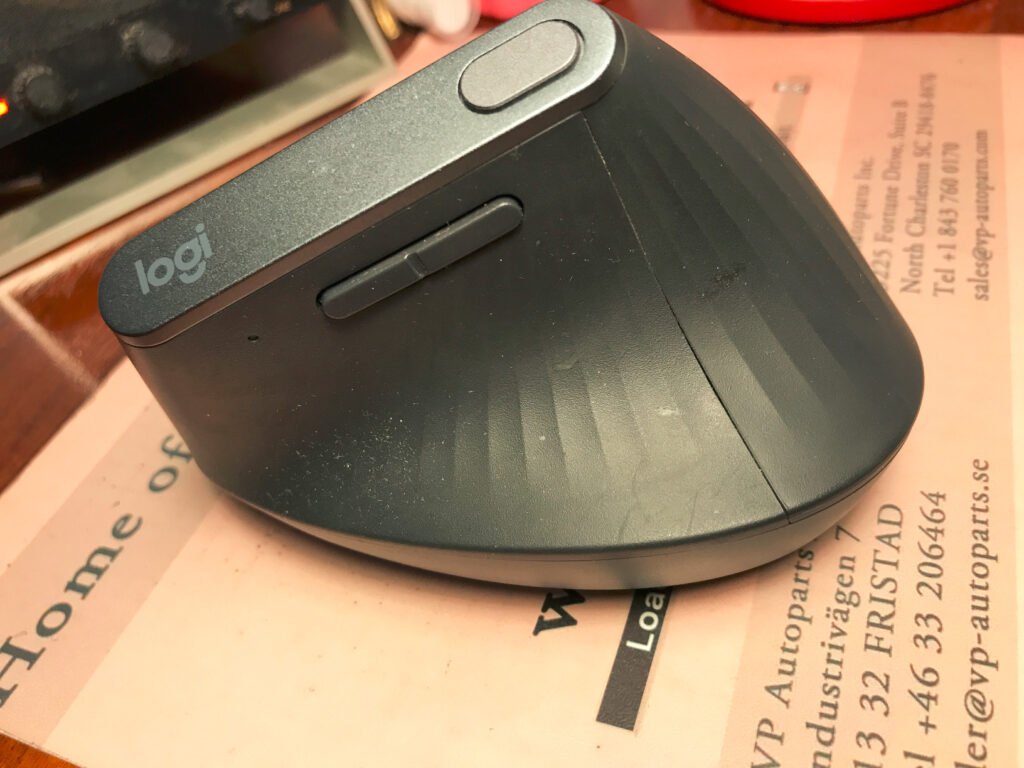
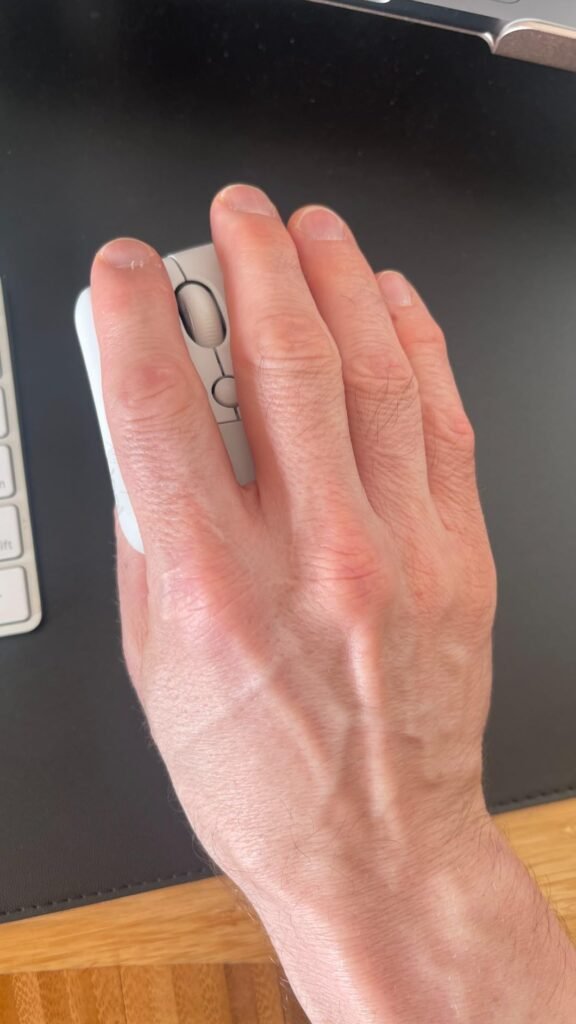
The Lift is Logitech's answer for shoppers who found the MX Vertical uncomfortably large. Designed around smaller to medium right hands, it adopts the same 57-degree vertical angle but in a shorter, lighter shell that encourages a relaxed handshake posture without forcing fingers to stretch across a bigger body.
We may earn a commission when you buy through this link, at no additional cost to you.
The sensor and click mechanism feel refined for office work rather than gaming. Scrolling through long documents is smooth thanks to the SmartWheel, and the quiet click design makes it a solid pick for shared workspaces, video calls, and open-plan offices where loud mouse noise can be distracting.
Connectivity is where the Lift stands out. You can pair it over Bluetooth Low Energy or the included Logi Bolt receiver, and it runs on a single AA battery for up to two years. Cross-platform support spans Windows, macOS, iPadOS, Chrome OS, and Linux, which is useful if you move between a work laptop and a personal tablet.
The Lift is a strong fit for professionals who spend six or more hours a day on a laptop and want to reduce wrist pronation without committing to a trackball. The quiet clicks and compact footprint also make it travel-friendly for hybrid workers who move between home and office setups.
If you have smaller hands or found other vertical mice too bulky, the Lift is one of the easiest ergonomic upgrades to recommend. Buyers with large hands will likely prefer the MX Vertical instead, since the Lift’s compact shell can feel cramped during full-grip use.
Not ideal for users with large hands or left-handed users who need a dedicated left-hand version.
We may earn a commission when you buy through this link, at no additional cost to you.
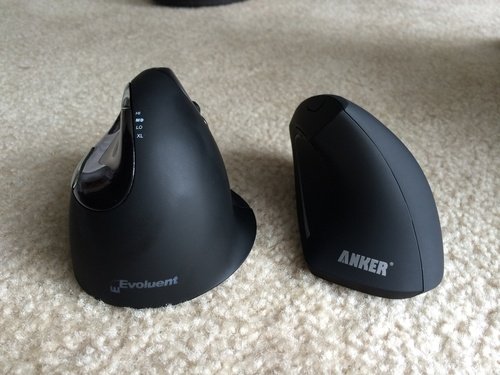
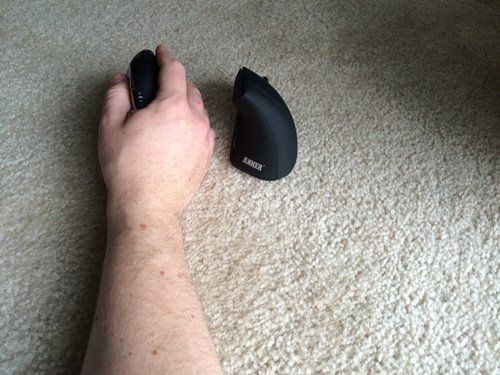
The Anker vertical mouse remains one of the most accessible ways to try an ergonomic shape without a significant investment. It uses the familiar handshake-angle design to relieve wrist pronation and includes next and previous buttons that make everyday browsing noticeably faster.
We may earn a commission when you buy through this link, at no additional cost to you.
Tracking tops out at 1600 DPI across three selectable levels, which is enough for standard office tasks, spreadsheets, and casual photo editing. It will not satisfy anyone who needs ultra-high sensitivity for 4K monitors or gaming, but for day-to-day productivity on a 1080p or 1440p display, it performs reliably on common desk surfaces.
Battery efficiency is a quiet strength. The mouse enters a deep sleep mode after eight minutes of inactivity and wakes with a single click, which helps the two AAA batteries last through months of regular use. The 2.4G USB receiver stores inside the mouse body, which is convenient for travel.
If a vertical shape is new to you, there is usually a short adjustment period of several days before cursor accuracy and comfort fully click. The Anker is a low-risk way to go through that learning curve without committing to a premium investment.
Choose this mouse if you want to see whether a vertical design helps your wrist before spending more on a premium model. Just know that clicks are not silent and there is no Bluetooth option, so it is strictly a desktop or laptop-with-receiver solution.
Not suitable for Mac-only users who prefer Bluetooth or anyone who needs silent clicks.
We may earn a commission when you buy through this link, at no additional cost to you.
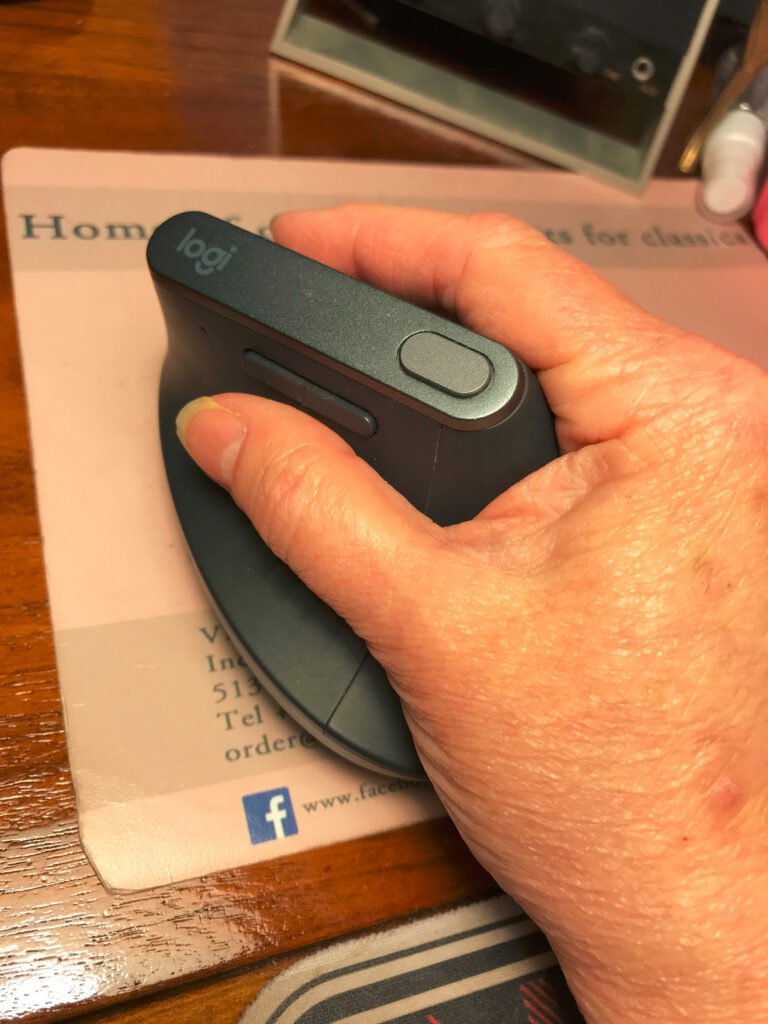
The MX Vertical is Logitech's flagship ergonomic mouse and remains a benchmark for the category. Its 57-degree angle is engineered to reduce muscular activity by around 10 percent compared to a flat mouse, and the sculpted body gives medium to large hands a secure, pressure-free grip through long work sessions.
We may earn a commission when you buy through this link, at no additional cost to you.
Performance punches above most vertical mice. The 4000 DPI sensor is sharp enough for creative work, multi-monitor setups, and detailed design tasks, and the dedicated cursor speed button lets you toggle precision instantly without digging into software. The textured rubber surface keeps fingers planted even during focused work.
Beyond ergonomics, the MX Vertical functions as a serious productivity tool. It pairs over Bluetooth or the included USB receiver, can switch between multiple devices, and integrates with Logi Options+ for custom button mapping and app-specific profiles. The rechargeable battery adds a layer of convenience over AA-powered alternatives.
Being able to drop DPI instantly is genuinely useful when switching between broad navigation across a large display and fine selection in a photo or design file. It saves trips into system settings and makes the MX Vertical feel more like a professional tool than a basic office mouse.
This is the mouse to buy if you want the most refined vertical ergonomic experience available and have the hand size to match. It is a long-term investment in comfort for anyone who spends full days at a computer, though shoppers with smaller hands should look at the Lift instead.
Not for users with small hands or shoppers on a tight budget.
We may earn a commission when you buy through this link, at no additional cost to you.
The Lekvey offers the ergonomic benefits of a vertical mouse while removing the ongoing annoyance of swapping disposable batteries. The built-in 600mAh cell charges over USB-C and typically runs three to four weeks on heavy use or two to three months on lighter workloads.
We may earn a commission when you buy through this link, at no additional cost to you.
At roughly 5 inches long, this is a larger-handed design. Users with medium to large hands tend to find the thumb rest and overall grip pocket more natural than the Anker or Lift, while people with smaller hands may feel some finger stretch to reach the primary buttons.
Three DPI levels, a nano USB receiver, and compatibility across Windows and macOS cover most everyday needs. The forward and back buttons remain usable on Mac, which is a plus since many budget vertical mice disable side buttons on Apple systems. Just note that none of the buttons can be reassigned.
Rechargeable models remove ongoing battery costs and are more convenient over time, but they rely on a working internal cell for the life of the product. If maximum longevity matters more than convenience, a mouse that uses standard AA batteries can often outlast a sealed rechargeable design.
If you want a comfortable larger-hand vertical mouse without worrying about AA or AAA batteries, the Lekvey is a sensible mid-range pick. The 36-month warranty also adds confidence at this price point.
Not suitable for small-handed users or anyone needing Bluetooth connectivity.
We may earn a commission when you buy through this link, at no additional cost to you.
This TECKNET vertical mouse is aimed at anyone juggling multiple devices on a budget. It offers Bluetooth 5.0, Bluetooth 3.0, and 2.4G USB connectivity, letting you pair with up to three devices and switch between them with a single button press.
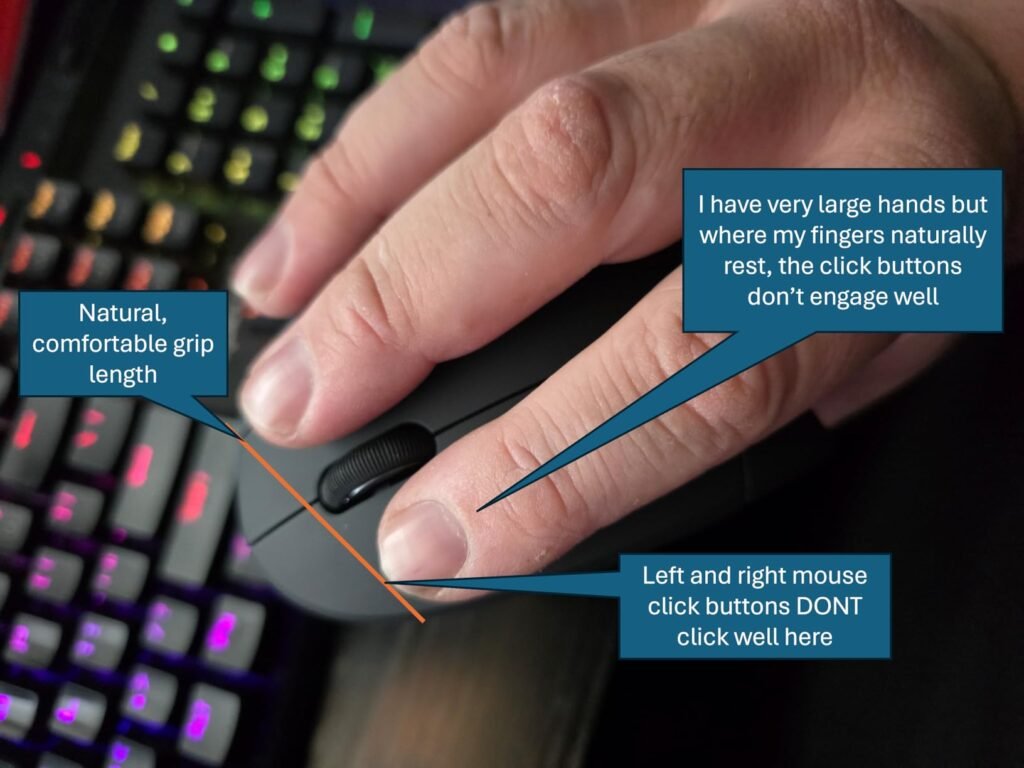
We may earn a commission when you buy through this link, at no additional cost to you.
Precision is a strong point for the price. Six DPI levels ranging from 800 to 4800 cover everything from careful photo work to fast movement across large or high-resolution displays, and the LED flash pattern makes it easy to know which level you are on without opening software.
The silent click design on the primary buttons is a meaningful upgrade in quiet environments, though the other function buttons still produce standard click sounds. Compatibility covers Windows, Mac, Chrome OS, and Linux, with the usual caveat that side buttons do not function on macOS.
If you move between a work laptop, personal desktop, and tablet during the day, three-device pairing can save real time compared with constantly unplugging a receiver or re-pairing Bluetooth connections. Confirm which devices live where before pairing to keep the switch order intuitive.
Pick this one if you regularly switch between a laptop, desktop, and tablet and want vertical ergonomics without paying premium prices. The need to supply your own AAA batteries is the main small downside.
Not ideal for Mac users who rely heavily on side button navigation.
We may earn a commission when you buy through this link, at no additional cost to you.
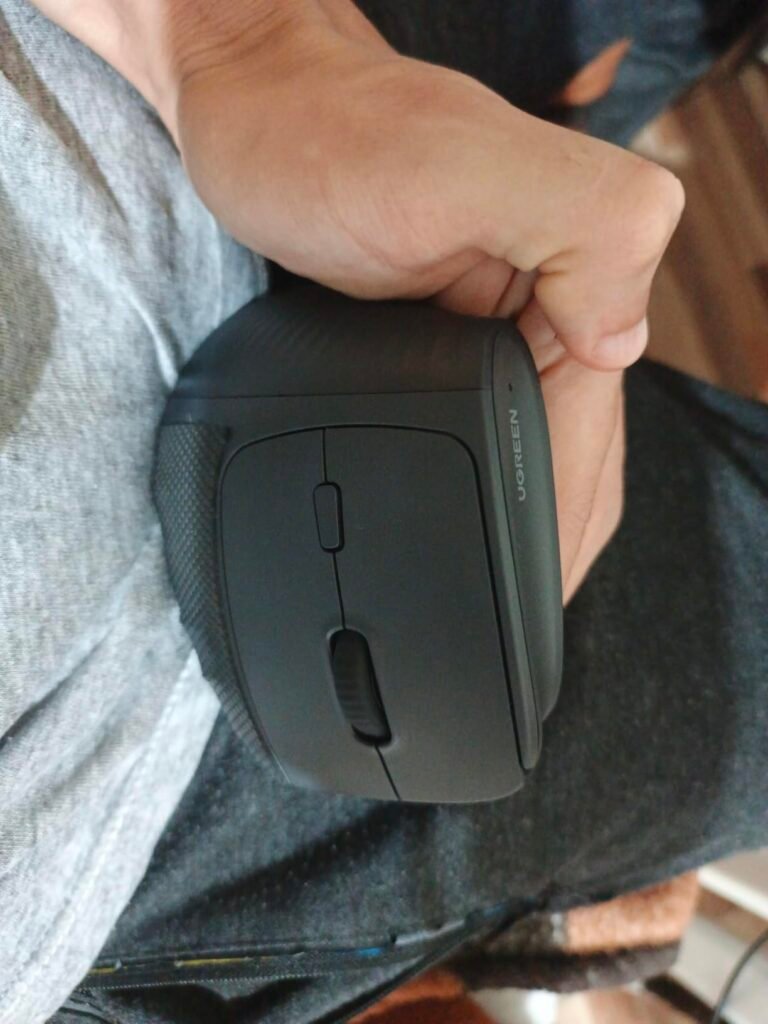
UGREEN's ergonomic mouse targets users with larger hands who want a comfortable vertical grip without stepping up to Logitech pricing. The natural handshake angle encourages a neutral wrist, and the quiet click buttons keep operation discreet in shared spaces.
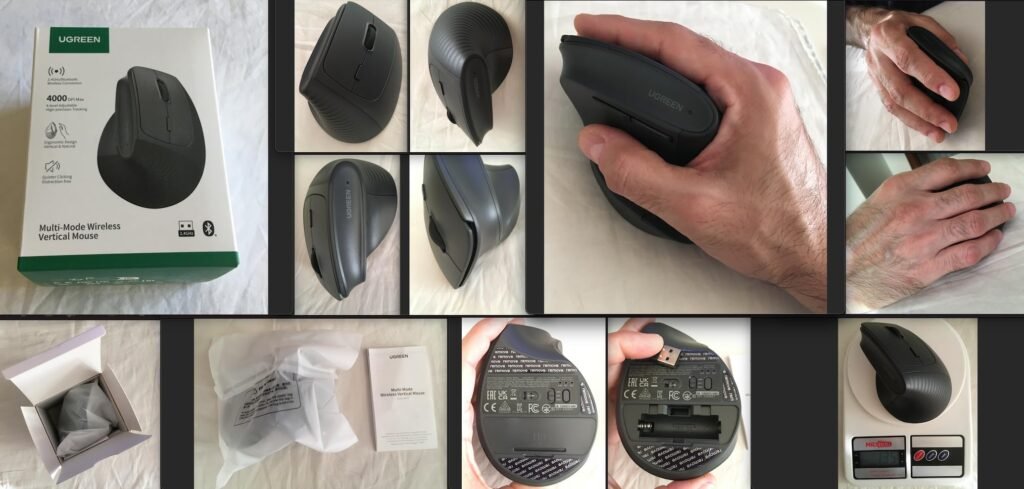
We may earn a commission when you buy through this link, at no additional cost to you.
Four DPI levels from 1000 to 4000 cover a wide range of tasks, from precise document editing to rapid navigation across larger monitors. The PTFE glide feet are a nice touch that keep movement smooth and quiet on most desk surfaces without needing a dedicated mousepad.
Dual connectivity through 2.4G wireless or Bluetooth, combined with the ability to switch between three devices, makes this a flexible pick for mixed Windows, macOS, Linux, Chrome OS, and Android setups. The single AA battery and sleep mode help keep runtime reasonable without adding bulk.
Smooth glide feet reduce the effort needed to move the mouse, which lowers forearm fatigue over long sessions. Combined with a vertical shape, lower friction can meaningfully improve comfort for users who move the cursor frequently across large or multi-monitor setups.
This is a strong everyday mouse for office professionals who want vertical comfort, quiet operation, and multi-device flexibility at a mid-budget price. Users who prefer long battery intervals from multiple cells may lean toward designs that use two AA or AAA batteries instead.
Not for users with very small hands or anyone needing programmable macro buttons.
We may earn a commission when you buy through this link, at no additional cost to you.
The compact TECKNET is a horizontal contoured mouse rather than a vertical design, which makes it a better choice for shoppers who want a comfortable travel companion rather than full vertical ergonomics. The shape fits the natural curve of the hand and includes rubber side grips for thumb support.
We may earn a commission when you buy through this link, at no additional cost to you.
Tracking spans five DPI levels up to 2600, which is sufficient for laptops and most portable workflows. The 2.4G USB-A receiver connects quickly without drivers, and the on/off switch combined with power-saving mode stretches a pair of AAA batteries to around 24 months of typical use.
At roughly 4 by 2.7 by 1.5 inches, it slips easily into a laptop bag or backpack pocket. It is a sensible pick for frequent travelers, remote workers using cafes and shared desks, or students who want something more comfortable than a laptop trackpad without a bulky vertical shape.
Not every shopper needs or wants a vertical mouse. A well-shaped contoured mouse with proper grip support can meaningfully reduce discomfort for casual users while remaining compact, lightweight, and easier to adapt to than a full vertical design.
Choose this one if portability and simplicity matter more than aggressive vertical ergonomics. For users with serious wrist pain, a dedicated vertical mouse remains the better long-term choice.
Not for users with significant wrist pain who need a true vertical ergonomic shape.
We may earn a commission when you buy through this link, at no additional cost to you.
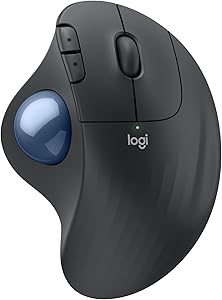
The Ergo M575S is a different kind of ergonomic solution. Instead of a vertical shape, it uses a stationary body with a thumb-controlled trackball, meaning your hand and forearm barely move during use. That is a major benefit for cramped desks, standing desks, or anyone sharing a space with a laptop or notepad.
We may earn a commission when you buy through this link, at no additional cost to you.
The sculpted shape realigns the forearm into a more neutral posture, and the quiet click buttons feel refined for office environments. Three customizable buttons, Smart Actions in Logi Options+, and adjustable cursor speed give it the flexibility to replace a traditional mouse for most workflows.
Battery life is a standout at up to 18 months on a single AA battery, which is included in the box. Connectivity through Bluetooth or the Logi Bolt USB receiver covers both modern laptops and desktops, and the ergonomic shape suits most hand sizes once you adapt to thumb-driven cursor control.
Expect roughly one to two weeks of adjustment before trackball control starts to feel natural. Lowering cursor speed during the first few days helps improve precision, and periodically removing the ball to wipe out dust keeps tracking smooth over the long term.
A trackball is an acquired taste, but once muscle memory kicks in, many users prefer it over any traditional mouse. If you work in tight spaces or want to eliminate repeated arm movement, this is the most mature, polished option on the list.
Not for users who prefer traditional mouse movement or who need high-speed gaming performance.
We may earn a commission when you buy through this link, at no additional cost to you.
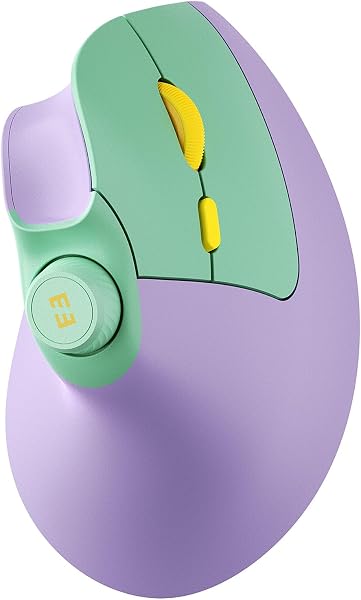
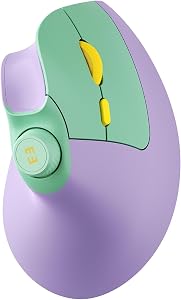
The seenda MOU-302 is one of the more interesting ergonomic mice on this list thanks to its built-in volume knob. For remote workers, streamers, and anyone who takes a lot of calls, being able to adjust system volume or pause music without reaching for the keyboard is a genuinely useful workflow improvement.
We may earn a commission when you buy through this link, at no additional cost to you.
The vertical shape promotes a neutral handshake grip similar to other 50 to 57 degree ergonomic mice. Three DPI levels up to 2400 cover everyday productivity, and the silent click design keeps it polite in meetings, libraries, and shared workspaces.
Connectivity is where this mouse earns its value. It supports three-device switching across 2.4G and two Bluetooth channels, which is helpful for anyone running a laptop, tablet, and desktop at the same desk. The 500mAh battery charges over USB-C and typically lasts around two months per charge.
Built-in volume control is especially useful during video calls, music-heavy workflows, and content creation. It can reduce how often you reach back to the keyboard, which supports better posture for users with shoulder or neck sensitivity.
If the volume knob appeals to how you work and you value multi-device flexibility, this is a thoughtful budget pick with a feature set rarely found at the price. Buyers who need very high DPI for creative work may want to look elsewhere.
Not for creative professionals who need higher DPI precision for detailed design work.
We may earn a commission when you buy through this link, at no additional cost to you.
An ergonomic mouse is a long-term investment in comfort. Here is how to match the right design, specs, and features to your hand, your tasks, and your workspace.
Ergonomic mice come in three main shapes, and the choice has the biggest impact on comfort. Vertical mice tilt your hand into a handshake position, usually between 52 and 57 degrees. This reduces forearm pronation, which is the twisting motion that compresses nerves and tendons during long sessions with a flat mouse. Vertical designs are the most popular ergonomic choice because they target the root cause of wrist strain directly.
Trackballs are an entirely different approach. Instead of moving the whole mouse, you move only the ball with your thumb or fingers, keeping your hand and forearm nearly still. This is ideal for small desks, standing workstations, and users whose shoulder or elbow pain is worsened by repeated arm movement. Contoured horizontal mice sit between the two, offering a comfortable curved shell without a steep angle, which can be a good compromise for travel or casual use.
If you have obvious wrist pain, start with a vertical mouse. If your pain is higher up in the shoulder or elbow, strongly consider a trackball. For general comfort improvements with minimal adjustment time, a well-shaped contoured mouse is often enough.
Hand size matters more with ergonomic mice than with standard models because the shell actively supports the thumb, palm, and fingers. A mouse that is too small forces fingers into cramped positions, and one that is too large stretches the hand across the shell and can create new tension in the ring and little fingers. Measure your hand from the wrist crease to the tip of the middle finger before buying.
Smaller to medium hands tend to do well with compact vertical mice like the Logitech Lift, while medium to large hands often prefer the MX Vertical, Lekvey, or UGREEN designs. Trackballs like the Ergo M575S are generally more forgiving across hand sizes because the hand sits in a more relaxed position without needing to wrap around the full body.
If you can test a mouse in a store, do it. If not, favor models with clear sizing guidance in their product details and a reasonable return window, since fit is highly personal.
Modern ergonomic mice typically offer 2.4G wireless through a USB receiver, Bluetooth, or both. A USB receiver provides the most reliable connection and the lowest latency, which matters for precision work. Bluetooth frees up a USB port and allows pairing with devices that lack USB-A inputs, such as newer MacBooks and tablets.
If you work across multiple devices, look for a mouse that supports two or three paired connections and a quick-switch button. The Logitech Lift, MX Vertical, and both TECKNET and seenda models on this list all offer multi-device switching, which can dramatically reduce friction when moving between a work laptop, personal desktop, and tablet during the day.
Choose receiver-based wireless if you only use one computer and want maximum reliability. Choose Bluetooth or dual connectivity if you move between devices regularly or want to minimize dongles.
DPI, or dots per inch, measures how far your cursor moves relative to physical mouse movement. Higher DPI means faster, more sensitive movement, which matters more as monitor resolution and screen area increase. For 1080p displays and basic office work, 1000 to 1600 DPI is comfortable. For 1440p or 4K screens and multi-monitor setups, 2400 to 4000 DPI reduces how far you need to move your arm.
Look for multiple selectable DPI levels so you can tune sensitivity to each task. Precise work like photo retouching benefits from lower DPI, while sweeping across large displays benefits from higher DPI. A dedicated cursor speed button, like the one on the MX Vertical, lets you switch on the fly without opening software, which is particularly useful for creative professionals.
Prioritize DPI flexibility over peak numbers. A mouse with four to six well-spaced DPI steps usually serves real-world needs better than one with a very high but fixed sensitivity ceiling.
Silent or quiet click buttons have become a signature feature of modern ergonomic mice, and they matter more than many shoppers expect. Open-plan offices, shared home workspaces, video calls, libraries, and late-night use all benefit from clicks that stay below conversational volume. Most quiet designs only silence the primary left and right buttons, so side and function buttons may still produce standard click sounds.
Button count and placement also affect daily productivity. Five-button layouts with forward and back navigation are the baseline for comfortable browsing. Programmable buttons through software like Logi Options+ unlock productivity shortcuts, app-specific profiles, and macro support, which can be transformative for designers, developers, and heavy spreadsheet users.
If you work in quiet environments, prioritize quiet clicks. If you want deep customization, choose a mouse backed by robust desktop software.
Ergonomic mice generally use either disposable AA or AAA batteries or built-in rechargeable cells. Battery-powered models like the Logitech Lift and Ergo M575S often deliver 18 to 24 months of use per set of batteries, which is extraordinarily convenient and avoids any concern about internal cell degradation over several years.
Rechargeable models like the Lekvey, TECKNET MOU-302, and seenda MOU-302 charge over USB-C and typically last several weeks to two months per charge. They remove ongoing battery costs and are more environmentally friendly, but their long-term lifespan depends on the health of the internal cell. Most quality rechargeable mice remain reliable for several years before any noticeable capacity loss.
Choose battery-powered models if you prioritize maximum longevity and simplicity. Choose rechargeable models if you prefer modern convenience and want to avoid buying replacement batteries.
The quality of a mouse’s companion software has a surprisingly large impact on long-term usefulness. Logitech’s Options+ platform is the most mature in this category and allows per-application profiles, smart actions, custom button mapping, and precise cursor tuning. Budget brands typically offer basic plug-and-play functionality without deeper customization.
If you only need standard clicking, scrolling, and basic navigation, a mouse without software works fine. If you want to assign productivity shortcuts, create workflow-specific profiles, or integrate the mouse with multiple applications, premium models with mature software ecosystems earn their higher price quickly through saved time.
Match software ambition to how you actually work. Casual users rarely need deep customization, while power users should consider it an essential feature.
An ergonomic mouse is used for thousands of hours, so build quality matters. Look for firm, consistent clicks, scroll wheels that feel solid without wobble, and shell materials that resist wear, especially around the thumb rest and primary click zone. Textured rubber grips can age over time, so cleaning them occasionally helps extend their life.
Warranty length is a useful quality signal. Brands offering 18 to 36 months of coverage are signaling confidence in their products, and that coverage can genuinely matter if a scroll wheel or click switch fails after extended use. Logitech, TECKNET, and Lekvey all offer meaningful warranty periods on the models in this guide.
Pay for durability where you can. A mouse used eight hours a day for several years justifies spending a little more on build quality, support, and software than you might for an occasional-use device.
When you first switch to an ergonomic mouse, expect a short adjustment period of several days to two weeks. Keep cursor sensitivity on the lower end during the first few days so your hand can learn precise control in the new grip. Position the mouse close to your keyboard so your elbow stays near your side, and keep your wrist floating rather than resting hard on the desk edge. Taking brief breaks every 45 to 60 minutes helps your hand adapt without soreness.
Keep the mouse working smoothly with light, routine maintenance. Wipe the shell and grip surfaces with a slightly damp microfiber cloth and avoid harsh cleaners that can degrade rubberized coatings. For trackballs, periodically remove the ball and gently clean the inside of the ball cage to prevent dust buildup that causes jittery tracking. Clean the glide feet occasionally and consider a mousepad if your desk surface is uneven or textured, since smooth tracking directly reduces hand effort.
Protect battery life and connectivity with simple habits. Turn off receiver-based mice before travel to avoid accidental button presses that drain batteries, and use the sleep mode features included in most modern designs. For rechargeable mice, charge before the battery fully depletes to help extend long-term cell health. If you experience connection drops over Bluetooth, re-pairing the mouse or updating your computer’s drivers typically resolves the issue.
Many users report meaningful reductions in wrist discomfort after switching to a vertical or trackball design, though results vary based on hand size, posture, and underlying issues. The key benefit is reduced forearm pronation, which lowers pressure on nerves and tendons in the wrist. Expect an adjustment period of several days to two weeks before the full benefit is noticeable. If you have significant pain, consult a medical professional in addition to upgrading your mouse.
Most vertical mice use angles between 52 and 57 degrees. A 57-degree angle, found on the Logitech Lift and MX Vertical, offers more aggressive wrist relief but a slightly longer adjustment period. A 52-degree angle, like the TECKNET rechargeable model, feels closer to a traditional mouse and is often easier for new users. Both reduce pronation compared with a flat mouse, so pick the angle that feels most natural during initial use.
Vertical mice work best for users with wrist strain who still prefer traditional cursor movement. Trackballs are better for users with elbow, shoulder, or forearm discomfort because they eliminate most arm motion. They are also ideal for small or crowded desks. If your pain is primarily in the wrist, start with a vertical model. If your pain extends up the arm, a trackball like the Logitech Ergo M575S may provide greater relief.
Most users adapt to a vertical ergonomic mouse within three to seven days of regular use. Trackballs typically take one to two weeks because thumb-driven cursor control is a new motor pattern. During the adjustment period, cursor accuracy may feel slightly off, which is normal. Lowering DPI during the first few days helps your hand learn precise control, and the improvement in comfort usually becomes obvious by the second week.
Ergonomic mice are generally optimized for comfort and productivity rather than fast-paced competitive gaming. Vertical mice can work well for strategy, simulation, and casual gaming, especially models with higher DPI sensors like the TECKNET 4800 DPI designs. For competitive shooters that require precise flick aiming, a traditional lightweight gaming mouse remains the better choice. Trackballs are not recommended for most gaming scenarios.
No, most ergonomic mice work plug-and-play with standard clicking, scrolling, and basic navigation. Software unlocks additional features like button customization, DPI tuning, app-specific profiles, and productivity shortcuts. Logitech's Options+ software is particularly mature and useful for professionals who want to tailor their mouse to specific workflows. Budget models typically do not include software but still deliver full ergonomic benefits through their shape.
Yes, all the mice in this guide support macOS, though some functions may be limited. The primary click, scroll, and navigation functions work universally. Side buttons for forward and back navigation sometimes do not function on macOS, especially on budget models. Logitech devices typically offer the best Mac compatibility thanks to their mature software ecosystem. Check product details for Mac-specific limitations before buying if side button support matters to you.
Battery life varies widely by design. Energy-efficient models with sleep modes, like the Logitech Lift and Ergo M575S, can run 18 to 24 months on a single battery set. Rechargeable models like the Lekvey and TECKNET MOU-302 typically last two to eight weeks per charge depending on usage. Features like Bluetooth connectivity, high polling rates, and LED indicators can shorten runtime. Turning the mouse off during travel helps extend battery life significantly.
Dedicated left-handed vertical ergonomic mice are less common than right-handed models. The Logitech Lift is available in a dedicated left-handed version, which is the exception rather than the norm. Most vertical mice on the market, including most models in this guide, are designed for right-handed use only. Trackballs like the Ergo M575S are typically right-hand-oriented as well. Left-handed users should verify handedness before buying.
Premium ergonomic mice like the Logitech MX Vertical justify their price through better build quality, higher-precision sensors, mature software, longer warranties, and refined ergonomic design validated through extensive testing. For heavy daily users, the comfort and durability improvements often pay for themselves over time. Casual users can get meaningful ergonomic benefits from budget models like TECKNET and Lekvey, so match your spending to how many hours you actually spend at the computer.
For most buyers, the Logitech MX Vertical remains the strongest overall ergonomic mouse. Its 57-degree angle, 4000 DPI sensor, refined build quality, textured grip, and mature software support make it a long-term investment in comfort for medium to large hands. The Logitech Lift delivers the same ergonomic philosophy for smaller hands, and together these two cover the needs of most serious productivity users.
Budget-conscious shoppers have excellent choices too. The TECKNET rechargeable vertical offers silent clicks, multi-device switching, and USB-C charging at a fraction of premium prices. The Lekvey is a solid rechargeable pick for larger hands, while the Anker remains a low-risk way to try vertical ergonomics for the first time. For stationary setups and compact desks, the Logitech Ergo M575S trackball is in a category of its own, eliminating repeated arm movement entirely.
Your final decision comes down to grip style, hand size, workspace, and budget. If you want maximum wrist relief, choose a vertical mouse that matches your hand size. If your pain extends up the arm, choose the Ergo M575S trackball. If you travel often or need a simple contoured upgrade, consider the compact TECKNET. Whichever you pick, give it at least a week before judging comfort, and your hands will thank you over the long run.