Acer KB272 G0bi
9.2Editor score27-inch IPS panel
120Hz refresh rate
1ms VRB response
FHD 1920×1080 resolution
Compare 10 top computer monitors for work, gaming, and creative use. We break down resolution, refresh rate, panel type, and value to help you decide.
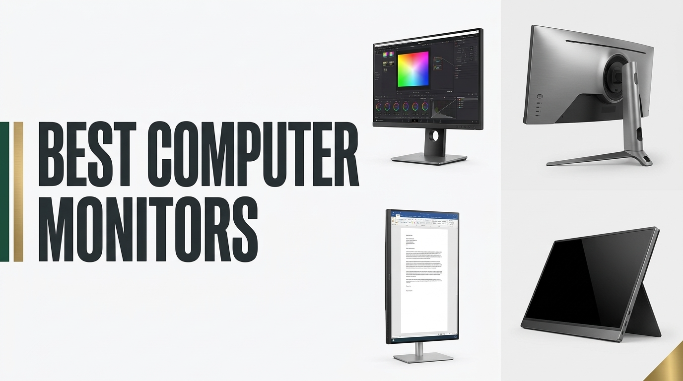
Choosing a display in 2026 comes down to balancing panel type, refresh rate, resolution, response time, ports, ergonomics, and everyday value. We compare 10 standout computer monitors across sizes from 24 to 34 inches so you can match the right screen to your workflow, gaming style, or home office setup without overspending on features you will never use.
The models below range from budget-friendly Full HD displays under $100 to a curved 34-inch ultrawide and a 4K panel with FreeSync Premium. Refresh rates span 75Hz to 200Hz, and panel technologies include IPS, VA, and curved VA options. Each choice serves a different priority such as color accuracy, smooth motion, or immersive width.
Before scrolling through the list, think about how you actually use a screen. Office workers benefit from IPS accuracy and eye-comfort certifications. Casual gamers appreciate 120Hz or higher with FreeSync. Content creators lean toward higher resolutions and wider color coverage. The reviews and buying guide below break down these trade-offs in plain language.
We compared 10 computer monitors using the specifications that actually shape daily use: screen size, resolution, panel technology, refresh rate, response time, adaptive sync support, port selection, ergonomic adjustability, eye comfort features, built-in audio, and overall value. The notes focus on practical trade-offs so each pick connects to how people actually work, game, stream, and multitask at their desks throughout a long session.


Compare key features, scores, and current prices side by side. A shorter feature list means fewer details were available, not necessarily fewer capabilities.





The Dell SE2426H proves that a fast 144Hz refresh rate no longer requires a premium price. At 23.8 inches with a 1920 by 1080 resolution, pixel density lands close to 92 PPI, producing sharp text without the operating system scaling adjustments that larger 1080p screens sometimes need. It is a smart choice for compact desks, secondary displays, or budget-conscious gamers.

We may earn a commission when you buy through this link, at no additional cost to you.
The IPS panel maintains color accuracy from wide viewing angles, and Dell backs the display with a TUV Rheinland 3-star certification for reduced blue light without dulling colors. AMD FreeSync compatibility keeps motion smooth and tear-free when paired with a supported graphics card, which is especially useful for competitive gaming where consistent frame delivery matters more than raw peak framerate.
Connectivity includes two HDMI ports, which is handy if you want to keep both a desktop PC and a gaming console connected simultaneously. The stand only tilts, so height and pivot adjustments require a VESA mount or monitor arm. Bezels are minimal on three sides, making the display well suited for side-by-side multi-monitor arrangements where consistent framing looks cleaner.
TUV Rheinland certifications indicate independent testing of blue light reduction and flicker performance. A 3-star rating means the display reduces harmful blue light emissions without degrading color accuracy through amber-tinted filters. For anyone spending long days in front of a screen, this certification is a meaningful indicator that eye strain will be less pronounced during extended sessions compared to uncertified panels.
Choose the SE2426H if you want a modern 144Hz experience without paying flagship prices, or if you need a well-priced second display for a productivity setup. Users who need built-in speakers, USB-C charging, or a height-adjustable stand should look at more feature-rich models. For pure performance per dollar on a compact screen, this Dell is hard to beat.
Users who need a large-screen experience or built-in audio for media consumption.
We may earn a commission when you buy through this link, at no additional cost to you.
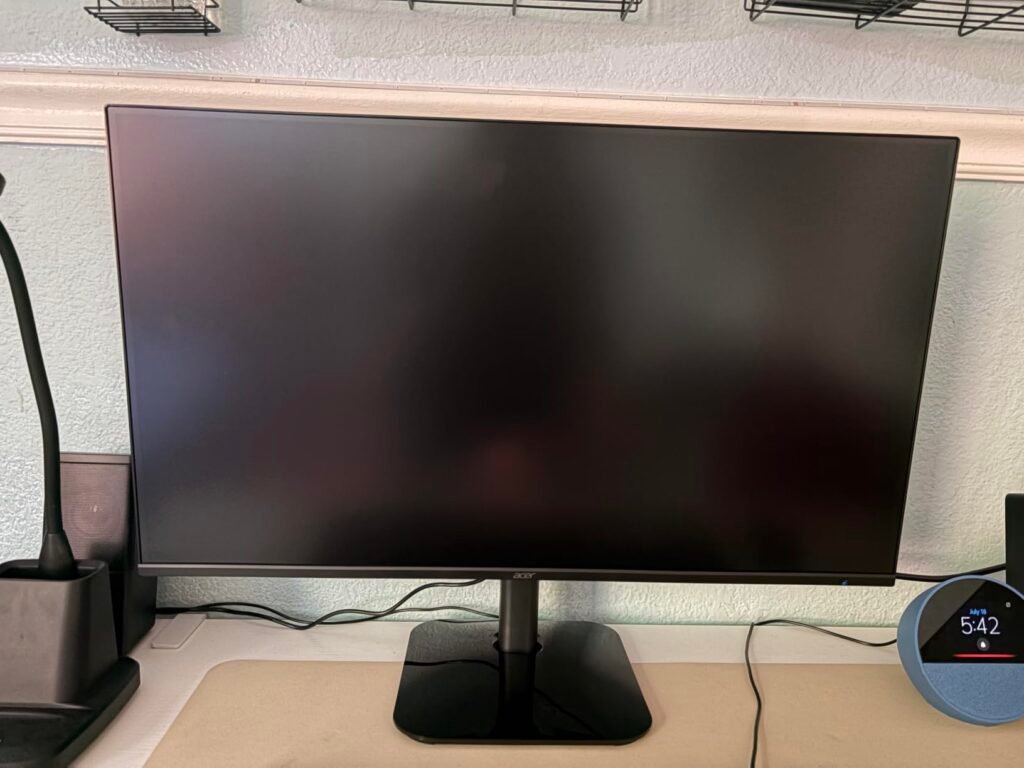
The Acer KB272 G0bi is built for shoppers who want a large 27-inch screen with modern refresh rates without stretching the budget. It pairs an IPS panel with a 120Hz refresh rate, which is unusual at this price point and gives casual gamers noticeably smoother motion than the standard 60Hz office display. For home office use, browsing, and streaming, the combination hits a sweet spot most buyers appreciate immediately.

We may earn a commission when you buy through this link, at no additional cost to you.
The Full HD resolution stretched across 27 inches results in a pixel density around 82 PPI, which is fine for general productivity and gaming but not ideal for detailed design work. The IPS panel delivers consistent color and wide viewing angles, so text stays sharp and images look correct from off-axis positions. Adaptive-Sync support paired with a compatible AMD or NVIDIA graphics card eliminates screen tearing during fast movement.
The 1ms VRB response time helps reduce visible blur in fast-moving content, though VRB is a backlight strobing feature rather than a true gray-to-gray measurement. Brightness maxes out at 250 nits, which is plenty for indoor use but may feel dim in rooms with strong sunlight. The stand offers tilt only, so if you want height adjustment or pivot rotation you will need an aftermarket VESA arm.
A 120Hz refresh rate doubles the frames shown per second compared to a standard 60Hz office display. Even simple actions like scrolling documents, dragging windows, and moving the mouse cursor look noticeably smoother. For gaming, 120Hz gives you a competitive edge without demanding the powerful graphics card that 240Hz displays require. Finding this refresh rate on a 27-inch IPS panel at this price is genuinely uncommon.
This Acer is a smart pick for anyone building an affordable dual-monitor setup, upgrading from an older 60Hz screen, or outfitting a student workstation. If you play competitive shooters where you would benefit from 165Hz or higher, or you need a color-critical display for photo editing, look at higher-tier options. For the majority of everyday users, the KB272 G0bi delivers a strong balance of size, smoothness, and price.
Color-critical creative work or bright rooms that require higher peak brightness.
We may earn a commission when you buy through this link, at no additional cost to you.
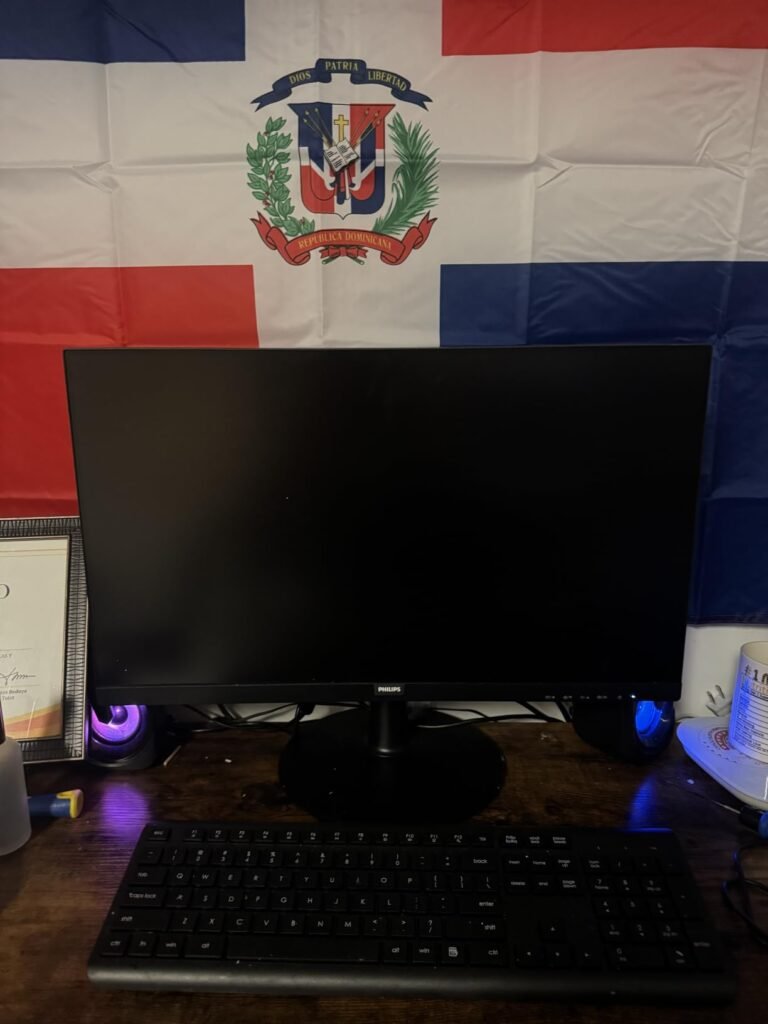
The Philips 241V8LB is one of the most affordable ways to add a modern 24-inch display to a home office or shared family workstation. The VA panel produces deeper blacks and higher contrast than typical IPS panels at this price, which benefits movie watching, casual gaming, and any content with strong shadow detail. A 100Hz refresh rate provides a noticeable smoothness improvement over standard 60Hz screens.
We may earn a commission when you buy through this link, at no additional cost to you.
Full HD resolution on a 23.8-inch screen delivers around 92 PPI, keeping text and images crisp without requiring display scaling adjustments in Windows or macOS. The wide 178-degree viewing angles maintain color consistency when viewed from the side, which matters in shared workspaces or when the monitor sits on a slightly angled desk. Flicker-free backlighting reduces eye fatigue during long document reading sessions.
Philips includes an EasyRead mode that simulates a paper-like appearance, making it easier on the eyes when working through lengthy documents or long-form articles. The three-side bezel-less design gives the display a modern look and works well in dual-monitor setups where consistent framing improves visual flow. Connectivity is basic but sufficient for most home office needs.
VA panels excel at contrast ratios, often reaching 3000:1 or higher, which makes dark scenes in movies and games look richer than on IPS displays. The trade-off is slightly slower pixel response, which can cause minor smearing in fast-moving content. For general productivity and media consumption, this difference is not noticeable. Competitive gamers who prioritize instant pixel transitions should stick with IPS or specialized gaming panels.
This monitor is the right pick for budget-focused shoppers, students, or anyone setting up a secondary display for productivity work. Because VA panels have slightly slower response times than IPS, competitive gamers may notice minor smearing in very fast motion. For general use, streaming, and everyday productivity, the Philips 241V8LB delivers exceptional value for the price.
Fast-paced competitive gaming that demands the quickest response times.
We may earn a commission when you buy through this link, at no additional cost to you.
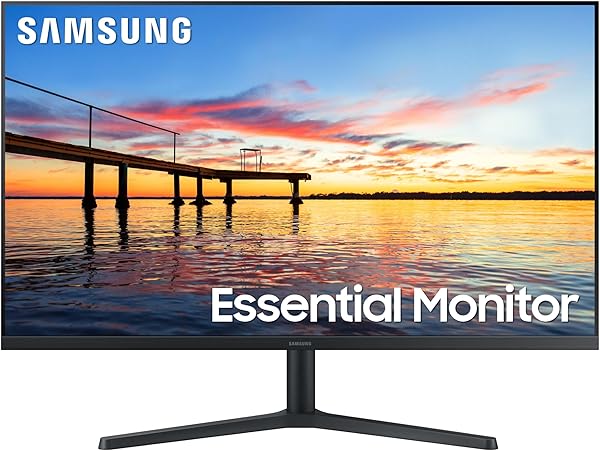
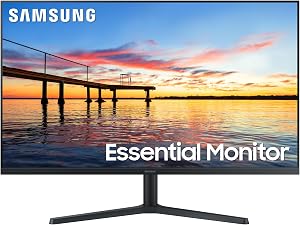
The Samsung 32-inch flat monitor is aimed at shoppers who want maximum screen area without paying for QHD or 4K resolution. At 32 inches, there is plenty of room to split the display between two side-by-side application windows or place several tools around a central working area. The three-sided borderless design keeps the panel looking modern and works well in multi-monitor arrangements.
We may earn a commission when you buy through this link, at no additional cost to you.
AMD FreeSync compatibility helps the 75Hz refresh rate feel smoother in games and video by syncing frame delivery with the graphics card output. This eliminates the visible tearing that occurs when frames arrive out of sync with the monitor’s refresh cycle. Game Mode presets adjust color and contrast to make dark scenes more visible, which helps in atmospheric games without needing manual calibration.
Samsung’s eye-comfort suite includes Flicker Free technology and Eye Saver Mode, both of which reduce fatigue during long working sessions. The plug-and-play convenience of connecting devices directly to the monitor adds flexibility for shared home setups where multiple family members switch between different computers. The generous size makes it easy to work on documents, spreadsheets, and browser tabs simultaneously.
Full HD resolution on a 32-inch panel results in a pixel density around 69 PPI. Text and images look larger than on a 24-inch or 27-inch FHD display, which some users prefer for reduced eye strain. However, fine details like small fonts may appear slightly softer. If you need crisper text at this size, consider a QHD or 4K monitor instead.
This 32-inch Samsung is a good fit for productivity-focused users who want big-screen real estate at an affordable price. Casual gamers benefit from FreeSync support, but competitive players will likely want a higher refresh rate. If you plan to sit close to the screen, be aware that FHD spread across 32 inches has a lower pixel density than smaller screens, so text and icons appear larger.
Users who want high pixel density or refresh rates above 75Hz for gaming.
We may earn a commission when you buy through this link, at no additional cost to you.
The Dell S2725HSM stands out at its price for offering full ergonomic adjustability alongside a 144Hz refresh rate on a 27-inch screen. Being able to raise, lower, tilt, pivot, and swivel the monitor makes a significant difference during long workdays, letting you find a posture that minimizes neck and shoulder strain. This kind of adjustability is often reserved for pricier business displays.

We may earn a commission when you buy through this link, at no additional cost to you.
The 144Hz refresh rate combined with a 1ms MPRT response time delivers smooth motion for both office work and casual gaming. AMD FreeSync eliminates screen tearing when playing games with variable frame rates. The 1500:1 contrast ratio produces reasonable depth in dark content, and the display carries a TUV 4-star eye comfort certification for reduced blue light without color distortion.
Built-in dual 3W speakers are a genuine convenience, eliminating the need to buy separate desktop audio for casual video calls, music playback, or system notifications. The audio quality is adequate rather than exceptional, but it saves desk space and cable clutter. Dell’s included Display and Peripheral Manager software adds useful customization options for Dell PC users, including brightness, color, and layout controls.
Being able to adjust monitor height so the top of the screen sits at or slightly below eye level reduces neck strain during long sessions. Pivot rotation allows you to switch to portrait orientation for reading long documents or coding. Swivel adjustment lets you angle the screen toward a colleague for shared viewing without moving the entire base. Tilt-only stands lack these benefits and often force users to stack books under the monitor for proper height.
This monitor makes the most sense for users who value ergonomics and prefer a clean setup without external speakers. The ash white finish looks polished on modern desks. If you prioritize maximum pixel density, consider stepping up to the QHD version. For everyday productivity, video calls, and gaming, the S2725HSM strikes a strong balance of features and price.
Users who need QHD or 4K resolution for detailed creative work.
We may earn a commission when you buy through this link, at no additional cost to you.
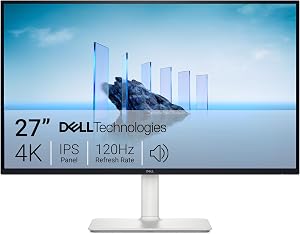
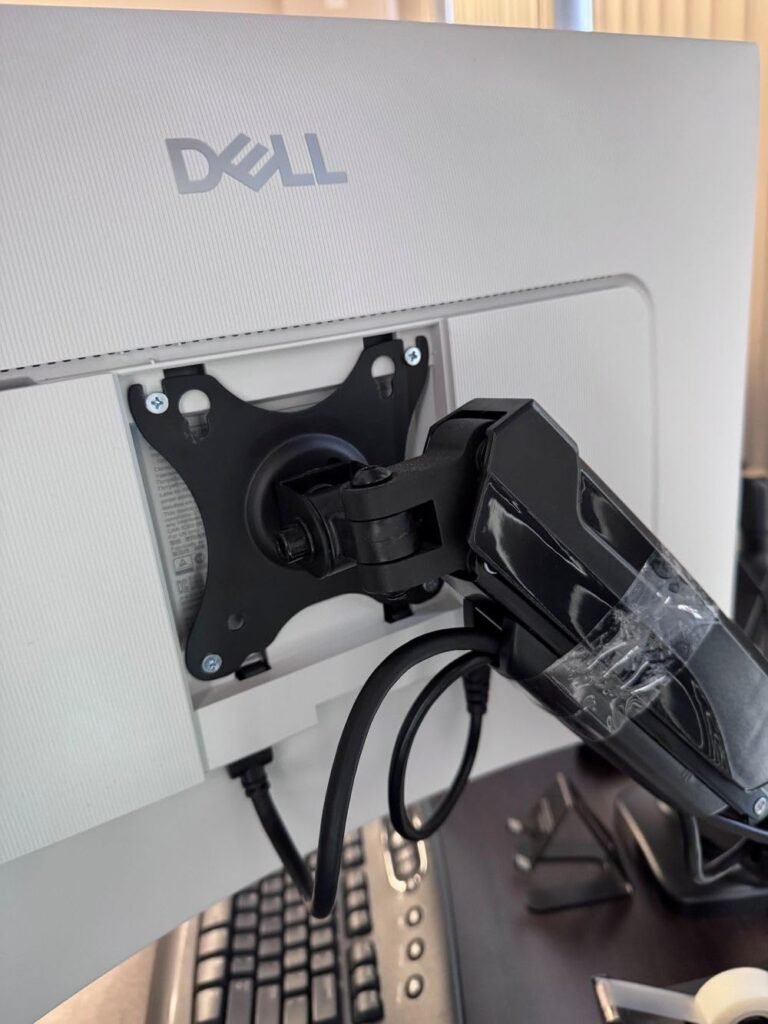
The Dell S2725QS is the pick for buyers who want a genuinely sharp 4K display without stepping into professional pricing territory. At 27 inches with 3840 by 2160 resolution, pixel density reaches around 163 PPI, producing extremely crisp text and highly detailed images that make everyday productivity and creative work look polished. The IPS panel maintains consistent color from any viewing angle.
We may earn a commission when you buy through this link, at no additional cost to you.
A 120Hz refresh rate at 4K is a significant step up from the 60Hz limit found on most affordable UHD monitors. Combined with FreeSync Premium and an ultra-low response time claim, the display keeps motion smooth for gaming, video editing scrubbing, and general animation. Note that driving 4K at 120Hz requires a modern graphics card with DisplayPort 1.4 or HDMI 2.1 output.
Color coverage of 99 percent sRGB and HDR readiness make the S2725QS suitable for photography editing, video work, and other color-sensitive tasks. The 1500:1 contrast ratio provides pleasing depth, and Dell’s improved ComfortView Plus feature reduces blue light emissions to 35 percent or less without shifting color accuracy. Ultra-thin bezels and an ash white finish give the display a clean, modern presence on a desk.
FreeSync Premium is a step above standard FreeSync, requiring at least 120Hz refresh rate support at 1080p resolution and low framerate compensation. This ensures smooth motion even when frame rates drop below the monitor’s minimum refresh, preventing stutter in demanding scenes. For gaming, it means consistent tear-free performance across a wider range of GPU load conditions than basic FreeSync provides.
This monitor is the strongest choice for creative professionals, developers, and enthusiast gamers who want the pixel density of 4K along with high refresh rates. Buyers with older graphics cards or budget-focused setups should consider a QHD alternative that will be easier to drive at high frame rates. For those ready to invest in a truly detailed and smooth display, the S2725QS delivers.
Users with older GPUs that cannot drive 4K at high frame rates.
We may earn a commission when you buy through this link, at no additional cost to you.
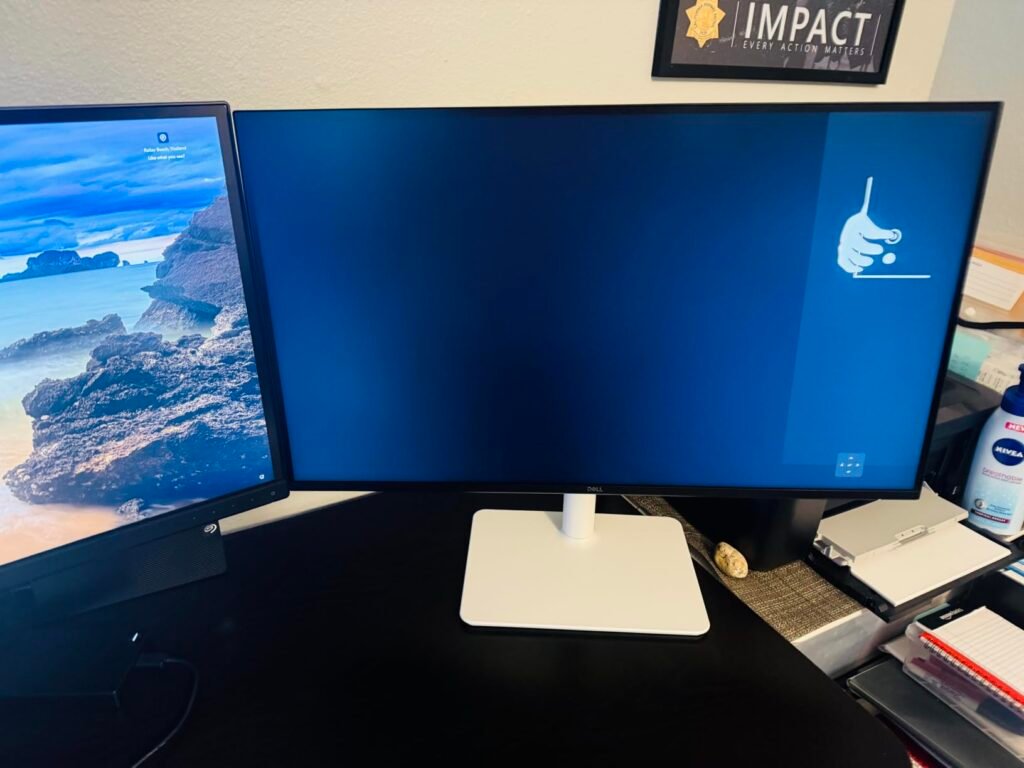
The Dell S2725DSM hits what many enthusiasts consider the sweet spot in modern displays. A 27-inch QHD panel at 144Hz delivers noticeably sharper visuals than FHD while remaining much easier to drive than 4K. The 2560 by 1440 resolution provides around 109 PPI on a 27-inch screen, which is dense enough for crisp text without requiring aggressive display scaling.
We may earn a commission when you buy through this link, at no additional cost to you.
The 1ms MPRT response time and 144Hz refresh rate keep motion smooth for both work and gaming, and AMD FreeSync eliminates the tearing that occurs when frame rates fluctuate. The 1500:1 contrast ratio brings pleasing depth to darker content, and TUV 4-star eye comfort certification ensures reduced blue light without dulling colors. HDMI and DisplayPort 1.4 inputs give you flexible connectivity to multiple devices.
Full ergonomic adjustability including height, tilt, pivot, and swivel makes this monitor genuinely comfortable for extended sessions. The integrated dual 3W speakers cover basic audio needs like video calls and system sounds without requiring desk space for external speakers. The ash white finish looks distinctive against darker desk setups and matches modern peripheral lineups.
QHD resolution provides roughly 78 percent more pixels than Full HD, which translates directly into sharper text, cleaner user interfaces, and more usable screen space. On a 27-inch display, the pixel density lands in a comfortable range where you can read clearly without straining and fit more content on screen without needing to zoom. It is also less demanding on your graphics card than 4K, making high refresh rates easier to sustain in games.
Choose the S2725DSM if you want a well-balanced daily driver that handles productivity, media, and gaming without compromise. It is the version to pick over the FHD S2725HSM when pixel density matters for your workflow. Buyers who need USB-C for laptop docking or 4K resolution for professional creative work should look at more specialized models.
Users who need USB-C connectivity or professional-grade color accuracy for print work.
We may earn a commission when you buy through this link, at no additional cost to you.
The SANSUI 34-inch curved monitor delivers an immersive viewing experience that changes how you engage with games, movies, and complex productivity workflows. The 1500R curve wraps the display around your peripheral vision, which pulls you into cinematic content and gives spreadsheets and coding sessions a wider workspace without the seam of a dual-monitor setup. The 3440 by 1440 UWQHD resolution provides ample horizontal real estate.

We may earn a commission when you buy through this link, at no additional cost to you.
A 200Hz refresh rate combined with 1ms OD response and Fast VA technology makes fast-paced games look exceptionally smooth. The panel supports variable refresh rate over HDMI 2.1, which pairs well with modern gaming consoles and current-generation graphics cards. AI-driven features including blue light reduction, crosshair overlays, picture quality enhancement, and sniper scope magnification add gaming-focused conveniences.
Picture-in-picture and picture-by-picture modes let you display feeds from two different sources simultaneously, which is handy for streaming while playing or referencing documents while working. The ergonomic stand offers tilt only, but VESA 100 by 100mm mounting allows easy upgrade to a monitor arm. SANSUI backs the display with a 30-day money-back and free replacement warranty plus lifetime technical support.
The 1500R specification indicates the radius of the curve measured in millimeters. A tighter curve like 1500R wraps more aggressively around your field of view, which enhances immersion when you sit at typical desk distances. Ultrawide monitors especially benefit from curvature because the edges of a flat 34-inch panel would sit noticeably farther from your eyes than the center, creating minor visual distortion the curve corrects.
This ultrawide is the strongest pick for gamers who want maximum immersion and productivity users who benefit from wide horizontal workspace. Sim racing, flight simulation, and story-driven games look especially cinematic on a curved 34-inch panel. Buyers who need built-in speakers, height adjustment out of the box, or plan to work primarily with vertical content should consider standard aspect ratio displays instead.
Users with limited desk depth or workflows that rely heavily on portrait orientation.
We may earn a commission when you buy through this link, at no additional cost to you.
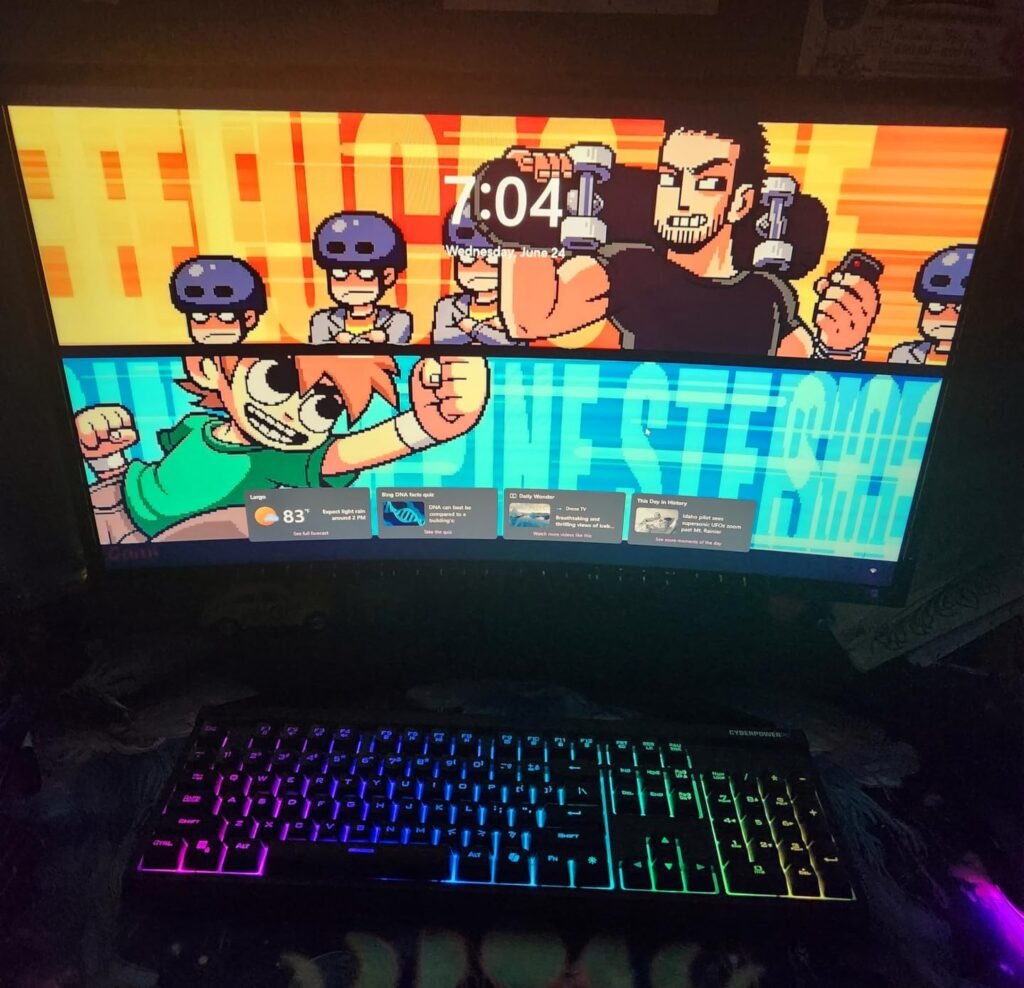
The Samsung S36GD brings the immersive appeal of a curved display to a mainstream price point. At 27 inches with an 1800R curve, the panel wraps just enough to reduce peripheral distractions and add depth to games and video without dominating a standard desk. It is a comfortable upgrade for anyone stepping up from an older flat display who wants a more engaging visual experience.
We may earn a commission when you buy through this link, at no additional cost to you.
A 100Hz refresh rate improves smoothness noticeably compared to standard 60Hz office monitors, which benefits both casual gaming and everyday scrolling. Samsung includes Game Mode with adjustable color and contrast settings, plus the ability to stretch any game to fill the entire screen. These small conveniences add up during long play sessions where visual clarity in dark scenes can make a real difference.
Eye comfort is a strong focus, with TUV certification for reduced blue light and flicker-free backlighting. These features matter for users who spend the entire workday in front of a screen and want to minimize fatigue. Direct device connection support adds flexibility for shared setups where multiple family members or team members use the same display with different sources.
Curved monitors reduce eye movement across the screen because the edges sit at a more consistent distance from your eyes than a flat panel of the same size. This can slightly reduce visual fatigue during long sessions and create a more engaging sense of depth in games and video. The benefit is most noticeable on displays 27 inches or larger and diminishes on smaller screens where the curve becomes less pronounced.
This Samsung curved monitor is a good pick for buyers who want the immersive feel of a curved screen without paying ultrawide prices. It works particularly well as a primary display for casual gamers and productivity users. Buyers who need higher refresh rates for competitive gaming or higher pixel density for detailed work should consider QHD alternatives instead.
Users who need higher pixel density or refresh rates above 100Hz for competitive gaming.
We may earn a commission when you buy through this link, at no additional cost to you.
The LG 27U411A-B pairs the color accuracy of an IPS panel with HDR10 support, resulting in vivid visuals that stand out among monitors in the same price range. Up to 99 percent sRGB coverage makes the display suitable for casual photo editing, content creation, and any workflow where color consistency matters. The 27-inch Full HD resolution is well suited for productivity and general gaming.

We may earn a commission when you buy through this link, at no additional cost to you.
A 120Hz refresh rate and 1ms Motion Blur Reduction keep gameplay looking sharp and responsive. Dynamic Action Sync minimizes input lag, giving competitive players faster reaction times, while Black Stabilizer brightens dark scenes so shadowy details become visible without ruining overall image quality. These gaming-oriented features add real value even for players who do not consider themselves competitive.
LG’s Switch app is a standout software addition that transforms the display into a serious multitasking hub. You can split the screen into up to six sections, save custom layouts for different work modes, and launch video calls with a single hotkey. Reader Mode reduces blue light for extended document viewing, and Flicker Safe technology helps reduce eye strain during long sessions.
The Switch app lets you divide your screen into preset layouts that keep applications organized during multitasking. For example, you can pin a video call window to one corner while working on documents in the main area, or split the screen evenly for side-by-side comparison work. Saving custom layouts for different tasks such as coding, writing, or streaming helps you switch context quickly without manually rearranging windows every time.
This monitor is a strong pick for users who want IPS color accuracy, HDR support, and useful multitasking software in one affordable package. The three-side virtually borderless design and slim stand base look great on modern desks. Buyers who need height-adjustable stands or DisplayPort connectivity should verify their peripheral needs before committing, since this model uses HDMI only.
Users who need DisplayPort input or a fully height-adjustable stand out of the box.
We may earn a commission when you buy through this link, at no additional cost to you.
The best display for you depends on how you use your computer day to day. The factors below cover the specifications that genuinely affect your experience so you can prioritize what matters and skip what does not.
The three most common panel types are IPS, VA, and TN. IPS panels deliver excellent color accuracy and wide viewing angles, making them the go-to choice for productivity, general use, and any color-sensitive work. VA panels provide superior contrast ratios, often around 3000:1 compared to IPS at 1000:1 to 1500:1, which produces deeper blacks and more cinematic image quality in movies and dark games. TN panels offer the fastest response times but at the cost of viewing angles and color accuracy, so they are less common in modern displays.
For most buyers, IPS is the safest choice because it balances color, viewing angles, and response times well enough for nearly every use case. VA becomes attractive when you watch a lot of movies, prefer curved displays, or want deeper contrast for atmospheric games. Curved displays are almost always VA because the technology handles the panel curvature more easily than IPS at typical price points.
If you split time between productivity and gaming with color-accurate work occasionally, prioritize IPS. If dark movies and immersive gaming dominate your usage, a VA panel will reward you with richer contrast.
Resolution and screen size together determine pixel density, which influences how sharp text and images appear. Full HD (1920 by 1080) works well on 24-inch screens where the pixel density hits around 92 PPI, producing crisp visuals without needing display scaling. On 27 inches, FHD drops to around 82 PPI, which is workable but noticeably softer for detailed work. On 32 inches, FHD becomes even less dense at 69 PPI.
QHD (2560 by 1440) is the sweet spot for 27-inch displays, providing around 109 PPI for sharp text and comfortable viewing distances. 4K (3840 by 2160) on a 27-inch screen reaches 163 PPI, which is exceptionally sharp but often requires display scaling in Windows to keep interface elements readable. Ultrawide QHD (3440 by 1440) offers extra horizontal space that benefits productivity and immersive gaming.
Match resolution to screen size: FHD for 24 inches, QHD for 27 inches, and 4K for 32 inches and above. Ultrawides fit users who need horizontal workspace or want cinematic gaming immersion.
Refresh rate measures how many times per second the display updates its image, expressed in Hz. Standard 60Hz is fine for basic office work, but 100Hz and above provide noticeably smoother motion during everyday tasks like scrolling, window dragging, and video playback. Competitive gamers benefit from 144Hz or higher, while 200Hz and above matter most for esports titles where quick reaction time is critical.
Response time measures how quickly individual pixels change color, typically expressed in milliseconds. Lower is better because it reduces motion blur and ghosting behind fast-moving objects. Watch for the specific measurement type: GTG (gray-to-gray), MPRT (moving picture response time), and VRB (visual response boost) all measure differently. GTG is the most standardized, while MPRT and VRB often rely on backlight strobing which can dim the image.
For general use, 100Hz to 120Hz is a comfortable minimum. Competitive gaming benefits from 144Hz or higher paired with adaptive sync technology like FreeSync or G-Sync to eliminate tearing.
Adaptive sync technologies match the monitor’s refresh rate to your graphics card’s frame output in real time, eliminating screen tearing and reducing stutter. AMD FreeSync works with most modern displays and AMD or NVIDIA graphics cards, while NVIDIA G-Sync typically requires certified monitors and NVIDIA cards. FreeSync Premium adds requirements for higher refresh rates and low framerate compensation for smoother gameplay at lower frame rates.
Additional gaming features worth considering include Black Stabilizer or similar modes that brighten dark scenes without washing out the image, and low input lag settings that prioritize responsiveness over image processing. Some monitors include on-screen crosshairs, timers, or picture-in-picture modes that add convenience during play. HDR support, especially HDR10 or higher, can enhance visual impact in supported games and movies.
If you game regularly, prioritize a monitor with FreeSync or G-Sync support that matches your graphics card. Higher-end features like HDR are nice bonuses but should not override fundamentals like refresh rate and panel quality.
Port selection determines how easily you can connect your devices and expand your setup. HDMI is the most universal, with HDMI 2.0 supporting 4K at 60Hz and HDMI 2.1 supporting 4K at 120Hz plus variable refresh rate. DisplayPort 1.4 is the preferred connection for high refresh rate gaming and multi-monitor setups because it handles bandwidth more efficiently. USB-C with DisplayPort Alt Mode simplifies laptop docking by carrying video, data, and power over a single cable.
Multiple inputs let you connect several devices without swapping cables. If you use a desktop PC and a gaming console, having two HDMI ports plus a DisplayPort input is convenient. USB hubs built into monitors add downstream USB-A ports for keyboards, mice, and peripherals, reducing cable clutter around your computer. Built-in speakers are useful for basic audio, though they rarely match dedicated desktop speakers or headphones.
List the devices you plan to connect before buying and confirm the monitor has enough ports of the right type. If you want single-cable laptop docking, look specifically for USB-C monitors with power delivery.
Ergonomic adjustability affects comfort during long sessions. A tilt-only stand is the most common budget option, allowing basic angle adjustment but nothing more. Height adjustment lets you raise the screen so the top edge sits at or slightly below eye level, which reduces neck strain. Swivel adjustment lets you angle the screen horizontally, useful for shared viewing. Pivot rotation switches the display to portrait orientation for reading long documents or coding.
VESA mount compatibility, typically 75 by 75mm or 100 by 100mm, allows you to attach the monitor to an aftermarket arm or wall mount. This is valuable for users who want maximum flexibility, plan to save desk space, or need to accommodate multiple monitors in a limited area. A quality monitor arm often costs less than upgrading to a fully adjustable stand and provides much more range of motion.
If ergonomics matter to you and your budget allows, choose a monitor with full height, tilt, swivel, and pivot adjustability. Otherwise, plan to add a VESA arm for the flexibility you need.
Eye comfort features have become standard on modern displays and genuinely help reduce fatigue during long computing sessions. Flicker-free backlighting eliminates the invisible pulsing that can cause headaches and eye strain over time. Low blue light modes reduce the amount of high-energy blue light emitted, which some studies link to eye fatigue and disrupted sleep patterns when using screens late at night.
TUV Rheinland certifications provide independent verification of these claims. A TUV 3-star or 4-star rating confirms the display reduces harmful blue light without dulling colors through amber filters, which was a common weakness in earlier blue light reduction implementations. Reader Mode features, sometimes called EasyRead or similar, simulate a paper-like appearance for extended document viewing.
For anyone spending eight or more hours in front of a screen daily, prioritize monitors with flicker-free operation and TUV certification. These features cost little extra but make a real difference in comfort.
When you first set up your monitor, take time to adjust the height, tilt, and distance for comfortable viewing. The top edge of the screen should sit at or slightly below eye level, and the display should be roughly an arm’s length away. Configure your operating system’s display scaling if text appears too small or too large, particularly on high-resolution QHD or 4K screens. Set the refresh rate to the monitor’s maximum in your graphics card control panel, since Windows sometimes defaults to lower rates.
Clean the screen with a dry microfiber cloth to remove dust, and use a slightly damp microfiber cloth for stubborn fingerprints. Avoid paper towels, tissues, or harsh cleaning solutions like glass cleaner containing ammonia, which can damage anti-glare coatings. Never spray liquid directly onto the display. Wipe gently in horizontal or vertical motions rather than circular scrubbing to prevent uneven pressure on the panel.
For long-term care, avoid leaving static images displayed for extended periods on OLED or older panels to prevent burn-in. Enable your operating system’s screen saver or auto-sleep features to extend backlight life. Position the monitor away from direct sunlight, which can wash out the image and accelerate wear on the panel. Keep the ventilation slots on the back of the monitor clear to prevent overheating, and update the monitor’s firmware if the manufacturer releases updates.
A 27-inch monitor is the most popular size because it balances screen real estate with desk footprint and works well at typical viewing distances. It provides enough space for side-by-side windows without dominating a standard desk. Smaller 24-inch displays suit compact workspaces, while 32-inch and ultrawide models benefit users who want maximum screen area for multitasking or immersive gaming.
Higher refresh rates provide smoother motion, but the benefit diminishes as numbers climb. Moving from 60Hz to 120Hz or 144Hz is a dramatic improvement that most users notice immediately. Jumping from 144Hz to 240Hz or higher is subtle and mainly matters for competitive esports gaming. For general use, 100Hz to 144Hz offers the best balance of smoothness and value.
HDR support enhances visual impact in compatible games and video by expanding contrast and color range. However, entry-level HDR implementations often lack the peak brightness and local dimming needed for a genuinely impressive HDR experience. If HDR matters to you, look for HDR400 as a minimum and HDR600 or higher for meaningful improvement. Otherwise, standard dynamic range remains perfectly adequate for most content.
Both technologies synchronize the monitor's refresh rate with the graphics card's frame output to eliminate tearing and stutter. AMD FreeSync is an open standard supported by most modern monitors and works with AMD and many NVIDIA cards. NVIDIA G-Sync originally required certified hardware modules but now includes G-Sync Compatible mode that works with many FreeSync displays. For most users, FreeSync provides equivalent benefits at lower cost.
Response time affects how quickly pixels change color, which influences motion clarity. Slower response times cause visible ghosting or smearing behind fast-moving objects. For casual gaming, 5ms GTG is fine. Competitive gamers benefit from 1ms GTG or faster, though be aware that many advertised 1ms specifications use MPRT or VRB rather than true GTG measurements, which are measured differently.
Curved monitors provide added immersion and can reduce eye strain by keeping screen edges at a more consistent distance from your eyes. The benefit is most noticeable on displays 27 inches or larger, especially ultrawides. Flat panels remain preferred for precise creative work like design and photo editing where straight-line accuracy matters. For general use and gaming, either works well and choice comes down to personal preference.
Higher resolutions provide more usable screen space and sharper text, which improves productivity for anyone working with documents, spreadsheets, or multiple application windows. QHD is a strong upgrade from FHD on 27-inch screens without demanding a powerful graphics card. 4K offers exceptional sharpness but requires more GPU power and often benefits from display scaling to keep interface elements readable at normal viewing distances.
Built-in monitor speakers are typically adequate for basic use like video calls, system notifications, and casual music playback, but they rarely match the quality of dedicated desktop speakers or headphones. If sound quality matters for gaming, media, or music, plan to use separate audio equipment. Built-in speakers become genuinely valuable when desk space is tight or you want to minimize cable clutter.
Most modern laptops support external displays through HDMI, DisplayPort, or USB-C with DisplayPort Alt Mode. USB-C is especially convenient because it can carry video, data, and power through a single cable when the monitor supports Power Delivery. Check your laptop's port selection and match it to a monitor with compatible inputs. Docking stations and USB-C hubs expand connectivity for laptops with limited ports.
A quality monitor typically lasts five to ten years or more with normal use before backlight brightness or panel performance degrades noticeably. LED backlights last longer than the older CCFL technology found in aging displays. To maximize lifespan, avoid leaving static images displayed for extended periods, keep ventilation slots clear, and turn off the display when not in use rather than relying only on standby mode.
The Dell S2725DSM QHD stands out as the strongest overall pick thanks to its 27-inch QHD panel, 144Hz refresh rate, full ergonomic adjustability, and built-in speakers at a mainstream price. It handles productivity, casual gaming, and media playback equally well and delivers noticeably sharper visuals than FHD alternatives without demanding the powerful graphics card that 4K displays require.
For budget-focused shoppers, the Philips 241V8LB delivers exceptional value with a 24-inch VA panel and 100Hz refresh rate under $75. Creative professionals and enthusiast gamers should consider the Dell S2725QS 4K model for its sharp UHD resolution and FreeSync Premium support. Ultrawide fans will appreciate the SANSUI 34-inch curved display with 200Hz refresh rate for immersive gaming and expansive productivity workspace.
Start by identifying your top priorities: screen size, resolution, refresh rate, or specific features like ergonomics and built-in audio. Match the monitor to your actual use case rather than chasing the highest specifications on paper. Every model in this lineup delivers reliable performance for its intended purpose, so the right choice depends on how you plan to work, play, and multitask at your desk.