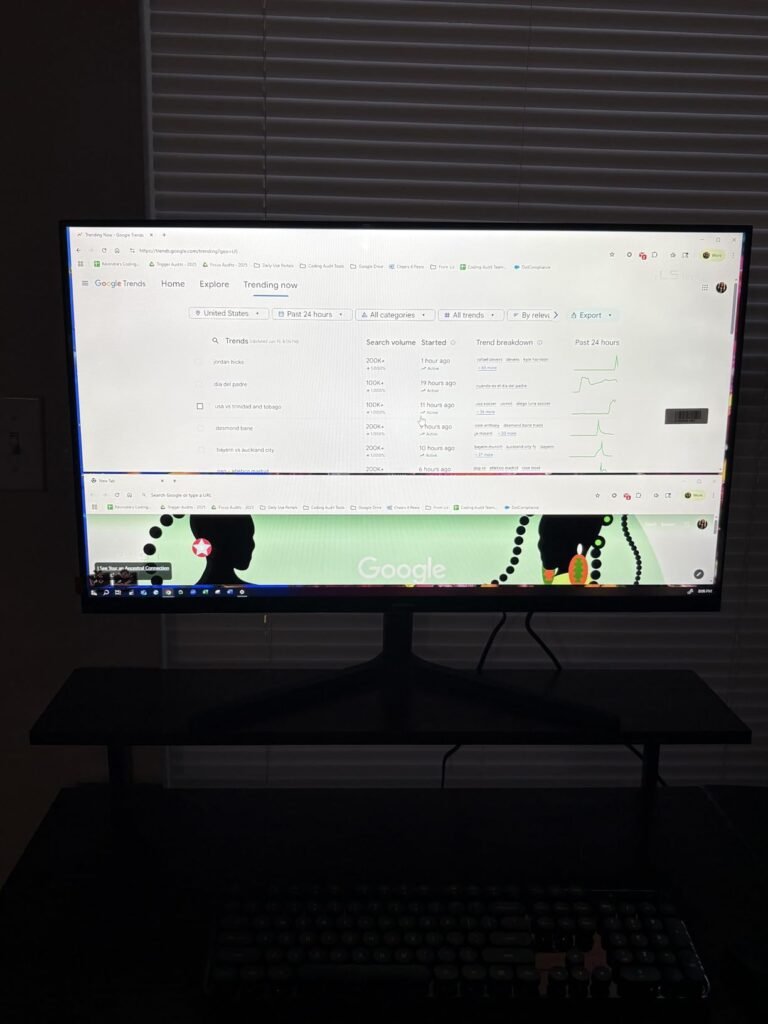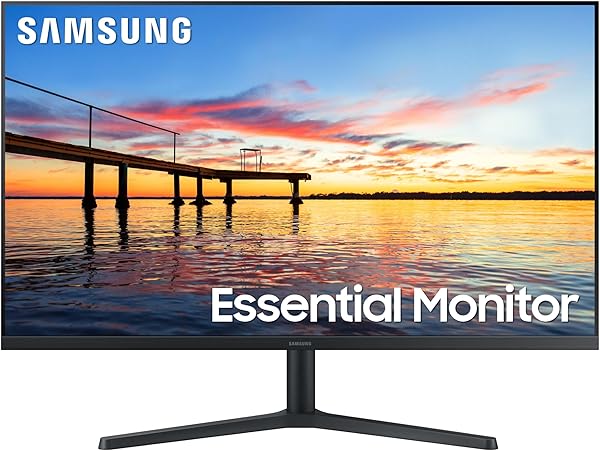
Samsung 32-inch Flat
9.0Editor score75Hz refresh rate
AMD FreeSync support
Three-sided borderless design
Game Mode included
Compare 10 top 32-inch monitors by panel type, resolution, refresh rate, ports, and value. Find the right display for work, gaming, or creative tasks.
Picking the right 32-inch monitor means balancing panel type, resolution, refresh rate, response time, port selection, ergonomics, and value against how you actually use your desk. We compare 10 standout displays from brands like Samsung, Dell, LG, ASUS, ViewSonic, and Sceptre, covering everything from budget Full HD screens to premium 4K and high-refresh gaming panels.
A 32-inch display sits in the sweet spot for productivity, immersive gaming, and content creation. The extra real estate over a 27-inch monitor makes multitasking noticeably easier, and the larger screen pairs well with higher resolutions like QHD and 4K without forcing you to scale text awkwardly. Panel technology and refresh rate matter more at this size than most buyers realize.
This guide breaks down each option with clear specs, honest pros and cons, and practical buying advice. Whether you need an affordable office display, a curved QHD gaming monitor, or a 4K creative workstation, you will find a model that fits your use case and your budget.
We compared 10 32-inch monitors using the details that actually help a buyer decide: panel type and viewing angles, native resolution, refresh rate and response time, HDR support and color coverage, port selection, built-in speakers, eye-care features, stand ergonomics, VESA mounting, owner feedback, and overall value. The notes focus on practical trade-offs so each pick connects to how people actually work, game, stream, and create on a large desktop display in real daily use.


Compare key features, scores, and current prices side by side. A shorter feature list means fewer details were available, not necessarily fewer capabilities.



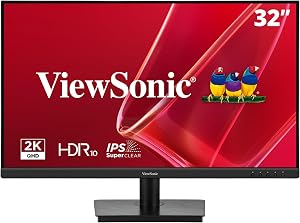


The ViewSonic VA3209M earns the highest owner rating in this guide at 4.6 stars, which reflects strong real-world satisfaction with its combination of affordability, IPS panel quality, and reliable performance. The 32-inch Full HD IPS display provides consistent colors and wide viewing angles that keep visuals clear from any perspective, which is useful for home offices, dorm rooms, and shared spaces.
We may earn a commission when you buy through this link, at no additional cost to you.
VESA Adaptive Sync technology enables a smooth 75Hz refresh rate that ensures consistent frame rates and reduces screen tearing during casual gaming and multimedia playback. The slight bump over standard 60Hz makes scrolling and web browsing feel noticeably more fluid without pushing into gaming monitor pricing.
Integrated Flicker-Free technology and a Blue Light Filter minimize eye fatigue during long workdays or study sessions. The ViewMode presets let you quickly switch between Game, Movie, Web, Text, and Mono modes to get the ideal gamma curve, contrast, and brightness for any task. This feature is particularly useful for users who switch between creative work and reading throughout the day.
VGA input is less common on new monitors but remains useful for older computers, specific industrial equipment, and some home office setups. If you have devices that only output VGA, having both HDMI and VGA on your monitor provides flexibility without needing an adapter. For modern setups, HDMI covers the primary connection while VGA stays available for occasional use.
This monitor is a smart pick for budget-conscious buyers who want IPS panel quality on a large screen without premium gaming or 4K pricing. HDMI and VGA inputs provide compatibility with both modern hardware and legacy devices, which matters for home offices with older computers or specific equipment that still uses VGA. Users who need DisplayPort for daisy-chaining or specific features should look elsewhere.
Users who need QHD or 4K resolution and DisplayPort connectivity.
We may earn a commission when you buy through this link, at no additional cost to you.
The Samsung 32-inch Flat Monitor is a strong value pick for anyone who wants a large productivity display without stretching their budget. The three-sided borderless design creates a clean, modern look that works well as a single monitor or lines up seamlessly in a dual-screen setup for near-gapless multitasking.
We may earn a commission when you buy through this link, at no additional cost to you.
AMD FreeSync keeps the monitor and graphics card refresh rate synchronized, which reduces image tearing during video playback and casual gaming. The 75Hz refresh rate is modestly faster than standard 60Hz office monitors, which translates to slightly smoother scrolling through long documents and more fluid motion in web browsing and video streaming.
Eye care features include Flicker Free technology that eliminates the subtle screen flicker that can cause fatigue during long sessions, plus an Eye Saver Mode that minimizes emitted blue light. The optional Game Mode adjusts contrast and visibility to help spot details in darker scenes, which is useful for casual gamers who occasionally play after work.
A 75Hz refresh rate is a modest upgrade over the standard 60Hz but makes a real difference in daily browsing and productivity work. If you don’t play competitive esports or watch high-frame-rate gaming content, 75Hz covers everything most users do without the cost of higher-refresh gaming panels.
This monitor is the right pick for home office users, students, and families who want a large display at a low price. The lack of a height-adjustable stand means you may need a monitor arm or riser if you need ergonomic viewing position, and the 75Hz refresh rate limits competitive gaming appeal. For general daily use, it delivers excellent value.
Competitive gamers who need high refresh rates and ergonomic height adjustment.
We may earn a commission when you buy through this link, at no additional cost to you.
The Dell S3225QS stands out as the editor's pick for most 32-inch buyers thanks to its uncommon combination of 4K UHD resolution, 120Hz refresh rate, and strong color coverage at a reasonable price. The VA panel delivers a 1500:1 contrast ratio that produces deep blacks and strong image depth, which looks particularly impressive in movies and games with dark scenes.
We may earn a commission when you buy through this link, at no additional cost to you.
The 120Hz refresh rate with AMD FreeSync Premium support eliminates tearing during gaming and video playback, and the 0.03ms response time keeps motion crisp without visible ghosting. Color coverage reaches 99% sRGB and 95% DCI-P3, which is sufficient for photo editing, video editing in standard color spaces, and general creative work beyond color-critical professional applications.
ComfortView Plus technology reduces harmful blue light emissions to below 35% without compromising color accuracy, which addresses the common complaint that blue light filters wash out colors. The re-engineered sound system delivers more detailed audio with deeper frequency response and higher output than Dell’s previous generation, meaning you may not need separate speakers for casual listening.
VA panels deliver better contrast and deeper blacks than IPS panels, which looks great in movies and single-user scenarios. IPS panels offer wider viewing angles that keep colors consistent when viewed from the side, which matters when sharing your screen with others. For a single user who values image depth, VA is often the better choice at this size.
This monitor makes the most sense for mixed-use buyers who want 4K productivity for office work, enough refresh rate for enjoyable gaming, and good color for creative projects without the price of a dedicated creative display. If you need the widest viewing angles for sharing your screen with others, consider an IPS panel instead.
Professional colorists who need Adobe RGB coverage or widest-possible viewing angles.
We may earn a commission when you buy through this link, at no additional cost to you.
The Samsung Odyssey G55C targets gamers who want immersive visuals that wrap around their peripheral vision. The aggressive 1000R curve matches the natural curvature of the human eye, which fills more of your field of view and makes action scenes feel more enveloping compared to flat panels or more gentle curves.
We may earn a commission when you buy through this link, at no additional cost to you.
QHD resolution at 2560 by 1440 provides 1.7 times the pixel density of Full HD, which translates to sharper text and more detailed in-game graphics. The 165Hz refresh rate paired with 1ms MPRT response delivers the smooth motion and fast transitions that competitive gaming demands, while AMD Radeon FreeSync keeps the display synchronized with your graphics card to eliminate tearing.
HDR10 support brings scenes to life with brighter highlights, deeper shadows, and more vibrant colors in compatible content. Eye Saver Mode reduces blue light to keep your eyes comfortable during extended sessions, and flicker reduction technology prevents the subtle flashing that can cause fatigue during long gaming marathons.
Curvature is measured by the radius in millimeters. Lower numbers mean a more aggressive curve. A 1000R curve matches the natural curvature of the human eye and provides the most immersive experience. Gentler curves like 1500R or 1800R offer a subtle wrap that works better for productivity. For pure gaming, 1000R delivers the strongest sense of being inside the action.
This monitor is the right pick for solo gamers who want maximum immersion from a curved display and prioritize gaming over productivity work. The aggressive curve can feel awkward for spreadsheets and document work where straight lines matter, so pure productivity users should consider flat panels like the Dell S3225QS or ViewSonic VS3225-2K.
Productivity users who need straight lines for spreadsheets and document work.
We may earn a commission when you buy through this link, at no additional cost to you.
The Sceptre E325B delivers a competitive gaming feature set at a price that undercuts most major brands, making it one of the strongest value picks for QHD gaming on a 32-inch panel. The 210Hz refresh rate exceeds what most gaming monitors offer at this size and price, giving you the smoothness that competitive FPS and racing games benefit from on capable hardware.
We may earn a commission when you buy through this link, at no additional cost to you.
The 2K QHD VA panel pairs the high refresh rate with sharper pixel density than Full HD, and the 1ms blur reduction keeps motion crisp during fast gameplay. Connectivity is a particular highlight with two HDMI ports supporting up to 144Hz, one DisplayPort for the full 210Hz, and one USB Type-C input that makes this monitor practical for modern laptops that output video over USB-C.
Built-in speakers and an audio-out jack provide flexible audio options without adding desk clutter from external speakers. Color coverage reaches 115% sRGB for vibrant, true-to-life colors that work well for both gaming and casual creative tasks. Blue-Light Shift technology reduces harmful emissions during long sessions, and custom display modes for FPS and RTS titles tune the display for different game genres.
USB-C video input is uncommon on gaming monitors and particularly useful if you have a modern laptop that outputs video over its USB-C port. This can simplify your desk setup by eliminating the need for a separate DisplayPort or HDMI cable. Check that your laptop’s USB-C port supports video output before relying on this feature.
This monitor is a smart pick for gamers who want high refresh rate QHD performance and USB-C convenience without paying premium prices. The Sceptre brand is less visible than Samsung or Dell, which may affect perceived value, but the specifications deliver real gaming performance at a competitive price.
Buyers who prefer established major brand names and need the widest viewing angles.
We may earn a commission when you buy through this link, at no additional cost to you.
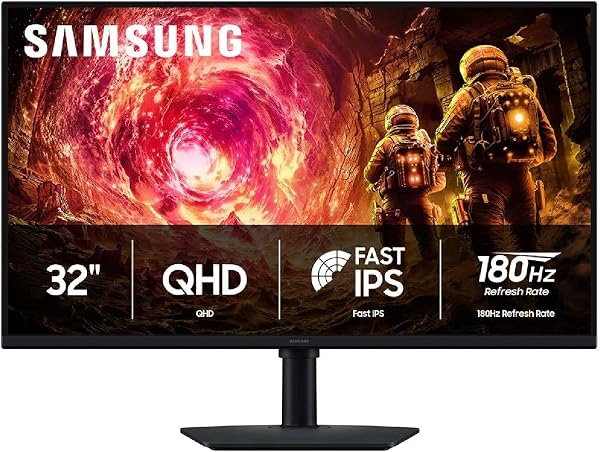
The Samsung Odyssey G50F brings the Odyssey gaming series to a flat IPS panel, which combines fast refresh rate gaming with the wide viewing angles that IPS technology delivers. The 178-degree viewing angle keeps colors consistent when the screen is viewed from the side, which matters for shared screens, dual-monitor setups, or sitting slightly off-center.
We may earn a commission when you buy through this link, at no additional cost to you.
The 180Hz refresh rate paired with 1ms GtG response time offers true gray-to-gray speed rather than the inflated MPRT figures some monitors advertise. G-Sync compatibility syncs the GPU and display to eliminate choppiness, screen lag, and image tearing, giving NVIDIA users benefits that previously required dedicated G-Sync hardware.
HDR10 provides brighter highlights and nuanced shadows for added depth in supported games and video. The Black Equalizer feature improves visibility in dark scenes, and the Virtual Aim Point can improve shot accuracy in shooters. The height-adjustable Ergonomic Stand pivots, tilts, and swivels for the perfect viewing position, which is a meaningful upgrade over fixed stands at this price level.
Monitor response time is measured in two ways. GtG, or gray-to-gray, measures how quickly a pixel changes from one gray shade to another and is generally considered more honest. MPRT, or moving picture response time, measures perceived motion blur and often requires backlight strobing to achieve. A monitor with 1ms GtG is faster than a 1ms MPRT monitor in practical terms.
This monitor is the right pick for gamers who want IPS color consistency along with high refresh rate gaming and prefer a flat panel over a curved display. The combination of flat IPS, 180Hz refresh, G-Sync compatibility, and ergonomic stand makes it a strong all-around gaming display, though the price is higher than VA-based alternatives like the Odyssey G55C.
Buyers who want a curved immersive display or need USB-C connectivity.
We may earn a commission when you buy through this link, at no additional cost to you.
The ASUS VP327Q delivers 4K UHD resolution on a 31.5-inch IPS panel at a price well below typical 4K monitors, making it a strong value for productivity and content consumption. Four times the pixel density of Full HD transforms multitasking by letting you display multiple windows at readable sizes simultaneously, and the extra sharpness benefits text-heavy work like coding and writing.
We may earn a commission when you buy through this link, at no additional cost to you.
The IPS panel delivers 178-degree viewing angles that keep colors consistent from any seating position, which is useful when sharing your screen or working at different angles throughout the day. Color coverage reaches 99% sRGB, suitable for photo editing, web design, and casual video work, and HDR-10 support brings lifelike contrast to compatible content.
ASUS Eye Care technology includes TÜV-certified flicker-free operation and low blue light filters that reduce eye strain during long work shifts or late-night sessions. Connectivity includes dual HDMI ports and DisplayPort for connecting multiple devices, and built-in stereo speakers eliminate the need for separate audio equipment for basic listening.
A 32-inch 4K display offers about 138 pixels per inch, which is sharp enough for crisp text without needing display scaling for most users. This is a sweet spot where you get genuine productivity benefit from 4K resolution without the smaller text issues that arise with 4K on 24 to 27-inch panels. Content creators and multitaskers particularly benefit from this screen area.
This monitor is a smart choice for productivity users and casual creators who want 4K sharpness without premium gaming features or costs. The standard 60Hz refresh rate limits gaming appeal, so competitive players should look at the Dell S3225QS or Samsung Odyssey models. The 3-year warranty with advanced replacement adds meaningful peace of mind at this price point.
Gamers who need high refresh rates for competitive play.
We may earn a commission when you buy through this link, at no additional cost to you.
The LG 32MR50C is a budget-friendly entry into curved display gaming, delivering a curved VA panel at a price that undercuts most QHD curved monitors. The vibrant color and clarity suit productivity work and casual gaming, and the Full HD resolution keeps hardware requirements reasonable for older GPUs or laptops without dedicated graphics.
We may earn a commission when you buy through this link, at no additional cost to you.
The 100Hz refresh rate exceeds standard 60Hz office panels and delivers noticeably smoother motion for streaming, scrolling, and casual gaming without stuttering or motion blur. AMD FreeSync syncs the display with compatible graphics cards to deliver seamless, fluid movement in fast-paced games, eliminating the tearing that affects games without sync technology.
Reader Mode provides optimized conditions for extended reading by reducing blue light, which matters when you work with documents and articles for hours at a time. The Black Stabilizer feature brightens dark game scenes to reveal enemies and details that other players might miss, giving casual gamers a visibility advantage. The ergonomic tilt stand adjusts for comfortable viewing angles.
Full HD resolution on a 32-inch panel results in lower pixel density, which some users notice as slightly less sharp text compared to QHD or 4K displays. For casual use, streaming, and gaming where you sit at normal viewing distance, FHD remains acceptable. For dense text work or professional creative tasks, higher resolutions are usually worth the extra cost.
This monitor is a smart pick for budget-conscious users who want a curved display without paying for QHD or high gaming specs. The Full HD resolution and 100Hz refresh rate suit casual users, students, and home office setups where you want visual immersion without competitive gaming demands. Buyers with modern graphics cards or demanding games should step up to QHD options.
Professional users who need high pixel density for dense text and detailed work.
We may earn a commission when you buy through this link, at no additional cost to you.
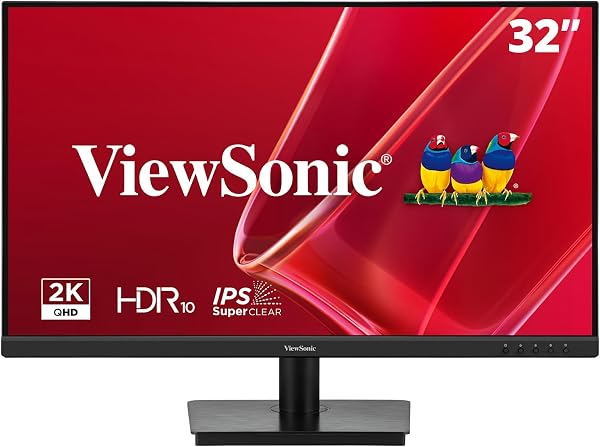
The ViewSonic VS3225-2K delivers QHD resolution on a SuperClear IPS panel with 1.07 billion colors, making it a strong pick for productivity, home office, and casual multimedia use. The 2560 by 1440 resolution provides significantly more screen real estate than Full HD for documents, spreadsheets, and presentations without the hardware demands of 4K.
We may earn a commission when you buy through this link, at no additional cost to you.
HDR10 support and 250-nit brightness help the display render compatible HDR images, videos, and work content with improved contrast and color depth compared to standard SDR content. The 75Hz Variable Refresh Rate reduces tearing and stuttering during scrolling, video playback, and casual gaming while maintaining the sharp QHD resolution.
Dual 2.5W built-in speakers provide audio output without requiring external speakers for casual listening, meetings, or video calls. Flicker-Free technology and Low Blue Light support deliver comfortable extended viewing for work and study sessions, and the 100 by 100mm VESA mount pattern supports flexible workspace installation with monitor arms.
QHD at 32 inches delivers around 92 pixels per inch, which is noticeably sharper than Full HD without the scaling complications of 4K. Documents, text, and web content look crisp without needing to adjust Windows scaling settings, and the extra screen area makes side-by-side window arrangements genuinely practical for productivity work.
This monitor is the right pick for productivity-focused users who want QHD sharpness and IPS color consistency without paying for high refresh rate gaming features. Dual HDMI 1.4 and DisplayPort inputs plus audio out provide flexible connectivity for laptops, desktops, and media devices. Gamers who prioritize refresh rate should look at the Samsung Odyssey or Sceptre options instead.
Competitive gamers who need high refresh rates for responsive gameplay.
We may earn a commission when you buy through this link, at no additional cost to you.
The Samsung ViewFinity S70H targets productivity and creative users who need 4K UHD resolution with reliable color performance and software features that enhance workflow. The 3840 by 2160 resolution reveals greater levels of detail and provides extensive screen real estate for complex multitasking across design apps, spreadsheets, and reference materials.
We may earn a commission when you buy through this link, at no additional cost to you.
HDR10 optimizes contrast with darker blacks and brighter highlights, delivering accurate colors across a wide gamut that benefits content creation and media consumption. The 178-degree wide viewing angle maintains consistent brightness and precise visuals across the entire screen, which is useful for sharing work with colleagues or clients.
Samsung Display Manager software enables easy access to split-screen setups, brightness adjustment, KVM switching, picture-in-picture and picture-by-picture modes, and precise calibration tools. This software adds genuine productivity value that most competing monitors lack, letting you optimize your workspace without wrestling with Windows settings or third-party tools. TÜV certification confirms the eye comfort technology meets independent testing standards.
Monitor manufacturer software like Samsung Display Manager often gets overlooked but can meaningfully improve daily workflow. Features like built-in split-screen management, KVM switching between devices, and quick brightness adjustments reduce friction when you work across multiple applications or share one monitor between a work and personal computer.
This monitor is a strong pick for creative professionals, developers, and productivity users who need 4K sharpness and comprehensive display management software. The lower owner rating of 4.1 suggests some buyers may have experienced issues, so review current feedback before purchasing. Gamers and users who prioritize high refresh rate should look at the Dell S3225QS or dedicated gaming options instead.
Competitive gamers who need high refresh rates and the lowest input latency.
We may earn a commission when you buy through this link, at no additional cost to you.
Picking the right 32-inch display involves balancing resolution, panel type, refresh rate, color accuracy, ergonomics, and port selection against your primary use case and budget. Here is what to prioritize before you buy.
Resolution choices at 32 inches range from Full HD at 1920 by 1080, through QHD at 2560 by 1440, up to 4K UHD at 3840 by 2160. Each level offers different pixel density, which affects how sharp text and images appear and how much screen real estate you have for multitasking. Full HD on a 32-inch panel delivers roughly 69 pixels per inch, QHD provides 92 pixels per inch, and 4K offers 138 pixels per inch.
QHD is often considered the sweet spot for 32-inch displays because it provides noticeably sharper visuals than Full HD without the hardware demands of 4K and without triggering Windows display scaling that can cause issues with older software. 4K delivers the best clarity but requires more capable graphics hardware for gaming, and some productivity apps still have scaling quirks at high pixel densities.
For general productivity and casual gaming, QHD is the strongest all-around choice. Choose 4K if you work with detailed content like photo editing, video production, or dense spreadsheets. Stick with Full HD only for budget builds or when pairing with older computers that struggle with higher resolutions.
Three main panel technologies dominate the 32-inch market. IPS panels deliver the widest viewing angles at 178 degrees and the most consistent colors across the screen, making them the preferred choice for color-critical work and multi-user viewing. VA panels offer better contrast ratios and deeper blacks than IPS, which looks great in movies and games with dark scenes, but viewing angles narrow more quickly from the side.
TN panels are now rare at 32 inches but offer the fastest response times for competitive gaming at the cost of color accuracy and viewing angles. For most buyers, the choice comes down to IPS versus VA, and the decision depends on whether you prioritize color consistency and shared viewing, which favors IPS, or deep blacks and image depth for solo use, which favors VA.
If you work in design, photo editing, or share your screen frequently, choose IPS. If you watch movies, game solo, and value immersive dark scenes, VA panels like the Dell S3225QS and Samsung Odyssey G55C offer strong value. Flat IPS gaming panels like the Samsung Odyssey G50F combine both benefits at a higher price.
Refresh rate measures how many times per second the display updates its image, measured in hertz. Standard office monitors run at 60Hz or 75Hz, which handles productivity and casual use fine. Gaming monitors range from 120Hz through 240Hz and higher, delivering noticeably smoother motion for fast-paced games and benefits visible even in normal desktop use like scrolling and window movement.
Response time measures how quickly pixels transition between colors, usually reported in milliseconds. Lower is better, with 1ms considered excellent for gaming. Response time is reported two ways: gray-to-gray, which is more honest, and MPRT, which measures perceived motion blur and often requires backlight strobing. A 1ms GtG monitor delivers faster real-world performance than a 1ms MPRT monitor.
If you don’t play games, 75Hz is enough and saves money. For casual gaming or professional use with occasional gaming, 120Hz to 165Hz hits the sweet spot. Competitive players should prioritize 180Hz or higher with low GtG response times for the smoothest competitive experience.
HDR, or high dynamic range, delivers brighter highlights, deeper shadows, and wider color gamuts in compatible content. HDR10 is the baseline standard and appears on most monitors with HDR branding, though the quality of HDR implementation varies significantly. True HDR benefits require higher peak brightness, local dimming, and wider color coverage than most mid-range monitors deliver.
Color coverage is measured against industry color spaces. sRGB covers typical web and standard video content, and 99% to 100% sRGB coverage is sufficient for most users. DCI-P3 is a wider color space used in cinema and modern HDR content, with 90% or higher coverage considered strong. Adobe RGB coverage matters mainly for professional print and photography work.
For casual use and gaming, 99% sRGB coverage is enough. For creative work in digital video or photography, prioritize models with 95% or higher DCI-P3 coverage. Avoid obsessing over HDR unless you consume significant HDR content, as entry-level HDR implementations often add little visible benefit.
Flat panels remain the standard for productivity work because straight lines in spreadsheets, documents, and design apps look correct. Curved panels wrap around your field of view, creating a more immersive gaming and media experience by matching the natural curvature of your eye. Curvature is measured in millimeters, with lower numbers indicating more aggressive curves.
A 1000R curve matches the human eye’s natural curvature and provides the strongest immersive gaming experience, as seen in the Samsung Odyssey G55C. Gentler 1500R or 1800R curves offer subtle wrap that works for mixed productivity and gaming use. Flat panels remain the right choice for pure productivity, multi-monitor setups, and any work where straight lines matter.
Choose flat if you spend most of your time on productivity or share your screen with others. Choose curved if you prioritize solo gaming immersion or media consumption and don’t mind the slight visual bend during spreadsheet work.
Port selection affects which devices you can connect and what features you can use. HDMI 2.0 handles 4K at 60Hz and QHD at higher refresh rates, while HDMI 2.1 adds 4K at 120Hz for newer gaming consoles. DisplayPort typically offers higher bandwidth and often enables the monitor’s maximum refresh rate on PC. USB-C with DisplayPort Alt Mode simplifies laptop connections by combining video, data, and power delivery in one cable.
Count the HDMI ports if you plan to connect multiple devices like a PC and gaming console. Verify DisplayPort availability if you want the full refresh rate on gaming monitors. USB-C input is particularly valuable for modern laptops and makes the Sceptre E325B stand out in this guide. Also check for audio output jacks if you plan to use headphones or external speakers.
For single-device setups, basic HDMI and DisplayPort cover most needs. For multi-device households or modern laptops, prioritize monitors with USB-C and multiple HDMI inputs to minimize cable swapping.
The included stand affects your daily comfort more than you might expect. Tilt-only stands are common on budget monitors and let you adjust the screen angle but not height. Full ergonomic stands with height, tilt, pivot, and swivel adjustment accommodate different sitting positions and reduce neck strain over long work sessions.
VESA mount compatibility lets you replace the included stand with a monitor arm, wall mount, or multi-monitor setup. Standard VESA patterns on 32-inch monitors are usually 100 by 100mm. If you plan to use a monitor arm or need advanced positioning, VESA compatibility is essential, and many budget monitors include it as a standard feature.
If you work long hours or share your workspace with others of different heights, prioritize height-adjustable stands or budget for a quality monitor arm. For set-and-forget home office use, a basic tilt stand is adequate.
When you first set up a new 32-inch monitor, position it at a comfortable viewing distance of roughly 24 to 36 inches from your eyes, with the top of the screen at or slightly below eye level to reduce neck strain. Use the ergonomic stand or a monitor arm to achieve this positioning if possible. Install the manufacturer’s drivers and software if applicable, enable any eye care features like blue light reduction and flicker-free mode, and adjust brightness to match your room lighting rather than defaulting to maximum.
During regular use, enable your operating system’s night mode or blue light filter for evening sessions, and take short breaks every 20 to 30 minutes to look at distant objects and reset your focus. For gaming, enable adaptive sync technologies like FreeSync or G-Sync compatibility to eliminate tearing, and set the refresh rate in both your graphics card settings and in-game to match your monitor’s maximum. If your monitor includes picture modes for different use cases, switch to the appropriate mode for gaming, movies, or productivity work.
For long-term care, clean the screen with a soft microfiber cloth and avoid harsh chemicals or paper towels that can scratch anti-glare coatings. Dust the vents and ports periodically to prevent overheating, and keep the monitor away from direct sunlight that can degrade panel colors over time. If you notice stuck or dead pixels in the first weeks, document them and contact the manufacturer about warranty replacement, as most monitors have pixel defect policies that specify acceptable numbers of defective pixels before replacement.
A 32-inch display works well on most standard desks, measuring roughly 28 inches wide and requiring at least 24 inches of viewing distance for comfortable use. If your desk is less than 24 inches deep, you may need a monitor arm to position the screen farther away. For typical home offices and gaming setups with normal desk depth, a 32-inch monitor fits comfortably and provides excellent screen real estate without feeling overwhelming.
QHD at 2560 by 1440 is the sweet spot for most 32-inch monitors, offering sharper visuals than Full HD without the hardware demands or scaling complications of 4K. Choose 4K if you work with detailed content like photo editing, video production, or need maximum screen real estate for multitasking. Full HD at 32 inches is acceptable for budget builds but shows noticeable pixelation up close.
Curved monitors deliver more immersive gaming and media experiences by wrapping around your field of view, while flat panels keep straight lines accurate for productivity work. If you primarily game or watch movies, a curved display like the Samsung Odyssey G55C enhances immersion. If you work with spreadsheets, documents, or share your screen, flat panels remain the better choice. Mixed-use buyers can split the difference with gentle 1500R curves.
For competitive gaming, 144Hz or higher delivers the smoothest motion and lowest input lag. The Samsung Odyssey G50F at 180Hz and Sceptre E325B at 210Hz target competitive players. For casual gaming, 120Hz or 165Hz is more than sufficient. Non-gamers can save money with 75Hz displays that still offer smoother scrolling than standard 60Hz office monitors.
HDR is a nice feature if you consume HDR content like modern streaming shows and HDR games, but most mid-range monitors offer limited HDR implementation that provides minimal visible benefit. True HDR requires high peak brightness, local dimming, and wider color gamuts than most 32-inch displays deliver. Prioritize other specifications over HDR unless you specifically watch HDR movies or play HDR games regularly.
Yes, 32-inch monitors work excellently with laptops as external displays. Modern laptops typically output video over HDMI or USB-C with DisplayPort Alt Mode. The Sceptre E325B includes USB-C input that simplifies laptop connections to a single cable. For laptops without USB-C video output, use HDMI or DisplayPort cables based on your laptop's available ports.
VA panels deliver better contrast and deeper blacks, which looks great for movies and solo gaming. IPS panels offer wider 178-degree viewing angles and more consistent colors across the screen, which matters for shared screens and color-critical work. For most buyers, IPS is the safer choice, while VA appeals to gamers and movie watchers who value image depth over viewing angles.
Built-in monitor speakers provide convenient audio for meetings, casual video watching, and basic system sounds without requiring external speakers. Sound quality varies but generally falls below dedicated speakers in both volume and clarity. For music listening, gaming, or movies where audio quality matters, external speakers or headphones remain the better choice. Built-in speakers work well as a secondary audio option.
VESA mounting is a standard pattern of threaded holes on the back of a monitor that lets you attach it to monitor arms, wall mounts, or multi-monitor setups. Standard 32-inch monitors typically use 100 by 100mm VESA patterns. If you plan to use a monitor arm for ergonomic adjustment, wall-mount the display, or create a multi-monitor setup, VESA compatibility is essential. Most quality monitors include it as a standard feature.
Quality monitors typically last 5 to 10 years with regular use, often longer. LED backlight panels gradually dim over time, with noticeable brightness reduction usually occurring after 5 to 7 years of heavy daily use. Keep brightness at moderate levels rather than maximum to extend panel life. Common failure points include backlight failure, stuck or dead pixels, and port damage from repeated cable plugging. Warranty coverage of 2 to 3 years is standard for most monitors.
The Dell S3225QS stands out as the strongest overall choice for most buyers, combining 4K UHD resolution, 120Hz FreeSync Premium refresh rate, and strong color coverage at 99% sRGB and 95% DCI-P3 in one package. Its VA panel delivers deep blacks and strong image depth that benefits both work and play, while the ComfortView Plus technology addresses eye strain for long sessions without compromising color accuracy. For buyers who want capable productivity, enjoyable gaming, and solid creative performance in a single display, it hits the sweet spot.
Budget-conscious buyers who want a large productivity display should look at the Samsung 32-inch Flat Monitor for its 75Hz refresh rate and borderless design at an accessible price. Competitive gamers will prefer the Samsung Odyssey G55C for its 165Hz curved QHD experience or the Sceptre E325B for its 210Hz USB-C performance. Flat IPS gaming enthusiasts should consider the Samsung Odyssey G50F for its 180Hz response and G-Sync compatibility. Creative professionals who need 4K sharpness without high refresh rates will find value in the ASUS VP327Q or Samsung ViewFinity S70H.
Start by identifying your primary use case, whether that's productivity, gaming, creative work, or mixed use. Then prioritize the panel type that fits your viewing situation, choose a resolution matched to your graphics hardware and desk setup, and pick a refresh rate appropriate for your gaming needs. The right 32-inch monitor transforms both your workspace productivity and entertainment experience, so take the time to match the display to how you actually use it rather than defaulting to the highest specs. Any of the picks in this guide can be the right choice for the right buyer.