Dell S2725DSM 27
9.2Editor score27-inch QHD resolution
144Hz refresh rate
Full ergonomic stand
HDMI DisplayPort inputs
Compare 10 top 27 inch monitors for gaming, work, and creative use. Find the right resolution, refresh rate, and panel type for your setup and budget.
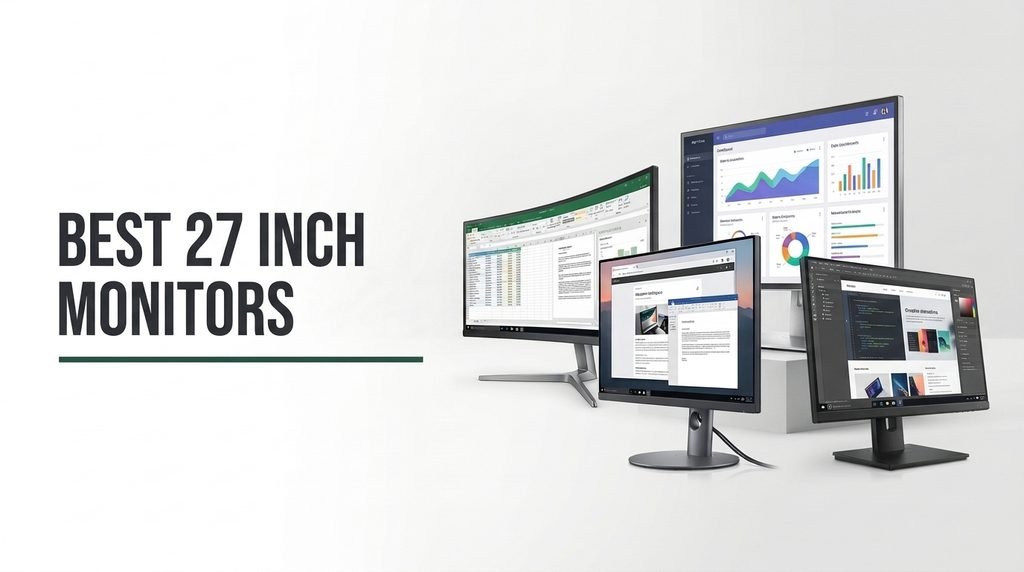
Finding the right 27 inch monitor in 2026 means balancing resolution, refresh rate, panel technology, and connectivity against your actual daily use. We compare 10 strong options across gaming, productivity, and creative workflows, focusing on display quality, ergonomics, eye comfort features, and real-world value.
The 27-inch screen size sits in a sweet spot for most desks, offering enough real estate for multitasking without overwhelming a typical workspace. Choices range from budget-friendly FHD panels to crisp 4K displays, each carrying distinct tradeoffs in sharpness, motion clarity, and color performance.
This guide breaks down the specifications that genuinely affect your experience, from IPS viewing angles to adaptive sync compatibility. Whether you need a smooth gaming display, a color-accurate creative tool, or a reliable office screen, the comparison below should help you narrow the field quickly.
We compared 10 popular 27 inch monitors by examining the specifications that drive real buying decisions: panel type, native resolution, refresh rate, response time, color gamut coverage, adaptive sync support, ergonomic adjustments, connectivity options, and built-in audio. The analysis weighs performance against price so each recommendation connects to how people actually use their screens for work, gaming, streaming, and creative projects. Tradeoffs between sharpness, speed, and cost are highlighted throughout.


Compare key features, scores, and current prices side by side. A shorter feature list means fewer details were available, not necessarily fewer capabilities.



The Dell SE2726H earns the highest star rating in this lineup, and it is easy to see why when you look at the combination of features relative to its price. At under $110, you get a 144Hz IPS panel with 1ms MPRT response time, which is a specification set that was reserved for much more expensive gaming monitors just a couple of years ago. For budget-conscious buyers who still want smooth motion and accurate colors, this is a standout option.
We may earn a commission when you buy through this link, at no additional cost to you.
The IPS panel delivers consistent color and contrast across wide 178-degree viewing angles, which means the image does not shift or wash out when you move your head or share the screen with someone sitting beside you. AMD FreeSync support helps maintain tear-free gameplay, and the dual HDMI inputs let you connect two devices simultaneously without constantly swapping cables. The TÜV Rheinland 3-star certification confirms that the blue light reduction is effective while preserving color quality.
The main tradeoff at this price is the stand, which only offers tilt adjustment. If you need to raise the screen to eye level or rotate it into portrait orientation, you will need to invest in a VESA-compatible monitor arm or a riser. The lack of built-in speakers also means you will need headphones or external speakers for audio, which is a minor inconvenience for most desktop setups but worth noting for buyers who want an all-in-one solution.
At lower price points, some monitors use VA panels that offer deeper contrast but narrower viewing angles and slower response times. The SE2726H uses IPS technology, which prioritizes color consistency and fast pixel transitions over absolute contrast depth. For most everyday tasks, including gaming, streaming, and office work, the IPS advantage in viewing angles and motion clarity tends to outweigh the modest contrast difference, especially in well-lit rooms.
This monitor is an ideal pick for students, home office users, and casual gamers who want reliable IPS image quality and high refresh rate performance without stretching their budget. The combination of price, panel quality, and motion clarity is difficult to beat in this range. Just plan for an external audio solution and consider a monitor arm if ergonomic flexibility is important to your setup.
Buyers who need a fully adjustable stand out of the box or who want built-in speakers for a cable-free audio setup.
We may earn a commission when you buy through this link, at no additional cost to you.
The Dell S2725DSM occupies a compelling middle ground for anyone who wants noticeably sharper text and images than a standard FHD screen without jumping to the higher cost and GPU demands of 4K. At 2560×1440 resolution on a 27-inch panel, pixel density is high enough that individual pixels are difficult to discern at a normal viewing distance, which makes documents, spreadsheets, and web pages look clean and well-defined.
We may earn a commission when you buy through this link, at no additional cost to you.
Motion performance is equally well-rounded. The 144Hz refresh rate and 1ms MPRT response time keep fast-moving content smooth, and AMD FreeSync support helps eliminate screen tearing when paired with a compatible graphics card. The 1500:1 contrast ratio adds depth to darker scenes, which is a step above the typical 1000:1 ratio found on many IPS panels in this price range. Combined with a TÜV 4-star eye comfort certification, the display manages to reduce blue light output without introducing a noticeable color shift.
Ergonomics are a genuine highlight here. The stand offers height, tilt, pivot, and swivel adjustments, which is uncommon at this price point and makes it much easier to align the screen with your eye level or rotate it into portrait mode for coding and document review. The integrated dual 3W speakers provide reasonable audio for video calls and casual media playback, though they will not replace a dedicated speaker set for music or immersive gaming.
At 27 inches, a 1080p panel stretches pixels to a point where text can appear slightly soft, especially on high-DPI operating system settings. QHD packs roughly 78% more pixels into the same screen area, producing noticeably crisper fonts and more detailed images without requiring the powerful graphics hardware that 4K demands. For most mid-range GPUs and integrated graphics setups, QHD also leaves enough headroom to maintain high frame rates in games, making it a practical resolution for both work and play.
This monitor is a strong fit for mixed-use buyers who split their time between productivity, streaming, and light to moderate gaming. The combination of QHD sharpness, high refresh rate, and a fully adjustable stand delivers a lot of practical value at its price. Buyers who need USB-C connectivity for laptop docking or who demand audiophile-grade built-in speakers should look elsewhere, but for a well-rounded daily driver, the S2725DSM is hard to fault.
Buyers who need USB-C laptop docking or who primarily do color-critical professional work requiring wider gamut coverage.
We may earn a commission when you buy through this link, at no additional cost to you.
The Dell S2725HSM shares much of the same DNA as its QHD sibling but drops to Full HD resolution to hit a lower price point. For shoppers whose primary use involves web browsing, office applications, and video streaming rather than detailed photo editing or competitive gaming, the FHD panel still delivers a perfectly usable image on a 27-inch screen, especially when viewed from a typical arm's-length distance.

We may earn a commission when you buy through this link, at no additional cost to you.
The 144Hz refresh rate is the standout feature at this price tier. Most monitors in the sub-$160 range still ship with 60Hz or 75Hz panels, so the jump to 144Hz makes scrolling, window dragging, and casual gaming feel noticeably smoother. AMD FreeSync support further helps maintain tear-free playback when frame rates fluctuate, and the 1ms MPRT response time keeps motion blur to a minimum during fast transitions.
Ergonomics remain a strong point. The fully adjustable stand lets you raise, lower, tilt, swivel, and pivot the screen, which is a significant comfort advantage over budget monitors that only offer basic tilt. The built-in dual 3W speakers handle video calls and background audio adequately, and the TÜV 4-star eye comfort certification means the blue light reduction is effective without washing out colors.
While QHD and 4K deliver sharper images, FHD remains perfectly adequate for many real-world tasks. If your daily workflow centers on email, web browsing, video conferencing, and streaming, the pixel density of 1080p at 27 inches is unlikely to bother you. FHD also places far less strain on integrated graphics and older GPUs, which means you can maintain higher frame rates in games without upgrading your entire system.
Choose this monitor if you want a smooth, comfortable daily display with excellent stand flexibility and do not mind the slightly lower pixel density of FHD at 27 inches. It is a practical pick for home offices, student desks, and secondary monitor setups where resolution is less critical than comfort and motion smoothness. Buyers who work extensively with fine text or detailed graphics will benefit more from a QHD or 4K option.
Users who work with detailed spreadsheets, fine text, or high-resolution creative content where pixel density matters.
We may earn a commission when you buy through this link, at no additional cost to you.
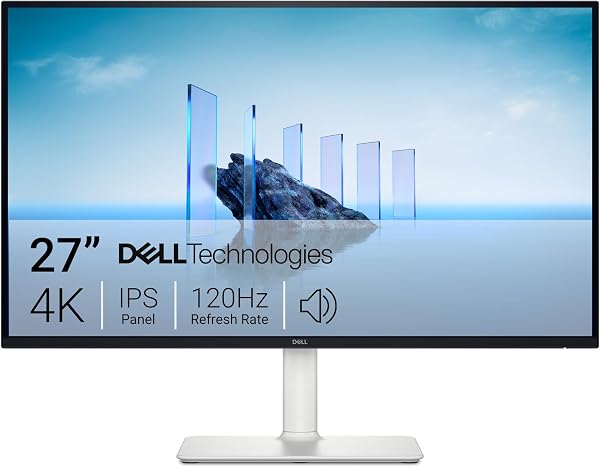
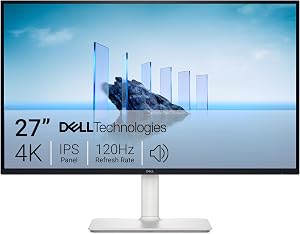
The Dell S2725QS targets buyers who prioritize image sharpness above all else. With a 4K UHD IPS panel at 27 inches, pixel density reaches approximately 163 PPI, which produces extremely crisp text, finely detailed photos, and clean UI elements even at high scaling settings. For creative professionals, photographers, and anyone who spends long hours reading dense documents, that extra clarity is immediately noticeable.
We may earn a commission when you buy through this link, at no additional cost to you.
What sets this monitor apart from many 4K options is the 120Hz refresh rate. Most 4K monitors in this price range still run at 60Hz, so the jump to 120Hz makes everyday interactions like scrolling and window management feel significantly more fluid. AMD FreeSync Premium support adds tear-free gaming capability, though the 5ms response time means this display is better suited to casual and single-player gaming rather than fast-paced competitive shooters.
Color performance is solid for the price, with 99% sRGB coverage and a 1500:1 contrast ratio that adds depth to images and video. The improved ComfortView Plus technology reduces blue light emissions to 35% or below while maintaining color accuracy, which is useful for extended work sessions. The re-engineered speaker system also offers better output than the previous generation, though external speakers will still deliver a more immersive audio experience.
Many shoppers assume 4K monitors are limited to 60Hz unless they spend significantly more. The S2725QS breaks that assumption by offering 120Hz at a mid-range price. While you will need a reasonably modern GPU to drive games at 4K and 120 frames per second, the higher refresh rate benefits everyday desktop use immediately. Scrolling through long documents, dragging windows, and even moving the cursor all feel smoother, reducing the subtle stutter that 60Hz panels can produce.
This is an excellent choice for professionals and enthusiasts who want 4K sharpness with smoother motion than a typical 60Hz panel can provide. It handles productivity, content consumption, and light gaming well. Buyers who need the fastest possible response times for competitive esports or who require wide DCI-P3 gamut coverage for HDR video grading should consider other options, but for a versatile 4K daily driver, the S2725QS delivers strong value.
Competitive gamers who need sub-1ms response times or professionals requiring DCI-P3 wide gamut coverage for HDR mastering.
We may earn a commission when you buy through this link, at no additional cost to you.
At just under $100, the Acer KB272 G0bi is the most affordable 27-inch monitor in this guide, and it still manages to include an IPS panel with a 120Hz refresh rate. That combination alone makes it a strong contender for anyone building a budget-friendly desk setup. The Full HD resolution is standard for this price range and works well for general productivity, streaming, and casual gaming.

We may earn a commission when you buy through this link, at no additional cost to you.
Adaptive-Sync compatibility helps keep gameplay smooth by matching the monitor’s refresh rate to your GPU’s frame output, reducing tearing and stuttering without requiring a specific brand of graphics card. The 1ms VRB response time further minimizes motion blur during fast-moving scenes. While VRB is a backlight strobing technique rather than a true pixel response measurement, the practical effect is still a noticeable improvement in motion clarity compared to slower panels.
The 250-nit brightness rating is the main specification to keep in mind. In a dimly lit or moderately lit room, this is perfectly adequate. However, if your desk sits near a large window with direct sunlight, the screen may appear dim and washed out during peak daylight hours. The stand offers basic functionality but lacks the height and pivot adjustments found on more expensive models, so a monitor riser or arm may be necessary for optimal positioning.
VRB stands for Visual Response Boost, a backlight strobing technology that reduces perceived motion blur by briefly turning off the backlight between frames. It is different from a native gray-to-gray pixel response time, but the practical result is similar: fast-moving objects appear sharper and less smeared. The tradeoff is a slight reduction in overall brightness when VRB is enabled, which is worth considering if you already find 250 nits on the lower side.
This monitor is best suited for buyers on a tight budget who still want IPS color quality and a refresh rate above the basic 60Hz standard. It handles everyday tasks, video streaming, and light gaming competently. If you work in a very bright environment or need extensive ergonomic adjustments, consider spending a bit more for a model with higher brightness and a more flexible stand.
Users in brightly lit rooms who need high peak brightness or buyers who require a fully adjustable ergonomic stand.
We may earn a commission when you buy through this link, at no additional cost to you.
The Dell SE2726HG is built for gamers who prioritize frame rate and motion clarity above resolution. The 240Hz refresh rate is the highest in this comparison, delivering exceptionally fluid motion that can provide a tangible advantage in fast-paced competitive titles like first-person shooters and racing games. When your GPU can sustain high frame rates, the difference between 144Hz and 240Hz is subtle but perceptible, especially during rapid camera movements.
We may earn a commission when you buy through this link, at no additional cost to you.
The 0.5ms response time on an IPS panel is impressive at this price and helps ensure that fast-moving objects remain sharp rather than smearing across the screen. AMD FreeSync Premium support and HDMI VRR compatibility extend the tear-free experience to both PC and console gaming, which is useful if you split your time between platforms. The 99% sRGB color coverage also means the display produces vivid, accurate colors that go beyond what many budget gaming panels offer.
Connectivity is solid, with dual HDMI inputs and a DisplayPort 1.4 connection, giving you flexibility for multi-device setups. The TÜV Rheinland 3-star certification helps reduce eye strain during long gaming sessions. The main limitation is the tilt-only stand, which is a common tradeoff on gaming-focused monitors that prioritize panel performance over ergonomic flexibility. A VESA mount or aftermarket arm can solve this if needed.
The jump from 60Hz to 144Hz is dramatic and immediately obvious to most users. The step from 144Hz to 240Hz is more subtle, but competitive gamers often report improved tracking accuracy and a smoother feel during rapid turns and flick shots. The benefit is most pronounced in games where reaction time matters, such as tactical shooters and fighting games. For casual gaming and everyday desktop use, 144Hz is usually sufficient, but the extra headroom at 240Hz can be worthwhile for dedicated players.
This is the right choice for competitive gamers who play fast-paced titles and want the smoothest possible motion at a reasonable price. The FHD resolution keeps GPU requirements manageable, allowing mid-range graphics cards to push high frame rates consistently. If you primarily play slower-paced strategy games or need a display for detailed creative work, a higher-resolution monitor with a lower refresh rate may serve you better.
Creative professionals or productivity-focused users who need higher resolution for detailed image work and text clarity.
We may earn a commission when you buy through this link, at no additional cost to you.
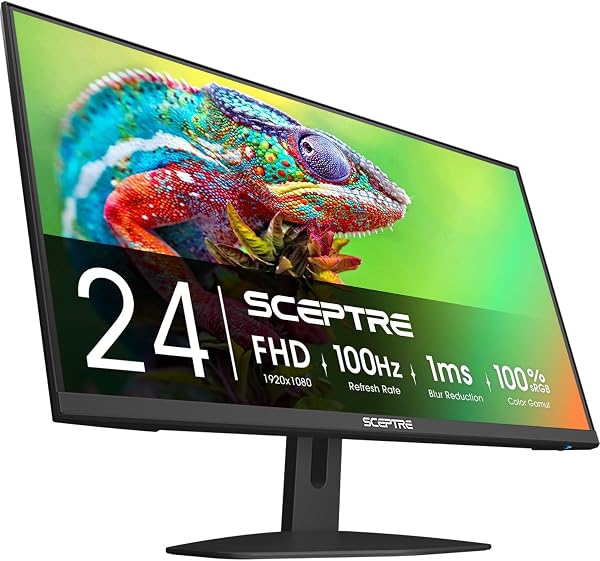
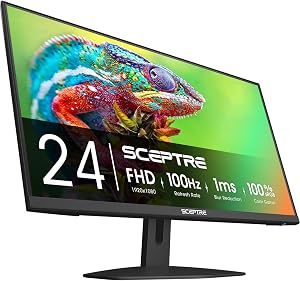
The Sceptre E275W-FW100T targets buyers who want a capable all-purpose monitor at the lowest possible cost. At under $85, it delivers a 100Hz refresh rate, 1ms response time, and full 100% sRGB color coverage, which is a solid specification set for general use, media consumption, and casual gaming. The frameless design also makes it an attractive option for multi-monitor arrangements where visible bezels can be distracting.
We may earn a commission when you buy through this link, at no additional cost to you.
The built-in speakers are a practical addition at this price, eliminating the need for separate desktop speakers if your audio needs are modest. The DisplayPort and dual HDMI inputs provide flexible connectivity for connecting a PC, console, and streaming device simultaneously. Sceptre also includes dedicated FPS and RTS game modes that adjust contrast and visibility settings for specific gaming genres, which can be helpful for casual players who want quick optimizations without diving into manual calibration.
Blue Light Shift technology reduces blue light output for more comfortable extended viewing, and the VESA-compatible mounting pattern gives you the option to attach the monitor to a wall mount or articulating arm. The stand itself is basic and does not offer height or pivot adjustments, so plan accordingly if ergonomic positioning is a priority. The 100Hz refresh rate, while smoother than 60Hz, falls behind the 120Hz and 144Hz options available at slightly higher prices.
If you plan to use two or more monitors side by side, bezel thickness becomes a real consideration. The Sceptre’s frameless design minimizes the visible border around the screen, creating a more seamless visual transition between displays. While no monitor is truly bezel-free, thinner borders reduce the visual interruption and make multi-screen productivity and gaming more immersive.
This monitor is a practical choice for budget-focused buyers who need a functional 27-inch display for everyday computing, streaming, and light gaming. The built-in speakers and frameless design add convenience and visual appeal. If you play fast-paced competitive games or need higher refresh rates for smoother motion, spending a bit more on a 144Hz model will provide a more noticeable improvement in gaming performance.
Gamers who need 144Hz or higher refresh rates for competitive play or users who require an adjustable ergonomic stand.
We may earn a commission when you buy through this link, at no additional cost to you.
The LG 27U411A-B packs an unusually long feature list for a monitor in its price range. Beyond the standard FHD IPS panel, it includes HDR10 support, 99% sRGB color coverage, a 120Hz refresh rate with 1ms Motion Blur Reduction, and LG's Switch app for advanced screen splitting and multitasking. For productivity-focused buyers who want a versatile display that can also handle casual gaming and media playback, this is a well-rounded option.

We may earn a commission when you buy through this link, at no additional cost to you.
The HDR10 capability and wide color gamut mean that supported content will display with richer contrast and more vibrant colors than a standard SDR monitor. While the peak brightness may not match dedicated HDR displays with higher certifications, the HDR10 compatibility still provides a visible improvement when streaming HDR content from services like Netflix or YouTube. The 120Hz refresh rate and Dynamic Action Sync also keep gameplay responsive, and the Black Stabilizer feature brightens dark scenes to help spot details in shadow-heavy game environments.
The LG Switch app is a genuine productivity advantage, allowing you to divide the screen into up to six sections with customizable layouts. This is particularly useful for multitaskers who regularly work with multiple windows open simultaneously. Reader Mode reduces blue light for comfortable document reading, and Flicker Safe technology minimizes screen flicker that can contribute to eye fatigue during long work sessions.
LG’s Switch app goes beyond the basic window snapping built into Windows and macOS. By dividing the screen into custom zones, you can create dedicated areas for email, chat, a browser, and a document without manually resizing windows each time you sit down. This is especially valuable on a 27-inch FHD screen where real estate is more limited than on a 4K display, helping you stay organized and reduce the time spent rearranging windows throughout the day.
This monitor is a strong choice for home office users and multitaskers who value software features and color quality alongside basic gaming capability. The combination of HDR10, the Switch app, and 120Hz motion performance offers more versatility than many similarly priced competitors. Buyers who need higher resolution for detailed creative work or a fully adjustable stand should look at other options, but for a feature-packed FHD daily driver, the 27U411A-B delivers.
Creative professionals who need 4K resolution for detailed image editing or buyers who require height and pivot stand adjustments.
We may earn a commission when you buy through this link, at no additional cost to you.
The LG 27UP650K-W is the most color-capable monitor in this comparison, with 95% DCI-P3 gamut coverage and VESA DisplayHDR 400 certification. This combination makes it the strongest choice for photographers, video editors, and designers who need accurate color reproduction and HDR preview capability. The 4K UHD resolution at 27 inches delivers approximately 163 PPI, producing razor-sharp text and finely detailed images that are essential for creative workflows.
We may earn a commission when you buy through this link, at no additional cost to you.
The DCI-P3 color space is significantly wider than sRGB, covering more of the red and green spectrum that modern cameras and displays use. This means photos and videos edited on this monitor will more closely match how they appear on high-end smartphones, tablets, and HDR televisions. DisplayHDR 400 certification confirms that the panel can reproduce a meaningful range of brightness and color in HDR content, going beyond the basic HDR10 compatibility found on less capable displays.
Ergonomics are excellent, with a stand that offers height, tilt, and pivot adjustments. The ability to rotate the screen into portrait mode is particularly useful for designers working on vertical layouts, mobile app mockups, or long documents. The LG Switch app adds multitasking flexibility, and the built-in webOS streaming platform provides convenient access to entertainment apps without needing a separate streaming device.
The sRGB color space covers the standard gamut used by most web content and basic displays. DCI-P3 extends further into the red and green regions, encompassing a broader range of colors that modern cameras capture and HDR content uses. If you edit photos or videos intended for viewing on Apple devices, high-end Android phones, or HDR televisions, working in a DCI-P3-capable display ensures your color decisions translate accurately to those screens. The 95% coverage on this LG model is close enough to full DCI-P3 for most professional workflows short of theatrical film grading.
This monitor is the clear pick for creative professionals and content creators who need accurate wide-gamut color and 4K sharpness. The 60Hz refresh rate is a limitation for gaming, so competitive players should look elsewhere. However, for photo editing, video grading, graphic design, and general productivity where color fidelity and resolution matter most, the 27UP650K-W offers a compelling combination of performance and ergonomic flexibility.
Competitive gamers who need high refresh rates above 120Hz or budget buyers who do not require wide color gamut coverage.
We may earn a commission when you buy through this link, at no additional cost to you.
The Samsung S3 S32GF is designed for buyers who want a clean, modern-looking monitor that handles everyday tasks competently without drawing attention to itself. The ultra-thin bezels and slim profile give it a contemporary aesthetic that blends well into minimalist desk setups, and the IPS panel ensures consistent color and viewing angles regardless of where you sit relative to the screen.
We may earn a commission when you buy through this link, at no additional cost to you.
The 120Hz refresh rate provides a noticeable smoothness improvement over standard 60Hz panels, making scrolling through web pages, navigating spreadsheets, and watching video content feel more fluid. Samsung’s optimized game mode adjusts color and contrast settings for different game genres, which can improve visibility in dark scenes or enhance color saturation for more vibrant visuals. The blue light reduction and flicker-free technology help minimize eye strain during extended use.
Connectivity is straightforward, with options for plugging in multiple devices directly to the monitor. The lightweight construction makes it easy to reposition or mount on a VESA-compatible arm if the included stand does not provide enough ergonomic flexibility. The overall package is simple and effective, focusing on the essentials rather than loading the display with advanced features that drive up the price.
Monitor depth and bezel thickness matter more than many buyers realize, especially on smaller desks. The Samsung S3’s ultra-slim profile and thin bezels reduce the visual and physical footprint of the display, leaving more room for peripherals, notebooks, and other desk essentials. If you plan to use a dual-monitor setup, the thin bezels also create a more seamless transition between screens.
This monitor is a solid choice for general-purpose users who want a reliable, good-looking 27-inch display for work, streaming, and casual gaming. The 120Hz IPS panel and slim design offer a pleasant daily experience at a reasonable price. Buyers who need higher resolution for detailed creative work or faster refresh rates for competitive gaming should consider other models in this guide, but for straightforward everyday use, the Samsung S3 delivers.
Users who need 4K resolution for detailed creative work or competitive gamers who require 144Hz or higher refresh rates.
We may earn a commission when you buy through this link, at no additional cost to you.
Selecting a 27 inch monitor involves more than comparing price tags. The right choice depends on how you plan to use the display, what hardware you already own, and which visual qualities matter most to your daily workflow. The factors below cover the key specifications and practical considerations that will help you make a confident decision.
Resolution determines how many pixels fill the screen, and at 27 inches, the difference between FHD, QHD, and 4K is immediately visible. A 1920×1080 FHD panel produces roughly 82 pixels per inch, which is adequate for general use but can make small text appear slightly soft when viewed up close. QHD at 2560×1440 increases density to about 109 PPI, delivering noticeably sharper fonts and more detailed images without placing heavy demands on your graphics card. 4K UHD at 3840×2160 reaches approximately 163 PPI, producing extremely crisp visuals that are ideal for photo editing, video work, and reading dense documents.
The tradeoff is that higher resolutions require more GPU power to drive, especially in games. A mid-range graphics card that easily pushes 144 frames per second at FHD may struggle to maintain 60 frames per second at 4K in demanding titles. If your primary use is productivity and media consumption, 4K is a worthwhile upgrade. If you game frequently and want high frame rates, QHD often provides the best balance between sharpness and performance.
For most buyers, QHD is the sweet spot at 27 inches. It delivers a clear improvement in sharpness over FHD while remaining manageable for mid-range GPUs. Choose FHD if budget is the primary concern, and choose 4K if you work with high-resolution creative content or simply want the sharpest possible text and images.
The panel type inside a monitor has a major impact on color accuracy, viewing angles, contrast, and response time. IPS panels, which dominate this comparison, offer the best combination of color consistency and wide viewing angles. Colors remain accurate even when you view the screen from an off-center position, which is important for collaborative work and multi-monitor setups. IPS technology has improved significantly in recent years, with faster response times that narrow the gap with TN panels.
VA panels offer deeper native contrast ratios, often reaching 3000:1 or higher compared to the 1000:1 to 1500:1 range typical of IPS displays. This makes VA panels appealing for movie watching and dark-room gaming where deep blacks matter. However, VA panels tend to have slower pixel response times, which can cause visible smearing during fast motion. TN panels are the fastest but sacrifice color accuracy and viewing angles, and they are increasingly rare in the 27-inch segment.
For most buyers, IPS is the safest and most versatile choice. It provides reliable color performance, wide viewing angles, and increasingly competitive response times. Unless you have a specific need for the deep contrast of a VA panel or the extreme speed of a TN panel, an IPS display will serve you well across gaming, productivity, and creative tasks.
Refresh rate measures how many times per second the screen updates its image, and it has a direct impact on perceived smoothness. A 60Hz monitor refreshes 60 times per second, which is the baseline for most office displays. Moving to 120Hz or 144Hz produces a visibly smoother experience in scrolling, window management, and gaming. The jump to 240Hz provides an additional edge for competitive gamers who need the fastest possible motion clarity, though the improvement over 144Hz is more subtle than the step from 60Hz to 144Hz.
Response time measures how quickly individual pixels can change color, and lower numbers reduce motion blur and ghosting. Manufacturers report response times using different methods, such as gray-to-gray or MPRT, which can make direct comparisons tricky. As a general guideline, 1ms MPRT or VRB is excellent for gaming, while 5ms gray-to-gray is perfectly adequate for productivity and casual use. The key is to match the response time to your refresh rate: a 240Hz monitor benefits more from a sub-1ms response than a 60Hz display does.
For everyday use and casual gaming, 120Hz to 144Hz provides a great balance of smoothness and affordability. Competitive gamers should look for 144Hz or higher with the lowest available response time. If your use is primarily office work and streaming, even 100Hz offers a noticeable improvement over 60Hz without a significant price premium.
Adaptive sync technology synchronizes the monitor’s refresh rate with your graphics card’s frame output, eliminating screen tearing and reducing stutter. AMD FreeSync is the most common implementation and is supported by most modern monitors, including many in this guide. FreeSync Premium adds low frame rate compensation, which maintains smooth playback even when your GPU’s frame rate drops below the monitor’s minimum refresh range. NVIDIA G-Sync Compatible monitors work with NVIDIA graphics cards using the same underlying VESA Adaptive-Sync standard.
For console gamers, HDMI VRR is the relevant specification. Both the Xbox Series X and PlayStation 5 support variable refresh rate over HDMI, but the monitor must also support HDMI VRR to take advantage of it. If you plan to connect a console to your 27 inch monitor, check that the display supports HDMI VRR or FreeSync over HDMI, not just over DisplayPort.
If you game at all, adaptive sync is worth having. It eliminates the distracting screen tearing that occurs when your GPU’s frame rate does not match the monitor’s fixed refresh rate. Most monitors in this guide include FreeSync support, so compatibility is rarely an issue. Just verify that your graphics card or console supports the same standard.
Color gamut describes the range of colors a monitor can reproduce. The sRGB color space is the standard for web content and most consumer displays, and coverage of 99% or 100% sRGB is common in this price range. DCI-P3 is a wider gamut used in digital cinema and HDR content, and monitors with 90% or higher DCI-P3 coverage are better suited for creative professionals who edit photos and videos intended for HDR displays and Apple devices.
HDR capability varies widely among monitors. Basic HDR10 support means the display can accept an HDR signal, but the actual visual improvement depends on peak brightness and contrast. VESA DisplayHDR 400 certification, found on the LG 27UP650K-W, confirms a minimum level of brightness and color performance that produces a more meaningful HDR experience. Higher certifications like DisplayHDR 600 and 1000 deliver more dramatic results but come at significantly higher prices.
For general use and gaming, 99% sRGB coverage is more than sufficient. If you do professional photo or video editing, prioritize a monitor with wide DCI-P3 coverage and at least DisplayHDR 400 certification. For casual HDR content consumption, basic HDR10 support provides a modest improvement over SDR, but do not expect the dramatic highlight and shadow detail of a high-end HDR television.
A monitor’s stand affects your physical comfort more than almost any other feature. The most basic stands offer tilt only, which lets you angle the screen up or down but not adjust its height. More advanced stands add height adjustment, swivel, and pivot rotation, allowing you to position the screen at the ideal eye level and orientation. Proper ergonomic positioning reduces neck and shoulder strain during long work sessions, making stand quality a genuine health consideration rather than a luxury.
If the included stand does not meet your needs, check whether the monitor supports VESA mounting. Most 27-inch monitors use the standard 100x100mm VESA pattern, which is compatible with a wide range of monitor arms and wall mounts. A good monitor arm can provide even more flexibility than a premium stand, freeing up desk space and allowing precise positioning that a fixed stand cannot match.
If you spend more than a few hours per day at your desk, prioritize a monitor with at least height adjustment or plan to purchase a VESA arm separately. Tilt-only stands are acceptable for secondary monitors or occasional use, but your primary display should be positioned so the top of the screen is at or slightly below eye level to minimize neck strain.
The ports on the back of your monitor determine which devices you can connect and how easily you can switch between them. HDMI is the most universal connection, supported by PCs, consoles, streaming devices, and laptops. DisplayPort is preferred for PC gaming because it typically supports higher refresh rates and resolutions than HDMI at the same version level. USB-C with DisplayPort Alt Mode is increasingly common on higher-end monitors and allows a single cable to carry video, data, and power to a compatible laptop.
Built-in speakers are a convenient addition for video calls and casual media playback, though they rarely match the audio quality of even modest external speakers. If desk space is limited and your audio needs are basic, integrated speakers can eliminate the need for a separate audio setup. Other useful built-in features include USB hubs for connecting peripherals, KVM switches for controlling multiple computers, and blue light filters for extended viewing comfort.
Before buying, make a list of the devices you plan to connect and verify that the monitor has the right ports. If you use a laptop with USB-C output, a monitor with USB-C connectivity can simplify your setup significantly. For gaming, ensure the monitor has DisplayPort 1.4 or HDMI 2.1 to support the highest refresh rates your GPU can deliver.
Extended screen time can cause eye strain, headaches, and disrupted sleep patterns, particularly when monitors emit high levels of blue light or produce visible flicker. Many modern monitors address these issues with built-in blue light reduction modes and flicker-free backlight technology. TÜV Rheinland certifications provide independent verification of a display’s eye comfort performance, with ratings ranging from 1 to 5 stars based on factors like blue light emission, flicker, and ambient light adaptation.
Software-based blue light filters shift the color temperature toward warmer tones, which can reduce eye strain but may also affect color accuracy. Hardware-level blue light reduction, such as Dell’s ComfortView Plus, filters blue light at the panel level without introducing a noticeable color shift, making it more suitable for color-sensitive work. Flicker-free technology uses DC dimming instead of PWM to control brightness, eliminating the rapid on-off cycling that can cause fatigue in sensitive users.
If you regularly spend six or more hours per day in front of your screen, prioritize a monitor with TÜV certification and hardware-level blue light reduction. These features make a meaningful difference in long-term comfort and are especially important for users who are sensitive to screen flicker or who work late into the evening when blue light exposure can interfere with sleep quality.
When setting up your new monitor, position it so the top of the screen is at or slightly below eye level and about an arm’s length away from your face. This distance reduces eye strain and helps you take in the full 27-inch screen without excessive head movement. If your monitor has an adjustable stand, take a few minutes to fine-tune the height, tilt, and swivel before settling into your normal workflow. For the best image quality, run the display at its native resolution and set the refresh rate to the highest value your connection supports in your operating system’s display settings.
Calibrating your monitor can significantly improve color accuracy, especially if you work with photos or video. Start by using the built-in color calibration tool in your operating system, which walks you through adjusting brightness, contrast, gamma, and color balance. For more precise results, consider investing in a hardware colorimeter that measures the actual output of your panel and creates a custom ICC profile. Even a basic calibration can make a noticeable difference in how accurately your screen reproduces colors compared to the factory default settings.
To keep your monitor in good condition, clean the screen regularly with a soft, lint-free microfiber cloth. Avoid using paper towels, abrasive cleaners, or alcohol-based solutions, which can damage the anti-glare coating. If smudges persist, lightly dampen the cloth with distilled water or a screen-safe cleaning solution. Turn off the monitor and unplug it before cleaning to avoid streaks and potential electrical issues. When not in use for extended periods, enable your computer’s sleep mode or use a screen saver to prevent static image retention on the panel.
A 27-inch FHD monitor produces about 82 pixels per inch, which is lower than the 109 PPI of a QHD display at the same size. For general use like web browsing and video streaming, most people find FHD perfectly acceptable at 27 inches. However, if you work with small text, detailed spreadsheets, or high-resolution images, the lower pixel density may appear slightly soft. In those cases, QHD or 4K is a better match for the 27-inch screen size.
For casual and single-player gaming, 120Hz to 144Hz provides a smooth, enjoyable experience that most players will appreciate. Competitive gamers who play fast-paced shooters or racing titles benefit from 144Hz or higher, with 240Hz offering the smoothest motion and lowest perceived input lag. If you primarily play slower-paced strategy or simulation games, even 100Hz is a meaningful improvement over 60Hz and may be all you need.
While 4K is not strictly required, it provides significant advantages for photo editing. The higher pixel density at 27 inches produces sharper image previews and more precise detail when zooming in. Combined with wide color gamut coverage like DCI-P3, a 4K monitor helps you make more accurate color and exposure decisions. If your budget allows, a 4K display with at least 95% DCI-P3 coverage is the ideal setup for serious photo work.
Both FreeSync and G-Sync are adaptive sync technologies that match the monitor's refresh rate to the GPU's frame output, eliminating screen tearing. FreeSync is AMD's open standard and is supported by most monitors. G-Sync is NVIDIA's proprietary technology, though many FreeSync monitors are also certified as G-Sync Compatible. In practice, most modern adaptive sync monitors work well with both AMD and NVIDIA graphics cards, so compatibility is rarely a major concern.
Yes, a 27 inch monitor works well for console gaming, especially models with HDMI inputs and adaptive sync support. The Xbox Series X and PlayStation 5 both support 120Hz output over HDMI, so a monitor with a 120Hz or 144Hz refresh rate and HDMI VRR compatibility will deliver smooth, tear-free gameplay. Keep in mind that most consoles output at FHD or QHD resolution, so a 4K monitor may not provide a significant gaming advantage unless the console supports 4K at high frame rates.
HDR can improve contrast and color range in supported content, but the actual benefit depends on the monitor's peak brightness and HDR certification level. Basic HDR10 support provides a modest improvement over SDR, while VESA DisplayHDR 400 or higher delivers a more noticeable difference. If you primarily watch HDR movies or play HDR-enabled games, a monitor with DisplayHDR 400 certification is worth considering. For general productivity and web browsing, HDR is less impactful.
Built-in speakers are convenient for video calls, casual media playback, and situations where desk space is limited. However, they typically lack the bass response and volume range of even modest external speakers or a soundbar. If audio quality matters for gaming, music, or movies, plan to use headphones or external speakers regardless of whether the monitor has built-in audio. For basic use, integrated speakers are a nice convenience but not a primary buying factor.
Most laptops can connect to an external monitor via HDMI, USB-C with DisplayPort Alt Mode, or a Thunderbolt port. Check your laptop's available outputs and match them to the monitor's inputs. If your laptop only has USB-C and the monitor only has HDMI, a simple USB-C to HDMI adapter will work. For the cleanest setup with a single cable carrying video, data, and power, look for a monitor with USB-C connectivity that supports power delivery, though this feature is more common on higher-end models.
The recommended viewing distance for a 27 inch monitor is approximately 24 to 32 inches, or roughly an arm's length. At this distance, you can comfortably take in the entire screen without excessive head movement, and the pixel density of QHD and 4K panels appears sharp. If you sit closer than 20 inches, you may notice individual pixels on an FHD display. If you sit farther than 36 inches, text may become difficult to read without increasing the display scaling in your operating system.
IPS panels offer superior color accuracy and wider viewing angles, making them the better choice for most users, including gamers, office workers, and creative professionals. VA panels provide deeper contrast ratios, which can produce richer blacks in dark rooms, but they tend to have slower response times that may cause motion smearing in fast-paced games. Unless you specifically prioritize deep contrast for movie watching in a dark environment, IPS is the more versatile and reliable choice at 27 inches.
The Dell S2725DSM stands out as the strongest overall choice for most buyers, combining QHD sharpness, 144Hz smoothness, a fully adjustable stand, and integrated speakers at a competitive price. It handles productivity, streaming, and gaming with equal competence, making it a reliable daily driver for a wide range of use cases. If you want the best balance of resolution, speed, and ergonomics without overspending, this is the monitor to start with.
For buyers with more specific needs, the lineup offers strong alternatives. The Dell SE2726H delivers excellent value at under $110 with a 144Hz IPS panel and the highest customer rating in this comparison. The LG 27UP650K-W is the clear pick for creative professionals who need 4K resolution and wide DCI-P3 color coverage. Competitive gamers will appreciate the 240Hz speed of the Dell SE2726HG, while budget shoppers can rely on the Acer KB272 G0bi or Sceptre E275W-FW100T for capable performance at the lowest prices.
Before making your final decision, consider how you actually use your screen each day. Resolution matters most for detailed creative work and text-heavy productivity. Refresh rate and response time are critical for gaming. Color gamut and HDR support benefit photographers and video editors. By matching the specifications to your real-world workflow rather than chasing the highest numbers on paper, you will end up with a 27 inch monitor that genuinely improves your daily computing experience.