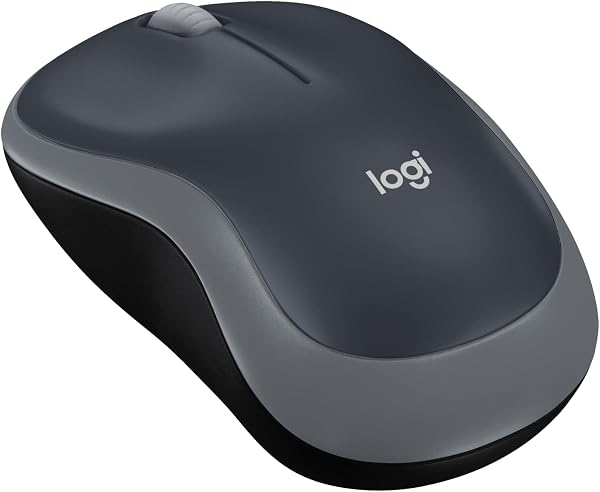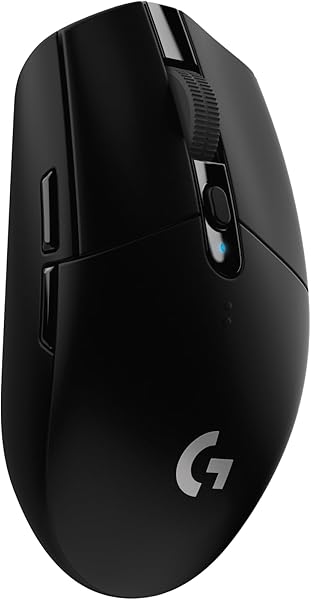
Logitech G305 LIGHTSPEED
9.2Editor score12,000 DPI HERO sensor
1 ms report rate
250 hour battery life
Lightweight 3.4 oz body
Find the right wireless mice for 2026. We compare 10 standout options by build quality, useful features, owner feedback, value, and everyday trade-offs.
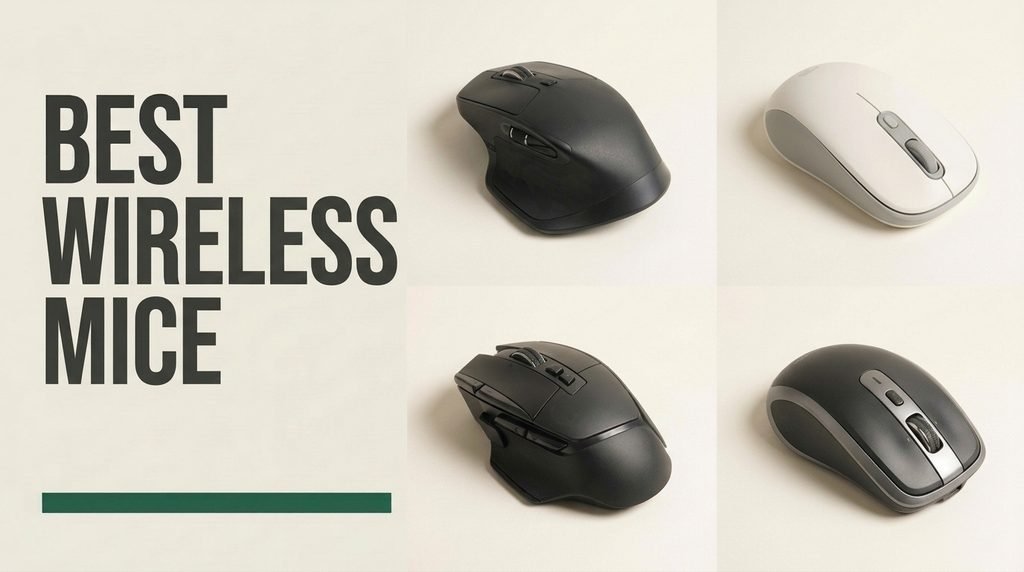
Find the right wireless mice for 2026. We compare 10 standout options by the factors that matter in this category, such as hand-size ergonomics, sensor precision, Bluetooth and 2.4 GHz connectivity, scroll wheel design, click acoustics, battery longevity, and programmable workflow shortcuts for office work, travel, and gaming.
Cutting the cord frees your desk from cable drag and clutter, yet wireless mice vary dramatically in shape, latency, and daily utility. Compact laptop mice prioritize bag portability and plug-and-play simplicity, whereas sculpted productivity and gaming models focus on thumb support, multi-computer switching, and high-speed optical tracking.
Matching a mouse to your grip style and computing setup prevents wrist fatigue over long hours. Whether you need whisper-quiet clicks for shared offices, a free-spinning wheel for massive spreadsheets, or a 1 ms wireless report rate for competitive gaming, comparing hardware specs side by side clarifies the best fit.
We compared 10 wireless mice using the details that actually help a buyer decide: shell sizing and grip ergonomics, 2.4 GHz dongle versus Bluetooth pairing, scroll wheel mechanics, switch noise levels, optical sensor sensitivity, battery life or recharge speed, button customization, and multi-OS support. The notes focus on practical trade-offs so each pick feels connected to how people navigate spreadsheets, switch between laptops, pack for travel, and game without lag.


Compare key features, scores, and current prices side by side. A shorter feature list means fewer details were available, not necessarily fewer capabilities.
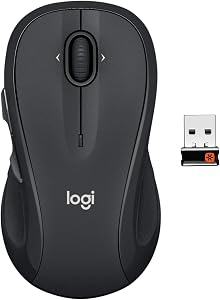


Office workers and home desktop users who spend hours navigating wide financial spreadsheets, digital maps, and multi-tabbed browsers often find mini travel mice cramped and fatiguing. The Logitech M510 solves that problem with a generous, full-size chassis featuring gently curved sides, a broad palm arch, and soft rubber side grips. Although its symmetrical outer silhouette is labeled ambidextrous, the placement of the two thumb buttons makes it primarily a right-handed productivity staple that lets your hand relax in a full palm grip all day.
We may earn a commission when you buy through this link, at no additional cost to you.
What keeps the M510 relevant against newer budget mice is its side-to-side tilt scroll wheel combined with programmable controls. Beyond standard vertical scrolling, tilting the scroll wheel left or right pans horizontally across wide Excel columns, timelines, and zoomed-in photo albums without dragging bottom scrollbars. Using Logitech software on Windows or macOS, you can also remap the thumb back and forward buttons or center click to trigger application switching, full-screen toggles, or zoom shortcuts.
Daily maintenance is nearly non-existent thanks to a 24-month battery life rating. An integrated smart sleep mode powers the sensor down during breaks, a bottom power toggle shuts the mouse off for travel, and an LED battery indicator warns you well before power runs dry. Wireless communication runs over a 2.4 GHz Logitech Unifying nano receiver, which sits nearly flush inside a laptop USB-A port and allows you to pair a compatible wireless keyboard to the exact same dongle.
If you already use a Logitech Unifying wireless keyboard at your desk, you do not need to occupy a second USB port for the M510. Pairing both devices to a single Unifying receiver keeps laptop ports free while giving you zero-lag 2.4 GHz cursor response and effortless horizontal spreadsheet panning.
The main limitation to weigh is connectivity: because the M510 relies exclusively on its 2.4 GHz USB-A Unifying receiver and does not include Bluetooth, users with modern ultrabooks lacking USB-A ports will need an adapter or should look toward dual-mode models like the Signature M650 L. For traditional desktop PCs and workstations with open USB-A ports, the M510 remains a durable, comfortable workhorse.
Left-handed users who want accessible thumb buttons or laptop owners who rely strictly on Bluetooth without USB-A ports.
We may earn a commission when you buy through this link, at no additional cost to you.
Standard office wireless mice typically poll at 125 Hz, creating subtle cursor delay that feels sluggish during fast-paced gaming or high-refresh-rate desktop work. The Logitech G305 LIGHTSPEED eliminates wireless lag entirely at an entry-level price, earning our Best for Performance badge. Designed for PC and laptop gamers as well as precision-focused power users, it combines a 1 millisecond (1000 Hz) LIGHTSPEED wireless link with Logitech's flagship-class HERO 12K optical sensor.
We may earn a commission when you buy through this link, at no additional cost to you.
Performance is anchored by the HERO sensor, which delivers pixel-accurate tracking from 200 up to 12,000 DPI and handles rapid hand sweeps up to 400 inches per second without cursor spinouts or smoothing. Just behind the scroll wheel sits a dedicated DPI cycle button that lets you shift between stored sensitivity stages on the fly—dropping low for sniper aim or fine photo retouching, then jumping high for sweeping across dual monitors. Despite running on an AA battery, smart mechanical weight reduction keeps total mass down to a nimble 3.4 ounces (99 grams).
Power efficiency is where the HERO sensor really separates itself from older gaming designs. In full 1 ms Hi-Performance mode, a single AA battery powers up to 250 hours of continuous gameplay. When you switch over to work, browsing, or travel, toggling Endurance mode inside Logitech G HUB software drops the polling rate to extend battery longevity up to nine months. Popping off the top shell reveals both the battery cradle and a snug travel slot for the USB nano receiver.
Because the G305 is powered by a single AA battery under its removable palm cover, swapping a standard alkaline AA cell for a lightweight lithium AA battery shaves noticeable weight off the rear of the mouse, improving balance for claw and fingertip grip players.
Keep in mind that the G305 uses crisp, tactile mechanical switches rather than dampened silent switches, and it connects solely via its 2.4 GHz LIGHTSPEED USB-A dongle rather than Bluetooth. If you want wired-level gaming responsiveness, featherweight agility, and months of battery stamina in a compact shell that slips easily into a backpack, the G305 is tough to beat.
Shared silent library environments or users who require Bluetooth pairing without a USB-A dongle.
We may earn a commission when you buy through this link, at no additional cost to you.
Shoppers with large hands who prefer a clean, distraction-free three-button mouse without accidentally pressing side thumb buttons will feel right at home with the Logitech Signature M550 L. Specifically proportioned in Logitech's Large (L) shell size, it provides a fuller palm arch, a soft thumb cradle, and textured rubber side grips that support longer fingers without forcing a cramped claw posture during eight-hour workdays.
We may earn a commission when you buy through this link, at no additional cost to you.
The standout hardware upgrade over entry-level mice is Logitech’s adaptive SmartWheel. When you move your finger slowly, the wheel clicks through precise line-by-line notches ideal for selecting cells in a spreadsheet or reading code. The moment you flick the wheel harder, the internal mechanism automatically disengages into a smooth, high-speed free spin to fly down hundred-page PDFs and long web articles, re-engaging line precision the instant you stop it.
Acoustic comfort and cross-platform connectivity are equally modernized. SilentTouch switch technology eliminates over 90 percent of click noise while preserving a soft tactile press, keeping late-night study sessions and video calls free of loud clicking clatter. You can connect the M550 L directly via Bluetooth Low Energy to save USB ports on Windows 11, macOS, iPadOS, ChromeOS, Linux, or Android devices, or plug in the included Logi Bolt USB receiver for secure, congested-office wireless stability.
Many users find that thumb buttons on contoured mice sit right where they naturally squeeze the shell when lifting or repositioning the cursor. By eliminating side buttons in favor of a continuous soft rubber thumb rest, the M550 L prevents accidental browser back-page jumps.
Before choosing between the Signature M550 L and its sibling, the Signature M650 L, note the single functional trade-off: the M550 L intentionally leaves off the two thumb side buttons. If you never use side buttons and want a streamlined, whisper-quiet, large-sized mouse with a two-year battery life and SmartWheel scrolling at a lower price, the M550 L is purpose-built for your desk.
Users with small hands or power users who rely heavily on thumb back/forward shortcut buttons.
We may earn a commission when you buy through this link, at no additional cost to you.
Creative professionals, video editors, software developers, and analysts who treat their mouse as a primary productivity instrument will find the Logitech MX Master 4 in a tier of its own. Earning our Premium Pick badge, this flagship ergonomic mouse introduces a customizable Haptic Sense Panel paired with Logitech's on-screen Actions Ring. Rather than relying solely on visual cues, the Haptic Sense Panel provides subtle, customizable tactile feedback when triggering specific shortcuts, timeline snaps, or system notifications, while the Actions Ring brings up a dynamic radial menu of app-specific filters and adjustments right under your cursor.
We may earn a commission when you buy through this link, at no additional cost to you.
Scrolling performance remains the benchmark of the MX series. The machined electromagnetic MagSpeed top wheel is engineered to scroll up to 1,000 lines per second in near-total silence while stopping with pixel-level accuracy. Resting comfortably above the contoured thumb wing is a dedicated horizontal thumb scroll wheel alongside intuitive side buttons, allowing you to scrub through video timelines in Premiere Pro, pan across wide architectural canvases, or switch desktops effortlessly while keeping your wrist in a natural, stress-reducing tilt.
Connectivity receives a major generational leap to match modern laptops. Instead of bundling an older USB-A plug, the MX Master 4 includes a USB-C wireless dongle backed by an advanced radio chip and optimized internal antenna that delivers twice the link strength in crowded wireless environments—plus built-in Bluetooth for direct pairing with laptops, tablets, and Chromebooks. Quiet Click switches reduce click noise by 90 percent, and the exterior shell incorporates improved stain resistance with 54 percent post-consumer recycled plastic in the Graphite finish and 100 percent recycled cobalt in the rechargeable battery.
Instead of memorizing dozens of obscure keyboard combinations across photo editing, coding, and office suites, the Actions Ring adapts automatically to whichever application is currently active on screen, placing brush sizes, zoom presets, or formatting macros a flick of the wrist away.
Naturally, a $119.99 productivity flagship is overkill if you only check email and browse the web for an hour a night. However, for full-time professionals who want a complimentary one-month Adobe Creative Cloud subscription, tactile haptic workflow feedback, dual scroll wheels, and native USB-C dongle connectivity, the MX Master 4 is the ultimate desktop upgrade.
Casual budget shoppers, left-handed users, or travelers wanting a pocket-sized mini mouse.
We may earn a commission when you buy through this link, at no additional cost to you.
Anyone who has struggled with a cramped laptop touchpad on an airplane tray table, coffee shop counter, or classroom desk knows how quickly a compact external mouse improves speed and accuracy. The Logitech M185 Compact is a time-tested, no-frills travel companion priced under fifteen dollars. Its symmetrical, contoured silhouette works equally well in either the left or right hand, making it an easy pick for left-handed users, students, and shared family laptops.
We may earn a commission when you buy through this link, at no additional cost to you.
Simplicity is the entire point of the M185’s design. There are no companion apps to install, no Bluetooth pairing menus to troubleshoot, and no complex DPI buttons to bump by mistake. You simply plug the tiny USB-A nano receiver into your Windows PC, Mac, or Chromebook and get an instant, rock-solid 2.4 GHz connection with up to 33 feet (10 meters) of wireless range. The notched scroll wheel handles line-by-line document navigation cleanly, and the optical sensor tracks smoothly across standard desk surfaces.
Portability and longevity go hand in hand here. Because the nano receiver is compact enough to stay plugged into your laptop’s USB port when sliding the computer into a sleeve—or stow inside the battery compartment next to the AA cell—you rarely have to worry about losing the dongle on the road. Combined with an automatic smart sleep mode, a single included AA battery keeps the mouse running for up to a full year before needing a swap.
Because the M185 has no right-hand-only thumb wing or side buttons that get in the way of a left-handed grip, it can move between left- and right-handed users in classrooms, reception desks, or household workstations without changing a single setting.
The primary trade-off is ergonomic size and feature count: the short, low-profile body favors fingertip and claw grips for small-to-medium hands rather than full palm support, and there are no side buttons or silent switches. As an affordable, throw-in-your-bag laptop upgrade backed by a three-year hardware warranty, the M185 delivers unmatched reliability per dollar.
Users with large hands seeking all-day ergonomic palm support or laptops with only USB-C ports and no adapter.
We may earn a commission when you buy through this link, at no additional cost to you.
Working in a quiet library, shared cubicle farm, or bedroom while a partner sleeps makes the sharp, high-pitched snap of a standard mouse switch surprisingly disruptive. The Logitech M330 Silent Plus targets noise-sensitive workers who want more ergonomic sculpting than a basic flat travel mouse without paying forty dollars for dual-mode bells and whistles. Its SilentTouch switch engineering cuts click sound by more than 90 percent while retaining a familiar tactile button feel.
We may earn a commission when you buy through this link, at no additional cost to you.
Unlike symmetrical ambidextrous mice, the M330 Silent Plus is sculpted specifically for the right hand. A curved thumb scoop with textured soft side grips cradles your thumb naturally, while the gently sloped shell supports a relaxed fingertip or light palm grip. Under the hood, Logitech’s advanced optical tracking maintains smooth, predictable cursor control across wood grain desks, mousepads, and laminate worktables up to 33 feet away from the host computer.
Power management is equally hands-off. Running on a single pre-installed AA battery, the M330 achieves up to 18 months of battery life by dropping into an automatic power-saving sleep state whenever you step away from your desk. Setup is pure plug-and-play via the bundled 2.4 GHz USB-A nano receiver, which stores neatly inside the bottom battery cover when packing up for a commute.
Cheap quiet mice often feel mushy or unresponsive because they use soft membrane pads that lack a clear actuation point. The M330 Silent Plus dampens the internal contact vibration while keeping a crisp short travel distance, so you never double-click by mistake.
To keep the price around twenty dollars, the M330 Silent Plus leaves out Bluetooth connectivity, free-spinning scroll wheels, and thumb side buttons. If your computer has an open USB-A port and you want an affordable, right-handed contoured mouse that keeps your workspace peaceful, the M330 Silent Plus hits the sweet spot.
Left-handed users or shoppers who need Bluetooth pairing and side navigation buttons.
We may earn a commission when you buy through this link, at no additional cost to you.
Budget wireless mice under fifteen dollars almost always force you to buy disposable AA batteries and lock you into a single USB-A dongle. The TECKNET Wireless Mouse breaks both compromises at once, making it our Best Rechargeable Budget Pick. It integrates a built-in rechargeable battery with dual-device wireless connectivity, letting you connect to one device over Bluetooth 5.0/3.0 and a second computer via the 2.4 GHz USB-A nano receiver, then toggle between them with a simple slide switch.
We may earn a commission when you buy through this link, at no additional cost to you.
Cursor speed customization is remarkably generous for an affordable office mouse. Pressing the top DPI button behind the scroll wheel cycles through six distinct sensitivity stages: 800, 1200, 1600, 2400, 3200, and 4800 DPI. That wide ceiling is especially helpful if you connect a laptop to an ultrawide or 4K external monitor where fixed 1000 DPI budget mice require multiple hand sweeps just to cross the screen.
Instead of hunting for spare alkaline batteries in a desk drawer, plugging in the included charging cable tops the internal battery up to 100 percent in just 1.5 to 2 hours. A single full charge delivers up to three months of everyday runtime based on two hours of daily active use. Silent primary click buttons keep noise low in libraries or dorm rooms, while contoured side grips and two thumb buttons speed up Windows file browsing.
Unlike AA-powered mice that stop abruptly when the cell is depleted, rechargeable Bluetooth mice may exhibit brief cursor stutter when voltage dips near empty. Plugging the included cable into a laptop USB port for a 90-minute top-up restores rock-solid tracking for another quarter of the year.
Two practical caveats are worth noting before buying: the shell is proportioned primarily for small-to-medium hands (or larger hands using a fingertip grip), and while primary tracking and scrolling work seamlessly on Macs, the two side thumb buttons are not supported in macOS. For Windows, Chromebook, and dual-laptop users who want rechargeable convenience and high DPI flexibility on a tight budget, this TECKNET mouse packs standout value.
Mac users who require functional side thumb buttons or users with very large hands seeking a bulky palm rest.
We may earn a commission when you buy through this link, at no additional cost to you.
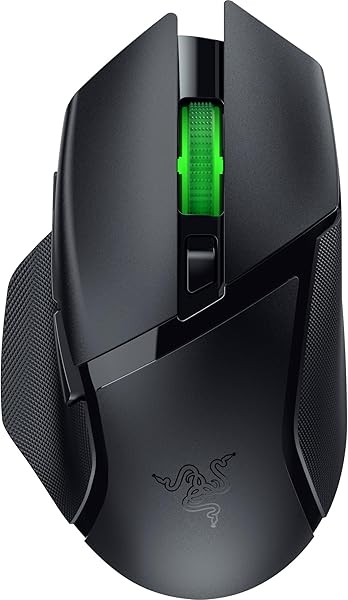
Gamers and power users who dislike small, flat symmetrical mice often crave a sculpted right-handed frame that supports the thumb and ring finger during marathon sessions. The Razer Basilisk V3 X HyperSpeed blends Razer's celebrated ergonomic thumb-rest silhouette with nine programmable controls, dual wireless radios, and a massive battery life rating—making it equally adept at FPS and RPG gaming by night and macro-heavy work by day.
We may earn a commission when you buy through this link, at no additional cost to you.
At the heart of the mouse sits the Razer 5G Advanced 18,000 DPI optical sensor paired with a 1000 Hz polling rate and 100 percent PTFE glide feet. Whether you are tracking fast-moving targets or navigating multi-monitor workstations, cursor response is crisp and free of spinouts. Its nine physical controls—including a dedicated lower thumb trigger button—can be assigned custom macros, media commands, or app shortcuts inside Razer Synapse, and enabling Razer Hypershift lets you hold a modifier button to unlock a full secondary layer of commands.
Dual wireless connectivity makes switching between a gaming desktop and a work laptop effortless. You can use the low-latency 2.4 GHz Razer HyperSpeed Wireless USB dongle for up to 285 hours of competitive gaming, then flip the bottom switch to Bluetooth to work on a laptop for up to 535 hours on the single included AA battery. Gold-plated Gen-2 mechanical switches are rated for a 60-million-click lifespan, and a customizable Razer Chroma RGB scroll-wheel zone adds subtle 16.8-million-color flair.
Positioned right at the tip of your rested thumb, the secondary trigger button defaults to a hold-to-lower-DPI sniper clutch in shooters, enabling rock-steady aim when held down. In desktop profiles, mapping that same trigger to Razer Hypershift turns the scroll wheel and top buttons into instant zoom, volume, and tab-switching controls.
Because the Basilisk V3 X HyperSpeed focuses on tactile gaming precision, its mechanical switches have an audible click and its scroll wheel does not feature an electromagnetic free-spin mode like the MX Master 4. If you want an ergonomic right-handed shell with both Bluetooth and 1000 Hz gaming wireless plus deep button customization under fifty dollars, this is a powerhouse choice.
Shared silent offices where crisp mechanical switch clicks or RGB lighting would be distracting.
We may earn a commission when you buy through this link, at no additional cost to you.
Earning our Editor's Choice award as the best overall wireless mouse for everyday productivity, the Logitech M720 Triathalon delivers nearly all the multi-computer workflow muscle of a hundred-dollar flagship for less than half the price. Designed for users who juggle a work laptop, a personal desktop, and an iPad or tablet on the same desk, it features a dedicated Easy-Switch button right beneath the thumb with illuminated 1, 2, and 3 LED indicators. One tap switches cursor control across up to three paired hosts via either Bluetooth or the included Logitech Unifying USB receiver.
We may earn a commission when you buy through this link, at no additional cost to you.
Its productivity arsenal goes far beyond basic clicking. Right behind the scroll wheel sits a mechanical mode-shift button that lets you toggle on demand between click-to-click ratcheted precision and frictionless hyper-fast scrolling—allowing you to zip through thousand-row spreadsheets or long legal documents with a single spin and stop instantly with a finger tap. Even better, the M720 supports Logitech FLOW software, which lets you glide your cursor seamlessly off the edge of a Windows screen right onto a MacBook screen and even copy-paste text and files between separate computers.
Ergonomics and durability are built for long-haul endurance. The full-sized right-handed body is wrapped in a soft-touch rubberized exterior that resists slipping and supports a comfortable palm or claw grip. Along the left side sit two thumb back/forward buttons, the Easy-Switch button, and a hidden lower thumb-rest gesture button that enables six customizable shortcut inputs. Despite powering multi-host radios, a single AA battery keeps the M720 running for up to 24 months.
Many new M720 owners overlook the sixth button concealed inside the flared rubber thumb apron at the base of the mouse. Pressing down with the side of your thumb and moving the mouse up, down, left, or right can trigger four separate directional gestures—such as Mission Control, desktop switching, or media play/pause.
The only features separating the M720 Triathalon from newer Signature or MX models are its traditional audible click switches and its Unifying USB-A receiver rather than a USB-C dongle. For anyone who wants physical free-spin wheel toggling, three-device Bluetooth/USB switching, and six programmable buttons at a midrange price, the M720 Triathalon is an unmatched value leader.
Users who require near-silent clicking switches or a symmetrical left-handed frame.
We may earn a commission when you buy through this link, at no additional cost to you.
If you love the whisper-quiet clicks, large-hand contour, and automatic SmartWheel of the Signature M550 L but refuse to give up thumb side buttons, the Logitech Signature M650 L is the exact model to buy. Built on the same comfortable Large (L) full-size frame with a soft thumb cradle and textured rubber side grips, the M650 L adds two customizable thumb buttons positioned naturally above the thumb rest for effortless navigation.
We may earn a commission when you buy through this link, at no additional cost to you.
Through the clean Logi Options+ software on Windows and macOS, you can assign those two side buttons to standard browser back/forward actions or remap them to high-frequency productivity shortcuts like copy and paste, undo/redo, or microphone mute on video calls. Meanwhile, the top SmartWheel senses your finger momentum automatically—giving you notched line-by-line control when editing documents and shifting smoothly into high-speed free scrolling when skimming long web pages.
Everyday office refinement is outstanding across the board. SilentTouch technology trims over 90 percent of click noise on both the primary buttons, so you can work rapidly on open office floors or during client Zoom meetings without audible clicking. Dual wireless support gives you the choice between direct Bluetooth Low Energy and the included enterprise-grade Logi Bolt USB-A receiver across Windows, macOS, Linux, ChromeOS (Works with Chromebook certified), iPadOS, and Android, all powered for up to 24 months by one included AA battery.
Although the Signature M650 L does not have a physical second thumb wheel like the MX Master 4, holding down one of the side thumb buttons while spinning the SmartWheel can be configured in Logi Options+ to trigger smooth horizontal scrolling across wide spreadsheets and timelines.
Compared to the identically priced M720 Triathalon, the Signature M650 L trades three-device Easy-Switch pairing and a manual scroll-mode button for 90 percent quieter clicks, an automatic SmartWheel, and upgraded Logi Bolt security. For single-computer or laptop users with larger hands who want quiet, modern ergonomics with customizable side buttons, the Signature M650 L is a top-tier everyday mouse.
Users who frequently switch between three computers on the fly with a dedicated 1-2-3 host toggle button.
We may earn a commission when you buy through this link, at no additional cost to you.
A wireless mouse touches almost every minute of your computing day, yet subtle differences in shell length, wireless radio type, scroll wheel mechanics, and switch acoustics drastically change how a mouse feels in practice. Use the six decision factors below to narrow down the right hardware for your hand size and workflow.
Wireless mice communicate with your computer using one of two technologies: a dedicated 2.4 GHz USB receiver (dongle) or direct Bluetooth radio. Dedicated 2.4 GHz receivers—such as Logitech’s Unifying receiver, Logi Bolt receiver, LIGHTSPEED dongle, Razer HyperSpeed dongle, or the MX Master 4’s USB-C dongle—create a direct, point-to-point radio link between the mouse and the USB plug. This delivers an instant plug-and-play connection that works even inside computer BIOS screens before the operating system loads, avoids Bluetooth wake-up delay after sleep, and supports high 1000 Hz gaming report rates on models like the Logitech G305 and Razer Basilisk V3 X HyperSpeed.
Bluetooth Low Energy (BLE), by contrast, connects directly to the internal Bluetooth antenna already built into your laptop, tablet, iPad, or desktop PC without occupying a physical USB port. That makes Bluetooth essential for thin ultrabooks and tablets that lack spare USB-A ports or when you want to avoid carrying a tiny dongle that could get lost in a backpack. Dual-mode mice—including the Signature M550 L, Signature M650 L, M720 Triathalon, TECKNET Rechargeable, Razer Basilisk V3 X, and MX Master 4—give you both Bluetooth and a 2.4 GHz receiver in the same chassis.
If your computer only has USB-C ports or you plan to pair your mouse with a tablet or multiple laptops, choose a mouse with built-in Bluetooth (or the MX Master 4’s native USB-C dongle). If you game competitively or use a desktop PC without Bluetooth, prioritize a dedicated 2.4 GHz USB receiver.
Buying a mouse that does not match your hand length or grip posture is the leading cause of hand cramping and wrist fatigue. Most people hold a mouse using one of three natural postures: a palm grip (laying the entire palm and fingers flat along the shell), a claw grip (resting the base of the palm on the rear arch while arching the fingers over the buttons), or a fingertip grip (steering the mouse purely with the fingertips while the palm hovers above the desk). Full-size sculpted mice like the MX Master 4, Razer Basilisk V3 X, M720 Triathalon, Signature M650 L, and Signature M550 L provide a tall rear hump and extended body length that support palm and relaxed claw grips for medium-to-large hands.
Compact mice—such as the Logitech M185, Logitech G305, and TECKNET Wireless Mouse—feature shorter shells and lower profiles designed for small-to-medium hands, fingertip grips, or travel bags where space is tight. You should also check handedness: symmetrical ambidextrous shells like the M185 and G305 accommodate left-handed users cleanly (though left-side thumb buttons favor right thumbs), whereas right-handed contoured shells with flared thumb wings like the MX Master 4, M330 Silent Plus, M720, and Basilisk V3 X can only be used in the right hand.
Measure your hand from the tip of your middle finger to the first crease of your wrist: if it exceeds 7.5 inches (19 cm) and you prefer a relaxed palm grip, choose a Large (L) or full-size contoured mouse. For smaller hands, left-handed use, or fingertip travel control, pick a compact or symmetrical shell.
Not all scroll wheels operate the same way, and the internal clutch mechanism makes a massive difference when navigating long documents or spreadsheets. Basic wireless mice like the Logitech M185, M330 Silent Plus, G305, and Razer Basilisk V3 X use a traditional ratcheted (notched) wheel that clicks line by line. Ratcheted scrolling provides reliable tactile feedback for weapon switching in games or stepping down a web page, but spinning through a 500-row table requires repetitive finger flicks.
Productivity-focused mice upgrade the wheel with dual-mode clutches and horizontal panning. Logitech’s SmartWheel (found on the Signature M550 L and M650 L) automatically transitions from line-by-line notches to a free-wheeling spin whenever you flick your finger fast. The M720 Triathalon uses a physical top toggle button so you can lock the wheel into permanent hyper-fast free spin or ratcheted mode at will. At the flagship level, the MX Master 4 uses an electromagnetic MagSpeed wheel capable of scrolling 1,000 lines per second alongside a dedicated horizontal thumb wheel, while the M510 features a tilt wheel that rocks left and right for horizontal scrolling.
If your daily work involves long PDFs, codebases, or wide spreadsheets, invest in a mouse with a SmartWheel, hyper-fast dual-mode wheel, tilt wheel, or dedicated thumb wheel rather than a standard single-speed ratcheted wheel.
Two core specifications govern how accurately and quickly a wireless mouse translates hand movement into on-screen cursor motion: DPI (Dots Per Inch) and polling rate (measured in Hertz or milliseconds). DPI dictates cursor sensitivity—how many pixels the cursor travels across your display for every physical inch you move the mouse on your desk. While 1,000 DPI is plenty for a standard 1080p laptop screen, moving up to dual 27-inch monitors or a high-resolution 4K display makes higher, adjustable DPI settings far more comfortable because you can cross the entire workspace with a subtle wrist movement.
Polling rate measures how frequently the mouse reports its position to the computer each second. Standard office mice poll at 125 Hz (once every 8 milliseconds) to conserve battery life, which is smooth enough for spreadsheets and web browsing. However, fast-paced gaming and high-refresh-rate 144 Hz or 240 Hz monitors reveal noticeable micro-stutter at 125 Hz. Dedicated wireless gaming mice like the Logitech G305 LIGHTSPEED (12,000 DPI) and Razer Basilisk V3 X HyperSpeed (18,000 DPI) run at a full 1000 Hz (1 ms) polling rate over their 2.4 GHz dongles, matching wired gaming responsiveness, while the budget TECKNET mouse offers six DPI stages up to 4,800 DPI for high-res office monitors.
For everyday office tasks on a single screen, standard optical tracking works without adjustment. If you use high-resolution multi-monitor setups or play PC games, choose a mouse with an on-body DPI switch and—for gaming—a true 1000 Hz (1 ms) 2.4 GHz wireless mode.
Wireless mice split into two power philosophies: replaceable AA batteries and built-in rechargeable lithium batteries. Modern low-power optical sensors have made AA battery life remarkably long. Models like the Logitech M510, Signature M550 L, Signature M650 L, and M720 Triathalon run for up to 24 months on a single AA battery, while the M330 Silent Plus lasts 18 months and the M185 runs for 12 months. Even high-speed gaming models like the G305 and Razer Basilisk V3 X deliver 250 to 535 hours of active runtime per AA cell, allowing you to swap in a fresh battery in ten seconds with zero cable downtime.
Rechargeable mice—such as the TECKNET Wireless Mouse and the flagship Logitech MX Master 4—eliminate disposable batteries altogether. When charge runs low, you simply plug a charging cable into your computer or USB wall adapter for an hour or two and continue working for months. The main trade-off with built-in batteries is remembering to keep a charging cable accessible and accounting for gradual battery degradation after several years of charge cycles.
If you want set-and-forget convenience for up to two full years and instant 10-second battery swaps, an AA-powered mouse is hard to beat. If you prefer never buying disposable batteries and already keep a USB charging cable on your desk, choose a rechargeable model.
Finally, consider your acoustic environment and how many devices sit on your desk. Traditional microswitches produce a sharp, audible click that provides crisp tactile feedback for gaming (as heard on the G305, Basilisk V3 X, M510, M185, and M720) but can annoy coworkers in quiet offices or family members late at night. Quiet-switch models—including the Logitech M330 Silent Plus, Signature M550 L, Signature M650 L, MX Master 4, and TECKNET Silent—dampen over 90 percent of click noise without sacrificing click accuracy.
At the same time, look at button programmability and multi-host switching. If you switch back and forth between a work PC and a personal Mac or tablet, mice with multi-device switches—like the 2-device TECKNET or the 3-device Logitech M720 Triathalon with Logitech FLOW—eliminate the need to keep two separate mice on your desk. Adding companion software such as Logi Options+, Logitech G HUB, or Razer Synapse lets you remap thumb buttons, gesture controls, or the MX Master 4’s Haptic Sense Panel and Actions Ring to automate repetitive daily clicks.
Prioritize SilentTouch or quiet-switch mice if you work in shared spaces, libraries, or on frequent video calls. If you control two or three computers at once, choose a multi-device mouse with a dedicated host-switch button.
Getting the best wireless stability starts with smart receiver placement and pairing hygiene. When using a 2.4 GHz USB nano receiver (Unifying, Logi Bolt, LIGHTSPEED, or HyperSpeed), plug the dongle into a port with a clear line of sight to your mousepad rather than burying it on the rear motherboard panel of a metal desktop tower behind thick cables. Metal cases and unshielded USB 3.0 hard drive hubs can emit 2.4 GHz radio interference that causes cursor stutter; moving the receiver to a front panel port or using a short USB extension cable keeps the wireless signal rock-solid. When traveling with a laptop, either leave low-profile nano receivers plugged in or tuck them into the dedicated storage slot inside the mouse’s battery compartment.
Tailoring pointer settings and button shortcuts to your workflow reduces hand movement and wrist strain. Keep your operating system pointer speed near the default midpoint with cursor acceleration (Enhance Pointer Precision in Windows) turned off if you want consistent muscle memory, then use the mouse’s hardware DPI switch or companion software (Logi Options+, G HUB, or Razer Synapse) to set your preferred speed. Take five minutes to assign side thumb buttons or gesture buttons to the actions you repeat dozens of times an hour—such as copy/paste, tab switching, window snapping, or video-call mute—and position your keyboard and mousepad at elbow height so your wrist stays straight rather than bent upward.
Simple periodic maintenance keeps optical tracking smooth and extends hardware longevity for years. Every month or two, flip the mouse off and gently blow out any dust lint or pet hair trapped inside the bottom optical sensor lens recess using dry compressed air—never poke cotton swabs soaked in harsh solvents directly onto the sensor glass. Wipe down rubberized thumb grips and PTFE glide feet with a lightly dampened microfiber cloth to remove skin oils and desk grit that increase sliding friction. For AA-powered mice that will sit unused in storage for several months, remove the alkaline battery to prevent potential cell leakage.
Each connection type excels in different scenarios. A 2.4 GHz USB receiver offers lower latency, instant plug-and-play pairing without OS menus, and zero wake-up lag after your computer sleeps, making it superior for gaming and desktop PCs. Bluetooth is better when you want to connect directly to a laptop, tablet, or iPad without using up a physical USB port or carrying an external dongle.
Both allow you to connect multiple compatible Logitech wireless mice and keyboards to a single USB-A port, but they use different wireless protocols and are not cross-compatible. Logi Bolt is Logitech's newer enterprise-grade standard based on Bluetooth Low Energy security Mode 1 Level 4, offering stronger encryption and more reliable performance in congested wireless office buildings. Older models like the M510 and M720 Triathalon use the Unifying receiver, while newer models like the Signature M550 L and M650 L use Logi Bolt.
Hand size and how you rest your palm determine the right shell size. If your hand measures more than 7.5 inches from wrist crease to middle fingertip—or if you like resting your entire palm across the back of the mouse—a full-size or Large model like the Signature M650 L, M550 L, M720, or MX Master 4 prevents finger overhang and hand cramping. If you have smaller hands, steer with your fingertips, or pack your mouse in a slim laptop sleeve, a compact model like the M185, G305, or TECKNET fits best.
Absolutely. Wireless gaming mice feature higher-precision optical sensors, faster 1000 Hz report rates, and smoother PTFE glide feet than standard office mice, making cursor movement on large high-resolution monitors feel extraordinarily crisp and responsive. The only trade-offs for office use are that gaming mice have audible mechanical clicks and use standard notched scroll wheels rather than free-spinning spreadsheet wheels.
Logitech FLOW is a software feature inside Logitech Options/Options+ that links up to three computers connected to the same local Wi-Fi or Ethernet network. Once enabled, you can move the M720 Triathalon's cursor right off the edge of one computer's monitor and have it appear immediately on the adjacent computer—even between Windows and macOS—while allowing you to copy and paste text, images, and files across machines.
Well-engineered quiet mice—such as models equipped with Logitech SilentTouch switches or TECKNET's silent buttons—preserve a distinct tactile actuation bump while eliminating the sharp acoustic snap at the bottom of the stroke. They cut click noise by up to 90 percent so your fingers still feel every click clearly without projecting sound across a room.
Both mice share the exact same large-sized contoured shell, SilentTouch quiet switches, SmartWheel dual-speed scrolling, 24-month AA battery life, and Bluetooth/Logi Bolt connectivity. The key difference is that the Signature M650 L adds two customizable thumb side buttons on the left flank, whereas the Signature M550 L features a smooth, button-free thumb rest at a slightly lower price.
Intermittent cursor stutter on a 2.4 GHz mouse is most commonly caused by plugging the USB receiver into a rear desktop port right next to an active USB 3.0 port or metal shielding, or by a low battery cell. Moving the receiver to a port closer to the mouse, recharging or replacing the battery, and blowing dust out of the bottom optical sensor lens almost always restores smooth tracking.
Yes, but you should match the connection method to your device's ports. For MacBooks, iPads, and modern Chromebooks that only have USB-C ports, choose a Bluetooth-capable mouse (such as the M720 Triathalon, Signature M650 L, Signature M550 L, TECKNET, or Razer Basilisk V3 X) or the Logitech MX Master 4, which includes a native USB-C wireless dongle.
Upgrading to the right wireless mouse improves comfort, cursor accuracy, and desktop organization every single day. For the vast majority of office and home users, the Logitech M720 Triathalon earns our Editor's Choice award as the smartest all-around buy. By combining three-device Bluetooth and Unifying switching, Logitech FLOW cross-computer control, a dual-mode hyper-fast scroll wheel, six programmable inputs, and a 24-month AA battery life in a comfortable rubberized shell, it outperforms mice costing twice as much.
Depending on your specific workflow and budget, several specialized alternatives shine. Creative pros and power users who want the pinnacle of ergonomics, dual scroll wheels, tactile Haptic Sense feedback, an on-screen Actions Ring, and a native USB-C dongle should invest in our Premium Pick, the Logitech MX Master 4. Gamers and precision enthusiasts will love the 1 ms wireless response and 12,000 DPI HERO sensor of the Logitech G305 LIGHTSPEED or the nine-button ergonomic Razer Basilisk V3 X HyperSpeed, while shared-office workers with larger hands should grab the whisper-quiet Logitech Signature M650 L.
Before clicking buy, check whether your computer has open USB-A ports, USB-C ports, or Bluetooth, and consider whether you prefer silent clicks, side thumb buttons, or a compact travel shell. Matching those practical details to the ten proven options above guarantees a responsive, comfortable fit for years to come.