Corsair Vengeance LPX
9.6Editor score32GB DDR4 kit
3200MHz rated speed
CL16 tested timings
34mm low-profile heatspreader
Find the right ram kits for 2026. We compare 10 standout options by build quality, useful features, owner feedback, value, and everyday trade-offs.
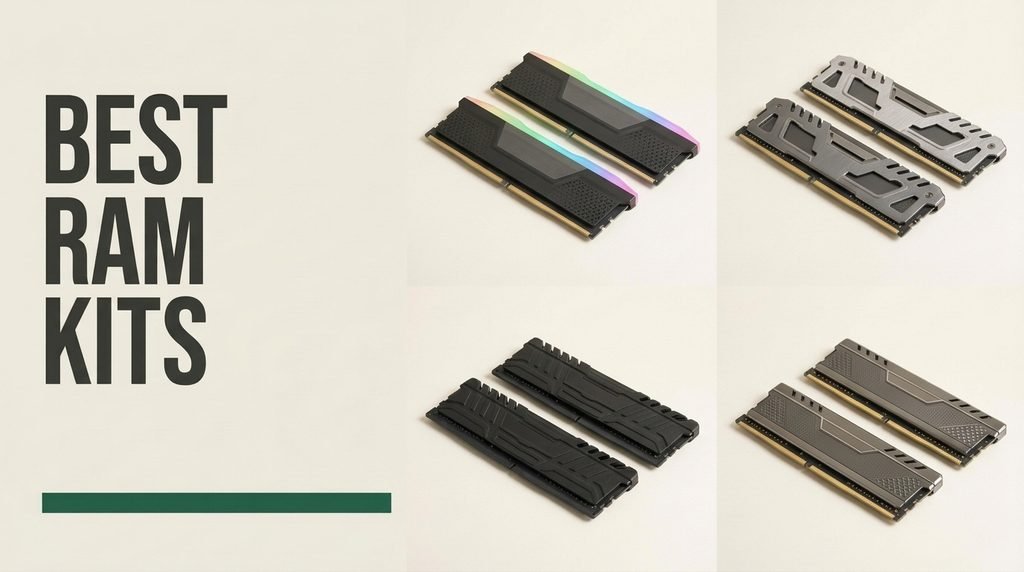
Find the right RAM kits for 2026. We compare 10 standout options by the factors that matter most here: DDR generation, module capacity, rated speed, CAS latency, form factor, platform compatibility, and value per gigabyte, whether you are upgrading a slim laptop, a gaming desktop, or an aging notebook.
Memory is not one-size-fits-all. DDR3, DDR4, and DDR5 modules are physically and electrically incompatible, and laptops use smaller SODIMM sticks while desktops need full-size DIMMs. Matching your motherboard’s exact requirements matters more than chasing the highest clock speed, since an incompatible kit simply will not boot.
This guide walks through each kit’s strengths and trade-offs, from budget-friendly DDR3 refreshes to 128GB workstation behemoths. Along the way, we explain what speeds, timings, and capacities actually mean for everyday performance, so you can spend on memory that fits your machine rather than overspending on specs you will never use.
We compared 10 RAM kits using the details that actually drive a smart purchase: DDR generation and platform compatibility, total capacity and module density, rated speed, CAS latency, form factor, XMP and EXPO profile support, voltage, heat management, warranty coverage, owner feedback, and price per gigabyte. The notes emphasize practical trade-offs, like paying extra for 6000MHz headroom you may never enable, so each pick connects to real upgrades rather than spec-sheet chasing.


Compare key features, scores, and current prices side by side. A shorter feature list means fewer details were available, not necessarily fewer capabilities.


Laptop owners frustrated by sluggish tab switching and stuttering video calls often discover that memory, not the processor, is the real bottleneck. This Crucial 32GB DDR5 SODIMM kit targets notebooks built on 12th Gen Intel Core and AMD Ryzen 7000 series platforms, replacing cramped 8GB or 16GB configurations with genuine multitasking headroom for years of heavier use.
We may earn a commission when you buy through this link, at no additional cost to you.
The kit runs at 5600MHz and steps down automatically to 5200MHz or 4800MHz in systems that cap at those speeds, which removes much of the compatibility guesswork that discourages memory upgrades. Both Intel XMP 3.0 and AMD EXPO are supported on the same modules, so the kit works regardless of which processor powers your machine. Each stick is a non-ECC, 262-pin module operating at a modest 1.1 volts.
Installation is among the simpler laptop services. After powering down and disconnecting the battery where possible, the modules seat at a shallow angle and lock flat into their slots. Crucial’s compatibility scanner and upgrade selector tools take the risk out of ordering, and the company’s decades of memory manufacturing mean the modules arrive as proven as laptop memory gets.
Before purchasing, run a memory compatibility tool or check your laptop’s service documentation to confirm it uses 262-pin DDR5 SODIMMs rather than soldered memory, and verify the maximum capacity the firmware recognizes per slot. Five minutes of checking prevents the most common upgrade disappointment: perfectly good modules that simply cannot be installed.
The honest trade-off is cost: 32GB of DDR5 in SODIMM form commands a premium per gigabyte over equivalent desktop memory, and this kit cannot be used in a tower PC at all. If you own a compatible DDR5 notebook you plan to keep for several more years, though, few upgrades deliver a more noticeable day-to-day improvement.
Desktop builders who need 288-pin UDIMM modules rather than laptop SODIMMs.
We may earn a commission when you buy through this link, at no additional cost to you.
Few kits have anchored as many DDR4 desktop builds as the Corsair Vengeance LPX. This 2x16GB set runs at 3200MHz with CL16 timings, which sits at the practical performance ceiling for most AM4 Ryzen and Intel DDR4 platforms, making it a sensible capstone for a mature system rather than a compromise.
We may earn a commission when you buy through this link, at no additional cost to you.
The headline specification is 3200MHz at CL16-20-20-38 on 1.35 volts, enabled through a single XMP or EXPO profile in the BIOS. Corsair hand-sorts the memory chips, which generally translates to stable operation at rated speed along with some tuning headroom for owners who like to experiment. Dual profile support means the kit also survives a future platform swap within the DDR4 generation.
The design detail that matters most in real builds is the low 34mm height. Large tower air coolers frequently overhang the first memory slot, and taller RGB modules can physically collide with fans. The LPX’s compact aluminum heatspreader clears those obstructions while still pulling heat away from the chips during sustained workloads.
If your build uses a large dual-tower cooler, check the cooler’s memory clearance specifications before choosing modules. Low-profile kits like this one, at just 34mm tall, fit where taller modules with fins and light bars would clash with fan shrouds or the case side panel.
The limitation is generational rather than qualitative: current motherboards have dropped DDR4 slots entirely, so this kit cannot follow you into a next-generation build. For anyone upgrading or completing a DDR4 system, it remains the value benchmark; shoppers planning a fresh DDR5 platform should look elsewhere in this guide.
Builders moving to DDR5-only motherboards that cannot accept DDR4 modules.
We may earn a commission when you buy through this link, at no additional cost to you.
Some workloads simply outgrow conventional memory capacities. Video editors working with high-resolution footage, engineers running simulations, developers hosting multiple virtual machines, and analysts processing large datasets all consume RAM faster than typical kits supply it. Crucial's 128GB DDR5 kit exists for exactly those users, packing two 64GB modules for desktop platforms.
We may earn a commission when you buy through this link, at no additional cost to you.
The kit operates at 5600MHz out of the box and downclocks gracefully to 5200MHz or 4800MHz where a motherboard requires it. Compatibility targets the newest desktop platforms, including Intel Core Ultra Series 2 and 14th Gen processors alongside AMD Ryzen 9000 series chips and newer, with XMP 3.0 and EXPO both supported on a single module. As UDIMMs, the sticks fit standard 288-pin desktop slots.
The two-module configuration is quietly important. On a four-slot motherboard, using two 64GB sticks leaves two slots open, preserving a path to even higher capacity later without discarding the initial investment. Micron’s position as one of the few companies that actually manufactures memory chips adds a layer of engineering assurance that reseller brands cannot match.
Populating only two slots keeps memory signals cleaner, often allows slightly higher stable speeds, and leaves room to grow. A pair of 64GB modules reaches 128GB today while holding two slots in reserve for a future capacity increase on supporting boards.
There is no disguising the cost: this is by far the most expensive kit in the lineup, and the price per gigabyte towers over 32GB alternatives. For gaming, browsing, and office work it is enormous overkill. Buyers whose software genuinely saturates memory, however, will find the productivity math works out quickly.
Gamers and general users whose workloads rarely approach 32GB of usage.
We may earn a commission when you buy through this link, at no additional cost to you.
Corsair's Vengeance DDR5 kit is built for people who treat memory settings as a starting point rather than a finish line. The 2x16GB set carries a 6000MHz rating and the supporting hardware to pursue it, positioning it as a tuner's kit rather than a set-and-forget purchase.
We may earn a commission when you buy through this link, at no additional cost to you.
The defining feature is onboard voltage regulation. Instead of relying entirely on motherboard control, the modules manage power delivery themselves, with Corsair exposing the adjustment through its iCUE software for finer and more stable tuning than previous-generation control allowed. Dual memory profiles cover both AMD EXPO and Intel XMP 3.0, and the chips are tightly screened for extended overclocking potential.
Realistic expectations matter here. Reaching the full 6000MHz requires enabling the appropriate profile in the BIOS, and the actual stable ceiling depends on the memory controller inside your specific CPU along with motherboard quality. Buyers comfortable with those variables will appreciate the headroom; the process involves a few BIOS entries for most systems, but it is not automatic.
Fine voltage control is often the difference between a marginal overclock that crashes under load and one that runs stable for months. Moving regulation onto the module gives tuners smaller adjustment steps and more consistent behavior than board-level control alone.
If you never intend to open the BIOS, a meaningful portion of what you are paying for goes unused, and standard-speed alternatives deliver identical everyday performance for less. For enthusiasts who enjoy the tuning process or want headroom for a future platform, this kit provides a capable canvas.
Buyers who want rated speeds without any BIOS configuration.
We may earn a commission when you buy through this link, at no additional cost to you.
A large population of capable laptops shipped with 8GB or 16GB of DDR4 and room to grow. This Crucial 32GB DDR4 SODIMM kit is the straightforward remedy, designed for machines based on 13th Gen Intel Core processors and AMD Ryzen 7000 series mobile chips that accept 260-pin modules.
We may earn a commission when you buy through this link, at no additional cost to you.
The kit runs at 3200MHz and downclocks to 2933MHz or 2666MHz where a system’s memory controller requires it, so compatibility stretches broadly across the DDR4 laptop generation. Timings are a conservative CL22, and each stick operates at 1.2 volts as a non-ECC module. As a matched 2x16GB pair, it also enables dual channel operation, which meaningfully helps integrated graphics performance in laptops without a discrete GPU.
Physically, the upgrade follows the standard SODIMM procedure: remove the bottom panel, disconnect the battery where the design allows, and seat the modules until the retaining clips lock. One caution applies before ordering: some laptops combine soldered memory with a single upgrade slot, so verify how many slots exist and what is already populated.
Two identical modules running in dual channel mode roughly double the memory bandwidth available to the processor. In laptops relying on integrated graphics, that extra bandwidth frequently shows up directly in gaming smoothness and video playback quality.
DDR4 cannot match DDR5 bandwidth, and CL22 timings leave some performance on the table, but neither point matters much in a machine whose alternative is running out of memory mid-task. For extending a good DDR4 laptop by several years, the value case is excellent.
Owners of newer DDR5 laptops that require 262-pin modules.
We may earn a commission when you buy through this link, at no additional cost to you.
Not every desktop needs cutting-edge speed. Office machines, family PCs, and older workstations on DDR4 platforms often max out at 2666MHz, and paying for faster memory they cannot exploit is wasted money. Timetec's 32GB kit targets exactly those systems with a no-nonsense, standard-speed configuration.
We may earn a commission when you buy through this link, at no additional cost to you.
The kit provides 2x16GB of DDR4 at 2666MHz with CL19 timings on 1.2 volts, built as dual rank 2Rx8 modules on black PCBs. Because these are JEDEC-standard speeds, there is no profile to enable and nothing to configure: the memory runs at its rated specification automatically on any compatible 288-pin desktop board.
Timetec backs the kit with a limited lifetime warranty and US-based technical support, meaningful reassurances for a budget purchase. Installation is genuinely plug-and-play: release the slot clips, align the notch, and press until the latches close. The desktop UDIMM form factor is not compatible with laptop SODIMM slots, a distinction worth double-checking before ordering.
Many prebuilt desktops lock memory speed in firmware regardless of what the modules could achieve. Check your system’s supported memory speed in its documentation before buying a faster kit; if it lists 2666MHz, standard-speed modules deliver identical real-world performance to pricier 3200MHz sticks.
The trade-offs are straightforward. Systems that do support 3200MHz will leave performance unused, and there is no heatspreader or lighting to speak of. But when the goal is simply doubling capacity in a machine whose firmware tops out at 2666MHz, this kit does precisely the job required at an agreeable price.
Laptop owners who need SODIMM memory rather than desktop UDIMMs.
We may earn a commission when you buy through this link, at no additional cost to you.
Some builds are meant to be looked at. Corsair's Vengeance RGB RS kit pairs 64GB of DDR5 capacity with individually addressable lighting behind a panoramic diffuser, aiming squarely at glass-panel systems where the memory needs to perform and pose at the same time.
We may earn a commission when you buy through this link, at no additional cost to you.
The 2x32GB configuration carries a 6000MHz rating with support for both AMD EXPO and Intel XMP 3.0 profiles. Onboard voltage regulation helps keep power delivery stable at high frequencies, which matters more as capacity and speed climb together. Sixty-four gigabytes comfortably covers content creation workloads, heavy streaming setups, and development environments alongside demanding games.
The lighting is the differentiator: each module’s LEDs are individually addressable, allowing layered effects that can synchronize with the rest of a coordinated build. The understated diffuser spreads illumination evenly rather than producing the harsh hotspots common to cheaper memory, so the effect reads premium rather than gaudy.
Addressable memory lighting works best when planned alongside fans and other illuminated components rather than added as an afterthought. Matching diffuser styles and effect patterns across the build produces a cohesive look, while mixing brands and designs tends to read as visual clutter.
The costs are twofold. Illuminated memory carries a price premium over equivalent non-RGB kits, and the 6000MHz rating requires the usual BIOS profile enabling, with final speeds depending on your processor and motherboard. Buyers assembling a showcase system will consider both fair; purely functional builders should look elsewhere in this lineup.
Value-focused builders who consider illuminated memory an unnecessary expense.
We may earn a commission when you buy through this link, at no additional cost to you.
DDR5 no longer requires a big budget to enter, and Patriot's Viper Venom kit is the proof. Sixteen gigabytes configured as a 2x8GB pair with a 6000MT/s speed profile makes this the most affordable path into current-generation memory among these kits.
We may earn a commission when you buy through this link, at no additional cost to you.
The tested profile sits at PC5-48000, which corresponds to 6000MT/s, with timings of 36-46-46-110. Both XMP 3.0 and EXPO are supported, so the kit suits either platform camp, and DDR5’s on-die ECC helps maintain data integrity at high operating speeds. The dual-module layout preserves dual channel bandwidth, which matters for both processors and integrated graphics.
Sixteen gigabytes remains serviceable for general computing, web work, and most games, though it is the practical floor rather than a comfortable ceiling for heavy multitasking. A sensible strategy is starting here on a tight build budget, then planning a move to a 2x16GB set later as prices fall and workloads grow.
If you expect to outgrow 16GB, budget for a full replacement pair rather than adding two more modules later. Mixed kits often must run at the slowest common timings and voltage, and matched pairs consistently deliver better stability than assembled quartets.
The compromises are capacity and timings. CL36 is looser than what pricier DDR5 kits achieve, and 16GB will pinch in memory-hungry scenarios like video editing or running many applications simultaneously. As an entry point that does not sacrifice speed class, however, the kit makes a convincing case.
Heavy multitaskers and creators who need 32GB or more today.
We may earn a commission when you buy through this link, at no additional cost to you.
Corsair's Vengeance RS kit wraps a 32GB DDR5 configuration in the company's chip binning process, targeting gaming builds that want capacity and high-frequency operation in a single purchase.
We may earn a commission when you buy through this link, at no additional cost to you.
The 2x16GB set is rated up to 6000MHz with aggressive timing options available, supported on both AMD EXPO and Intel XMP 3.0. Hand-sorted, tightly-screened memory chips aim for consistent high-frequency behavior across both modules, and onboard voltage regulation aids stability when pushing frequencies. The 6000MHz class is widely regarded as the practical sweet spot on current platforms, balancing bandwidth against achievable stability.
In practical terms, 32GB covers modern AAA titles, background applications, browsers full of tabs, and voice chat without strain. Enabling the rated speed profile in the BIOS is the one required step; from there the kit behaves like any modern DDR5 set, with first-boot memory training taking a few minutes longer than older generations.
Screening memory chips and grouping the strongest performers into matched kits reduces the silicon lottery that makes high-frequency tuning frustrating. For buyers who push speeds or simply want maximum confidence in stability, binned modules reduce the odds of chasing errors for weeks.
The honest assessment includes two cautions: this is the most expensive 32GB DDR5 kit in the group, and its owner rating trails the rest of the lineup. The feature set is genuinely strong, but shoppers focused purely on value can reach the same capacity and speed class for less elsewhere in this guide.
Shoppers prioritizing the lowest price per gigabyte.
We may earn a commission when you buy through this link, at no additional cost to you.
There is a whole tier of laptops, mini PCs, and all-in-ones from the DDR3 era still doing useful work, and this Timetec 16GB kit is the least expensive meaningful upgrade in the entire lineup. For machines stuck at 4GB or 8GB, moving to 16GB can transform everyday usability.
We may earn a commission when you buy through this link, at no additional cost to you.
The kit provides 2x8GB of DDR3L at 1600MHz with CL11 timings in the 204-pin SODIMM laptop format. The dual-voltage design is the key compatibility feature: the modules run at 1.35 volts in DDR3L systems or at 1.5 volts in standard DDR3 slots, covering both variants of the generation without guesswork. Dual rank 2Rx8 construction rounds out the specification.
Installation follows the standard older-laptop procedure of removing the bottom panel and seating the modules flat until they click into place. The green PCB is strictly utilitarian, but Timetec includes a limited lifetime warranty and free US-based technical support, which is reassuring at any price and remarkable at this one.
DDR3L systems expect 1.35-volt modules, while standard DDR3 boards supply 1.5 volts. A dual-voltage module like this one operates safely in either environment, which widens the list of compatible machines considerably and removes the most common ordering mistake for older laptops.
The limitations are inherent to the platform: 1600MHz sits far behind modern memory bandwidth, DDR3 has no upgrade path forward, and no current motherboard accepts these modules. As a targeted investment that keeps a working older machine viable for documents, browsing, and streaming, however, the cost-to-benefit ratio is nearly unbeatable.
Owners of DDR4 or DDR5 systems that need newer memory modules.
We may earn a commission when you buy through this link, at no additional cost to you.
Memory is one of the most cost-effective upgrades in computing, but only when the kit matches your platform and workload. These factors separate a satisfying upgrade from an expensive mistake.
The first and least forgiving rule of buying RAM is that DDR3, DDR4, and DDR5 are mutually incompatible. The generations differ in pin count, notch position, voltage, and signaling, so a DDR5 stick physically cannot seat in a DDR4 board, and forcing the issue risks damaging both the module and the slot. Laptops add a second layer: they use compact SODIMM modules rather than the full-size DIMMs desktops accept, with DDR3 at 204 pins, DDR4 at 260 pins, and DDR5 at 262 pins. Desktop DDR4 and DDR5 both use 288-pin UDIMMs distinguished by notch placement.
Within the correct generation, the next check is what your specific system supports. Many boards cap memory speed: a laptop that tops out at 2666MHz will run a 3200MHz kit at 2666MHz, while a DDR5 board limited to 4800MHz will downclock a 5600MHz kit accordingly. Capacity limits matter too, since firmware sometimes restricts how much memory per slot a machine recognizes. Memory manufacturer compatibility tools and your system’s documentation answer these questions in minutes.
Always confirm generation, form factor, and supported speeds before comparing anything else. No amount of attractive pricing compensates for a kit that cannot boot in your machine.
Capacity determines what your computer can hold in active memory at once, and different workloads have sharply different appetites. Sixteen gigabytes remains the practical floor for general computing, browsing, and most games. Thirty-two gigabytes is the mainstream sweet spot, comfortably covering modern titles, streaming, programming, and photo editing. Sixty-four gigabytes serves video editors and developers running virtual machines, while kits like the 128GB Crucial set exist for professional simulation, data analysis, and heavy multi-VM environments.
The critical discipline is honesty about usage, because unused memory provides no benefit whatsoever. A gaming rig that never exceeds 14GB of usage gains nothing from 64GB except a lighter wallet. Before upgrading, open your operating system’s resource monitor during your heaviest typical session: if memory usage regularly approaches its ceiling, capacity is the constraint and more will help noticeably; if it never passes half, your money is better spent elsewhere in the system.
Buy for your heaviest realistic workload plus modest headroom, not for a theoretical future that may never arrive. Two-module kits preserve expansion slots on four-slot boards, which is smarter than filling every slot immediately.
Memory speed, expressed in MHz or megatransfers per second, describes how quickly data moves through the modules. Higher speeds generally improve frame rates in games and responsiveness in bandwidth-hungry applications, though gains shrink quickly past a platform’s practical sweet spot. For current DDR5 platforms, 6000MT/s is widely considered the balance point between bandwidth and stability, which is why several kits in this guide cluster at that rating. Remember that rated speeds require enabling an XMP or EXPO profile in the BIOS; without that step, modules default to conservative standard speeds.
CAS latency, the CL number in a kit’s specification, counts the clock cycles needed to respond to a request, with lower being better. Comparing CL across generations misleads, because cycle times differ: DDR5’s CL36 involves shorter cycles than DDR4’s CL16, so the numbers are not directly comparable. For capacity-bound work like video editing or virtual machines, speed and latency matter relatively little; for competitive gaming and integrated graphics, they matter more.
Gamers should prioritize 6000-class kits with reasonable timings and spend any difference on the graphics card. Productivity users should generally choose capacity over speed when the budget forces a choice.
Form factor sounds technical but comes down to one distinction: desktops use long 288-pin DIMM modules, while laptops, mini PCs, and many all-in-ones use short SODIMM modules that come in 204-pin DDR3, 260-pin DDR4, and 262-pin DDR5 variants. The formats are physically incompatible in both directions, so the single most common RAM purchasing error is ordering desktop memory for a laptop or the reverse.
Form factor also shapes the extras. Desktop kits commonly include aluminum heatspreaders that pull heat away during sustained loads, and height becomes a real variable: low-profile designs around 34mm, like the Corsair LPX, clear the overhang of large tower coolers, while taller RGB modules sometimes collide with fans or case panels. SODIMMs skip heatspreaders entirely for space reasons, and laptop installation typically involves removing the bottom panel and disconnecting the battery first.
Check your system’s manual for module type, then measure cooler clearance if you are building a desktop with a large air cooler. Those two checks eliminate nearly every form-factor surprise.
XMP 3.0 and AMD EXPO are manufacturer-stored configuration profiles that tell the motherboard the exact speed, timings, and voltage a kit was validated for. Out of the box, memory runs at conservative JEDEC standard speeds; a 6000MHz kit installed without enabling its profile may boot at 4800MHz, which is the most common reason new builds report memory running slower than advertised. Enabling the profile is usually a single BIOS toggle followed by a reboot.
Kits carrying both profiles, like Corsair’s DDR5 lineup here, work optimally on either Intel or AMD platforms without choosing a platform-specific part. Two caveats deserve respect: actual achievable speed depends on your CPU’s memory controller and motherboard quality, so rated speeds are targets rather than guarantees, and the first boot after installation can take several minutes longer while the platform performs memory training. That pause is normal, not a fault.
If a BIOS toggle sounds intimidating, standard-speed kits that run at their rated specification automatically, like the JEDEC-based Timetec options, deliver rated performance with zero configuration.
Operating voltage has trended downward with each generation: DDR4 runs at 1.2 volts nominally with 1.35 volts common under performance profiles, DDR5 drops to 1.1 volts, and DDR3L’s dual-voltage design accepts 1.35 or 1.5 volts for compatibility across older systems. Lower voltage reduces heat output and power draw, which matters in slim laptops and compact builds. DDR5 adds on-die ECC, correcting errors at the module level to support stable operation at high speeds.
Reliability signals separate kits that merely specify well from those that will still be running years from now. Actual chip manufacturers like Micron test at both component and module levels, and companies like Corsair hand-sort and bin chips for consistent behavior. Warranty length is a useful proxy for manufacturer confidence: limited lifetime coverage, like Timetec’s, signals an expectation that the modules will outlive their relevance. For workstations where downtime is expensive, these signals justify a modest premium.
For critical systems, choose established manufacturers with strong warranties over unknown brands offering marginal spec advantages. Memory is a poor place to gamble.
Memory prices fluctuate with supply cycles, so evaluating cost per gigabyte at purchase time matters more than historical rules of thumb. High-density modules carry steep premiums: 64GB-per-stick DDR5 costs disproportionately more than the same total capacity in 32GB sticks, which is why the 128GB kit here commands such a premium over 32GB alternatives. At the other end, DDR3’s legacy status makes it genuinely inexpensive, which is exactly what makes old-laptop rescues so economical.
Value also depends on the recipient machine. A modest kit that extends a working laptop’s useful life by two years can represent better value per dollar than a flagship kit installed in a system that never needed it. Lighting premiums deserve particular scrutiny: RGB modules cost more than equivalent unlit kits and contribute nothing to performance, making them an aesthetic purchase rather than a technical one.
Compute the price per gigabyte for kits that pass your compatibility checks, then ask whether your workload justifies the step up. Savings are usually better directed toward storage or graphics than toward capacity you will never touch.
Begin any memory installation with the machine fully powered down and unplugged, then hold the power button for a few seconds to drain residual charge. Ground yourself by touching bare metal on the case or using an anti-static strap before handling modules, and always grip memory by its edges rather than the gold contacts. On desktops, release the slot’s retaining clips, align the module’s notch with the slot’s key, and press firmly at both ends until the latches snap closed. On laptops, remove the bottom panel, disconnect the battery where the design allows, seat SODIMMs at a shallow angle, and press them flat until the clips lock.
Expect the first boot after installation to take longer than usual, particularly with DDR5, as the platform runs its memory training routine; a several-minute pause with a dark screen is normal. Once booted, verify that the system recognizes the full capacity in your operating system’s system information panel, then enter the BIOS and enable the XMP or EXPO profile if your kit carries a speed rating. If instability appears after enabling a profile, reverting to default speeds and retesting will tell you whether the profile or something else is responsible. An overnight memory diagnostic pass provides additional confidence in a new kit.
Long-term care for RAM is minimal because the modules have no moving parts. Handle spare or removed sticks by the edges, keep them in anti-static pouches, and store them somewhere dry and flat. When expanding later, prefer adding a matching kit or replacing with a larger matched pair rather than mixing different modules, since mixed sets typically settle at the slowest common speed and timings. Beyond that, keeping your case’s dust filters clean and airflow unobstructed protects every component, memory included.
No. The two generations are physically and electrically incompatible, with different notch positions and pin designs, and every motherboard supports only one generation. A DDR5 kit simply will not fit in a DDR4 board, and attempting to force it risks damaging the slot. Determine your platform's generation first, then shop within it.
For browsing, office work, and most games, 16GB is the practical floor and 32GB is the comfortable standard. Content creators, programmers running virtual machines, and heavy multitaskers benefit from 64GB. Check your usage in your operating system's resource monitor during a heavy session: if memory regularly maxes out, more capacity will help; if it hovers around half, spend elsewhere.
Memory defaults to conservative JEDEC standard speeds until a performance profile is enabled. Enter the BIOS, locate the XMP or EXPO setting, enable the profile matching your kit's rating, then save and reboot. This single step is the most commonly missed configuration item in new builds and explains most slower-than-advertised reports.
No. Desktops use long DIMM modules while laptops use much shorter SODIMM modules, and the two formats are physically incompatible in both directions. Check whether your laptop takes DDR3, DDR4, or DDR5 SODIMMs before ordering, since the pin counts differ across generations as well.
On current DDR5 platforms, the 6000MT/s class is widely regarded as the sweet spot between bandwidth and stability, especially for gaming. Above that point gains diminish and costs rise sharply, while older platforms may not support those speeds at all. If your board and processor handle it comfortably, the class is a reasonable target rather than an extravagance.
It can work, but mixing kits carries real risks of instability and usually forces all modules to run at the slowest common speed and timings. When possible, buy the full capacity you want as a single matched kit. If you must mix, choose modules with identical speed, timings, and voltage ratings, and be prepared to test stability carefully.
CAS latency counts the clock cycles memory needs to respond to a request, so lower is better within the same speed and generation. Comparing CL across generations misleads, because a DDR5 cycle is shorter than a DDR4 cycle, making CL36 on DDR5 faster in real terms than it looks next to DDR4's CL16. Balance latency against speed rather than judging either number alone.
If the machine struggles with memory rather than processing power, a low-cost DDR3 or DDR4 SODIMM upgrade can meaningfully extend its usable life for browsing, documents, and streaming. Weigh the modest cost against the machine's age and other limitations; if the battery, storage, or display are also failing, replacement money may be better saved.
Heatspreaders help move heat away from the chips during sustained heavy loads and can matter in compact or hot-running builds, though typical desktop memory rarely thermal-throttles. RGB lighting is purely aesthetic and contributes nothing to speed or stability. Treat both as secondary considerations behind capacity, speed, and compatibility.
Across this lineup, the Crucial 32GB DDR5 SODIMM kit earns the top overall recommendation. Its combination of trusted Micron manufacturing, flexible operation at 5600, 5200, or 4800MHz, and support for both Intel XMP 3.0 and AMD EXPO makes it a dependable choice for the laptop upgraders who make up much of this market, and its strong owner rating reflects consistently satisfied buyers.
Different needs point to different picks. Desktop builders get the best value from the Corsair Vengeance LPX's proven 3200MHz CL16 formula, while workstation users with genuine capacity demands justify the Crucial 128GB kit. Corsair's 6000MHz DDR5 options serve overclockers and showcase builds, the Patriot Viper Venom offers an affordable DDR5 entry point, and the Timetec kits rescue older DDR4 desktops and DDR3-era laptops for very little money.
Whichever direction you lean, the sequence is the same: confirm your platform's memory generation and form factor, match capacity to your heaviest realistic workload, then choose speed and features with the leftover budget. Enable the XMP or EXPO profile after installation so the kit runs at its rated speed, and you will have extracted the full value of whichever kit you choose.